
การแนะนำ
ขอบคุณสำหรับการซื้อasing the KOORUI 15.6-inch FHD Portable Monitor E1511A. This monitor is designed to enhance your productivity and entertainment experience with its high-quality display and versatile connectivity. This manual provides essential information for safe and efficient use, including setup instructions, operational guidelines, maintenance tips, and troubleshooting solutions. Please read this manual thoroughly before using the product and retain it for future reference.
ข้อมูลด้านความปลอดภัย
เพื่อให้มั่นใจถึงความปลอดภัยในการใช้งานและป้องกันความเสียหาย โปรดปฏิบัติตามข้อควรระวังต่อไปนี้:
- อย่าให้จอภาพโดนฝน ความชื้น หรืออุณหภูมิที่สูงหรือต่ำเกินไป
- หลีกเลี่ยงการวางจอภาพใกล้แหล่งความร้อนหรือแสงแดดโดยตรง
- Use only the power adapter and cables provided or approved by KOORUI.
- อย่าพยายามถอดประกอบหรือซ่อมแซมจอภาพด้วยตนเอง แนะนำให้ส่งช่างผู้ชำนาญการเข้าไปรับบริการทั้งหมด
- เก็บจอภาพให้ห่างจากสนามแม่เหล็กแรงสูง
- Clean the screen with a soft, lint-free cloth. Avoid using abrasive cleaners or solvents.
เนื้อหาแพ็คเกจ
ตรวจสอบว่ามีรายการทั้งหมดอยู่ในแพ็คเกจ:
- KOORUI 15.6-inch Portable Monitor (E1511A)
- ฝาครอบป้องกัน / ขาตั้ง
- สาย HDMI
- USB-C to USB-C Cable (for video and power)
- USB-A to USB-C Power Cable (for additional power if needed)
- คู่มือการใช้งาน

Image: Contents of the KOORUI Portable Monitor E1511A package, including the monitor, protective cover, HDMI cable, USB-C cable, and user manual.
สินค้าเกินview
Familiarize yourself with the monitor's ports and controls.

ภาพ: ระยะใกล้ view of the KOORUI Portable Monitor E1511A's left and right sides, detailing the location of ports and control buttons.
พอร์ต:
- พอร์ต USB-C (x2): For video signal transmission and power supply. One cable can often handle both functions if your device supports full-featured USB-C (DisplayPort Alternate Mode and Power Delivery).
- ช่องต่อ HDMI: For video signal input from devices that do not support USB-C video output.
- เอาต์พุตเสียง 3.5 มม.: สำหรับเชื่อมต่อหูฟังหรือลำโพงภายนอก
ปุ่มควบคุม:
- Power Button / Home Button: Press and hold to power on/off. Short press to return to the home screen or confirm selection in the OSD menu.
- Menu / Confirm Button: Press to open the On-Screen Display (OSD) menu. Use to confirm selections within the menu.
- ปุ่มขึ้น: Navigate up in the OSD menu or increase values.
- ปุ่มลง: Navigate down in the OSD menu or decrease values.
บันทึก: This monitor does not support touch operation, tablet mode, built-in battery, Wi-Fi, Bluetooth, or camera functions.
การตั้งค่า
Follow these steps to connect your portable monitor to a device.
1. Connecting via USB-C (Single Cable Solution)
For devices with a full-featured USB-C port (supporting DisplayPort Alternate Mode and Power Delivery), a single USB-C to USB-C cable can transmit both video and power.
- Connect one end of the provided USB-C to USB-C cable to a full-featured USB-C port on your laptop or smartphone.
- Connect the other end of the USB-C to USB-C cable to either USB-C port on the KOORUI monitor.
- จอภาพควรตรวจจับสัญญาณและเปิดเครื่องโดยอัตโนมัติ

Image: A laptop connected to the KOORUI Portable Monitor E1511A using a single USB-C cable, illustrating the dual-screen setup for enhanced productivity.
2. Connecting via HDMI and USB-C (for Power)
If your device does not have a full-featured USB-C port or if you are connecting to a gaming console or desktop PC, use an HDMI cable for video and a USB-C cable for power.
- Connect one end of the provided HDMI cable to the HDMI port on your device (e.g., laptop, game console).
- Connect the other end of the HDMI cable to the HDMI port on the KOORUI monitor.
- Connect the provided USB-A to USB-C power cable to a USB power adapter (not included) or a powered USB-A port on your device.
- Connect the USB-C end of the power cable to one of the USB-C ports on the KOORUI monitor to supply power.
- The monitor should power on and display the video signal.

Image: The KOORUI Portable Monitor E1511A connected to various devices including a Nintendo Switch, Xbox, PlayStation, smartphone, and laptop, demonstrating its wide compatibility.
3. ความเข้ากันได้ของพอร์ต USB-C
When using a single USB-C cable for connection, ensure your device's USB-C port supports video output (DisplayPort Alternate Mode) and power delivery. Not all USB-C ports are full-featured.

Image: A diagram illustrating different types of USB-C ports on a laptop, distinguishing between compatible ports (Thunderbolt 3/4, Data + Video Transfer, DisplayPort Alt Mode) and incompatible ports (Data Transfer Only, Charging Only) for single-cable video output.
การดำเนินงาน
เปิด/ปิดเครื่อง
- To power on the monitor, press and hold the Power Button for a few seconds until the screen illuminates.
- To power off, press and hold the Power Button again until the screen turns off.
การนำทางเมนู OSD
เมนู On-Screen Display (OSD) ช่วยให้คุณสามารถปรับการตั้งค่าต่างๆ ของจอภาพได้
- Press the Menu Button to open the OSD menu.
- Use the Up and Down Buttons to navigate through the menu options.
- Press the Power Button (or Menu/Confirm button, depending on firmware) to select an option or enter a sub-menu.
- Use the Up and Down Buttons to adjust values or select sub-options.
- Press the Menu Button again to exit the current menu or the Power Button to return to the previous level.
การตั้งค่าการแสดงผล
Adjust settings like brightness, contrast, and color temperature for optimal viewการไอเอ็นจี
- ความสว่าง/คอนทราสต์: ปรับค่าเหล่านี้ให้เหมาะสมกับสภาพแวดล้อมและความชอบของคุณ
- อุณหภูมิสี: Choose from presets (e.g., Warm, Cool, User) or adjust RGB values manually.
- ตัวกรองแสงสีฟ้า: Activate this feature to reduce blue light emission, which can help alleviate eye strain during prolonged use.
การตั้งค่าเสียง
The monitor features built-in dual speakers (1W x 2) for audio output. You can also connect external audio devices.
- การควบคุมระดับเสียง: Adjust the audio volume through the OSD menu.
- เสียงภายนอก: Connect headphones or external speakers to the 3.5mm Audio Out port for private listening or enhanced sound.
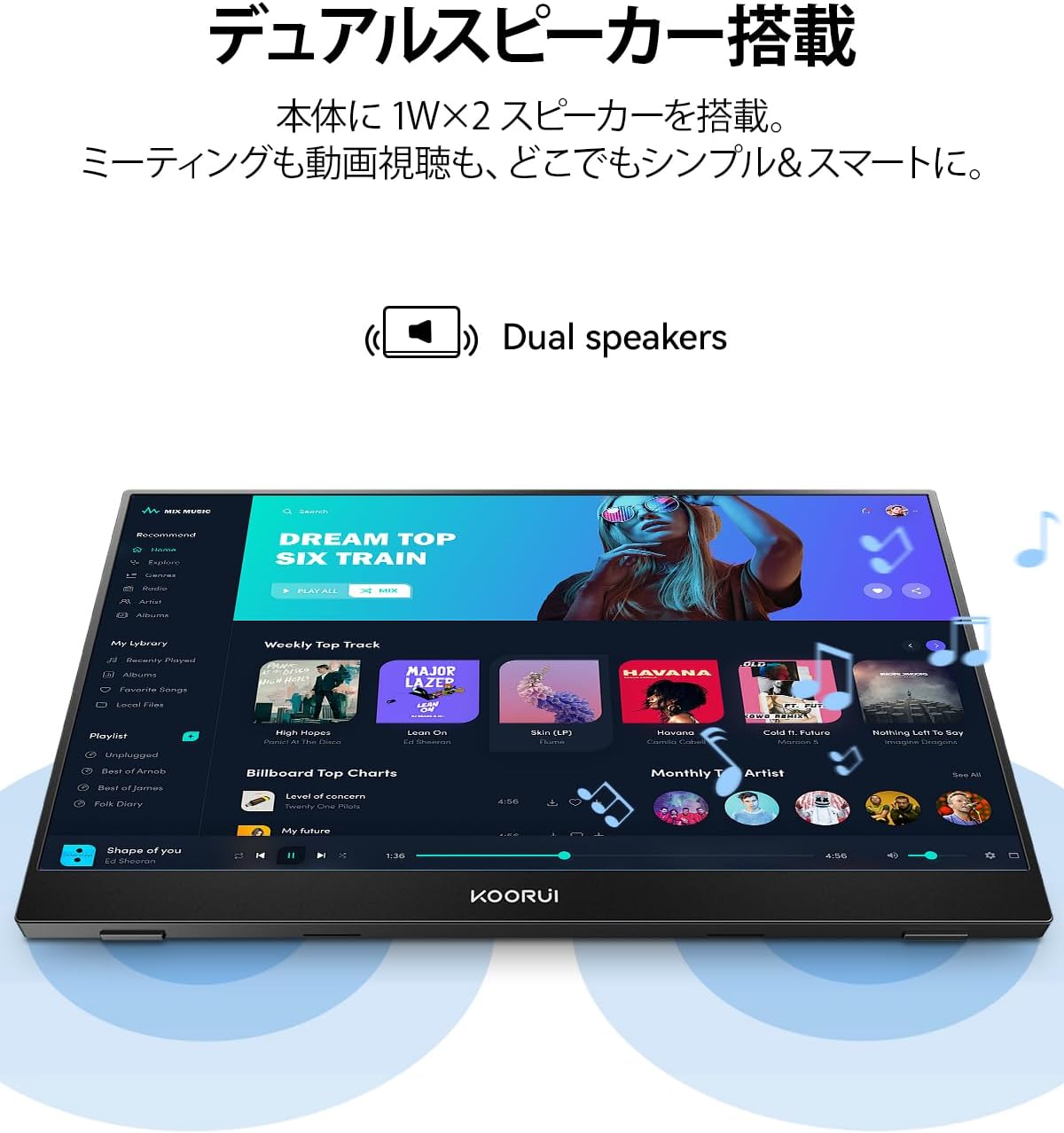
Image: The KOORUI Portable Monitor E1511A displaying a music application, highlighting its integrated dual speakers for an immersive audio experience.
การซ่อมบำรุง
การทำความสะอาดจอภาพ
- ควรปิดจอภาพและถอดสายเคเบิลทั้งหมดออกก่อนทำความสะอาดทุกครั้ง
- For the screen, gently wipe with a soft, lint-free cloth. If necessary, slightly dampชุบผ้าด้วยน้ำหรือน้ำยาทำความสะอาดหน้าจอโดยเฉพาะ อย่าฉีดน้ำยาลงบนหน้าจอโดยตรง
- สำหรับคasing, use a soft, dry cloth. Avoid using harsh chemicals or abrasive materials.
พื้นที่จัดเก็บ
- When not in use, store the monitor in its protective cover to prevent scratches and dust accumulation.
- เก็บในที่เย็นและแห้ง ห่างจากแสงแดดโดยตรงและอุณหภูมิที่สูงเกินไป
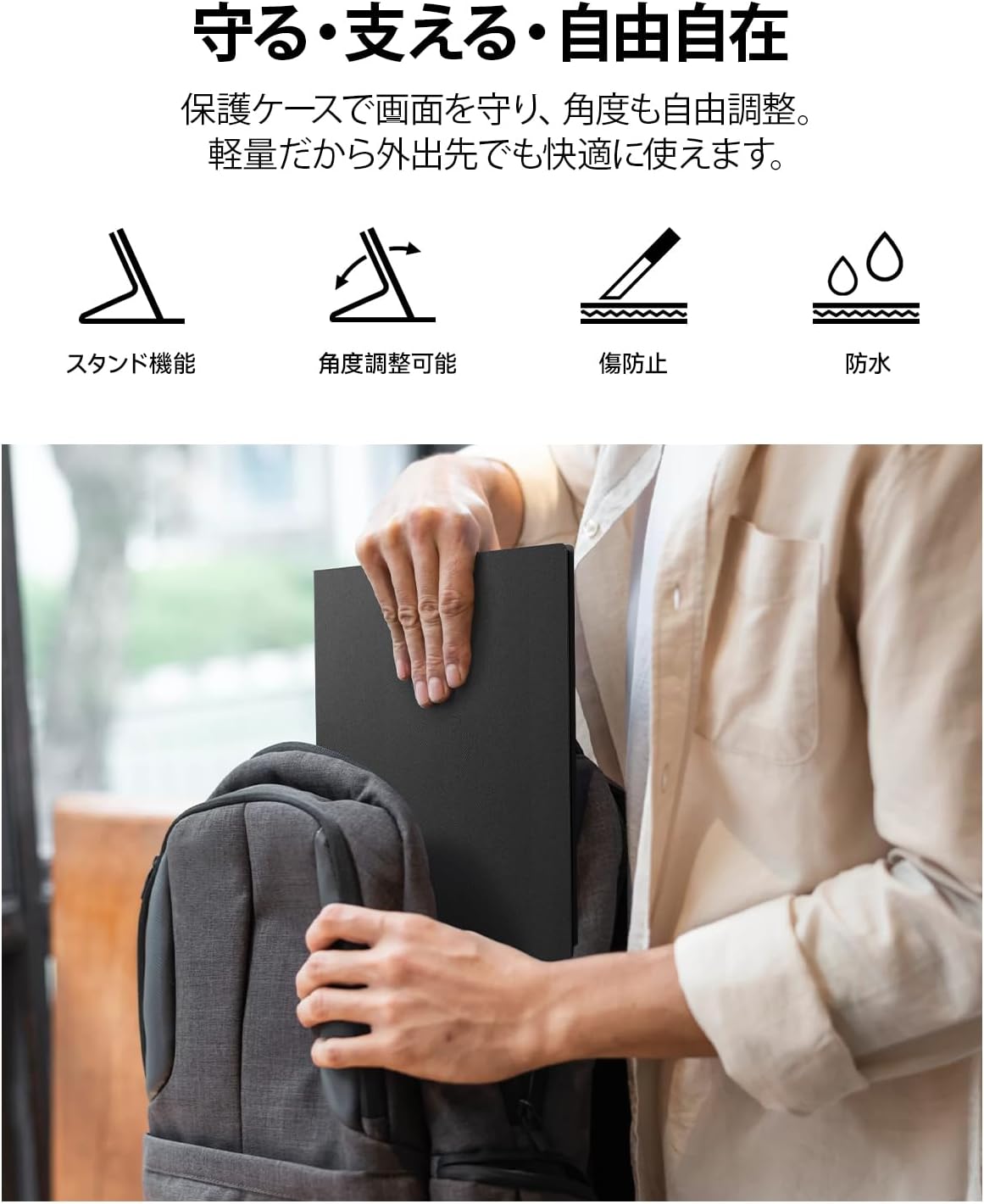
Image: A person placing the KOORUI Portable Monitor E1511A, protected by its cover, into a backpack, demonstrating its portability and the protective function of the cover.
การแก้ไขปัญหา
หากคุณพบปัญหาเกี่ยวกับจอภาพของคุณ โปรดดูปัญหาทั่วไปและวิธีแก้ไขต่อไปนี้:
| ปัญหา | สาเหตุที่เป็นไปได้ | สารละลาย |
|---|---|---|
| ไม่มีภาพแสดงผล / ข้อความ "ไม่มีสัญญาณ" | Incorrect cable connection, insufficient power, incompatible USB-C port. |
|
| จอภาพไม่เปิดใช้งาน | No power supply, faulty cable, power button not pressed correctly. |
|
| ไม่มีเสียงจากลำโพงหรือหูฟัง | Volume too low, incorrect audio output setting on source device. |
|
| หน้าจอกระพริบหรือภาพไม่เสถียร | Faulty cable, interference, resolution mismatch. |
|
ข้อมูลจำเพาะ
Detailed technical specifications for the KOORUI E1511A Portable Monitor.
| คุณสมบัติ | ข้อมูลจำเพาะ |
|---|---|
| ยี่ห้อ | คูรุย |
| หมายเลขรุ่น | E1511A (KR-E1511A) |
| ขนาดหน้าจอ | 15.6 นิ้ว |
| ปณิธาน | FHD (1920 x 1080 pixels) |
| ประเภทแผง | เกือบ IPS |
| อัตราส่วนภาพ | 16:9 น. |
| อัตราการรีเฟรช | 60 เฮิรตซ์ |
| เวลาตอบสนอง | 20 มิลลิวินาที |
| Viewอิงแองเกิล | 178 องศา |
| ความสว่าง | 280 ซีดี/ตรม. |
| พื้นผิวหน้าจอ | ไม่สะท้อนแสง |
| ประเภทจอภาพ | นำ |
| Color Screen Function | ใช่ |
| ฮาร์ดแวร์อินเตอร์เฟซ | 2x USB-C, 1x HDMI, 1x 3.5mm Audio Out |
| ลำโพงในตัว | Yes (Dual 1W speakers) |
| ขนาดสินค้า (ลึก x กว้าง x สูง) | 42.9 x 5.4 x 29.4 ซม. (โดยประมาณ) |
| สี | สีดำ |
| ประเทศต้นกำเนิด | จีน |
การรับประกันและการสนับสนุน
ข้อมูลการรับประกัน
The KOORUI monitor screen is covered by a รับประกัน 1 ปี from the date of purchase. Other included accessories are covered by a รับประกัน 3 ปีโปรดเก็บหลักฐานการซื้อไว้เพื่อใช้เรียกร้องการรับประกัน
การสนับสนุนลูกค้า
If you have any questions, concerns, or require assistance with your KOORUI portable monitor, please do not hesitate to contact our customer support team. Our professional after-sales service staff is available to provide flexible and prompt assistance.
For support inquiries, please visit the KOORUI store on Amazon or contact us through the platform where you purchased the product. We are committed to providing excellent service and support for our products.
KOORUI also offers free collection and recycling services for its monitors. Please inquire for details.


