
1. สินค้าหมดview
The GMKtec K12 is a high-performance gaming mini PC designed for demanding tasks such as gaming, video editing, and multitasking. It features an AMD Ryzen 7 H 255 processor, Radeon 780M integrated graphics, and extensive connectivity options, including an Oculink port for external GPU expansion.
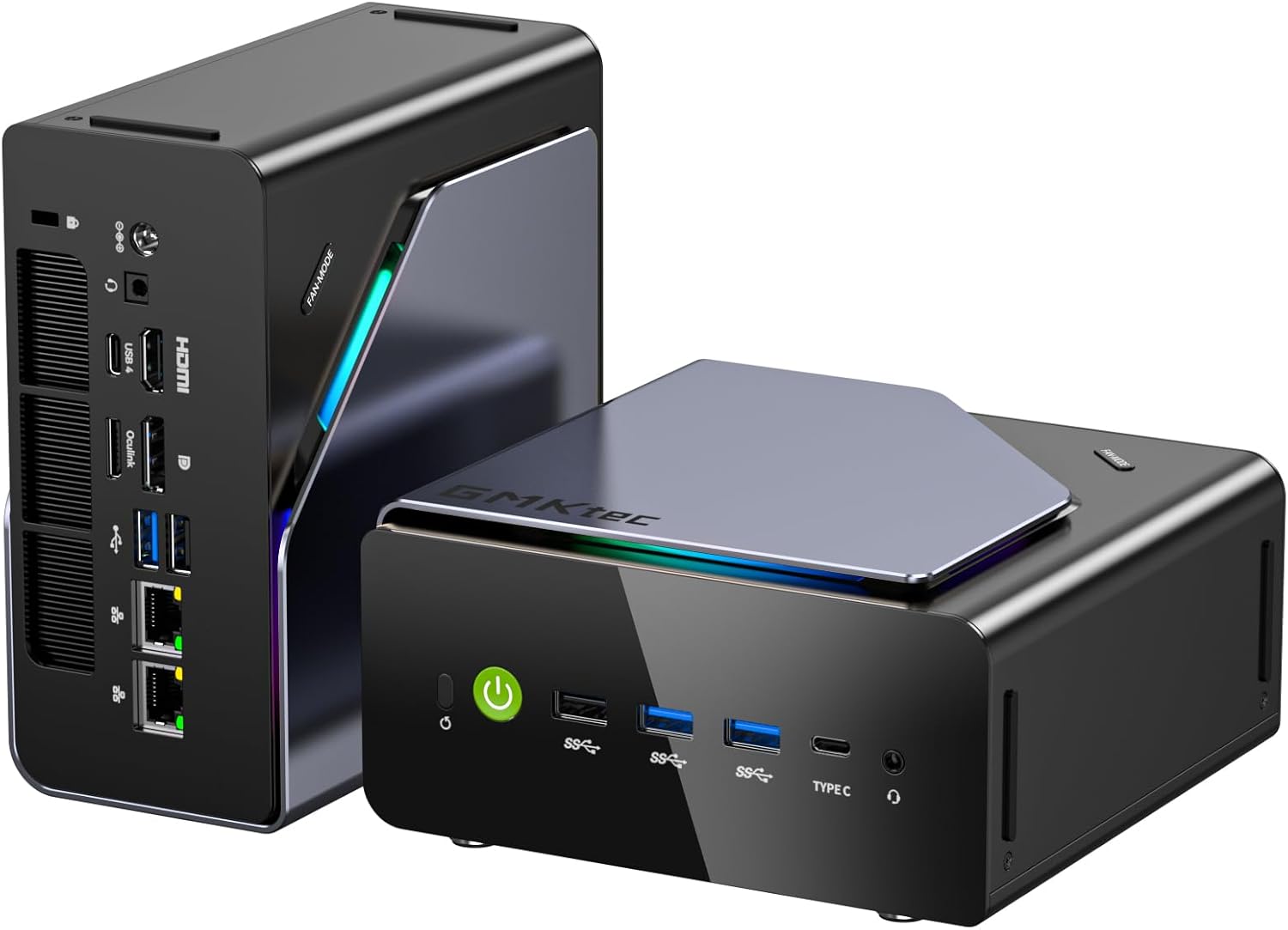
Image: The GMKtec K12 Mini PC, a compact black and silver device with RGB lighting accents.
2. เนื้อหาบรรจุภัณฑ์
ก่อนดำเนินการติดตั้ง โปรดตรวจสอบให้แน่ใจว่ามีรายการทั้งหมดอยู่ในบรรจุภัณฑ์:
- GMKtec NucBox K12 Mini PC
- อะแดปเตอร์แปลงไฟ
- VESA Mount (including screws)
- สาย HDMI
- คู่มือการใช้งาน

Image: All items included in the GMKtec K12 Mini PC package: the Mini PC, power adapter, VESA mount, HDMI cable, and user manual.
3. การตั้งค่าเริ่มต้น
- เชื่อมต่ออุปกรณ์ต่อพ่วง: Connect your monitor(s) to the HDMI, DisplayPort, or USB-C video outputs. Connect your keyboard and mouse to the available USB ports.
- เชื่อมต่อพลังงาน: Plug the power adapter into the DC IN port on the Mini PC, then connect it to a power outlet.
- เปิดเครื่อง: Press the power button located on the front of the Mini PC. The system will boot up, and the pre-installed Windows 11 Pro operating system will load.
4. คุณสมบัติด้านฮาร์ดแวร์
4.1 โปรเซสเซอร์และกราฟิก
The K12 Mini PC is powered by an AMD Ryzen 7 H 255 processor, an enhanced version of the Ryzen 7 8745H. It features 8 cores (16 threads) with clock speeds up to 4.9 GHz. Integrated graphics are handled by the powerful AMD Radeon 780M (12 CUs / 768 shaders, up to 2600 MHz), capable of supporting multiple 8K displays and running modern games with FSR.

Image: Diagram illustrating the AMD Ryzen 7 H 255 processor and Radeon 780M integrated graphics, highlighting its core count, threads, and clock speed.
4.2 หน่วยความจำและที่เก็บข้อมูล
The Mini PC comes equipped with 32GB of DDR5 5600MHz SO-DIMM RAM (two 16GB modules) and a 512GB PCIe 4.0 SSD. It offers significant storage expansion with three M.2 2280 slots, each supporting up to 8TB, for a maximum total of 24TB.

ภาพ: ภายใน view of the Mini PC, detailing the DDR5 RAM modules and three M.2 2280 SSD expansion slots.
4.3 พอร์ตและการเชื่อมต่อ
The K12 offers a comprehensive array of ports for versatile connectivity:
- เอาต์พุตวิดีโอ: 1x HDMI 2.1 (8K@60Hz), 1x DisplayPort 1.4 (4K@60Hz), 1x USB Type-C (supports PD3.0/DP1.4/Data) for up to 4 simultaneous displays.
- พอร์ต USB: Multiple USB 3.2 Gen 2, USB 2.0, and USB4 ports.
- การสร้างเครือข่าย: Dual 2.5GbE LAN ports, Wi-Fi 6E, and Bluetooth 5.2.
- เสียง: แจ็คเสียงขนาด 3.5 มม.
- พอร์ต Oculink: A dedicated Oculink port for external GPU (eGPU) configurations, offering PCIe x4 speeds for enhanced bandwidth and lower latency compared to Thunderbolt.

ภาพ: ด้านหลัง view of the GMKtec K12 Mini PC, showing the various ports including HDMI, DisplayPort, USB, Ethernet, and Oculink.

Image: The Oculink port on the GMKtec K12 connected to an external GPU enclosure, demonstrating its eGPU capability. บันทึก: This port does not support hot-plugging. Always power off the PC before connecting or disconnecting.
5. Operating the Mini PC
5.1 การจัดการพลังงาน
To power on the Mini PC, press the power button on the front panel. To shut down, use the standard Windows shutdown procedure. A short press of the power button can put the system to sleep.
5.2 โหมดประสิทธิภาพ
The K12 offers three performance modes to balance power consumption, noise, and performance:
- โหมดเงียบ (35 วัตต์): Optimized for quiet operation and low power consumption, suitable for light tasks.
- Balanced Mode (54W): A good balance between performance and noise, ideal for everyday use.
- โหมดประสิทธิภาพสูง (70 วัตต์): เพิ่มประสิทธิภาพ CPU และ GPU ให้สูงสุดสำหรับการใช้งานแอปพลิเคชันและเกมที่ต้องการประสิทธิภาพสูง
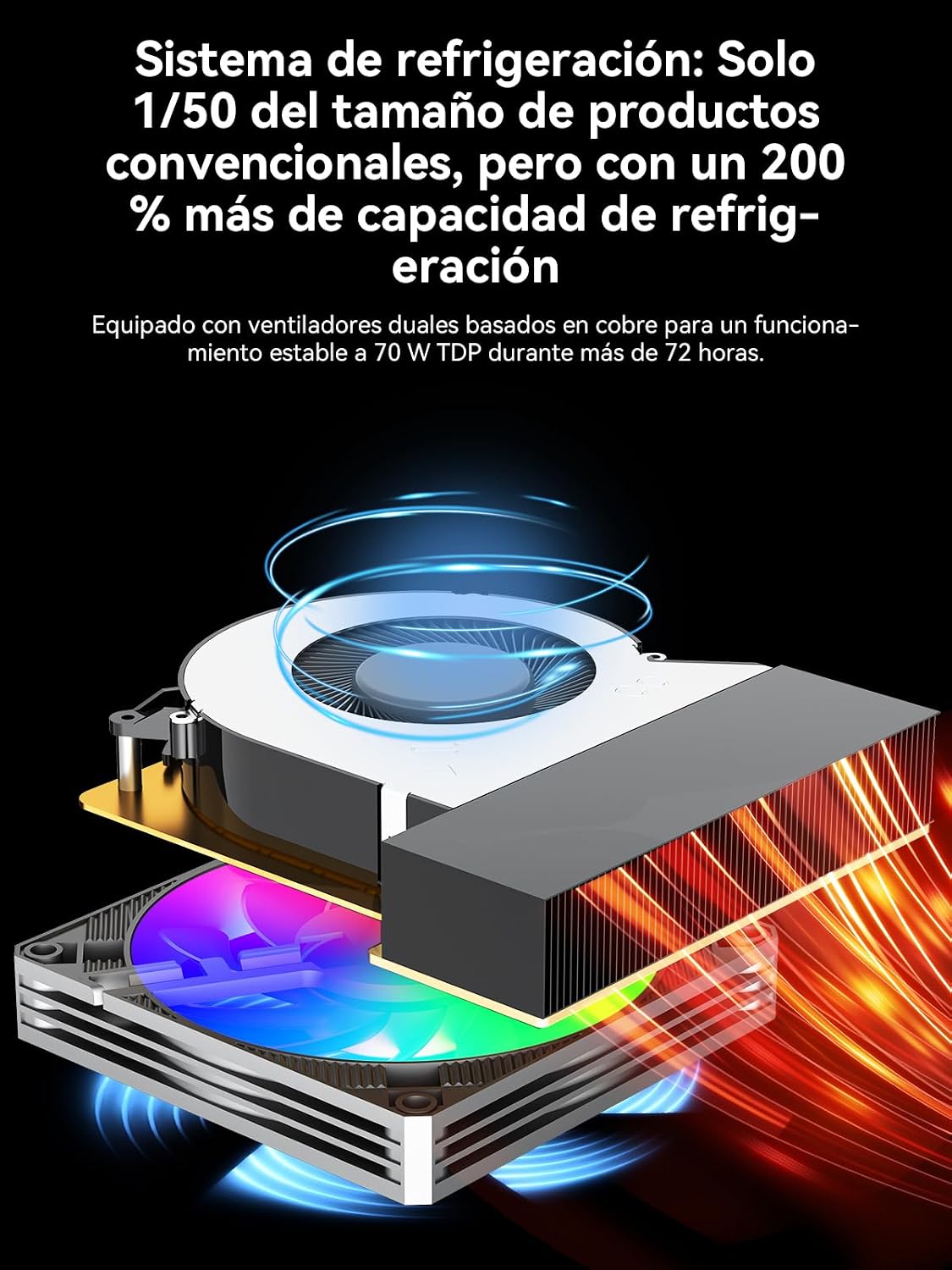
Image: A visual representation of the three performance modes (Silent, Balanced, Performance) with their respective power consumption and typical noise levels.
5.3 การตั้งค่าจอภาพหลายจอ
The Mini PC supports up to four simultaneous displays with resolutions up to 8K, utilizing its HDMI 2.1, DisplayPort 1.4, and USB-C outputs. This is ideal for productivity, content creation, and immersive gaming experiences.

Image: A desk setup featuring the GMKtec K12 Mini PC connected to multiple monitors, demonstrating its multi-display capabilities.
6. การบำรุงรักษา
6.1 ระบบทำความเย็น
The K12 features a dual-fan cooling system with advanced heatpipes and 360° airflow to maintain optimal temperatures even under heavy loads. To ensure efficient cooling, keep the ventilation grilles clear of obstructions and regularly clean any dust accumulation.

ภาพ: ระเบิด view diagram of the GMKtec K12's cooling system, showing the dual fans and heatpipes designed for efficient heat dissipation.
6.2 การขยายพื้นที่เก็บข้อมูล
The Mini PC allows for easy storage expansion via its three M.2 2280 slots. To install or upgrade an M.2 SSD, carefully open the chassis, locate the M.2 slots, and secure the new drive. Refer to the detailed instructions in the full user manual for specific steps.
7 การแก้ไขปัญหา
หากคุณพบปัญหาใดๆ กับ GMKtec K12 Mini PC โปรดดูขั้นตอนการแก้ไขปัญหาทั่วไปต่อไปนี้:
- ไม่มีไฟฟ้า: ตรวจสอบให้แน่ใจว่าได้เสียบอะแดปเตอร์แปลงไฟเข้ากับมินิพีซีและเต้ารับไฟฟ้าที่ใช้งานได้สนิทแล้ว หากจำเป็นให้ลองเสียบกับเต้ารับอื่นดู
- ไม่มีจอแสดงผล: Verify that the monitor cable is correctly connected to both the Mini PC and the monitor. Ensure the monitor is powered on and set to the correct input source. Try a different video cable or port.
- อุปกรณ์ต่อพ่วงไม่ทำงาน: Check USB connections for keyboards, mice, and other devices. Try connecting them to different USB ports.
- Storage Not Recognized: If you've installed additional M.2 SSDs and they are not detected, ensure they are properly seated in their slots. Check Disk Management in Windows to see if the drive needs to be initialized or formatted.
- ปัญหาประสิทธิภาพการทำงาน: Ensure the Mini PC is operating in the appropriate performance mode for your tasks. Check for background applications consuming resources. Ensure the cooling vents are clear.
For more complex issues, please consult the official GMKtec support webเว็บไซต์หรือติดต่อฝ่ายบริการลูกค้า
8. ข้อมูลจำเพาะ
| คุณสมบัติ | ข้อมูลจำเพาะ |
|---|---|
| โปรเซสเซอร์ | AMD Ryzen 7 H 255 (8 Cores, 16 Threads, up to 4.9 GHz) |
| กราฟฟิก | AMD Radeon 780M (up to 2600 MHz) |
| แรม | 32GB DDR5 5600MHz (2x16GB SO-DIMM) |
| พื้นที่จัดเก็บ | SSD PCIe 4.0 ขนาด 512GB |
| การขยายพื้นที่เก็บข้อมูล | 3x M.2 2280 slots (Max 24TB total) |
| เอาท์พุตวิดีโอ | 1x HDMI 2.1 (8K@60Hz), 1x DisplayPort 1.4 (4K@60Hz), 1x USB-C (PD3.0/DP1.4/Data) |
| พอร์ต USB | USB4, USB 3.2 Gen 2, USB 2.0 |
| การสร้างเครือข่าย | Dual 2.5GbE LAN, Wi-Fi 6E, Bluetooth 5.2 |
| ท่าเรือพิเศษ | Oculink (PCIe x4 for eGPU) |
| ระบบปฏิบัติการ | ระบบปฏิบัติการ Windows 11 Pro (ติดตั้งมาแล้ว) |
| ขนาด | 12 x 5 x 13 ซม. |
| น้ำหนัก | 2.18 กก. |
9. การรับประกันและการสนับสนุน
GMKtec offers a 1-year limited warranty for the K12 Mini PC from the date of purchase, covering defects due to design and manufacturing. For any inquiries or technical assistance, please contact GMKtec customer support.
- การสนับสนุนของ Amazon: For purchase-related issues, log in to your Amazon account, go to 'Your Orders', and select 'Ask Product Question'.
- การสนับสนุนหลังการขาย: Contact the GMKtec After-Sales Team via email at eu-cs@gmktec.com สำหรับการสนับสนุนลูกค้าตลอด 24 ชั่วโมงทุกวัน

Image: Information regarding GMKtec's warranty and support channels, including Amazon support and direct email contact.