1. บทนำ
This manual provides comprehensive instructions for the Generic RK-X40P Wireless Vlog Selfie Monitor. It covers product features, setup, operation, maintenance, and troubleshooting to ensure optimal performance and user experience. The RK-X40P is designed to enhance your mobile vlogging and live streaming by offering multi-touch reverse control and wireless mirroring capabilities for your smartphone's rear camera.
2. เนื้อหาบรรจุภัณฑ์
ตรวจสอบว่ามีรายการทั้งหมดต่อไปนี้รวมอยู่ในแพ็คเกจของคุณ:
- 1 × RK-X40P Monitor Screen
- 1 × Bluetooth Remote Control
- 1 × สายชาร์จ USB-C
- 1 × Magnetic Ring (for non-iPhone 12-16 models)
- 1 × คู่มือผู้ใช้
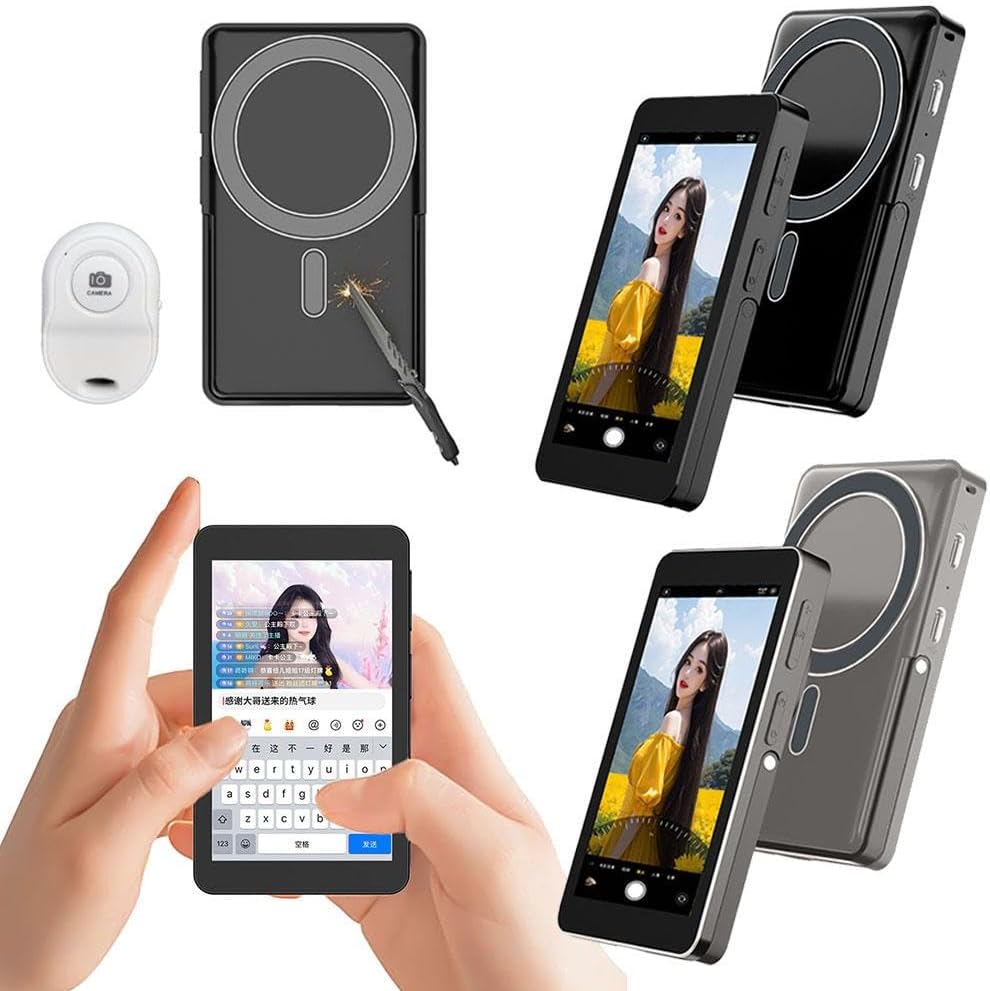
Image: Contents of the RK-X40P package, including the monitor, remote, cable, and magnetic ring.
3. คุณสมบัติของผลิตภัณฑ์
The RK-X40P monitor offers a range of features designed for mobile content creation:
- Multi-Touch Reverse Control: Interact with your phone directly from the monitor screen (tap, swipe) while using the rear camera for vlogging or live streaming.
- Wireless Mirroring & Smart Touch: Mirrors your phone’s rear camera feed and supports responsive touch gestures for seamless phone screen control.
- ปรับความสว่าง: Features 3 levels of adjustable brightness (low/medium/high) to adapt to various lighting conditions.
- แบตเตอรี่แบบบูรณาการ: Built-in 2300mAh rechargeable battery provides 2-5 hours of usage time.
- Strong Magnetic Mounting: Ensures stable attachment to compatible phones (iPhone 12-16 series directly, other Android phones via included metal ring).
- รีโมทคอนโทรลบลูทูธ: Includes a remote with a 33ft range for hands-free operation, such as starting/stopping recordings.
- การออกแบบที่พกพาสะดวกเป็นพิเศษ: Compact and lightweight at 138g, making it suitable for travel and on-the-go use.
- ขาตั้งแบบรวม: The monitor features a built-in stand for independent support.
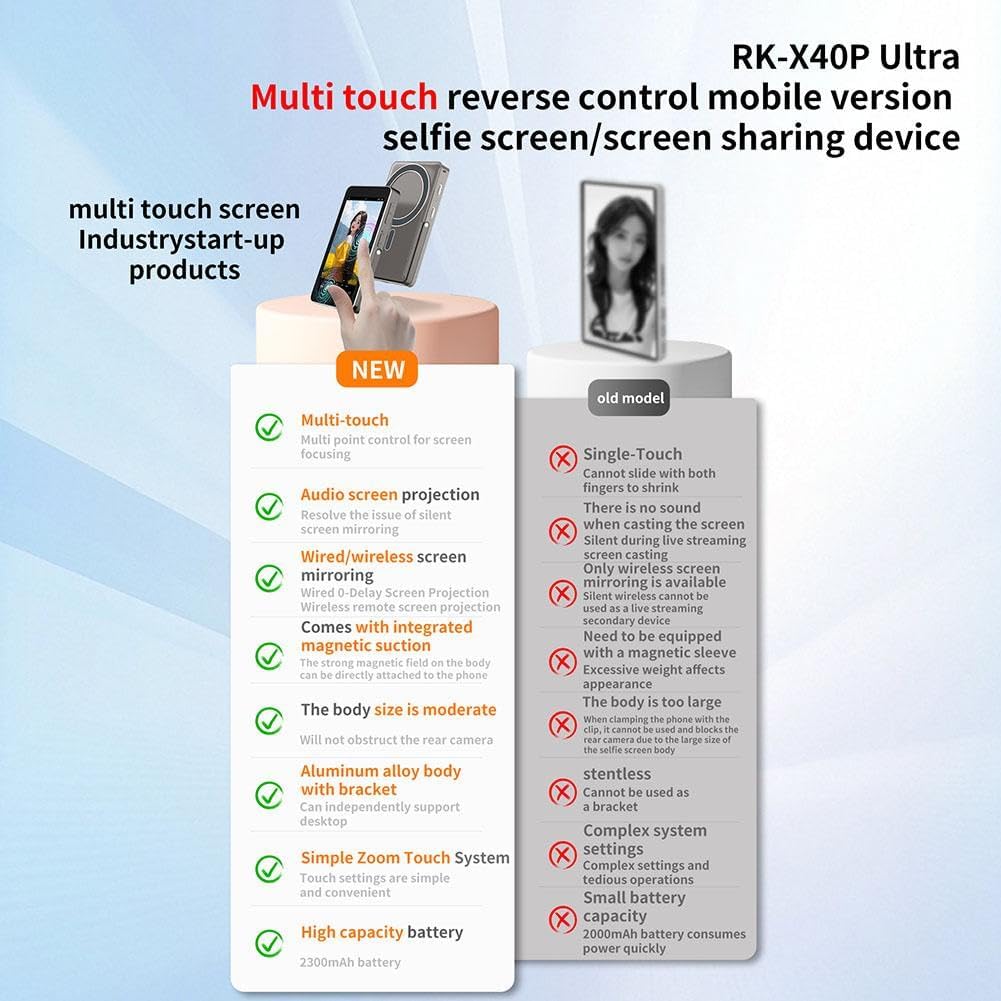
Image: A visual comparison highlighting the advanced features of the RK-X40P, such as multi-touch control and integrated magnetic suction.
4. คู่มือการติดตั้ง
Follow these steps to set up your RK-X40P monitor:
- ชาร์จจอภาพ: Connect the provided USB-C cable to the monitor's Type-C port and a 5V/2A power adapter. The charging indicator will show the charging status.
- Attach Magnetic Ring (if necessary): If your phone is not an iPhone 12-16 series, attach the included magnetic ring to the back of your phone. Ensure it is centered for optimal magnetic connection.
- ติดตั้งจอภาพ: Align the RK-X40P monitor with the magnetic area on your phone or the attached magnetic ring. The strong magnet will secure the monitor in place.
- เปิดเครื่อง: Press and hold the power button on the monitor until the screen illuminates.
- Connect via Wireless Mirroring:
- On the RK-X40P monitor, navigate to the wireless mirroring settings.
- On your smartphone, enable Wi-Fi and search for the RK-X40P's network (usually named 'RK-X40P-XXXX').
- Connect your phone to the monitor's Wi-Fi network. Follow any on-screen prompts for pairing.
- Once connected, your phone's rear camera feed should appear on the RK-X40P monitor.
- จับคู่รีโมทบลูทูธ:
- Ensure the Bluetooth remote has power (check battery if applicable).
- Activate Bluetooth pairing mode on the remote (refer to remote's mini-manual if needed).
- บนสมาร์ทโฟนของคุณ ไปที่การตั้งค่าบลูทูธ และค้นหาอุปกรณ์ที่พร้อมใช้งาน
- Select the remote from the list to pair.
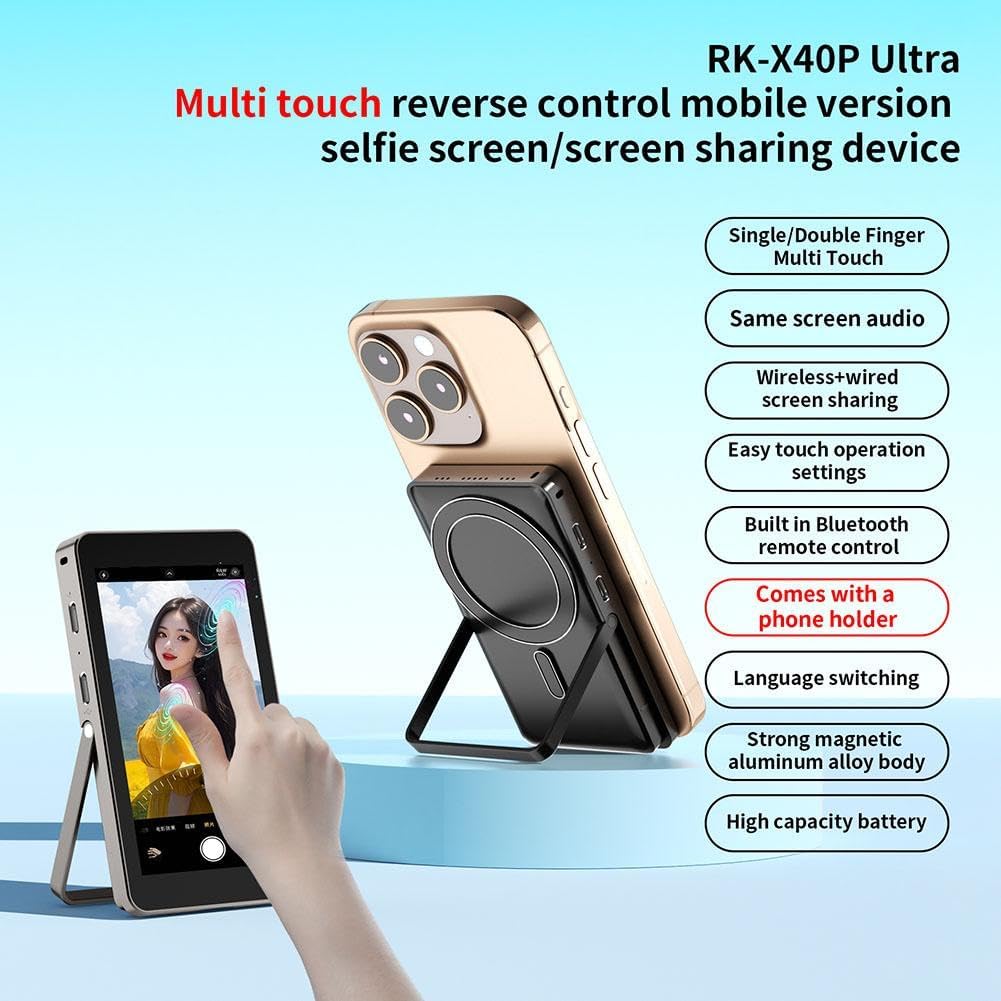
Image: The RK-X40P monitor attached to a smartphone, demonstrating the magnetic mounting and integrated stand.
5. คู่มือการใช้งาน
Once set up, you can begin using your RK-X40P monitor:
- Using Multi-Touch Reverse Control:
- With wireless mirroring active, the RK-X40P screen becomes an interactive extension of your phone's display.
- You can tap, swipe, and interact with your phone's camera app or other applications directly on the monitor. This allows for real-time control while using your phone's rear camera for vlogging or live streaming.
- การปรับความสว่าง:
- The monitor features 3 levels of adjustable brightness. Locate the brightness control button or setting on the monitor (refer to the device's physical buttons or on-screen menu).
- Press the button or select the option to cycle through low, medium, and high brightness settings to suit your environment.
- Using the Bluetooth Remote:
- After pairing the Bluetooth remote with your smartphone, you can use it to remotely control your phone's camera functions.
- Typically, the remote can start and stop video recordings or trigger photo captures without needing to touch your phone or the monitor.
- Utilizing the Integrated Stand:
- The RK-X40P has a built-in kickstand. Extend the stand from the back of the monitor to prop it up on a flat surface.
- This is useful for hands-free viewing or when using the monitor as a secondary display during live streams.
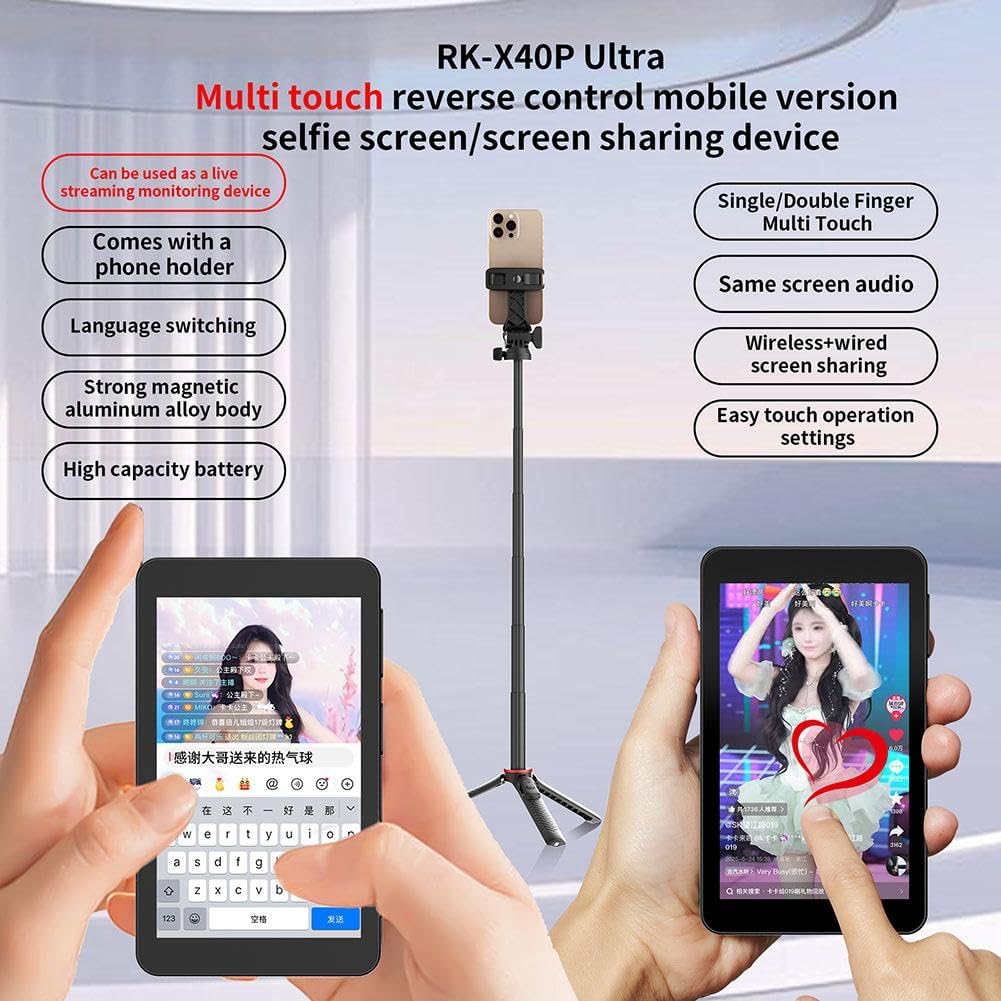
Image: The RK-X40P monitor in use with a smartphone on a stand, illustrating its application for live content creation.

Image: The RK-X40P monitor showcasing its 'Same screen audio' feature, indicating synchronized audio output.
6. การบำรุงรักษา
Proper care and maintenance will extend the life of your RK-X40P monitor:
- การทำความสะอาด: Use a soft, dry, lint-free cloth to clean the screen and body of the monitor. Avoid using liquid cleaners, aerosols, or harsh chemicals, as they may damage the device.
- พื้นที่จัดเก็บ: เมื่อไม่ใช้งาน ควรเก็บจอภาพไว้ในที่แห้งและเย็น หลีกเลี่ยงแสงแดดโดยตรงและอุณหภูมิที่สูงหรือต่ำเกินไป
- การดูแลแบตเตอรี่ To maintain battery health, avoid fully discharging the battery frequently. Charge the device regularly, even if not in constant use. Do not expose the battery to extreme heat or cold.
- การจัดการ: Handle the monitor with care to prevent drops or impacts, which could damage the screen or internal components.
7 การแก้ไขปัญหา
If you encounter issues with your RK-X40P monitor, refer to the following troubleshooting guide:
| ปัญหา | สาเหตุที่เป็นไปได้ | สารละลาย |
|---|---|---|
| จอภาพไม่เปิดใช้งาน | แบตเตอรี่เหลือน้อยหรือหมด | Connect the monitor to a power source using the USB-C cable and allow it to charge for at least 30 minutes before attempting to power on again. |
| No wireless mirroring/display | Incorrect Wi-Fi connection; Phone compatibility issue; Software glitch | Ensure your phone is connected to the RK-X40P's Wi-Fi network. Verify your phone's operating system (iOS 9+ or Android 8.0+). Restart both the monitor and your smartphone. |
| Multi-touch control not responsive | Loose wireless connection; Software issue on phone or monitor | Check the stability of the Wi-Fi connection. Restart the monitor and phone. Ensure no protective films are interfering with touch input. |
| Bluetooth remote not connecting/working | Remote battery low; Not paired correctly; Interference | Check the remote's battery. Re-pair the Bluetooth remote with your smartphone. Ensure no other Bluetooth devices are causing interference. |
| การยึดติดแม่เหล็กอ่อน | Incorrect placement of magnetic ring; Thick phone case | Ensure the magnetic ring is correctly centered on your phone. Remove any thick phone cases that might impede the magnetic connection. |
8. ข้อมูลจำเพาะ
Detailed technical specifications for the RK-X40P Wireless Vlog Selfie Monitor:
- ขนาดหน้าจอ: 4 inches (1136 × 640 resolution)
- วัสดุ: Aluminum Alloy + Tempered Glass
- กำลังไฟเข้า: 5V/2A via Type-C
- กำลังไฟที่กำหนด: 1.8วัตต์
- เครือข่ายไร้สาย: 2.4G Wi-Fi
- ความจุแบตเตอรี่: 3.7V 2300mAh
- ระยะเวลาการใช้งาน: 2 – 5 ชั่วโมง (ขึ้นอยู่กับการใช้งาน)
- ขนาดสินค้า : 107 x 62.8 x 13.5 มม.
- น้ำหนักผลิตภัณฑ์: 138กรัม
- ความสว่าง: ปรับได้ 3 ระดับ
- ระยะไกล: Bluetooth Remote Control (33ft / 10m Range)
- ภูเขา: Strong Tail Magnet + Phone Holder
- การทำงาน: Wireless Back Camera Mirroring with Real-Time Reverse Touch Control
- ความเข้ากันได้: Compatible with iPhone (iOS 9+), Compatible with Android (8.0+)
9. การสนับสนุนลูกค้า
For any issues or inquiries regarding your RK-X40P Wireless Vlog Selfie Monitor, please contact our customer support team. We are available to assist you 24/7.
Contact Information: Please refer to the contact details provided on your purchase platform or the product packaging for the most current support options.


