
1. สินค้าหมดview
The PeriPage P92 is a compact and lightweight thermal tattoo stencil printer designed for both professional tattoo artists and enthusiasts. It utilizes inkless thermal technology to produce clear and precise tattoo lines, streamlining the stencil creation process. This printer offers versatile connectivity options, including Bluetooth and USB, making it compatible with a wide range of devices such as smartphones, tablets, and PCs.

Image: The PeriPage P92 Tattoo Stencil Printer, a sleek black device, shown on a desk with a printed tattoo stencil.
คุณสมบัติหลัก:
- การออกแบบพกพา: Compact and lightweight (approximately 15.2 ounces) for easy transport.
- เทคโนโลยีความร้อนแบบไร้หมึก: Eliminates the need for ink cartridges, reducing operational costs.
- ความเข้ากันได้สูง: Supports Android, iOS, Windows, and macOS devices.
- การเชื่อมต่อที่หลากหลาย: Connects via Bluetooth for wireless printing or USB for wired connections.
- Powerful Mobile App: The "PeriPage APP" provides abundant resources, including built-in tattoo templates and design editing tools.
- การพิมพ์ที่มีประสิทธิภาพ: Capable of printing clear and precise tattoo lines in seconds.
- อายุการใช้งานแบตเตอรี่ยาวนาน: Built-in 2600mAh rechargeable battery, capable of printing up to 200 pages per charge.
2. คู่มือการติดตั้ง
2.1 การแกะกล่องและการชาร์จครั้งแรก
Carefully remove all components from the packaging. Before first use, ensure the printer is fully charged using the provided USB cable and a compatible power adapter. The power indicator light will typically change to indicate a full charge.
2.2 การติดตั้งซอฟต์แวร์
To operate the PeriPage P92, you will need to install the appropriate software:
- For Smartphones/Tablets (Android/iOS): Download the "PeriPage APP" from your device's respective app store (Google Play Store for Android, Apple App Store for iOS).
- For PCs (Windows/macOS): Download the printer driver from the official PeriPage webเว็บไซต์: https://www.ileadtek.com/en/download.html.

Image: The PeriPage P92 printer connected to a laptop via USB and a smartphone via Bluetooth, illustrating multi-device compatibility.
2.3 การใส่กระดาษสเตนซิล
- โปรดตรวจสอบให้แน่ใจว่าเครื่องพิมพ์ปิดอยู่หรืออยู่ในโหมดสแตนด์บาย
- Gently insert the tattoo stencil paper (thermal paper, 8.5x11 inches) into the paper feed slot at the front of the printer.
- The printer will automatically detect and feed the paper into position. Ensure the transfer film side is facing up.

Image: A step-by-step visual guide showing how to power on the printer, insert stencil paper, and initiate printing via the app.
3. คู่มือการใช้งาน
3.1 การเปิด/ปิดเครื่อง
To power on the printer, press and hold the power button (usually located on the top or side) for approximately 2 seconds until the indicator light illuminates. To power off, press and hold the power button again until the light turns off.
3.2 การเชื่อมต่อกับอุปกรณ์ของคุณ
- การเชื่อมต่อบลูทู ธ :
- ตรวจสอบให้แน่ใจว่าได้เปิดใช้งาน Bluetooth บนสมาร์ทโฟนหรือแท็บเล็ตของคุณแล้ว
- Open the "PeriPage APP".
- Within the app, search for and select the PeriPage P92 printer to establish a connection.
- การเชื่อมต่อ USB:
- Connect the printer to your PC using the provided USB cable.
- Ensure the printer driver is installed on your PC.
- เครื่องพิมพ์จะต้องได้รับการระบุว่าเป็นอุปกรณ์การพิมพ์
3.3 Using the PeriPage App for Printing
The "PeriPage APP" is your primary interface for creating and printing tattoo stencils.
- Open the "PeriPage APP" on your connected device.
- You can choose to use built-in tattoo templates or import your personal designs. The app offers tools for editing, resizing, and adjusting your designs.
- Once your design is ready, select the print option within the app.
- Confirm print settings (e.g., density, size) if prompted.
- The printer will then feed the stencil paper and print your design.

Image: Screenshots of the PeriPage mobile application interface, demonstrating design editing, template selection, and 3D preview คุณสมบัติ.

Image: The PeriPage P92 printer actively printing a tattoo stencil design onto thermal paper, with a smartphone displaying the design.
4. การบำรุงรักษา
4.1 การทำความสะอาดเครื่องพิมพ์
การทำความสะอาดอย่างสม่ำเสมอจะช่วยรักษาคุณภาพการพิมพ์และยืดอายุการใช้งานของเครื่องพิมพ์ของคุณ
- ภายนอก: เช็ดภายนอกเครื่องพิมพ์ด้วยผ้านุ่มและแห้ง หลีกเลี่ยงการใช้น้ำยาทำความสะอาดหรือตัวทำละลายที่มีฤทธิ์กัดกร่อน
- หัวพิมพ์ความร้อน: If print quality degrades, gently clean the thermal print head with an alcohol wipe or a specialized thermal printer cleaning pen. Ensure the printer is off and cooled down before cleaning.
- เส้นทางกระดาษ: Periodically check the paper path for any dust or debris and remove it carefully.
4.2 พื้นที่จัดเก็บ
Store the printer in a cool, dry place away from direct sunlight and extreme temperatures. When not in use for extended periods, ensure the printer is fully charged and then powered off.
5 การแก้ไขปัญหา
This section addresses common issues you might encounter with your PeriPage P92 printer.
5.1 คุณภาพการพิมพ์ไม่ดี
- รอยพิมพ์จางๆ:
- Check if the thermal paper is loaded correctly with the transfer film side facing up.
- Ensure the printer's battery is sufficiently charged.
- Clean the thermal print head (refer to Section 4.1).
- Adjust print density settings within the PeriPage APP.
- รอยเส้นหรือช่องว่าง:
- Clean the thermal print head.
- Ensure the paper is free from wrinkles or damage.
- Incomplete Designs (Large Shadows/Complex Images): The printer is optimized for clear line drawings. Complex images with large shaded areas may not transfer optimally.
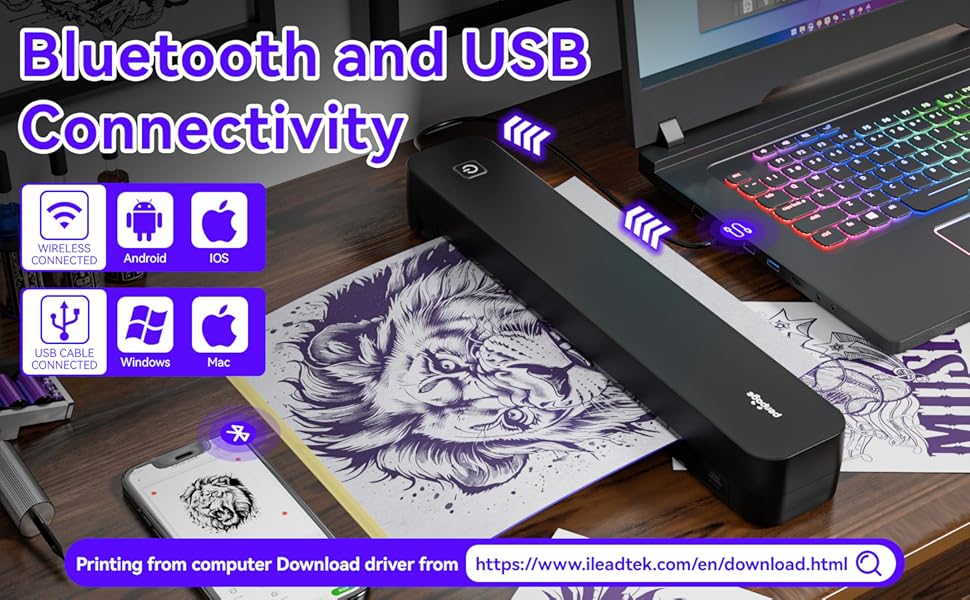
Image: A comparison showing effective line drawings and less shadowy prints versus bad effects with large shadows and complex images, illustrating optimal design types for the printer.
5.2 ปัญหาการเชื่อมต่อ
- บลูทูธไม่เชื่อมต่อ:
- ตรวจสอบให้แน่ใจว่าเครื่องพิมพ์เปิดอยู่และอยู่ในระยะที่อุปกรณ์ของคุณสามารถเชื่อมต่อได้
- ตรวจสอบว่าได้เปิดใช้งานบลูทูธบนอุปกรณ์ของคุณแล้ว
- รีสตาร์ทเครื่องพิมพ์และอุปกรณ์ของคุณ
- ลืมอุปกรณ์ในการตั้งค่าบลูทูธของคุณและลองจับคู่ใหม่อีกครั้ง
- ไม่รู้จัก USB:
- Ensure the USB cable is securely connected to both the printer and your PC.
- Verify that the correct printer drivers are installed on your PC.
- ลองใช้พอร์ต USB หรือสายเคเบิลอื่น
5.3 กระดาษติด
If paper gets jammed, gently pull the paper out in the direction of the paper path. Avoid forcing it, as this can damage the printer mechanisms. Ensure paper is loaded straight and not wrinkled.
6. ข้อมูลจำเพาะ
| คุณสมบัติ | รายละเอียด |
|---|---|
| ยี่ห้อ | เพอริเพจ |
| ชื่อรุ่น | HDD-P92 |
| เทคโนโลยีการเชื่อมต่อ | บลูทูธ, ยูเอสบี |
| เทคโนโลยีการพิมพ์ | เทอร์มอล (ไร้หมึก) |
| คุณสมบัติพิเศษ | พกพาได้ |
| สี | สีดำ |
| เอาท์พุตเครื่องพิมพ์ | เอกรงค์ |
| Max Print Speed (B&W) | 6 หน้าต่อนาที |
| น้ำหนักสินค้า | 15.2 ออนซ์ |
| ขนาดสินค้า (ลึก x กว้าง x สูง) | ลึก 2.13 นิ้ว x กว้าง 4 นิ้ว x สูง 11.4 นิ้ว |
| ประเภทตัวควบคุม | แอนดรอยด์, ไอโอเอส |
| สื่อสิ่งพิมพ์ | กระดาษเทอร์มอล |
| อุปกรณ์ที่รองรับ | แล็ปท็อป, คอมพิวเตอร์ส่วนบุคคล, สมาร์ทโฟน, แท็บเล็ต |
| วิธีการควบคุม | แอป |
| ขนาดสื่อสูงสุด | A4, 8.5x11 Inches |
| แบตเตอรี่ | 2600mAh rechargeable, prints ~200 pages per charge |
7. ข้อมูลการรับประกัน
ตามข้อกำหนดของผลิตภัณฑ์ มี "Not Application" for warranty. Please refer to your retailer's return policy or contact the seller directly for any issues or concerns regarding your purchase.
8. การสนับสนุน
หากต้องการความช่วยเหลือเพิ่มเติม โปรดดูแหล่งข้อมูลต่อไปนี้:
- PeriPage APP: The mobile application often includes help sections, FAQs, and direct support contact options.
- เป็นทางการ Webเว็บไซต์: Visit the PeriPage official website for updated drivers, FAQs, and support contact information: www.ileadtek.com.
- การสนับสนุนผู้ขาย: Contact the seller (Ileadtek Inc.) through the platform where you purchased the product for specific purchase-related inquiries.