
1. บทนำ
The ATTACK SHARK X820 Ultra is a 75% wireless gaming mechanical keyboard designed for versatility and performance. It features a hot-swappable gasket mount, RGB backlighting, and tri-mode connectivity (Bluetooth, 2.4G wireless, and wired USB-C). A unique Smart TFT Display and a multi-functional knob provide intuitive control and real-time information. This manual provides detailed instructions for setting up, operating, and maintaining your keyboard.

Figure 1: The ATTACK SHARK X820 Ultra Mechanical Keyboard in Starlight White.
2. เนื้อหาบรรจุภัณฑ์
โปรดตรวจสอบว่าสินค้าทั้งหมดที่ระบุไว้ด้านล่างนี้มีอยู่ในแพ็คเกจของคุณ:
- X820Ultra Keyboard (x1)
- สาย USB-C (x1)
- ที่ดึงกุญแจ 2-in-1 (x1)
- คู่มือผู้ใช้ (x1)
- ATTACK SHARK Mascot Stickers (x2)
- Switches (x2)

Figure 2: All components included in the ATTACK SHARK X820 Ultra package.
3. การตั้งค่า
3.1 การชาร์จเริ่มต้น
Before first use, connect the keyboard to a USB power source using the provided USB-C cable to ensure it is fully charged. The Smart TFT Display will indicate the battery status.
3.2 โหมดการเชื่อมต่อ
The X820 Ultra supports three connection modes: wired, 2.4GHz wireless, and Bluetooth. You can switch between modes using the dedicated switch on the keyboard or via the Smart TFT Display.
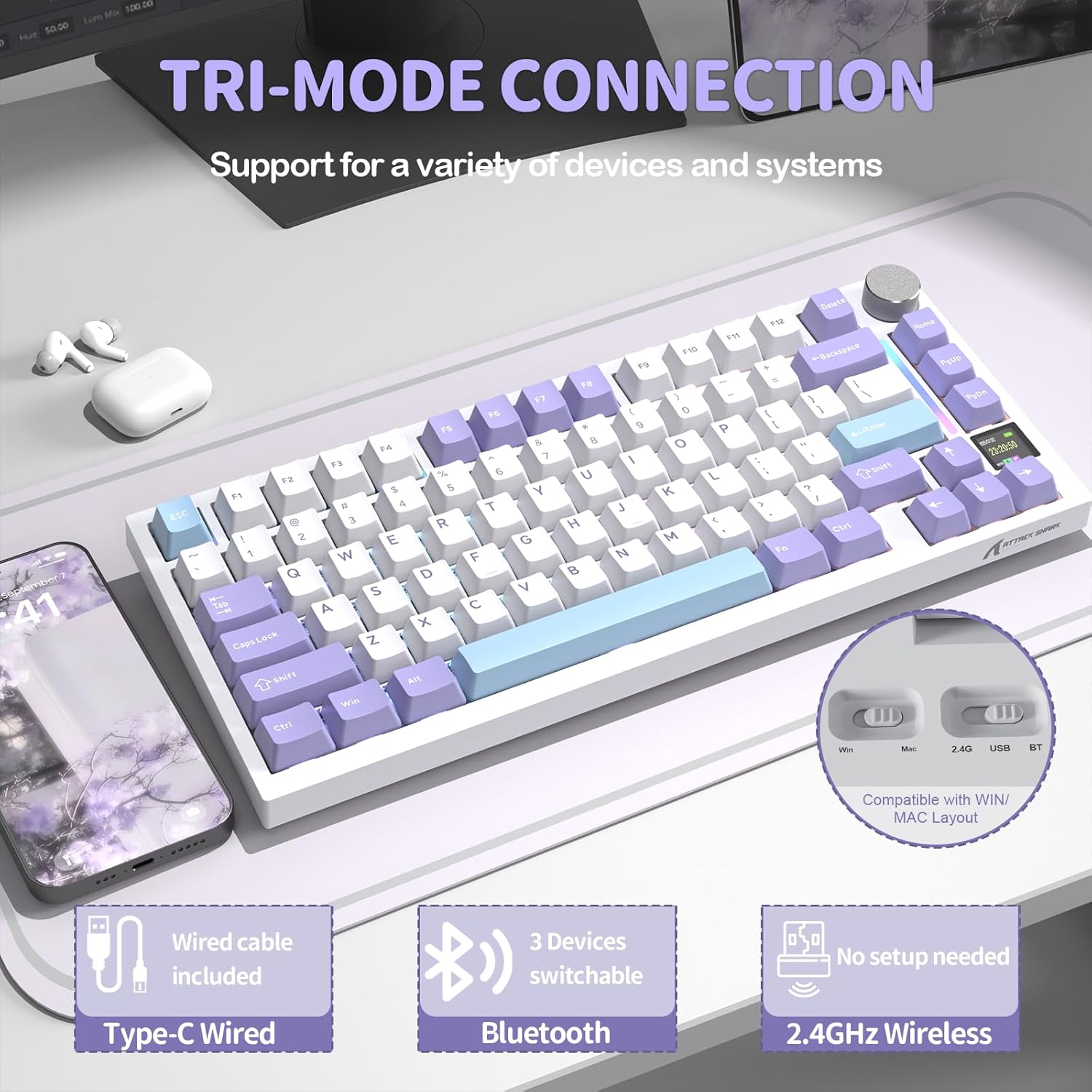
รูปที่ 3: เกินview เกี่ยวกับตัวเลือกการเชื่อมต่อแบบสามโหมดของคีย์บอร์ด
3.2.1 การเชื่อมต่อแบบมีสาย
Connect the USB-C cable from the keyboard to your computer's USB port. The keyboard will automatically switch to wired mode.
3.2.2 การเชื่อมต่อไร้สาย 2.4GHz
Insert the 2.4GHz USB receiver into an available USB port on your computer. Switch the keyboard to 2.4G mode. The keyboard should connect automatically. For optimal performance, ensure the receiver is close to the keyboard.
3.2.3 การเชื่อมต่อบลูทูธ
Switch the keyboard to Bluetooth mode. On your device, search for Bluetooth devices and select "ATTACK SHARK X820 Ultra" to pair. The keyboard can store up to three Bluetooth connections, allowing for easy switching between devices.
4. คู่มือการใช้งาน
4.1 Smart TFT Display & Metal Control Knob
The integrated TFT smart screen and precision metal knob provide real-time information and intuitive control over various keyboard functions.
- ข้อมูลแบบเรียลไทม์: View battery level, connection status, date, and time.
- RGB Adjustment: Instantly change RGB lighting effects and colors.
- การสลับโหมดระบบปฏิบัติการ: Easily switch between Windows and macOS modes.
- การควบคุมระดับเสียง: Press Fn + Knob to activate volume control, then scroll the knob to adjust volume.
- การนำทางเมนู: Scroll the knob to navigate menu pages on the display. Short press the knob to select or confirm.

รูปที่ 4: รายละเอียด view of the Smart TFT Display and Metal Control Knob functionalities.
4.2 แสงไฟ RGB แบบไดนามิก
Personalize your typing experience with 16.8 million colors and over 19 lighting presets. The south-facing LEDs ensure vivid and even backlighting, especially through PBT keycaps. Adjust effects directly via the knob or screen, or use key combinations:
- Fn + { : เปิด/ปิดไฟ RGB
- กดปุ่ม Fn + Enter: Change lighting color.
- Fn + }: Cycle through custom light effects.

Figure 5: Customization options for the keyboard's dynamic RGB backlight.
4.3 การออกแบบที่สามารถถอดเปลี่ยนได้ขณะทำงาน (Hot-Swappable Design)
The X820 Ultra features hot-swappable sockets, supporting both 3-pin and 5-pin mechanical switches. This allows you to easily change switches without soldering, customizing your typing feel. The keyboard comes with custom linear Shark switches for smooth keystrokes and fast response. Precision-tuned stabilizers ensure firm, rattle-free large keys with satisfying rebound.

Figure 6: Components illustrating the hot-swappable PCB design, including pre-lubed linear switches, hot-swap sockets, and plate-mounted stabilizers.
4.4 Gasket Structure & Advanced Acoustic Tuning
The keyboard is built with a soft gasket-mounted structure, combining a 1.2mm FR4 fiberglass dual-layer PCB with individual switch slots for improved flex and keystroke uniformity. This design, paired with upgraded acoustic tuning layers (PORON foam, IXPE pad, PET sheet, DEPDM, and molded silicone), results in a deeper sound profile, softer touch, and enhanced typing feedback.

รูปที่ 7: ระเบิด view of the keyboard's gasket structure, showing the various dampening and acoustic layers.
4.5 Web การปรับแต่งไดรเวอร์
The X820 Ultra offers extensive customization without the need for software installation. You can adjust macros, lighting, DPI, and key remapping directly through your browser using the cloud driver. Full QMK web driver support is also available at qmk.top for deeper customization and advanced key mapping options.

Figure 8: Screenshots of the web ส่วนติดต่อไดรเวอร์สำหรับปรับแต่งการตั้งค่าแป้นพิมพ์
Video 1: An official product video demonstrating the ATTACK SHARK X820 Ultra Wireless Gaming Mechanical Keyboard in use, highlighting its features and typing experience.
5. การบำรุงรักษา
การบำรุงรักษาอย่างสม่ำเสมอจะช่วยยืดอายุการใช้งานและประสิทธิภาพของคีย์บอร์ดของคุณได้
- การทำความสะอาดคีย์แคป: Use the provided key puller to remove keycaps. Clean them with a soft cloth dampล้างด้วยสบู่และน้ำอ่อนๆ ตรวจสอบให้แน่ใจว่าแห้งสนิทก่อนติดกลับเข้าไปใหม่
- การทำความสะอาดตัวคีย์บอร์ด: Use a soft, dry cloth to wipe down the keyboard body. For stubborn dirt, a slightly damp สามารถใช้ผ้าได้ แต่ควรหลีกเลี่ยงความชื้นมากเกินไป
- การทำความสะอาดสวิตช์: Use compressed air to remove dust and debris from around the switches. If switches are removed, clean the sockets carefully.
- พื้นที่จัดเก็บ: เมื่อไม่ได้ใช้งานเป็นเวลานาน ควรเก็บแป้นพิมพ์ไว้ในที่แห้งและเย็น หลีกเลี่ยงแสงแดดโดยตรง
6 การแก้ไขปัญหา
If you encounter issues with your ATTACK SHARK X820 Ultra keyboard, refer to the following common problems and solutions:
- Keyboard not connecting (Wireless/Bluetooth):
- ตรวจสอบให้แน่ใจว่าแป้นพิมพ์มีประจุไฟแล้ว
- Verify the correct mode (2.4G/BT) is selected on the keyboard.
- For 2.4G, ensure the USB receiver is securely plugged in and close to the keyboard.
- สำหรับบลูทูธ โปรดตรวจสอบให้แน่ใจว่าได้เปิดใช้งานบลูทูธบนอุปกรณ์ของคุณแล้ว และลองจับคู่ใหม่อีกครั้ง
- Try connecting via wired USB-C to confirm keyboard functionality.
- แสง RGB ไม่ทำงานหรือไม่สม่ำเสมอ:
- Check if RGB is turned off via the knob or Fn key combination.
- ตรวจสอบให้แน่ใจว่าเฟิร์มแวร์ของคีย์บอร์ดเป็นเวอร์ชันล่าสุดแล้ว ผ่านทาง... web คนขับรถ
- Perform a factory reset if customization settings are causing issues.
- คีย์ไม่ตอบสนอง:
- Ensure the keyboard is properly connected in the selected mode.
- If only specific keys are affected, try reseating the keycap and switch. Use the key puller to gently remove and reinsert the switch.
- Test with a different switch if available (from the included spare switches).
- Smart TFT Display is blank or frozen:
- ชาร์จคีย์บอร์ดอีกครั้ง
- รีสตาร์ทคีย์บอร์ดโดยการปิดและเปิดใหม่
- หากปัญหายังคงอยู่ โปรดติดต่อฝ่ายสนับสนุนลูกค้า
7. ข้อมูลจำเพาะ
| คุณสมบัติ | รายละเอียด |
|---|---|
| ชื่อรุ่น | ATTACK SHARK X820Ultra |
| คำอธิบายแป้นพิมพ์ | เครื่องจักรกล |
| การเชื่อมต่อ | BT/2.4G/Wired (USB-C) |
| เค้าโครง | 75% |
| จำนวนคีย์ | 81 |
| สวิตซ์ | Hot-Swappable (3/5-pin compatible) |
| แสงไฟแบ็คไลท์ | RGB (16.8M colors, 19+ effects) |
| ความจุของแบตเตอรี่ | 4000mAh |
| คุณสมบัติพิเศษ | Smart TFT Display, Metal Control Knob, Gasket Mount, QMK Web Driver Support, Double-shot PBT Keycaps |
| ความเข้ากันได้ | วินโดวส์, แมคโอเอส |
| น้ำหนักสินค้า | 2.43 ปอนด์ |
| ขนาดแพ็คเกจ | 13.86 x 7.28 x 1.97 นิ้ว |
8. การรับประกันและการสนับสนุน
ATTACK SHARK products are designed and manufactured to the highest quality standards. For information regarding warranty coverage and support, please refer to the warranty card included in your package or visit the official ATTACK SHARK website. If you require technical assistance or have questions not covered in this manual, please contact ATTACK SHARK customer support through their official channels.


