
1. บทนำ
The ATTACK SHARK X820 Ultra is a high-performance 75% wireless mechanical gaming keyboard designed for versatility and customization. It features tri-mode connectivity (Bluetooth, 2.4GHz wireless, and wired USB-C), hot-swappable switches, dynamic RGB backlighting, and a smart TFT display with a multi-function knob. This manual provides detailed instructions for setting up, operating, maintaining, and troubleshooting your keyboard.
2. เนื้อหาบรรจุภัณฑ์
โปรดตรวจสอบว่าสินค้าทั้งหมดมีอยู่ในแพ็คเกจของคุณ:
- ATTACK SHARK X820 Ultra Keyboard
- สาย USB-C
- ตัวดึงคีย์แคป/สวิตช์ 2-in-1
- Spare Switches (2)
- คู่มือการใช้งาน
- ตัวรับสัญญาณไร้สาย 2.4GHz
- ATTACK SHARK Mascot Stickers (2)

Image: Contents of the ATTACK SHARK X820 Ultra keyboard package.
3. การตั้งค่า
3.1 การชาร์จเริ่มต้น
Before first use, connect the keyboard to a USB power source using the provided USB-C cable to ensure it is fully charged. The 4000mAh battery provides extended usage time.
3.2 โหมดการเชื่อมต่อ
The X820 Ultra supports three connection modes: 2.4GHz wireless, Bluetooth 5.1, and wired USB-C. A switch on the back of the keyboard allows you to select the desired mode.
- ไร้สาย 2.4GHz: Insert the 2.4GHz wireless receiver into an available USB port on your computer. Switch the keyboard to 2.4G mode. The keyboard should connect automatically.
- บลูทูธ: Switch the keyboard to BT mode. On your device (computer, tablet, or smartphone), search for Bluetooth devices and select 'X820Ultra' to pair. The keyboard supports connecting to multiple Bluetooth devices.
- USB-C แบบมีสาย: Connect the keyboard directly to your computer using the USB-C cable. This mode also charges the keyboard.
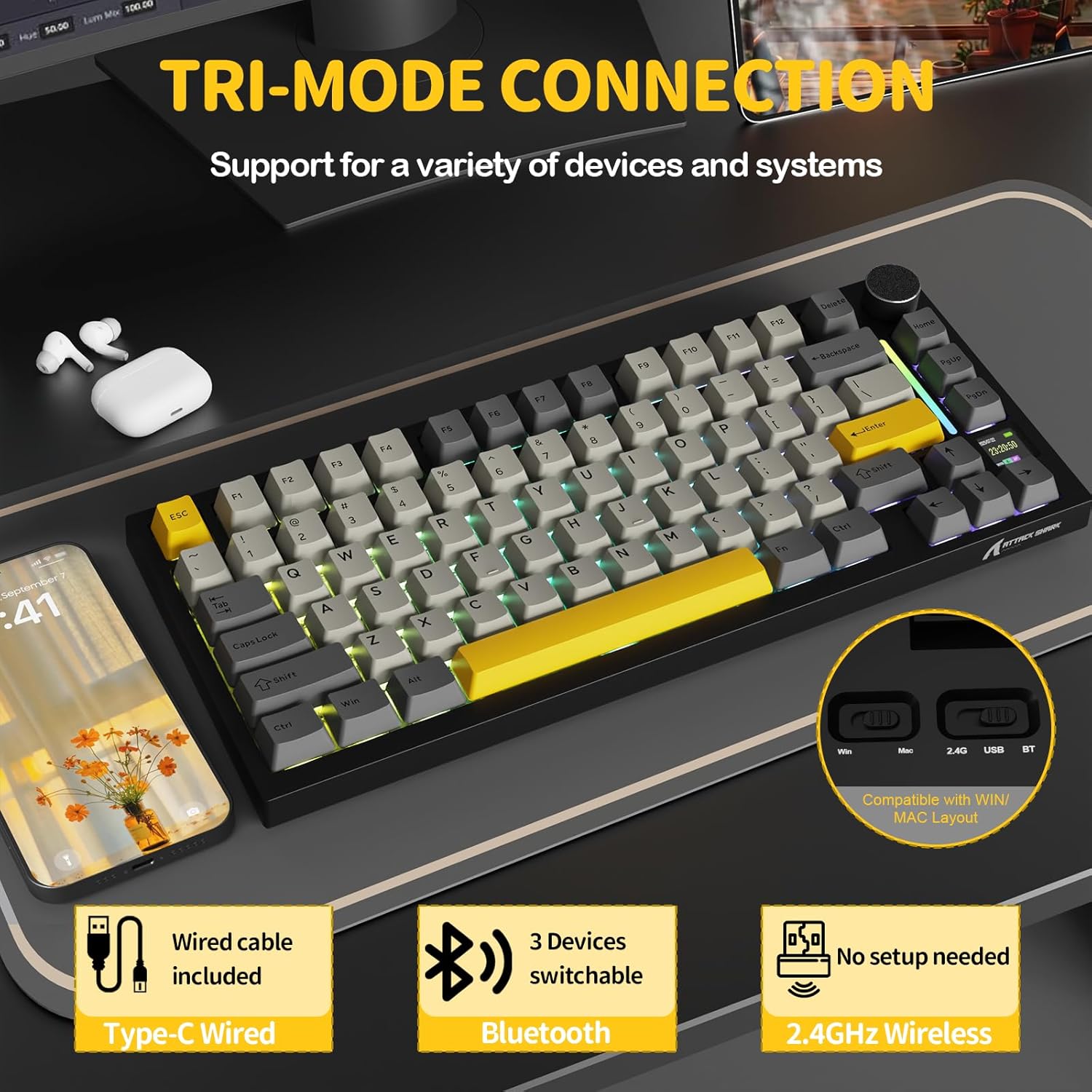
Image: Tri-mode connectivity options for the X820 Ultra keyboard.
3.3 ความเข้ากันได้ของระบบปฏิบัติการ
The keyboard supports both Windows and macOS. Use the dedicated switch on the back of the keyboard to toggle between Win and Mac layouts for optimal functionality.
4. การดำเนินการ
4.1 Smart TFT Display & Multi-Function Knob
The X820 Ultra features a smart TFT display and a metal control knob for intuitive control and real-time information. The display can show RGB settings, OS modes, battery status, date, and connection status.
- การควบคุมระดับเสียง: Press the Fn key + rotate the knob to adjust volume up or down.
- การนำทางเมนู: Rotate the knob to select menu items on the TFT screen. Short press the knob to confirm selections.
- การตรวจสอบแบตเตอรี่: Long press the Fn key + Backspace to check the battery level on the TFT display.
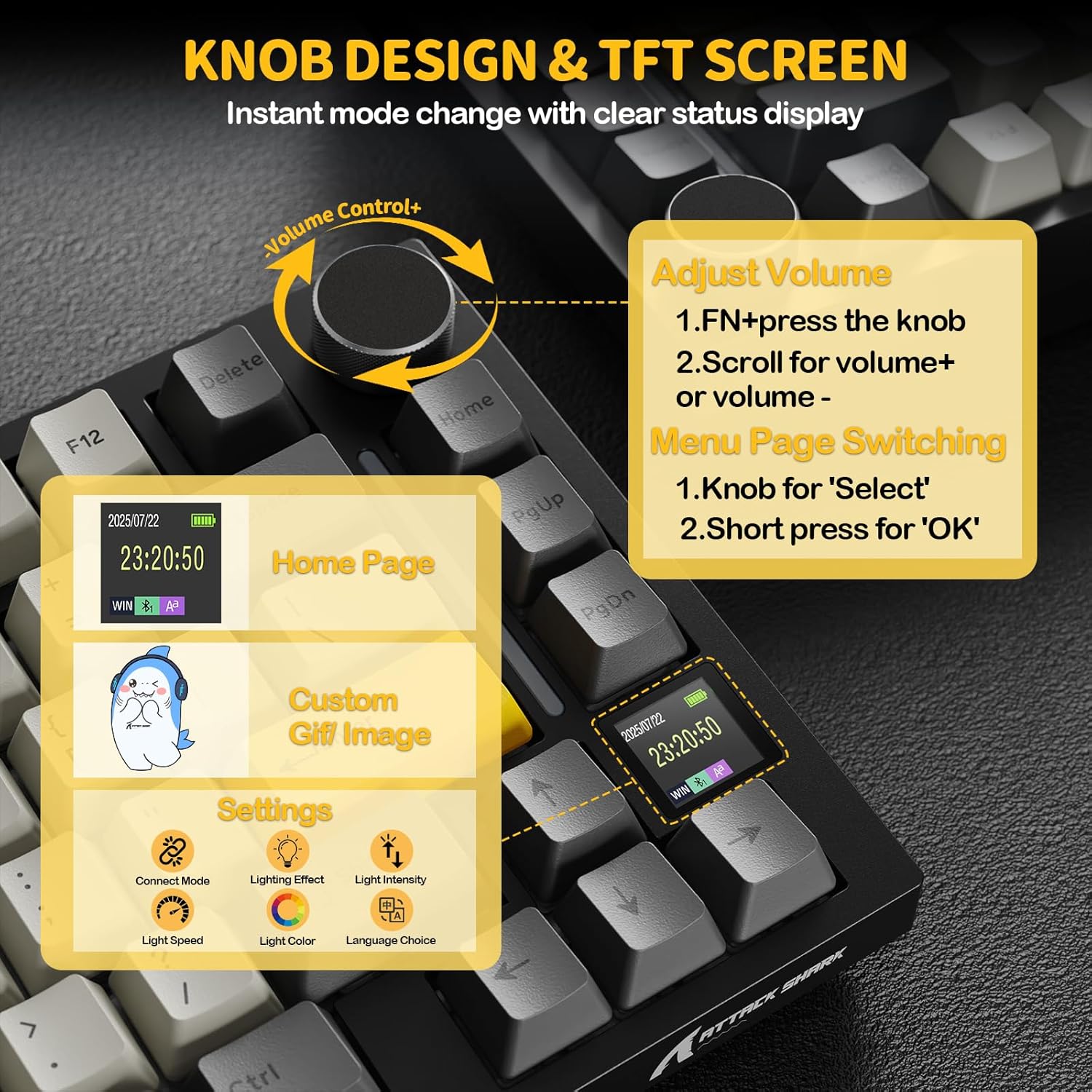
Image: Smart TFT display and multi-function knob controls.
4.2 แสงไฟ RGB แบบไดนามิก
Personalize your typing experience with 16.8 million colors and over 19 lighting presets. The south-facing LEDs ensure vibrant and even backlighting.
- วิธีเปิด/ปิดไฟ RGB: Press Fn + \| key.
- เปลี่ยนสี: Press Fn + Enter key.
- Custom Light Effect: Press Fn + ]} key.
- Adjust effects and brightness via the knob or the web คนขับรถ
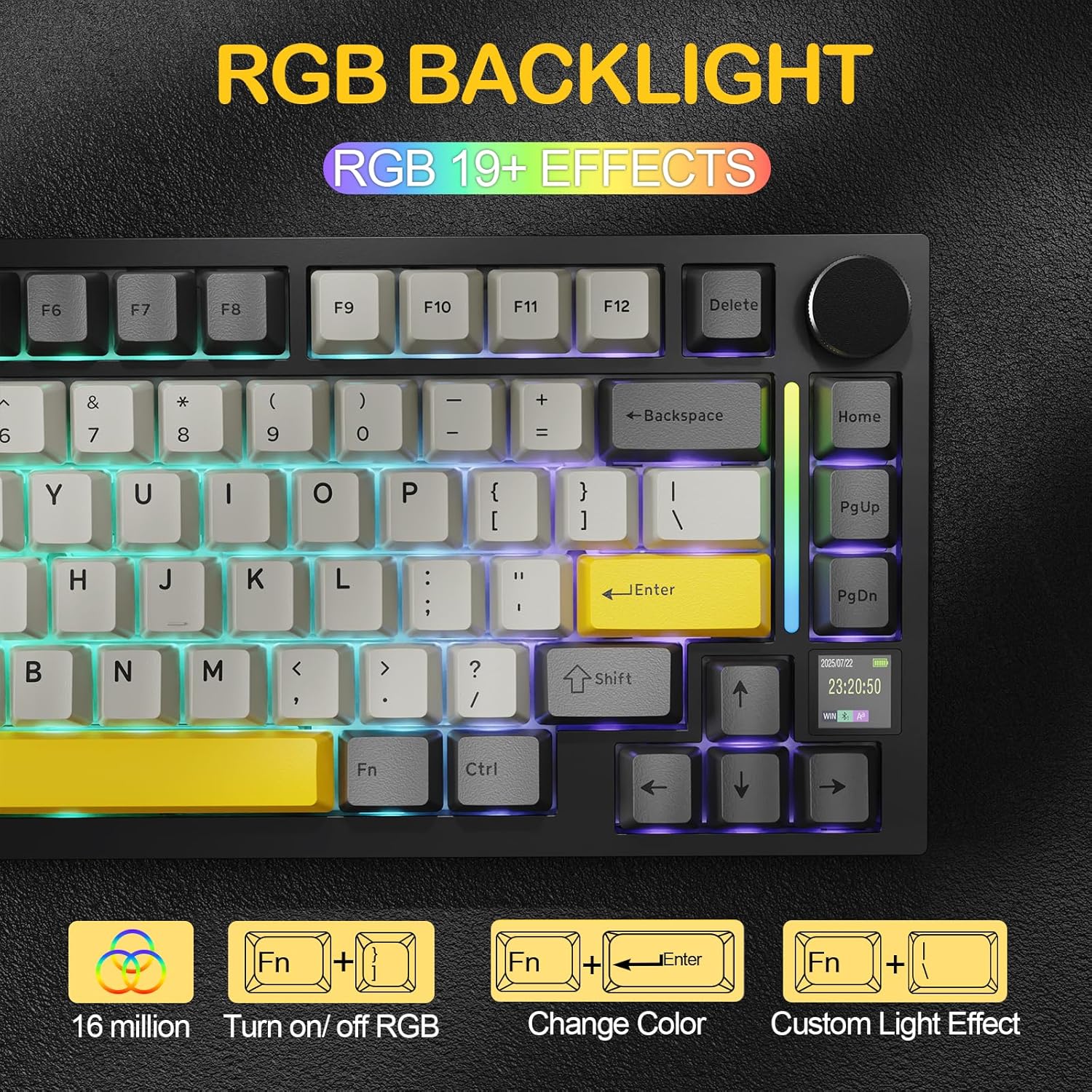
Image: RGB backlight features and controls.
4.3 สวิตช์แบบ Hot-Swappable
The keyboard is equipped with hot-swappable sockets, allowing you to easily change switches without soldering. It supports both 3-pin and 5-pin mechanical switches.
- Shark Switch: Linear, 42g actuation, 48g bottom-out, 2.0mm pre-travel. Offers a lighter, more responsive typing experience.
- Gift Switch: Linear, 45g actuation, 60g bottom-out, 2.0mm pre-travel. Provides balanced tactile feedback with a deeper sound.

Image: Hot-swappable PCB and switch types.
4.4 Web Driver (QMK Support)
Customize your keyboard settings, macros, lighting, and key remapping directly through your browser using the cloud driver. Full QMK web driver support is available at qmk.top สำหรับการปรับแต่งขั้นสูง
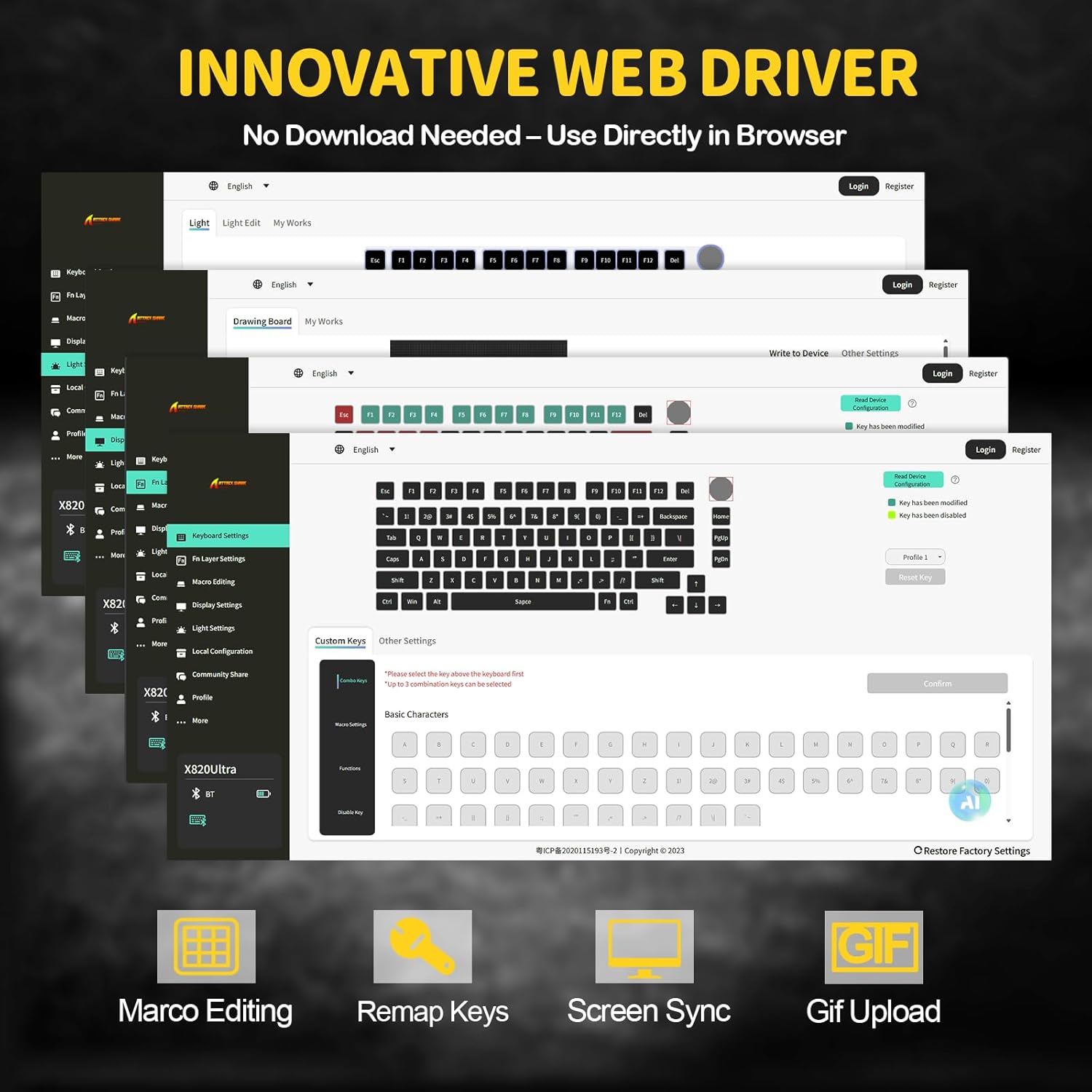
Image: Innovative web ส่วนติดต่อไดรเวอร์สำหรับการปรับแต่ง
5. การบำรุงรักษา
5.1 การทำความสะอาดแป้นพิมพ์
To maintain optimal performance and appearance, regularly clean your keyboard. Use a soft, dry cloth to wipe down the keycaps and chassis. For deeper cleaning, use the provided keycap puller to remove keycaps and clean underneath with compressed air or a small brush. Avoid using harsh chemicals or abrasive materials.
5.2 การเปลี่ยนสวิตช์
Thanks to the hot-swappable design, you can easily replace individual switches. Use the provided switch puller to gently remove a switch. Align the pins of the new switch with the holes on the PCB and press down firmly until it clicks into place. Ensure the pins are not bent during insertion.
5.3 การดูแลแบตเตอรี่
To prolong the life of the 4000mAh battery, avoid fully discharging it frequently. Charge the keyboard when the battery indicator on the TFT display shows low power. If storing the keyboard for an extended period, charge it to approximately 50% and store it in a cool, dry place.
6 การแก้ไขปัญหา
6.1 ปัญหาการเชื่อมต่อ
- 2.4GHz/Bluetooth Not Connecting: Ensure the mode switch on the back of the keyboard is set correctly (2.4G or BT). For Bluetooth, ensure your device's Bluetooth is enabled and the keyboard is in pairing mode. Try restarting both the keyboard and your device.
- การเชื่อมต่อไม่ต่อเนื่อง: Ensure the keyboard is within range of the receiver/device. Avoid obstructions that may interfere with the wireless signal. Check for other wireless devices causing interference.
- ไม่รู้จักการเชื่อมต่อแบบมีสาย: Try a different USB-C cable or USB port on your computer. Ensure the cable is securely connected at both ends.
6.2 ปัญหาเกี่ยวกับแสงไฟ RGB
- ไฟไม่ทำงาน: Ensure RGB is turned on (Fn + \|). Check brightness settings via the knob or web คนขับรถ
- สี/เอฟเฟ็กต์ไม่ถูกต้อง: Reset lighting effects through the web driver or cycle through presets using keyboard shortcuts.
6.3 คีย์ไม่ตอบสนอง
- Single Key Failure: Due to the hot-swappable design, a switch might be improperly seated or faulty. Use the switch puller to remove and re-insert the switch. If the issue persists, try replacing it with one of the spare switches.
- Multiple Keys Not Responding: Ensure the keyboard is charged and properly connected. Try resetting the keyboard (refer to the web driver or manufacturer's support for specific reset instructions).
6.4 TFT Display Issues
- Display Blank/Frozen: Try restarting the keyboard. If the issue persists, check for firmware updates via the web คนขับรถ
- Incorrect Information: Ensure the keyboard's internal clock is synchronized if applicable, or check connection status.
7. ข้อมูลจำเพาะ
| คุณสมบัติ | รายละเอียด |
|---|---|
| ยี่ห้อ | โจมตีฉลาม |
| ชื่อรุ่น | ATTACK SHARK X820Ultra |
| คำอธิบายแป้นพิมพ์ | เครื่องจักรกล |
| เค้าโครง | 75% (81 คีย์) |
| การเชื่อมต่อ | บลูทูธ 5.1, ไร้สาย 2.4GHz, USB-C แบบมีสาย |
| สวิตซ์ | Hot-Swappable (3/5-pin compatible), Linear (Shark Switch, Gift Switch options) |
| การแบ็คไลท์ | RGB (16.8M colors, 19+ presets), South-Facing LEDs |
| แสดง | จอแสดงผล TFT อัจฉริยะ |
| ปุ่มควบคุม | Multi-function CNC Metal Knob |
| ความจุของแบตเตอรี่ | 4000mAh |
| ปุ่มกด | PBT แบบดับเบิ้ลช็อต |
| โครงสร้าง | Gasket Mount with Advanced Acoustic Tuning |
| ความเข้ากันได้ | Windows, macOS (QMK web driver support) |
8. วิดีโอผลิตภัณฑ์อย่างเป็นทางการ
วิดีโอ: เจ้าหน้าที่ผ่านview of the ATTACK SHARK X820 Ultra Wireless Gaming Mechanical Keyboard, demonstrating its features and functionality.
9. การรับประกันและการสนับสนุน
For warranty information, technical support, and additional resources, please visit the official ATTACK SHARK website or contact their customer service. Details can typically be found on the product packaging or the brand's online presence.