
1. บทนำ
This manual provides comprehensive instructions for the Maxwest Gravity G64 Smartphone. It covers setup, operation, maintenance, and troubleshooting to help you maximize your device's capabilities. Please read this manual thoroughly before using your new smartphone.
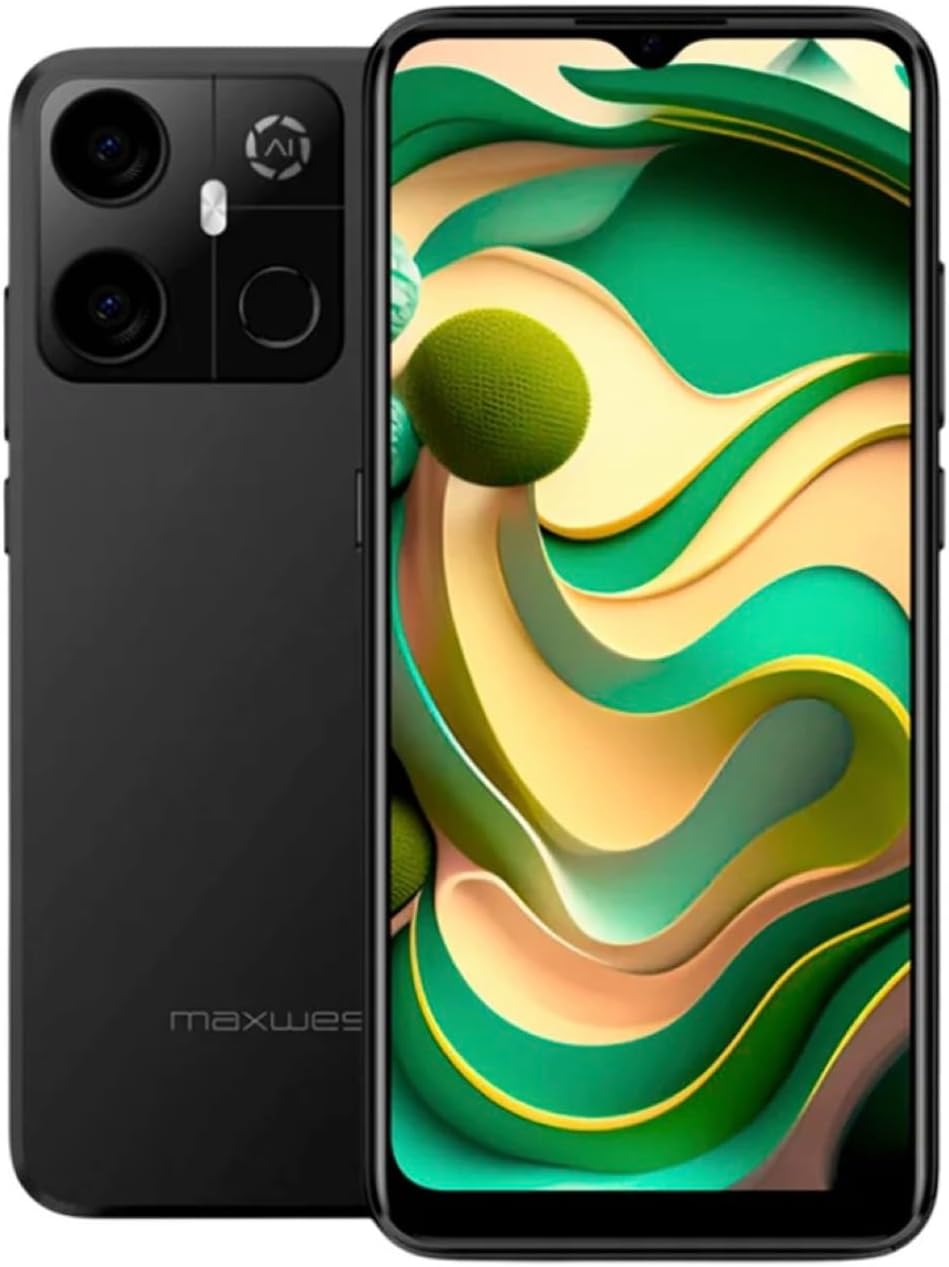
Image: Maxwest Gravity G64 Smartphone, front and back view. The front displays a vibrant screen, while the rear highlights the camera module and Maxwest branding.
2. การตั้งค่า
2.1. อะไรอยู่ในกล่อง
- Maxwest Gravity G64 Smartphone
- อะแดปเตอร์แปลงไฟ
- Battery (1 C battery, included)
2.2. การติดตั้งซิมการ์ดและการ์ดหน่วยความจำ
Locate the SIM card tray on the side of your device. Use the provided SIM ejector tool to open the tray. Insert your Nano-SIM card(s) and/or microSD card into the designated slots. Ensure the cards are correctly oriented before reinserting the tray firmly into the phone.
2.3. การเปิดเครื่องครั้งแรกและการชาร์จ
Press and hold the power button located on the side of the phone until the Maxwest logo appears. For first-time use, it is recommended to fully charge the device. Connect the USB Type-C cable to the phone's charging port and the power adapter to a wall outlet. The battery indicator will show charging status.
3. การดำเนินการ
3.1. การนำทางพื้นฐาน
The Gravity G64 features a responsive touchscreen. Swipe up, down, left, or right to navigate through menus and home screens. Tap icons to open applications. Use pinch-to-zoom gestures for images and web หน้า
3.2. คุณสมบัติการแสดงผล
The 6.57-inch HD+ display with a 60Hz refresh rate provides clear visuals and smooth scrolling. Adjust brightness and display settings via the 'Settings' menu under 'Display'.
3.3. การใช้กล้อง
Launch the Camera application to utilize the 16MP AI Camera system. Tap to focus, pinch to zoom, and use the on-screen shutter button to capture photos. Explore various modes like Portrait, Panorama, and Night mode for enhanced photography.
3.4. คุณสมบัติด้านความปลอดภัย
Your Gravity G64 offers dual security options: Fingerprint Sensor and Face Unlock. To set these up, navigate to 'Settings' > 'Security & privacy' > 'Device unlock'. Follow the on-screen instructions to register your fingerprint(s) and face data.
3.5. การเชื่อมต่อ
- 4G เซลลูล่าร์: Insert a compatible SIM card to access 4G networks. Manage mobile data settings in 'Settings' > 'Network & internet'.
- ไวไฟ : Connect to wireless networks via 'Settings' > 'Network & internet' > 'Wi-Fi'. Select your desired network and enter the password if required.
- บลูทูธ: Pair with Bluetooth devices (headphones, speakers) through 'Settings' > 'Connected devices' > 'Bluetooth'.
3.6. ระบบปฏิบัติการ
The device runs on Android 14, providing access to the latest features, security updates, and a vast ecosystem of applications available on the Google Play Store.
4. การบำรุงรักษา
4.1. การดูแลแบตเตอรี่
To prolong battery life, avoid extreme temperatures. Use only the provided power adapter and USB Type-C cable for charging. Avoid completely draining the battery frequently.
4.2. การอัปเดตซอฟต์แวร์
Regularly check for software updates to ensure optimal performance and security. Go to 'Settings' > 'System' > 'System update' to check for and install available updates.
4.3. การทำความสะอาดอุปกรณ์ของคุณ
ใช้ผ้านุ่มที่ไม่เป็นขุยทำความสะอาดหน้าจอและตัวเครื่องโทรศัพท์ หลีกเลี่ยงการใช้สารเคมีรุนแรงหรือวัสดุขัดถูที่อาจทำให้อุปกรณ์เสียหาย
5 การแก้ไขปัญหา
- อุปกรณ์ไม่เปิด: ตรวจสอบให้แน่ใจว่าแบตเตอรี่ชาร์จเต็มแล้ว เสียบที่ชาร์จแล้วลองอีกครั้ง
- แอปขัดข้องหรือค้าง: Close and reopen the app. If the issue persists, restart the phone. Clear app cache or reinstall the app.
- สัญญาณเครือข่ายไม่ดี: Check your SIM card installation. Move to an area with better coverage. Contact your carrier if issues persist.
- Fingerprint/Face Unlock not working: Ensure your fingers are clean and dry, or your face is clearly visible. Re-register your biometric data if necessary.
- รีเซ็ตเป็นค่าเริ่มต้นจากโรงงาน: As a last resort, you can perform a factory reset. Go to 'Settings' > 'System' > 'Reset options' > 'Erase all data (factory reset)'. คำเตือน: การดำเนินการนี้จะลบข้อมูลทั้งหมดในโทรศัพท์ของคุณ โปรดสำรองข้อมูลสำคัญก่อนดำเนินการ
6. ข้อมูลจำเพาะ
| คุณสมบัติ | รายละเอียด |
|---|---|
| ชื่อรุ่น | Gravity G64 |
| แสดง | 6.57-inch HD+ (60Hz Refresh Rate) |
| โปรเซสเซอร์ | Octa-Core Engine |
| แรม | 8GB |
| การจัดเก็บข้อมูลภายใน | 64GB |
| กล้องหลัง | ระบบกล้อง AI 16 ล้านพิกเซล |
| ระบบปฏิบัติการ | แอนดรอยด์ 14 |
| ความจุของแบตเตอรี่ | 4000 มิลลิแอมป์ |
| การเชื่อมต่อ | 4G, Bluetooth, Wi-Fi, USB Type-C |
| ความปลอดภัย | เซ็นเซอร์ลายนิ้วมือ ปลดล็อคด้วยใบหน้า |
| ขนาด | 6.43 x 3.31 x 0.35 นิ้ว |
| น้ำหนัก | 1.21 ปอนด์ |
7. การรับประกันและการสนับสนุน
7.1. ข้อมูลการรับประกัน
For detailed warranty information, please refer to the warranty card included with your product or visit the official Maxwest webไซต์นี้ โปรดเก็บหลักฐานการซื้อไว้เพื่อใช้ยืนยันการรับประกัน
7.2. การสนับสนุนลูกค้า
If you encounter any issues not covered in this manual, please contact Maxwest customer support. Contact details can typically be found on the Maxwest official webไซต์หรือบนบรรจุภัณฑ์ผลิตภัณฑ์