
การแนะนำ
This manual provides detailed instructions for the setup, operation, and maintenance of your TELE System UP Stick Google TV 4K UHD HDMI streaming device. Please read this manual thoroughly before using the device to ensure proper functionality and to maximize your viewการสร้างประสบการณ์

Image: The TELE System UP Stick, an Ultra HD 4K Streaming Player, featuring Google TV branding and logos for Dolby, HDMI, HEVC, and Bluetooth technologies.
มีอะไรอยู่ในกล่อง
ตรวจสอบว่ามีรายการทั้งหมดต่อไปนี้รวมอยู่ในแพ็คเกจของคุณ:
- TELE System UP Stick Google TV 4K UHD HDMI device
- รีโมทคอนโทรลบลูทูธ
- แบตเตอรี่สำหรับรีโมทคอนโทรล
- HDMI Cable/Extender
- Quick Start Guide and Warranty Sheet

ภาพ: ด้านหน้า view of the TELE System UP Stick Google TV 4K UHD HDMI device, showing its compact design and the 'UP Stick' logo with a green indicator light.
คำแนะนำการตั้งค่า
1. การเชื่อมต่ออุปกรณ์
- Insert the UP Stick: Plug the TELE System UP Stick directly into an available HDMI port on your television. If space is limited, use the provided HDMI extender cable.
- เชื่อมต่อพลังงาน: Connect the power adapter (not explicitly listed in box, but implied by "Power=5V=1A" on back image) to the UP Stick and then to a power outlet. The device can also be powered via a TV's USB port (0.5A is sufficient).
- เลือกอินพุต HDMI: Turn on your television and select the corresponding HDMI input source to which the UP Stick is connected.
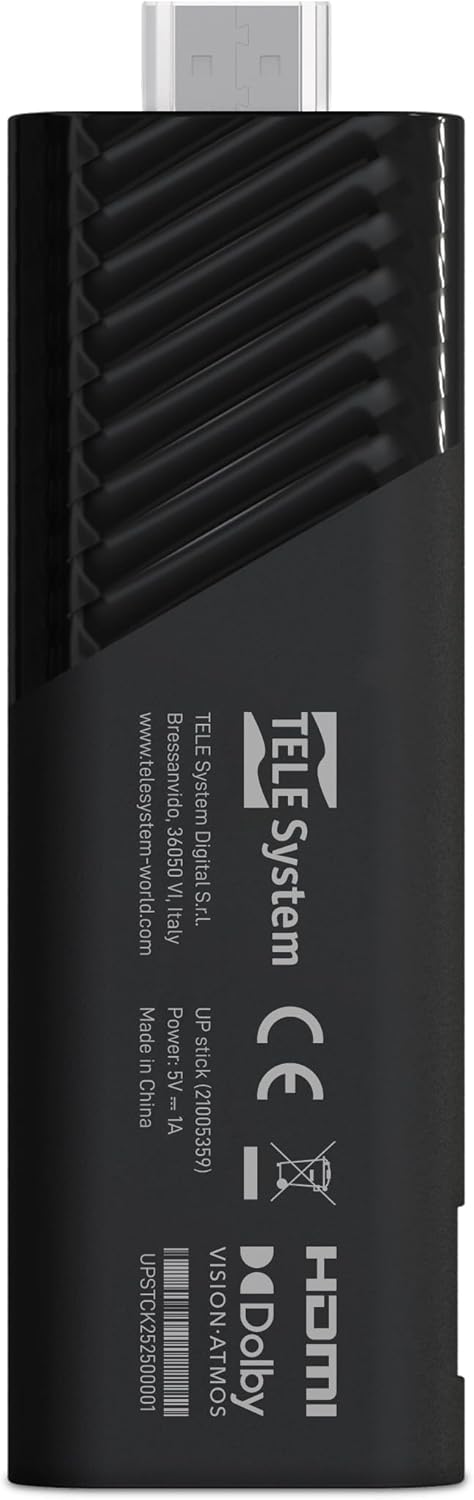
ภาพ: ด้านหลัง view of the TELE System UP Stick, displaying regulatory marks, HDMI connector, and power input specifications (5V=1A).
2. การจับคู่รีโมทคอนโทรล
Upon first use, the remote control may need to be paired with the UP Stick:
- Insert the provided batteries into the Bluetooth remote control.
- Follow the on-screen instructions to pair the remote. Typically, this involves pressing and holding specific buttons (e.g., Home and Back) simultaneously until a pairing confirmation appears on the screen.

Image: The TELE System UP Stick remote control, featuring a prominent voice control button and dedicated buttons for popular streaming services like YouTube, Netflix, Prime Video, and Disney+.
3. การตั้งค่าซอฟต์แวร์เบื้องต้น
Once connected and powered on, the device will guide you through the initial setup process:
- เลือกภาษา: เลือกภาษาที่คุณต้องการ
- การเชื่อมต่อ Wi-Fi: Select your Wi-Fi network from the list and enter the password. The device supports dual-band Wi-Fi for stable 4K streaming.
- การเข้าสู่ระบบบัญชี Google: Sign in with your Google account. This is necessary to access Google TV features, download apps from the Google Play Store, and use Google Assistant.
- Google TV Configuration: Follow the prompts to configure Google TV, including accepting terms of service and setting up personalized recommendations.

Image: A screenshot of the Google TV interface, displaying icons for popular streaming services such as Netflix, Prime Video, Apple TV, Disney+, and YouTube, indicating broad app compatibility.
คำแนะนำการใช้งาน
การนำทาง Google TV
The Google TV interface organizes your content from various streaming services into a single, personalized home screen. Use the remote control's directional pad to navigate through menus, select content, and launch applications.
- หน้าจอหลัก: Displays recommended content, installed apps, and quick access to different categories (Movies, Shows, Apps, Library).
- แอป: เข้าถึงแอปพลิเคชันที่ติดตั้งทั้งหมดของคุณ คุณสามารถดาวน์โหลดเพิ่มเติมได้จาก Google Play Store
- ค้นหา: Use the search function to find specific titles, actors, or genres across all your streaming services.
Using Google Assistant (Voice Control)
The remote control features a dedicated button for Google Assistant. Press this button and speak your commands or questions into the remote's microphone.
- ค้นหาเนื้อหา: Say "Find action movies" or "Open Netflix."
- การควบคุมอุปกรณ์: Say "Turn up the volume" or "Pause."
- ข้อมูล: Ask "What's the weather?" or "Who directed this movie?"

Image: A television screen displaying the Google Assistant interface, prompted by a voice command, alongside the remote control, illustrating the voice control feature.
สตรีมเนื้อหา
The UP Stick supports 4K UHD streaming with Dolby Vision, Dolby Atmos, and HDR10+ for an enhanced audio-visual experience. Access your favorite streaming services directly from the Google TV home screen or through their dedicated apps.
- บริการที่รองรับ: Netflix, Disney+, Prime Video, YouTube, DAZN, Apple TV+, NOW, RaiPlay, and more.
- การติดตั้งแอป: Download additional apps from the Google Play Store. The device has 32 GB of internal storage for apps and data.
การใช้ Google Cast
The built-in Google Cast functionality allows you to stream content directly from your compatible smartphone, tablet, or computer to your television via the UP Stick.
- Ensure your mobile device and the UP Stick are connected to the same Wi-Fi network.
- เปิดแอปพลิเคชันที่รองรับ (เช่น YouTube, Netflix) บนอุปกรณ์มือถือของคุณ
- แตะไอคอน Cast
 within the app and select your UP Stick from the list of available devices.

Image: The TELE System UP Stick shown alongside a smartphone displaying content being cast to a television, highlighting the Google Cast feature.
การซ่อมบำรุง
- การทำความสะอาด: ใช้ผ้านุ่มและแห้งเช็ดทำความสะอาดอุปกรณ์ ห้ามใช้น้ำยาทำความสะอาดหรือสเปรย์
- การอัปเดตซอฟต์แวร์: The UP Stick will periodically receive software updates to improve performance and add new features. Ensure your device is connected to the internet to receive these updates automatically. You can also manually check for updates in the device settings.
- การจัดการพื้นที่เก็บข้อมูล: Regularly check the available storage space (32 GB total) and uninstall unused applications to maintain optimal performance.
การแก้ไขปัญหา
No Picture/No Signal
- Ensure the UP Stick is securely plugged into the HDMI port on your TV.
- ตรวจสอบว่าทีวีของคุณตั้งค่าเป็นแหล่งอินพุต HDMI ที่ถูกต้อง
- Check that the UP Stick is receiving power and its indicator light is on.
- Try plugging the UP Stick into a different HDMI port on your TV.
รีโมทคอนโทรลไม่ตอบสนอง
- ตรวจสอบและเปลี่ยนแบตเตอรี่ในรีโมทคอนโทรล
- Ensure there are no obstructions between the remote and the UP Stick.
- Attempt to re-pair the remote control by following the pairing instructions in the Setup section.
ปัญหาการเชื่อมต่อ Wi-Fi
- Verify that your Wi-Fi router is powered on and functioning correctly.
- ตรวจสอบว่าอุปกรณ์อื่นๆ สามารถเชื่อมต่อกับเครือข่าย Wi-Fi ของคุณได้หรือไม่
- Restart your Wi-Fi router and the UP Stick.
- ตรวจสอบให้แน่ใจว่าคุณได้ป้อนรหัสผ่าน Wi-Fi ที่ถูกต้อง
แอปขัดข้องหรือค้าง
- ปิดแอปที่มีปัญหาแล้วเปิดใหม่อีกครั้ง
- ล้างแคชและข้อมูลของแอปผ่านการตั้งค่าของอุปกรณ์ (การตั้งค่า > แอป > [ชื่อแอป] > ล้างแคช/ล้างข้อมูล)
- ตรวจสอบให้แน่ใจว่าแอปได้รับการอัปเดตเป็นเวอร์ชันล่าสุด
- Restart the UP Stick.
ข้อมูลจำเพาะ
| ชื่อรุ่น | UP Stick |
| ยี่ห้อ | Tele System |
| เทคโนโลยีการเชื่อมต่อ | WiFi, HDMI, Google Cast |
| ประเภทขั้วต่อ | HDMI |
| คุณสมบัติพิเศษ | Dolby Vision, Dolby Atmos, HDR10+, HLG, HEVC, AV1, Google Cast |
| ปณิธาน | 4K (3840 พิกเซล) |
| บริการอินเทอร์เน็ตที่รองรับ | Netflix, Disney+, Prime Video, YouTube, DAZN, Apple TV+, NOW, RaiPlay |
| ฟอร์มแฟกเตอร์ | ทีวีสติ๊ก |
| สี | สีดำ |
| ขนาดสินค้า (กxยxส) | 30 x 20 x 110 มิลลิเมตร |
| ติดตั้งแรมแล้ว | 2GB |
| ความจุในการเก็บข้อมูล | 32GB |
| อุปกรณ์ที่รองรับ | TV, smartphone, tablet, personal computer |
| ตัวแปลงสัญญาณวิดีโอ | H.264, H.265/HEVC, AV1 |
| ความเข้ากันได้ของสมาร์ทโฮม | Compatible with digital home systems |
| ประเทศต้นกำเนิด | จีน |
ข้อมูลการรับประกัน
The TELE System UP Stick Google TV 4K UHD HDMI device is covered by a 2-year manufacturer's warranty from the date of purchase. This warranty covers defects in materials and workmanship under normal use. Please retain your proof of purchase for warranty claims.
For specific details regarding warranty terms and conditions, refer to the warranty sheet included in your product package or contact Tele System customer support.
การสนับสนุนลูกค้า
For technical assistance, troubleshooting, or further inquiries regarding your TELE System UP Stick, please contact Tele System customer support. Refer to the contact information provided in the warranty sheet or visit the official Tele System webเว็บไซต์.
ผู้ผลิต: Tele System
Webเว็บไซต์: www.telesystem-world.com