
1. บทนำ
This user manual provides detailed instructions for the Bemi Cognita Tab 6+ E-Reader. Please read this manual carefully before using your device to ensure proper operation and to maximize your reading experience. Keep this manual for future reference.
1.1 เนื้อหาบรรจุภัณฑ์
- Bemi Cognita Tab 6+ E-Reader
- สายชาร์จ USB
ตรวจสอบให้แน่ใจว่าสินค้าทุกชิ้นครบถ้วนและอยู่ในสภาพดีก่อนแกะกล่อง
2. อุปกรณ์โอเวอร์view
Familiarize yourself with the physical components of your Bemi Cognita Tab 6+ E-Reader.

รูปที่ 2.1: ด้านหน้า view of the Bemi Cognita Tab 6+ E-Reader. The device features a 6-inch E-Ink display with the Bemi logo and model name visible. The screen is designed to mimic paper for a comfortable reading experience.

รูปที่ 2.2: ด้านหน้าและด้านหลัง view of the Bemi Cognita Tab 6+ E-Reader. This image highlights the device's thin design and the textured back cover, which provides a secure grip.

รูปที่ 2.3: ด้านข้าง view of the Bemi Cognita Tab 6+ E-Reader, illustrating the location of the power button and a small LED indicator. This button is used for turning the device on/off and waking it from sleep.
2.1 ส่วนประกอบหลัก:
- 6-inch E-Ink Touchscreen: Glare-free display for comfortable reading.
- ปุ่มเปิด/ปิด: Located on the side for turning the device on/off and sleep/wake.
- พอร์ต USB-C: สำหรับการชาร์จและถ่ายโอนข้อมูล
- ช่องเสียบการ์ด MicroSD: Expandable storage up to 256GB.
- ปุ่มควบคุมด้านข้าง: For page turning and navigation.
- SMARTlight: Adjustable front light for reading in various conditions.
3. การตั้งค่า
3.1 การชาร์จเริ่มต้น
Before first use, fully charge your Bemi Cognita Tab 6+ E-Reader. Connect the provided USB cable to the device's USB-C port and the other end to a compatible USB power adapter (not included) or a computer's USB port.
- โดยทั่วไปการชาร์จเต็มจะใช้เวลาประมาณ 2-3 ชั่วโมง
- ไฟแสดงสถานะการชาร์จจะแสดงสถานะการชาร์จ
3.2 การเปิด/ปิดเครื่อง
- การเปิดเครื่อง: Press and hold the Power button (refer to Figure 2.3) for a few seconds until the screen activates.
- วิธีปิดเครื่อง: กดปุ่มเปิด/ปิดค้างไว้จนกว่าเมนูปิดเครื่องจะปรากฏขึ้น จากนั้นเลือก "ปิดเครื่อง"
- วิธีเข้า/ออกการนอนหลับ: กดปุ่มเปิด/ปิดเครื่องสั้นๆ เพื่อเข้าสู่โหมดพักเครื่องหรือปลุกเครื่องให้ตื่น
3.3 การเชื่อมต่อ Wi-Fi
Connecting to Wi-Fi allows you to download books, transfer files, and access online services.
- จากหน้าจอหลัก ให้แตะที่ การตั้งค่า ไอคอน.
- เลือก ไวไฟ.
- สลับสวิตช์ Wi-Fi เป็น On.
- The device will scan for available networks. Select your desired network from the list.
- ป้อนรหัสผ่านหากได้รับแจ้ง จากนั้นแตะ เชื่อมต่อ.
3.4 การกำหนดค่าเริ่มต้น
Upon first power-on, you may be guided through initial setup steps, including language selection and time zone settings. Follow the on-screen prompts.
4. คู่มือการใช้งาน
4.1 การนำทางอินเทอร์เฟซ
The Bemi Cognita Tab 6+ features a touch-sensitive E-Ink screen and physical side buttons for navigation.
- ท่าทางสัมผัส: Tap to select, swipe to scroll, pinch to zoom (where supported).
- ปุ่มด้านข้าง: Use the physical buttons on the side to turn pages forward or backward during reading.
- จีเซ็นเซอร์: The device automatically rotates the screen orientation based on how you hold it, accommodating both right and left-handed users.
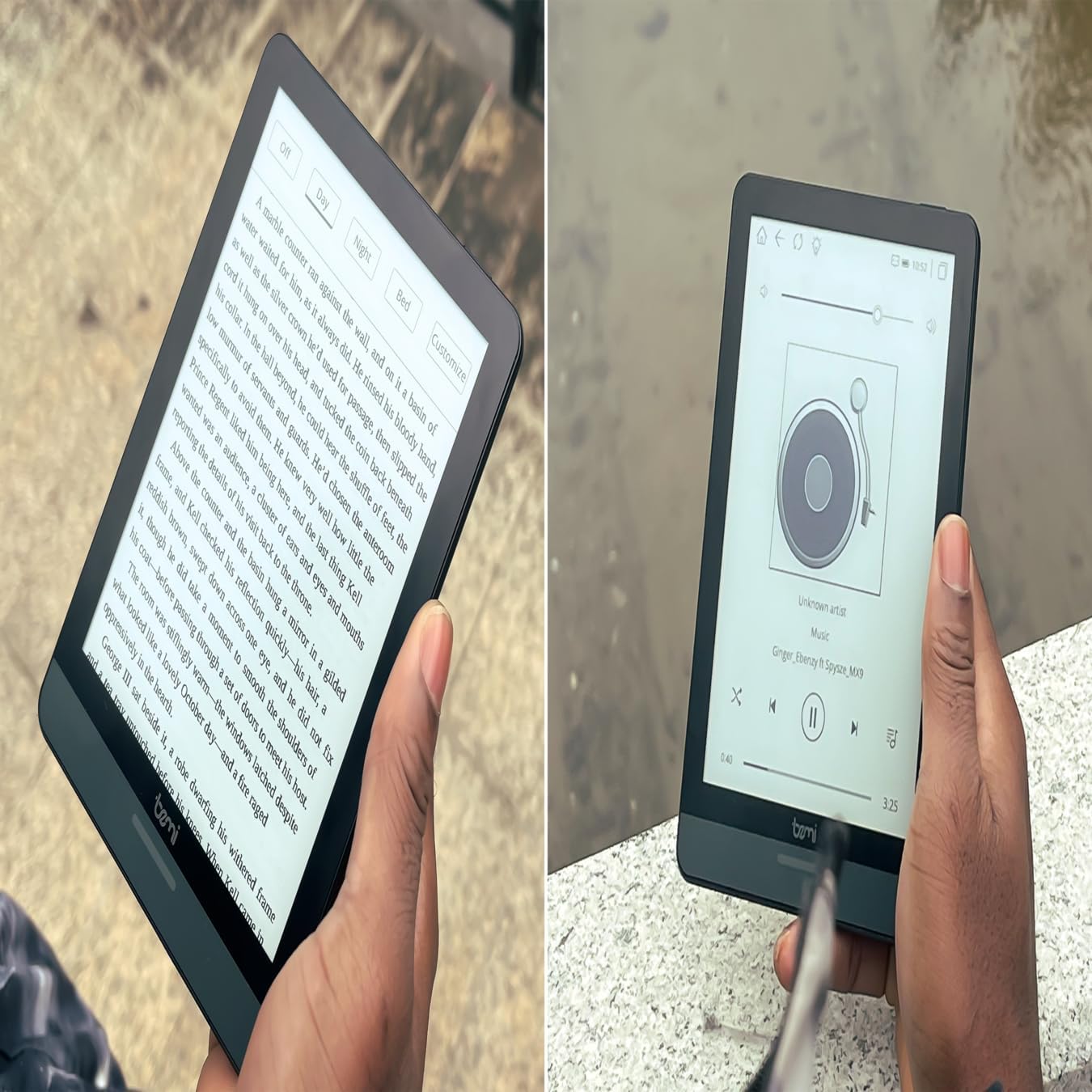
รูปที่ 4.1: User holding the Bemi Cognita Tab 6+ E-Reader while reading. The image shows the clear text display on the E-Ink screen, highlighting the device's readability.
4.2 การอ่านหนังสือ
วิธีเปิดและอ่านหนังสือ:
- From the home screen, tap on the ห้องสมุด or หนังสือ ไอคอน.
- Browse your collection or use the search function to find a book.
- Tap on the book cover to open it.
- Use the touch screen or side buttons to turn pages.
4.3 Adjusting SMARTlight
The SMARTlight feature allows you to adjust both the brightness and color temperature of the screen's front light.
- During reading, tap the center of the screen to bring up the reading menu.
- มองหา แสงสว่าง or SMARTlight ไอคอน.
- Adjust the sliders for brightness (intensity) and color temperature (warm to cool) to your preference.
4.4 การโอนย้าย Files
You can transfer e-books and other supported files to your device via Wi-Fi or USB cable.
- ผ่าน Wi-Fi: If your device supports cloud services or direct Wi-Fi transfer, follow the specific application instructions.
- ผ่านสาย USB:
- Connect your E-Reader to a computer using the provided USB cable.
- The device will appear as a removable storage drive on your computer.
- ลากและวางสิ่งที่คุณต้องการ files (e.g., EPUB, PDF, MOBI) into the appropriate folders on the E-Reader (e.g., "Books" folder).
- ถอดอุปกรณ์ออกจากคอมพิวเตอร์ของคุณอย่างปลอดภัยก่อนถอดสายเคเบิล
4.5 Using MicroSD Card
To expand storage, insert a microSD card (up to 256GB) into the designated slot.
- Gently insert the microSD card with the gold contacts facing down until it clicks into place.
- ในการถอด ให้ค่อยๆ ดันการ์ดเข้าไปด้านในจนกว่ามันจะเด้งออกมา
- Files on the microSD card will be accessible through the device's file manager or library.
5. การบำรุงรักษา
5.1 การทำความสะอาดเครื่อง
- ใช้ผ้าเนื้อนุ่มที่ไม่เป็นขุยเช็ดหน้าจอและตัวเครื่องเบาๆ
- สำหรับรอยเปื้อนฝังแน่น ให้เช็ดออกเล็กน้อยampเทน้ำหรือน้ำยาทำความสะอาดหน้าจอที่ออกแบบมาสำหรับอุปกรณ์อิเล็กทรอนิกส์โดยเฉพาะลงบนผ้า
- หลีกเลี่ยงการใช้สารเคมีรุนแรง วัสดุที่มีฤทธิ์กัดกร่อน หรือความชื้นที่มากเกินไป
5.2 การดูแลแบตเตอรี่
- เพื่อยืดอายุการใช้งานแบตเตอรี่ ควรหลีกเลี่ยงการปล่อยแบตเตอรี่จนหมดบ่อยครั้ง
- เก็บอุปกรณ์ไว้ในที่แห้งและเย็นเมื่อไม่ได้ใช้งานเป็นเวลานาน
- Charge the device regularly, even if not used, to prevent deep discharge.
5.3 พื้นที่จัดเก็บ
When not in use, store your E-Reader in a protective case to prevent scratches and damage to the screen.
6 การแก้ไขปัญหา
If you encounter issues with your Bemi Cognita Tab 6+, refer to the following common solutions:
| ปัญหา | สารละลาย |
|---|---|
| อุปกรณ์ไม่เปิด | Ensure the battery is charged. Connect the device to a power source for at least 30 minutes. If it still doesn't turn on, try a hard reset by holding the power button for 10-15 seconds. |
| หน้าจอค้างหรือไม่ตอบสนอง | Perform a soft reset by holding the power button for 5-7 seconds until the device restarts. If the issue persists, try a hard reset. |
| ไม่สามารถเชื่อมต่อ Wi-Fi ได้ | Check if Wi-Fi is enabled in settings. Verify the Wi-Fi password. Restart your E-Reader and your Wi-Fi router. Ensure you are within range of the Wi-Fi signal. |
| Books are not appearing in the library. | ให้แน่ใจว่า files are in a supported format (e.g., EPUB, PDF). If transferred via USB, ensure they are in the correct folder. Try refreshing the library or restarting the device. |
| แบตเตอรี่หมดเร็วมาก | Reduce screen brightness. Turn off Wi-Fi and Bluetooth when not in use. Close background applications. Ensure the device is not constantly searching for networks. |
7. ข้อมูลจำเพาะ
| คุณสมบัติ | รายละเอียด |
|---|---|
| ชื่อรุ่น | Bemi Cognita Tab 6+ |
| ขนาดหน้าจอ | 6 Inches (E-Ink Carta, 1024x758, 212 ppi) |
| หน่วยความจำภายใน | 32GB |
| พื้นที่เก็บข้อมูลแบบขยายได้ | ช่องเสียบการ์ด microSD รองรับสูงสุด 256 GB |
| การเชื่อมต่อ | ไวไฟ, บลูทูธ |
| ระบบปฏิบัติการ | แอนดรอยด์ 8.1 |
| อินพุตอินเทอร์เฟซมนุษย์ | Touchscreen, Side Control Buttons |
| คุณสมบัติพิเศษ | Adjustable SMARTlight, G-Sensor for auto-rotation, Glare-Free & Eye-Friendly E-Ink Display |
| ขนาด (โดยประมาณ) | ความหนา 7 มม. |
| ส่วนประกอบที่รวมอยู่ | สาย USB |
8. การรับประกันและการสนับสนุน
8.1 ข้อมูลการรับประกัน
Your Bemi Cognita Tab 6+ E-Reader comes with a standard manufacturer's warranty. Please refer to the warranty card included in your product packaging or visit the official Bemi webเว็บไซต์สำหรับข้อกำหนดและเงื่อนไขโดยละเอียดเกี่ยวกับการคุ้มครองและระยะเวลาการรับประกัน
อาจมีแผนคุ้มครองเพิ่มเติมให้เลือกสำหรับความคุ้มครองเพิ่มเติม โปรดตรวจสอบรายละเอียดกับผู้ค้าปลีกของคุณ
8.2 การสนับสนุนลูกค้า
For technical assistance, troubleshooting beyond this manual, or warranty claims, please contact Bemi customer support:
- Webเว็บไซต์: www.bemi-electronics.com
- อีเมล: Refer to the Bemi webเว็บไซต์สำหรับติดต่ออีเมล์
- โทรศัพท์: Refer to the Bemi webเว็บไซต์สำหรับใส่เบอร์โทรศัพท์ติดต่อ
When contacting support, please have your device model (Cognita Tab 6+) and purchase information ready.