
การแนะนำ
This manual provides detailed instructions for the setup, operation, and maintenance of your AWOL VISION ThunderBeat 4.1.2 All-Wireless Home Theater Sound System. Please read this manual thoroughly before using the product to ensure proper functionality and to maximize your audio experience.
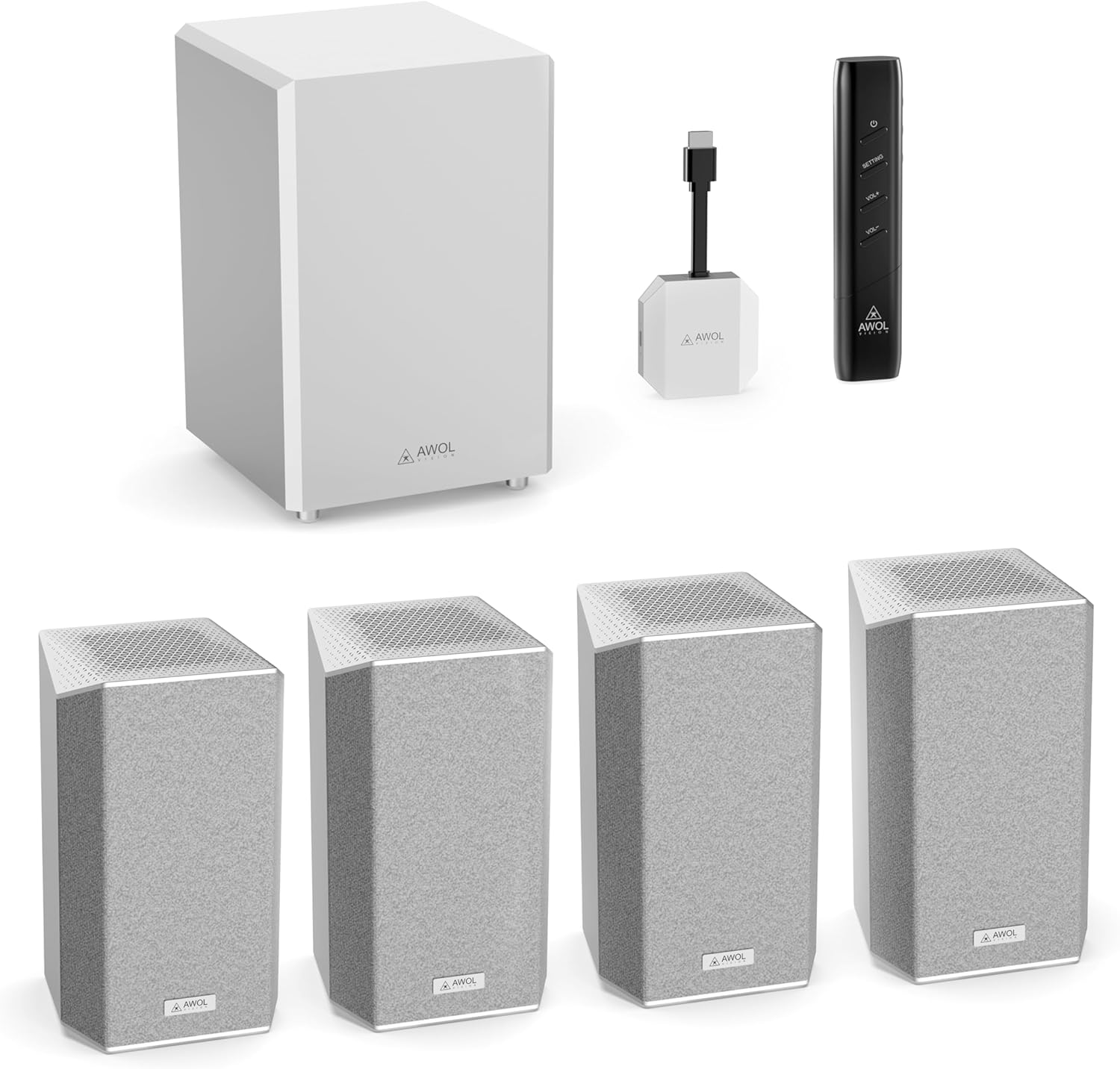
Image: The AWOL VISION ThunderBeat 4.1.2 system, including the subwoofer, four satellite speakers, wireless dongle, and remote control.
มีอะไรอยู่ในกล่อง
แกะกล่องส่วนประกอบทั้งหมดอย่างระมัดระวัง และตรวจสอบว่าคุณได้รับสิ่งของต่อไปนี้ครบถ้วน:
- ซับวูฟเฟอร์ไร้สาย
- ลำโพงแซทเทิลไลท์ (4 ตัว)
- Dongle ไร้สาย
- รีโมทคอนโทรล (รวมแบตเตอรี่ AAA 2 ก้อน)
- อะแดปเตอร์ AC
- สายไฟ AC
- สายสัญญาณเสียง RCA ถึง 3.5 มม.
- สายสัญญาณเสียง 3.5 มม. ถึง 3.5 มม.
- สายต่อขยาย HDMI
- สาย USB-C
- คู่มือการใช้งาน
- Wall Mount Kit (optional installation)

Image: A visual representation of all items included in the ThunderBeat system packaging.
การตั้งค่า
1. การจัดวางส่วนประกอบ
Optimal placement of your ThunderBeat system components is crucial for an immersive audio experience. Consider the layout of your room and the primary listening area.
- ซับวูฟเฟอร์: Place the subwoofer in a location that provides balanced bass response. Experiment with different positions to find the best sound for your room.
- ลำโพงดาวเทียม: Position the four satellite speakers around your listening area. For a 4.1.2 setup, two speakers typically go to the front-left and front-right, and two to the rear-left and rear-right. Ensure upward-firing speakers are unobstructed for Dolby Atmos effects.

Image: A diagram showing flexible speaker placement options to adapt to different room sizes and configurations.
2 การเชื่อมต่อดองเกิลไร้สาย
The ThunderBeat system utilizes a wireless dongle for simplified connectivity, eliminating the need for extensive cabling.
- Insert the ThunderBeat Dongle into the eARC HDMI port of your AWOL VISION projector or compatible display device.
- Ensure the dongle is securely connected.

ภาพ: ภาพระยะใกล้ view of the wireless dongle, highlighting its power and source status indicators, and available input connections including HDMI eARC, AUX, Bluetooth, and DC.
3. การเปิดเครื่องและการจับคู่
- Connect the AC adapter and power cord to the subwoofer and each satellite speaker, then plug them into a power outlet.
- Power on your AWOL VISION projector or display device.
- The ThunderBeat system is designed for instant, perfectly synchronized surround sound upon power-up, with automatic pairing between the dongle and speakers.
- Verify the pairing status indicator on the dongle. A solid light typically indicates a successful connection.

Image: A visual representation of the streamlined, all-wireless setup in a home theater environment, showing the dongle connected to a projector.
คำแนะนำการใช้งาน
1. ฟังก์ชั่นการควบคุมระยะไกล
The included remote control allows you to manage all aspects of your ThunderBeat system.
- ปุ่มเปิด/ปิด: เปิดหรือปิดระบบ
- เพิ่ม/ลดระดับเสียง: ปรับระดับเสียงของระบบโดยรวม
- ปุ่มการตั้งค่า: Accesses advanced audio settings, including individual speaker volume and EQ modes.

Image: The sleek remote control for the AWOL VISION ThunderBeat system, designed for intuitive control of your home theater.
2. Individual Speaker Volume Control
For a truly customized audio experience, you can adjust the volume of each speaker independently.
- กดปุ่ม การตั้งค่า ปุ่มบนรีโมทคอนโทรล
- Navigate through the on-screen menu (if available) or use the remote's directional buttons to select individual speaker channels (Left, Right, Subwoofer, Rear Left, Rear Right, Left Top Front, Right Top Front).
- Adjust the volume level for each selected speaker. The indicator light on the speaker will illuminate during adjustment and turn off after approximately 5 seconds.

Image: A graphical display demonstrating the independent volume adjustment feature for each speaker, including left, right, subwoofer, and surround channels.
3. EQ Setting Modes
Optimize your sound for different content types using the built-in EQ modes.
- กดปุ่ม การตั้งค่า ปุ่มบนรีโมทคอนโทรล
- Select the EQ settings option.
- Choose from available presets such as คอนเสิร์ต, ข่าว, หรือ ภาพยนตร์, or customize the frequency bands for a personalized sound profile.

Image: A visual representation of the EQ setting mode, offering custom sound control and preset options like Concert, News, and Movie.
การซ่อมบำรุง
To ensure the longevity and optimal performance of your AWOL VISION ThunderBeat system, follow these maintenance guidelines:
- การทำความสะอาด: Use a soft, dry cloth to clean the surfaces of the subwoofer and satellite speakers. Avoid abrasive cleaners, solvents, or chemical sprays.
- การระบายอากาศ : Ensure that the speakers and subwoofer have adequate ventilation. Do not block any vents or place the units in enclosed spaces that could restrict airflow.
- สิ่งแวดล้อม: Keep the system away from direct sunlight, heat sources, excessive dust, and moisture.
- สาย: ตรวจสอบความแน่นหนาของการเชื่อมต่อสายเคเบิลทั้งหมดและร่องรอยการสึกหรอเป็นระยะ
การแก้ไขปัญหา
If you encounter issues with your ThunderBeat system, refer to the following common problems and solutions:
| ปัญหา | สาเหตุที่เป็นไปได้ | สารละลาย |
|---|---|---|
| ไม่มีเสียงออกจากลำโพง | Power not connected; Dongle not properly inserted; Speakers not paired; Incorrect audio source selected. | Check power connections for all components. Ensure the dongle is fully inserted into the eARC port. Verify speaker pairing (indicator lights). Select the correct audio input on your projector/display. |
| เสียงผิดเพี้ยนหรือไม่ชัดเจน | Volume too high; Poor audio source quality; Speaker placement issues. | Reduce volume. Test with a different audio source. Adjust speaker placement to optimize sound. |
| รีโมตคอนโทรลไม่ทำงาน | Dead batteries; Obstruction between remote and system; Remote out of range. | Replace AAA batteries in the remote. Ensure a clear line of sight to the system. Operate the remote within its effective range. |
| ซับวูฟเฟอร์ไม่สร้างเสียงเบส | Subwoofer not powered; Volume too low; Subwoofer settings incorrect. | Check subwoofer power connection. Increase subwoofer volume via remote. Check EQ settings to ensure bass is not reduced. |
If the problem persists after attempting these solutions, please contact AWOL VISION customer support.
ข้อมูลจำเพาะ
| คุณสมบัติ | รายละเอียด |
|---|---|
| หมายเลขรุ่น | ThunderBeat-4.1.2 |
| การกำหนดค่าช่องเสียงรอบทิศทาง | 4.1.2 (with projector as center channel, effectively 5.1.2) |
| กำลังขับสูงสุดของลำโพง | 720 วัตต์ (กำลังขับรวมของระบบ) |
| ซับวูฟเฟอร์ | Dual 8-inch subwoofers (120W each) |
| เทคโนโลยีการเชื่อมต่อ | Wireless (5.2GHz/5.8GHz), Bluetooth, HDMI eARC, AUX |
| โหมดเอาต์พุตเสียง | Dolby Atmos, Dolby TrueHD, DTS Support |
| การตอบสนองความถี่ | 200 KHz (System) |
| ขนาดสินค้า | ขนาดโดยรวม 14.57 นิ้ว (ลึก) x 22.44 นิ้ว (กว้าง) x 22.05 นิ้ว (สูง) |
| น้ำหนักสินค้า | 37.7 ปอนด์ |
| แบตเตอรี่ | แบตเตอรี่ AAA 2 ก้อน (สำหรับรีโมท มีให้) |
การรับประกันและการสนับสนุน
AWOL VISION is committed to providing high-quality products and customer satisfaction.
- การสนับสนุนผลิตภัณฑ์: Your AWOL VISION ThunderBeat system comes with 2 Years Product Support.
- ข้อมูลติดต่อ: If you require assistance, please contact our support team:
- โทรศัพท์ / WhatsApp: +1 (888) 891-6866
- อีเมล: support@awolvision.com
- 30-Day Price Protection: Refer to AWOL VISION's official policies for details on price protection.