
1. บทนำ
This manual provides instructions for the safe and efficient operation of your MAXDONE A4 Laminator Machine. Please read all instructions carefully before use and retain this manual for future reference. This laminator supports both hot and cold lamination modes and is suitable for A4, A5, and A6 size documents.
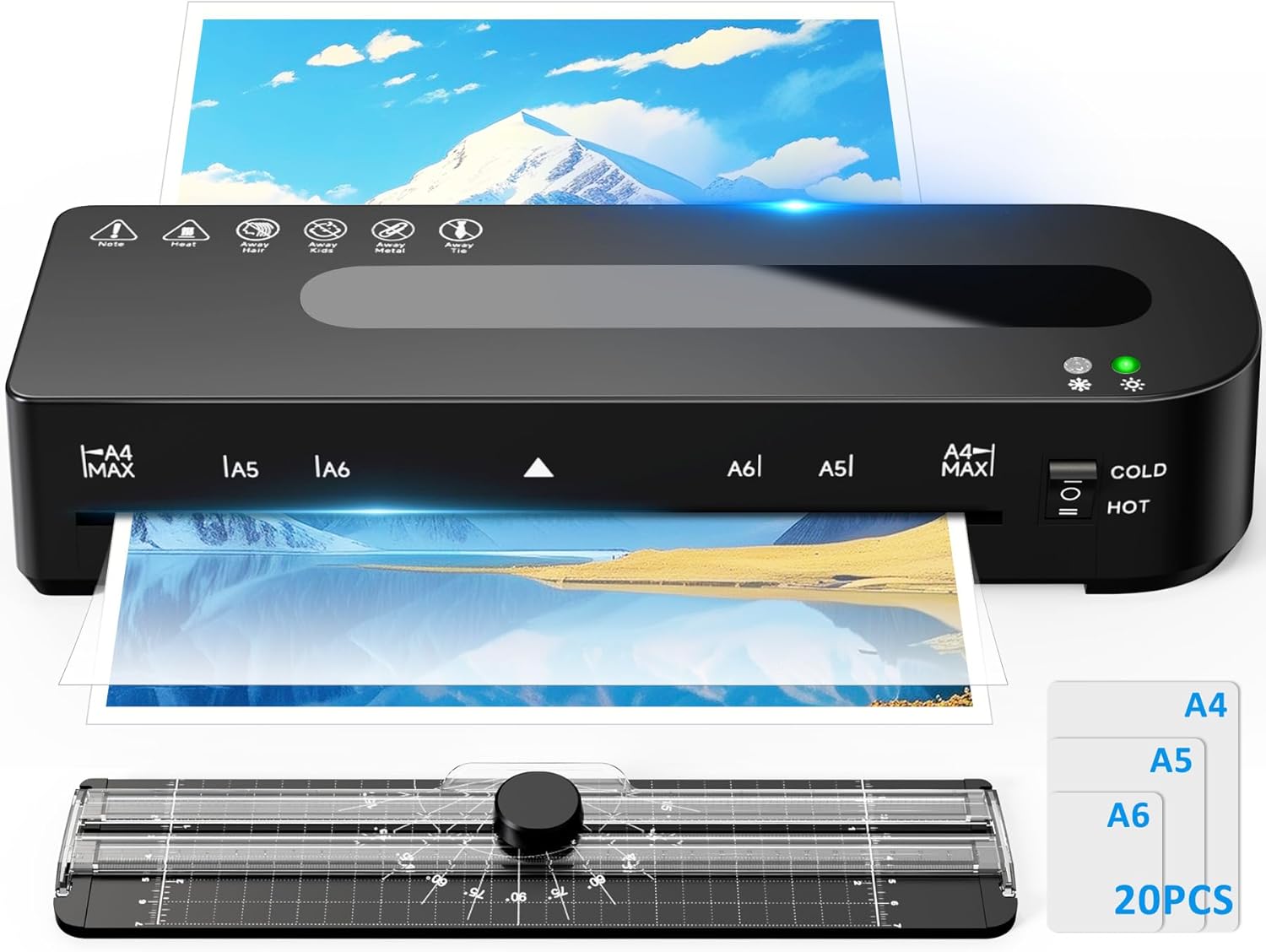
Image: The MAXDONE A4 Laminator Machine, showcasing its compact design and the various accessories included in the kit.
2. คำแนะนำด้านความปลอดภัย
- ควรวางเครื่องเคลือบบนพื้นผิวที่มั่นคงและเรียบเสมอ
- ควรเก็บเครื่องเคลือบให้ห่างจากน้ำหรือของเหลวอื่นๆ
- ห้ามใส่วัตถุอื่นใดนอกจากซองเคลือบพลาสติกเข้าไปในเครื่อง
- ตรวจสอบให้แน่ใจว่ามีการระบายอากาศที่เหมาะสมรอบๆ เครื่องจักรขณะใช้งาน
- ถอดปลั๊กเครื่องเคลือบบัตรเมื่อไม่ใช้งานหรือก่อนทำความสะอาด
- เก็บให้พ้นจากมือเด็ก
3. เนื้อหาบรรจุภัณฑ์
Your MAXDONE A4 Laminator Machine package includes:
- 1 x 9-inch Laminator Machine
- 20 x Thermal Laminating Sheets (2*A4, 3*A5, 15*A6)
- 1 x เครื่องตัดกระดาษ
- 1 x คู่มือผู้ใช้

Image: The laminator machine along with the included paper trimmer and various sizes of laminating sheets.
4. สินค้าหมดview
The MAXDONE A4 Laminator features a dual roller system and NTC temperature control for consistent lamination. It includes a simple control panel for mode selection and an ABS quick release button for jam resolution.

ภาพ: ภายใน view highlighting the dual roller system and NTC temperature control, along with safety certifications.
5. การตั้งค่า
- Unpack the laminator and place it on a clean, stable, and heat-resistant surface.
- Ensure there is enough space behind the machine for laminated items to exit freely.
- เสียบสายไฟเข้ากับเต้ารับไฟฟ้าที่เหมาะสม
6. คู่มือการใช้งาน
6.1. Hot Lamination Mode
- Turn on the laminator and select the "HOT" mode.
- Wait approximately 90 seconds for the machine to warm up. The indicator light will turn green when ready.
- Place your document inside a thermal laminating pouch, ensuring it is centered and there is a small margin around the edges.
- Insert the sealed edge of the pouch into the laminator's input slot. The machine will automatically feed the pouch through.
- Once the pouch exits the machine, allow it to cool on a flat surface.
Hot lamination is ideal for diplomas, menus, photos, certificates, documents, and invoices. Compatible with 80-100 micron pouches.

Image: A visual guide demonstrating the four steps for easy hot lamination, from preheating to finishing.
6.2. Cold Lamination Mode
- Turn on the laminator and select the "COLD" mode. No preheating is required for this mode.
- Place your document inside a self-adhesive cold laminating pouch (not included).
- Insert the sealed edge of the pouch into the laminator's input slot.
- The machine will feed the pouch through, sealing it without heat.
Cold lamination is suitable for heat-sensitive items like thermal receipts or delicate documents. It requires self-adhesive pouches, which are sold separately.

Image: An illustration comparing the applications and requirements for both cold and hot laminating modes.
6.3. Official Product Video: Maxdone 9 Inch Cold Thermal Laminator Machine
Video: A demonstration of the Maxdone 9-inch laminator machine in operation, showcasing its ease of use for both cold and thermal lamination.
7. การบำรุงรักษา
- การทำความสะอาด: To clean the rollers and remove any adhesive residue, run a blank piece of paper through the laminator periodically.
- การระบายความร้อน: For optimal performance and longevity, allow the laminator to cool for at least 15 minutes after approximately 2 hours of continuous use.
8 การแก้ไขปัญหา
8.1. กระดาษติด
หากกระดาษติดขัด:
- Turn off the laminating machine.
- Press and hold the "ABS" quick release button located on the side of the machine.
- Gently pull the jammed paper or pouch out of the input slot.
The ABS button is designed to protect your documents from damage during a jam.

Image: A three-step guide illustrating how to resolve a paper jam using the ABS quick release button.
8.2. การป้องกันความร้อนสูงเกินไป
The MAXDONE laminator is equipped with an NTC temperature control system that prevents overheating, ensuring safer operation and extending the life of the device.
9. ข้อมูลจำเพาะ
| ยี่ห้อ | แม็กซ์โดน |
| แบบอย่าง | A4 Laminator Machine with Trimmer |
| ขนาดสินค้า | ยาว 13.3 นิ้ว x กว้าง 5.11 นิ้ว x สูง 4.33 นิ้ว |
| Laminating Width Maximum | 9 นิ้ว |
| ความเร็วในการเคลือบ | 320 มม./นาที |
| เวลาวอร์มอัพ | 90 วินาที |
| จำนวนลูกกลิ้ง | 2 |
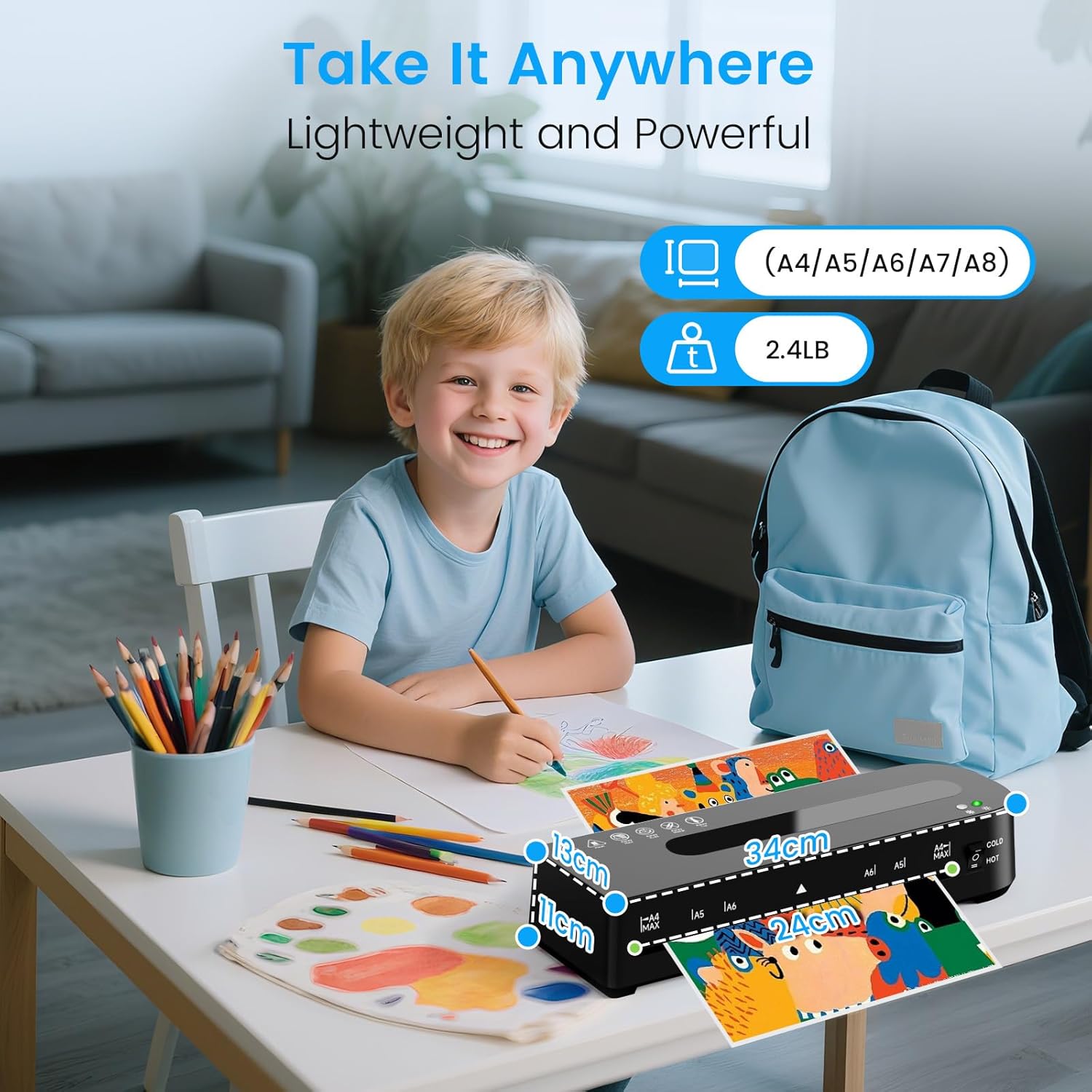
Image: The laminator's dimensions are highlighted, emphasizing its lightweight and portable design for various paper sizes.
10. การรับประกันและการสนับสนุน
Your MAXDONE A4 Laminator Machine comes with a สัญญาเปลี่ยนสินค้าภายใน 2 ปี. For any inquiries or support needs, MAXDONE offers บริการลูกค้าที่เป็นมิตรตลอด 24 ชั่วโมง และก บริการแลกเปลี่ยน 30 วัน.
Please refer to the warranty card included in your package for detailed terms and conditions or contact MAXDONE customer support directly.