
1. บทนำ
Welcome to the user manual for your MEIZE D116 Android 14 Tablet. This guide provides essential information to help you set up, operate, maintain, and troubleshoot your device. Please read this manual thoroughly to ensure optimal performance and longevity of your tablet.
2. เนื้อหาบรรจุภัณฑ์
ก่อนที่คุณจะเริ่มต้น โปรดตรวจสอบว่าสินค้าทั้งหมดมีอยู่ในแพ็คเกจของคุณ:
- MEIZE D116 Android 14 Tablet
- แป้นพิมพ์
- หนู
- แตะปากกา
- เคสป้องกัน
- อะแดปเตอร์ชาร์จไฟ
- สาย USB-C
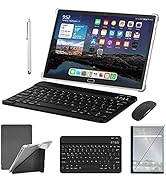
Image: The MEIZE D116 Tablet displayed with its complete set of accessories, including the keyboard, mouse, touch pen, protective case, charging adapter, and USB-C cable.
3. เค้าโครงอุปกรณ์
Familiarize yourself with the physical components of your MEIZE D116 tablet:

Image: A detailed diagram illustrating the location of the front camera, flash, rear camera, headphone jack, Micro SD slot, Type-C charging port, volume up/down buttons, and power button on the MEIZE D116 Tablet.
- กล้องหน้า: สำหรับวิดีโอคอลและเซลฟี่
- Rear Camera & Flash: สำหรับภาพถ่ายและวิดีโอความละเอียดสูง
- แจ็คหูฟัง (3.5 มม.): เชื่อมต่อหูฟังแบบมีสาย
- สล็อตไมโคร SD: Insert a Micro SD card for expandable storage.
- พอร์ต Type-C: สำหรับการชาร์จและถ่ายโอนข้อมูล
- ปุ่มปรับระดับเสียง: ปรับระดับเสียง
- ปุ่มเปิด/ปิด: Press and hold to power on/off or restart; short press to sleep/wake.
- วิทยากร: Located on the bottom edge for audio output.
4. การตั้งค่า
4.1 การชาร์จแท็บเล็ต
Before first use, fully charge your tablet. Connect the USB-C cable to the tablet's Type-C port and the other end to the charging adapter. Plug the adapter into a power outlet. The battery indicator on the screen will show charging status.
4.2 การเปิด/ปิดเครื่อง
- การเปิดเครื่อง: Press and hold the Power Button until the MEIZE logo appears.
- วิธีปิดเครื่อง: Press and hold the Power Button until the power options appear on screen, then select "Power Off."
- ในการรีสตาร์ท: Press and hold the Power Button until the power options appear, then select "Restart."
4.3 ตัวช่วยการตั้งค่าเริ่มต้น
Upon first power-on, the tablet will guide you through an initial setup process:
- เลือกภาษาที่คุณต้องการ
- เชื่อมต่อกับเครือข่าย Wi-Fi ขั้นตอนนี้สำคัญมากสำหรับการดาวน์โหลดอัปเดตและการตั้งค่าบัญชี Google ของคุณ
- Sign in with your Google account or create a new one. This is required to access the Google Play Store and other Google services.
- Follow the on-screen prompts to set up security features (PIN, pattern, or password) and other preferences.
4.4 การเชื่อมต่ออุปกรณ์เสริม
Your MEIZE D116 tablet supports various accessories for enhanced productivity.
4.4.1 Bluetooth Keyboard and Mouse
To connect the included Bluetooth keyboard and mouse:
- Ensure the keyboard and mouse are charged and powered on.
- บนแท็บเล็ตของคุณ ให้ไปที่ การตั้งค่า > อุปกรณ์ที่เชื่อมต่อ > บลูทูธ.
- สลับบลูทูธ On.
- The tablet will scan for available devices. Select the keyboard and mouse from the list to pair them. Follow any on-screen pairing instructions.

Image: A user operating the MEIZE D116 Tablet with an external Bluetooth keyboard and mouse, demonstrating its laptop-like functionality.
4.4.2 Touch Pen
The touch pen can be used for precise input, drawing, and navigation. No pairing is required for basic touch pen functionality.
5. การทำงานพื้นฐาน
5.1 ท่าทางสัมผัสบนหน้าจอสัมผัส
- แตะ: เลือกรายการหรือเปิดแอป
- แตะค้างไว้: เข้าถึงเมนูบริบทหรือย้ายไอคอน
- ปัด: นำทางผ่านหน้าจอหรือเลื่อนเนื้อหา
- บีบเพื่อซูม: ซูมเข้าหรือออกจากรูปภาพและ web หน้า
5.2 การนำทางหน้าจอหลัก
The home screen is your central hub for apps and widgets. You can customize it by adding or removing app icons and widgets.
5.3 การจัดการแอปพลิเคชัน
- ติดตั้งแอพ: ดาวน์โหลดแอพจาก Google Play Store
- ถอนการติดตั้งแอป: Tap and hold an app icon, then drag it to the "Uninstall" option, or go to การตั้งค่า > แอป.
- ปิดแอป: Swipe up from the bottom of the screen and swipe away the app card to close it.
5.4 ฟังก์ชันแบ่งหน้าจอ
The Android 14 operating system allows for split-screen multitasking. To use this feature:
- เปิดแอปแรกที่คุณต้องการใช้
- Swipe up from the bottom of the screen to access the recent apps view.
- Tap the app icon at the top of the first app's card.
- Select "Split top" or "Split screen."
- Choose a second app from your recent apps or app drawer to fill the other half of the screen.
ภาพ: อดีตamples of the MEIZE D116 Tablet in various usage scenarios, including video conferencing, reading, and professional work tasks.
6. การเชื่อมต่อ
6.1 การเชื่อมต่อ Wi-Fi
Your tablet supports 5G/2.4G dual-band Wi-Fi for stable and fast internet access.
- ไปที่ การตั้งค่า > เครือข่ายและอินเทอร์เน็ต > Wi-Fi.
- สลับ Wi-Fi On.
- เลือกเครือข่ายที่คุณต้องการจากรายการและป้อนรหัสผ่านหากได้รับแจ้ง

Image: The MEIZE D116 Tablet screen prominently displaying the 5G Wi-Fi symbol, indicating its capability for high-speed wireless connectivity.
6.2 บลูทู ธ 5.0
Bluetooth 5.0 allows you to connect wireless headphones, speakers, keyboards, mice, and other compatible devices.
- ไปที่ การตั้งค่า > อุปกรณ์ที่เชื่อมต่อ > บลูทูธ.
- สลับบลูทูธ On.
- Select the device you wish to pair from the list.
แจ็คหูฟัง 6.3 มม. 3.5 ช่อง
For wired audio, connect your headphones to the 3.5mm headphone jack located on the tablet's side.
7. การใช้กล้อง
The MEIZE D116 tablet features a 13MP rear camera and an 8MP front camera for capturing photos and videos.
- เปิดแอปกล้องจากหน้าจอหลักหรือลิ้นชักแอปของคุณ
- สลับระหว่างกล้องด้านหน้าและด้านหลังโดยใช้ไอคอนสลับกล้อง
- กดปุ่มชัตเตอร์เพื่อถ่ายภาพ หรือกดปุ่มบันทึกเพื่อเริ่ม/หยุดบันทึกวิดีโอ
- Access various camera modes and settings within the app for different effects and adjustments.

ภาพ: อดีตamples demonstrating the clarity and detail captured by the 13MP rear camera and 8MP front camera of the MEIZE D116 Tablet.
8. การจัดเก็บและหน่วยความจำ
Your tablet comes with 128GB of internal storage and 8GB of RAM (expandable to 16GB virtually). You can further expand storage up to 512GB using a Micro SD card.

Image: The MEIZE D116 Tablet showcasing its large memory capacity, including 128GB internal storage, 16GB (8+8) running memory, and support for up to 512GB additional expansion.
8.1 พื้นที่จัดเก็บข้อมูลที่สามารถขยายได้
To insert a Micro SD card:
- Locate the Micro SD slot on the side of the tablet.
- ค่อยๆ ใส่การ์ด Micro SD ลงในช่องจนกระทั่งคลิกเข้าที่
- The tablet will detect the new storage. You may be prompted to format it for use as portable or internal storage.
9. การจัดการแบตเตอรี่
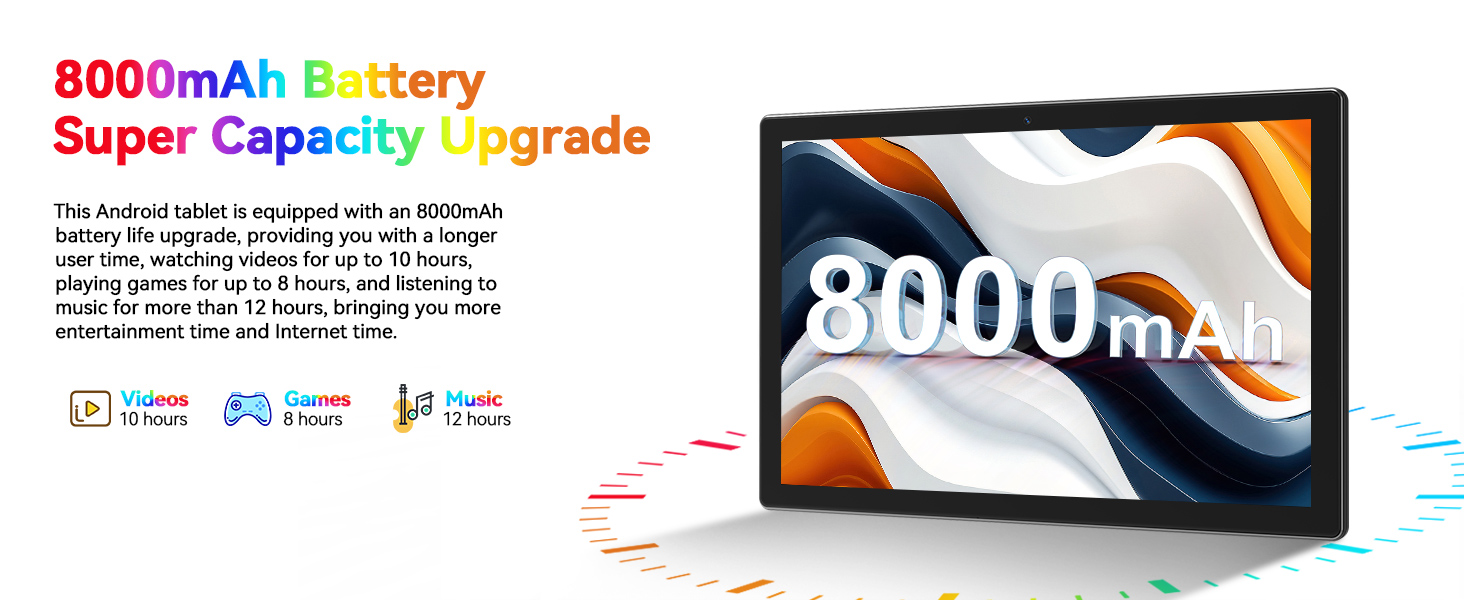
The MEIZE D116 tablet is equipped with an 8000mAh battery, providing extended usage times.

Image: The MEIZE D116 Tablet with a visual representation of its 8000mAh battery, along with icons indicating approximate usage durations: 10 hours for videos, 8 hours for games, and 12 hours for music.
9.1 การเพิ่มประสิทธิภาพอายุการใช้งานแบตเตอรี่
- ลดความสว่างหน้าจอ
- ปิด Wi-Fi และ Bluetooth เมื่อไม่ได้ใช้งาน
- ปิดแอปพื้นหลัง
- เปิดใช้งานโหมดประหยัดแบตเตอรี่ใน ตั้งค่า > แบตเตอรี่.
10. การบำรุงรักษา
10.1 การทำความสะอาดเครื่อง
ใช้ผ้านุ่มที่ไม่เป็นขุยทำความสะอาดหน้าจอและตัวเครื่องแท็บเล็ต หลีกเลี่ยงการใช้สารเคมีรุนแรงหรือวัสดุที่มีฤทธิ์กัดกร่อน
10.2 การอัปเดตซอฟต์แวร์
ตรวจสอบและติดตั้งการอัปเดตซอฟต์แวร์เป็นประจำเพื่อให้แน่ใจว่าแท็บเล็ตของคุณมีคุณสมบัติล่าสุดและแพทช์ความปลอดภัย ไปที่ การตั้งค่า > ระบบ > อัปเดตระบบ.
11 การแก้ไขปัญหา
หากคุณประสบปัญหาเกี่ยวกับแท็บเล็ตของคุณ โปรดดูวิธีแก้ไขทั่วไปต่อไปนี้:
- อุปกรณ์ไม่เปิดเครื่อง: Ensure the tablet is charged. Connect it to the charger and try powering on again.
- ปัญหาการเชื่อมต่อ Wi-Fi: Restart your tablet and your Wi-Fi router. Forget the network in settings and reconnect.
- ประสิทธิภาพช้า: Close unnecessary background apps. Clear cache for frequently used apps. Consider performing a factory reset if performance does not improve (see below).
- แอปขัดข้อง: Ensure apps are updated. Clear the app's cache and data in การตั้งค่า > แอป.
11.1 รีเซ็ตเป็นค่าโรงงาน
A factory reset will erase all data from your tablet and restore it to its original factory settings. Back up any important data before proceeding.
- ไปที่ การตั้งค่า > ระบบ > ตัวเลือกการรีเซ็ต.
- เลือก ลบข้อมูลทั้งหมด (รีเซ็ตเป็นค่าโรงงาน).
- ยืนยันการตัดสินใจของคุณและทำตามคำแนะนำบนหน้าจอ
12. ข้อมูลจำเพาะ
Detailed technical specifications for the MEIZE D116 Android 14 Tablet:
| คุณสมบัติ | ข้อมูลจำเพาะ |
|---|---|
| ยี่ห้อ | ไมซ์ |
| ชื่อรุ่น | D116 |
| ระบบปฏิบัติการ | แอนดรอยด์ 14 |
| ขนาดหน้าจอ | 10.1 นิ้ว |
| ความละเอียดหน้าจอ | 1280 x 800 พิกเซล |
| โปรเซสเซอร์ | Octa-Core, 2 GHz (MediaTek) |
| แรม | 8GB (16GB Expandable) |
| การจัดเก็บข้อมูลภายใน | 128GB |
| พื้นที่เก็บข้อมูลแบบขยายได้ | รองรับหน่วยความจำสูงสุด 512GB (Micro SD) |
| กล้องหลัง | 13 MP |
| กล้องหน้า | 8 MP |
| ความจุของแบตเตอรี่ | 8000mAh |
| อายุการใช้งานแบตเตอรี่โดยเฉลี่ย | 10 ชั่วโมง |
| การเชื่อมต่อแบบไร้สาย | 802.11ac, 802.11b, 802.11g, 802.11n (5G/2.4G Dual Band Wi-Fi), Bluetooth 5.0 |
| ขนาดสินค้า | 10 x 7 x 0.3 นิ้ว |
| น้ำหนักสินค้า | 2.99 ปอนด์ |
13. การรับประกันและการสนับสนุน
13.1 การรับประกันแบบจำกัด
Your MEIZE D116 tablet is covered by a limited manufacturer's warranty against defects in materials and workmanship under normal use. Please refer to the warranty card included in your package for specific terms and conditions, including warranty period and coverage details.
13.2 การสนับสนุนลูกค้า
For any questions, technical assistance, or warranty claims, please contact the MEIZE professional customer service team. They are dedicated to providing support and have extensive experience in assisting customers. Contact information can typically be found on the MEIZE official webไซต์หรือบนวัสดุบรรจุภัณฑ์