
1. อะไรอยู่ในกล่อง
The DBIT AX1500 WiFi 6 Mesh Wi-Fi System (2-Pack) includes the following components:
- เราเตอร์ Mesh 2 ตัว
- อะแดปเตอร์แปลงไฟ 2 ตัว
- สายเคเบิลอีเทอร์เน็ต RJ1 45 เส้น
- คู่มือการติดตั้งแบบด่วน

Image: Contents of the DBIT AX1500 WiFi 6 Mesh Wi-Fi System box.
2. การตั้งค่า
2.1. หมดระบบview
The DBIT AX1500 Mesh Wi-Fi System provides whole-home Wi-Fi 6 coverage, eliminating dead zones and supporting up to 120 devices across 3,900 sq ft. It operates on dual bands (2.4GHz and 5GHz) and features 4 Gigabit Ethernet ports per unit for stable wired connections.

ภาพ: เหนือview of the DBIT AX1500 Mesh Wi-Fi System features.
2.2. การตั้งค่าเริ่มต้นของเราเตอร์ Mesh หลัก
Follow these steps to set up your primary mesh router:
- เปิดเครื่อง: Insert the power adapter into the mesh router and plug the other end into a power outlet. The LED indicator will turn solid red, then flash yellow as it starts up.
- เชื่อมต่อกับโมเด็ม: Turn off your cable modem. Plug one end of the included Ethernet cable into your modem and the other end into the WAN/LAN port of your primary mesh router.
- เปิดโมเด็ม: Turn on your cable modem and wait for it to complete its startup sequence.
- ตรวจสอบการเชื่อมต่อ: Wait for the LED indicator light on the mesh router to turn solid green, indicating a normal network connection.
Video: Instructions on how to set up the primary mesh router.

ภาพ: ด้านหลัง view of a mesh router unit with Gigabit Ethernet ports.
2.3 การเพิ่มโหนดตาข่ายเพิ่มเติม
You can add additional mesh nodes to expand your network coverage using either the mobile app or the Mesh button.
Method 1: Add nodes via APP
- Power up the secondary mesh router(s). Wait for the secondary node's light to blink yellow.
- Connect your phone to the primary mesh router's Wi-Fi SSID. The default SSID is printed on the product label.
- Download, install, and launch the MU-LINK APP. Log in using the details on the product label.
- The APP will automatically detect the number of devices to be mesh-networked. Click to complete the networking process.
- The LED turning solid green indicates a successful connection. If the LED doesn't turn solid green, reset the secondary nodes and try the process again.
Method 2: One-button networking via Mesh button
- Press the Mesh button on the connected primary node. The green light will blink rapidly.
- Press the Mesh button on the powered-up secondary node. The yellow light will blink rapidly.
- Both devices will enter the automatic networking process.
- The LED turning solid green on both nodes indicates a successful connection.
Note: Complete the networking process sequentially; do not operate multiple nodes at the same time.
Video: Instructions on how to add more mesh nodes to your system.
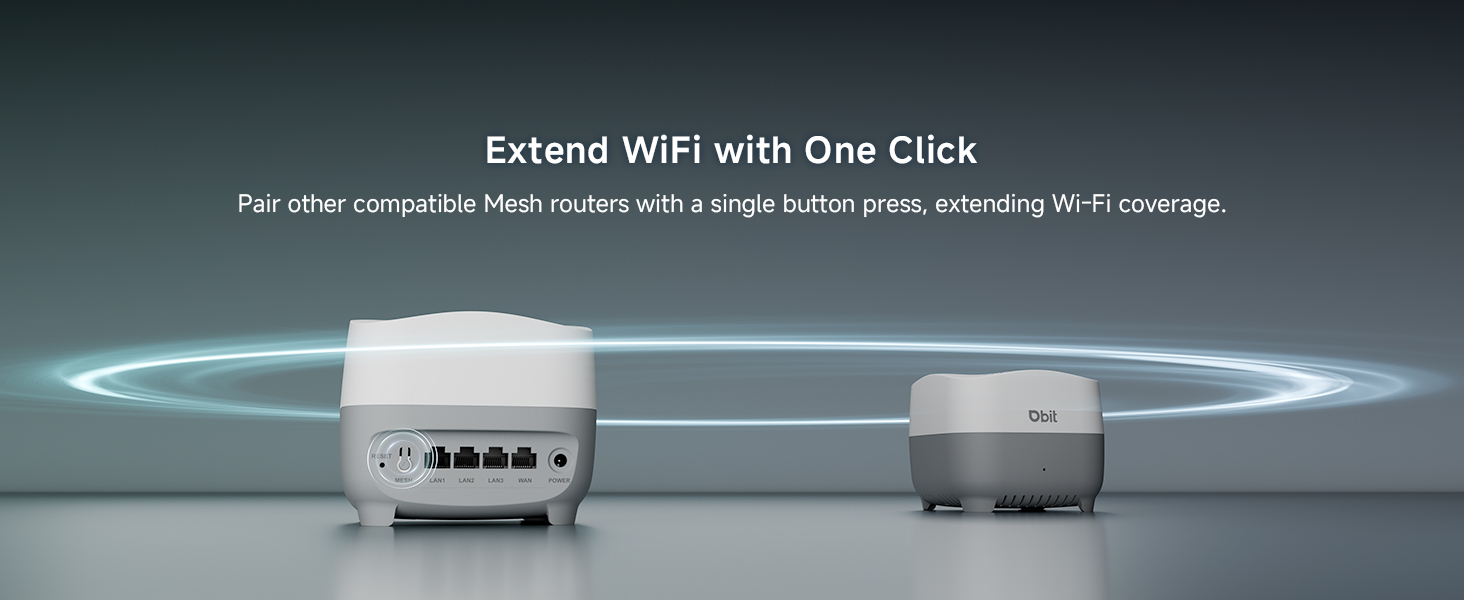
Image: One-Click Mesh pairing via button or app.

Image: Quick Setup with MU-LINK APP.
3. คู่มือการใช้งาน
3.1. การครอบคลุมทั่วทั้งบ้านและการโรมมิ่งที่ราบรื่น
The AX1500 Mesh System provides up to 3,900 sq ft of Wi-Fi coverage, eliminating dead zones. With smart roaming technology, your devices automatically switch between nodes without dropped connections as you move around your home, ensuring a stable and continuous internet experience.
วิดีโอ: จบแล้วview of the DBIT Mesh WiFi System for whole home coverage.

Image: Whole-Home WiFi Coverage illustration.

Image: Seamless Roaming in a multi-story home.
3.2. การเชื่อมต่อความจุสูง
The mesh system supports over 120 simultaneous connections without lag, making it suitable for smart homes, offices, and gaming setups. Advanced mesh technology maintains fast speeds even with multiple devices streaming 4K/8K content, gaming online, and video conferencing.
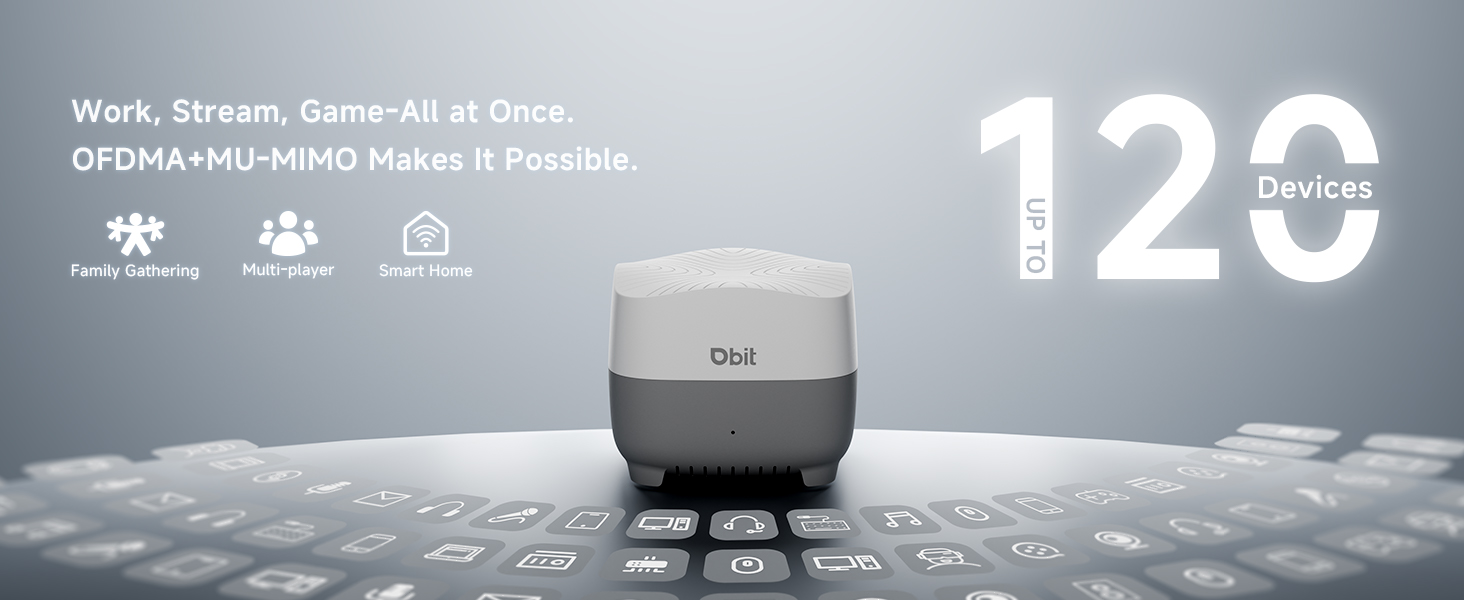
Image: High-speed connectivity for multiple devices.

Image: High-speed connectivity for multiple devices.
3.3. การควบคุมโดยผู้ปกครอง
Utilize the parental control features through the intuitive mobile app or web GUI to manage internet access for your family. You can block harmful content, balance screen time, and ensure a safe online environment for all home devices.
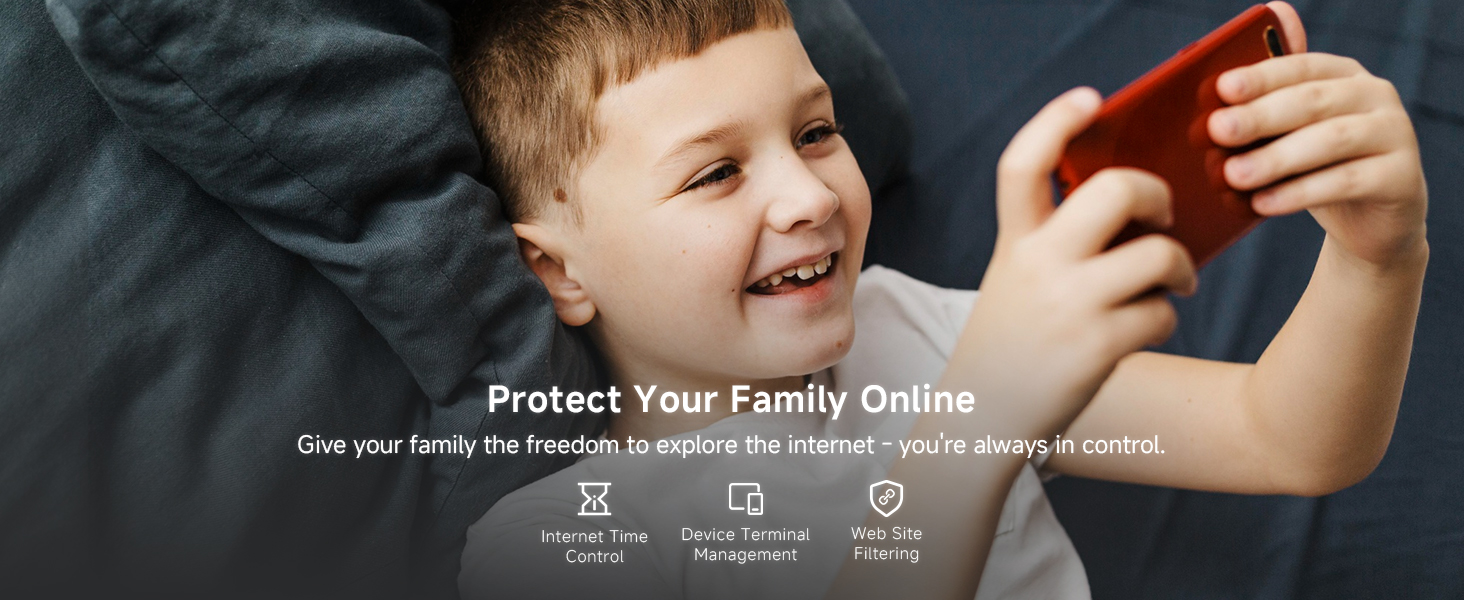
Image: Parental Controls features.
3.4. เครือข่ายแขก
Create an isolated guest network to provide Wi-Fi access for visitors while maintaining the privacy and security of your main network and smart home devices. This ensures complete separation between guest and private network traffic.
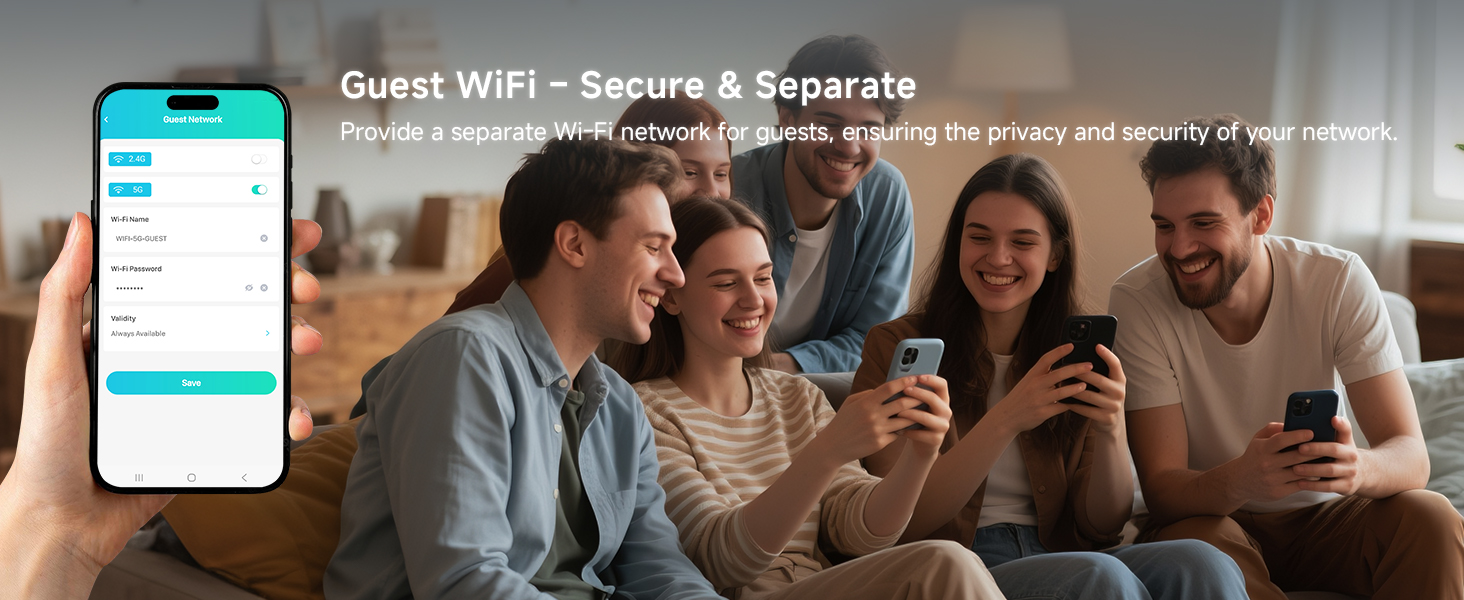
Image: Guest Network setup for secure visitor access.
3.5. ความปลอดภัยเครือข่าย
The DBIT AX1500 Mesh Wi-Fi System incorporates enterprise-grade WPA3-SAE encryption to safeguard your entire network. This advanced security protocol proactively blocks unauthorized access and cyber threats, protecting your sensitive data.
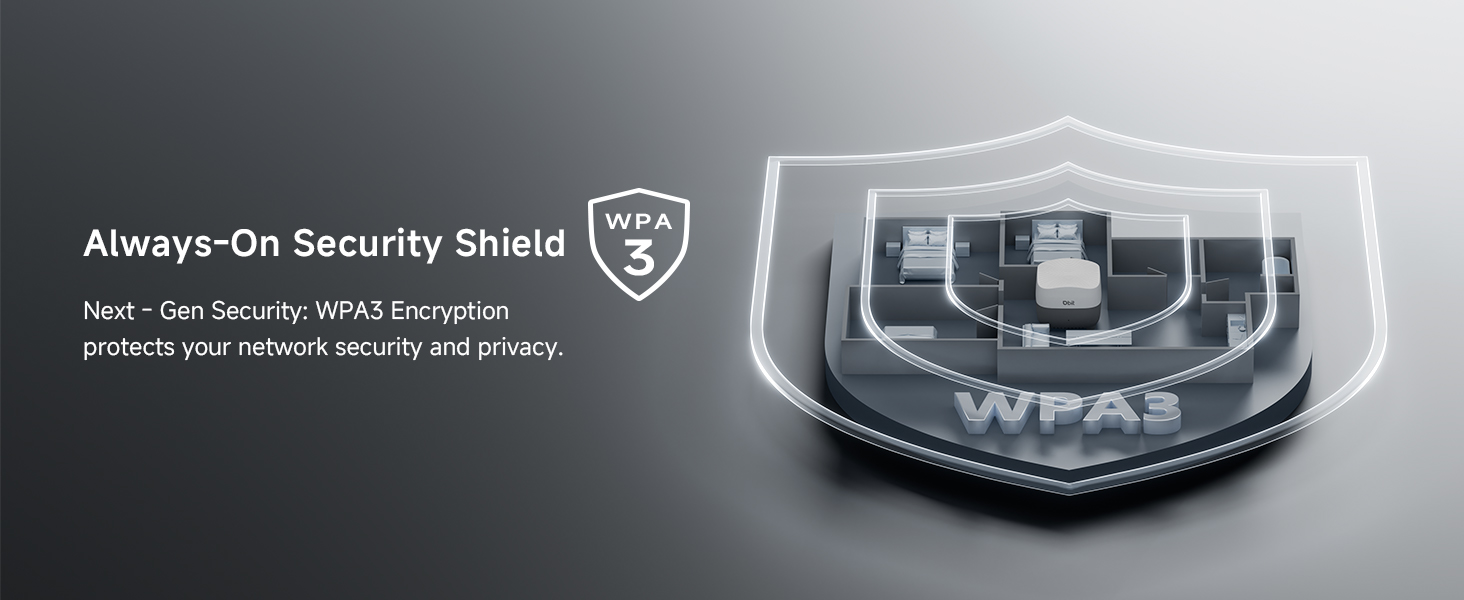
Image: WPA3 Encryption for enhanced network security.
4. การบำรุงรักษา
To ensure optimal performance and longevity of your DBIT AX1500 Mesh Wi-Fi System, consider the following maintenance tips:
- การจัดวาง: ตรวจสอบและติดตั้งเฟิร์มแวร์อัปเดตเป็นประจำผ่านแอป MU-LINK หรือ web อินเทอร์เฟซ การอัปเดตมักจะรวมถึงการปรับปรุงประสิทธิภาพ แพตช์ความปลอดภัย และฟีเจอร์ใหม่ๆ
- อัพเดตเฟิร์มแวร์: Periodically restart your mesh system (both primary and secondary nodes) to refresh network connections and resolve minor performance issues.
- การทำความสะอาด: Keep the mesh units clean and free from dust to prevent overheating. Use a soft, dry cloth for cleaning.
- เริ่มต้นใหม่อีกครั้ง: Place mesh nodes in central locations within your home, avoiding obstructions like thick walls or large metal objects. Refer to the "Flexible Node Placement" image for suggestions.
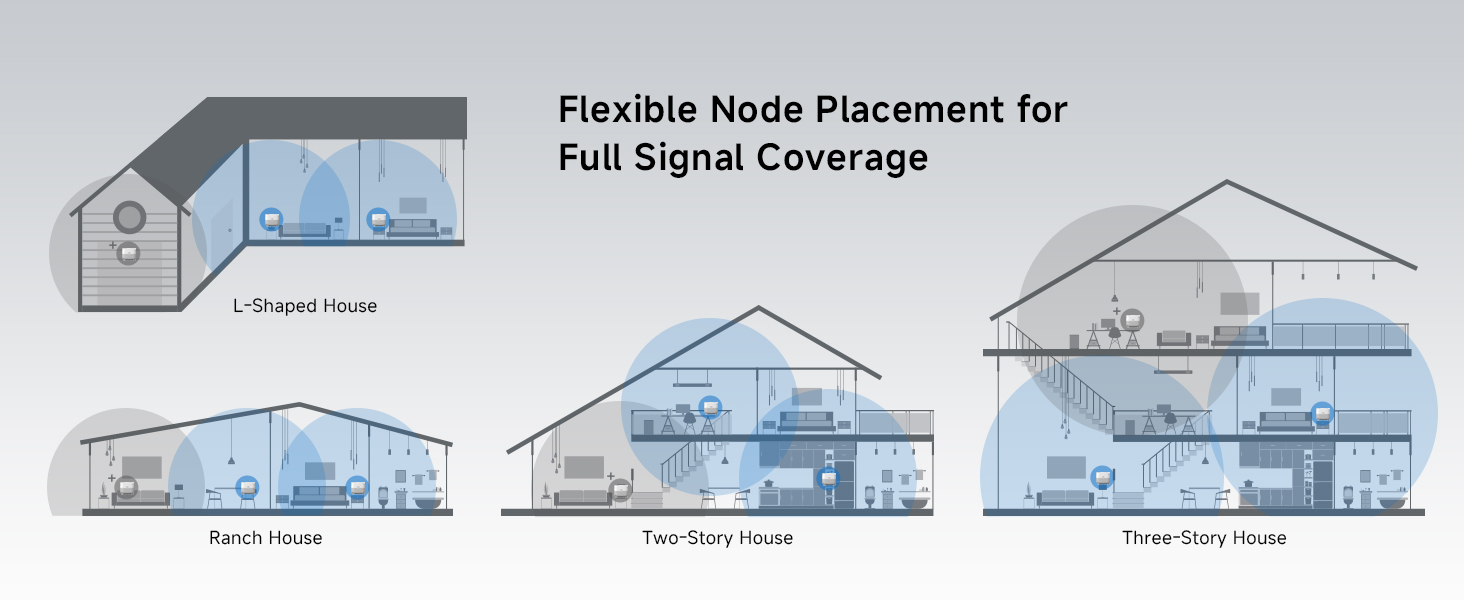
Image: Flexible Node Placement for Full Signal Coverage.
5 การแก้ไขปัญหา
If you encounter issues with your DBIT AX1500 Mesh Wi-Fi System, try the following steps:
- ไม่มีการเชื่อมต่ออินเทอร์เน็ต:
- ตรวจสอบว่าโมเด็มของคุณทำงานถูกต้องหรือไม่
- ตรวจสอบให้แน่ใจว่าสายอีเธอร์เน็ตทั้งหมดเชื่อมต่อแน่นสนิทแล้ว
- รีสตาร์ทโมเด็มและเราเตอร์ Mesh หลักของคุณ
- Weak Wi-Fi Signal/Dead Zones:
- Relocate secondary mesh nodes closer to the primary node or to areas with weak signals.
- ตรวจสอบให้แน่ใจว่าไม่มีสิ่งกีดขวางขนาดใหญ่ (เช่น เครื่องใช้ไฟฟ้าขนาดใหญ่ ผนังคอนกรีต) ระหว่างจุดเชื่อมต่อ
- Add more mesh nodes for extended coverage if necessary.
- อุปกรณ์ไม่ได้เชื่อมต่อ:
- ตรวจสอบรหัสผ่าน Wi-Fi
- Check if the device is within the mesh network's range.
- Ensure the device is not blocked by parental controls or guest network settings.
- Restart the problematic device and the mesh node it's trying to connect to.
- สถานะไฟ LED แสดงสถานะ:
- สีแดงทึบ: กำลังเริ่มต้นขึ้น
- สีเหลืองกะพริบ: Startup complete, pending mesh networking or network connection.
- สีเขียวทึบ: Successful connection / Normal network operation.
Video: General guide on how to set up the mesh system, which can help with troubleshooting initial setup issues.
6. ข้อมูลจำเพาะ
| คุณสมบัติ | รายละเอียด |
|---|---|
| ยี่ห้อ | ดีบีไอที |
| ชื่อรุ่น | D-MAX4 2-PACK |
| ระดับย่านความถี่ | ดูอัลแบนด์ (2.4 GHz, 5 GHz) |
| มาตรฐานการสื่อสารไร้สาย | 802.11ac, 802.11ax, 802.11b, 802.11g, 802.11n |
| อัตราการถ่ายโอนข้อมูล | 1500 Megabits Per Second (300Mbps on 2.4GHz + 1201Mbps on 5GHz) |
| ความครอบคลุม | 3,900 ตารางฟุต |
| จำนวนพอร์ต | 4 Gigabit Ethernet ports per unit (3 LAN, 1 WAN/LAN) |
| โปรโตคอลความปลอดภัย | WPA-PSK, WPA2-PSK, WPA3 |
| คุณสมบัติพิเศษ | เทคโนโลยี Beamforming, โหมดผู้เยี่ยมชม, ความปลอดภัยทางอินเทอร์เน็ต, การควบคุมโดยผู้ปกครอง, การโรมมิ่งแบบไร้รอยต่อ |
| อุปกรณ์ที่รองรับ | เครื่องเล่นเกม, คอมพิวเตอร์ส่วนบุคคล, แท็บเล็ต, สมาร์ททีวี, สมาร์ทโฟน, เครื่องพิมพ์, กล้องวงจรปิด |
| วิธีการควบคุม | แอป ปุ่มกด |
| น้ำหนักสินค้า | 1.39 ปอนด์ |
| ขนาดรายการ (ยาว x กว้าง x สูง) | ยาว 5.04 นิ้ว x กว้าง 5.04 นิ้ว x สูง 4.01 นิ้ว |
7. การรับประกันและการสนับสนุน
การรับประกัน: The DBIT AX1500 WiFi 6 Mesh Wi-Fi System comes with a 1-Year Manufacturer Warranty.
สนับสนุน: For technical assistance, troubleshooting, or warranty claims, please contact DBIT customer support through their official website or the contact information provided in your Quick Installation Guide.