
1. บทนำ
This manual provides detailed instructions for setting up, operating, and maintaining your PULWTOP BD242A Triple Display Docking Station. This 19-in-1 docking station is designed to expand your laptop's connectivity and display capabilities, supporting up to three 4K monitors simultaneously. Please read this manual thoroughly before use to ensure optimal performance and safety.
2. เนื้อหาบรรจุภัณฑ์
ตรวจสอบว่ารายการทั้งหมดที่ระบุไว้ด้านล่างนี้รวมอยู่ในแพ็คเกจของคุณ:
- PULWTOP BD242A Docking Station
- 72W DC Power Adapter & Cable
- USB-C to USB-C Cable with USB-A Adapter
- คู่มือผู้ใช้หลายภาษา
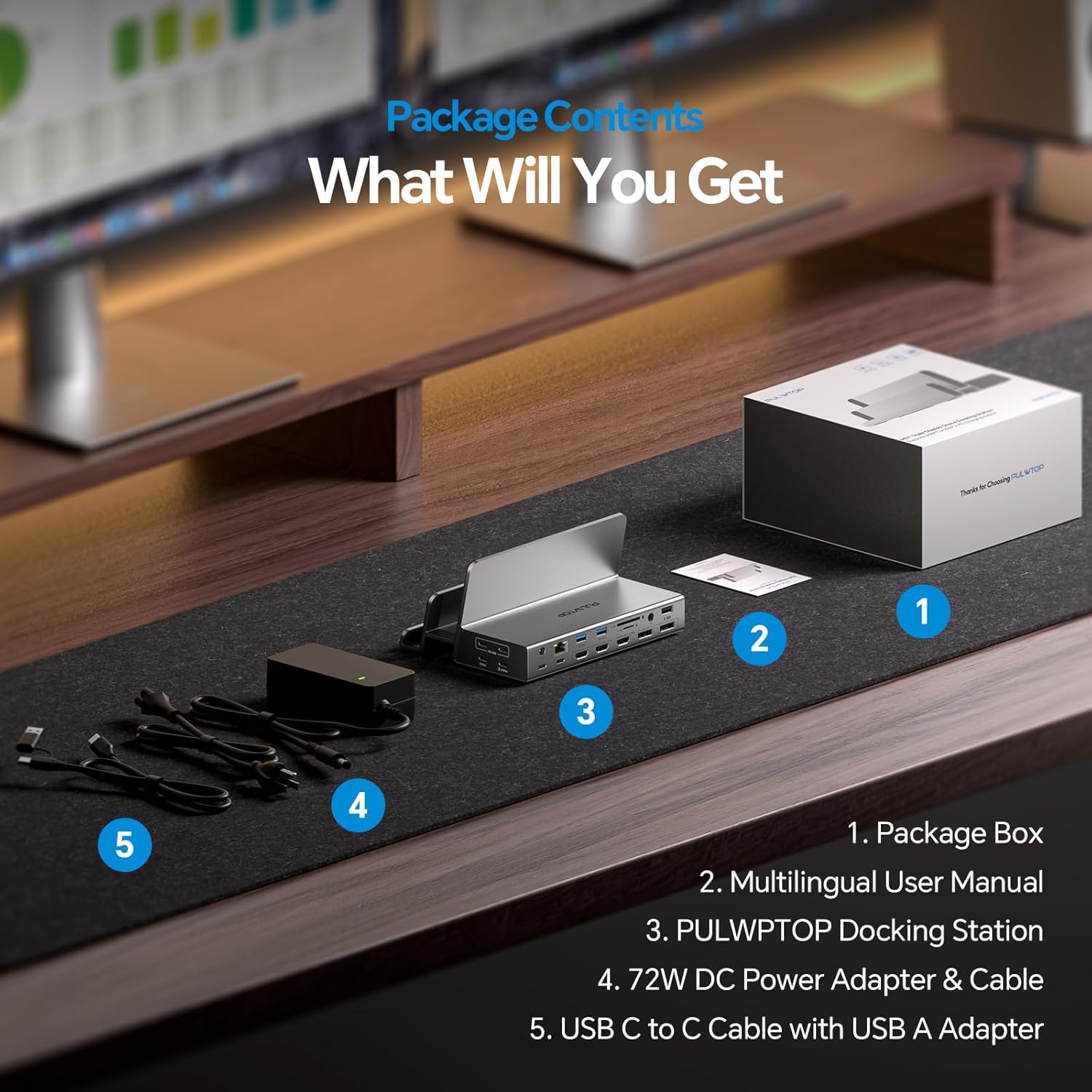
Image: The package contents, including the docking station, power adapter, USB-C cable, and user manual.
3. Physical Layout and Port Overview
The PULWTOP BD242A docking station features a comprehensive array of ports and a dual stand design for efficient workspace management.

Image: A detailed diagram illustrating the 19 ports available on the docking station.
พอร์ตแผงด้านหน้า:
- 2 x USB-C PD Output (Charging ONLY): Up to 45W for single port, or 22W per port when two are used. Do not support video output or data transfer.
- Dual Stand Slots: Max 29mm for laptops (MacBook/Windows) and Max 17mm for phones/tablets.
พอร์ตแผงด้านหลัง:
- อินพุต DC (72 วัตต์): Connect the included power adapter to power the docking station.
- USB-C to Host: Connects to your laptop (MacBook or other laptops).
- PD IN (100W Max): Connect an external PD adapter (not included) to charge your laptop.
- กิกะบิตอีเธอร์เน็ต: 1000/100/10Mbps network connection.
- USB-C 10Gbps (Data ONLY): การถ่ายโอนข้อมูลความเร็วสูง
- USB-C 10Gbps with 7.5W: การถ่ายโอนข้อมูลและการชาร์จความเร็วสูง
- 2 x USB-A 5Gbps with 7.5W: Data transfer and charging for peripherals.
- ยูเอสบี-เอ 2.0: For keyboard, mouse, or other low-power devices.
- ช่องเสียบการ์ด SD/TF: Simultaneous reading and writing up to 104Mbps.
- แจ็คเสียบหูฟัง/ไมโครโฟนขนาด 3.5 มม.: สำหรับหูฟังหรือลำโพง
- 3 x HDMI 4K@60Hz: พอร์ตเอาต์พุตวิดีโอ
- 2 x DisplayPort 4K@60Hz: พอร์ตเอาต์พุตวิดีโอ
4. คำแนะนำในการตั้งค่า
4.1 การเชื่อมต่อสายไฟ
Connect the included 72W DC power adapter to the ดีซี ใน port on the docking station. This is essential for the docking station to function.

Image: Illustration of connecting the 72W DC power adapter to the docking station. An optional 100W PD adapter can be connected to the PD IN port to charge the laptop.
4.2 Host Connection
Connect your laptop to the docking station using the USB-C ถึงโฮสต์ cable. If your laptop only has USB-A ports, use the provided USB-A adapter.
4.3 Driver Installation (Required for Display Functionality)
The PULWTOP BD242A docking station requires the installation of a Silicon Motion driver for full display functionality, especially for macOS and multi-monitor setups. Please follow the steps below:
- Visit the official Silicon Motion webเว็บไซต์: www.siliconmotion.com
- นำทางไปที่ สนับสนุน > ศูนย์ดาวน์โหลด.
- ภายใต้ โซลูชั่นผลิตภัณฑ์, เลือก คนอื่น.
- ค้นหาและดาวน์โหลด SM770 Driver Download สำหรับระบบปฏิบัติการของคุณ (Windows หรือ macOS)
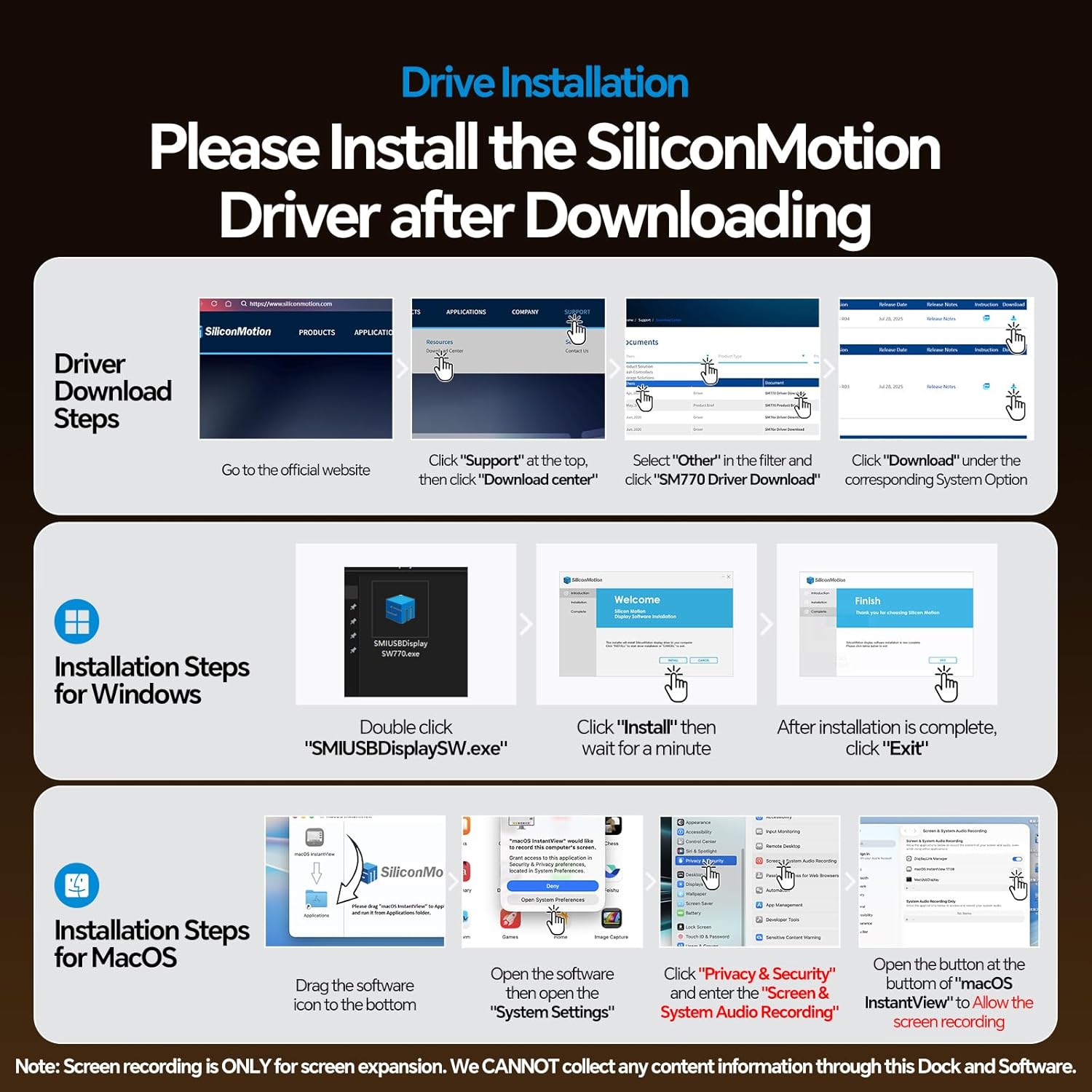
Image: Visual guide for downloading the Silicon Motion driver from the official website and installation steps for both Windows and macOS.
สำหรับระบบปฏิบัติการ Windows:
- ดับเบิลคลิกไฟล์ที่ดาวน์โหลด SMUSBDisplaySW.exe file.
- คลิก ติดตั้ง and wait for the installation to complete.
- คลิก ทางออก เมื่อเสร็จสิ้นแล้ว
Video: A step-by-step guide demonstrating the Silicon Motion Driver Installation for Windows OS.
สำหรับ macOS:
- ลาก macOS ทันทีView application icon to the Applications folder.
- Open the application, then go to การตั้งค่าระบบ > ความเป็นส่วนตัวและความปลอดภัย.
- ภายใต้ Screen & System Audio Recording, grant access to macOS ทันทีView to record your computer's screen and audio.
- You may need to quit and reopen the application for changes to take effect.
บันทึก: Screen recording is ONLY for screen expansion. The software does not collect any content information from your computer.
Video: A step-by-step guide demonstrating the Silicon Motion Driver Installation for Mac OS.
4.4 การเชื่อมต่อจอภาพ
Connect your external monitors to any of the 3 HDMI or 2 DisplayPort outputs on the docking station. The docking station supports various combinations for triple 4K@60Hz displays.

Image: A setup showing a laptop connected to the docking station, extending its display across three 4K monitors.
Video: An unboxing and initial setup demonstration of the Triple Display Docking Station with Dual Stand (BD242A).
5. คู่มือการใช้งาน
5.1 การตั้งค่าจอแสดงผลสามจอ
Once the driver is installed and monitors are connected, your laptop's display can be extended to up to three external monitors. You can choose any 3 of the 5 available HDMI and DisplayPort outputs.

ภาพ: อดีตample of a triple display setup with a laptop and three external monitors, compatible with both MacBook and Windows systems.
Video: A demonstration of the 17-in-1 USB-C Docking Station supporting triple monitor output (BD242A).
5.2 Clamshell Mode
To use your laptop with the lid closed (clamshell mode) while connected to external monitors, ensure the following:
- A mouse must be connected to the docking station to wake up the laptop.
- The DC power adapter must be connected to power the dock.
- Your laptop's settings must be configured not to auto-sleep when the lid is closed and connected to an external display.

Image: Instructions for extending the display with the laptop lid closed (clamshell mode), highlighting necessary connections and settings.
5.3 การถ่ายโอนข้อมูล
The docking station provides multiple high-speed data ports:
- USB-C 10Gbps (Data ONLY): For ultra-fast data transfer.
- USB-C 10Gbps with 7.5W: For data transfer and simultaneous charging of small peripherals.
- 2 x USB-A 5Gbps with 7.5W: For connecting various USB-A devices and charging.
- ยูเอสบี-เอ 2.0: Ideal for connecting keyboards, mice, or other low-bandwidth devices.

Image: A visual representation of connecting various devices for high-speed data transfer via the docking station's USB-C and USB-A ports.
5.4 ฟังก์ชันการชาร์จ
The docking station offers versatile charging capabilities:
- Laptop Charging (via PD IN): Connect an external PD adapter (up to 100W, not included) to the พีดี อิน port to charge your laptop.
- Peripheral Charging (via USB-C PD Output): Two dedicated USB-C PD output ports provide up to 45W for a single port or 22W per port when both are used simultaneously, ideal for smartphones, tablets, and other accessories.

Image: An illustration detailing the fast charging capabilities, including 100W PD input for laptops and 45W/22W output for peripherals.
5.5 ช่องอ่านการ์ด SD/TF
Insert your SD or TF (MicroSD) cards into the dedicated slots for simultaneous reading and writing at speeds up to 104Mbps.
5.6 การเชื่อมต่ออีเทอร์เน็ต
Connect an Ethernet cable to the Gigabit Ethernet port for a stable and high-speed wired network connection (10/100/1000Mbps).
5.7 แจ็คเสียง
Plug your headphones or speakers into the 3.5mm audio/mic jack for audio output.

ภาพ: ภาพระยะใกล้ view highlighting the SD/TF card reader, Gigabit Ethernet port, and 3.5mm audio/mic jack.
5.8 Dual Stand Usage
The integrated dual stand allows you to store your laptop, tablet, or smartphone vertically, saving desk space and keeping your workspace organized. The front slot is 17mm wide, suitable for phones/tablets, while the back slot is 29mm wide for laptops.
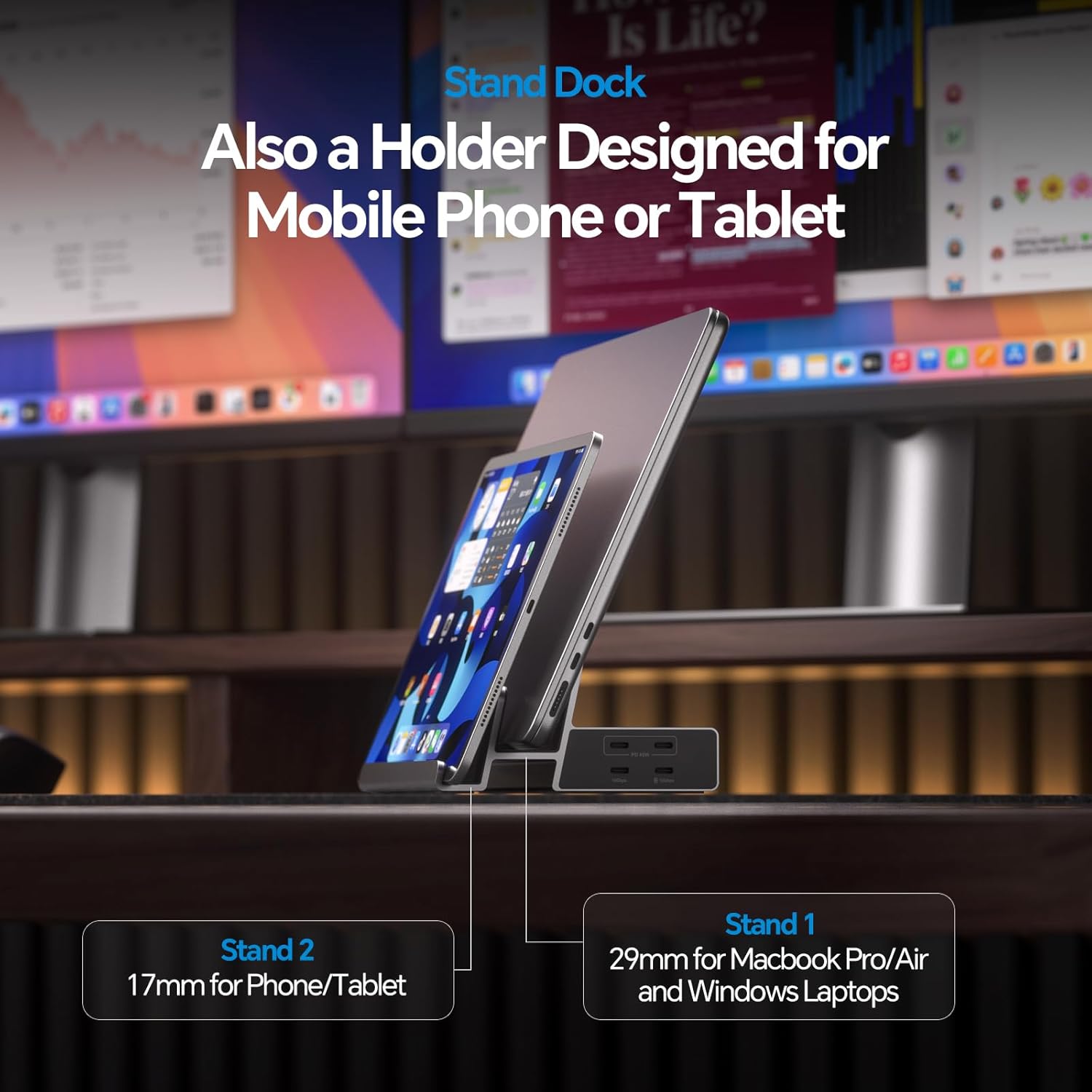
Image: The dual stand design of the docking station, holding a laptop and a tablet vertically to save desk space.
วิดีโอ: จบแล้วview of the Triple Display Docking Station Stand for Laptops (BD242A), showcasing คุณสมบัติและการออกแบบของมัน
6. การบำรุงรักษา
เพื่อให้แน่ใจถึงอายุการใช้งานที่ยาวนานและประสิทธิภาพสูงสุดของแท่นวางของคุณ:
- รักษาอุปกรณ์ให้สะอาดและปราศจากฝุ่น ใช้ผ้านุ่มและแห้งทำความสะอาด
- หลีกเลี่ยงการให้อุปกรณ์สัมผัสกับอุณหภูมิ ความชื้น หรือแสงแดดโดยตรง
- อย่าพยายามถอดประกอบหรือซ่อมแซมอุปกรณ์ด้วยตนเอง ติดต่อฝ่ายสนับสนุนลูกค้าเพื่อขอความช่วยเหลือ
- ตรวจสอบให้แน่ใจว่ามีการระบายอากาศที่เหมาะสมรอบ ๆ สถานีเชื่อมต่อเพื่อป้องกันความร้อนสูงเกินไป
7 การแก้ไขปัญหา
หากคุณพบปัญหาเกี่ยวกับแท่นวางอุปกรณ์ โปรดดูวิธีแก้ไขปัญหาทั่วไปต่อไปนี้:
- ไม่มีการแสดงผล:
- Ensure the Silicon Motion driver is correctly installed and granted necessary permissions (especially on macOS).
- Verify that the 72W DC power adapter is connected and providing power to the docking station.
- Check all HDMI/DisplayPort cables and connections.
- รีสตาร์ทแล็ปท็อปและแท่นวางเชื่อมต่อ
- แล็ปท็อปไม่ชาร์จ:
- Ensure an external PD adapter (up to 100W) is connected to the พีดี อิน port on the docking station. The included 72W adapter powers the dock, not the laptop directly.
- หมายเหตุว่า พีดี อิน port will not charge your laptop when using the dock with a USB-A laptop.
- อุปกรณ์ USB ไม่ได้รับการรู้จัก:
- Ensure the docking station is properly connected to your laptop via the USB-C ถึงโฮสต์ ท่าเรือ.
- ลองเสียบอุปกรณ์ USB เข้ากับพอร์ตอื่นบนแท่นวางดู
- Ensure the device drivers for the USB peripheral are installed on your laptop.
- ปัญหาการเชื่อมต่ออีเทอร์เน็ต:
- ตรวจสอบการเชื่อมต่อสายเคเบิลอีเทอร์เน็ตกับทั้งสถานีเชื่อมต่อและเราเตอร์/โมเด็มของคุณ
- ตรวจสอบการตั้งค่าเครือข่ายบนแล็ปท็อปของคุณ
8. ข้อมูลจำเพาะ
| คุณสมบัติ | คำอธิบาย |
|---|---|
| หมายเลขรุ่น | บีดี242เอ |
| พอร์ต | 19-in-1 (3x HDMI, 2x DisplayPort, 2x USB-C 10Gbps, 2x USB-A 5Gbps, 1x USB-A 2.0, 2x USB-C PD Output, SD/TF Card Reader, Gigabit Ethernet, 3.5mm Audio, DC IN, PD IN, USB-C to Host) |
| เอาท์พุตวิดีโอ | Triple 4K@60Hz (via HDMI/DisplayPort) |
| Power Delivery (PD IN) | Up to 100W for laptop (adapter not included) |
| Power Output (USB-C PD) | 45W (single port) / 22W (dual ports) |
| ความเร็วในการถ่ายโอนข้อมูล | USB-C/USB-A up to 10Gbps / 5Gbps, SD/TF up to 104Mbps |
| อีเธอร์เน็ต | กิกะบิต (10/100/1000 เมกะบิตต่อวินาที) |
| ความเข้ากันได้ | Thunderbolt 5/4/3, USB 4.0, USB-C/A Laptops, macOS 11+, Windows 10+, Chrome OS 100+ |
| วัสดุ | อลูมิเนียม |
| ขนาด | 7.68 x 7.13 x 3.82 นิ้ว |
| น้ำหนัก | 2.4 ปอนด์ |
9. การรับประกันและการสนับสนุน
For warranty information or technical support, please refer to the contact details provided in your product packaging or visit the PULWTOP official webไซต์นี้ โปรดเก็บใบเสร็จรับเงินที่ซื้อไว้เพื่อใช้เรียกร้องการรับประกัน