
1. บทนำ
This manual provides essential information for setting up, operating, maintaining, and troubleshooting your VIBOX I-12 Gaming PC. This complete gaming system includes a 22-inch monitor, gaming keyboard, gaming mouse, headset, LED mouse pad, and a USB Wi-Fi 6 + Bluetooth 5.4 adapter. It is powered by an AMD Ryzen 3 3200G processor with integrated Radeon Vega 8 graphics, 16GB of DDR4 RAM, and a 500GB SSD, running on Windows 11 Home.
Please read this manual thoroughly before using your new PC to ensure optimal performance and longevity.
2. การตั้งค่า
2.1 การแกะกล่องและเนื้อหา
แกะส่วนประกอบทั้งหมดออกจากกล่องอย่างระมัดระวัง ตรวจสอบให้แน่ใจว่ามีอุปกรณ์ต่อไปนี้อยู่ครบ:
- VIBOX I-12 PC Tower
- จอภาพ 22 นิ้ว
- คีย์บอร์ดสำหรับเล่นเกม
- เมาส์สำหรับเล่นเกม
- ชุดหูฟัง
- แผ่นรองเมาส์ LED
- USB Wi-Fi 6 AX900 and Bluetooth 5.4 Adapter
- Power Cables (for PC and Monitor)
- สาย HDMI
- เอกสารประกอบ (คู่มือนี้)

Image: The VIBOX I-12 Gaming PC tower, showcasing its internal components and white chassis.
2.2 การเชื่อมต่ออุปกรณ์ต่อพ่วง
- เฝ้าสังเกต: Connect the 22-inch monitor to the PC tower using the provided HDMI cable. Ensure both ends are securely plugged in.
- คีย์บอร์ดและเมาส์: Connect the gaming keyboard and mouse to the available USB ports on the rear or front of the PC tower.
- ชุดหูฟัง: Plug your headset into the audio jacks (headphone and microphone) on the front or rear of the PC.
- Wi-Fi/Bluetooth Adapter: Insert the USB Wi-Fi 6 + Bluetooth 5.4 adapter into an available USB port.
- พลัง: Connect the power cable to the PC tower and then to a wall outlet. Connect the monitor's power cable to the monitor and a wall outlet. The PC uses a Type C/EF – 2 pin (European/hybrid FR-DE plug) power connection.

ภาพ: ระยะใกล้ view of the PC's versatile connectivity panel, highlighting USB 3.0, USB 2.0, headphone jack, RGB change button, and power button.
2.3 การเปิดเครื่องครั้งแรก
Once all connections are secure, press the power button on the front of the PC tower. The system will boot up, and Windows 11 Home will guide you through the initial setup process, including language selection, network connection, and user account creation.
3. การใช้งานพีซีของคุณ
3.1 Windows 11 Home
Your VIBOX I-12 PC comes pre-installed with Windows 11 Home, optimized for gaming. Key features include:
- ไดเรกต์สตอเรจ: For faster game loading times.
- อัตโนมัติ HDR: Enhances graphics for supported games.
- Xbox Game Pass Integration: Seamless access to a library of games.
- Optimized CPU Performance: Ensures smooth gameplay and multitasking.
- Windows Defender & Windows Hello: คุณสมบัติด้านความปลอดภัยที่ได้รับการปรับปรุง
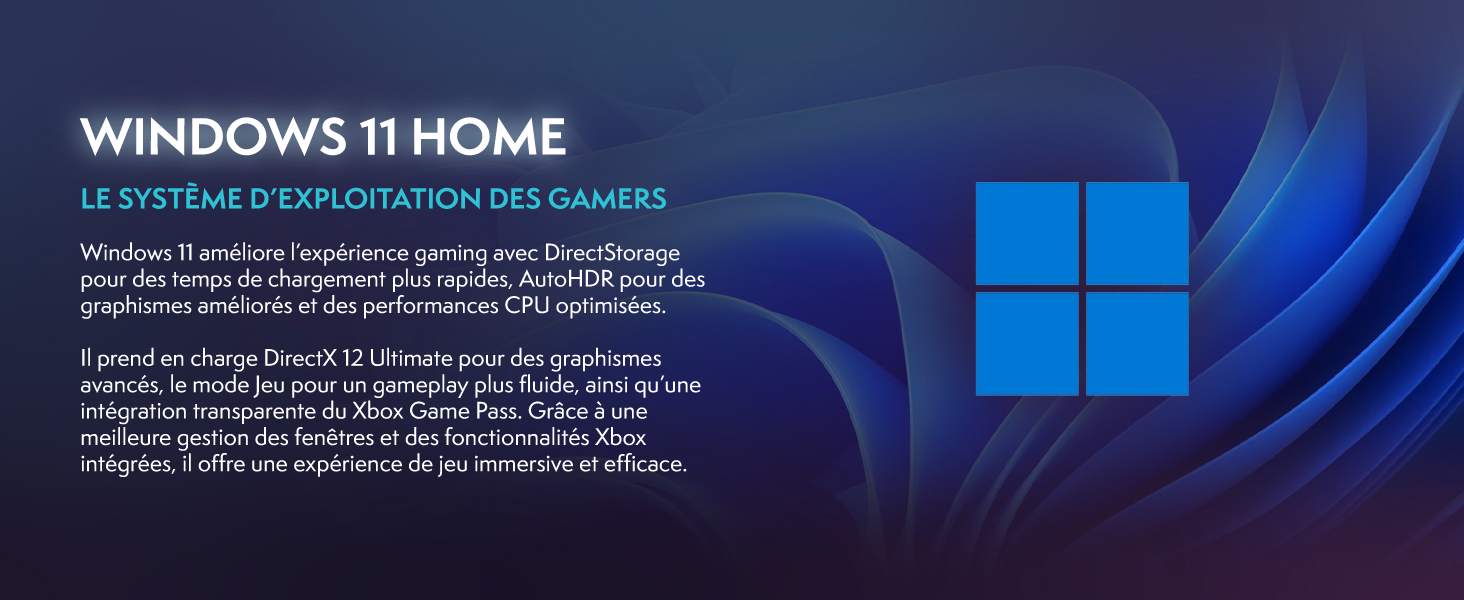
Image: Promotional image for Windows 11 Home, highlighting its gaming-centric features like DirectStorage and Auto HDR.
3.2 ประสิทธิภาพการเล่นเกม
The AMD Ryzen 3 3200G processor with integrated Radeon Vega 8 graphics provides solid performance for popular games at 1080p resolution. Performance may vary depending on game settings and specific titles.

Image: Performance comparison for Minecraft and Fortnite, showing average FPS at 1920x1080 resolution with different graphics settings.

Image: Performance comparison for Counter-Strike 2 and Grand Theft Auto V, showing average FPS at 1920x1080 resolution with different graphics settings.
3.3 การเชื่อมต่อ
The VIBOX I-12 offers comprehensive connectivity options:
- ไร้สาย: Integrated Wi-Fi 6 (802.11ax) and Bluetooth 5.4 for high-speed wireless networking and peripheral connections.
- มีสาย: Ethernet port for stable wired internet connection.
- พอร์ต USB: Multiple USB 3.0 and USB 2.0 ports for various peripherals.
- เอาท์พุตวิดีโอ: HDMI port for display connection.
4. การบำรุงรักษา
4.1 การทำความสะอาดทั่วไป
To ensure optimal performance and longevity, regularly clean your PC. Use a soft, dry cloth to wipe down the exterior. For dust accumulation, especially on vents and fans, use compressed air. ควรปิดเครื่องและถอดปลั๊กคอมพิวเตอร์ก่อนทำความสะอาดทุกครั้ง
4.2 ระบบทำความเย็น
The VIBOX I-12 features a mesh design and 6 Hex RGB 120mm fans for exceptional airflow and cooling. Periodically check the fan vents for dust buildup, which can impede airflow and lead to overheating. The tempered glass side panel is articulated and magnetic, allowing for easy access to internal components for cleaning and maintenance.

Image: Diagram illustrating the exceptional airflow and next-generation cooling design of the VIBOX I-12 PC tower.
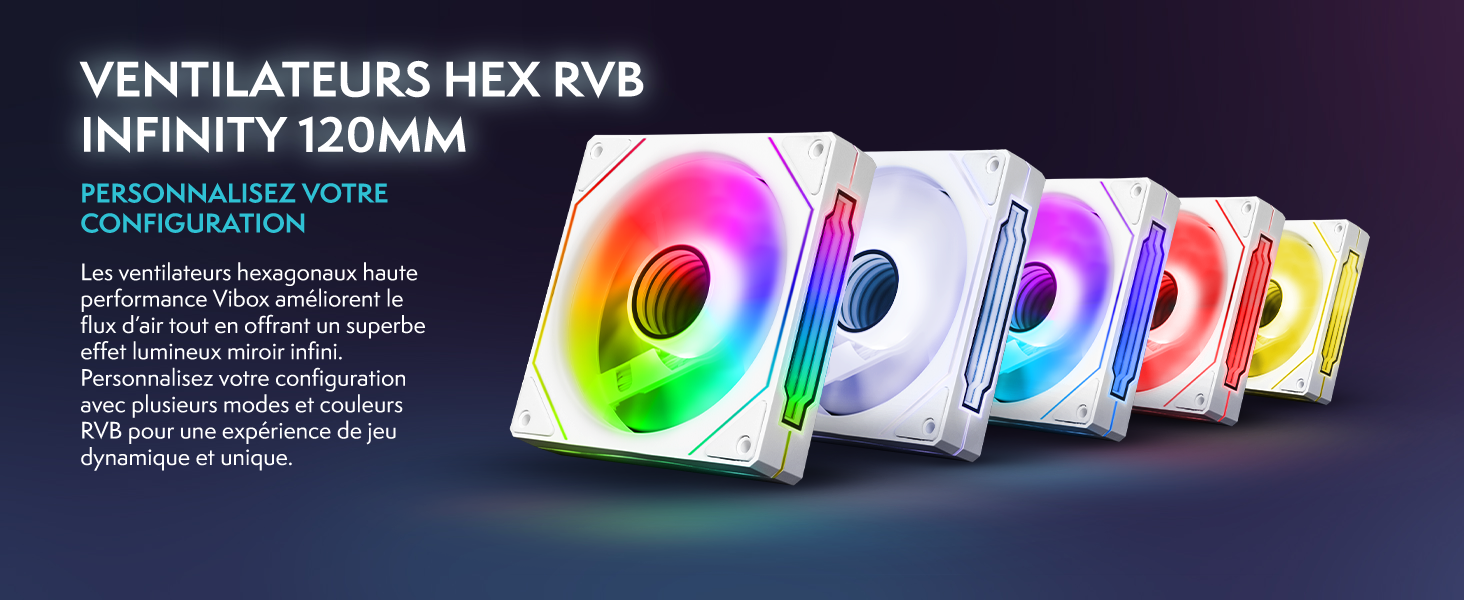
Image: Five 120mm RGB Infinity fans, showcasinตัวเลือกแสงไฟที่ปรับแต่งได้ตามต้องการ
5 การแก้ไขปัญหา
This section addresses common issues you might encounter. If you experience problems not covered here, please contact VIBOX support.
5.1 ไม่มีไฟฟ้า / ระบบไม่เริ่มทำงาน
- ตรวจสอบการเชื่อมต่อพลังงาน: Ensure all power cables (PC and monitor) are securely plugged into both the device and the wall outlet.
- Wall Socket: Test the wall socket with another device to confirm it is functional.
- ปุ่มเปิด/ปิด: Ensure the power button on the PC tower is fully pressed.
5.2 ไม่มีการแสดงผลบนจอภาพ
- การเชื่อมต่อสายเคเบิล: Verify the HDMI cable is firmly connected to both the PC's video output port and the monitor's input port.
- ตรวจสอบอำนาจ: ตรวจสอบให้แน่ใจว่าจอภาพเปิดอยู่และไฟแสดงสถานะการทำงานทำงานอยู่
- แหล่งสัญญาณเข้า: Check the monitor's input source settings (e.g., HDMI 1, HDMI 2) to ensure it matches the port you're using.
5.3 Peripherals Not Responding (Keyboard/Mouse)
- พอร์ต USB: Try connecting the keyboard and mouse to different USB ports on the PC.
- เริ่มต้นใหม่อีกครั้ง: รีสตาร์ทเครื่อง PC
- ไดรเวอร์: Ensure Windows has installed the necessary drivers. This usually happens automatically.
5.4 Wi-Fi or Bluetooth Issues
- การเชื่อมต่ออะแดปเตอร์: Ensure the USB Wi-Fi/Bluetooth adapter is securely plugged into a USB port.
- ไดรเวอร์: Verify that the drivers for the adapter are correctly installed. Windows 11 typically handles this automatically.
- การตั้งค่าเครือข่าย: Check Windows network settings to ensure Wi-Fi and Bluetooth are enabled.
6. ข้อมูลจำเพาะ
| ส่วนประกอบ | รายละเอียด |
|---|---|
| ยี่ห้อ | VIBOX |
| หมายเลขรุ่น | ไอ-12 |
| ระบบปฏิบัติการ | วินโดวส์ 11 โฮม |
| หน่วยประมวลผล (CPU) | AMD Ryzen 3 3200G (4 Cores, 3.6 GHz Base, 4.0 GHz Max Boost) |
| กราฟิก (GPU) | Integrated Radeon Vega 8 Graphics (2GB Shared Memory) |
| แรม | 16GB DDR4 (2666 เมกะเฮิรตซ์) |
| พื้นที่จัดเก็บ | SSD ความจุ 500GB |
| เฝ้าสังเกต | 22-inch LED (1920x1080 Pixels, 16:9 Aspect Ratio) |
| การเชื่อมต่อแบบไร้สาย | Wi-Fi 6 (802.11ac/n), Bluetooth 5.4 |
| การเชื่อมต่อแบบมีสาย | Ethernet, HDMI (1 port), USB (4 total ports) |
| วิธีการทำความเย็น | Air (6 Hex RGB 120mm fans) |
| Dimensions (PC Tower) | 40 x 21 x 45 ซม. |
| ประเภทปลั๊กไฟ | Type C/EF – 2 pin (European/hybrid FR-DE) |
| อุปกรณ์ต่อพ่วงที่รวมอยู่ | 22" Monitor, Gaming Keyboard (AZERTY layout), Gaming Mouse, Headset, LED Mouse Pad, USB Wi-Fi/Bluetooth Adapter |
7. การรับประกันและการสนับสนุน
7.1 ข้อมูลการรับประกัน
Your VIBOX I-12 Gaming PC comes with a comprehensive warranty:
- ส่วน: 2 ปี
- แรงงาน: ตลอดอายุการใช้งาน
Please retain your proof of purchase for warranty claims. The warranty covers manufacturing defects and hardware failures under normal use conditions.
7.2 การสนับสนุนลูกค้า
For technical assistance, troubleshooting, or warranty inquiries, please contact VIBOX Gaming customer support. You can find more information and contact details on the official VIBOX webผ่านทางเว็บไซต์หรือหน้าเพจร้านค้าบน Amazon ของพวกเขา: