
1. สินค้าหมดview
The CITLLA PRO MAX E510 is an ergonomic wireless mouse designed for comfort and efficiency across multiple devices. It features dual Bluetooth and 2.4G wireless connectivity, adjustable DPI settings, and a unique smart flying scroll wheel with a side thumb wheel for enhanced navigation.

Image: The CITLLA PRO MAX E510 Wireless Bluetooth Mouse in white, showcasinด้วยการออกแบบตามหลักสรีรศาสตร์และปุ่มกดหลายปุ่ม
2. คำแนะนำในการตั้งค่า
2.1 การชาร์จเริ่มต้น
Before first use, fully charge the mouse using the provided USB-C cable. The charging port is located at the front of the mouse. A full charge can last up to 60 days. The mouse features an auto-sleep mode after 15 minutes of inactivity to conserve battery life.
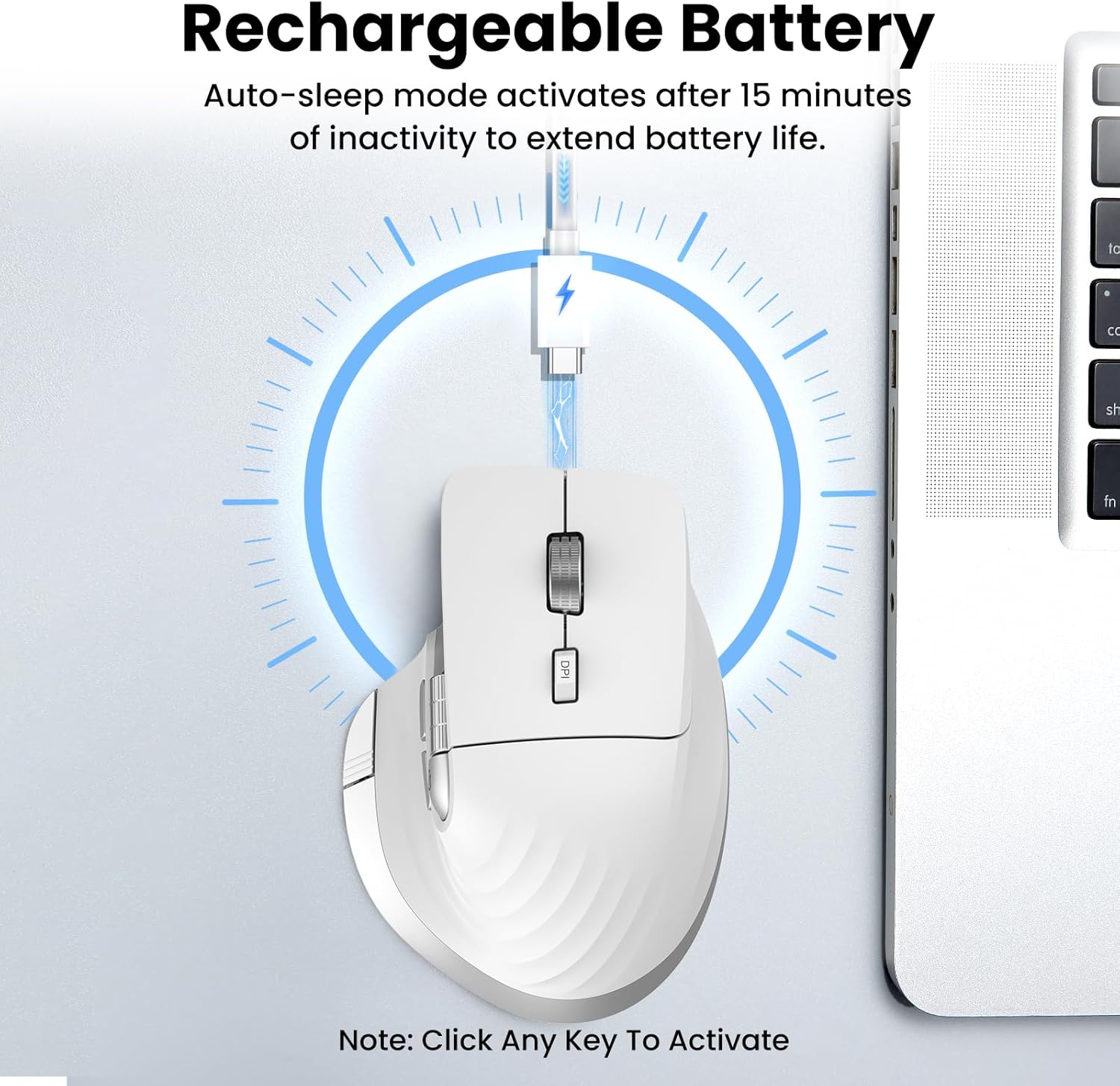
Image: The mouse connected to a USB-C charging cable, illustrating the rechargeable battery feature.
2.2 การเชื่อมต่อกับอุปกรณ์
The mouse supports connection to up to three devices via 2.4G wireless (USB receiver) and two Bluetooth channels (Bluetooth 1, Bluetooth 2).
- การเชื่อมต่อไร้สาย 2.4G:
- ค้นหาตัวรับสัญญาณ USB ที่เก็บไว้ในช่องด้านล่างของเมาส์
- เสียบตัวรับสัญญาณ USB เข้ากับพอร์ต USB ที่พร้อมใช้งานบนคอมพิวเตอร์ของคุณ
- เปิดใช้งานเมาส์โดยใช้สวิตช์เปิด/ปิดที่อยู่ด้านล่าง
- Press the 'Devices Switch Button' (labeled 6 in the button diagram) until the white indicator light for 2.4G (labeled 7) illuminates. The mouse should now be connected.
- Bluetooth Connection (Bluetooth 1 / Bluetooth 2):
- เปิดเมาส์โดยใช้สวิตช์เปิด/ปิด
- Press the 'Devices Switch Button' (6) to select either Bluetooth 1 (blue indicator) or Bluetooth 2 (green indicator).
- Press and hold the 'Devices Switch Button' for 3-5 seconds until the selected Bluetooth indicator light starts flashing rapidly. This indicates pairing mode.
- บนอุปกรณ์ของคุณ (แล็ปท็อป แท็บเล็ต สมาร์ทโฟน) ไปที่การตั้งค่าบลูทูธ แล้วค้นหาอุปกรณ์ใหม่
- Select "CITLLA E510" (or similar name) from the list of available devices to pair.
- เมื่อจับคู่แล้ว ไฟแสดงสถานะจะหยุดกะพริบและยังคงนิ่ง

Image: Diagram showing the mouse wirelessly connected to a laptop, desktop monitor, and tablet, illustrating its multi-device capability.
3. คู่มือการใช้งาน
3.1 ฟังก์ชันปุ่ม

Image: Detailed diagram of the mouse buttons and their corresponding functions.
- 1. ปุ่มซ้าย: ฟังก์ชั่นคลิกซ้ายมาตรฐาน
- 2. ปุ่มขวา: ฟังก์ชั่นคลิกขวามาตรฐาน
- 3. ล้อเลื่อนบินอัจฉริยะ: For ultra-fast, nearly silent vertical scrolling.
- 4. DPI Button: Press to cycle through 4 adjustable DPI levels (1000/1600/2400/3200).
- 5. Side Wheel: For fast horizontal scrolling.
- 6. Devices Switch Button: Press to switch between connected devices (2.4G, Bluetooth 1, Bluetooth 2). Press and hold to enter Bluetooth pairing mode.
- 7. Devices Indicators: White for 2.4G, Blue for Bluetooth 1, Green for Bluetooth 2. Also includes a low power indicator.
- 8. Forward/Back Buttons: Navigate forward/back in web browsers or switch applications (macOS).
- 9. Return to Desktop Button: Instantly minimizes all windows to show the desktop (Windows only). For macOS, this button can be used for Full Screen (Control+Command+F).
3.2 Scrolling Functions
The mouse features two distinct scrolling mechanisms:
- การ ล้อเลื่อนบินอัจฉริยะ (3) on top provides smooth and rapid vertical scrolling, ideal for long documents or web หน้า
- การ ล้อข้าง (5) allows for horizontal scrolling, which is particularly useful for navigating wide spreadsheets or timelines.
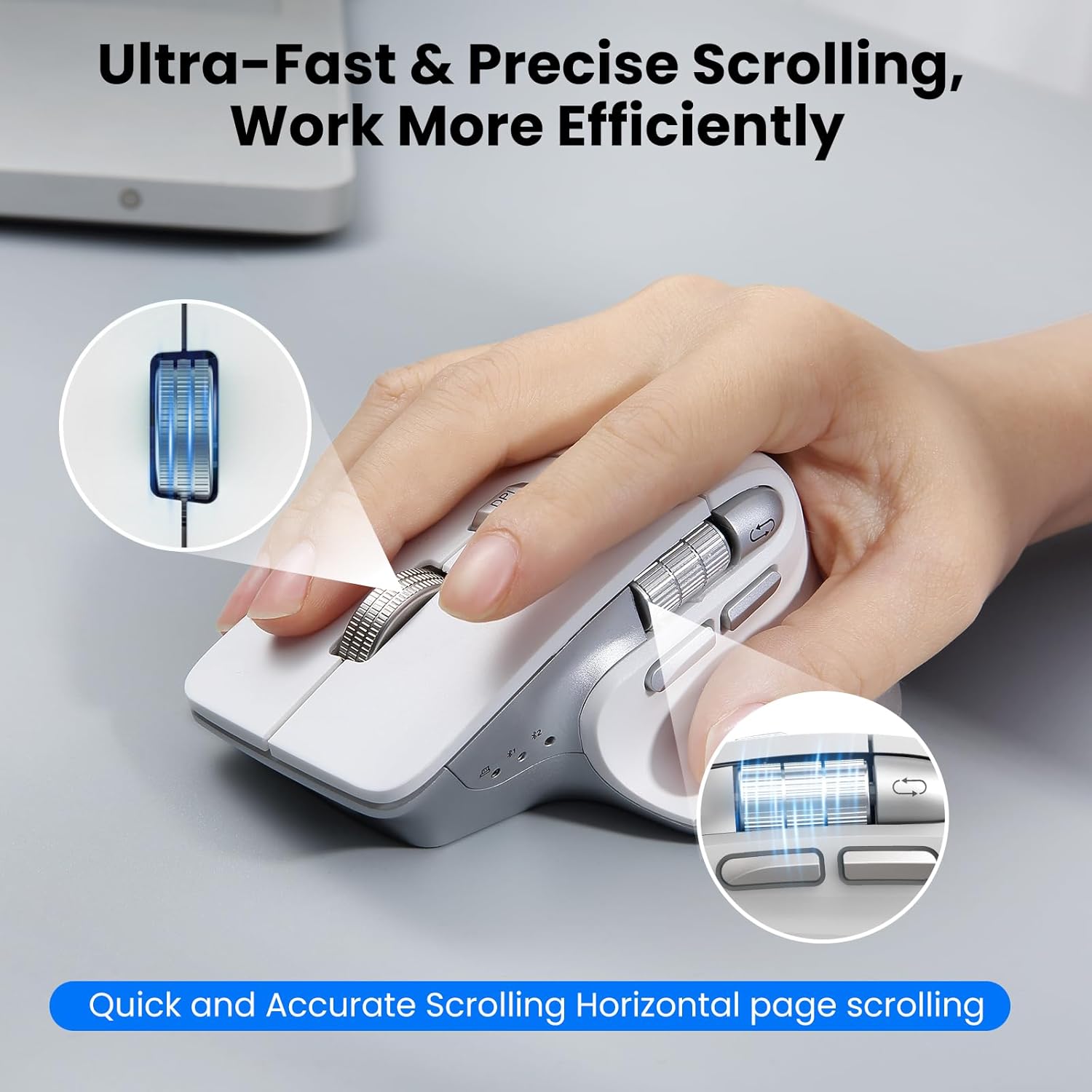
Image: A hand operating the mouse, highlighting the smart flying scroll wheel and the side thumb wheel for efficient navigation.
3.3 การปรับ DPI
The DPI (Dots Per Inch) button (4) allows you to adjust the cursor sensitivity. Press the DPI button to cycle through the four available settings: 1000, 1600, 2400, and 3200 DPI. Choose a setting that best suits your task, whether it's precise graphic design or fast-paced gaming.

Image: A visual representation of the 4-level adjustable DPI settings (1000, 1600, 2400, 3200 DPI).
3.4 คุณสมบัติพิเศษ
- ดีไซน์แบบคลิกเงียบ: The mouse is engineered for quiet operation, making it suitable for shared workspaces and quiet environments.
- Return to Desktop (Windows Only): The dedicated button (9) provides a quick way to minimize all open windows and display your desktop. This feature is specific to Windows operating systems.

Image: A laptop screen showing multiple open windows, with an arrow indicating the 'Return to Desktop' button on the mouse minimizing them.
3.5 วิดีโอแนะนำคุณสมบัติผลิตภัณฑ์
Video: An official product video from CITLLA showcasing the key features and functionality of the PRO MAX E510 Wireless Bluetooth Mouse, including its ergonomic design, multi-device connectivity, and smart scrolling.
4. การบำรุงรักษา
4.1 การทำความสะอาด
To maintain optimal performance, regularly clean your mouse. Use a soft, dry cloth to wipe the exterior. For stubborn dirt, a slightly damp สามารถใช้ผ้าได้ เพื่อไม่ให้ความชื้นเข้าไปในชิ้นส่วนภายใน หลีกเลี่ยงสารเคมีรุนแรงหรือวัสดุที่มีฤทธิ์กัดกร่อน
4.2 การดูแลแบตเตอรี่
The mouse is equipped with a rechargeable battery. Charge it using a standard USB-C cable. The low power indicator will alert you when charging is needed. To prolong battery life, the mouse enters an auto-sleep mode after 15 minutes of inactivity. Click any button to reactivate it.
5 การแก้ไขปัญหา
- เมาส์ไม่ตอบสนอง:
- ตรวจสอบให้แน่ใจว่าเมาส์เปิดอยู่
- ตรวจสอบระดับแบตเตอรี่และชาร์จหากจำเป็น
- Verify the correct connection mode (2.4G, BT1, BT2) is selected using the Devices Switch Button.
- สำหรับระบบ 2.4G โปรดตรวจสอบให้แน่ใจว่าได้เสียบตัวรับสัญญาณ USB เข้ากับปลั๊กอย่างแน่นหนาแล้ว
- สำหรับเมาส์บลูทูธ ให้ทำการจับคู่เมาส์กับอุปกรณ์ของคุณอีกครั้ง
- การเคลื่อนที่ของเคอร์เซอร์ผิดปกติหรือช้า:
- Adjust the DPI setting using the DPI button (4) to a higher sensitivity.
- ตรวจสอบให้แน่ใจว่าเซ็นเซอร์ของเมาส์สะอาดและปราศจากสิ่งกีดขวาง
- ควรใช้เมาส์บนพื้นผิวที่เหมาะสม (เช่น แผ่นรองเมาส์)
- ไม่สามารถสลับระหว่างอุปกรณ์ได้:
- ตรวจสอบให้แน่ใจว่าอุปกรณ์ทั้งหมดจับคู่/เชื่อมต่อกับช่องสัญญาณที่เกี่ยวข้องอย่างถูกต้อง (2.4G, BT1, BT2)
- Press the Devices Switch Button (6) firmly to cycle through the connections.
- Return to Desktop button not working:
- This feature is only supported on Windows systems.
- ตรวจสอบให้แน่ใจว่าระบบปฏิบัติการ Windows ของคุณเป็นเวอร์ชันล่าสุด
6. ข้อมูลจำเพาะ
| ขนาดสินค้า | 4.6 x 2.6 x 0.04 นิ้ว |
| น้ำหนักสินค้า | 6.7 ออนซ์ |
| แบตเตอรี่ | แบตเตอรี่ที่ไม่ได้มาตรฐาน 1 ก้อน (รวมอยู่ด้วย) |
| เทคโนโลยีการเชื่อมต่อ | บลูทูธ, 2.4G USB ไร้สาย |
| คุณสมบัติพิเศษ | 4 Way Scrolling, Ergonomic Design, Rechargeable, Silent Click, Wireless |
| เทคโนโลยีตรวจจับการเคลื่อนไหว | ออฟติคอล |
7. ความเข้ากันได้
The CITLLA PRO MAX E510 Wireless Bluetooth Mouse is compatible with a wide range of operating systems:
- หน้าต่าง
- ระบบปฏิบัติการ Mac
- ระบบปฏิบัติการ Chrome
- ลินุกซ์
- ไอโอเอส
- แอนดรอยด์

Image: Icons for Android, Linux, Windows, Chrome OS, and Mac OS, indicating wide compatibility.
8. อะไรอยู่ในกล่อง
- CITLLA PRO MAX E510 Wireless Bluetooth Mouse
- สายชาร์จ USB-C
- 2.4G USB Receiver (stored in mouse)
- คู่มือการใช้งาน
9. การรับประกันและการสนับสนุน
For warranty information, technical support, or any inquiries regarding your CITLLA PRO MAX E510 Wireless Bluetooth Mouse, please refer to the contact information provided in the packaging or visit the official CITLLA website. Our customer service team is available to assist you with any product-related concerns.