
การแนะนำ
This manual provides essential instructions for the setup, operation, maintenance, and troubleshooting of your Anmite 23.8 Inch Portable Monitor. Please read this manual thoroughly before using the product to ensure proper functionality and longevity.
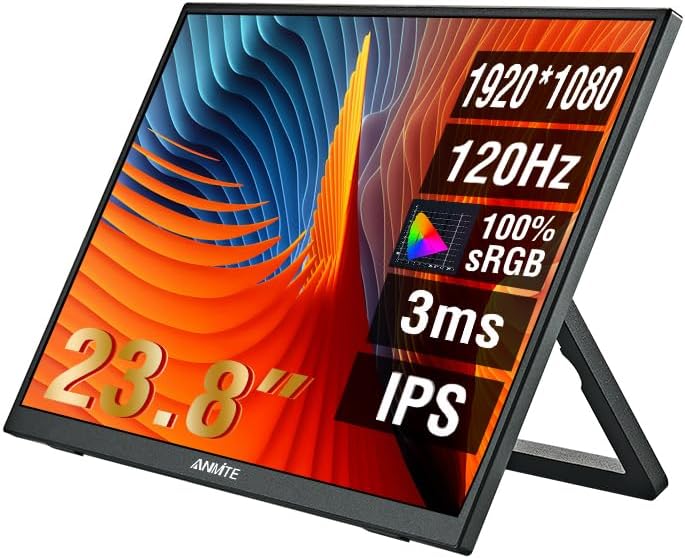
ภาพ: ด้านหน้า view of the Anmite 23.8 Inch Portable Monitor, highlighting its key display features.
เนื้อหาแพ็คเกจ
ตรวจสอบว่ามีรายการทั้งหมดอยู่ในแพ็คเกจ:
- Anmite 23.8 Inch Portable Monitor
- สาย USB-C ถึง USB-C
- สายมินิ HDMI เป็น HDMI
- อะแดปเตอร์แปลงไฟ
- คู่มือการใช้งาน (เอกสารนี้)
การตั้งค่า
การเชื่อมต่อจอภาพ
The Anmite portable monitor supports connectivity via Type-C (USB-C) and Mini HDMI ports. Ensure your device supports video output over the chosen port.
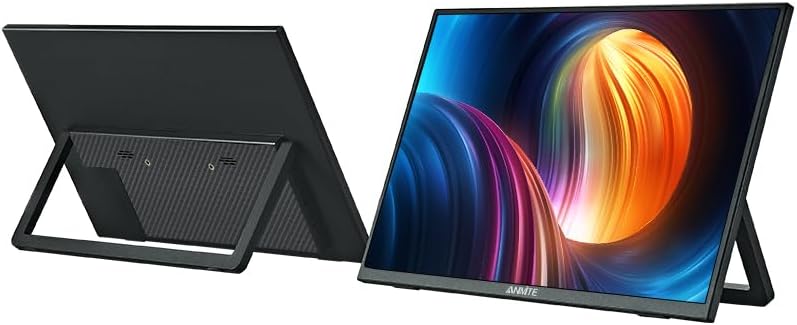
ภาพ: ด้านหลัง view of the Anmite portable monitor, illustrating the integrated stand and port locations.
- การเชื่อมต่อไฟฟ้า: Connect the provided power adapter to the monitor's power input port and then to a power outlet.
- USB-C Connection (for compatible devices): If your laptop, phone, or other device supports video output and power delivery over a single USB-C port, connect one end of the USB-C to USB-C cable to your device and the other end to the monitor's full-featured USB-C port. This connection can provide both video signal and power to the monitor.
- HDMI Connection (for laptops, gaming consoles): Connect one end of the Mini HDMI to HDMI cable to the monitor's Mini HDMI port and the other end to your device's HDMI output port. If using HDMI, ensure the monitor is also powered via the power adapter or a separate USB-C power source.
- เอาต์พุตเสียง: The monitor has built-in speakers. For external audio, connect 3.5mm headphones or speakers to the monitor's audio output jack.
เปิดเครื่องเบื้องต้น
After connecting the necessary cables, press the power button on the monitor. The monitor should automatically detect the input signal. If not, you may need to manually select the input source via the On-Screen Display (OSD) menu.
การดำเนินงาน
เมนูที่แสดงบนหน้าจอ (OSD)
The OSD menu allows you to adjust various display settings. Typically, buttons on the side or back of the monitor are used to navigate the menu.
- ปุ่มเมนู: กดเพื่อเปิดเมนู OSD
- ปุ่มขึ้น/ลง: นำทางผ่านตัวเลือกเมนู
- ปุ่มป้อน/เลือก: ยืนยันการเลือกหรือเข้าสู่เมนูย่อย
- ปุ่มออก: ออกจากเมนูหรือ OSD ปัจจุบัน
การตั้งค่าทั่วไป
- ความสว่าง/คอนทราสต์: ปรับระดับความสว่างและความคมชัดของจอภาพ
- ปริมาณ: Control the audio output level from the built-in speakers or headphone jack.
- แหล่งสัญญาณเข้า: Manually select between USB-C and HDMI inputs if auto-detection fails.
- การตั้งค่าสี: ปรับอุณหภูมิสี เฉดสี และความอิ่มตัวของสีให้เหมาะสม
- อัตราส่วนภาพ: Adjust the display's aspect ratio (e.g., 16:9, 4:3).
- อัตราการรีเฟรช: Ensure your device is configured to output at 120Hz for optimal performance.
การซ่อมบำรุง
การทำความสะอาดจอภาพ
To maintain optimal display quality, clean the monitor regularly.
- ปิดเครื่องและถอดปลั๊กจอภาพทุกครั้งก่อนทำความสะอาด
- ใช้ผ้านุ่มไม่เป็นขุยเช็ดเล็กน้อยampเคลือบด้วยน้ำหรือน้ำยาทำความสะอาดหน้าจอที่ไม่กัดกร่อน
- อย่าฉีดน้ำยาลงบนหน้าจอโดยตรง ให้ฉีดลงบนผ้าก่อน
- หลีกเลี่ยงการใช้แอลกอฮอล์ แอมโมเนีย หรือน้ำยาทำความสะอาดที่มีฤทธิ์กัดกร่อน เนื่องจากอาจทำให้พื้นผิวหน้าจอเสียหายได้
พื้นที่จัดเก็บ
When not in use for extended periods, store the monitor in a cool, dry place, preferably in its original packaging or a protective sleeve to prevent dust and scratches.
การแก้ไขปัญหา
หากคุณพบปัญหาเกี่ยวกับจอภาพของคุณ โปรดดูปัญหาทั่วไปและวิธีแก้ไขต่อไปนี้:
| ปัญหา | วิธีแก้ปัญหาที่เป็นไปได้ |
|---|---|
| ไม่มีไฟ / จอมอนิเตอร์ไม่ติด | ตรวจสอบให้แน่ใจว่าอะแดปเตอร์แปลงไฟเชื่อมต่อกับจอภาพและเต้ารับไฟฟ้าที่ใช้งานได้แน่นหนาแล้ว ลองเสียบกับเต้ารับอื่นดู |
| ไม่มีสัญญาณ / หน้าจอว่างเปล่า | Check that the video cable (USB-C or HDMI) is securely connected to both the monitor and your device. Verify your device is outputting a signal. Use the OSD menu to manually select the correct input source. |
| ภาพสั่นไหวหรือบิดเบี้ยว | Check cable connections. Ensure your device's display settings (resolution, refresh rate) are compatible with the monitor (FHD 1080P, 120Hz). Try a different cable. |
| ไม่มีเสียงออกจากลำโพง | Increase the volume via the OSD menu or your connected device. Ensure the audio output is routed to the monitor. Check if headphones are plugged in. |
| Monitor randomly turns off | Ensure stable power supply. Check for overheating (though unlikely for a monitor). |
หากปัญหายังคงมีอยู่หลังจากลองวิธีแก้ไขเหล่านี้แล้ว โปรดติดต่อฝ่ายสนับสนุนลูกค้า
ข้อมูลจำเพาะ
Detailed technical specifications for the Anmite 23.8 Inch Portable Monitor:
| คุณสมบัติ | ข้อมูลจำเพาะ |
|---|---|
| ยี่ห้อ | แอนไมต์ |
| แบบอย่าง | 23.8 Inch Portable Monitor (ASIN: B0FBG52K2K) |
| ขนาดหน้าจอ | 23.8 นิ้ว |
| ปณิธาน | FHD 1080p (1920 x 1080) |
| อัตราการรีเฟรช | 120เฮิรตซ์ |
| ประเภทแผง | ไอพีเอส |
| อัตราส่วนภาพ | 16:9 น. |
| พื้นผิวหน้าจอ | แมทต์ |
| การเชื่อมต่อ | 1x USB-C (Full-featured), 1x Mini HDMI, 1x 3.5mm Audio Out |
| เสียง | ลำโพงในตัว |
| ขนาด (โดยประมาณ) | 53.8cm (21.18in) W x 32cm (12.6in) H x 1.3cm (0.51in) D (excluding stand) |
| น้ำหนักสุทธิ (โดยประมาณ) | 2.2 กก. (77.6 ออนซ์) |

Image: Detailed dimensions of the Anmite 23.8 Inch Portable Monitor.
การรับประกันและการสนับสนุน
For warranty information, please refer to the documentation provided at the time of purchase or contact your retailer. For technical support or further assistance, please visit the official Anmite webเว็บไซต์หรือติดต่อฝ่ายบริการลูกค้าของพวกเขา
Anmite Official Store: https://www.amazon.com/stores/Anmite/page/AA26DD50-6EDF-44BA-B22D-A61716CFF2F4