1. บทนำ
This manual provides detailed instructions for the installation, operation, and maintenance of the Generic EWELINK Smart Switch, Model EWB2CH-B1. This device is a DC7-32V smart receiver designed for on/off control with dry contact output, integrating with the EWELINK smart home ecosystem. Please read this manual thoroughly before use to ensure proper functionality and safety.
2. ข้อมูลด้านความปลอดภัย
- ความปลอดภัยทางไฟฟ้า: Installation and wiring should only be performed by qualified personnel. Ensure power is disconnected before any wiring or maintenance.
- เล่มที่tagอี ช่วง: Operate the device strictly within the specified DC/AC 7V-32V input voltage range. Exceeding this range may damage the device and pose a safety risk.
- ขีด จำกัด ปัจจุบัน: Do not exceed the maximum current rating of 10A per gang. Overloading can lead to overheating and device failure.
- สิ่งแวดล้อม: Avoid installing the device in environments with high humidity, extreme temperatures, or corrosive substances.
- ติดต่อแห้ง: The output is a dry contact (potential-free) switch. Ensure it is connected to circuits appropriate for this type of switching.
3. สินค้าหมดview
The EWB2CH-B1 is a 2-channel smart switch module. It features input terminals for power, manual control buttons, status indicators, and dry contact output terminals for controlling external devices.
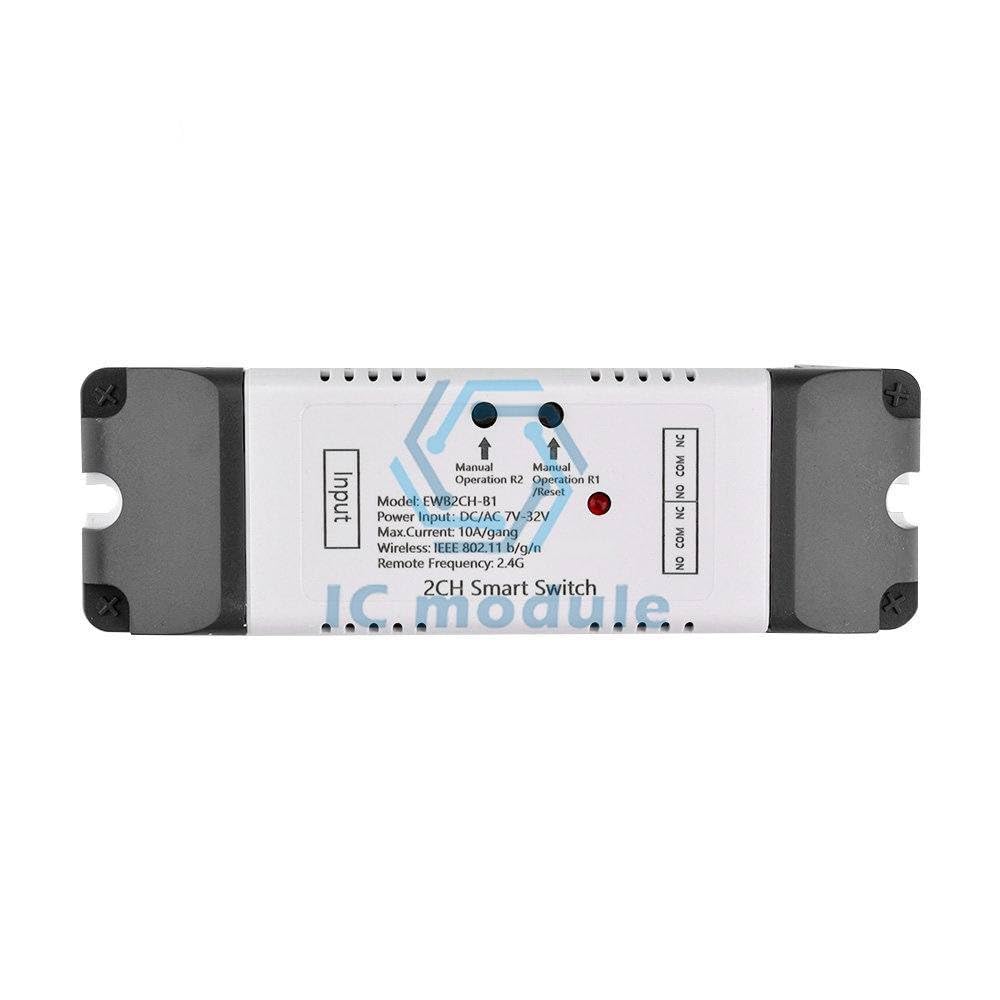
รูปที่ 3.1: ด้านหน้า view of the EWELINK Smart Switch EWB2CH-B1. This image displays the device's main face, clearly labeling the 'Input' side, two manual operation buttons (R1 and R2), corresponding indicator LEDs, and the 'NO COM NC' dry contact output terminals for both channels.

รูปที่ 3.2: มุม view of the EWELINK Smart Switch EWB2CH-B1. This perspective highlights the screw terminals for both the power input and the dry contact outputs, providing a clearer view of the connection points.

รูปที่ 3.3: สูงสุด view of the EWELINK Smart Switch EWB2CH-B1. This image focuses on the two manual control buttons and their associated status indicator LEDs, which are used for local operation and pairing.
4. ข้อมูลจำเพาะ
| คุณสมบัติ | ข้อมูลจำเพาะ |
|---|---|
| แบบอย่าง | EWB2CH-B1 |
| กำลังไฟเข้า | DC/AC 7V-32V |
| กระแสไฟสูงสุด | 10A/gang |
| ไร้มาตรฐาน | IEEE 802.11b/g/n ไร้สาย |
| ความถี่ระยะไกล | 2.4จี |
| ช่องทางการ | 2 |
| ประเภทเอาท์พุต | การสัมผัสแบบแห้ง |
5. การตั้งค่า
5.1. การติดตั้ง
- การตัดการเชื่อมต่อไฟฟ้า: Before starting any wiring, ensure that the power supply to the circuit where the smart switch will be installed is completely disconnected at the main breaker.
- การติดตั้ง: Secure the EWB2CH-B1 module in a suitable enclosure or mounting location, ensuring it is protected from environmental factors and accidental contact.
5.2. คำแนะนำในการเดินสายไฟ
Refer to the labels on the device for correct terminal identification. The device has an 'Input' section for power and an 'Output' section for dry contact switching.
- Power Input (DC/AC 7V-32V): Connect your DC or AC power supply (within the 7V-32V range) to the designated 'Input' terminals. Observe polarity if using DC.
- Dry Contact Output (NO, COM, NC): Each channel (R1 and R2) provides three terminals:
- ไม่ (ปกติเปิด): The circuit is open (disconnected) when the switch is off, and closed (connected) when the switch is on.
- COM (ทั่วไป): The common terminal for the switch.
- NC (ปกติปิด): The circuit is closed (connected) when the switch is off, and open (disconnected) when the switch is on.
After wiring, carefully inspect all connections to ensure they are secure and correct before restoring power.
6. คู่มือการใช้งาน
6.1. คู่มือการใช้งาน
The EWB2CH-B1 features two manual buttons, R1 and R2, corresponding to each channel.
- สวิตช์สลับ: Pressing a button (R1 or R2) will toggle the state of its respective channel's dry contact output (from open to closed, or closed to open).
- ตัวบ่งชี้สถานะ: Each button has an associated LED indicator that shows the current state of the channel.
6.2. EWELINK App Control and Pairing
To control the device remotely and access smart features, you need to pair it with the EWELINK application.
- Download EWELINK App: Download the EWELINK app from your smartphone's app store (iOS or Android).
- ลงทะเบียน/เข้าสู่ระบบ: Create an account or log in to your existing EWELINK account.
- เข้าสู่โหมดจับคู่: Power on the EWB2CH-B1. Press and hold one of the manual buttons (e.g., R1) for approximately 5-7 seconds until its LED indicator starts blinking rapidly. This indicates the device is in pairing mode.
- เพิ่มอุปกรณ์ในแอป: In the EWELINK app, tap the '+' icon to add a new device. Follow the on-screen instructions to select the device type and connect it to your 2.4GHz Wi-Fi network.
- ควบคุม: Once successfully paired, the device will appear in your EWELINK app. You can now control each channel independently, set schedules, timers, and integrate with other smart home features.
7. การบำรุงรักษา
- การทำความสะอาด: Ensure the device is powered off before cleaning. Use a soft, dry cloth to wipe the exterior. Do not use liquid cleaners or solvents.
- อัพเดตเฟิร์มแวร์: Periodically check the EWELINK app for available firmware updates to ensure optimal performance and security.
- ตรวจสอบการเชื่อมต่อ: Occasionally inspect wiring connections to ensure they remain secure.
8 การแก้ไขปัญหา
- อุปกรณ์ไม่ได้เปิดเครื่อง:
- Verify the power input voltage is within the DC/AC 7V-32V range.
- Check all power connections for proper contact and polarity.
- Cannot Pair with EWELINK App:
- โปรดตรวจสอบให้แน่ใจว่าเครือข่าย Wi-Fi ของคุณเป็น 2.4GHz อุปกรณ์นี้ไม่รองรับ Wi-Fi 5GHz
- Confirm the device is in pairing mode (LED blinking rapidly). If not, re-enter pairing mode by holding a manual button.
- Check your Wi-Fi signal strength at the device's location.
- รีสตาร์ทเราเตอร์ Wi-Fi ของคุณและลองจับคู่ใหม่อีกครั้ง
- Output Not Switching:
- Verify the manual buttons toggle the output state.
- Check the wiring to the controlled device (COM, NO, NC terminals).
- Ensure the controlled device is receiving its own power supply, as the smart switch only provides a dry contact closure.
- Confirm the load current does not exceed 10A per channel.
- App Control Unresponsive:
- Check your internet connection and the device's Wi-Fi connection status in the app.
- Restart the EWELINK app.
- หากปัญหายังคงมีอยู่ ให้ลองจับคู่อุปกรณ์อีกครั้ง
9. การรับประกันและการสนับสนุน
Specific warranty details and direct support contact information are not provided in the product data. For warranty claims or technical assistance, please refer to the retailer or manufacturer from whom the product was purchased. Keep your proof of purchase for any warranty-related inquiries.


