
ARCCTV P2
ARCCTV 2K Security Camera Outdoor P2 User Manual
รุ่น : P2
1. บทนำ
This manual provides detailed instructions for the installation, operation, and maintenance of your ARCCTV 2K Security Camera Outdoor P2. Please read this manual thoroughly before using the product to ensure correct usage and optimal performance. Keep this manual for future reference.

ภาพที่ 1.1: ด้านหน้า view of the ARCCTV 2K Security Camera Outdoor P2.
2. อะไรอยู่ในกล่อง
ตรวจสอบว่ามีส่วนประกอบทั้งหมดอยู่ในแพ็คเกจ:
- ตัวกล้อง
- อะแดปเตอร์ไฟฟ้า 5V1A
- สกรูยึด (ชุด)
- Screw Positioning Sticker
- สติ๊กเกอร์คำเตือน
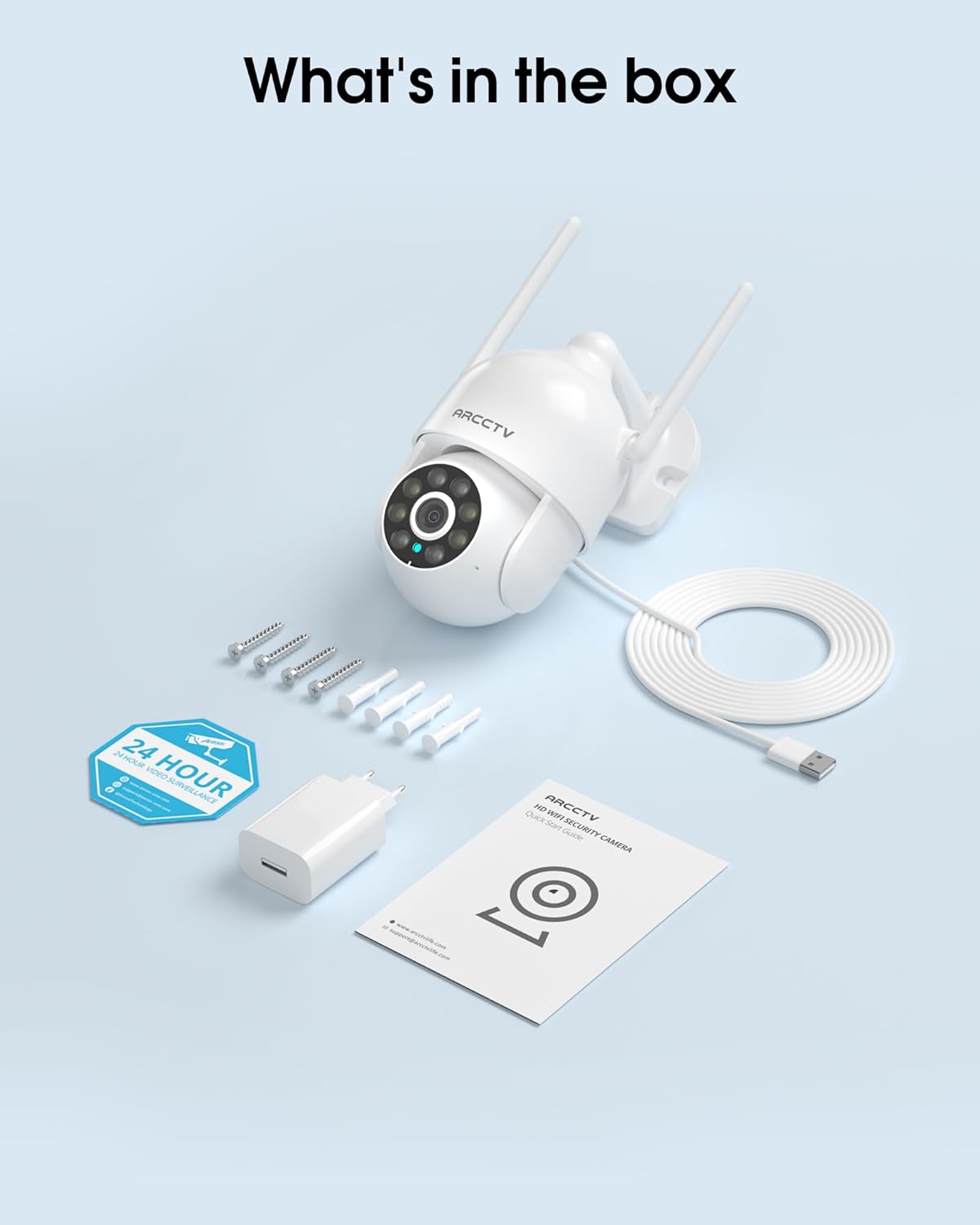
Image 2.1: All items included in the ARCCTV 2K Security Camera package.
3. คุณสมบัติของผลิตภัณฑ์
- ความละเอียด 2K Ultra HD: Provides clear 2304x1296p video.
- การมองเห็นตอนกลางคืนแบบสีเต็มรูปแบบ: Built-in spotlight enables vivid color monitoring in low light.
- แพน-เอียง-ซูม 360° (PTZ): Remotely control 355° horizontal and 90° vertical rotation.
- ระบบติดตามการเคลื่อนไหวอัตโนมัติ: Smart AI automatically follows and records detected movement.
- WiFi แบบดูอัลแบนด์: Supports both 2.4G and 5G WiFi for stable connectivity.
- เสียงสองทาง: มีไมโครโฟนและลำโพงในตัวสำหรับใช้ในการสื่อสาร
- กันฝนระดับ IP66: Durable design for outdoor use in various weather conditions (-4°F ~ 122°F).
- การจัดเก็บที่ยืดหยุ่น: รองรับการจัดเก็บข้อมูลในเครื่องด้วยการ์ด microSD (สูงสุด 128GB ไม่รวมอยู่ในชุด) และการจัดเก็บข้อมูลบนคลาวด์ (เลือกได้)
- บันทึกตลอด 24 ชั่วโมง: Continuous recording capability with stable power supply.
4. การตั้งค่า
4.1 การติดตั้ง
- เลือกตำแหน่ง: เลือกสถานที่กลางแจ้งที่มีทัศนวิสัยโล่ง view of the area you wish to monitor. Ensure it is within range of your Wi-Fi network and a power outlet.
- ติดตั้งกล้อง: Use the provided screw positioning sticker to mark drill holes. Drill holes, insert wall anchors, and secure the camera body to the wall using the mounting screws.
- เชื่อมต่อพลังงาน: Plug the 5V1A power adapter into the camera and then into a power outlet. The camera will power on and begin its startup sequence.
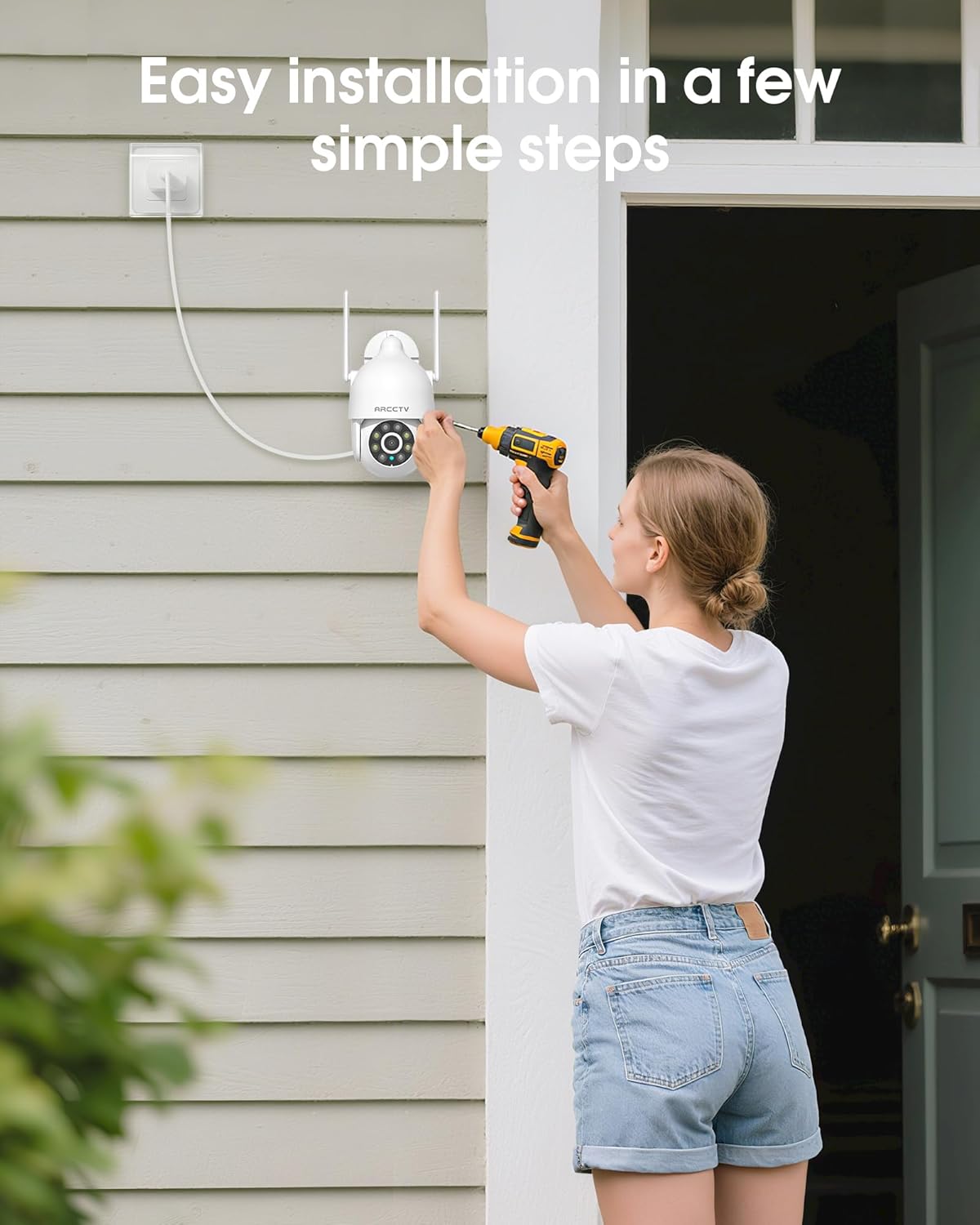
Image 4.1: Illustration of easy camera installation steps.
4.2 การดาวน์โหลดแอปและสร้างบัญชี
- Download the official ARCCTV app from your smartphone's app store (iOS or Android).
- เปิดแอปและทำตามคำแนะนำบนหน้าจอเพื่อสร้างบัญชีใหม่หรือเข้าสู่ระบบหากคุณมีบัญชีอยู่แล้ว
4.3 การเชื่อมต่อ Wi-Fi
- ในแอป ให้แตะไอคอน "เพิ่มอุปกรณ์" หรือ "+"
- Select your camera model and follow the prompts to connect it to your Wi-Fi network. The camera supports both 2.4GHz and 5GHz bands for stable connectivity.
- Ensure your smartphone is connected to the same Wi-Fi network during the setup process.
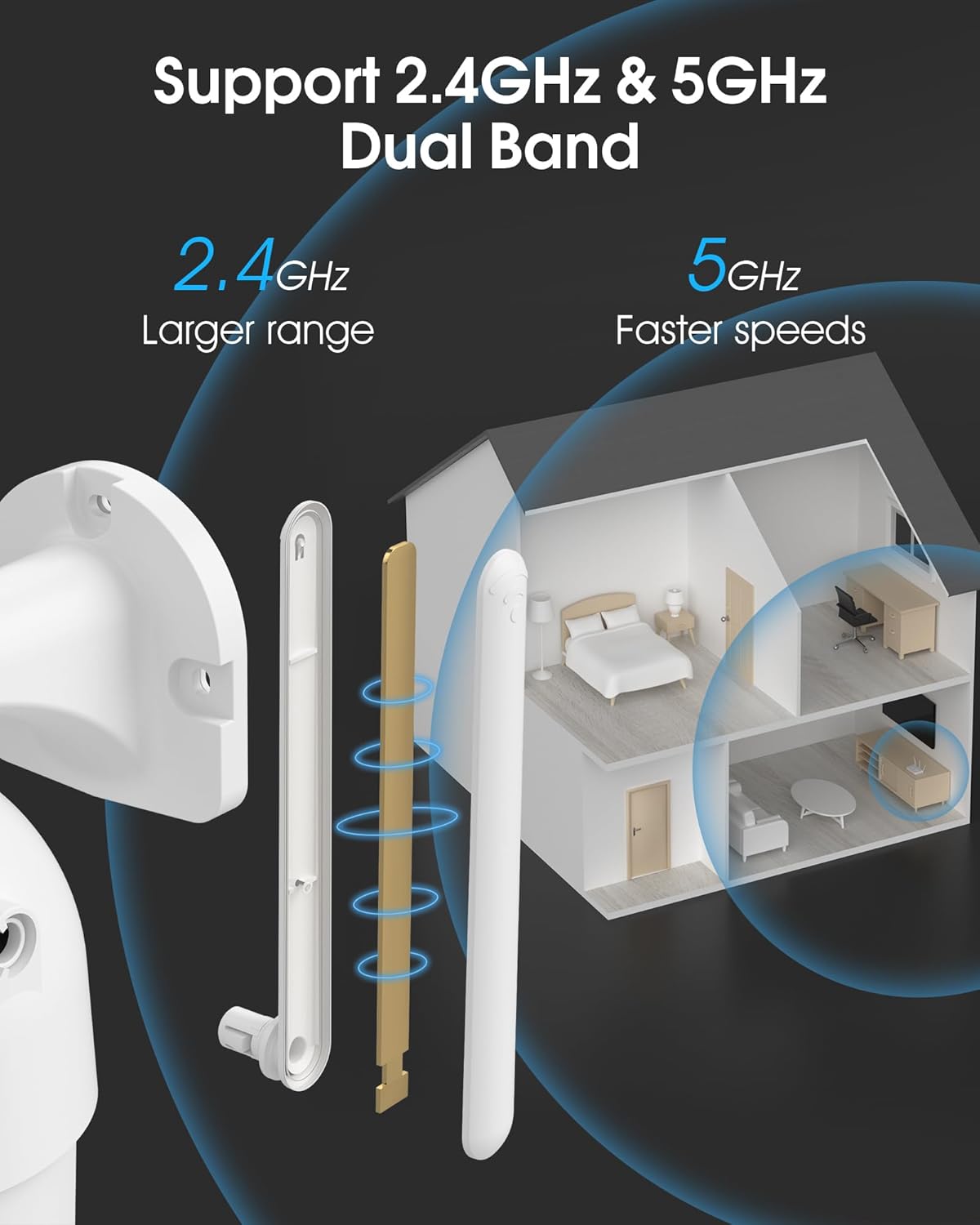
Image 4.2: The camera supports both 2.4GHz (larger range) and 5GHz (faster speeds) Wi-Fi bands.
4.4 การติดตั้งการ์ด MicroSD (ทางเลือก)
For local storage, install a microSD card (up to 128GB, not included) into the designated slot on the camera. Ensure the camera is powered off before inserting or removing the card.
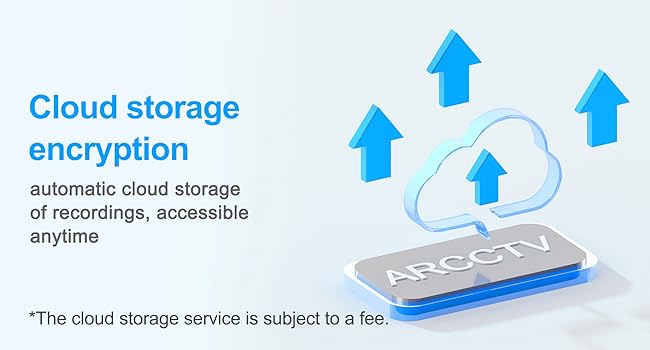
Image 4.3: Location of the microSD card slot on the camera.
5. การใช้งานกล้อง
5.1 สด View
Open the ARCCTV app and select your camera to view the live feed. You can monitor your property in real-time.
5.2 การควบคุมการหมุน การเอียง และการซูม (PTZ)
ไลฟ์สด view screen, use the directional controls to rotate the camera horizontally (Pan: 355°) and vertically (Tilt: 90°) to adjust the viewมุมการปรับ คุณยังสามารถตั้งจุดที่กำหนดไว้ล่วงหน้าเพื่อการนำทางที่รวดเร็วได้อีกด้วย
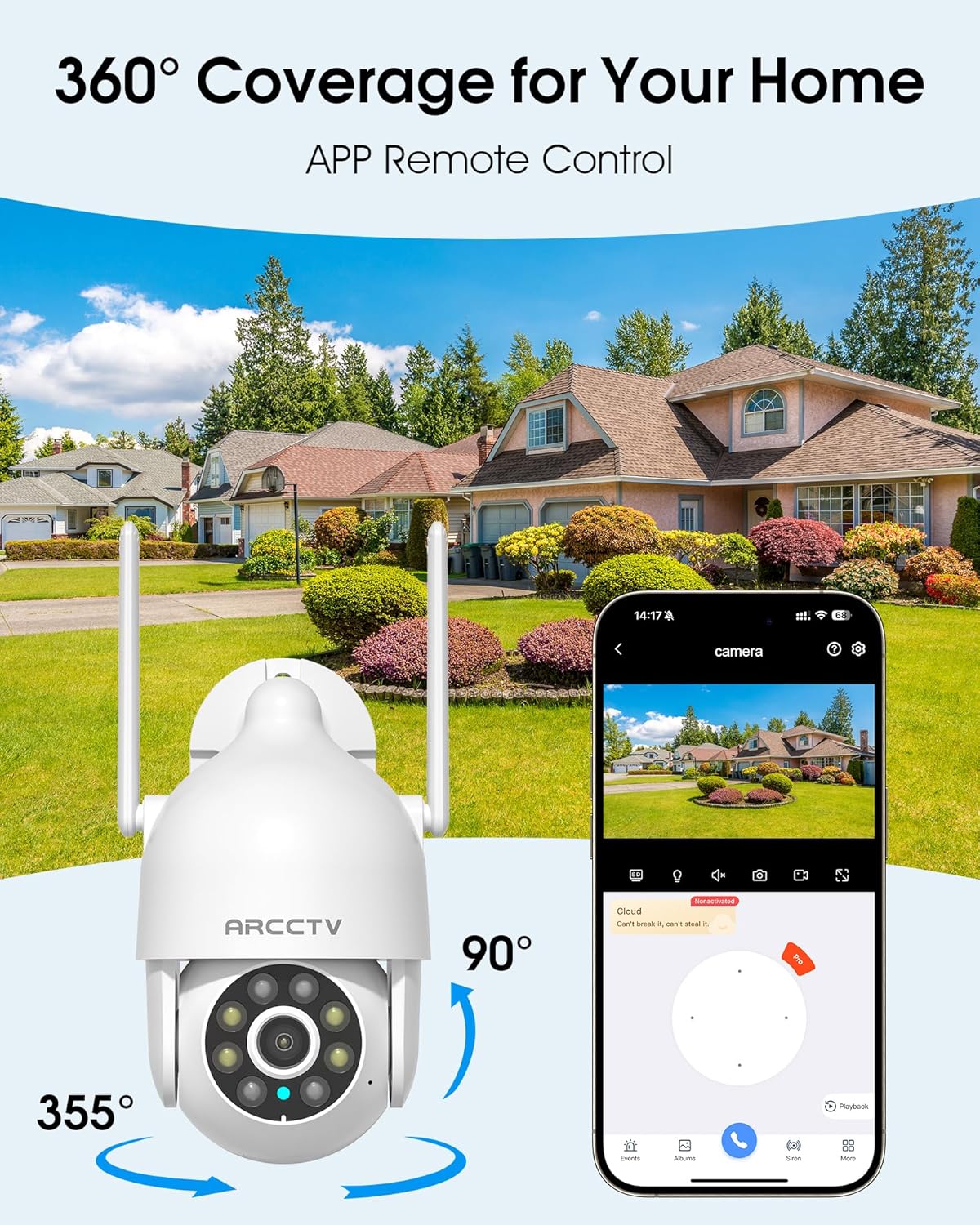
Image 5.1: The camera offers 360° coverage through remote pan and tilt controls.
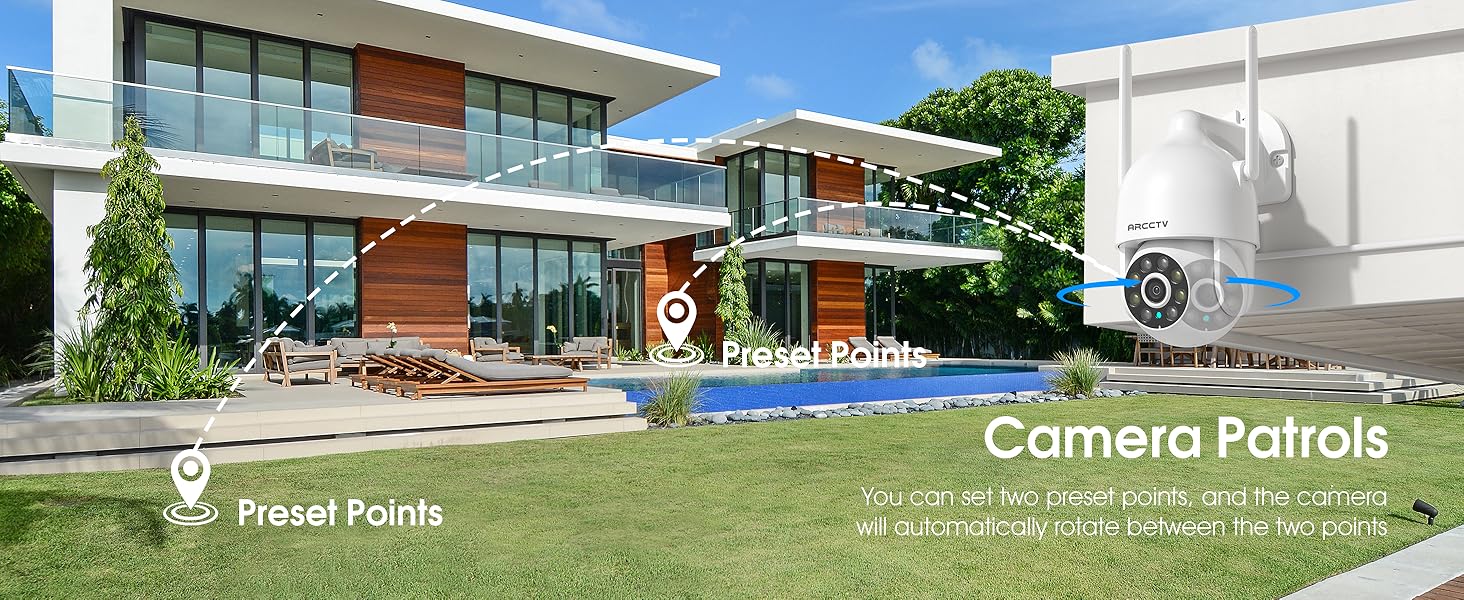
Image 5.2: Setting up camera patrol routes between preset points.
5.3 Motion Tracking and Alerts
The camera features smart AI motion tracking that automatically follows detected movement. You can customize alert zones and receive instant notifications on your smartphone when motion is detected.

Image 5.3: The camera's smart motion tracking feature in action.

Image 5.4: Instant alerts with customizable settings, including spotlight, siren, and two-way audio.
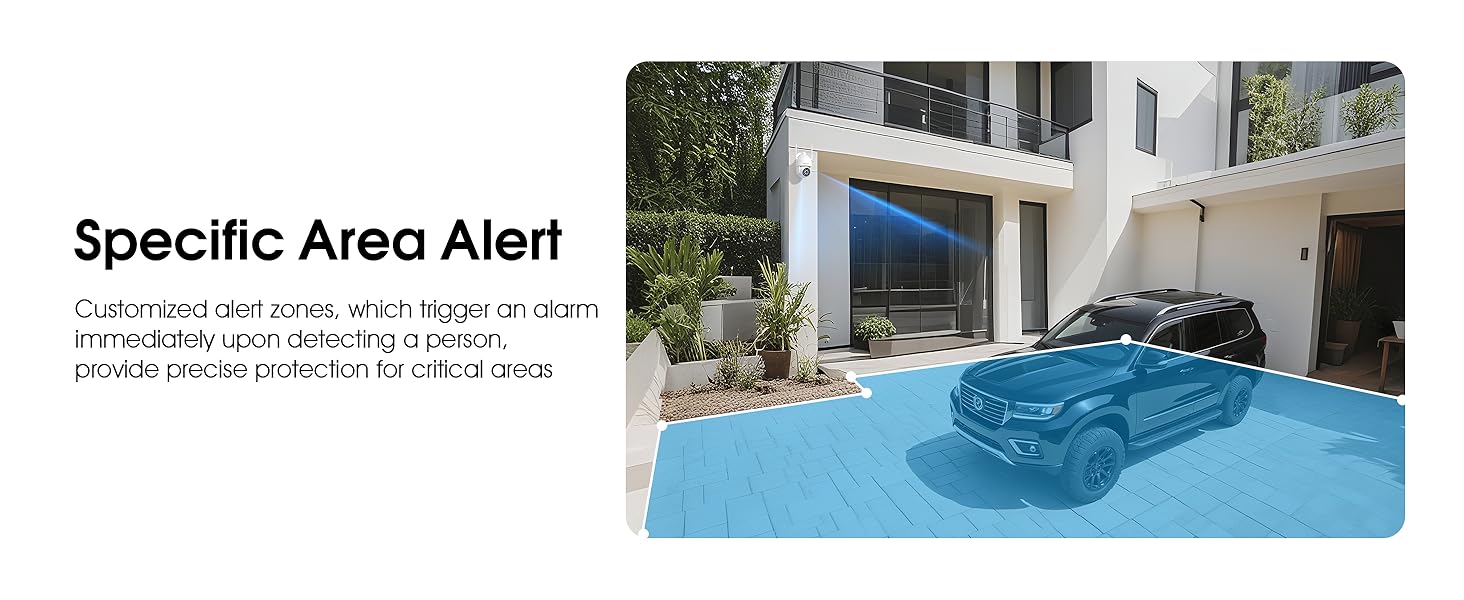
Image 5.5: Setting up specific area alerts for precise protection.
5.4 โหมดการมองเห็นตอนกลางคืน
The camera offers both full-color night vision (activated by the built-in spotlight) and infrared night vision for clear monitoring in various low-light conditions.

Image 5.6: Comparison of Color Night Vision and Infrared Night Vision.
5.5 เสียงสองทาง
Use the two-way audio feature to communicate with visitors or deter unwanted guests directly through the camera's built-in microphone and speaker.
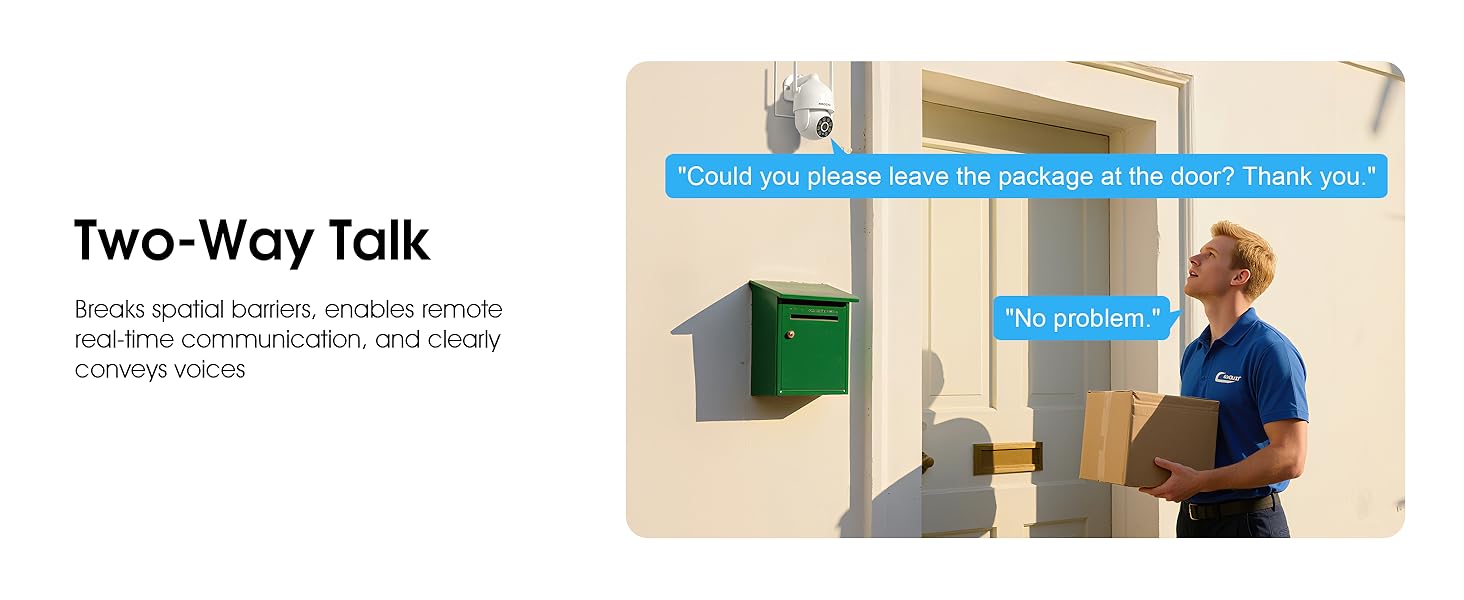
Image 5.7: Utilizing two-way talk for remote communication.
5.6 การบันทึกและการเล่น
The camera supports 24/7 continuous recording. Footage can be saved to a local microSD card (up to 128GB) or to optional cloud storage. Access recorded videos through the app's playback function.

Image 5.8: The camera provides 24/7 recording capabilities.
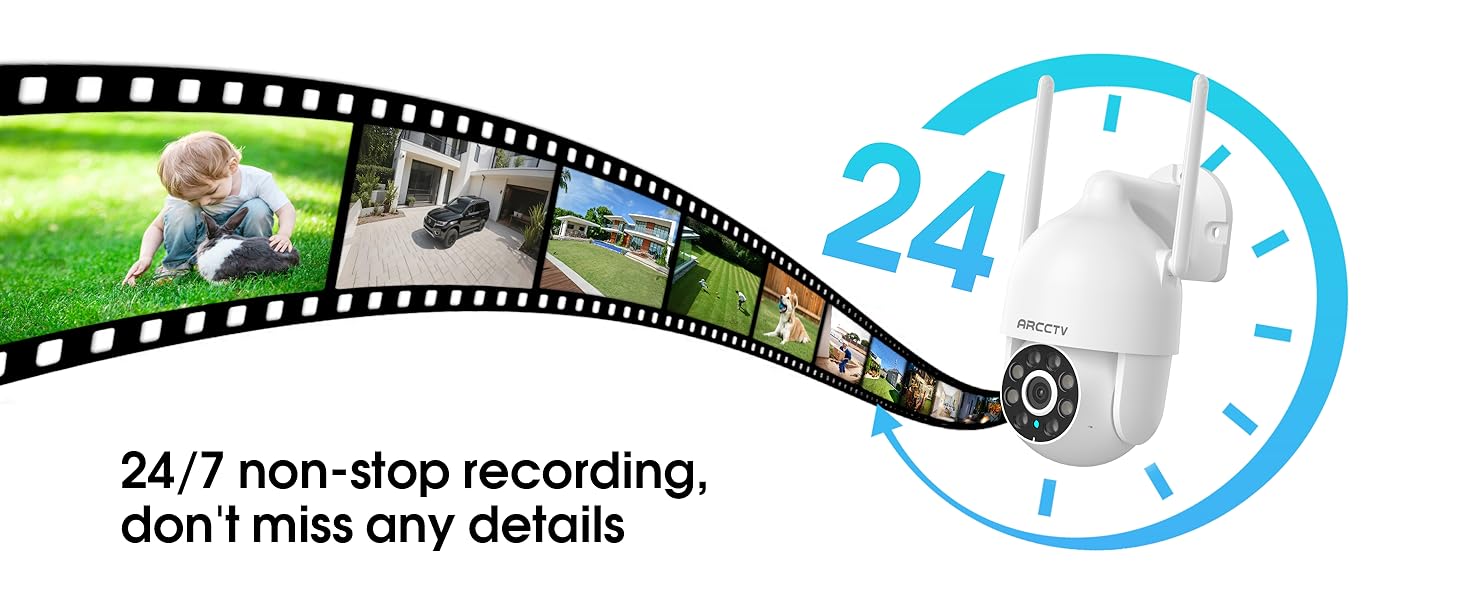
Image 5.9: Continuous 24/7 recording ensures no details are missed.
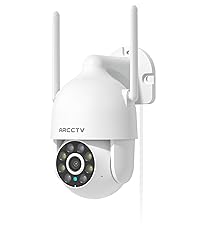
Image 5.10: Cloud storage encryption for secure and accessible recordings (subscription may apply).
5.7 การแบ่งปันในครอบครัว
The app supports multi-member sharing, allowing family members to view the camera feed and collaborate on security monitoring.
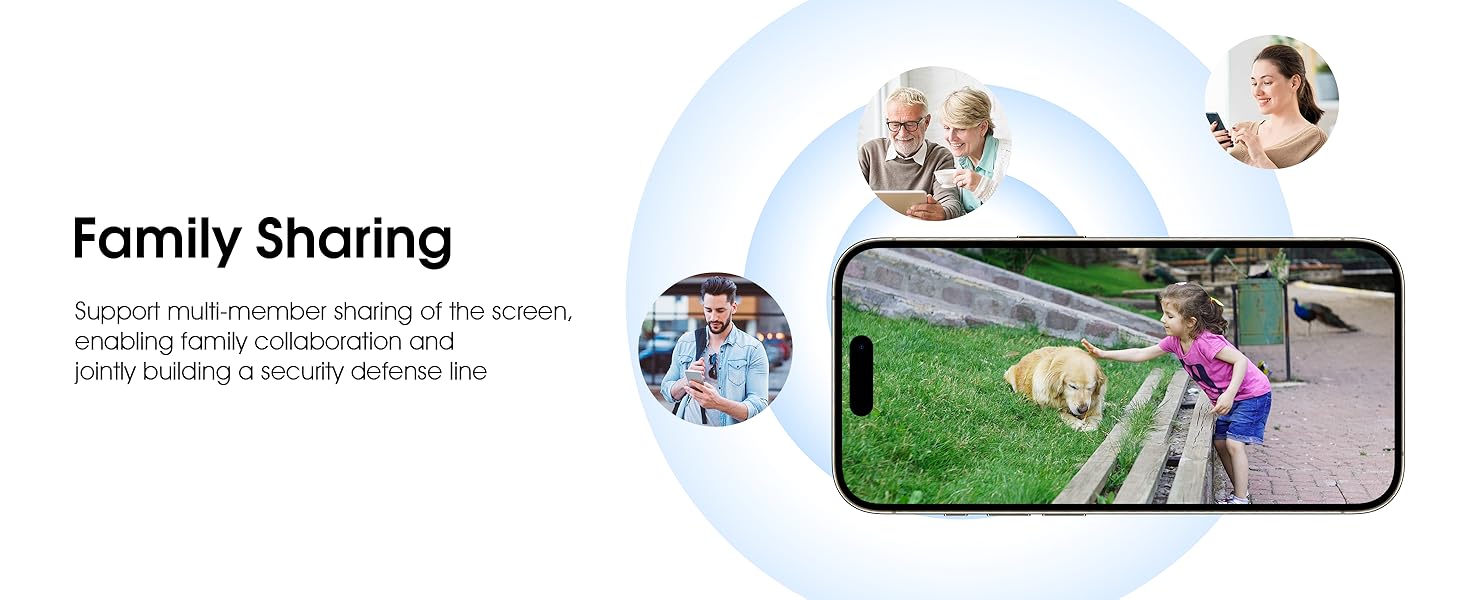
Image 5.11: The family sharing feature allows multiple users to access the camera feed.
5.8 ความเข้ากันได้กับ Alexa
The camera is compatible with Alexa, allowing you to check the monitoring screen using voice commands.
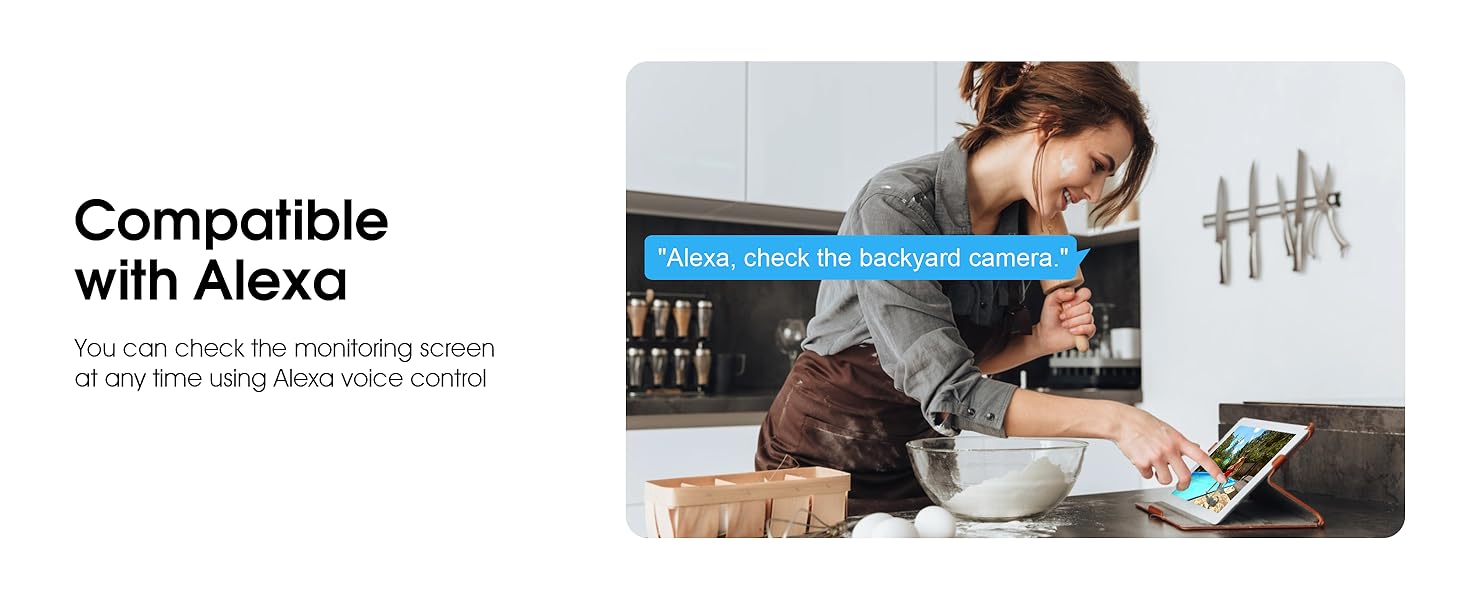
Image 5.12: Voice control via Alexa for convenient monitoring.
6. การบำรุงรักษา
6.1 การทำความสะอาดกล้อง
ทำความสะอาดเลนส์และตัวเรือนกล้องเป็นระยะด้วยผ้านุ่มๆamp ผ้าเช็ดทำความสะอาดฝุ่นและเศษผง ห้ามใช้สารเคมีรุนแรงหรือน้ำยาทำความสะอาดที่มีฤทธิ์กัดกร่อน
การอัปเดตเฟิร์มแวร์ 6.2 รายการ
Ensure your camera's firmware is up to date for optimal performance and security. Check for updates within the ARCCTV app and follow the instructions to install them.
6.3 การจัดการการจัดเก็บข้อมูล
If using a microSD card, regularly check its status in the app. Format the card periodically to maintain performance. For cloud storage, manage your subscription and storage space through the app.
7 การแก้ไขปัญหา
- กล้องไม่ได้เชื่อมต่อกับ Wi-Fi:
- Ensure your Wi-Fi network is 2.4GHz or 5GHz and has a strong signal at the camera's location.
- ตรวจสอบว่ารหัสผ่าน Wi-Fi ถูกป้อนถูกต้อง
- รีสตาร์ทเราเตอร์และกล้องของคุณ
- คุณภาพของภาพต่ำ:
- ทำความสะอาดเลนส์กล้อง
- จัดให้มีแสงสว่างเพียงพอเพื่อประสิทธิภาพการมองเห็นในเวลากลางคืนที่ดีที่สุด
- ตรวจสอบความเร็วในการเชื่อมต่ออินเตอร์เน็ตของคุณ
- การตรวจจับความเคลื่อนไหวไม่ทำงาน:
- ตรวจสอบว่าการตรวจจับการเคลื่อนไหวได้เปิดใช้งานอยู่ในการตั้งค่าแอปแล้ว
- ปรับการตั้งค่าความไว
- ตรวจสอบให้แน่ใจว่าไม่มีสิ่งกีดขวางใดๆ ในมุมมองของกล้อง view.
- ไม่มีการบันทึกลงในการ์ด MicroSD:
- Ensure a microSD card is properly inserted and formatted in the app.
- Check if the card is full; consider formatting or replacing it.
- ตรวจสอบการตั้งค่าการบันทึกในแอป
8. ข้อมูลจำเพาะ
| คุณสมบัติ | ข้อมูลจำเพาะ |
|---|---|
| ชื่อรุ่น | P2 |
| การใช้งานภายใน/ภายนอกอาคาร | กลางแจ้ง |
| ความละเอียดในการจับภาพวิดีโอ | 2K (2304x1296พิกเซล) |
| เทคโนโลยีการเชื่อมต่อ | ไร้สาย (Wi-Fi) |
| เทคโนโลยีการสื่อสารไร้สาย | Wi-Fi (2.4G/5G Dual-Band) |
| Viewอิงแองเกิล | หมุนได้ 360 องศา (แพน 355° เอียง 90°) |
| ช่วงการมองเห็นตอนกลางคืน | 50 ฟุต |
| ระดับความต้านทานต่อน้ำ | กันน้ำระดับ IP66 |
| แหล่งพลังงาน | อะแดปเตอร์ไฟ 5V1A |
| ขนาดหน่วยความจำแฟลชที่รองรับสูงสุด | 128 GB (MicroSD) |
| ความสามารถในการบันทึกภาพและเสียง | วีดีโอและเสียง |
| คุณสมบัติพิเศษ | 2-Way Audio, Motion Tracking, Full Color Night Vision |
| ขนาดสินค้า กว้าง x ยาว x สูง | 7.8 x 6.6 x 5.3 นิ้ว |
| น้ำหนักสินค้า | 1.39 ปอนด์ |
9. การรับประกันและการสนับสนุน
For warranty information and technical support, please refer to the official ARCCTV website or contact their customer service directly. Contact details are typically provided on the product packaging or within the mobile application.
เอกสารที่เกี่ยวข้อง - P2
 |
INSEETECH WiFi Security Camera Indoor User Manual Comprehensive user manual for the INSEETECH WiFi Security Camera Indoor, covering setup, app instructions, features, and troubleshooting. |
 |
คู่มือเริ่มต้นใช้งานด่วนสำหรับกล้องรักษาความปลอดภัย ZUMIMALL BF-BK05 PTZ คู่มือเริ่มต้นใช้งานฉบับย่อนี้ให้ข้อมูลสำคัญสำหรับการติดตั้งและใช้งานกล้องวงจรปิดแบบ PTZ รุ่น ZUMIMALL BF-BK05 ครอบคลุมถึงส่วนประกอบของผลิตภัณฑ์ คำอธิบายแผนภาพ การติดตั้งแอป การลงทะเบียนบัญชี ขั้นตอนการเชื่อมต่อ และรายละเอียดการรับประกัน |
 |
คำแนะนำฟังก์ชันการติดตามอัตโนมัติของ Prisual AI คู่มือครอบคลุมสำหรับการกำหนดค่าและการใช้คุณสมบัติการติดตามอัตโนมัติ AI ขั้นสูงของกล้อง Prisual รวมถึงการติดตามผู้นำเสนอ/บุคคลและการติดตามโซนผ่านทั้งสอง web อินเทอร์เฟซและการควบคุมระยะไกล |
 |
คู่มือผู้ใช้กล้องแบตเตอรี่ WiFi ANRAN Q4-J40W Comprehensive user manual for the ANRAN Q4-J40W WiFi Battery Camera, covering setup, installation, app pairing, features, and troubleshooting. Learn how to install, connect, and manage your ANRAN security camera using the ARCCTV app. |
 |
คู่มือผู้ใช้กล้อง PTZ ระบบติดตามอัตโนมัติ HD AI คู่มือการใช้งานกล้อง PTZ ระบบติดตามอัตโนมัติ HD AI ครอบคลุมรายละเอียดสินค้า รายการบรรจุภัณฑ์ คุณลักษณะการทำงาน ฟังก์ชั่นการควบคุมระยะไกล และการตั้งค่าการติดตาม AI Webส่วนติดต่อผู้ใช้ (UI), คำแนะนำการใช้งานทั่วไป, ฟังก์ชันเครือข่าย, การติดตั้ง และการแก้ไขปัญหา |
 |
คู่มือผู้ใช้กล้องประชุม HD AI Auto Tracking - Tongveo คู่มือผู้ใช้นี้ให้คำแนะนำอย่างละเอียดเกี่ยวกับกล้องประชุมติดตามอัตโนมัติ Tongveo HD AI ครอบคลุมการตั้งค่า คุณสมบัติ ข้อมูลจำเพาะด้านประสิทธิภาพ การนำทางเมนู และการใช้งาน เรียนรู้เกี่ยวกับการติดตามด้วย AI การควบคุม PTZ การเปิดรับแสง การตั้งค่าสี การกำหนดค่าเครือข่าย และการบำรุงรักษาระบบ |
Ask a question about this manual
Ask about setup, troubleshooting, compatibility, parts, safety, or missing instructions. Manuals+ will review the question and use this page’s manual context to help answer it.