
การแนะนำ
This manual provides essential information for the safe and efficient use of your SUPVAN T50M Pro Label Maker. Please read these instructions carefully before operating the device and retain them for future reference.
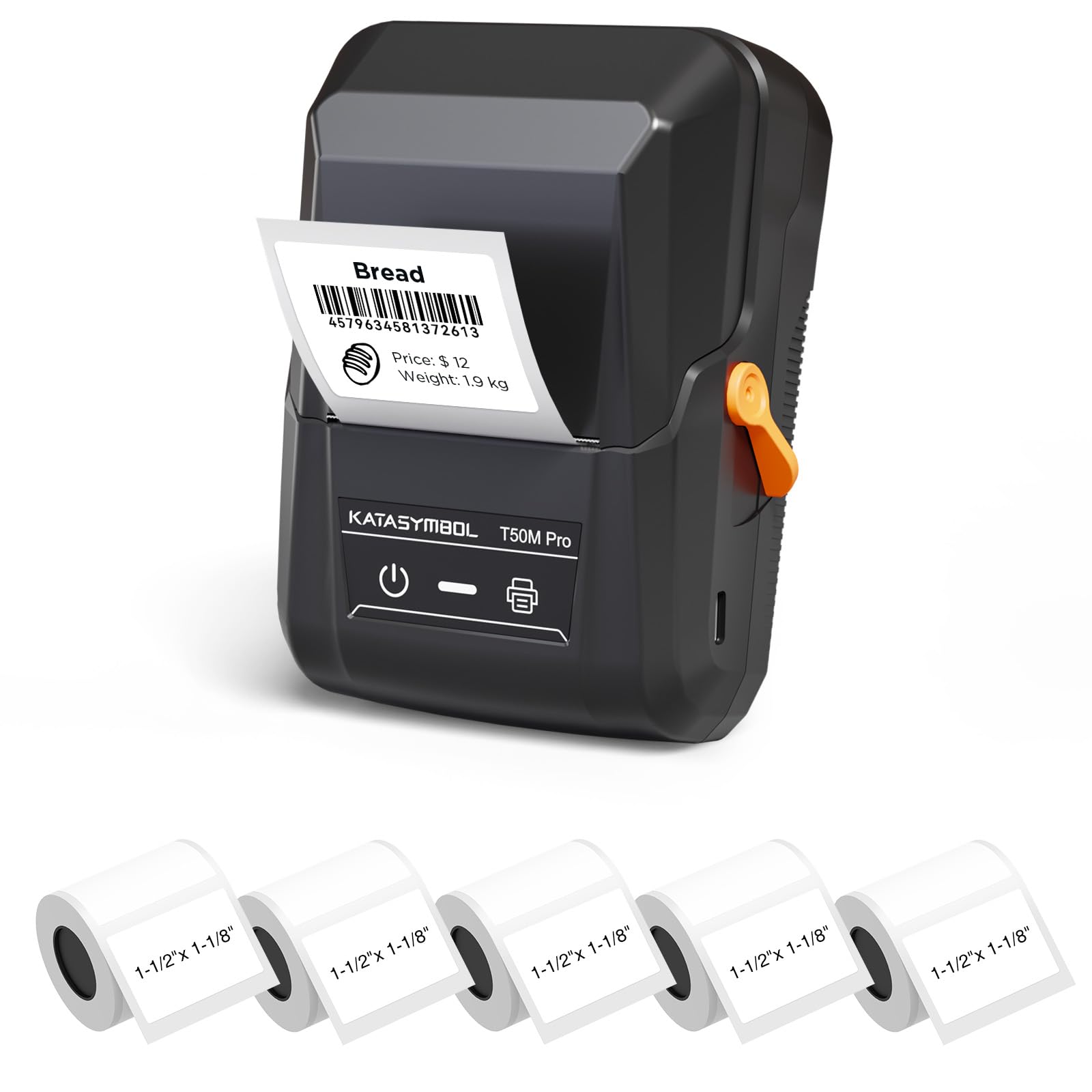
Image: The SUPVAN T50M Pro Label Maker, a compact thermal printer.
เนื้อหาแพ็คเกจ
ตรวจสอบว่ามีรายการทั้งหมดอยู่ในแพ็คเกจของคุณ:
- SUPVAN T50M Pro Label Maker
- 5 rolls of 1.57'' × 1.18'' (40mm × 30mm) white labels (250 labels/roll)
- USB Cable (for charging and connectivity)
- คู่มือการใช้งาน (เอกสารนี้)
คู่มือการติดตั้ง
1. การชาร์จอุปกรณ์
Before first use, fully charge the label maker using the provided USB cable. The device features a 1200 mAh built-in rechargeable battery, offering extended use on a single charge.
2. การติดตั้งม้วนฉลาก
The T50M Pro uses thermal paper, eliminating the need for ink or toner. Follow these steps to install a label roll:
- เปิดฝาช่องใส่ฉลาก
- ใส่ฉลากม้วนโดยให้ด้านที่มีลายพิมพ์หันขึ้นด้านบน
- Ensure the label edge is aligned with the printer's feed mechanism.
- Close the cover. The device's Smart RFID Auto-Detection will recognize the label size automatically.

Image: Illustration of loading thermal paper into the label maker. The device uses thermal printing technology, requiring no ink or toner.
3. การติดตั้งและการเชื่อมต่อแอป
Download the official SUPVAN app from your device's app store. The app provides all editing functions and is free to use.
- เปิดใช้งานเครื่องพิมพ์ฉลาก
- Open the SUPVAN app on your smartphone or tablet.
- Follow the in-app instructions to connect to your T50M Pro via Bluetooth or USB.
คำแนะนำการใช้งาน
1. การสร้างป้ายกำกับด้วยแอปพลิเคชัน
The SUPVAN app offers a comprehensive suite of editing tools:
- การแก้ไขข้อความ: Choose from over 40 fonts.
- Image & Picture Integration: Add custom images and logos.
- เทมเพลต: Access over 140 free, constantly updated templates for various uses.
- Auto Label Size Recognition: The app automatically detects the loaded label size, reducing errors.

Image: The SUPVAN app's editing interface, demonstrating font choices, image integration, and automatic label size detection.

Image: A selection of over 140 free templates available within the SUPVAN app, suitable for diverse labeling needs.
2. การพิมพ์ฉลาก
After designing your label in the app, select the "Print" option. Ensure the label maker is connected and has sufficient battery. The T50M Pro supports various label styles and sizes, printing 3/4 to 2-inch wide labels.

ภาพ: อดีตamples of labels created with the T50M Pro, including address labels, price tags, and decorative labels, demonstrating support for various styles.

Image: A visual comparison highlighting the high-quality image output from the SUPVAN T50M Pro's app compared to other label makers.
3. แอปพลิเคชันทั่วไป
The SUPVAN T50M Pro is suitable for a wide range of labeling tasks:
- ธุรกิจขนาดเล็ก: Shipping addresses, product information, QR codes, brand logos.
- สำนักงานและโรงเรียน: ชื่อ tags, folder labels, documentation, asset tagไป
- การจัดระเบียบภายในบ้าน: Pantry labels, storage bins, personal items.

Image: Demonstrates diverse uses for the label maker, such as labeling containers in a pantry, creating product labels, printing shipping labels, and organizing school supplies.
การซ่อมบำรุง
1. การทำความสะอาดหัวพิมพ์
เพื่อให้ได้คุณภาพการพิมพ์ที่ดีที่สุด ควรทำความสะอาดหัวพิมพ์ความร้อนเป็นระยะ ใช้ผ้าเนื้อนุ่มที่ไม่เป็นขุยเช็ดเบาๆampened with isopropyl alcohol. Do not use abrasive cleaners or sharp objects.
2. การดูแลแบตเตอรี่
Recharge the device when the battery indicator is low. Avoid fully discharging the battery frequently to prolong its lifespan. Store the device in a cool, dry place when not in use for extended periods.
3. การจัดเก็บฉลาก
ควรเก็บม้วนฉลากไว้ในที่แห้งและเย็น หลีกเลี่ยงแสงแดดและความร้อนโดยตรง เพื่อป้องกันการเสื่อมสภาพของวัสดุความร้อน
การแก้ไขปัญหา
1. อุปกรณ์ไม่เปิด
- ตรวจสอบให้แน่ใจว่าอุปกรณ์ชาร์จแบตเตอรี่เต็มแล้ว จากนั้นเชื่อมต่ออุปกรณ์เข้ากับแหล่งจ่ายไฟโดยใช้สาย USB
- กดปุ่มเปิด/ปิดค้างไว้สองสามวินาที
2. Printing Issues (Blank or Faint Prints)
- Check if the label roll is installed correctly with the printing surface facing up.
- Ensure the label roll is not empty.
- ทำความสะอาดหัวพิมพ์ตามที่อธิบายไว้ในส่วนการบำรุงรักษา
- Verify that the label type is compatible with the T50M Pro.
3 ปัญหาการเชื่อมต่อแอปพลิเคชัน
- ตรวจสอบให้แน่ใจว่าได้เปิดใช้งาน Bluetooth บนอุปกรณ์มือถือของคุณ
- Make sure the label maker is turned on and within range.
- Restart both the label maker and the app.
- หากปัญหายังคงอยู่ ให้ลองถอนการติดตั้งแอปใหม่
4. Label Misalignment
- Ensure the label roll is properly seated and aligned in the compartment.
- The Smart RFID Auto-Detection should prevent most misalignment issues; if not, try re-seating the roll.
ข้อมูลจำเพาะ
| คุณสมบัติ | รายละเอียด |
|---|---|
| ชื่อรุ่น | T50M Pro |
| ยี่ห้อ | ศุภวรรณ |
| เทคโนโลยีการพิมพ์ | เทอร์มอล |
| เทคโนโลยีการเชื่อมต่อ | ยูเอสบี, บลูทูธ |
| ฮาร์ดแวร์อินเตอร์เฟซ | ยูเอสบี |
| เอาท์พุตเครื่องพิมพ์ | Monochrome (Black Ink Color) |
| ขนาดสื่อสูงสุด | 1.57'' × 1.18'' (40mm × 30mm) - 3/4 to 2-inch wide labels supported |
| คุณสมบัติพิเศษ | Portable, Smart RFID Auto-Detection, BPA-free labels |
| แบตเตอรี่ | แบตเตอรี่แบบชาร์จไฟได้ในตัว 1200 mAh |
| ขนาด | ขนาดโดยประมาณ 5" x 3.7" x 2.3" |
| น้ำหนัก | ประมาณ. 0.6 ปอนด์ |
| ส่วนประกอบที่รวมอยู่ | Label Maker, Labels, USB Cable |

Image: The compact design of the T50M Pro, highlighting its portability, lightweight nature, and 1200 mAh rechargeable battery.
การรับประกันและการสนับสนุน
ข้อมูลการรับประกัน
For detailed warranty information, please refer to the warranty card included with your product or visit the official SUPVAN webไซต์ เงื่อนไขการรับประกันอาจแตกต่างกันไปตามภูมิภาคและผู้ค้าปลีก
การสนับสนุนลูกค้า
If you encounter any issues or have questions regarding your SUPVAN T50M Pro Label Maker, please contact SUPVAN customer support through their official webไซต์หรือผู้ค้าปลีกที่ซื้อผลิตภัณฑ์
คุณยังสามารถเยี่ยมชม SUPVAN Store on Amazon สำหรับข้อมูลผลิตภัณฑ์เพิ่มเติมและทรัพยากรสนับสนุน