
1. บทนำ
This manual provides detailed instructions for the installation, operation, and maintenance of your UNITOPSCI A4196H1MI2 Android Car Stereo. Please read this manual thoroughly before using the product to ensure proper functionality and to prevent damage. This unit is designed for Chevrolet Cruze J300 models manufactured between 2009 and 2015.
2. ข้อมูลด้านความปลอดภัย
- โปรดใช้งานอุปกรณ์อย่างมีความรับผิดชอบและสอดคล้องกับกฎจราจรท้องถิ่นอยู่เสมอ การขับขี่โดยขาดสมาธิอาจนำไปสู่อุบัติเหตุได้
- Do not attempt to install or repair the unit if you are not qualified. Improper installation can cause damage to the vehicle's electrical system or the unit itself.
- ตรวจสอบให้แน่ใจว่าสายไฟทั้งหมดเชื่อมต่อและหุ้มฉนวนอย่างถูกต้องเพื่อป้องกันไฟฟ้าลัดวงจร
- เก็บเครื่องให้ห่างจากน้ำและความชื้นที่มากเกินไป
- หลีกเลี่ยงการวางเครื่องไว้ในที่ที่มีอุณหภูมิสูงหรือแสงแดดโดยตรงเป็นเวลานาน
- ทำความสะอาดหน้าจอด้วยผ้านุ่มและแห้ง ห้ามใช้น้ำยาทำความสะอาดที่มีฤทธิ์กัดกร่อน
3. เนื้อหาบรรจุภัณฑ์
ตรวจสอบว่ารายการทั้งหมดที่ระบุไว้ด้านล่างนี้รวมอยู่ในแพ็คเกจของคุณ:
- เครื่องเสียงรถยนต์ระบบแอนดรอยด์
- กล้องสำรอง
- สายไฟ
- Small Horn
- อาร์ซีเอเคเบิ้ล
- สายเคเบิลอินพุตกล้องด้านหลัง
- เสาอากาศวิทยุ
- ไมโครโฟน
- กล่องแคนบัส
- เสาอากาศ GPS
- สาย USB 4/6 พิน
- คู่มือการใช้งาน (เอกสารนี้)
- สายเคเบิลอะแดปเตอร์ USB
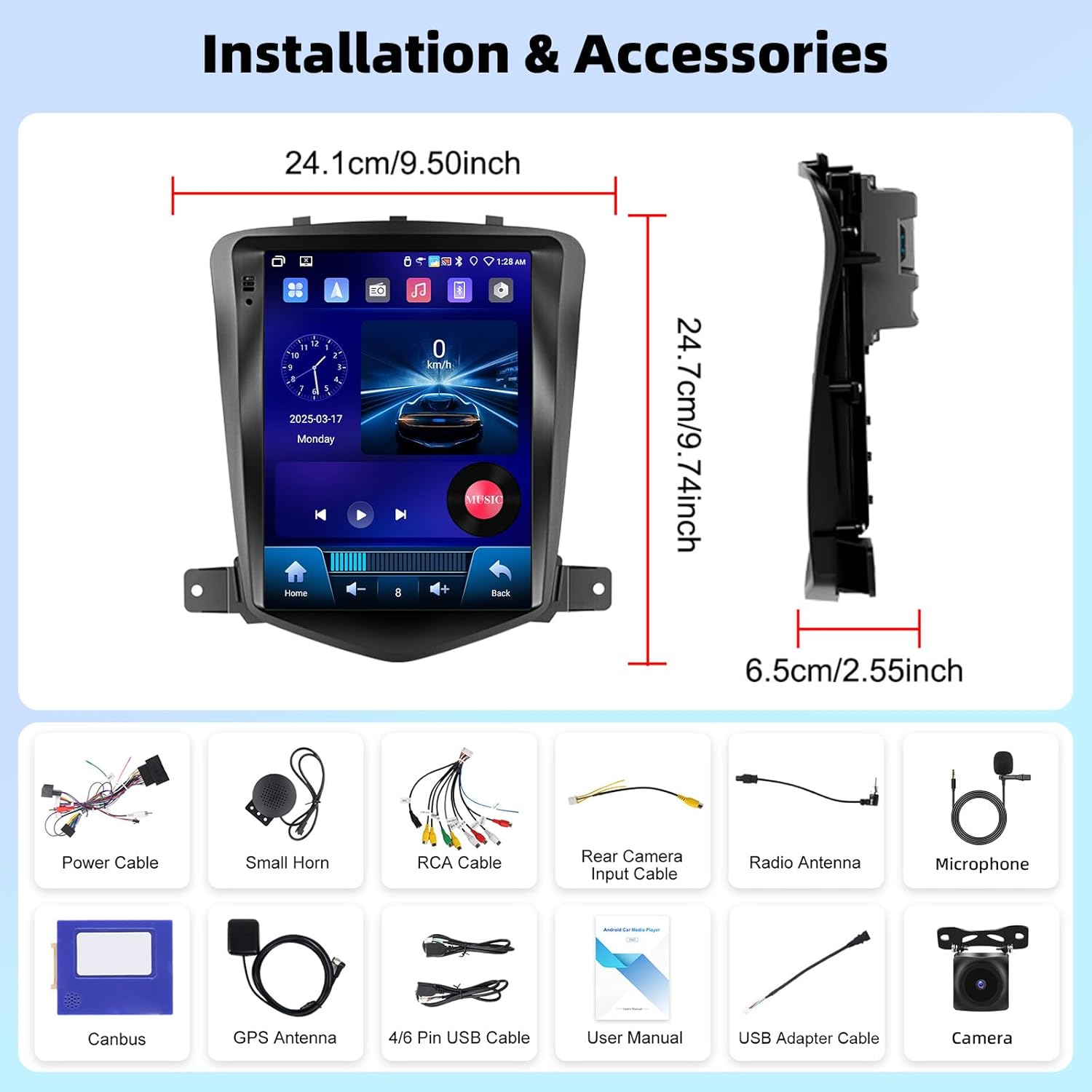
ภาพที่ 3.1: จบแล้วview of the UNITOPSCI A4196H1MI2 car stereo dimensions and included accessories, such as power cables, antennas, and the backup camera.
4. การติดตั้ง
4.1. การตรวจสอบก่อนการติดตั้ง
- Ensure your vehicle is a Chevrolet Cruze J300 model (2009-2015).
- ถอดแบตเตอรี่รถยนต์ออกก่อนเริ่มงานไฟฟ้าใดๆ
- ตรวจสอบว่ามีส่วนประกอบทั้งหมดที่ระบุไว้ในส่วนที่ 3 ครบถ้วน
4.2. การถอดวิทยุเดิมออก
Carefully remove the trim panels and screws securing the factory radio. Refer to your vehicle's service manual for specific instructions on dashboard disassembly.
4.3. การเชื่อมต่อสายไฟ
- สายไฟ: Connect the provided power harness to the vehicle's wiring. Ensure correct polarity.
- สาย RCA: Connect for audio output (e.g., external amplifier) if applicable.
- เสาอากาศ GPS: ติดตั้งเสาอากาศ GPS ในตำแหน่งที่มีสัญญาณชัดเจน view โดยทั่วไปจะติดตั้งไว้บนแผงหน้าปัดหรือใต้กระจกหน้ารถ
- เสาอากาศวิทยุ: เชื่อมต่อเสาอากาศวิทยุของรถเข้ากับตัวเครื่อง
- ไมโครโฟน: Connect the external microphone for improved call quality. Position it near the driver.
- กล้องสำรอง: Connect the rear camera input cable to the unit and route the camera cable to the rear of the vehicle. Connect the camera's power to the reverse light circuit for automatic activation.
- สาย USB: Connect the USB extension cables for external storage or wired CarPlay/Android Auto.
- Canbus Box: Connect the Canbus box as instructed to ensure proper communication with the vehicle's systems, including steering wheel controls.
4.4. การติดตั้งตัวเครื่อง
Secure the UNITOPSCI A4196H1MI2 unit into the dashboard opening using the provided brackets and screws. Reassemble the dashboard trim panels.

Image 4.1: Visual comparison of the Chevrolet Cruze J300 dashboard, illustrating the appearance before and after the UNITOPSCI A4196H1MI2 Android car stereo is installed.
5. คู่มือการใช้งาน
5.1. เปิด/ปิดเครื่อง
To power on the unit, start your vehicle. The unit will typically power on automatically. To power off, turn off your vehicle's ignition. The unit may have a soft power-off feature that allows it to resume quickly.
5.2. อินเทอร์เฟซหน้าจอสัมผัส
The unit features a 9.7-inch HD touchscreen with a resolution of 1024*600. Navigate through menus and applications by tapping, swiping, and pinching gestures, similar to a smartphone or tablet.
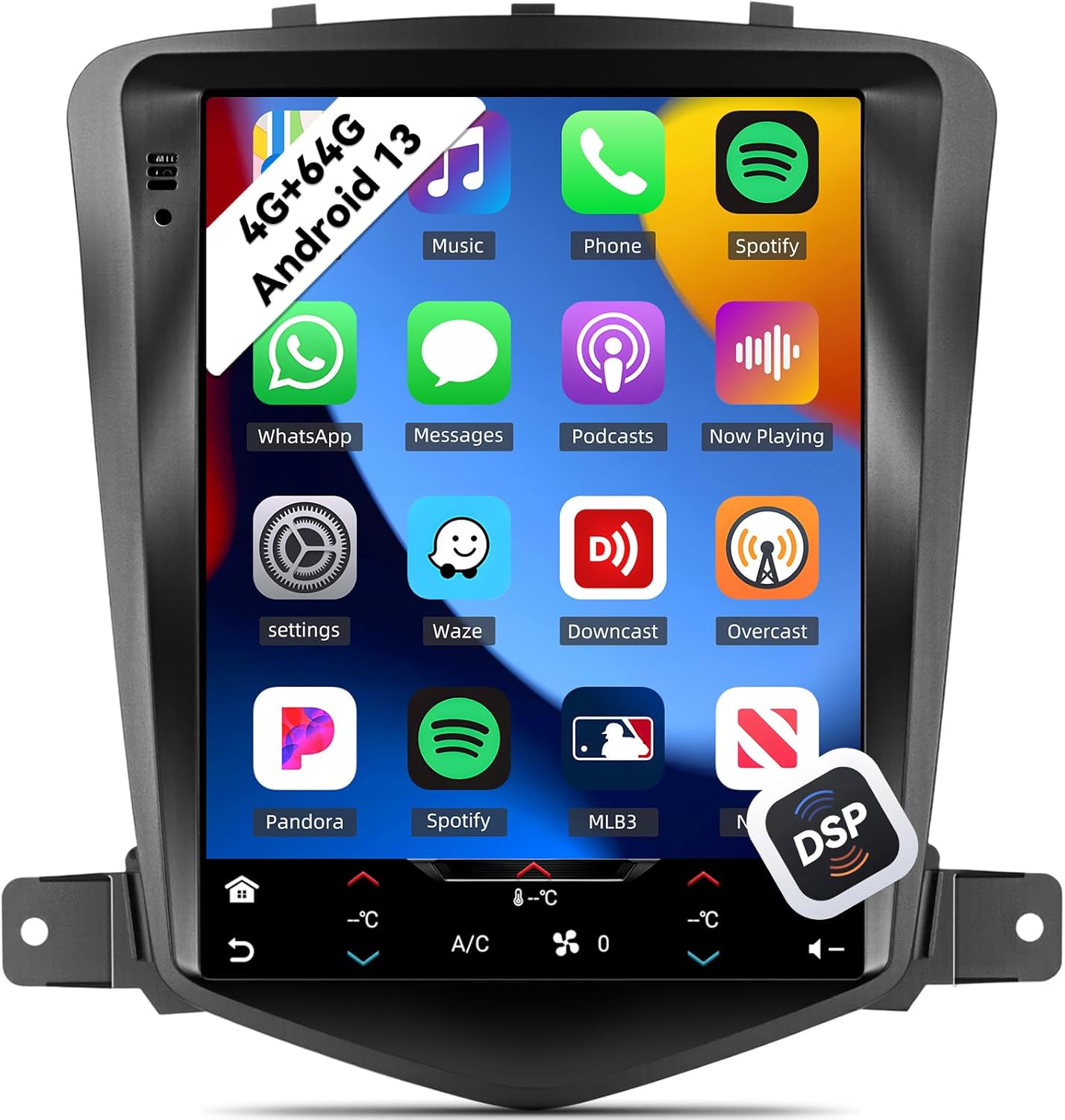
Image 5.1: The main interface of the UNITOPSCI A4196H1MI2 unit, displaying a grid of application icons for music, phone, Spotify, messages, and other functions.
5.3. ระบบ Android 13
The stereo operates on the Android 13 operating system, featuring a quad-core processor, 4GB RAM, and 64GB ROM. This configuration provides a responsive user experience and ampพื้นที่เก็บข้อมูลสำหรับแอพและสื่อ

Image 5.2: A visual representation of the Android 13 system's core components, highlighting the 4-core CPU, 4GB RAM, and 64GB ROM for enhanced performance.
5.4. CarPlay ไร้สายและ Android Auto
The unit supports both wireless Apple CarPlay and Android Auto. Connect your compatible smartphone wirelessly to access navigation, music, calls, and messages directly on the stereo's display.
- สำหรับ CarPlay: Ensure Wi-Fi and Bluetooth are enabled on your iPhone. Follow the on-screen prompts to pair.
- สำหรับ Android Auto: Ensure Wi-Fi and Bluetooth are enabled on your Android phone. Open the Android Auto app on your phone and follow the pairing instructions.
5.5. ลิงก์มิเรอร์
Mirror Link allows you to display your smartphone's screen directly onto the car stereo. This feature is compatible with most Android and iOS phones, excluding some Samsung models.
- Access the Mirror Link application on the stereo.
- Follow the instructions to connect your phone via USB or Wi-Fi.

Image 5.3: The car stereo display demonstrating the integration of CarPlay, Android Auto, and Mirror Link functionalities, allowing seamless smartphone connectivity.
5.6.บลูทูธ 5.0
The built-in Bluetooth 5.0 module enables hands-free calling and wireless audio streaming. An external microphone is included for clear voice transmission.
- การจับคู่: Go to the Bluetooth settings on the stereo and your phone. ค้นหา available devices and select the stereo's name to pair.
- การโทรแบบแฮนด์ฟรี: Once paired, you can make and receive calls directly from the stereo interface. The phonebook can be automatically downloaded.
- การสตรีมเสียง: เล่นเพลงจากโทรศัพท์ของคุณผ่านลำโพงรถยนต์แบบไร้สาย

Image 5.4: The stereo's display showing the Bluetooth 5.0 interface for hands-free calling and music playback, along with the Digital DSP processor's 32-band equalizer.
5.7. วิทยุ FM/RDS
Access local radio stations with the integrated FM/RDS tuner. You can save up to 18 preset stations.
- Navigate to the Radio application.
- Use the scan function to find stations or manually tune to a frequency.
- กดปุ่มตั้งค่าล่วงหน้าค้างไว้เพื่อบันทึกสถานีปัจจุบัน
5.8. ระบบนำทาง GPS และ WiFi
The unit supports GPS, GLONASS, and Beidou navigation systems. You can use pre-installed offline maps or connect to Wi-Fi/hotspot for online navigation apps like Google Maps or Waze.
- แผนที่ออฟไลน์: Access the navigation app and select your desired region.
- แผนที่ออนไลน์: Connect the unit to a Wi-Fi network or your phone's hotspot via the Wi-Fi settings. Then, open your preferred online navigation application.

Image 5.5: The stereo's capabilities for built-in Wi-Fi, allowing access to various online applications, and GPS navigation, supporting both online and offline maps.
5.9. DSP 32-Band EQ
Customize your audio experience with the Digital Sound Processor (DSP) and its 32-band equalizer. This allows for precise tuning of sound frequencies, time correction, and speed-compensated volume.
- เข้าถึงการตั้งค่า EQ ได้จากเมนูหลักหรือการตั้งค่าเสียง
- Adjust individual frequency bands to match your audio preferences.
- Explore preset equalizer modes or create custom profiles.
5.10. ฟังก์ชันการแบ่งหน้าจอ
คุณสมบัติแบ่งหน้าจอช่วยให้คุณสามารถเปิดแอพพลิเคชั่น 2 ตัวพร้อมกันได้บนหน้าจอขนาด 9.7 นิ้ว เช่น การนำทางและการเล่นเพลง
- เปิดแอปพลิเคชั่นแรก
- Long-press the recent apps button or swipe from the bottom (depending on Android version) to activate split-screen mode.
- เลือกแอปพลิเคชันที่สองเพื่อแสดงควบคู่กับแอปพลิเคชันแรก

Image 5.6: The 9.7-inch HD screen showcasing กว้าง viewing angle and the split-screen feature, allowing two applications to be viewเอ็ดไปพร้อมๆ กัน
5.11. ระบบควบคุมพวงมาลัย (SWC)
The unit supports steering wheel controls, allowing you to manage volume, tracks, and calls without taking your hands off the wheel. This functionality is enabled via the Canbus box.
- Access the Steering Wheel Control settings in the unit's menu.
- ทำตามคำแนะนำบนหน้าจอเพื่อตั้งค่าปุ่มแต่ละปุ่มบนพวงมาลัยให้ทำหน้าที่ตามต้องการ
5.12. กล้องสำรอง
กล้องมองหลัง AHD ที่ให้มาด้วยนั้นให้ภาพที่คมชัด view of the area behind your vehicle when reversing. The display automatically switches to the camera feed when the reverse gear is engaged.
- Ensure the backup camera is correctly installed and wired to the reverse light circuit.
- When shifting into reverse, the camera feed will appear on the screen.

Image 5.7: The AHD backup camera module and its clear display on the car stereo screen, alongside an illustration of the steering wheel control interface for programming functions.
6. การบำรุงรักษา
- การทำความสะอาดหน้าจอ: ใช้ผ้านุ่มไม่เป็นขุยเช็ดหน้าจอสัมผัสเบาๆ สำหรับรอยเปื้อนฝังแน่น ให้เช็ดเบาๆampชุบผ้าด้วยน้ำหรือน้ำยาทำความสะอาดที่ปลอดภัยต่อหน้าจอ หลีกเลี่ยงสารเคมีรุนแรง
- การอัปเดตซอฟต์แวร์: ตรวจสอบการอัปเดตซอฟต์แวร์จากผู้ผลิตเป็นระยะเพื่อให้มั่นใจถึงประสิทธิภาพที่เหมาะสมที่สุดและการเข้าถึงฟีเจอร์ใหม่ๆ
- การดูแลทั่วไป: เก็บตัวเครื่องให้สะอาดปราศจากฝุ่นและเศษขยะ ตรวจสอบให้แน่ใจว่ามีการระบายอากาศที่เหมาะสมรอบ ๆ ตัวเครื่องเพื่อป้องกันความร้อนสูงเกินไป
7 การแก้ไขปัญหา
7.1. ไม่มีอำนาจ
- ตรวจสอบฟิวส์: Inspect the vehicle's fuse box and the unit's inline fuse for any blown fuses.
- การเดินสายไฟ: Ensure the power cable is securely connected and has proper voltage.
- การจุดระเบิด: ตรวจสอบให้แน่ใจว่าสวิตช์กุญแจรถเปิดอยู่
7.2. ไม่มีเสียง
- ปริมาณ: ตรวจสอบว่าได้เปิดเสียงไว้หรือไม่ และไม่ได้ปิดเสียงไว้
- การเชื่อมต่อลำโพง: Ensure all speaker wires are correctly connected to the unit and not shorted.
- ที่มาของเสียง : Verify the correct audio source (e.g., FM, Bluetooth, CarPlay) is selected.
7.3. GPS Not Working
- เสาอากาศ: ตรวจสอบให้แน่ใจว่าเสาอากาศ GPS เชื่อมต่ออย่างถูกต้องและติดตั้งในตำแหน่งที่มองเห็นได้ชัดเจน view ของท้องฟ้า
- สัญญาณ: Allow time for the unit to acquire a GPS signal, especially after initial installation or in areas with poor reception.
- แผนที่: Verify that maps are installed or that the unit is connected to Wi-Fi for online navigation.
7.4. CarPlay/Android Auto Connection Issues
- บลูทูธ/ไวไฟ: Ensure Bluetooth and Wi-Fi are enabled on both the stereo and your smartphone.
- ความเข้ากันได้: Confirm your phone model and operating system version are compatible.
- สาย USB: If using wired connection, try a different, high-quality USB cable.
7.5. Backup Camera Not Displaying
- การเดินสายไฟ: Check the camera's power and video signal connections. Ensure the trigger wire is correctly connected to the reverse light circuit.
- การตั้งค่า: Verify that the camera input is enabled in the stereo's settings.
8. ข้อมูลจำเพาะ
| คุณสมบัติ | ข้อมูลจำเพาะ |
|---|---|
| หมายเลขรุ่น | A4196H1MI2 |
| ระบบปฏิบัติการ | แอนดรอยด์ 13 |
| หน่วยความจำ (RAM) | 4GB |
| หน่วยความจำ (ROM) | 64GB |
| ขนาดจอแสดงผล | 9.7 นิ้ว |
| ความละเอียดหน้าจอ | 1024*600 |
| การเชื่อมต่อ | บลูทูธ 5.0, ไวไฟ |
| การนำทาง | GPS/GLONASS/Beidou (North America, Worldwide maps) |
| คุณสมบัติด้านเสียง | DSP 32-Band EQ, Stereo Output |
| คุณสมบัติพิเศษ | Wireless Apple CarPlay, Android Auto, Mirror Link, Split Screen, Backup Camera Input, Steering Wheel Control |
| ขนาดสินค้า | ยาว 2.55 นิ้ว x กว้าง 9.5 นิ้ว x สูง 9.74 นิ้ว |
| น้ำหนักสินค้า | 3.3 ปอนด์ |
9. การรับประกันและการสนับสนุน
9.1. การรับประกันของผู้ผลิต
This UNITOPSCI A4196H1MI2 car stereo comes with a การรับประกันจากผู้ผลิต 1 ปี นับจากวันที่ซื้อ การรับประกันนี้ครอบคลุมถึงความบกพร่องของวัสดุและฝีมือการผลิตภายใต้การใช้งานปกติ โปรดเก็บหลักฐานการซื้อไว้เพื่อขอรับสิทธิ์การรับประกัน
9.2. การสนับสนุนลูกค้า
For technical assistance, troubleshooting, or warranty inquiries, please contact UNITOPSCI customer support. You can reach them via email at UNITOPSCI@126.com. Please provide your model number (A4196H1MI2) and a detailed description of your issue for efficient service.
Additional protection plans may be available for purchase from your retailer, offering extended coverage beyond the manufacturer's warranty.