
การแนะนำ
This manual provides essential information for setting up, operating, and maintaining your NIMO 15.6" FHD Laptop Computer (Model NIMO N157). Please read this manual thoroughly before using your device to ensure optimal performance and longevity.
มีอะไรอยู่ในกล่อง
- แล็ปท็อป NIMO N157 จำนวน 1 เครื่อง
- 1 x ที่ชาร์จเร็ว Type-C 65W PD
- 1 x คู่มือผู้ใช้ (เอกสารนี้)
- ระบบปฏิบัติการ Windows 11 Home (ติดตั้งมาแล้ว)
- 2 Years Warranty, 90 Days Return information
คู่มือการติดตั้ง
1. การเปิดเครื่องครั้งแรกและการชาร์จ
Before first use, ensure your NIMO laptop is fully charged. Connect the provided Type-C 65W PD Fast Charger to the laptop's Type-C charging port and a power outlet. The charge LED indicator will illuminate. A full charge is recommended for optimal battery calibration.

Image: NIMO laptop connected to its Type-C 65W GaN II PD charger. This charger provides fast charging capabilities.
2. Operating System Setup (Windows 11 Home)
Upon first power-on, the laptop will guide you through the Windows 11 Home setup process. Follow the on-screen instructions to configure language, region, network settings, and create a user account. An internet connection (Wi-Fi 6 supported) is recommended for the initial setup to download necessary updates.

Image: The NIMO laptop screen showing the Windows 11 desktop interface.
3. การตั้งค่าเครื่องอ่านลายนิ้วมือ
For enhanced security and quick login, set up the integrated fingerprint reader. Navigate to Windows Settings > Accounts > Sign-in options and follow the prompts to register your fingerprint. This allows for secure one-touch login.

ภาพ: ภาพระยะใกล้ view of the fingerprint reader on the NIMO laptop, illustrating its use for secure login.
คำแนะนำการใช้งาน
1. Keyboard and Backlight
The NIMO laptop features a full-size keyboard with a numeric keypad and a backlit function. To activate or adjust the keyboard backlight, use the dedicated function keys (Fn + Fx, refer to your keyboard layout for specific key). This feature allows for comfortable typing in low-light environments.
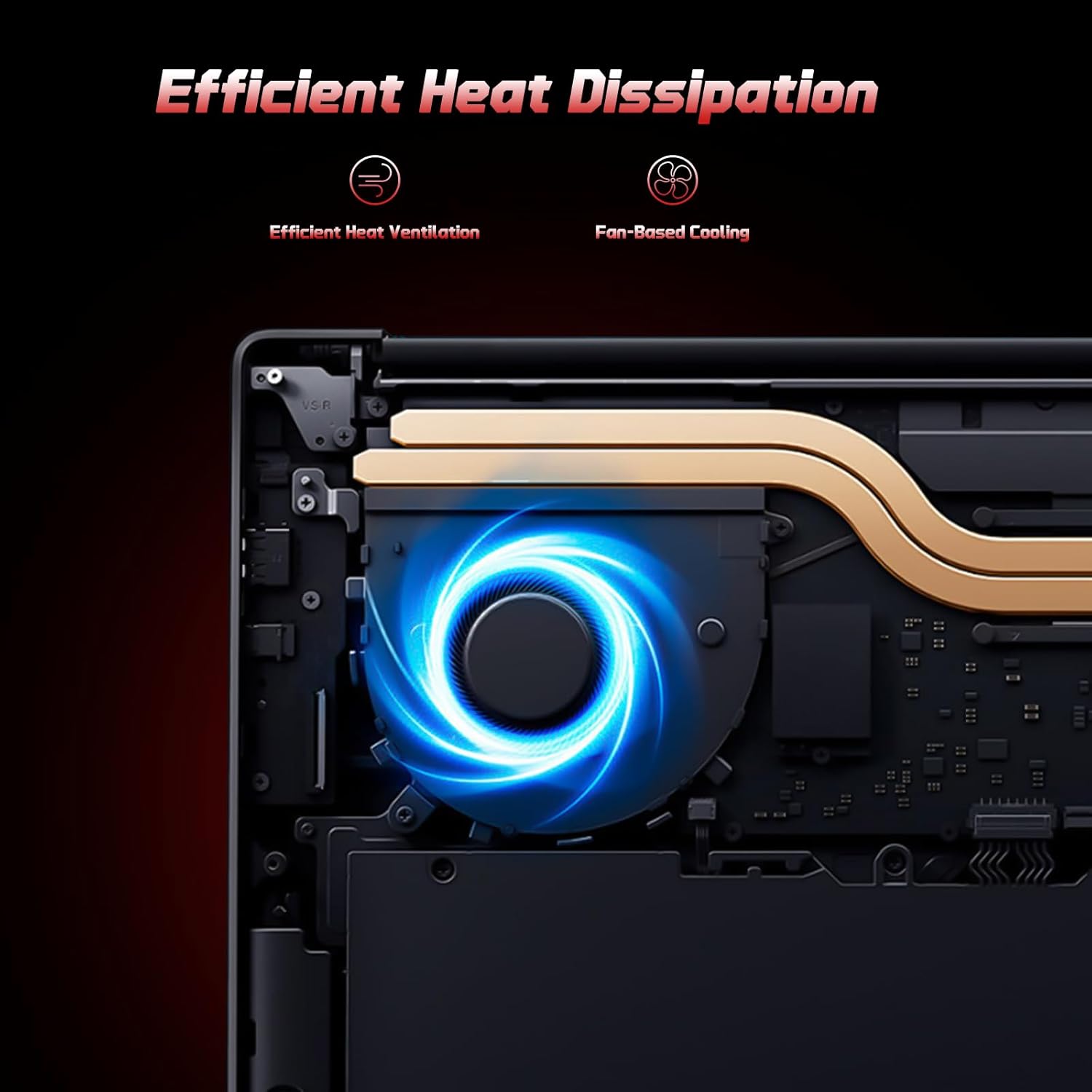
Image: A user typing on the NIMO laptop's backlit keyboard in a dim environment.
2. การเชื่อมต่ออุปกรณ์ต่อพ่วง
The laptop is equipped with multiple ports for various peripherals:
- พอร์ต USB: Connect USB devices such as external drives, mice, or keyboards.
- พอร์ต HDMI: เชื่อมต่อกับจอภาพภายนอกหรือทีวีเพื่อการแสดงผลที่กว้างขึ้น
- พอร์ต Type-C: One port supports 65W PD fast charging, and another is a multifunction port for data transfer and display output.
- สล็อตไมโคร SD: Insert a Micro SD card for expandable storage.
- แจ็คหูฟัง: เชื่อมต่อหูฟังหรือลำโพงภายนอก
- สล็อตล็อคเคนซิงตัน: เพื่อความปลอดภัยทางกายภาพ
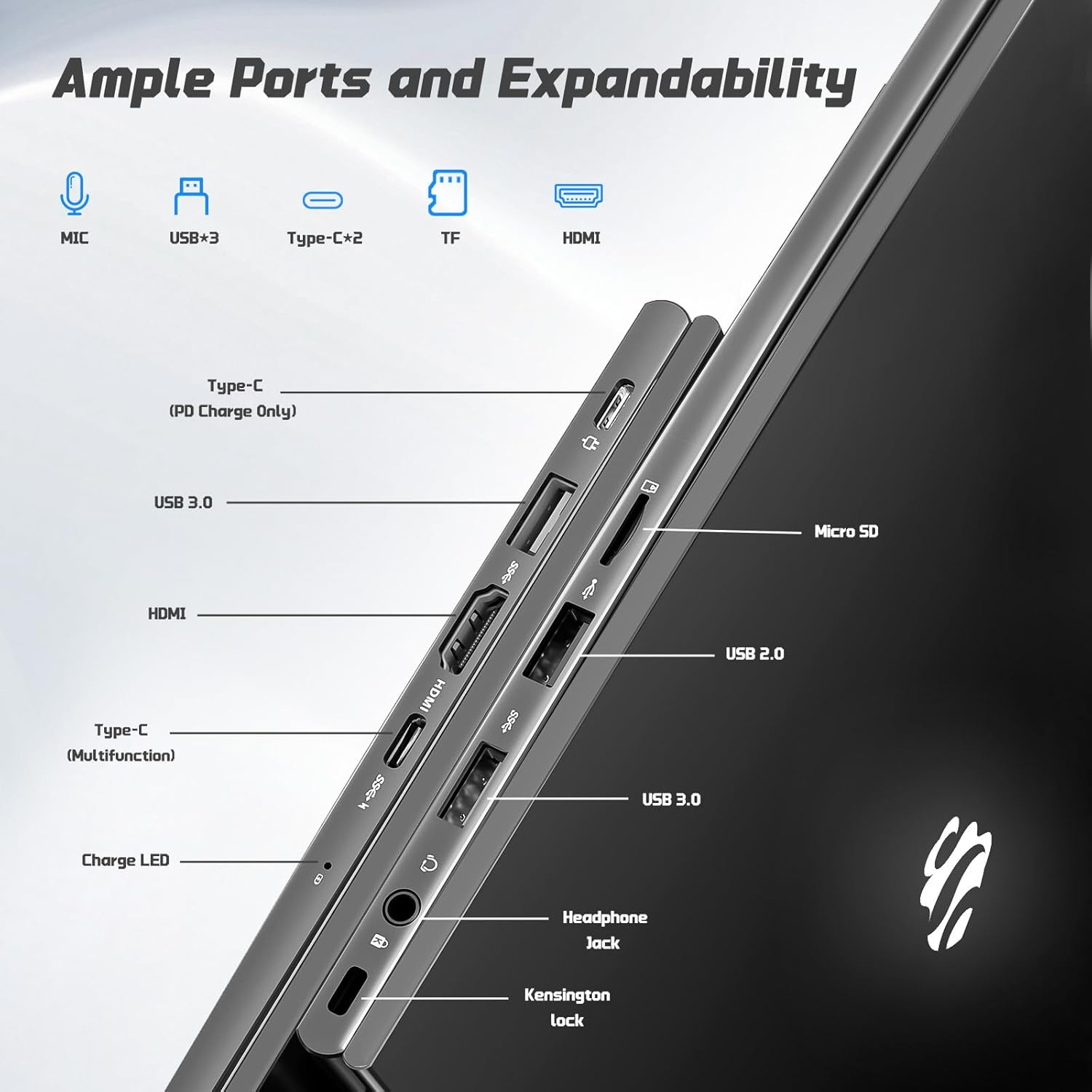
ภาพ: ด้านข้าง view of the NIMO laptop highlighting the available ports including USB, HDMI, Type-C, Micro SD, and headphone jack.
3. Webแคมและความเป็นส่วนตัว
กล้อง 2 ล้านพิกเซลในตัว webcam is suitable for video calls and online meetings. For privacy, ensure the camera is covered or disabled when not in use, if a physical privacy shutter is present (refer to product images for confirmation).
Video: This video demonstrates the NIMO laptop's features, including the webcam and various ports. It shows the laptop being used for work, school, and play, highlighting the backlit keyboard and fingerprint unlock feature.
Video: This video showcases the NIMO laptop's versatility for different users, including students and professionals. It highlights the 15.6" FHD display, backlit keyboard, and multiple connectivity options.
Video: A comprehensive introduction to the NIMO 15.6" laptop, detailing its design, performance, and user experience for various tasks.
Video: This video emphasizes the efficiency and convenience of the NIMO laptop, showcasing its features that contribute to productivity and ease of use.
Video: This video highlights the NIMO 15.6" FHD laptop's suitability for students, home use, and work, demonstrating its performance in various daily scenarios.
การซ่อมบำรุง
1. การทำความสะอาดแล็ปท็อป
To clean the screen, use a soft, lint-free cloth specifically designed for electronics. For the keyboard and chassis, a slightly damp cloth with mild cleaning solution can be used. Avoid excessive moisture and abrasive materials. Ensure the laptop is powered off before cleaning.
2. การดูแลแบตเตอรี่
The NIMO laptop features a 53.58 Watt Hours Lithium Polymer battery. To prolong battery life, avoid fully discharging the battery frequently. It is recommended to keep the battery charge between 20% and 80% when possible. Store the laptop in a cool, dry place when not in use for extended periods.
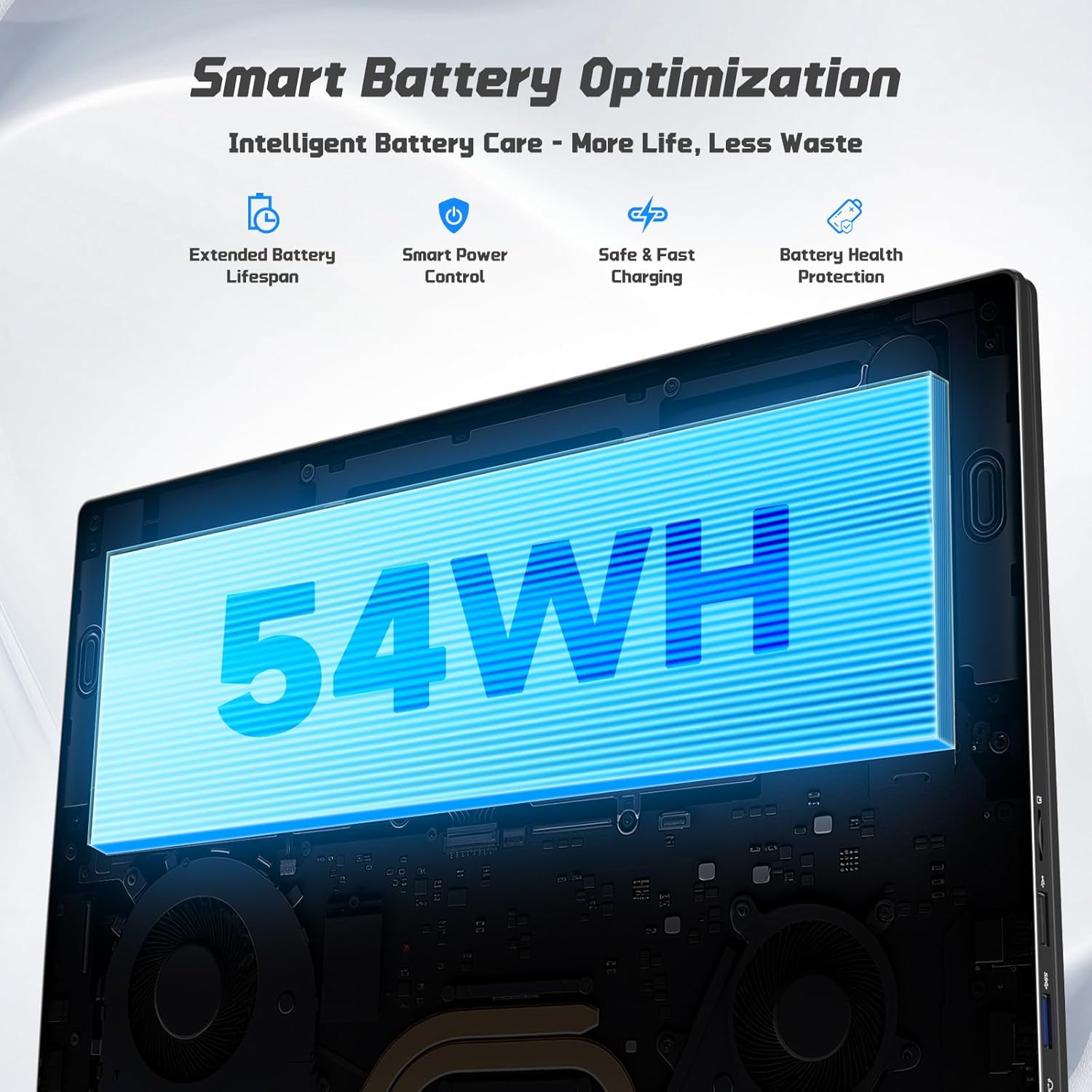
Image: Diagram illustrating the NIMO laptop's smart battery optimization features, including extended lifespan, smart power control, safe and fast charging, and battery health protection.
3. การอัปเดตซอฟต์แวร์
Regularly check for and install Windows updates to ensure your system has the latest security patches and performance improvements. Go to Settings > Windows Update to manage updates.
4. การระบายความร้อน
The laptop is designed with efficient heat ventilation and fan-based cooling. To prevent overheating, ensure that the ventilation openings are not blocked during use. Avoid placing the laptop on soft surfaces like beds or couches that can obstruct airflow.
ภาพ: ภายใน view of the NIMO laptop showing its efficient heat dissipation system with fan-based cooling.
การแก้ไขปัญหา
1. แล็ปท็อปเปิดไม่ติด
- Ensure the charger is securely connected to both the laptop and a working power outlet.
- Check the charge LED indicator. If it's not lit, try a different outlet or charger.
- กดปุ่มเปิด/ปิดค้างไว้ 10-15 วินาทีเพื่อทำการฮาร์ดรีเซ็ต
2. ปัญหาหน้าจอ (ไม่มีจอภาพ, กะพริบ)
- Connect an external monitor via the HDMI port to check if the issue is with the laptop's display or graphics output.
- รีสตาร์ทแล็ปท็อป
- Ensure display drivers are up to date via Windows Update or NIMO's support webเว็บไซต์.
3. ประสิทธิภาพช้า
- ปิดแอปพลิเคชันที่ไม่จำเป็นซึ่งทำงานอยู่เบื้องหลัง
- ตรวจสอบและติดตั้งการอัปเดต Windows ที่รอดำเนินการอยู่
- Ensure sufficient free space on the 128GB SSD. Consider expanding storage using the Micro SD slot or upgrading the SSD if needed.
- รันการสแกนไวรัส
4 ปัญหาการเชื่อมต่อ Wi-Fi หรือ Bluetooth
- Ensure Wi-Fi and Bluetooth are enabled in Windows Settings.
- รีสตาร์ทเราเตอร์/โมเด็มของคุณเนื่องจากปัญหา Wi-Fi
- Update network drivers via Windows Update or NIMO's support webเว็บไซต์.
ข้อมูลจำเพาะ
| คุณสมบัติ | รายละเอียด |
|---|---|
| ยี่ห้อ | นีโม |
| ชื่อรุ่น | NIMO N157G |
| ขนาดหน้าจอ | 15.6 นิ้ว |
| ความละเอียดการแสดงผล | 1920x1080 พิกเซล (FHD) |
| ประเภทจอภาพ | IPS LCD, Anti-glare |
| โปรเซสเซอร์ | Intel Pentium N150 (4-Core, up to 3.6 GHz) |
| แรม | หน่วยความจำ DDR4 4 GB (สามารถเพิ่มได้สูงสุดถึง 16 GB) |
| พื้นที่จัดเก็บ | 128 GB SSD (Expandable via Micro SD) |
| ระบบปฏิบัติการ | วินโดวส์ 11 โฮม |
| กราฟฟิก | แบบบูรณา Intel Graphics |
| Webลูกเบี้ยว | กล้องหน้า 2 MP |
| การเชื่อมต่อ | Wi-Fi 6, บลูทูธ 5.3 |
| พอร์ต | 2x USB 3.0, 1x USB 2.0, 2x Type-C (1x PD Charge Only, 1x Multifunction), 1x HDMI, 1x Micro SD Slot, 1x Headphone Jack, 1x Kensington Lock |
| แบตเตอรี่ | 53.58 Wh Lithium Polymer (Up to 12.75 hours life) |
| เครื่องชาร์จ | 65W Type-C PD Fast Charger |
| คุณสมบัติพิเศษ | คีย์บอร์ดเรืองแสง, เครื่องอ่านลายนิ้วมือ, ระบบเสียง HD, แป้นตัวเลข |
| ขนาด | ยาว 14.07 นิ้ว x กว้าง 8.98 นิ้ว x หนา 0.76 นิ้ว |
| น้ำหนัก | 3.75 ปอนด์ |
การรับประกันและการสนับสนุน
แล็ปท็อป NIMO ของคุณมาพร้อมกับ... รับประกัน 2 ปี from NIMO Direct Inc. Additionally, a 90-Day Hassle-Free Return Policy is provided. For any product-related questions, technical assistance, or warranty claims, please contact NIMO customer support.
ข้อมูลติดต่อ:
- อีเมล: service@nimopc.com
- การสนับสนุนทางออนไลน์: Refer to the official NIMO website for further support resources.
Please have your model number (NIMO N157) and purchase details ready when contacting support.