1. บทนำ
This manual provides essential information for the installation, operation, and maintenance of the Generic Laptop CPU Fan designed for Toshiba Satellite Pro C70-A series laptops. Please read this manual thoroughly before attempting any installation or maintenance to ensure proper function and safety.
2. ข้อมูลด้านความปลอดภัย
- แนะนำการติดตั้งอย่างมืออาชีพ: Installation of internal laptop components requires technical expertise. If you are not comfortable with laptop disassembly and reassembly, seek assistance from a qualified technician.
- การตัดการเชื่อมต่อไฟฟ้า: Always disconnect the laptop from its power adapter and remove the battery before opening the chassis or performing any installation.
- ไฟฟ้าสถิต: Take precautions against electrostatic discharge (ESD). Use an anti-static wrist strap or frequently touch a grounded metal object to discharge static electricity.
- การจัดการส่วนประกอบ: Handle all components, especially the fan and motherboard connectors, with care to avoid damage.
- ลำดับการเดินสายไฟ: There are various fan wiring sequences, and they are often incompatible. It is crucial to verify the wiring sequence of the new fan against the original fan and the laptop's motherboard connector before installation. Incorrect wiring can cause damage.
3. การตั้งค่าและการติดตั้ง
This section outlines the general steps for replacing a laptop CPU fan. Specific disassembly procedures may vary by laptop model. Refer to your laptop's service manual for detailed instructions.
- เตรียมพื้นที่ทำงาน: Ensure a clean, well-lit, and static-free workspace. Gather necessary tools, such as small screwdrivers (Phillips, Torx), plastic spudgers, and thermal paste (if applicable).
- ปิดเครื่องและตัดการเชื่อมต่อ: Shut down the laptop completely, disconnect the power adapter, and remove the battery.
- ถอดประกอบแล็ปท็อป: Carefully open the laptop chassis. This typically involves removing screws from the bottom cover, keyboard, and palm rest. Document screw locations and types.
- Locate and Remove Old Fan: Identify the CPU fan. Disconnect its power cable from the motherboard. Unscrew the fan from its mounting points and carefully remove it. Note the routing of the fan cable.
- Inspect New Fan: Before installing, compare the new fan (pictured below) with the old one, paying close attention to the connector type and wiring sequence. Ensure they match.
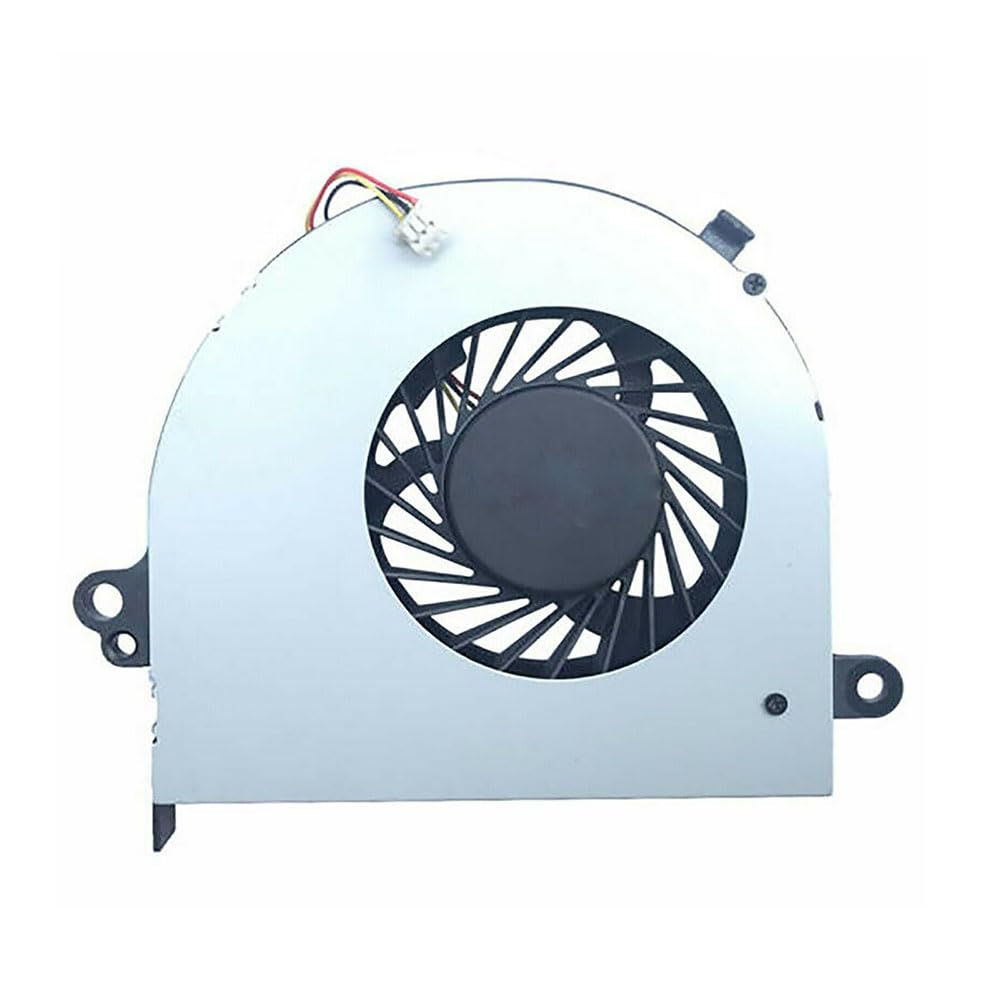
ภาพที่ 1: Generic Laptop CPU Fan. This image displays the fan unit, typically including the fan blades, motor housing, and the attached power connector cable. It is designed for cooling the CPU in compatible Toshiba Satellite Pro C70-A series laptops.
- ติดตั้งพัดลมใหม่: Place the new fan into its designated position. Secure it with the appropriate screws. Connect the fan's power cable to the motherboard connector, ensuring it is fully seated and correctly oriented.
- Reapply Thermal Paste (if applicable): If the fan assembly includes a heatsink that was removed from the CPU, clean off old thermal paste from both the CPU and heatsink, then apply a new, thin layer of high-quality thermal paste.
- ประกอบแล็ปท็อปใหม่: Carefully reassemble the laptop, ensuring all cables are properly connected and routed, and all screws are replaced in their original positions.
- การทดสอบเบื้องต้น: Reconnect the power adapter (do not install the battery yet). Power on the laptop and observe if the fan spins. Check for any error messages or unusual noises. If the fan operates correctly, shut down, install the battery, and complete reassembly.
4. การใช้งานพัดลม
Once installed, the CPU fan operates automatically, controlled by the laptop's BIOS/UEFI and operating system to maintain optimal CPU temperatures. It will adjust its speed based on the CPU's workload and temperature.
- การทำงานปกติ: The fan will spin quietly during light use and increase in speed and audible noise during demanding tasks (e.g., gaming, video editing) to dissipate heat.
- การติดตาม: You can use third-party software or your laptop's built-in utilities to monitor CPU temperature and fan speed.
5. การบำรุงรักษา
Regular maintenance helps ensure the longevity and efficiency of your CPU fan and laptop cooling system.
- การกำจัดฝุ่น: Periodically (every 6-12 months, depending on environment) clean dust from the fan blades and heatsink fins. Use compressed air or a soft brush. Ensure the fan blades are held stationary when using compressed air to prevent over-spinning and damage.
- การตรวจสอบ: During cleaning, inspect the fan for any signs of wear, damage, or excessive noise.
6 การแก้ไขปัญหา
If you encounter issues after fan installation, consider the following:
- พัดลมไม่หมุน:
- Check fan cable connection to the motherboard. Ensure it is fully seated and correctly oriented.
- Verify the fan's wiring sequence matches the original. Incompatible wiring can prevent operation.
- Ensure the laptop is under sufficient load to trigger fan activation.
- เสียงดังเกินไป:
- Ensure no cables or debris are obstructing the fan blades.
- Check if the fan is securely mounted. Loose screws can cause vibration.
- If the noise is a grinding or rattling sound, the fan bearing may be faulty.
- ความร้อนสูงเกินไป:
- Confirm the fan is spinning.
- Ensure heatsink fins are clear of dust and debris.
- Verify thermal paste application if the heatsink was removed.
- Check if the fan is the correct model for your laptop, providing adequate airflow.
If issues persist, consult a professional technician or contact the product vendor for support.
7. ข้อมูลจำเพาะ
| คุณสมบัติ | รายละเอียด |
|---|---|
| ประเภทสินค้า | Laptop CPU Cooling Fan |
| ความเข้ากันได้ | Toshiba Satellite Pro C70-A-17L, C70-A-13R, C70-A-13T, C70-A-13Z, C70-A-140, C70-A-148 |
| เล่มที่tage | กระแสตรง5โวลต์ |
| ขนาด | ประมาณ 3.94 x 3.94 x 3.94 นิ้ว |
| น้ำหนักสินค้า | ประมาณ 3.52 ออนซ์ |
| ประเทศต้นกำเนิด | จีน |
8. การรับประกันและการสนับสนุน
This product is manufactured by Generic. For specific warranty details, please refer to the seller's return policy or contact the seller directly. Typically, a return policy allows for refunds or replacements within 30 days of purchase.
For technical support or inquiries regarding this product, please contact your point of purchase or the manufacturer, Generic.