การแนะนำ
This manual provides essential information for setting up, operating, maintaining, and troubleshooting your Thunderobot Zero 18 Pro 5070 Ti Gaming Laptop. Please read this guide thoroughly to ensure optimal performance and longevity of your device.
มีอะไรอยู่ในกล่อง
เมื่อแกะกล่องแล้ว โปรดตรวจสอบว่ามีสิ่งของครบถ้วนตามรายการด้านล่าง:
- THUNDEROBOT Zero Laptop
- อะแดปเตอร์แปลงไฟ
- คู่มือการใช้งาน (เอกสารนี้)
- บัตรรับประกัน
If any items are missing or damaged, contact your retailer or Thunderobot customer support immediately.
การตั้งค่า
การเปิดเครื่องครั้งแรก
- Connect the power adapter to the laptop's power input port and then to a wall outlet.
- เปิดฝาแล็ปท็อป
- กดปุ่มเพาเวอร์เพื่อเปิดแล็ปท็อป
- ทำตามคำแนะนำบนหน้าจอเพื่อทำการติดตั้ง Windows 11 Home ให้เสร็จสมบูรณ์
การเชื่อมต่ออุปกรณ์ต่อพ่วง
Utilize the available ports to connect external devices such as a mouse, keyboard, external display, or other accessories. Refer to the "Connectivity (Ports)" section for port details.
คำแนะนำการใช้งาน
เปิด/ปิดเครื่อง
- To power on: Press the power button located on the keyboard deck.
- To shut down: Click the Start button, then Power, and select "Shut down".
- To restart: Click the Start button, then Power, and select "Restart".
- To sleep: Close the laptop lid or click the Start button, then Power, and select "Sleep".
Keyboard and RGB Lighting
The laptop features a full-size keyboard with per-key customizable RGB backlighting and a dedicated numeric keypad.
- Per-Key RGB Backlight: Customize individual key lighting through the AI Intelligent Control Center software.
- ปุ่มฟังก์ชัน: ใช้ Fn key in combination with other keys for various functions (e.g., volume control, screen brightness, keyboard backlight adjustment).
- Performance Mode Switching: Dedicated keys (Fn+Space) allow for quick toggling between performance profiles.
- One-Click Cooling: A dedicated key (often near the numeric keypad) can activate maximum cooling. Ensure cooling mode is exited before using the first three keys to switch modes.
คุณสมบัติการแสดงผล
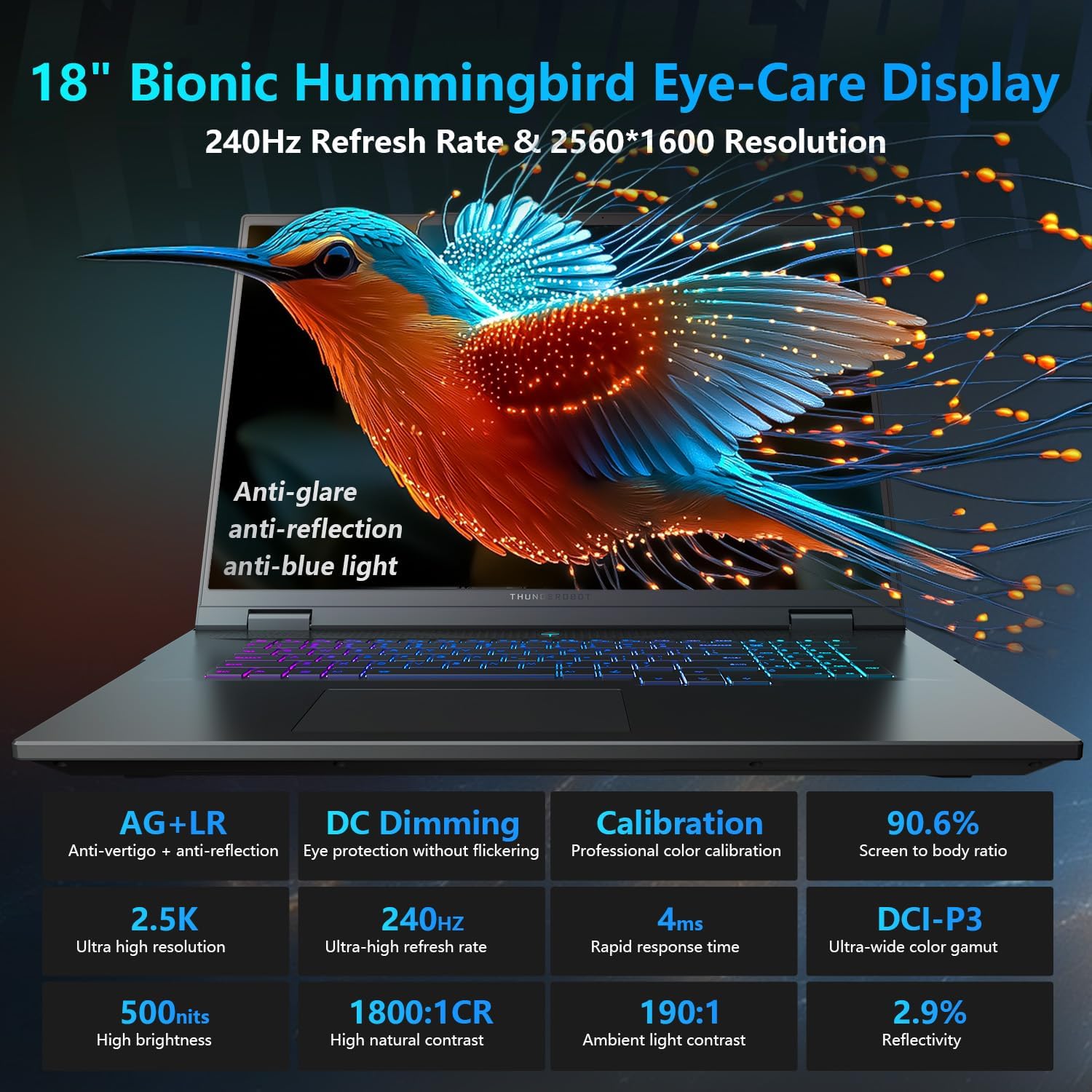
The 18-inch QHD+ (2560x1600) Bionic Hummingbird Eye-Care display offers a 240Hz refresh rate and 4ms response time for clear and fluid visuals. It includes anti-glare, anti-reflection, and anti-blue light technologies for eye comfort.

Connectivity (Ports)
The laptop is equipped with various ports for extensive connectivity:
- 3 x Superspeed USB Type-A ports
- 2 x Superspeed USB Type-C ports (including Thunderbolt 5 support)
- 1 x HDMI port (HDMI 2.1)
- พอร์ตอีเธอร์เน็ต RJ-45 จำนวน 1 พอร์ต
- 1 x พอร์ตเสียง (3.5 มม.)
- เครื่องอ่านการ์ด SD UHS-II
- Wi-Fi 6E for high-speed wireless internet
- Bluetooth for wireless peripheral connections

ระบบระบายความร้อน
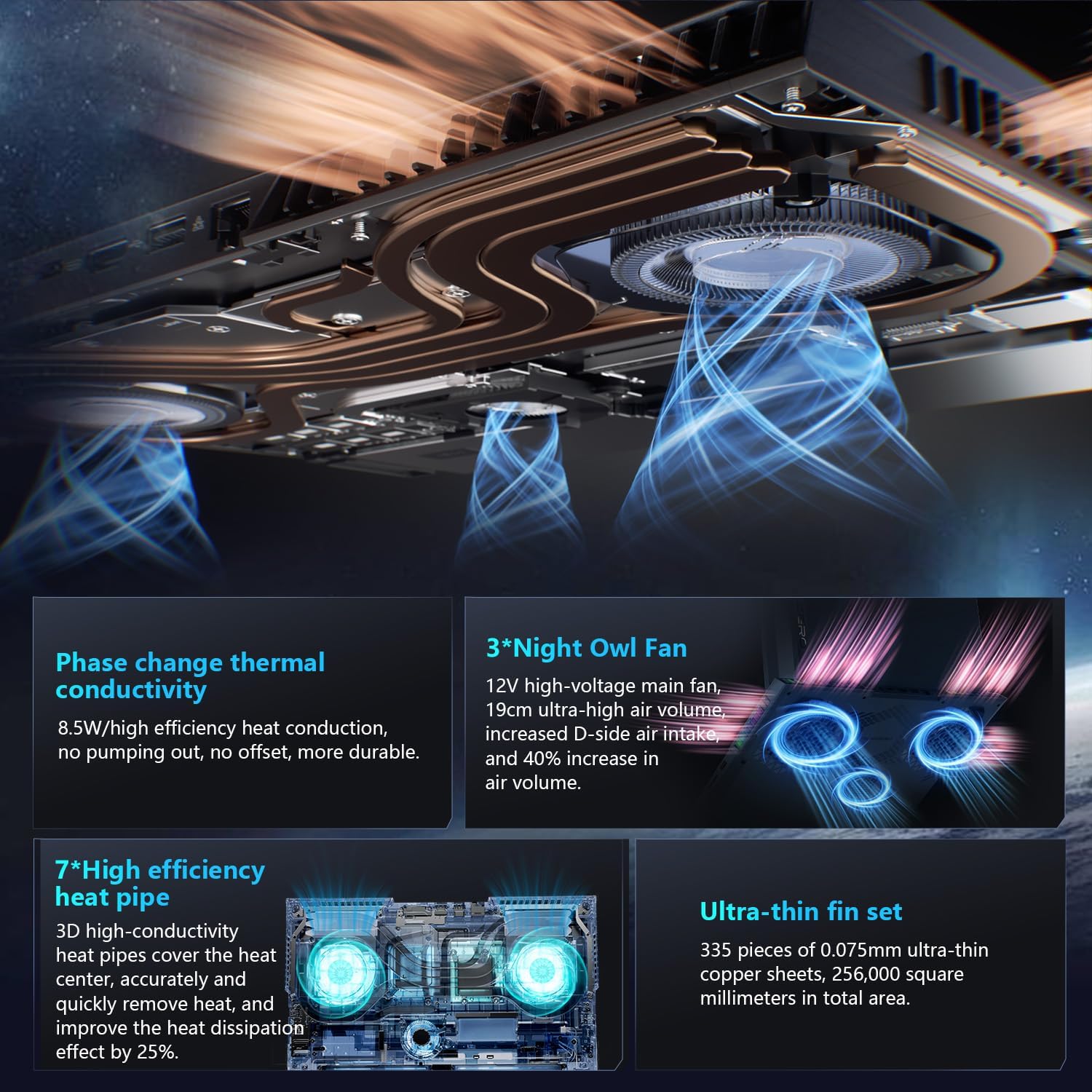
The advanced cooling system features 3 Night Owl fans, 7 high-efficiency heat pipes, and 338 ultra-thin copper fins to ensure optimal thermal management during intensive use, allowing for 270W super performance release.
AI Intelligent Control Center
The AI Intelligent Control Center software allows for comprehensive system management, including performance tuning, intelligent light adjustment, and personalized customization. This includes monitoring CPU/GPU temperatures and fan speeds.
- การปรับแต่งประสิทธิภาพ: Adjust power settings for quiet, balanced, or turbo modes.
- การปรับแสงอัจฉริยะ: Customize keyboard, strip, and logo RGB lighting effects.
- การตรวจสอบระบบ: View real-time CPU and GPU status.
หมายเหตุ: การสลับโหมดระบบในศูนย์ควบคุมจำเป็นต้องเชื่อมต่ออุปกรณ์กับแหล่งจ่ายไฟ
การซ่อมบำรุง
การทำความสะอาดแล็ปท็อปของคุณ
- หน้าจอ: ใช้ผ้านุ่มไม่เป็นขุยค่อยๆ งampล้างออกด้วยน้ำหรือน้ำยาทำความสะอาดหน้าจอ หลีกเลี่ยงสารเคมีรุนแรง
- แป้นพิมพ์และตัวเครื่อง: ใช้ผ้านุ่มเช็ดพื้นผิว สำหรับฝุ่นในซอกมุม ให้ใช้ลมอัด
- ช่องระบายอากาศ: ทำความสะอาดช่องระบายความร้อนด้วยลมอัดเป็นระยะๆ เพื่อป้องกันฝุ่นละอองสะสม ซึ่งอาจส่งผลต่อประสิทธิภาพการทำงานได้
การดูแลแบตเตอรี่
- หลีกเลี่ยงการปล่อยแบตเตอรี่จนหมดบ่อยครั้ง
- เก็บแล็ปท็อปไว้ในที่แห้งและเย็นหากไม่ได้ใช้งานเป็นเวลานาน
- เพื่อสุขภาพแบตเตอรี่ที่ดีที่สุด ควรหลีกเลี่ยงอุณหภูมิที่สูงเกินไป
การอัพเดตซอฟต์แวร์
Regularly check for and install operating system updates (Windows Update) and driver updates (via Thunderobot's official website or the AI Intelligent Control Center) to ensure system stability and performance.
การแก้ไขปัญหา
| ปัญหา | สาเหตุที่เป็นไปได้ | สารละลาย |
|---|---|---|
| โน๊ตบุ๊คไม่สามารถเปิดเครื่องได้ | ไม่มีไฟฟ้า แบตเตอรี่หมด หรือมีปัญหาด้านฮาร์ดแวร์ |
|
| หน้าจอว่างเปล่าหรือเป็นสีดำ | Display settings, external monitor connected, or hardware issue. |
|
| เกิดความร้อนสูงเกินไประหว่างการใช้งาน | Blocked vents, high performance settings, or dust buildup. |
|
| ปัญหาการเชื่อมต่อ Wi-Fi | Wi-Fi disabled, driver issues, or router problems. |
|
For further assistance, please contact Thunderobot customer support.
ข้อมูลจำเพาะ
| คุณสมบัติ | รายละเอียด |
|---|---|
| ชื่อรุ่น | ซีโร่ 18 โปร |
| โปรเซสเซอร์ | Intel Core Ultra 9 275HX (24 คอร์, 24 เธรด, ความเร็วสูงสุด 5.40 GHz) |
| กราฟฟิก | NVIDIA GeForce RTX 5070 Ti (8 GB GDDR6 Dedicated) |
| แรม | 32GB DDR5 (4800 เมกะเฮิรตซ์) |
| พื้นที่จัดเก็บ | SSD PCIe M.2 ขนาด 2 TB |
| แสดง | จอแสดงผล Bionic Hummingbird ขนาด 18 นิ้ว ความละเอียด QHD+ (2560x1600 พิกเซล) อัตราการรีเฟรช 240Hz ช่วยถนอมสายตา |
| ระบบปฏิบัติการ | วินโดวส์ 11 โฮม |
| การเชื่อมต่อ | Wi-Fi 6E, Bluetooth, 3x USB-A, 2x USB-C (Thunderbolt 5), HDMI 2.1, RJ-45, Audio Port |
| แป้นพิมพ์ | แป้นพิมพ์ตัวเลขพร้อมไฟแบ็คไลท์ RGB แยกแต่ละปุ่ม |
| ขนาด (กxยxส) | 16.04 x 11.78 x 1.41 นิ้ว |
| น้ำหนักสินค้า | 15 ปอนด์ |
| แหล่งพลังงาน | เครื่องปรับอากาศและแบตเตอรี่ |
การรับประกันและการสนับสนุน
แล็ปท็อป Thunderobot ทุกเครื่องมาพร้อมกับ... รับประกัน 12 เดือนโดยให้บริการสนับสนุนจากผู้เชี่ยวชาญ การวินิจฉัยอย่างละเอียด และอะไหล่แท้หากจำเป็นต้องซ่อมแซม นอกจากนี้ ยังมี... รับประกัน 90 วัน เรามีบริการนี้สำหรับชิ้นส่วนอะไหล่ทุกชิ้นที่เปลี่ยนภายใต้การรับประกัน เพื่อให้การซ่อมแซมเป็นไปอย่างราบรื่น ความพึงพอใจของคุณคือสิ่งที่เรามุ่งมั่น
สำหรับการขอรับการสนับสนุนทางเทคนิค การเรียกร้องการรับประกัน หรือสอบถามข้อมูลเกี่ยวกับการบริการ โปรดไปที่เว็บไซต์อย่างเป็นทางการของ Thunderobot webเข้าชมเว็บไซต์หรือติดต่อฝ่ายบริการลูกค้าของพวกเขา โปรดเก็บใบเสร็จรับเงินและหมายเลขซีเรียลไว้ให้ดีเพื่อการบริการที่รวดเรวยิ่งขึ้น