
1. บทนำ
This user manual provides detailed instructions for the KTC M27P6 27-inch MiniLED Gaming Monitor. Please read this manual thoroughly before operating the device to ensure proper usage and optimal performance. Keep this manual for future reference.
The KTC M27P6 is a high-performance gaming monitor featuring a 27-inch MiniLED panel with 1152 local dimming zones, offering exceptional contrast and brightness up to HDR1400. It supports dual display modes: 4K resolution at 160Hz and Full HD resolution at 320Hz, providing versatility for various gaming and professional needs. Key features include a 1ms GtG response time, Adaptive Sync technology, and comprehensive connectivity options including USB-C with 65W power delivery and KVM functionality.

ภาพ: เหนือview of KTC M27P6 monitor's key features including MiniLED, 1152 local dimming zones, dual mode 4K@160Hz/FHD@320Hz, USB-C, KVM, HDR1400, 145% sRGB, Fast IPS, and Adaptive-Sync.
2. ข้อมูลด้านความปลอดภัย
- ควรวางจอภาพบนพื้นผิวที่มั่นคงและเรียบเสมอ เพื่อป้องกันไม่ให้จอภาพตก
- อย่าวางจอภาพไว้ในที่ที่มีฝนหรือความชื้น เพื่อป้องกันไฟฟ้าช็อตหรือไฟไหม้
- ควรวางจอภาพให้ห่างจากแสงแดดโดยตรง แหล่งความร้อน หรืออุณหภูมิที่สูงหรือต่ำเกินไป
- ตรวจสอบให้แน่ใจว่ามีการระบายอากาศที่เหมาะสมรอบ ๆ จอภาพ อย่าปิดกั้นช่องระบายอากาศ
- โปรดใช้เฉพาะอะแดปเตอร์แปลงไฟและสายเคเบิลที่ผู้ผลิตจัดหาให้หรือแนะนำเท่านั้น
- Unplug the power cord from the outlet if the monitor will not be used for a long period.
- อย่าพยายามซ่อมจอภาพด้วยตนเอง โปรดส่งซ่อมโดยช่างผู้ชำนาญการเท่านั้น
- หลีกเลี่ยงการสัมผัสหน้าจอด้วยวัตถุมีคม
3. เนื้อหาบรรจุภัณฑ์
ตรวจสอบว่าอุปกรณ์ทุกชิ้นในบรรจุภัณฑ์ครบถ้วนหรือไม่ หากมีสิ่งใดขาดหายหรือเสียหาย โปรดติดต่อผู้ค้าปลีก
- KTC M27P6 27-inch MiniLED Gaming Monitor
- ขาตั้งจอภาพ (ฐานและแขน)
- อะแดปเตอร์แปลงไฟ
- สายไฟ
- สาย HDMI
- สายเคเบิล DisplayPort
- สาย USB-C
- USB-B to USB-A Cable (for KVM/USB Hub)
- คู่มือการใช้งาน (เอกสารนี้)
- บัตรรับประกัน
4. การตรวจสอบview
4.1 ด้านหน้า View
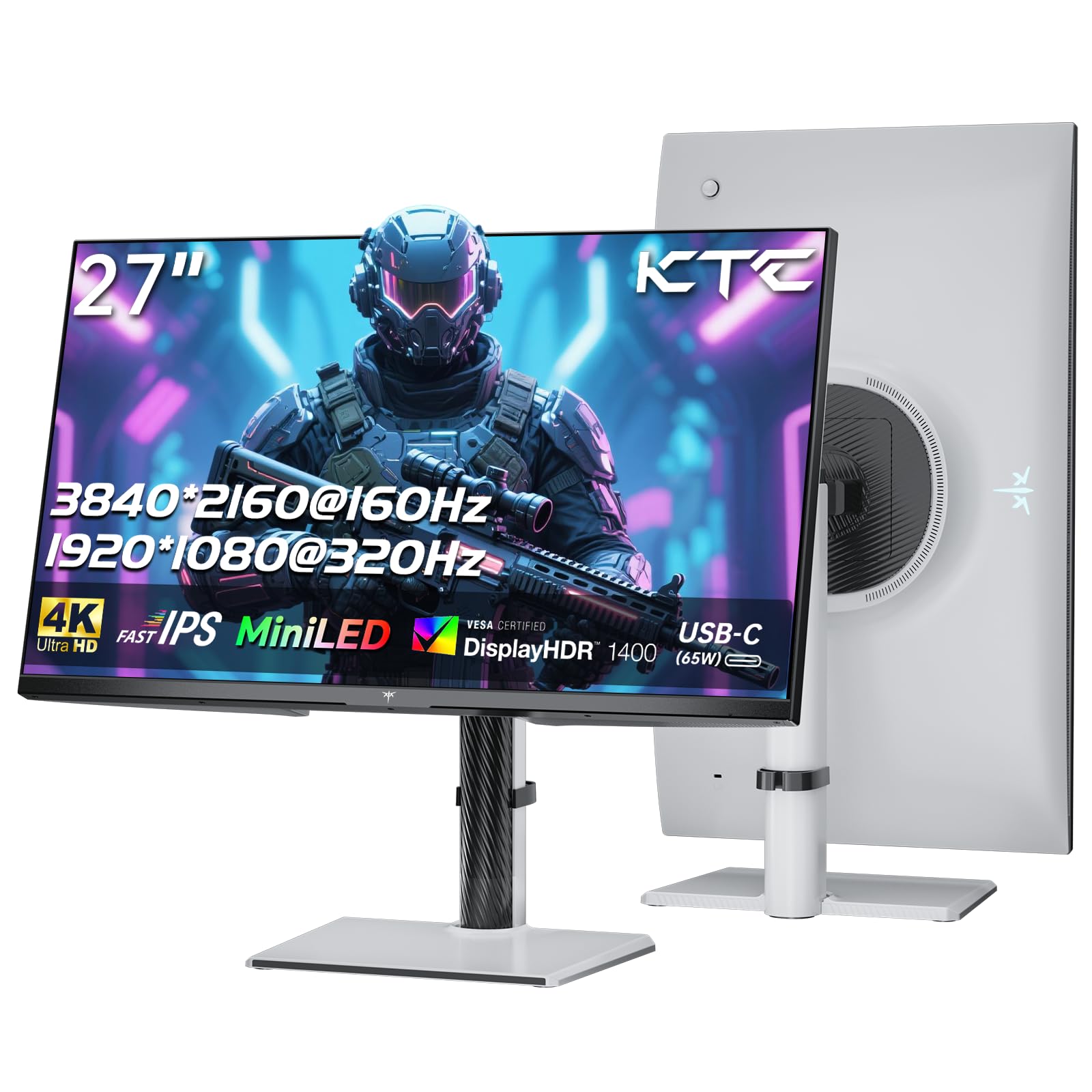
ภาพ: ด้านหน้า view of the KTC M27P6 27-inch MiniLED Gaming Monitor.
The front of the monitor features the 27-inch MiniLED display panel. The KTC logo is typically located at the bottom center bezel.
4.2 ด้านหลัง View และท่าเรือ

ภาพ: ด้านหลัง view of the KTC M27P6 monitor, highlighting the various input/output ports and the adjustable stand.
The rear of the monitor houses the input/output ports and the stand attachment point. The ports include:
- กำลังไฟเข้า: สำหรับการเชื่อมต่ออะแดปเตอร์ไฟฟ้า
- พอร์ต HDMI 2.1 (x2): For connecting to devices supporting HDMI 2.1 (4K@160Hz / FHD@320Hz).
- พอร์ต DisplayPort 1.4 (x2): For connecting to devices supporting DisplayPort 1.4 (4K@160Hz / FHD@320Hz).
- พอร์ต USB-C (x1): Full-function port supporting video input (4K@160Hz / FHD@320Hz) and 65W Power Delivery.
- USB-B Upstream Port (x1): For connecting the monitor's USB hub to your computer, enabling the downstream USB-A ports and KVM functionality.
- USB-A 3.0 Downstream Ports (x3): สำหรับเชื่อมต่ออุปกรณ์ต่อพ่วง เช่น คีย์บอร์ด เมาส์ หรืออุปกรณ์ USB
- เอาต์พุตเสียง 3.5 มม.: สำหรับการเชื่อมต่อหูฟังหรือลำโพงภายนอก
วิดีโอ: จบแล้วview of the KTC M27P6 monitor's features and design, including its connectivity options and adjustable stand.
5. การตั้งค่า
5.1 การประกอบขาตั้ง
- ถอดส่วนประกอบของจอภาพและขาตั้งออกจากบรรจุภัณฑ์อย่างระมัดระวัง
- Attach the stand arm to the monitor panel by aligning the mounting points and securing with screws (if applicable).
- Attach the stand base to the stand arm, ensuring it is firmly connected.
- วางจอภาพที่ประกอบแล้วไว้บนพื้นผิวที่มั่นคงและเรียบ
The monitor also supports VESA mounting (100x100mm) for use with compatible wall mounts or monitor arms. Ensure the VESA mount is rated for the monitor's weight.

Image: Diagram illustrating the multi-angle adjustment capabilities of the KTC M27P6 monitor stand, including height, tilt, swivel, and pivot.
5.2 สายเชื่อมต่อ
- การเชื่อมต่อไฟฟ้า: Connect the power adapter to the monitor's power input, then plug the power cable into a power outlet.
- การเชื่อมต่อวิดีโอ:
- For PC/Gaming Console: Connect one end of the HDMI or DisplayPort cable to your device's output and the other end to the corresponding port on the monitor.
- For USB-C Compatible Devices: Connect the USB-C cable from your device to the monitor's USB-C port for video, data, and power delivery.
- USB Hub/KVM Connection: To use the monitor's USB-A ports and KVM functionality, connect the USB-B to USB-A cable from the monitor's USB-B upstream port to a USB-A port on your computer.
- การเชื่อมต่อเสียง: If using external headphones or speakers, connect them to the 3.5mm audio out port on the monitor.
6. คู่มือการใช้งาน
6.1 เปิด/ปิดเครื่อง
กดปุ่มเปิด/ปิด (โดยปกติจะอยู่ด้านหลังหรือด้านล่างของจอภาพ) เพื่อเปิดหรือปิดจอภาพ ไฟแสดงสถานะจะสว่างขึ้นเมื่อจอภาพเปิดอยู่
6.2 การนำทางเมนู OSD
The On-Screen Display (OSD) menu allows you to adjust various monitor settings. Use the joystick or buttons (refer to your monitor's physical layout) to navigate the OSD menu:
- Press Joystick/Button: Enter OSD menu or confirm selection.
- เลื่อนจอยสติ๊กขึ้น/ลง: นำทางผ่านตัวเลือกเมนู
- เลื่อนจอยสติ๊กซ้าย/ขวา: ปรับค่าหรือย้ายไปที่เมนูย่อย
- ปุ่มออก: ออกจากเมนูหรือ OSD ปัจจุบัน
6.3 Dual Mode Switching (4K@160Hz / FHD@320Hz)
The KTC M27P6 supports seamless switching between two display modes: 4K (3840x2160) at 160Hz and Full HD (1920x1080) at 320Hz. This allows you to optimize performance based on your content (e.g., high-resolution graphics for AAA games or ultra-high refresh rate for competitive FPS games).
To switch modes, access the OSD menu and navigate to the "Display" or "Gaming" settings. Select the desired resolution and refresh rate. Your connected device must also support these resolutions and refresh rates for optimal performance.

Image: Illustration of the KTC M27P6 monitor's seamless dual mode switching capability, showing a 4K@160Hz gaming scene and a FHD@320Hz gaming scene.
6.4 การซิงค์แบบอะแดปทีฟ
The monitor supports Adaptive Sync (AMD FreeSync and NVIDIA G-Sync compatible) to eliminate screen tearing and stuttering, providing a smoother gaming experience. Ensure Adaptive Sync is enabled in the monitor's OSD settings and in your graphics card control panel.

Image: Visual representation of Adaptive Sync technology, showing how it prevents screen tearing by synchronizing the monitor's refresh rate with the GPU's frame rate.
6.5 ฟังก์ชัน KVM
The integrated KVM (Keyboard, Video, Mouse) switch allows you to control multiple computers or devices connected to the monitor using a single keyboard and mouse. To use KVM:
- Connect your primary computer to the monitor via DisplayPort/HDMI and the USB-B upstream cable.
- Connect your secondary device (e.g., laptop via USB-C) to the monitor.
- Connect your keyboard and mouse to the USB-A downstream ports on the monitor.
- Switch between connected devices using the KVM hotkey or OSD menu option.
6.6 Color Settings and HDR1400
The monitor features a MiniLED panel with 1152 local dimming zones and VESA DisplayHDR 1400 certification, providing high contrast and vibrant colors. You can adjust color settings (brightness, contrast, color temperature, gamma) through the OSD menu. For HDR content, ensure HDR is enabled in your operating system and the monitor's OSD. The monitor supports 10-bit color depth and a wide color gamut (145% sRGB / 99% DCI-P3).

Image: Visual comparison demonstrating the enhanced dynamic range and detail provided by HDR1400 on the KTC M27P6 monitor.
7. การบำรุงรักษา
- การทำความสะอาดหน้าจอ: เช็ดหน้าจอเบาๆ ด้วยผ้านุ่มที่ไม่เป็นขุย สำหรับรอยฝังแน่น ให้...ampen the cloth with a small amount of screen cleaner (non-ammonia based). Do not spray cleaner directly onto the screen.
- การทำความสะอาด Casing: ใช้ผ้าแห้งนุ่มเช็ดจอภาพasinก. หลีกเลี่ยงการใช้น้ำยาทำความสะอาดหรือตัวทำละลายที่มีฤทธิ์กัดกร่อน
- การระบายอากาศ : Ensure the ventilation openings on the monitor are clear of dust and debris to prevent overheating.
8 การแก้ไขปัญหา
| ปัญหา | สาเหตุที่เป็นไปได้ | สารละลาย |
|---|---|---|
| ไม่มีภาพบนหน้าจอ | สายไฟถูกถอดออก; สายวิดีโอถูกถอดออก; แหล่งสัญญาณเข้าไม่ถูกต้อง | ตรวจสอบการเชื่อมต่อสายไฟและสายวิดีโอ เลือกแหล่งสัญญาณเข้าที่ถูกต้องผ่านเมนู OSD |
| ภาพเบลอหรือบิดเบี้ยว | ความละเอียดไม่ถูกต้อง; สายวิดีโอชำรุด | Set the display resolution to the native 3840x2160 or 1920x1080. Try a different video cable. |
| อาการภาพฉีกขาดหรือกระตุกในเกม | Adaptive Sync not enabled; Graphics card driver issues. | Enable Adaptive Sync in monitor OSD and graphics card settings. Update graphics drivers. |
| พอร์ต USB ไม่ทำงาน | USB-B upstream cable not connected; Driver issues. | Ensure the USB-B upstream cable is connected from the monitor to your computer. Check computer's USB drivers. |
| ไม่มีเสียงออกจากช่องสัญญาณเสียงออก | Incorrect audio output selected; Volume too low. | Check audio output settings on your computer. Adjust monitor and device volume. |
9. ข้อมูลจำเพาะ
| คุณสมบัติ | รายละเอียด |
|---|---|
| ยี่ห้อ | เคทีซี |
| ชื่อรุ่น | เอ็ม27พี6 |
| ขนาดหน้าจอ | 27 Pollici (27 inches) |
| ประเภทแผง | MiniLED, Fast IPS |
| Resolution (Native) | 3840 x 2160 (4K UHD) |
| อัตราการรีเฟรชสูงสุด (4K) | 160 เฮิรตซ์ |
| อัตราการรีเฟรชสูงสุด (FHD) | 320 เฮิรตซ์ |
| เวลาตอบสนอง | 1 มิลลิวินาที GtG |
| โซนลดแสงเฉพาะที่ | 1152 โซน |
| การรับรอง HDR | จอแสดงผล VESA HDR 1400 |
| ความสว่าง | 1400 cd / m² (สูงสุด) |
| อัตราส่วนคอนทราสต์ | 1,000,000:1 (ไดนามิก) |
| ช่วงสี | 145% sRGB, 99% DCI-P3 |
| ความลึกของสี | 10 บิต |
| การซิงค์แบบปรับตัว | AMD FreeSync, NVIDIA G-Sync Compatible |
| Viewอิงแองเกิล | 178 องศา |
| การเชื่อมต่อ | 2x HDMI 2.1, 2x DisplayPort 1.4, 1x USB-C (65W PD), 1x USB-B Upstream, 3x USB-A 3.0 Downstream, 1x 3.5mm Audio Out |
| การสนับสนุน KVM | ใช่ |
| การปรับขาตั้ง | ความสูง การเอียง การหมุน การหมุน |
| แท่นยึด VESA | 100 x 100 มม. |
| ขนาด (ลxกxส) | 21.1P x 61.7l x 54.7H ซม. |
10. การรับประกันและการสนับสนุน
KTC products are covered by a limited warranty. Please refer to the warranty card included in your package for specific terms and conditions. For technical support, troubleshooting assistance, or warranty claims, please contact KTC customer service or visit the official KTC webเว็บไซต์.
You can find more information and contact details on the KTC official store page: ร้าน KTC.