
การแนะนำ
This manual provides detailed instructions for the setup, operation, maintenance, and troubleshooting of your Axtel One BT Stereo Wireless Headset. This headset is designed for professional use, offering reliable Bluetooth connectivity, noise-cancelling microphones, and high-definition speakers for clear communication and audio playback.
เนื้อหาแพ็คเกจ
ตรวจสอบว่ามีรายการทั้งหมดอยู่ในแพ็คเกจของคุณ:
- Axtel One BT Stereo Wireless Headset
- USB-A ดองเกิล
- สถานีชาร์จ
- สายชาร์จ USB-C
- คู่มือการใช้งาน (เอกสารนี้)

Image: Axtel One BT Stereo Wireless Headset placed on its charging base, showing the headset and base as a complete unit.
สินค้าเกินview
Familiarize yourself with the components of your Axtel One BT Stereo Wireless Headset.

ภาพ: ด้านข้าง view of the Axtel One BT Stereo Wireless Headset with the microphone boom extended, highlighting the earcups and headband.
ส่วนประกอบของชุดหูฟัง:
- แถบคาดศีรษะปรับได้: เพื่อความกระชับสบาย
- ฟองน้ำรองหูฟัง: Vegan leather and memory foam for comfort.
- บูมไมโครโฟน: Flexible arm with dual noise-cancelling microphones.
- ปุ่มควบคุม: Located on the earcup for call management (answer/reject/mute) and volume.
- พอร์ต USB-C: สำหรับชาร์จหูฟังโดยตรง
- Busy Light Indicator: Signals availability during calls.
Charging Station & USB-A Dongle:

Image: The Axtel One BT Charging Station, a black stand designed to hold and charge the headset.
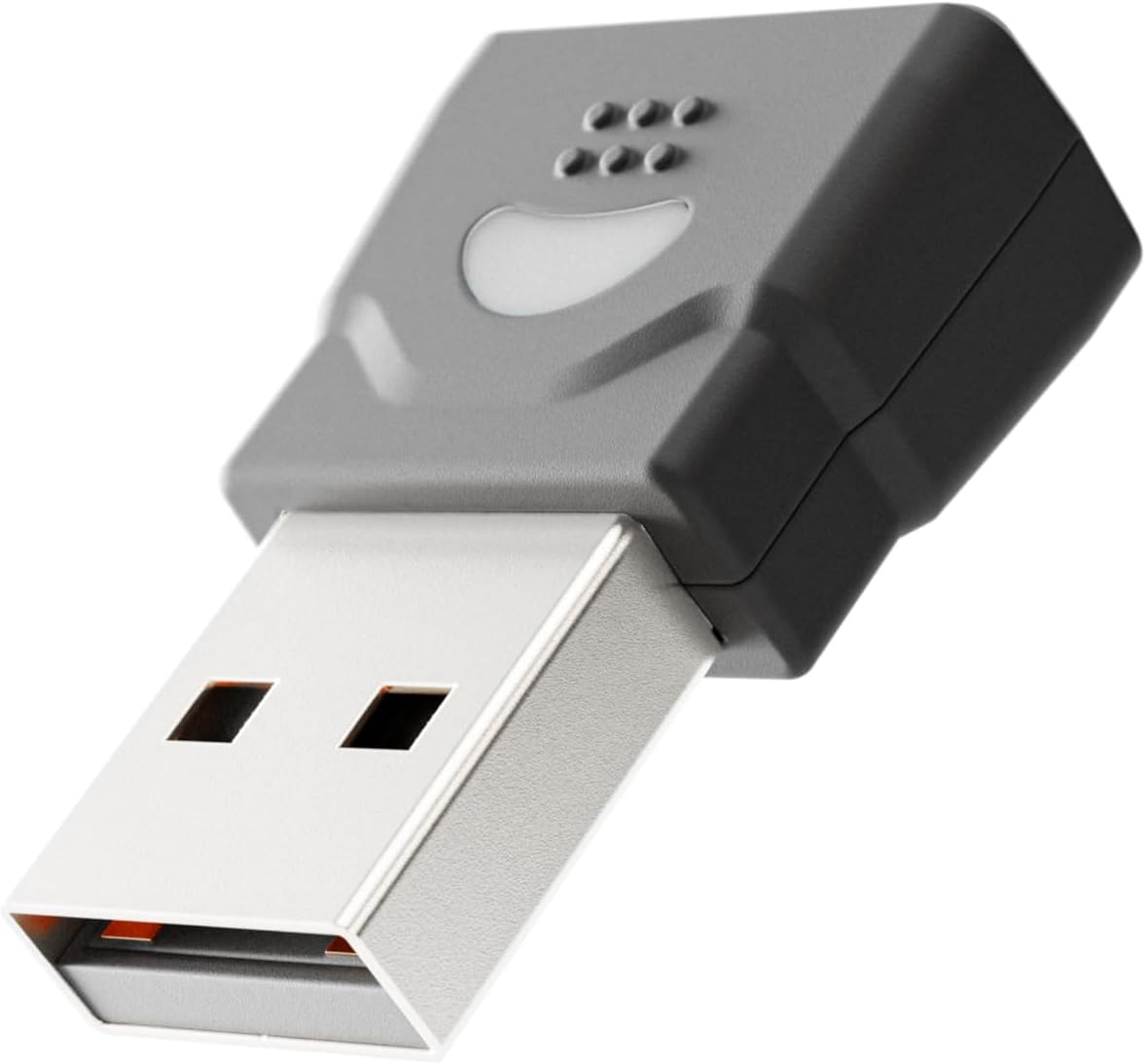
Image: The compact USB-A dongle, used for connecting the headset to a computer without built-in Bluetooth.
- สถานีชาร์จ: Provides a convenient dock for charging and storing the headset.
- USB-A Dongle: Enables wireless connection to computers without Bluetooth or for enhanced stability.
การตั้งค่า
1. การชาร์จชุดหูฟัง
Before initial use, fully charge your headset. A full charge takes approximately 2 hours and provides up to 40 hours of talk or music time. A 20-minute fast charge can provide several hours of use.
- การใช้สถานีชาร์จ: Connect the USB-C charging cable to the charging station and then to a power source (e.g., computer USB port or wall adapter). Place the headset onto the charging station. The headset's indicator light will show charging status.
- การชาร์จ USB-C โดยตรง: Connect the USB-C charging cable directly to the USB-C port on the headset and then to a power source.
2. Connecting to a Computer via USB-A Dongle (Plug & Play)
For seamless connection to your computer, use the included USB-A dongle.
- Insert the USB-A dongle into an available USB-A port on your computer.
- The dongle's indicator light will blink, then turn solid when connected to the headset.
- Power on your headset. It will automatically pair with the dongle.
- Your computer should recognize the headset as an audio device. You may need to select "Axtel One BT" as your default audio input/output device in your system settings.
3. Connecting via Bluetooth (Mobile Devices / Computers with Bluetooth)
To connect to a mobile device or a computer with built-in Bluetooth:
- ตรวจสอบว่าชุดหูฟังปิดอยู่
- กดปุ่มเปิด/ปิดบนหูฟังค้างไว้จนกว่าไฟแสดงสถานะจะกะพริบเป็นสีน้ำเงินและสีแดง ซึ่งแสดงว่าเข้าสู่โหมดจับคู่แล้ว
- บนอุปกรณ์ของคุณ (สมาร์ทโฟน แท็บเล็ต คอมพิวเตอร์) ไปที่การตั้งค่าบลูทูธ แล้วเปิดใช้งานบลูทูธ
- Select "Axtel One BT" from the list of available devices.
- Once paired, the headset's indicator light will turn solid blue.
คำแนะนำการใช้งาน
เปิด/ปิดเครื่อง
- เปิดเครื่อง: กดปุ่มเปิด/ปิดค้างไว้ 2 วินาที
- หมดแรง: กดปุ่มเปิด/ปิดค้างไว้ 3 วินาที
การควบคุมการโทร
The headset features integrated controls for managing calls.
- รับ/วางสาย: กดปุ่มโทรหนึ่งครั้ง
- ปฏิเสธสาย: กดปุ่มโทรค้างไว้ 2 วินาที
- ปิดเสียง/เปิดเสียงไมโครโฟน: Press the Mute button (usually located on the microphone boom or earcup) once during a call.
การควบคุมเสียง
- ปรับระดับเสียงขึ้น: กดปุ่มเพิ่มระดับเสียง
- ลดเสียงลง: กดปุ่มลดระดับเสียง
Microsoft Teams and UC Platform Compatibility
The Axtel One BT Stereo Headset is optimized for Microsoft Teams and compatible with other Unified Communications (UC) platforms such as Zoom, Skype, and Webex. For optimal performance, ensure the headset is selected as the default audio device within the application settings.
ไฟแสดงสถานะไม่ว่าง
The integrated busy light indicator automatically illuminates when you are on a call, signaling to others that you are occupied and minimizing interruptions.
การซ่อมบำรุง
การทำความสะอาด
- Wipe the headset and charging station with a soft, dry, anti-static cloth.
- ห้ามใช้สารเคมีรุนแรง น้ำยาทำความสะอาด หรือสารซักฟอกชนิดเข้มข้น
การดูแลแบตเตอรี่
- เพื่อยืดอายุการใช้งานแบตเตอรี่ ควรหลีกเลี่ยงการปล่อยให้หูฟังแบตหมดจนเกลี้ยงบ่อยๆ
- Store the headset in a cool, dry place when not in use for extended periods.
Earcup Maintenance
The vegan leather and memory foam ear cushions are designed for comfort and can be swapped for hygiene and durability. Refer to the manufacturer's website or support for instructions on replacing ear cushions.
การแก้ไขปัญหา
| ปัญหา | สาเหตุที่เป็นไปได้ | สารละลาย |
|---|---|---|
| ไม่มีเสียงจากหูฟัง | Headset not powered on; Not paired; Incorrect audio device selected; Volume too low. | Ensure headset is powered on. Re-pair the headset. Check computer/device audio settings and select "Axtel One BT". Increase headset and device volume. |
| ไมโครโฟนไม่ทำงาน | ไมโครโฟนปิดเสียง; เลือกอุปกรณ์อินพุตไม่ถูกต้อง; บูมไมโครโฟนไม่ได้วางตำแหน่งอย่างถูกต้อง | Unmute the microphone. Check computer/device audio settings and select "Axtel One BT" as input. Ensure microphone boom is close to your mouth. |
| ไม่สามารถเชื่อมต่อผ่านบลูทูธได้ | Headset not in pairing mode; Device Bluetooth off; Out of range; Interference. | Put headset in pairing mode (flashing blue/red). Ensure device Bluetooth is on. Move headset closer to device. Turn off other Bluetooth devices temporarily. |
| ปัญหาการชาร์จ | Cable or charging station not connected properly; Faulty cable/port; Headset not seated correctly on station. | Check all cable connections. Try a different USB port or power adapter. Ensure headset is firmly seated on the charging station. |
| คุณภาพเสียงไม่ดี | Weak signal; Interference; Low battery. | Move closer to the connected device. Avoid sources of strong electromagnetic interference. Charge the headset fully. |
ข้อมูลจำเพาะ
| ชื่อรุ่น | ONE BT Stereo with charging base |
| หมายเลขรุ่น | AXH-ONEBTD |
| เทคโนโลยีการเชื่อมต่อ | ไร้สาย (Bluetooth) |
| การวางตำแหน่งหู | ครอบหู |
| ฟอร์มแฟกเตอร์ | บนหู |
| สี | สีดำ |
| ขนาดตัวขับลำโพง | 40 mm HD Speakers |
| ไมโครโฟน | Dual Noise-Cancelling Microphones (ENC) |
| ความจุของแบตเตอรี่ | 500mAh |
| เวลาสนทนา | นานถึง 40 ชั่วโมง |
| เวลาดนตรี | นานถึง 40 ชั่วโมง |
| เวลาสแตนด์บาย | นานถึง 8.5 วัน |
| เวลาในการชาร์จ | Up to 2 hours (via USB-C) |
| Acoustic Protection Technology | Yes, < 118 dB(A) |
| การประมวลผลสัญญาณดิจิตอล (DSP) | ใช่ |
| การควบคุมอัตราขยายอัตโนมัติ (AGC) | ใช่ |
| ไฟแสดงสถานะไม่ว่าง | ใช่ |
| วัสดุเบาะ | Memory foam with vegan leather finish |
| ความเข้ากันได้ของแพลตฟอร์ม | Compatible with major communication platforms (MS Teams, Zoom, Skype, Webอดีต) |
| USB-A ดองเกิล | รวมอยู่ในแพ็คเกจ |
| ผู้ผลิต | แอ็กซ์เทล |
ข้อมูลการรับประกัน
The Axtel One BT Stereo Wireless Headset comes with a การรับประกันแบบจำกัด 1 ปีจากผู้ผลิต. This warranty covers defects in materials and workmanship under normal use. Please retain your proof of purchase for warranty claims. For full terms and conditions, please refer to the official Axtel webไซต์หรือติดต่อฝ่ายสนับสนุนลูกค้า
สนับสนุน
If you encounter any issues not covered in the troubleshooting section or require further assistance, please contact Axtel customer support. You can find contact information on the official Axtel webเว็บไซต์.
แหล่งข้อมูลออนไลน์: For the latest drivers, firmware updates, and FAQs, visit the Axtel support page.