
1. บทนำ
This manual provides detailed instructions for the setup, operation, and maintenance of your ACASIS 40Gbps Docking Station. Designed for high-performance connectivity, this docking station expands your device's capabilities with a wide array of ports, supporting high-resolution displays, rapid data transfer, and efficient power delivery. Please read this manual thoroughly before using the product to ensure optimal performance and safety.
2. เนื้อหาบรรจุภัณฑ์
โปรดตรวจสอบว่ารายการทั้งหมดที่ระบุไว้ด้านล่างมีอยู่ในแพ็คเกจของคุณหรือไม่:
- ACASIS 40Gbps Docking Station
- อะแดปเตอร์ 240W
- สายฟ้า 4 Cable
- คู่มือการใช้งาน (เอกสารนี้)
3. สินค้าหมดview
The ACASIS 40Gbps Docking Station is a versatile hub featuring 21 ports to meet diverse connectivity needs. Its robust design and comprehensive port selection make it an ideal solution for professionals requiring extensive peripheral support.
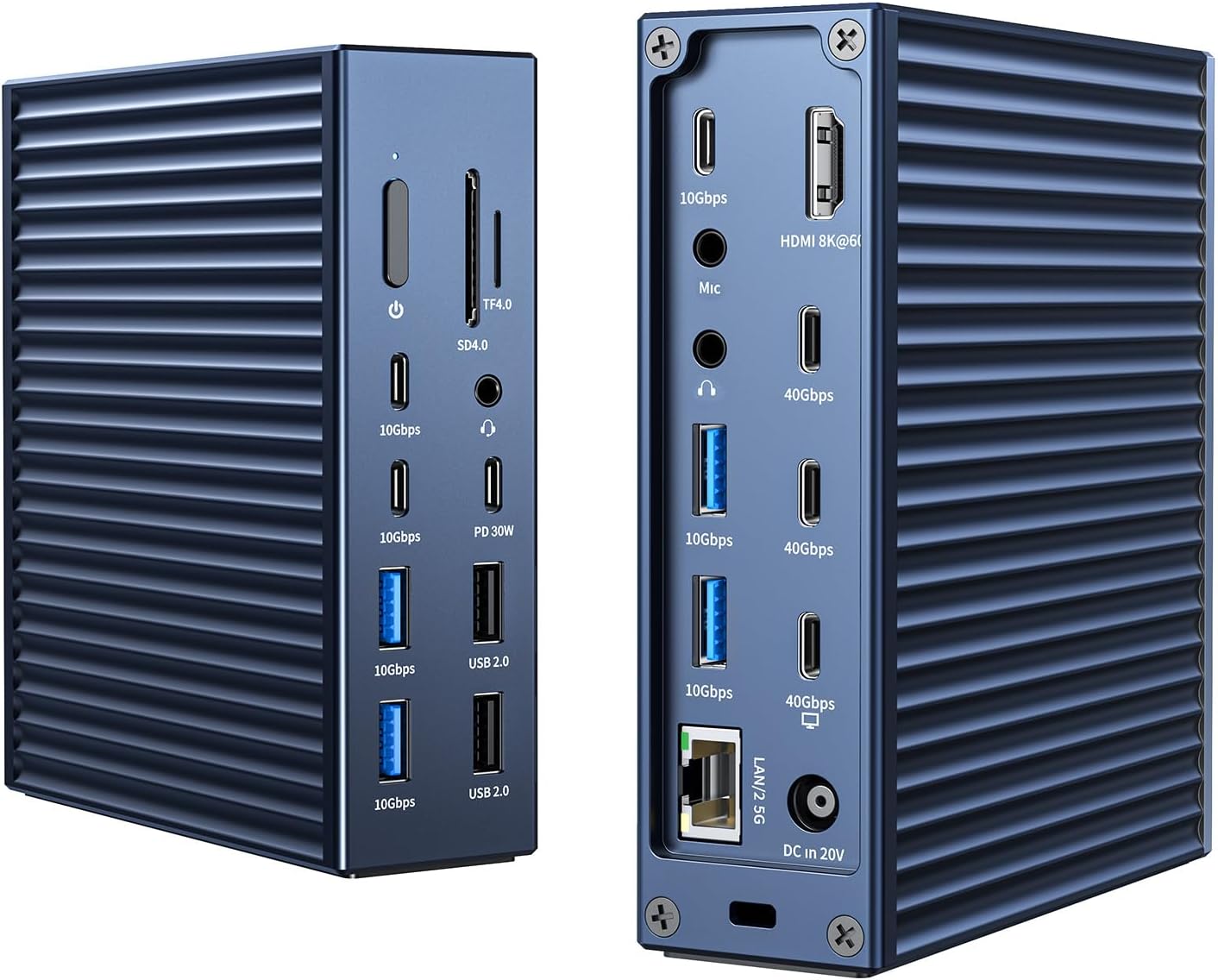
ภาพ: ด้านหน้าและด้านหลัง view of the ACASIS 40Gbps Docking Station, showcasinด้วยการออกแบบที่กะทัดรัดและพอร์ตหลายพอร์ต
3.1 การจัดวางพอร์ตและฟังก์ชันการทำงาน
The docking station provides a wide range of ports for various applications:
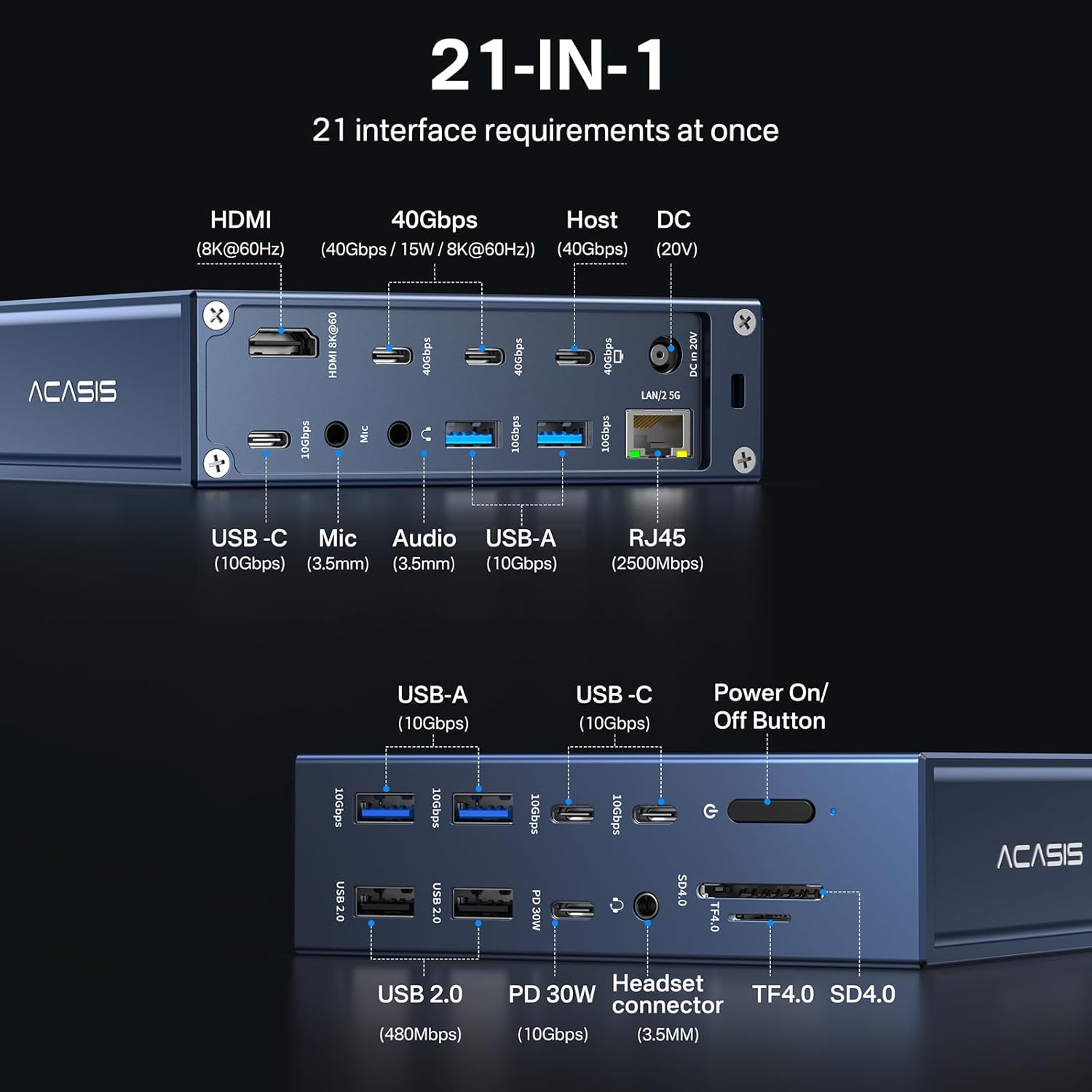
Image: Detailed diagram illustrating the 21 available ports on the ACASIS 40Gbps Docking Station, including USB-C, USB-A, HDMI, Ethernet, and audio jacks.
- 3x Thunderbolt 4 Ports (40Gbps): For ultra-fast data transfer, display output, and power delivery to compatible devices.
- 1x HDMI 2.1 Port (8K@60Hz): เชื่อมต่อกับจอแสดงผลภายนอกเพื่อแสดงผลวิดีโอความละเอียดสูง
- 1x 2.5GbE Ethernet Port: Provides stable and high-speed wired network connectivity.
- SD/TF 4.0 Card Readers: For fast access to memory cards (up to 312MB/s).
- 7x USB 3.2 Gen2 Ports (10Gbps): High-speed USB-C and USB-A ports for connecting peripherals and external storage.
- พอร์ต USB 2.0 จำนวน 2 ช่อง: Standard USB-A ports for connecting keyboards, mice, and other low-bandwidth devices.
- 3x 3.5mm Audio Jacks: Dedicated ports for microphone, headphone, and combo audio.
- DC In 20V Port: For connecting the included 240W power adapter.
- ปุ่มเปิด/ปิด: Controls the power status of the docking station.
4. คู่มือการติดตั้ง
Follow these steps to set up your ACASIS 40Gbps Docking Station:
- เชื่อมต่อพลังงาน: Connect the 240W power adapter to the DC In 20V port on the docking station and then plug the adapter into a wall outlet.
- เชื่อมต่อกับอุปกรณ์โฮสต์: Use the provided Thunderbolt 4 cable to connect the docking station's host port (labeled 'Host' or with a computer icon) to a compatible Thunderbolt 4/3, USB4, or USB-C port on your laptop or computer.
- เชื่อมต่ออุปกรณ์ต่อพ่วง:
- จอแสดงผล: Connect your monitor(s) to the HDMI 2.1 port or the Thunderbolt 4 ports using appropriate cables.
- อุปกรณ์ยูเอสบี: Plug in your USB devices (external drives, keyboards, mice, etc.) into the available USB-C, USB-A 3.2 Gen2, or USB 2.0 ports.
- อีเธอร์เน็ต: Connect an Ethernet cable from your router or modem to the 2.5GbE Ethernet port for wired network access.
- เสียง: Connect your headphones, speakers, or microphone to the 3.5mm audio jacks.
- การ์ด SD/TF: Insert your SD or TF cards into the respective slots for data access.
- เปิดเครื่อง: Press the power button on the docking station to turn it on. Your operating system should automatically detect the connected devices.
Video: A demonstration of connecting the ACASIS 40Gbps Docking Station to a laptop and various peripherals, including power, USB devices, and an external monitor.
5. คู่มือการใช้งาน
5.1 การกำหนดค่าการแสดงผล
แท่นวางอุปกรณ์รองรับการกำหนดค่าจอแสดงผลหลากหลายรูปแบบ:
- Single 8K@60Hz Display: Connect one 8K monitor to the HDMI 2.1 port or a Thunderbolt 4 port for stunning visual clarity.
- Dual 4K@60Hz Displays: Connect two 4K monitors to the available display outputs for extended desktop productivity.
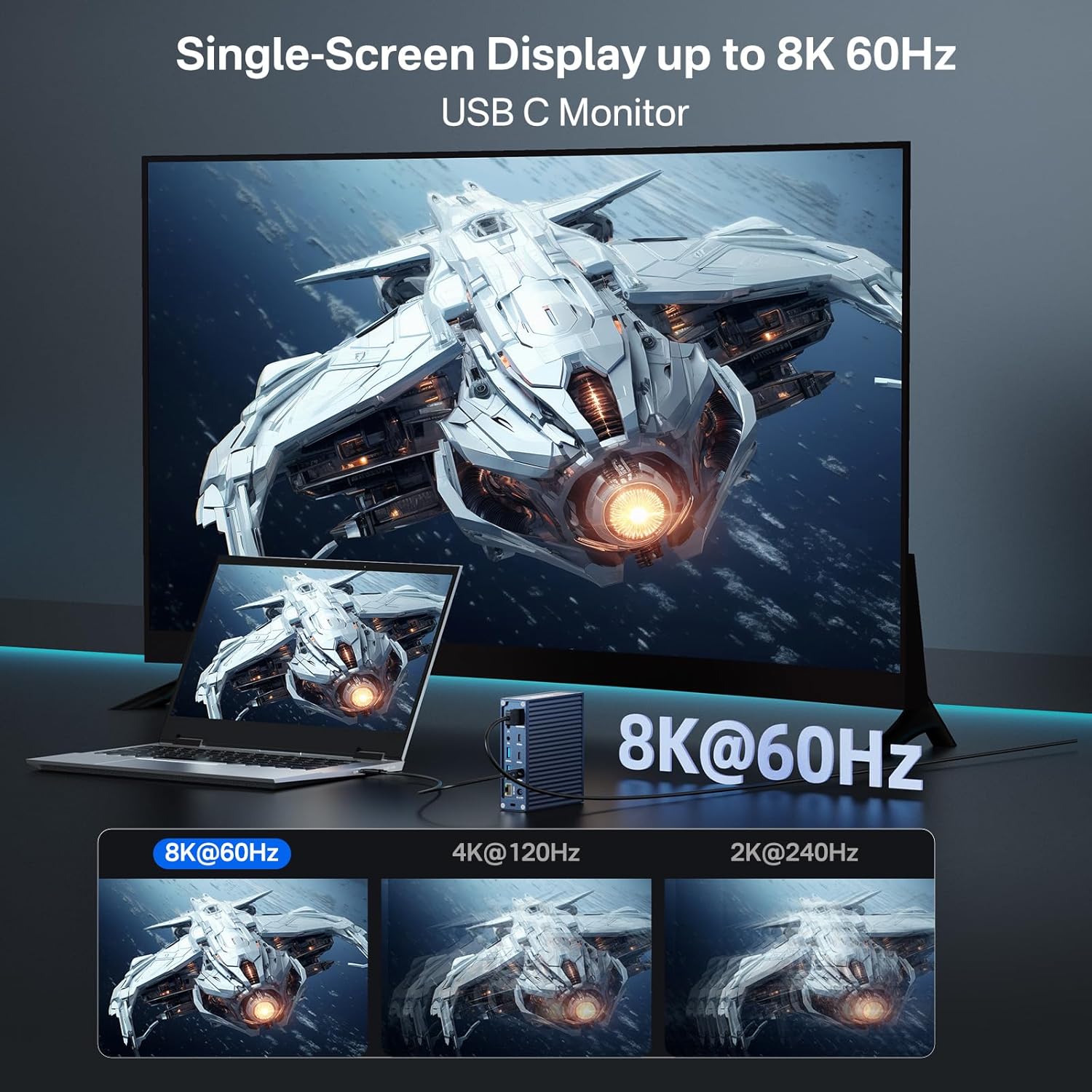
Image: Illustration of a single 8K 60Hz monitor connected to a laptop via the ACASIS docking station, demonstrating high-resolution display capabilities.
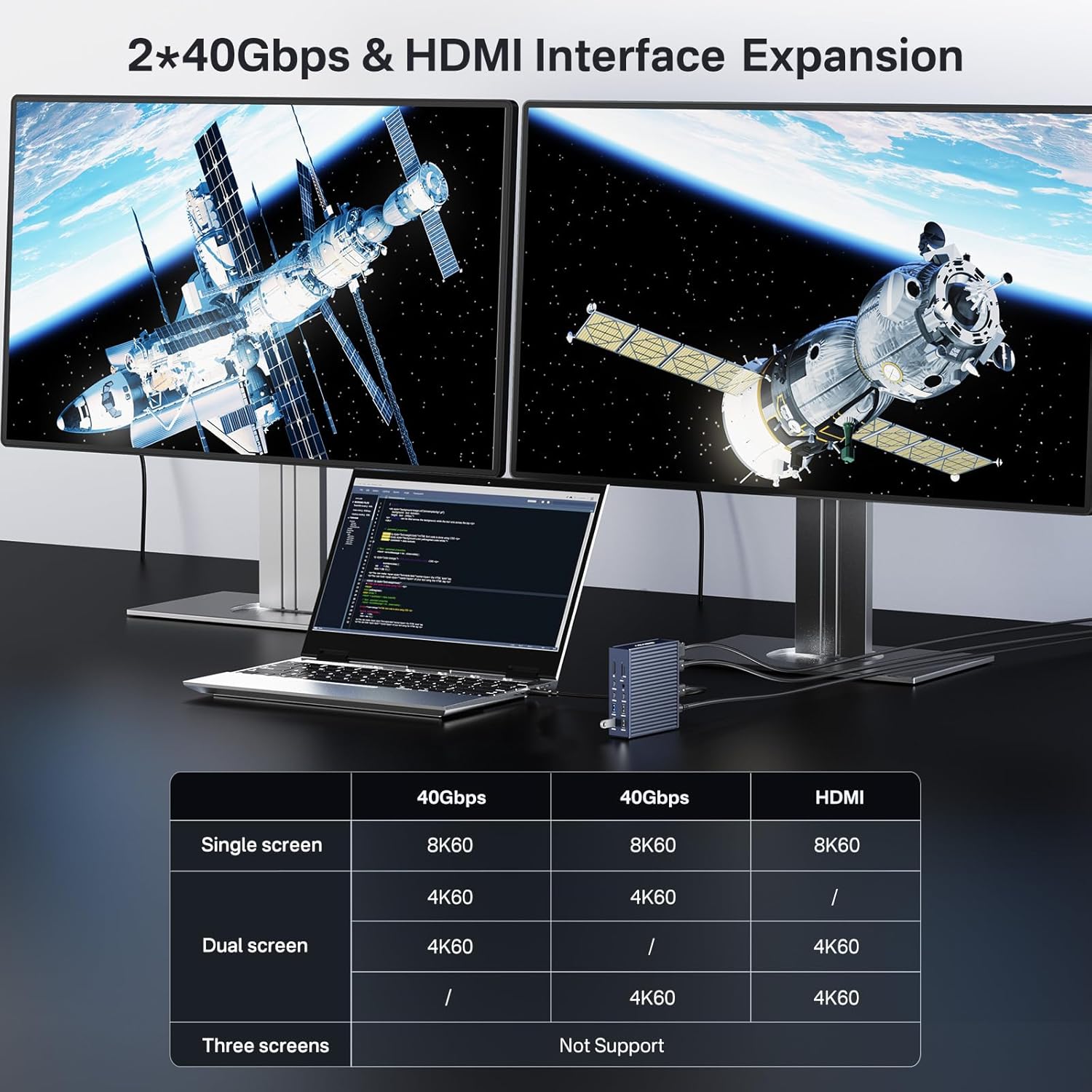
Image: Illustration of a dual 4K 60Hz monitor setup connected to a laptop via the ACASIS docking station, highlighting multi-display support for enhanced productivity.
Note: Display capabilities may vary based on your host device's specifications and operating system. Refer to the compatibility section for details.
5.2 การถ่ายโอนข้อมูล
Leverage the high-speed ports for efficient data transfer:
- 40Gbps Thunderbolt 4 Ports: Ideal for connecting external SSDs, RAID arrays, or other high-bandwidth devices for rapid file การโอนย้าย
- 10Gbps USB 3.2 Gen2 Ports: Suitable for most external storage devices, ensuring quick data access and backup.

Image: Visual representation of the 40Gbps data transfer capability of the ACASIS docking station, showing high read and write speeds for connected devices.
5.3 การจ่ายพลังงาน
The docking station provides power to your host device and connected peripherals:
- การจ่ายพลังงาน 90W (PD): Delivers up to 90W to your connected laptop (e.g., MacBook Pro), ensuring it stays charged during use.
- การชาร์จ 20W: Provides additional charging power for smartphones, tablets, and other smaller devices.
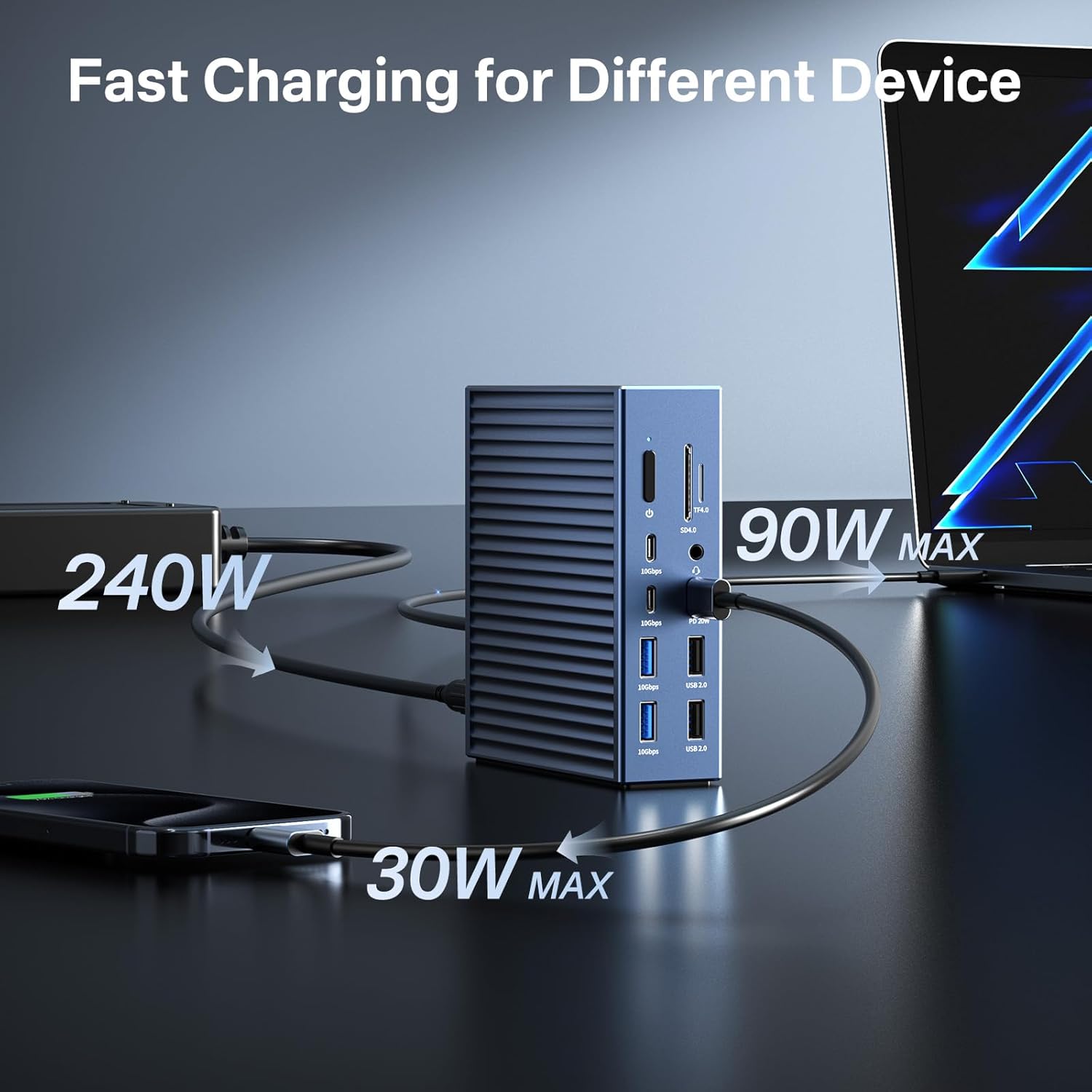
Image: Diagram showing the ACASIS docking station receiving 240W input and delivering 90W to a laptop and 30W to a smartphone, illustrating its fast charging capabilities.
6. ความเข้ากันได้
The ACASIS 40Gbps Docking Station offers broad compatibility with various devices and operating systems:
- อุปกรณ์โฮสต์: Compatible with laptops and devices featuring Thunderbolt 4/3, USB4, and full-function USB-C ports.
- ระบบปฏิบัติการ: Supports Windows 10/11, macOS 11+ (including M1/M2/M3 Apple Silicon and Intel Macs), and Chrome OS.

Image: A visual representation of the wide compatibility of the ACASIS docking station, showing various devices like MacBooks, iPads, Dell XPS, Samsung phones, and operating systems such as Windows, macOS, and Linux.
6.1 หมายเหตุสำคัญเกี่ยวกับความเข้ากันได้
To ensure full functionality, your host device's USB-C port must support Power Delivery, DisplayPort Alt Mode, and Data Transfer. Not all USB-C ports are full-function.

Image: A diagram showing the difference between a full-function Thunderbolt 3/4/5 or USB-C port with DP Alt Mode (compatible) and USB-C ports that only support data transfer or charging (incompatible for full functionality).
For Apple M1/M2/M3 chip Macs, the dock supports a single external display. For Intel Macs or M1 Pro/Max, M2 Pro/Max, M3 Pro/Max Macs, the dock supports dual external displays.

Image: A diagram illustrating the display output capabilities of the docking station with different Apple Mac chipsets, showing single display support for M1/M2/M3 and dual display support for M1 Pro/Max, M2 Pro/Max, M3 Pro/Max, and Intel Macs.
7. การบำรุงรักษาและการดูแล
เพื่อให้มั่นใจได้ว่าแท่นวางอุปกรณ์ของคุณจะมีอายุการใช้งานยาวนานและทำงานได้อย่างมีประสิทธิภาพสูงสุด โปรดปฏิบัติตามคำแนะนำเหล่านี้:
- การทำความสะอาด: ใช้ผ้านุ่มและแห้งเช็ดทำความสะอาดภายนอกของแท่นวาง หลีกเลี่ยงการใช้น้ำยาทำความสะอาดหรือสเปรย์
- การระบายอากาศ : ตรวจสอบให้แน่ใจว่าแท่นวางอยู่ในบริเวณที่มีอากาศถ่ายเทสะดวกเพื่อป้องกันความร้อนสูงเกินไป อย่าปิดกั้นช่องระบายอากาศ
- พื้นที่จัดเก็บ: When not in use for extended periods, disconnect the power adapter and store the docking station in a cool, dry place.
- การจัดการ: ควรหลีกเลี่ยงการทำแท่นชาร์จตกหรือกระแทกอย่างแรง
8 การแก้ไขปัญหา
If you encounter issues with your ACASIS 40Gbps Docking Station, refer to the common problems and solutions below:
- ไม่มีการแสดงผล:
- Ensure the docking station is powered on and properly connected to your host device.
- Verify that your monitor cables are securely connected to both the docking station and the monitor.
- Check your host device's display settings to ensure the external display is detected and configured correctly (e.g., extended or mirrored mode).
- Confirm your host device's USB-C port supports DisplayPort Alt Mode.
- ไม่มีระบบจ่ายไฟให้กับแล็ปท็อป:
- ตรวจสอบให้แน่ใจว่าอะแดปเตอร์แปลงไฟ 240W เชื่อมต่อกับแท่นวางและเต้ารับไฟฟ้าที่ใช้งานได้แน่นหนาแล้ว
- ตรวจสอบให้แน่ใจว่าพอร์ต USB-C ของอุปกรณ์โฮสต์ของคุณรองรับ Power Delivery
- Check if your laptop requires more than 90W input, as this may lead to unstable charging.
- USB Devices Not Recognized or Slow Speeds:
- ลองเสียบอุปกรณ์ USB เข้ากับพอร์ตอื่นบนแท่นวางดู
- Ensure the device drivers are up to date on your host computer.
- If using a high-bandwidth device, ensure it is connected to a 10Gbps or 40Gbps port.
- ปัญหาการเชื่อมต่ออีเทอร์เน็ต:
- ตรวจสอบการเชื่อมต่อสายเคเบิลอีเทอร์เน็ตที่ปลายทั้งสองด้าน
- ตรวจสอบการตั้งค่าเครือข่ายบนอุปกรณ์โฮสต์ของคุณ
- รีสตาร์ทเราเตอร์/โมเด็มและแท่นวางเชื่อมต่อ
9. ข้อมูลจำเพาะ
| คุณสมบัติ | ข้อมูลจำเพาะ |
|---|---|
| แบบอย่าง | B0F6TMJNTG |
| พอร์ตทั้งหมด | 21 |
| พอร์ต Thunderbolt 4 | 3x (40Gbps) |
| พอร์ต USB 3.2 Gen2 | 7x (10Gbps, USB-C/A) |
| พอร์ต USB 2.0 | 2x |
| พอร์ต HDMI | 1x (8K@60Hz) |
| พอร์ตอีเทอร์เน็ต | 1x (2.5GbE) |
| เครื่องอ่านการ์ด | SD/TF 4.0 (312MB/s) |
| แจ็คเสียง | 3x (3.5mm Mic, Headphone, Combo) |
| การจ่ายพลังงานไปยังโฮสต์ | สูงสุดถึง 90W |
| อะแดปเตอร์แปลงไฟ | 240วัตต์ |
| ขนาด | 8.54 x 7.4 x 3.9 นิ้ว |
| น้ำหนัก | 3.72 ปอนด์ |
10. การรับประกันและการสนับสนุน
ACASIS products are designed for reliability and performance. For warranty information, technical support, or any inquiries regarding your ACASIS 40Gbps Docking Station, please refer to the official ACASIS website or contact customer support through your purchase platform. Keep your proof of purchase for warranty claims.