
1. บทนำ
The MAONO DM40 Wireless USB Microphone is designed for high-quality audio capture in various scenarios, including gaming, streaming, podcasting, and recording. It offers both wired and wireless connectivity, advanced noise cancellation, AI voice changing capabilities, and customizable RGB lighting to enhance your audio experience.
2. เนื้อหาบรรจุภัณฑ์
กรุณาทำเครื่องหมายในช่องสำหรับรายการต่อไปนี้:
- ไมโครโฟนเกมมิ่ง DM40 พร้อมขาตั้งฐาน ตัวยึดกันกระแทก และตัวกรองเสียงป๊อป
- ขั้วต่อ USB-C
- อะแดปเตอร์ USB-A
- สายไฟ 2 in 1 (ยาว 3.3 ฟุต)
- คู่มือการใช้งาน

Image: All components included in the MAONO DM40 Wireless USB Microphone package.
Video: Unboxing and initial setup of the MAONO DM40 Wireless USB Microphone, demonstrating how to unpack and identify all included accessories.
3. สินค้าหมดview และคุณสมบัติ
- การเชื่อมต่อไร้สายทันที: Experience clear, interference-free audio with up to 40 hours of continuous use. The wireless design eliminates cable clutter, offering greater freedom of movement for gaming, streaming, or recording.
- ระบบตัดเสียงรบกวนแบบแตะครั้งเดียว: Features a one-touch button with three adjustable levels (light, medium, high) for precise and efficient noise reduction. This can also be controlled via the Maono Link app, ensuring clear audio in various environments.
- คุณภาพเสียงระดับ CD ที่เหนือกว่า: Captures rich audio details with a 24-bit/48kHz sampling rate, minimizing background noise and distortion for professional-grade recordings. Includes one-tap scene presets for quick optimization across different scenarios.
- การเปลี่ยนเสียงด้วย AI: Unlock creative possibilities with the AI voice-changing feature available through the Maono Link app. Transform your voice into various characters for gaming, live streaming, or chatting.
- ควบคุมและตรวจสอบได้ง่าย: Manage recording needs with the Maono Link software, offering control over EQ settings, AI voice changers, noise cancellation, volume, gain, mute, real-time monitoring, and RGB lighting.
- เสียบปลั๊กใช้งานได้ทันที และใช้งานร่วมกับอุปกรณ์ได้หลากหลาย: Connects effortlessly to computers, PCs, laptops, phones, and Macs via the 2-in-1 USB-C cable or wireless USB-C dongle. Supports flexible switching between wired and wireless modes for diverse recording needs.
- แสง RGB ที่น่าทึ่ง: Customize your setup with 3 modes and 8 vibrant colors. The lighting can shift to match activity, enhancing the visual atmosphere during streaming or gaming.
- ทรงพลังและใช้งานง่าย: Features one-touch mute, gain adjustment, and zero-latency monitoring for full control over your sound.

Image: The MAONO DM40 microphone highlighting its wireless freedom and extended battery life.

Image: Illustration of the AI voice changer feature with various character options.
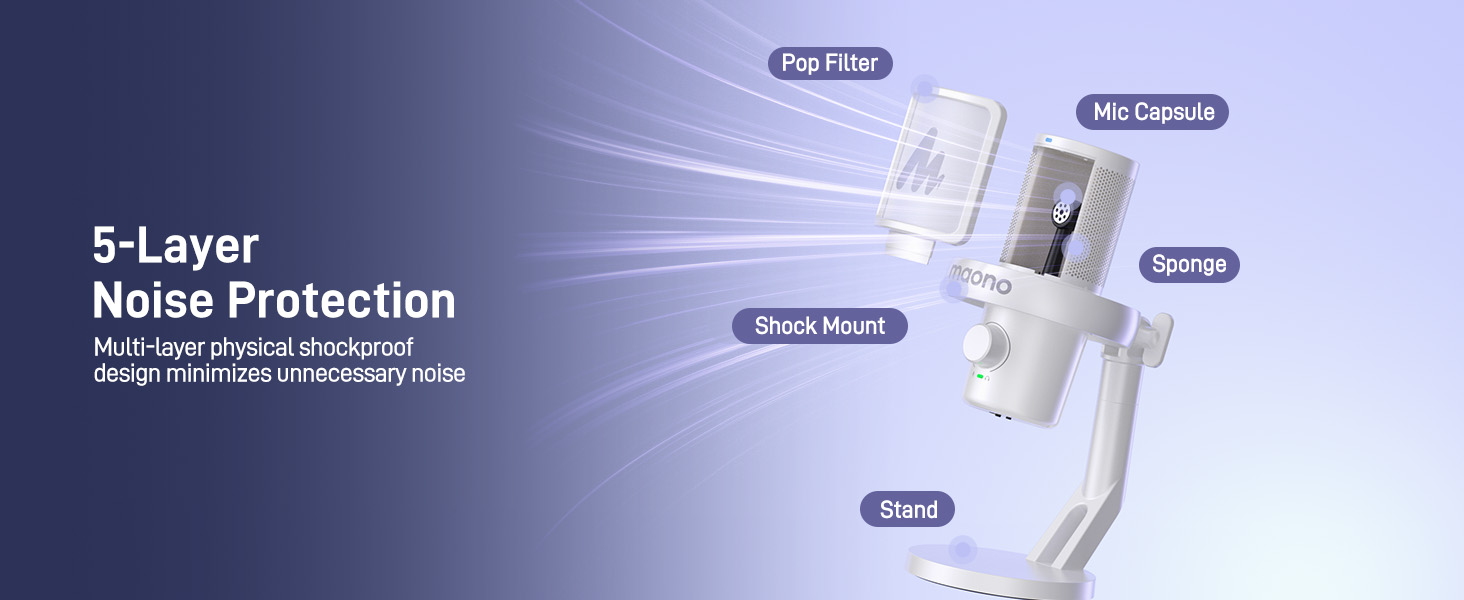
Image: Diagram illustrating the 5-layer noise protection technology of the MAONO DM40 microphone.
4. การตั้งค่า
4.1 Desktop Setup
The DM40 microphone comes with a pre-assembled desktop stand, shock mount, and pop filter. Simply place it on your desk for immediate use. No additional installation is required for the desktop model.

Image: MAONO DM40 microphone securely placed on its desktop stand.
4.2 Boom Arm Setup (Optional)
If you prefer to use a boom arm (not included), follow these steps:
- Fix the desktop clamp of your boom arm to the edge of your desk.
- Mount the cantilever bracket onto the clamp และขันสกรูให้แน่น
- ติดตั้งไมโครโฟน DM40 เข้ากับขาตั้งไมโครโฟนแบบแขนยื่น
4.3 การเชื่อมต่อแบบมีสาย
Connect the microphone to your computer, laptop, or smartphone using the provided 2-in-1 USB-C cable. If your computer only has USB-A ports, use the included USB-A adapter.

Image: MAONO DM40 microphone connected to a device using the USB-C cable.
4.4 การเชื่อมต่อไร้สาย
Plug the wireless USB-C dongle into your computer or smartphone. The DM40 microphone will automatically pair and connect with the receiver. The receiver also features a charging port to charge your smartphone simultaneously.

Image: MAONO DM40 microphone demonstrating wireless connection via USB-C dongle to a laptop.
5. คู่มือการใช้งาน
5.1 Power Button & RGB Control
Press and hold the power button to turn the microphone on or off. Once on, short press the power button to cycle through the various RGB lighting modes. The DM40 will automatically pair with the receiver when powered on.

Image: Close-up of the MAONO DM40 microphone's power and RGB control buttons.
5.2 ปุ่มปรับระดับเสียงไมโครโฟนและหูฟัง
The knob on the microphone controls both microphone gain and headphone volume. The green indicator light signifies microphone gain adjustment. Rotate the knob to increase or decrease the microphone gain. The light will flash when reaching maximum or minimum gain. A short press on the knob switches to headphone volume adjustment, indicated by a blue light. Rotate the knob to adjust headphone volume. The light will flash when reaching maximum or minimum volume.

ภาพ: รายละเอียด view of the MAONO DM40 microphone's multi-function knob for gain and headphone volume.
5.3 ปุ่มปิดเสียง
Tap the mute button on top of the microphone to instantly mute or unmute. When muted, the indicator light turns red.
5.4 ปุ่มตัดเสียงรบกวน
Tap the noise cancellation button on top to cycle through three noise reduction levels: low, medium, and high. A green indicator light signifies custom noise cancellation, allowing you to define the noise reduction level using the Maono Link software. No light indicates noise cancellation is turned off.
5.5 Headphone Jack & Monitor Switch
The 3.5mm headphone jack is compatible with TRS and TRRS headphones. Once headphones are plugged in, you can monitor the audio captured by the microphone as well as the sound played by your device. Use the microphone monitor switch to turn off direct monitoring of your own voice if desired; this will not affect hearing sound from your phone or computer.
5.6 Maono Link Software
The Maono Link software (compatible with Mac OS and Windows) provides advanced control over your microphone settings, including:
- การตั้งค่า EQ แบบกำหนดเอง
- AI Voice Changer effects
- Adjustable noise cancellation intensity
- Volume and gain control
- One-tap scene presets for various applications (gaming, recording, podcasting)
- Controllable RGB lighting

Image: Screenshot of the Maono Link software interface, showing various customization options for the DM40 microphone.
วิดีโอ: จบแล้วview of the DM40 AI Wireless/USB Microphones, demonstrating key features and software integration.
6. การบำรุงรักษา
To ensure the longevity and optimal performance of your MAONO DM40 microphone, please follow these maintenance guidelines:
- รักษาไมโครโฟนให้สะอาดโดยเช็ดเบาๆ ด้วยผ้าแห้งนุ่ม
- หลีกเลี่ยงการให้ไมโครโฟนสัมผัสกับอุณหภูมิที่สูงหรือความชื้นสูงหรือแสงแดดโดยตรง
- Do not disassemble the microphone, as this may void the warranty.
- ควรเก็บไมโครโฟนไว้ในที่ปลอดภัยเมื่อไม่ได้ใช้งานเพื่อป้องกันความเสียหาย
7 การแก้ไขปัญหา
If you encounter any issues with your MAONO DM40 microphone, please refer to the following common troubleshooting tips:
- ไม่มีเสียงออก: Ensure the microphone is properly connected (wired or wireless dongle) and powered on. Check your device's audio input settings to confirm the DM40 is selected as the default input device. Verify microphone gain is not set to minimum.
- คุณภาพเสียงไม่ดี: Adjust the microphone gain to an appropriate level. Ensure the pop filter is correctly positioned to reduce plosives. Experiment with different noise cancellation levels or use the Maono Link app for custom settings.
- ปัญหาการเชื่อมต่อไร้สาย: Ensure the wireless USB-C dongle is securely plugged in and within range. Restart both the microphone and your device.
- ไฟ RGB ไม่ทำงาน: Short press the power button to cycle through RGB modes. If the issue persists, check settings in the Maono Link app.
- Maono Link App Not Recognizing Microphone: Ensure the microphone is connected to your computer via USB and powered on. Restart the app and/or your computer.
For further assistance, please contact MAONO customer support.
8. ข้อมูลจำเพาะ
| ยี่ห้อ | เมาโน |
| ชื่อรุ่น | DM40 Wireless Microphone |
| เทคโนโลยีการเชื่อมต่อ | ไร้สาย USB/USB C |
| ประเภทขั้วต่อ | ไร้สาย USB/USB C |
| คุณสมบัติพิเศษ | 3-Level Noise Reduction, Battery Indicator Light, 40H Long Battery Life, MAONO Link Software, AI Voice Changer, Adjustable RGB, One-tap Mute, Gain Knob, 3.5mm Headphone Jack, Volume Control, Custom EQ, Scene Presets, Mute Function, Wireless Connection, Plug and Play |
| อุปกรณ์ที่รองรับ | แล็ปท็อป, พีซี, แท็บเล็ต, คอมพิวเตอร์ตั้งโต๊ะ, สมาร์ทโฟน, เครื่องบันทึกเสียง, คอมพิวเตอร์ส่วนบุคคล, เครื่องเล่นเกม PS5 PS4 |
| สี | สีขาว |
| รูปแบบขั้ว | ทิศทางเดียว |
| ความไวเสียง | 73 เดซิเบล |
| แหล่งพลังงาน | ใช้พลังงานจากแบตเตอรี่ ไฟฟ้าแบบมีสาย |
| อัตราส่วนสัญญาณต่อเสียงรบกวน | 73 เดซิเบล |
| การตอบสนองความถี่ | 20เฮิรตซ์-20กิโลเฮิรตซ์ |
| วัสดุของตู้หุ้ม | โลหะ, พลาสติก |
9. การรับประกันและการสนับสนุน
The MAONO DM40 Wireless USB Microphone comes with a 12-month warranty.
For product or software questions, please contact us at support@maono.com.
Video: An unboxing video for the MAONO DM40 Pro Wireless Microphone, providing a visual guide to the product and its components.