
1. บทนำ
Welcome to the user manual for your new ASUS ROG Strix SCAR 16 G635LX-RW158WS gaming laptop. This document provides essential information for setting up, operating, maintaining, and troubleshooting your device. The ROG Strix SCAR 16 is engineered for high-performance gaming, featuring an Intel Core Ultra 9 processor, NVIDIA GeForce RTX 5090 graphics, and a high-refresh-rate display.

Figure 1.1: The ASUS ROG Strix SCAR 16 Gaming Laptop.
2. อะไรอยู่ในกล่อง
Upon unboxing your ASUS ROG Strix SCAR 16, please verify that all the following items are included:
- ASUS ROG Strix SCAR 16 Gaming Laptop
- อะแดปเตอร์แปลงไฟ
- คู่มือการใช้งาน (เอกสารนี้)
- เอกสารการรับประกัน
3. สินค้าหมดview
The ASUS ROG Strix SCAR 16 is designed for peak gaming performance and productivity. Key features include:
- โปรเซสเซอร์: Intel Core Ultra 9 275HX with Intel AI Boost NPU
- กราฟิก: NVIDIA GeForce RTX 5090 Laptop GPU with 24GB GDDR7 RAM
- แสดง: 16-inch, 2.5K (2560 x 1600) WQXGA, 240Hz Refresh Rate, 1200nits Brightness ROG Nebula HDR Display
- หน่วยความจำ: แรม DDR32 5GB
- พื้นที่จัดเก็บ: 2TB PCIe 4.0 NVMe M.2 Performance SSD
- การระบายความร้อน: ROG Intelligent Cooling with Vapor Chamber, Sandwiched Heatsink, Tri-Fan Technology, and Conductonaut Extreme Liquid Metal
- แป้นพิมพ์: Backlit Chiclet Keyboard Per-Key RGB with Copilot key and Touchpad-based NumberPad
- การเชื่อมต่อ: Wi-Fi 7, 2.5G LAN, Thunderbolt 5, HDMI 2.1, USB 3.2 Gen2 Type-A
- เสียง: ปราดเปรื่อง Amp Technology, 5.1.2 Channel Virtual Surround Sound, Two-Way AI Noise Cancelation
3.1 ส่วนประกอบหลัก

รูปที่ 3.1: เกินview of the laptop's core specifications.
3.2 ระบบทำความเย็น
The ROG Intelligent Cooling system ensures optimal thermal performance, even during intense gaming sessions. It features an end-to-end Vapor Chamber, a sandwiched heatsink design, Tri-Fan Technology, and Conductonaut Extreme Liquid Metal for efficient heat dissipation.

Figure 3.2: ROG Intelligent Cooling system components.
3.3 เทคโนโลยีการแสดงผล
Experience stunning visuals with the ROG Nebula HDR display. This 16-inch Mini LED panel offers over 2000 dimming zones, 1200 nits peak brightness, a 240Hz refresh rate with 3ms response time, and 100% DCI-P3 color gamut coverage. It supports Dolby Vision, NVIDIA G-SYNC, and is VESA Certified DisplayHDR 1000.

Figure 3.3: ROG Nebula HDR Display specifications.
3.4 การเชื่อมต่อและพอร์ต
The laptop offers comprehensive connectivity options for all your peripherals and networking needs, including Wi-Fi 7, 2.5G Ethernet, Thunderbolt 5, HDMI 2.1, and multiple USB ports.

Figure 3.4: Port layout and connectivity options.
3.5 ระบบเสียง
Enjoy immersive audio with Smart Amp Technology, 5.1.2 Channel Virtual Surround Sound, and Two-Way AI Noise Cancelation for clear communication.

Figure 3.5: Studio-quality sound features.
3.6 คีย์บอร์ดและทัชแพด
The full-size Chiclet keyboard features Per-Key RGB backlighting, dedicated gaming hotkeys, and a touchpad with an integrated NumberPad for enhanced functionality.

Figure 3.6: Keyboard and touchpad with NumberPad.
3.7 ความสามารถในการอัปเกรด
The laptop features a tool-less access design, allowing for easy upgrades. It supports up to 64GB 5600MHz DDR5 memory and up to 4TB PCIe 4.0 storage in RAID 0 configuration.
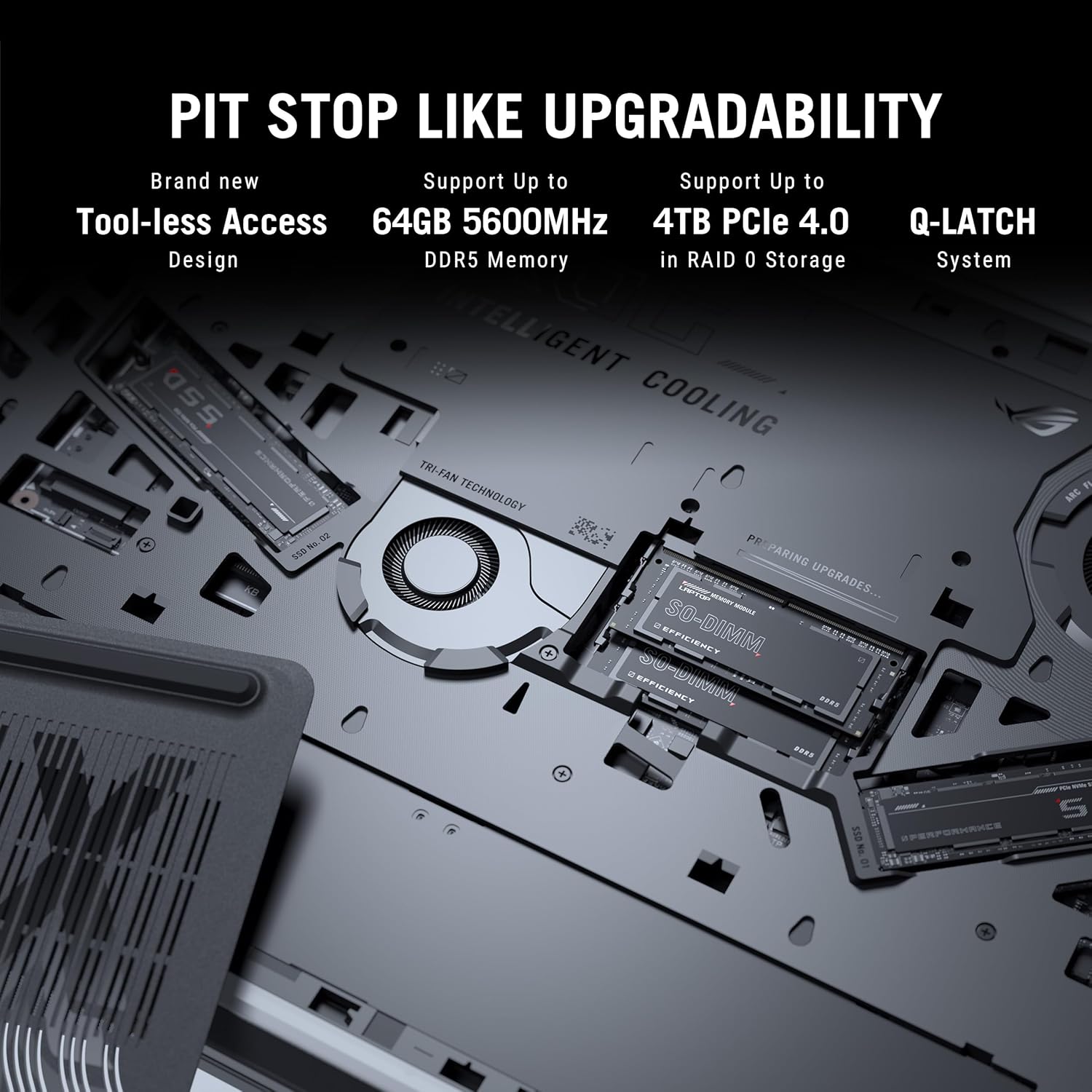
Figure 3.7: Internal components for upgradability.
4. การตั้งค่า
4.1 การเปิดเครื่องครั้งแรก
- เชื่อมต่อพลังงาน: Plug the power adaptor into the laptop's power port and then into a wall outlet. Ensure the power indicator light illuminates.
- Open Display: Carefully open the laptop display to a comfortable viewมุมอิง
- เปิดเครื่อง: กดปุ่มเปิด/ปิด ซึ่งโดยปกติจะอยู่ทางด้านบนขวาของแผงแป้นพิมพ์
- ตั้งค่าเริ่มต้น: ปฏิบัติตามคำแนะนำบนหน้าจอเพื่อดำเนินการตั้งค่า Windows 11 Home ให้เสร็จสิ้น รวมถึงการเลือกภาษา การเชื่อมต่อเครือข่าย และการสร้างบัญชีผู้ใช้
4.2 การเชื่อมต่ออุปกรณ์ต่อพ่วง
Connect external devices such as a mouse, keyboard, external display, or storage devices to the available USB, HDMI, or Thunderbolt ports as needed.
5. คู่มือการใช้งาน
5.1 การจัดการพลังงาน
- โหมดสลีป: Close the lid or press the power button briefly to enter sleep mode.
- ปิดระบบ: คลิกปุ่มเริ่ม จากนั้นคลิกเปิด/ปิดเครื่อง > ปิดเครื่อง
- เริ่มต้นใหม่อีกครั้ง: คลิกปุ่มเริ่ม จากนั้นคลิกเปิด/ปิดเครื่อง > เริ่มระบบใหม่
5.2 ฟังก์ชั่นคีย์บอร์ด
ใช้ปุ่มฟังก์ชัน (F1-F12) ร่วมกับ Fn key for quick access to system controls such as volume, brightness, and wireless settings. The dedicated gaming hotkeys provide quick access to performance modes and other ROG-specific features.
5.3 การตั้งค่าการแสดงผล
Adjust display settings through Windows Settings or the NVIDIA Control Panel for optimal gaming and visual experience. You can configure refresh rate, resolution, and color profiles.
6. การบำรุงรักษา
6.1 การทำความสะอาด
- หน้าจอ: ใช้ผ้านุ่มไม่เป็นขุยค่อยๆ งampล้างออกด้วยน้ำหรือน้ำยาทำความสะอาดหน้าจอ หลีกเลี่ยงสารเคมีรุนแรง
- แป้นพิมพ์และตัวเครื่อง: ใช้แปรงขนนุ่มหรือลมเป่าเพื่อกำจัดฝุ่น เช็ดพื้นผิวด้วยผ้าที่เปียกหมาดๆamp ผ้า.
- ช่องระบายอากาศ: Regularly clean the cooling vents with compressed air to prevent dust buildup and maintain airflow.
6.2 การดูแลแบตเตอรี่
- หลีกเลี่ยงการปล่อยแบตเตอรี่จนหมดบ่อยครั้ง
- เก็บแล็ปท็อปไว้ในที่แห้งและเย็นหากไม่ได้ใช้งานเป็นเวลานาน
- For optimal battery longevity, consider using battery health management features available in ASUS software.
6.3 การอัปเดตซอฟต์แวร์
Regularly update your operating system, drivers (especially graphics drivers), and ASUS utilities to ensure optimal performance, security, and compatibility.
7 การแก้ไขปัญหา
ส่วนนี้กล่าวถึงปัญหาทั่วไปที่คุณอาจพบเจอ สำหรับปัญหาที่ซับซ้อนกว่านี้ โปรดติดต่อฝ่ายสนับสนุนของ ASUS webเว็บไซต์หรือติดต่อฝ่ายบริการลูกค้า
7.1 ปัญหาพลังงาน
- โน๊ตบุ๊คเปิดไม่ติด: Ensure the power adaptor is securely connected to both the laptop and a working power outlet. Check if the power adaptor's LED is lit. Try a different outlet.
- ไม่ชาร์จแบตเตอรี่: Verify the power adaptor connection. Check for any physical damage to the adaptor or charging port.
7.2 ปัญหาการแสดงผล
- ไม่มีการแสดงผลบนหน้าจอ: Connect an external monitor to check if the issue is with the laptop's internal display. Ensure the display cable (if external) is properly connected. Try pressing Fn+F8 (หรือปุ่มสลับการแสดงผลที่เกี่ยวข้อง) เพื่อสลับการแสดงผล
- จอภาพกระพริบหรือบิดเบี้ยว: อัปเดตไดรเวอร์การ์ดจอ ตรวจสอบการเชื่อมต่อสายเคเบิลจอแสดงผลหากใช้จอภาพภายนอก
7.3 ปัญหาประสิทธิภาพการทำงาน
- ประสิทธิภาพช้า: Close unnecessary applications. Check for background processes consuming high CPU/RAM. Ensure adequate ventilation and clean cooling vents. Update drivers.
- ความร้อนสูงเกินไป: Ensure the laptop is on a hard, flat surface to allow proper airflow. Clean the cooling vents. Consider using a laptop cooling pad.
8. ข้อมูลจำเพาะ
Detailed technical specifications for the ASUS ROG Strix SCAR 16 G635LX-RW158WS.
| คุณสมบัติ | ข้อมูลจำเพาะ |
|---|---|
| ยี่ห้อ | เอซุส |
| ชื่อรุ่น | ROG Strix SCAR 16 |
| หมายเลขรุ่น | G635LX-RW158WS |
| โปรเซสเซอร์ | Intel Core Ultra 9 275HX (2.7 GHz, up to 5.4 GHz, 24 cores, 24 Threads) |
| กราฟฟิก | NVIDIA GeForce RTX 5090 Laptop GPU, 24GB GDDR7 RAM |
| แสดง | 16-inch, 2.5K (2560 x 1600) WQXGA, 16:10, 240Hz, 1200nits, ROG Nebula HDR |
| หน่วยความจำ | 32GB DDR5 RAM (Max 64GB) |
| พื้นที่จัดเก็บ | 2TB PCIe 4.0 NVMe M.2 Performance SSD |
| ระบบปฏิบัติการ | วินโดวส์ 11 โฮม |
| แป้นพิมพ์ | Backlit Chiclet Keyboard Per-Key RGB, Copilot key |
| Webลูกเบี้ยว | กล้อง IR 1080P FHD สำหรับ Windows Hello |
| การเชื่อมต่อแบบไร้สาย | Wi-Fi 7 (802.11.be), Bluetooth |
| พอร์ต | Thunderbolt 5 (USB Type-C), HDMI 2.1, USB 3.2 Gen2 Type-A, 2.5G Ethernet, Audio Jack |
| แบตเตอรี่ | 90 Watt Hours Lithium Ion |
| ขนาด (ยาว x กว้าง x หนา) | 35.4L x 26.8W x 2.3Th Centimeters |
| น้ำหนักสินค้า | 2.8 กิโลกรัม |
9. การรับประกันและการสนับสนุน
9.1 ข้อมูลการรับประกัน
This genuine ASUS laptop comes with a 1-year Global Warranty and Onsite Domestic Warranty from ASUS, covering manufacturing defects. Physical damage is not covered. To activate your warranty, please register on the ASUS brand webเว็บไซต์.
9.2 การสนับสนุนลูกค้า
For product-related queries or immediate assistance, you can contact ASUS customer support:
- หมายเลขโทรศัพท์ฟรี: 18002090365 (Monday - Saturday, 09:00 AM - 06:00 PM)
- อีเมล: rc_india@asus.com
- การสนับสนุนทางออนไลน์: เยี่ยมชมฝ่ายสนับสนุน ASUS อย่างเป็นทางการ website for service centers and further assistance: www.asus.com/in/support

Figure 9.1: ASUS 4A Guarantee and support contact details.
10. หมายเหตุสำคัญ
ไม่มีวิดีโอผลิตภัณฑ์อย่างเป็นทางการในข้อมูลที่ให้มาสำหรับการฝังในคู่มือนี้