
1. บทนำ
This manual provides essential information for the safe and efficient use of your BOOX Go 7 ePaper Tablet. Please read it thoroughly before operating the device and retain it for future reference.

Figure 1.1: BOOX Go 7 ePaper Tablet
2. ข้อมูลด้านความปลอดภัย
- อย่าให้เครื่องสัมผัสกับอุณหภูมิที่สูงหรือต่ำเกินไป แสงแดดโดยตรง หรือความชื้นสูง
- หลีกเลี่ยงการทำอุปกรณ์หล่นหรือกระแทกอย่างรุนแรง
- ใช้เฉพาะสาย USB ที่ให้มาในการชาร์จ
- Keep the device away from water and liquids, despite its water-repellent features.
- อย่าพยายามถอดประกอบหรือซ่อมแซมอุปกรณ์ด้วยตนเอง โปรดติดต่อเจ้าหน้าที่บริการที่ได้รับอนุญาต
3. เนื้อหาบรรจุภัณฑ์
ตรวจสอบว่ามีรายการทั้งหมดอยู่ในแพ็คเกจ:
- BOOX Go 7 ePaper Tablet
- สาย USB
- คู่มือเริ่มต้นใช้งานฉบับย่อ (อาจแตกต่างกันไปตามแต่ละภูมิภาค)

Figure 3.1: BOOX Go 7 Package Contents
4. อุปกรณ์โอเวอร์view
4.1 ส่วนประกอบทางกายภาพ
Familiarize yourself with the main components of your BOOX Go 7 tablet:
- E Ink Screen: 7-inch monochrome display with 300 ppi resolution.
- ไฟหน้า: Adjustable illumination for reading in various lighting conditions.
- Page-Turn Buttons: Ergonomically designed buttons for easy navigation.
- พอร์ต USB-C: สำหรับการชาร์จและถ่ายโอนข้อมูล
- ปุ่มเปิด/ปิด: ตั้งอยู่บริเวณขอบด้านบน
- ไมโครโฟนในตัว: สำหรับอินพุตเสียง
- ลำโพงคู่ในตัว: สำหรับเอาต์พุตเสียง

Figure 4.1: Page-Turn Buttons and Water-Repellent Protection
5. การตั้งค่า
5.1 การชาร์จเริ่มต้น
Before first use, fully charge your BOOX Go 7 tablet. Connect the provided USB-C cable to the device and a compatible power adapter (not included) or a computer's USB port. The charging indicator will show the charging status.
5.2 เปิด/ปิดเครื่อง
- การเปิดเครื่อง: Press and hold the Power button until the BOOX logo appears.
- วิธีปิดเครื่อง: กดปุ่มเปิด/ปิดค้างไว้ จากนั้นเลือก "ปิดเครื่อง" จากตัวเลือกบนหน้าจอ
- วิธีเข้า/ออกการนอนหลับ: กดปุ่มเปิดปิดสั้นๆ
5.3 การเชื่อมต่อเครือข่าย (Wi-Fi)
- จากหน้าจอหลัก ให้ปัดลงจากด้านบนเพื่อเข้าถึงแผงการตั้งค่าด่วน
- แตะไอคอน Wi-Fi เพื่อเปิดใช้งาน Wi-Fi
- แตะค้างที่ไอคอน Wi-Fi เพื่อเปิดการตั้งค่า Wi-Fi
- เลือกเครือข่ายที่คุณต้องการจากรายการและป้อนรหัสผ่านหากได้รับแจ้ง
- เมื่อเชื่อมต่อสำเร็จแล้ว ไอคอน Wi-Fi จะแสดงว่าเชื่อมต่อสำเร็จ
6. คู่มือการใช้งาน
6.1 การนำทางพื้นฐาน
- หน้าจอสัมผัส: Tap, swipe, and pinch to navigate menus, open applications, and interact with content.
- Page-Turn Buttons: Use the physical buttons on the side to turn pages in documents and books.
6.2 Reading Documents and Books
The BOOX Go 7 supports various document formats. Open your desired file from the library. Use the page-turn buttons or swipe gestures to navigate through pages. Adjust font size, contrast, and frontlight settings for optimal reading comfort.
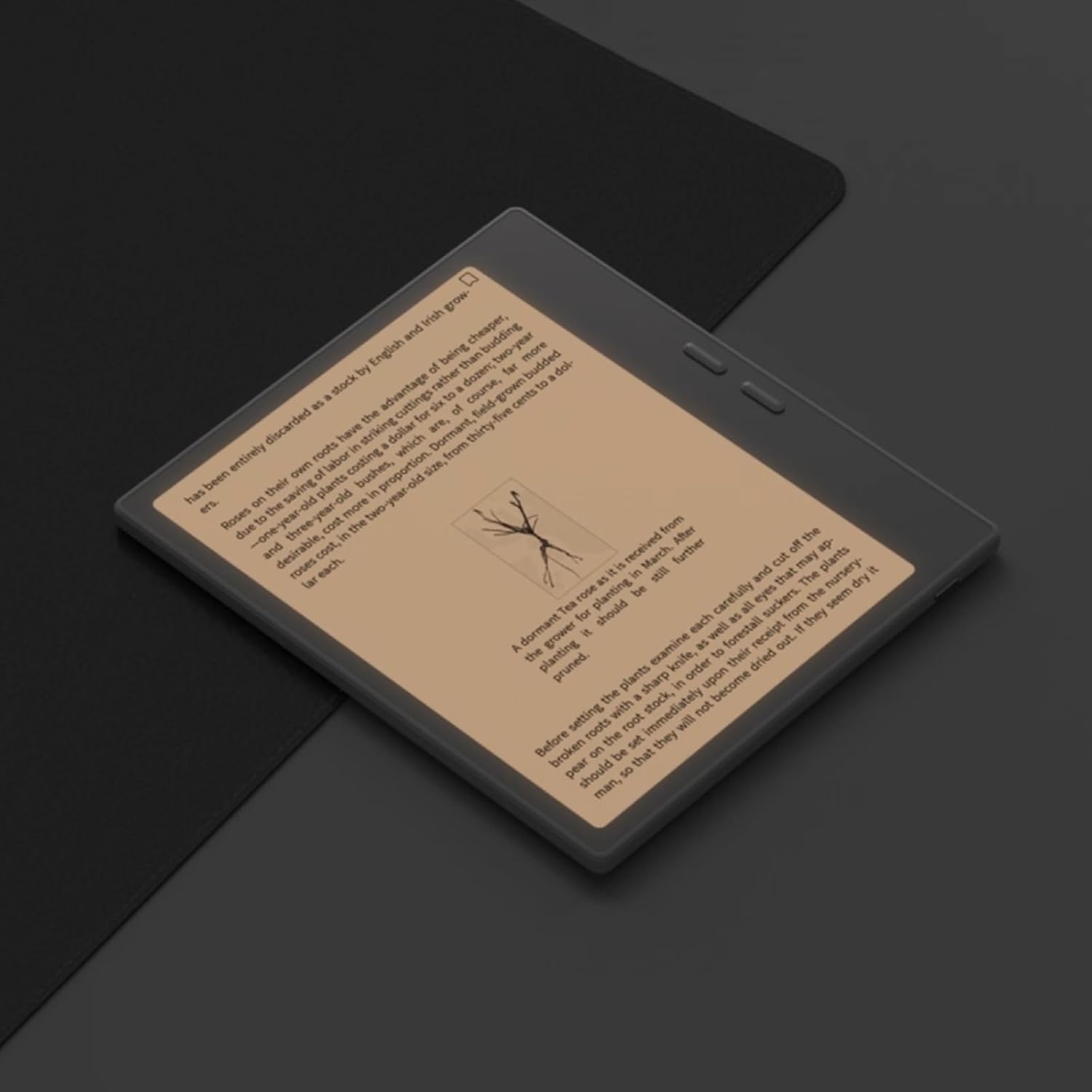
Figure 6.1: Reading with Frontlight
6.3 Using Android Applications
As an Android 13 device, the BOOX Go 7 allows installation of various applications from the Google Play Store. Navigate to the App Store, search for your desired application, and install it. Note that some applications may not be fully optimized for ePaper displays.

Figure 6.2: Various Android Applications on BOOX Go 7
6.4 การจดบันทึกและการวาดภาพ
Utilize the stylus (if included or purchased separately) for note-taking, sketching, and annotating documents. The device offers various templates and tools for creative and organizational tasks.

Figure 6.3: Stylus Use for Note-Taking

Figure 6.4: Handwriting to Text Conversion
7. การบำรุงรักษา
7.1 การทำความสะอาดเครื่อง
Use a soft, lint-free cloth to gently wipe the screen and body of the device. Do not use harsh chemicals, abrasive cleaners, or excessive moisture.
7.2 การอัปเดตซอฟต์แวร์
Regularly check for and install software updates to ensure optimal performance and access to new features. Connect to Wi-Fi and navigate to การตั้งค่า > ระบบ > อัปเดตระบบ เพื่อตรวจสอบการอัปเดตที่มีอยู่
8 การแก้ไขปัญหา
- อุปกรณ์ไม่เปิด: Ensure the device is charged. Connect it to a power source and try again.
- หน้าจอไม่ตอบสนอง: Perform a soft reset by holding the Power button for 10-15 seconds.
- ปัญหาการเชื่อมต่อ Wi-Fi: Verify your Wi-Fi password and router settings. Try restarting your router and the device.
- แอปพลิเคชันหยุดทำงาน: Ensure applications are updated to their latest versions. Clear the app's cache or reinstall if issues persist.
9. ข้อมูลจำเพาะ
| ยี่ห้อ | บู๊กซ์ |
| ชื่อรุ่น | ไป 7 |
| ความจุในการเก็บข้อมูล | 64GB |
| ขนาดหน้าจอ | 7 นิ้ว |
| ความละเอียดการแสดงผลสูงสุด | 300 Pixels per inch |
| ระบบปฏิบัติการ | แอนดรอยด์ 13 |
| สี | นัวร์ (สีดำ) |
| ขนาด RAM ที่ติดตั้ง | 4GB |
| คุณสมบัติพิเศษ | USB OTG support, Expandable storage, Stylus support |
| รุ่นปี | 2025 |
| ประเภทแบตเตอรี่ | ลิเธียมไอออน |
| ปริมาณพลังงานแบตเตอรี่ | 8.8 วัตต์-ชั่วโมง |
| ยี่ห้อโปรเซสเซอร์ | ควอลคอมม์ |
| คำอธิบายโปรเซสเซอร์ | ควอลคอมม์ สแนปดราก้อน |
| กล้อง | ไม่มีกล้อง |
| ประเภทเซนเซอร์ | ไจโรสโคป |
| Item Dimensions (LxWxT) | 15.6L x 0.6W x 13.7T centimeters |
| วิธีการป้อนข้อมูล | Touchscreen with stylus |
| คำอธิบายการ์ดจอ | บูรณาการ |
| อุปกรณ์ที่รองรับ | ปากกาสไตลัส |
| ประเภทจอภาพ | หมึกอิเล็กทรอนิกส์ |
| ความละเอียดหน้าจอ | 1280 x 800 พิกเซล |
| อัตราส่วนภาพ | 16:10 น. |
| การเชื่อมต่อฮาร์ดแวร์ | ยูเอสบี |
| เทคโนโลยีไร้สาย | Bluetooth, Wi-Fi (802.11ax) |
| พอร์ต USB รวม | 1 |

Figure 9.1: BOOX Go 7 Energy Label (EPREL Link)
10. ข้อมูลการรับประกัน
The BOOX Go 7 ePaper Tablet comes with a รับประกันจำกัด 2 ปี. This warranty covers manufacturing defects under normal use. For specific terms and conditions, please refer to the warranty card included in your package or contact customer support.
The standard return policy allows for returns within 30 days of purchase for refund or replacement.
11. การสนับสนุน
For technical assistance, troubleshooting, or warranty claims, please contact BOOX customer service. You can find support resources and submit inquiries through the official BOOX help center.
- อัพเดตเฟิร์มแวร์: BOOX commits to at least 3 years of firmware updates for each product.
- การเก็บข้อมูลบนคลาวด์: 10 GB of free cloud storage is provided for each user.
- เวลาตอบสนอง: โดยทั่วไปแล้ว เราจะตอบคำถามของลูกค้าภายใน 24 ชั่วโมง
หากต้องการข้อมูลเพิ่มเติม โปรดเยี่ยมชม BOOX Brand Store on Amazon.