
ATTACK SHARK G6
คู่มือผู้ใช้เมาส์เกมมิ่งไร้สาย ATTACK SHARK×Magic-Refiner G6
Model: G6 | Brand: ATTACK SHARK
1. บทนำ
Thank you for choosing the ATTACK SHARK×Magic-Refiner G6 Wireless Gaming Mouse. This manual provides detailed instructions on how to set up, operate, and maintain your new gaming mouse. The G6 mouse features tri-mode connectivity, a high-precision PixArt PAW3311 sensor, and a lightweight ergonomic design, making it ideal for various computing tasks and gaming scenarios.
2. เนื้อหาบรรจุภัณฑ์
กรุณาทำเครื่องหมายในช่องสำหรับรายการต่อไปนี้:
- ATTACK SHARK×Magic-Refiner G6 Wireless Gaming Mouse
- ตัวรับสัญญาณ USB 2.4G
- สายชาร์จ USB-C
- Anti-Slip Grip Tape Set

Image: The ATTACK SHARK G6 Wireless Gaming Mouse in white, shown with its accompanying USB receiver.
3. สินค้าหมดview
The G6 gaming mouse is designed for versatility and performance. Familiarize yourself with its key components and features.

Image: Detailed diagram of the G6 mouse, highlighting its buttons and features including the Left Button, Scroll Wheel + Middle Button, Right Button, Back Button, Forward Button, Power Toggle Switch (2.4G-OFF-Bluetooth), DPI Cycle Button, Atmosphere Light Switch & Wireless Mode Frequency Binding Button, Battery & DPI Indicator Light, Atmosphere Light, and USB Receiver storage.
3.1. คุณสมบัติหลัก
- การเชื่อมต่อสามโหมด: Seamlessly switch between USB-C wired, 2.4GHz wireless, and Bluetooth 5.0 connections. The 2.4GHz mode offers a polling rate of 125-1000Hz, while Bluetooth operates at 125Hz. This allows for flexible use across various devices and scenarios.
- เซ็นเซอร์ความแม่นยำสูง: Equipped with the PixArt PAW3311 optical sensor, offering six adjustable DPI levels from 800 to 24000. Features a 1000Hz polling rate, 1ms response time, 300 IPS tracking, and 35G acceleration for precise control.
- Lightweight Design & Long Battery Life: Weighs approximately 72±3g, minimizing hand fatigue during extended use. The built-in 750mAh battery provides over 150 hours of wireless usage on a single charge.
- Durable Switches & Customization: Features 10M micro switches with a 10 million click lifespan. Includes a 1.5m braided USB-C cable. Customize rear RGB lighting via a bottom button for various effects.
- Anti-Slip Grips: Comes with a set of 6 DIY anti-slip grip tapes for enhanced control and sweat resistance.

Image: The G6 mouse illustrating its 2.4GHz Wireless, USB-C Wired, and Bluetooth connection modes.
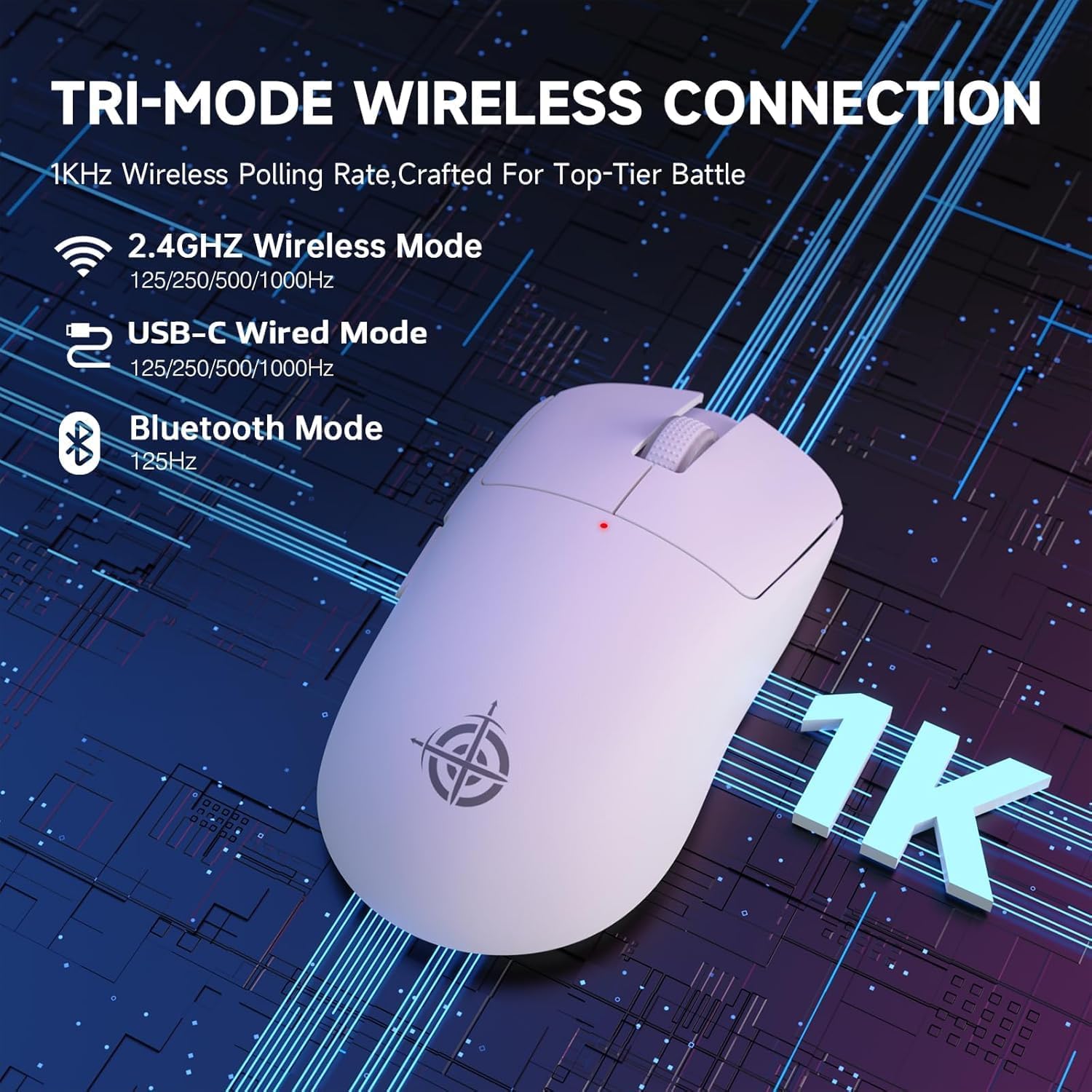
Image: The G6 mouse with an overlay indicating DPI levels (800-24000) and their associated indicator light colors (Red, Green, Blue, Yellow, Cyan, Purple).

Image: The G6 mouse displaying its customizable RGB lighting effects, including rainbow and single color options.

Image: The G6 mouse with its practical non-slip stickers applied, showing the textured surface for improved grip.
4. คู่มือการติดตั้ง
The G6 mouse offers three connection methods. Choose the one that best suits your needs.
4.1. โหมดไร้สาย 2.4GHz
- ค้นหาตัวรับสัญญาณ USB 2.4G ที่เก็บไว้ในช่องด้านล่างของเมาส์
- เสียบตัวรับสัญญาณ USB เข้ากับพอร์ต USB ที่พร้อมใช้งานบนคอมพิวเตอร์ของคุณ
- Slide the power toggle switch on the bottom of the mouse to the '2.4G' position.
- The mouse should automatically connect. If not, press the 'Atmosphere light switch & wireless mode frequency binding button' on the bottom of the mouse to initiate pairing.
4.2. โหมดบลูทู ธ
- Slide the power toggle switch on the bottom of the mouse to the 'Bluetooth' position.
- ไฟแสดงสถานะของเมาส์จะเริ่มกะพริบ ซึ่งแสดงว่าอยู่ในโหมดจับคู่
- บนคอมพิวเตอร์หรืออุปกรณ์ของคุณ ไปที่การตั้งค่าบลูทูธและค้นหาอุปกรณ์ใหม่
- Select 'ATTACK SHARK G6' (or similar name) from the list of available devices to pair.
4.3. โหมดสาย USB-C
- เชื่อมต่อสาย USB-C ที่ให้มาเข้ากับพอร์ตด้านหน้าของเมาส์
- เชื่อมต่อปลายอีกด้านหนึ่งของสาย USB-C เข้ากับพอร์ต USB ที่ว่างอยู่บนคอมพิวเตอร์ของคุณ
- เมาส์จะเปลี่ยนเป็นโหมดสายโดยอัตโนมัติและเริ่มชาร์จ
5. คู่มือการใช้งาน
5.1. การปรับ DPI
The G6 mouse has a dedicated DPI cycle button on the bottom. Press this button to cycle through the preset DPI levels (800, 1600, 2400, 3200, 6400, 24000). The indicator light will change color to reflect the current DPI setting (Red, Green, Blue, Yellow, Cyan, Purple respectively).
5.2. ปุ่มฟังก์ชัน
The G6 mouse features 5 programmable buttons:
- ปุ่มซ้าย: คลิกซ้ายตามปกติ
- ปุ่มขวา: คลิกขวาตามปกติ
- Scroll Wheel + Middle Button: เลื่อนขึ้น/ลง คลิกตรงกลาง
- ปุ่มไปข้างหน้า: นำทางไปข้างหน้าใน web เบราว์เซอร์หรือ file นักสำรวจ
- ปุ่มย้อนกลับ: นำทางย้อนกลับใน web เบราว์เซอร์หรือ file นักสำรวจ
For advanced customization of button functions and macros, please download the official driver software from the ATTACK SHARK webเว็บไซต์.
5.3. การควบคุมแสง RGB
The G6 mouse features customizable RGB lighting. Use the 'Atmosphere light switch' button on the bottom of the mouse to cycle through different lighting effects (e.g., Rainbow Lighting, Single Lighting) or to turn the lighting off.
6. การบำรุงรักษา
To ensure the longevity and optimal performance of your G6 gaming mouse, follow these maintenance guidelines:
- การทำความสะอาด: ใช้ผ้านุ่มและแห้งเช็ดพื้นผิวของเมาส์ สำหรับคราบสกปรกฝังแน่น ให้เช็ดเบาๆampชุบผ้าด้วยน้ำหรือน้ำยาทำความสะอาดอ่อนๆ หลีกเลี่ยงสารเคมีรุนแรงหรือสารกัดกร่อน
- การดูแลเซ็นเซอร์: รักษาเซ็นเซอร์ออปติคัลที่ด้านล่างของเมาส์ให้สะอาด ปราศจากฝุ่นหรือเศษผง ใช้สำลีก้านหรือลมอัดหากจำเป็น
- พื้นที่จัดเก็บ: เมื่อไม่ได้ใช้งานเป็นเวลานาน ควรเก็บเมาส์ไว้ในที่แห้งและเย็น หลีกเลี่ยงแสงแดดโดยตรงและอุณหภูมิที่สูงหรือต่ำเกินไป
- แบตเตอรี่: ควรหลีกเลี่ยงการปล่อยให้แบตเตอรี่หมดเกลี้ยงบ่อยๆ ชาร์จเมาส์เป็นประจำเพื่อรักษาอายุการใช้งานของแบตเตอรี่
7 การแก้ไขปัญหา
If you encounter any issues with your G6 gaming mouse, please refer to the following common solutions:
- เมาส์ไม่ตอบสนอง:
- ตรวจสอบให้แน่ใจว่าเมาส์ชาร์จเต็มแล้ว เชื่อมต่อผ่านสาย USB-C เพื่อชาร์จ
- Check the power toggle switch on the bottom of the mouse is in the correct position (2.4G, BT, or OFF for wired).
- For 2.4GHz mode, ensure the USB receiver is securely plugged into a working USB port. Try a different USB port.
- For Bluetooth mode, ensure Bluetooth is enabled on your device and the mouse is paired. Try unpairing and re-pairing.
- การเคลื่อนที่ของเคอร์เซอร์ผิดปกติหรือไม่แม่นยำ:
- ทำความสะอาดเซ็นเซอร์ออปติคอลที่ด้านล่างของเมาส์
- Ensure you are using the mouse on a suitable surface. Some surfaces (e.g., plain black neoprene pads, highly reflective surfaces) may interfere with optical tracking. Try a different mouse pad or surface.
- Adjust the DPI setting using the DPI cycle button.
- 2.4GHz dongle not working:
- ตรวจสอบให้แน่ใจว่าได้ตั้งค่าเมาส์เป็นโหมด 2.4G แล้ว
- ลองเสียบตัวรับสัญญาณเข้ากับพอร์ต USB อื่นบนคอมพิวเตอร์ของคุณดู
- If issues persist, try re-pairing the mouse with the dongle by pressing the binding button on the mouse while the dongle is connected.
- ปัญหาการเชื่อมต่อบลูทูธ:
- Ensure the mouse is in Bluetooth pairing mode (indicator light blinking).
- ลบเมาส์ออกจากรายการบลูทูธของอุปกรณ์ของคุณ แล้วลองจับคู่ใหม่อีกครั้ง
- ตรวจสอบให้แน่ใจว่าไดร์เวอร์บลูทูธของอุปกรณ์ของคุณได้รับการอัปเดตแล้ว
8. ข้อมูลจำเพาะ
| คุณสมบัติ | ข้อมูลจำเพาะ |
|---|---|
| หมายเลขรุ่น | G6 |
| เทคโนโลยีการเชื่อมต่อ | 2.4Ghz / Bluetooth / USB-C Wired |
| เทคโนโลยีตรวจจับการเคลื่อนไหว | Optical (PixArt PAW3311) |
| ระดับ DPI | 800-24000 (ปรับได้ 6 ระดับ) |
| อัตราการสำรวจความคิดเห็น | 125-1000Hz (2.4Ghz), 125Hz (Bluetooth) |
| ความจุของแบตเตอรี่ | 750mAh |
| น้ำหนักสินค้า | 72±3g (2.54 ounces) |
| ขนาด | 116.2 x 62.2 x 37.3 มม. (โดยประมาณ) |
| เปลี่ยนอายุการใช้งาน | 10 ล้านคลิก |
| ความยาวสายเคเบิล | 1.5m (Braided USB-C) |
| ความเข้ากันได้ | Windows, macOS, Linux, Chrome OS, Consoles, Tablets, Smartphones |
9. การรับประกันและการสนับสนุน
The ATTACK SHARK×Magic-Refiner G6 Wireless Gaming Mouse comes with a standard manufacturer's warranty. Please refer to the product packaging or the official ATTACK SHARK webเว็บไซต์สำหรับข้อกำหนดและเงื่อนไขการรับประกันโดยเฉพาะ
For technical support, troubleshooting assistance, or warranty claims, please contact ATTACK SHARK customer service through their official webไซต์หรือร้านค้าปลีกที่คุณซื้อผลิตภัณฑ์
บันทึก: ไม่มีวิดีโอผลิตภัณฑ์อย่างเป็นทางการจากผู้ขายที่สามารถฝังไว้ในคู่มือนี้
เอกสารที่เกี่ยวข้อง - G6
 |
คู่มือผู้ใช้เมาส์เกมมิ่งไร้สาย Attack Shark V6 คู่มือการใช้งานฉบับละเอียดสำหรับเมาส์เกมมิ่งไร้สาย Attack Shark V6 ครอบคลุมคุณสมบัติ ข้อมูลจำเพาะ วิธีการตั้งค่าสำหรับโหมด 2.4GHz, Bluetooth และแบบมีสาย การชาร์จ การปรับแต่งซอฟต์แวร์ และการแก้ไขปัญหา |
 |
คู่มือผู้ใช้เมาส์เล่นเกมไร้สาย Attack Shark R5 คู่มือผู้ใช้ฉบับสมบูรณ์สำหรับเมาส์เกมมิ่งไร้สาย Attack Shark R5 พร้อมรายละเอียดคุณสมบัติ ตัวเลือกการเชื่อมต่อ (USB, 2.4G, บลูทูธ) และการใช้งาน รวมถึงคำแนะนำสำหรับการจับคู่และการดาวน์โหลดไดรเวอร์ |
 |
คู่มือผู้ใช้เมาส์เกมมิ่งไร้สาย ATTACK SHARK X2 This user manual provides comprehensive setup, operation, and maintenance instructions for the ATTACK SHARK X2 Wireless Gaming Mouse. Learn about its tri-mode connectivity (2.4GHz, Bluetooth, USB-C), adjustable DPI, 3D RGB lighting, silent clicks, and troubleshooting tips. |
 |
คู่มือผู้ใช้เมาส์น้ำหนักเบา Attack Shark X1 Comprehensive user guide for the Attack Shark X1 lightweight gaming mouse, covering connection methods, button functions, specifications, and troubleshooting. |
 |
Attack Shark V6 Lightweight Gaming Mouse User Manual Comprehensive user manual for the Attack Shark V6 tri-mode gaming mouse, including technical specifications, connection instructions, and safety guidelines. |
 |
Attack Shark V6 Lightweight Mouse User Manual Comprehensive user manual for the Attack Shark V6 Tri-Mode Lightweight Gaming Mouse, including specifications, connection instructions for wired, 2.4G, and Bluetooth modes, and safety precautions. |
Ask a question about this manual
Ask about setup, troubleshooting, compatibility, parts, safety, or missing instructions. Manuals+ will review the question and use this page’s manual context to help answer it.