
โจมตีฉลาม X98
คู่มือผู้ใช้คีย์บอร์ดเชิงกลไร้สาย ATTACK SHARK X98
แบบ: X98
1. สินค้าหมดview
The ATTACK SHARK X98 is a versatile mechanical keyboard designed for various uses, including gaming, office work, and programming. It features tri-mode connectivity, hot-swappable switches, a gasket mount design, PBT keycaps, and customizable RGB backlighting.
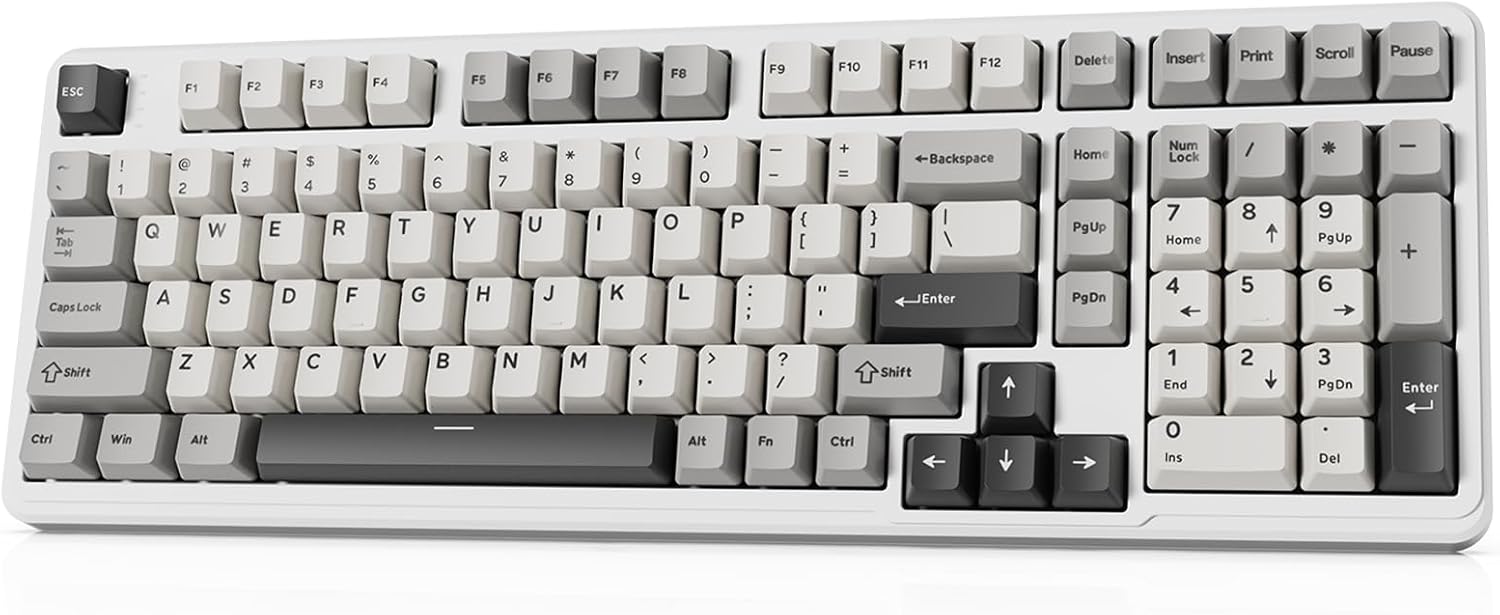
Image 1.1: The ATTACK SHARK X98 Wireless Mechanical Keyboard in Starlight White.
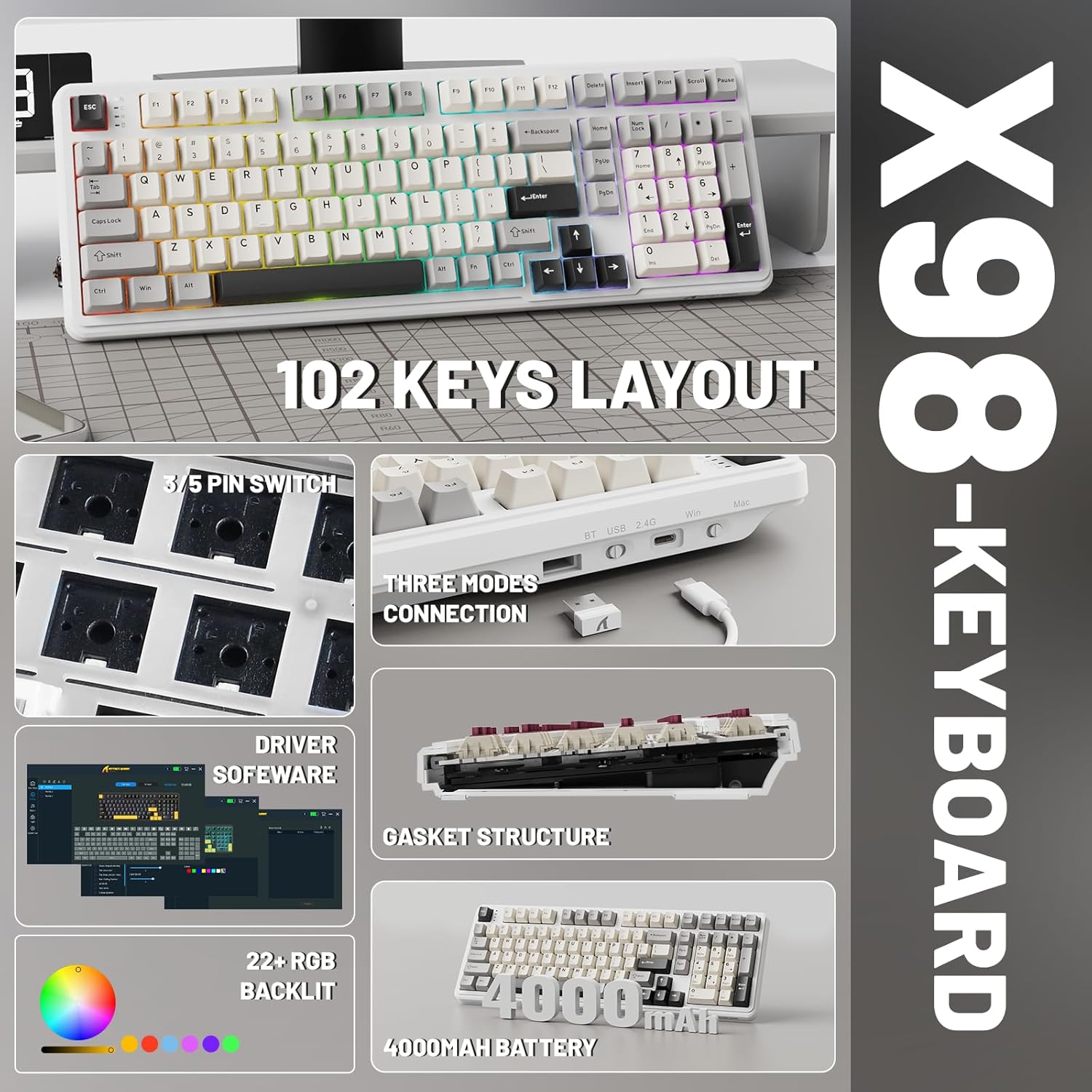
ภาพที่ 1.2: จบแล้วview of key features including 102-key layout, 3/5 pin switch support, three modes connection, driver software, gasket structure, 22+ RGB backlight, and 4000mAh battery.
2. เนื้อหาบรรจุภัณฑ์
โปรดตรวจสอบว่าสินค้าทั้งหมดมีอยู่ในแพ็คเกจ:
- คีย์บอร์ดเชิงกลไร้สาย ATTACK SHARK X98
- สาย USB-C
- ตัวดึงกุญแจ
- Extra Switches (typically 2)
- คู่มือการใช้งาน (เอกสารนี้)
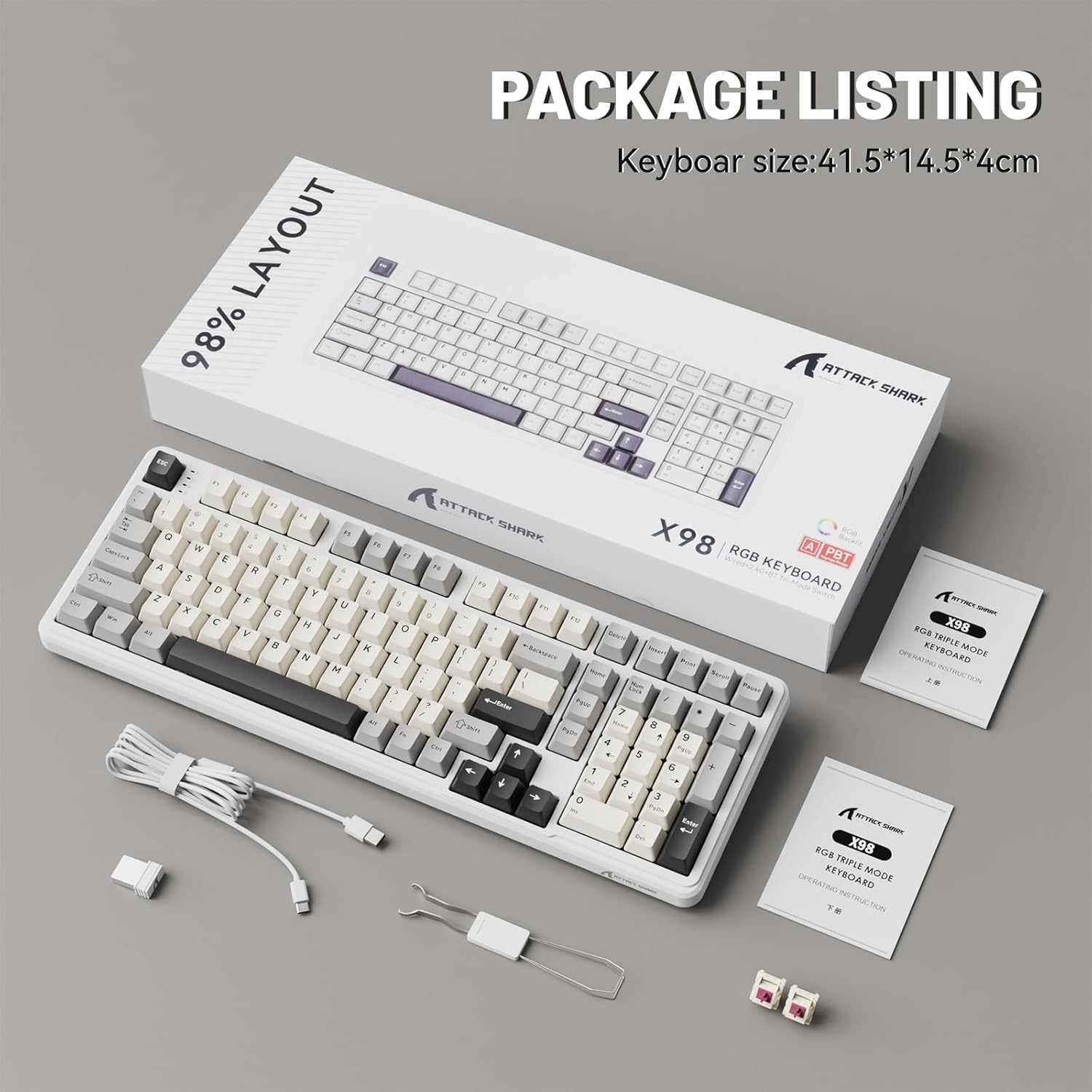
Image 2.1: Contents of the ATTACK SHARK X98 keyboard package, including the keyboard, USB-C cable, keycap puller, and extra switches.
3. คุณสมบัติหลัก
- การเชื่อมต่อสามโหมด: Supports Bluetooth 5.0, 2.4GHz wireless, and USB-C wired connections for versatile use across various devices.
- สวิตช์แบบ Hot-Swappable: Equipped with sockets compatible with both 3-pin and 5-pin mechanical switches, allowing for easy customization and replacement of switches without soldering. Features pre-lubed linear switches for a smooth and quiet typing experience.
- การออกแบบการติดตั้งแบบใช้ปะเก็น: Incorporates a 5-layer sound-absorbing foam structure (PORON Foam, IXPE Switch Pad, PET Noise Cancellation Pad, EPDM Dampening Pad, Silicone Pad) to reduce cavity sound and provide a pure, thocky sound profile.
- ไฟแบ็คไลท์ RGB ที่สดใส: Offers 16.8 million RGB colors with 21 lighting effects and 7 single-color options, enhancing the aesthetic of your setup. Full Anti-Ghosting N-key rollover ensures accurate input during intense gaming sessions.
- ปุ่มกดทำจาก PBT ที่ทนทาน: Features doubleshot PBT keycaps that resist shine and fading, ensuring long-lasting durability and a premium feel.
- แบตเตอรี่ใช้งานได้ยาวนาน: Built-in 4000mAh battery provides extended wireless usage, capable of continuous operation for up to 7 days on a single charge.

Image 3.1: Diagram illustrating the 5-layer gasket structure for sound absorption and improved typing feel.
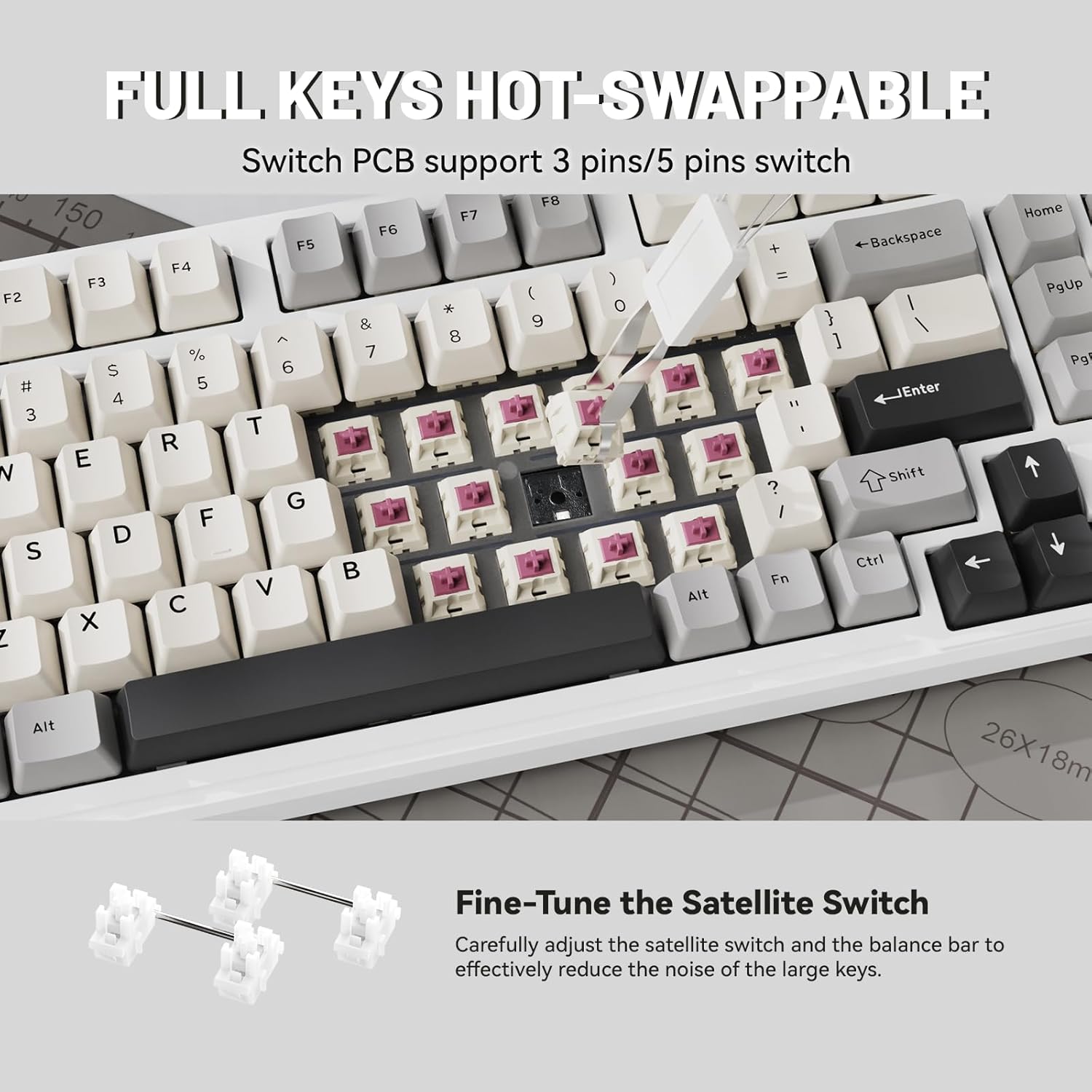
ภาพที่ 3.2: ภาพระยะใกล้ view demonstrating the hot-swappable switch sockets, supporting both 3-pin and 5-pin switches.
4. การตั้งค่าและการเชื่อมต่อ
4.1. การเชื่อมต่อแบบมีสาย (USB-C)
- เชื่อมต่อสาย USB-C ที่ให้มาเข้ากับพอร์ต USB-C ของแป้นพิมพ์
- เชื่อมต่อปลายอีกด้านหนึ่งของสาย USB-C เข้ากับพอร์ต USB ที่ว่างอยู่บนคอมพิวเตอร์หรืออุปกรณ์ของคุณ
- ระบบจะตรวจจับแป้นพิมพ์โดยอัตโนมัติและพร้อมใช้งาน นอกจากนี้ แป้นพิมพ์จะชาร์จแบตเตอรี่ในโหมดนี้ด้วย
4.2. การเชื่อมต่อไร้สาย 2.4GHz
- Locate the 2.4G wireless receiver (USB dongle), typically stored in a magnetic compartment on the keyboard.
- เสียบตัวรับสัญญาณ 2.4G เข้ากับพอร์ต USB ที่ว่างอยู่บนคอมพิวเตอร์หรืออุปกรณ์ของคุณ
- On the keyboard, locate the connectivity switch (usually on the top edge or bottom) and slide it to the "2.4G" position.
- The keyboard should automatically connect. If not, refer to the troubleshooting section.
4.3. การเชื่อมต่อบลูทูธ 5.0
- On the keyboard, locate the connectivity switch and slide it to the "BT" position.
- The keyboard will enter pairing mode. The indicator light may flash.
- On your device (PC, tablet, smartphone), open Bluetooth settings.
- ค้นหา new devices and select "ATTACK SHARK X98" (or similar name) from the list.
- Follow any on-screen prompts to complete the pairing process. The indicator light on the keyboard will become solid once connected.

Image 4.1: The ATTACK SHARK X98 keyboard demonstrating its three connection modes: 2.4GHz Wireless, Bluetooth Wireless, and Type-C Wired.
Video 4.2: An official product video demonstrating the features and connectivity options of the ATTACK SHARK X98 Wireless Mechanical Keyboard. This video highlights the keyboard's design, hot-swappable switches, RGB lighting, and tri-mode connectivity.
5. คู่มือการใช้งาน
5.1. การสลับระบบ (Windows/Mac)
The keyboard features a dedicated switch to toggle between Windows and Mac layouts. Locate the "WIN/MAC" switch on the keyboard and slide it to the appropriate operating system for optimal key mapping.
5.2. การควบคุมไฟแบ็คไลท์ RGB
The ATTACK SHARK X98 offers various RGB lighting effects. Use the following key combinations to control the backlighting:
- Fn + [ปุ่ม]: Specific key combinations (refer to keyboard legends or software) control lighting modes, brightness, and speed.
- ซอฟต์แวร์ปรับแต่ง: For advanced customization of RGB lighting and key functions, download and install the official driver software. The driver link is typically provided in the product packaging or on the manufacturer's webเว็บไซต์.
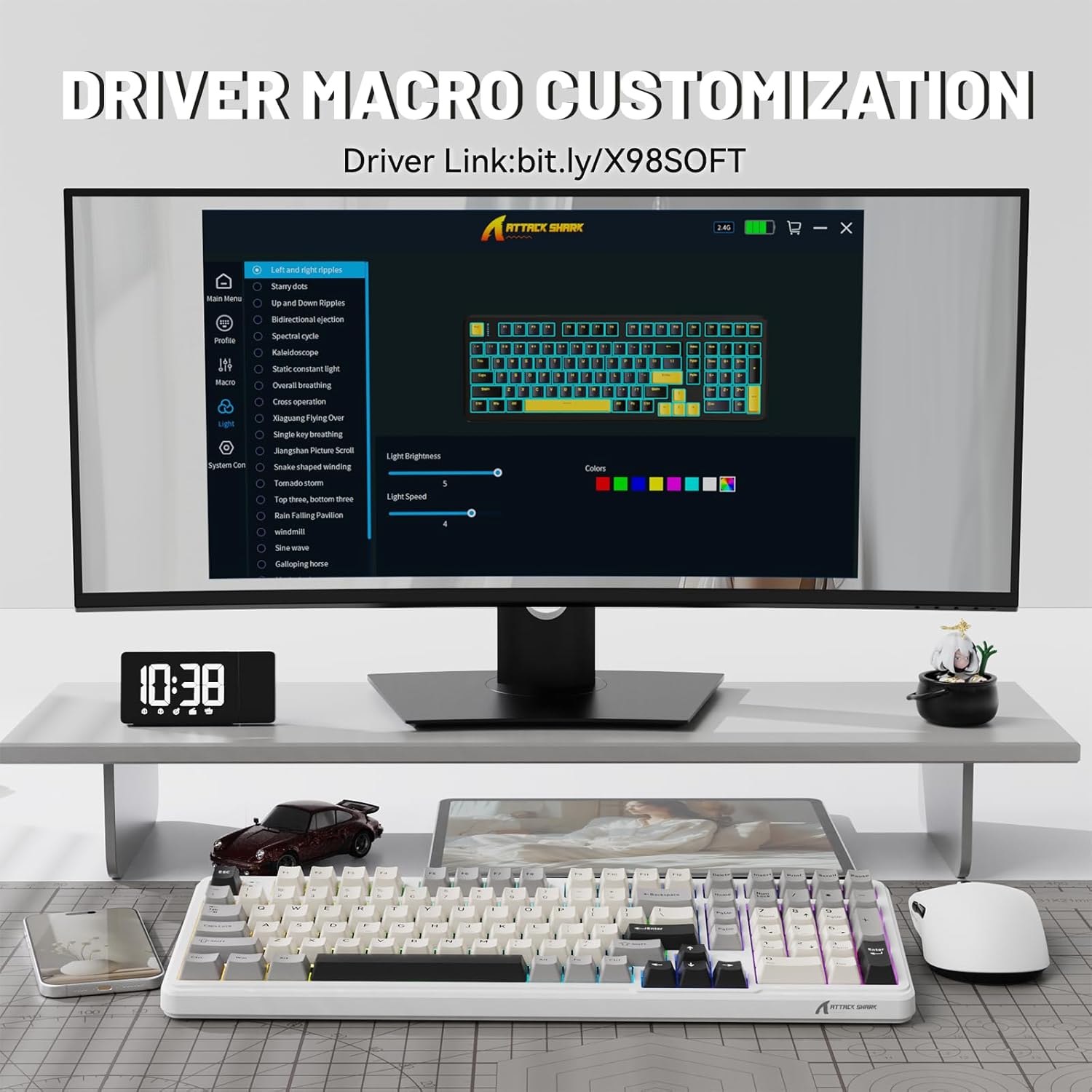
Image 5.1: Screenshot of the driver software interface, showing options for macro customization and RGB lighting control.
5.3. การตรวจสอบระดับแบตเตอรี่
To check the battery level in wireless mode, press and hold Fn + แบ็คสเปซ. The indicator lights on the keyboard will illuminate to show the approximate battery percentage:
- ไฟแดง: 20% or less battery remaining.
- ไฟสีเหลือง: แบตเหลือ 50%.
- ไฟเขียว: แบตเหลือ 60%.
- Full Green Lights: แบตเหลือ 100%.

Image 5.2: Visual guide for checking the battery level using Fn + Backspace, showing different light indicators for battery percentage.
6. การบำรุงรักษา
- การทำความสะอาดคีย์แคป: ใช้ที่ดึงปุ่มกดที่ให้มาเพื่อถอดปุ่มกดออกอย่างระมัดระวัง เช็ดทำความสะอาดด้วยผ้านุ่มๆamp cloth and mild soap if necessary. Ensure keycaps are completely dry before reattaching.
- การทำความสะอาดตัวคีย์บอร์ด: Use a soft, lint-free cloth to wipe down the keyboard body. For stubborn dirt, a slightly damp สามารถใช้ผ้าเช็ดทำความสะอาดได้ หลีกเลี่ยงความชื้นมากเกินไป
- การบำรุงรักษาสวิตช์: The hot-swappable design allows for easy switch replacement. If a switch malfunctions, use the keycap puller and switch puller (if included, or a small tool) to remove the faulty switch and insert a new one.
- พื้นที่จัดเก็บ: เมื่อไม่ได้ใช้งานเป็นเวลานาน ควรเก็บแป้นพิมพ์ไว้ในที่แห้งและปราศจากฝุ่น
7 การแก้ไขปัญหา
| ปัญหา | สาเหตุที่เป็นไปได้ | สารละลาย |
|---|---|---|
| แป้นพิมพ์ไม่ตอบสนอง (แบบมีสาย) | สายเคเบิลเชื่อมต่อหลวม; พอร์ต USB มีปัญหา; ไดรเวอร์มีปัญหา | ตรวจสอบให้แน่ใจว่าสาย USB-C เชื่อมต่อแน่นดีแล้ว ลองเปลี่ยนพอร์ต USB รีสตาร์ทคอมพิวเตอร์ |
| Keyboard not connecting (2.4GHz wireless) | Receiver not plugged in; keyboard not in 2.4G mode; low battery. | Ensure 2.4G receiver is plugged in. Slide switch to "2.4G". Charge the keyboard. |
| แป้นพิมพ์ไม่เชื่อมต่อ (บลูทูธ) | Keyboard not in BT mode/pairing mode; device Bluetooth off; interference. | Slide switch to "BT" and ensure it's in pairing mode. Enable Bluetooth on your device. Move closer to the device. Remove other Bluetooth devices. |
| ไฟ RGB ไม่ทำงาน/ปรับแต่งไม่ได้ | Software not installed/running; incorrect key combination; low battery. | Install/run the driver software. Refer to operating instructions for key combinations. Charge the keyboard. |
| Keys not registering/double-typing | Faulty switch; debris under keycap. | ถอดฝาครอบปุ่มออกและทำความสะอาด หากปัญหายังคงอยู่ ให้เปลี่ยนสวิตช์โดยใช้ฟังก์ชัน Hot-swap |
8. ข้อมูลจำเพาะ
| หมายเลขรุ่น | เอ็กซ์98 |
| ยี่ห้อ | โจมตีฉลาม |
| เทคโนโลยีการเชื่อมต่อ | บลูทูธ 5.0, การเชื่อมต่อไร้สาย 2.4G, พอร์ต USB-C |
| จำนวนคีย์ | 102 |
| แป้นพิมพ์แบ็คไลท์ | RGB (16.8 ล้านสี 21 เอฟเฟกต์) |
| วัสดุปุ่มกด | ดับเบิลช็อต PBT |
| ประเภทสวิตซ์ | Pre-lubed Linear Switches (Hot-swappable 3/5-pin) |
| รูปแบบการติดตั้ง | ปะเก็นยึด |
| ความจุของแบตเตอรี่ | 4000mAh |
| ขนาดสินค้า | 16 x 5.6 x 1.5 นิ้ว |
| น้ำหนักสินค้า | 2.71 ปอนด์ |
| อุปกรณ์ที่รองรับ | แล็ปท็อป, คอนโซลเกม, พีซี, แท็บเล็ต, สมาร์ทโฟน |
9. การรับประกันและการสนับสนุน
The ATTACK SHARK X98 Wireless Mechanical Keyboard comes with a standard manufacturer's warranty. Please refer to the warranty card included in your package for specific terms and conditions, including warranty duration and coverage details.
For technical support, troubleshooting assistance, or warranty claims, please contact ATTACK SHARK customer service through their official webไซต์หรือข้อมูลการติดต่อที่ระบุไว้ในเอกสารผลิตภัณฑ์ของคุณ
เป็นทางการ website for driver software and further support: cn.attackshark.pro
Ask a question about this manual
Ask about setup, troubleshooting, compatibility, parts, safety, or missing instructions. Manuals+ will review the question and use this page’s manual context to help answer it.