
1. บทนำ
This manual provides essential information for the setup, operation, maintenance, and troubleshooting of your ViewSonic IFP55G1 55-inch 4K UHD ViewBoard Interactive Display. Please read this manual thoroughly before using the product to ensure proper and safe operation.
การ ViewSonic IFP55G1 is a 55-inch 4K Ultra HD (3840x2160p) interactive display designed for educational and business environments. It features multi-point touch recognition, an OPS slot for external PCs, 10W dual speakers, and versatile connectivity options including HDMI, VGA, USB Hub, and USB-C inputs. Its OS-free design allows flexibility with various computing solutions.
คุณสมบัติหลัก:
- Ultra HD Resolution: 55 Inch 4K Ultra HD (3840x2160p) interactive display for crisp visuals.
- Advanced Multi-Touch: Allows multiple users to write and interact simultaneously with fingers and passive pens.
- การเชื่อมต่อแบบยืดหยุ่น: Equipped with a powerful quad-core processor and versatile ports including HDMI, VGA, RJ45, and USB.
- OS-Free Design: Provides enhanced security and flexibility to integrate with your preferred operating system via external PC or OPS device.
- Write-Away Technology: Enables instant writing with the stylus without extended setup.
2. อะไรอยู่ในกล่อง
โปรดตรวจสอบให้แน่ใจว่าสินค้าทุกรายการที่ระบุไว้ด้านล่างนั้นรวมอยู่ในบรรจุภัณฑ์ของคุณ หากมีสินค้าใดขาดหายหรือเสียหาย โปรดติดต่อตัวแทนจำหน่ายของคุณทันที
- ViewSonic IFP55G1 Interactive Display
- 3m USB 2.0 touch cable x 1
- Touch pen (Passive pen) x 2 (VB-PEN-002)
- สายไฟ 3 ม
- HDMI 2.0 cable 3m x 1
- คู่มือเริ่มต้นใช้งานฉบับย่อ + คำชี้แจงการปฏิบัติตามข้อกำหนด
- อะแดปเตอร์ RS232
- Screw (wall mount 4)
- แผ่นกล้อง
- Remote control with AAA battery (Optional)
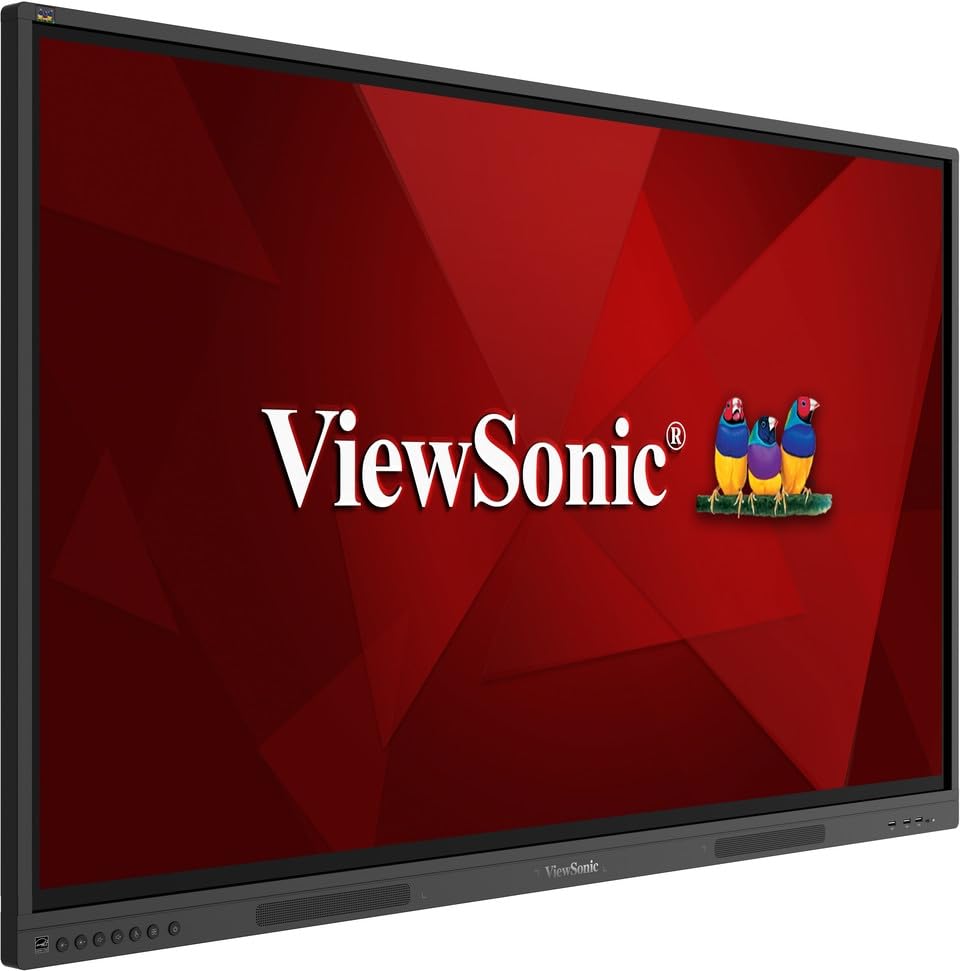
ภาพ: ViewSonic IFP55G1 55-inch ViewBoard Interactive Display, front view.
3. คำแนะนำในการตั้งค่า
3.1 การติดตั้งจอแสดงผล
The IFP55G1 can be wall-mounted or installed on a compatible mobile cart (sold separately). Ensure the mounting solution supports the display's weight (approximately 59.3 lbs / 26.9 kg) and dimensions (3.37 x 49.7 x 30.3 inches).
- For wall mounting, use the provided wall mount screws and ensure the wall structure is robust enough.
- Follow the instructions provided with your specific wall mount or mobile cart.
3.2 การเชื่อมต่ออุปกรณ์ต่อพ่วง
The display offers various ports for connecting external devices. Refer to the image below for port locations.

ภาพ: ด้านข้าง view ของ ViewSonic IFP55G1 interactive display showing various input ports including HDMI, VGA, and USB.
- การเชื่อมต่อไฟฟ้า: Connect the 3m power cable to the display and a grounded power outlet.
- อินพุตวิดีโอ: Connect your external PC or media player to the display using an HDMI 2.0 cable (provided), VGA cable, or USB-C cable. The display has 3 HDMI ports, 1 VGA port, and USB-C connectivity.
- ฟังก์ชั่นสัมผัส: For interactive touch features with an external PC, connect the 3m USB 2.0 touch cable from the display's USB-B (Touch) port to a USB-A port on your PC.
- ช่องปฏิบัติการ: If using an optional ViewSonic Slot-in PC (OPS device), insert it into the dedicated OPS slot on the rear of the display. This provides an integrated computing solution.
- เครือข่าย: เชื่อมต่อสายเคเบิลอีเทอร์เน็ตเข้ากับพอร์ต RJ45 เพื่อเข้าถึงเครือข่ายแบบใช้สาย
- อุปกรณ์ยูเอสบี: Use the available USB-A ports to connect USB drives, keyboards, mice, or other peripherals.

ภาพ: The ViewSonic IFP55G1 display demonstrating connectivity with various external devices, including laptops and mini PCs, highlighting its 'Bring Your Own Devices' capability.
4. คู่มือการใช้งาน
4.1 การเปิด/ปิดเครื่อง
- เปิดเครื่อง: Press the power button located on the display's front or side panel, or use the remote control. The display will power on and show the input source.
- หมดแรง: Press the power button again. A confirmation message may appear; select 'Power Off'. For complete power disconnection, unplug the power cable.
4.2 การเลือกแหล่งข้อมูลอินพุต
Use the 'Source' button on the display or remote control to cycle through available input sources (HDMI 1, HDMI 2, HDMI 3, VGA, USB-C, OPS).
4.3 การใช้งานฟังก์ชันสัมผัส
Once the USB touch cable is connected to your external PC, the display will function as a multi-touch input device. You can use your fingers or the provided passive pens for interaction.
- การสัมผัสด้วยนิ้ว: Use gestures similar to a tablet or smartphone for navigation, zooming, and drawing.
- Passive Pens: The two included passive pens (VB-PEN-002) allow for precise writing and drawing on the screen. The display's Write-Away technology enables instant use of the pens.

Image: A group of individuals collaborating around a ViewSonic IFP55G1 interactive display in a modern meeting room, demonstrating its multi-touch capabilities for instantaneous collaboration.
4.4 การควบคุมเสียง
The display features integrated 10W dual speakers. Adjust volume using the remote control or the buttons on the display panel.
5. การบำรุงรักษา
5.1 การทำความสะอาดจอแสดงผล
- หน้าจอ: เช็ดหน้าจอเบาๆ ด้วยผ้านุ่มที่ไม่เป็นขุย สำหรับรอยฝังแน่น ให้เช็ดเบาๆampen the cloth with water or a non-abrasive, ammonia-free screen cleaner. Do not spray cleaner directly onto the screen.
- Casing: เช็ดคasinเช็ดทำความสะอาดด้วยผ้าแห้งนุ่มๆ หลีกเลี่ยงการใช้สารเคมีรุนแรงหรือวัสดุที่มีฤทธิ์กัดกร่อน
5.2 การดูแลทั่วไป
- หลีกเลี่ยงการวางวัตถุหนักบนจอแสดงผล
- Do not block ventilation openings on the rear of the display.
- Keep the display away from direct sunlight, heat sources, and excessive moisture.
6 การแก้ไขปัญหา
หากคุณพบปัญหาเกี่ยวกับ ViewSonic IFP55G1, refer to the following common problems and solutions.
6.1 ไม่มีจอแสดงผล / หน้าจอสีดำ
- Ensure the power cable is securely connected to both the display and a working power outlet.
- Verify that the display is powered on (power indicator light should be active).
- Check that the video cable (HDMI, VGA, USB-C) is securely connected to both the display and the source device (PC, OPS).
- Select the correct input source using the 'Source' button on the display or remote control.
- Ensure the source device (PC, OPS) is powered on and outputting a video signal.
6.2 ฟังก์ชันการสัมผัสใช้งานไม่ได้
- Confirm the USB touch cable is securely connected from the display's USB-B (Touch) port to a USB-A port on your external PC.
- Ensure your external PC's operating system has the necessary drivers installed for touch input.
- Restart both the display and the connected PC.
6.3 ไม่มีเสียง
- Check the volume level on the display and the connected source device.
- Ensure the audio output from your source device is routed correctly to the display (e.g., via HDMI).
- If using an external audio system, ensure it is properly connected and powered on.
7. ข้อมูลจำเพาะ
ด้านล่างนี้คือข้อมูลจำเพาะทางเทคนิคสำหรับ ViewSonic IFP55G1 interactive display.
| คุณสมบัติ | ข้อมูลจำเพาะ |
|---|---|
| ยี่ห้อ | Viewโซนิค |
| ชื่อรุ่น | IFP55G1 |
| ขนาดหน้าจอ | 55 นิ้ว |
| ความละเอียดการแสดงผลสูงสุด | 3840x2160 พิกเซล (4K UHD) |
| ความละเอียดดั้งเดิม | 3840 x 2160 |
| ประเภทจอภาพ | จอแอลซีดี |
| อัตราส่วนภาพ | 16:9 น. |
| อินพุตอินเทอร์เฟซของมนุษย์ | หน้าจอสัมผัส |
| เทคโนโลยีการเชื่อมต่อ | Ethernet, HDMI, USB Type C, VGA |
| จำนวนพอร์ต HDMI ทั้งหมด | 3 |
| พอร์ต USB รวม | 9 |
| อินเทอร์เฟซเอาท์พุตวิดีโอ | ดิสเพย์พอร์ต |
| เอาท์พุตเสียง | Integrated 10W Dual Speakers |
| ขนาดรายการ (LxWxH) | 3.37 x 49.7 x 30.3 นิ้ว |
| น้ำหนักสินค้า | 59.3 ปอนด์ |
| สี | สีดำ |
| คุณสมบัติพิเศษ | All-in-one USB port, Anti Glare Display, Light Sensor, Speakers, Touchscreen |
| อุปกรณ์ที่รองรับ | เดสก์ท็อป, โน๊ตบุ๊ก |
| ยูพีซี | 766907024654 |
8. การรับประกันและการสนับสนุน
8.1 ข้อมูลการรับประกัน
การ ViewSonic IFP55G1 interactive display comes with an industry-leading รับประกันจำกัด 3 ปี on parts, labor, and backlight. Onsite warranty service may also be available. Please refer to the warranty card included in your package or visit the official Viewโซนิค website for detailed terms and conditions, and information on optional warranty extensions.
8.2 การสนับสนุนลูกค้า
For technical assistance, product inquiries, or warranty claims, please contact ViewSonic's award-winning customer service team. Contact information can be found on the official Viewโซนิค webดูได้ในเว็บไซต์ หรือในคู่มือเริ่มต้นใช้งานฉบับย่อที่ให้มาพร้อมกับผลิตภัณฑ์ของคุณ