
1. บทนำ
This manual provides detailed instructions for the setup, operation, and maintenance of your ATTACK SHARK X11 Wireless Gaming Mouse and X60 HE Magnetic Switch Gaming Keyboard Combo. Please read this manual thoroughly before using the product to ensure optimal performance and longevity.
2. เนื้อหาบรรจุภัณฑ์
ตรวจสอบว่ามีรายการทั้งหมดอยู่ในแพ็คเกจของคุณ:
- ATTACK SHARK X60 HE Magnetic Switch Gaming Keyboard
- เมาส์เกมมิ่งไร้สาย ATTACK SHARK X11
- สาย USB-C เป็น USB-A (สำหรับชาร์จและเชื่อมต่อแบบมีสาย)
- ดองเกิลรับสัญญาณ USB 2.4GHz
- RGB Charging Dock for X11 Mouse
- คู่มือการใช้งาน (เอกสารนี้)

3. สินค้าหมดview
3.1. ATTACK SHARK X60 HE Keyboard
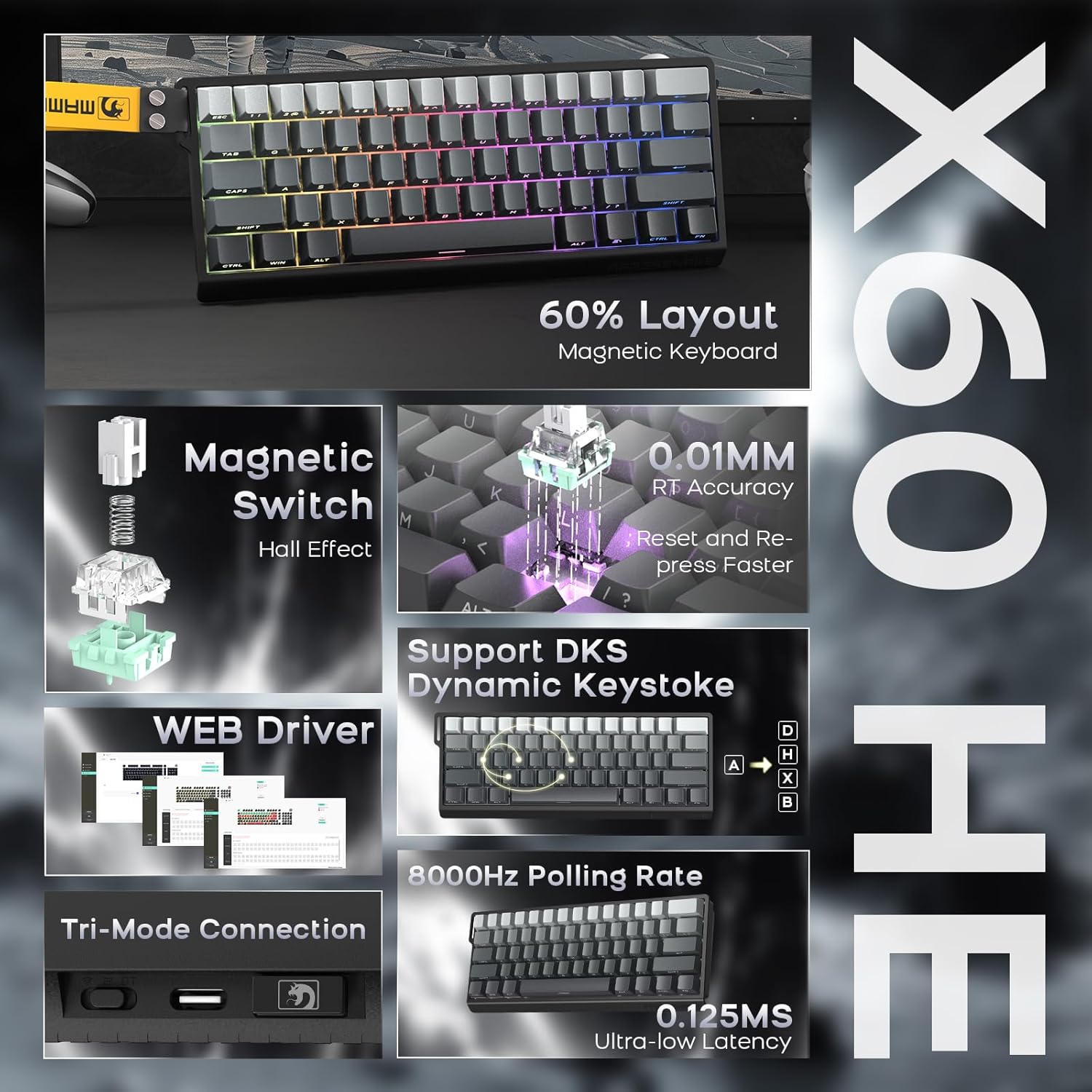
The X60 HE is a 60% layout magnetic switch keyboard designed for high-performance gaming. It features Hall effect switches with adjustable actuation points, rapid trigger functionality, and an 8000Hz polling rate for ultra-low latency response.
- สวิตช์แม่เหล็ก: Hall effect switches with adjustable actuation from 0.1mm to 3.2mm.
- ทริกเกอร์อย่างรวดเร็ว: Enables faster key resets and re-presses.
- อัตราการสำรวจ 8000Hz: Provides 0.125ms response time in wired mode.
- คีย์สโตรกแบบไดนามิก (DKS): Supports advanced key functionalities.
- การเชื่อมต่อสามโหมด: USB-C wired, 2.4GHz wireless, and Bluetooth.
- ไฟแบ็คไลท์ RGB: Customizable 16.8 million color RGB effects.
- สามารถสลับเปลี่ยนได้ขณะร้อน: Allows switch replacement without soldering.
- แบตเตอรี่: แบตเตอรี่แบบชาร์จไฟได้ในตัว ขนาด 4000mAh

3.2. ATTACK SHARK X11 Mouse
The X11 is a lightweight wireless gaming mouse equipped with a high-precision PAW3311 optical sensor and tri-mode connectivity. It features a magnetic charging dock that also functions as a 2.4GHz wireless receiver hub.
- เซ็นเซอร์: PAW3311 optical sensor.
- จุดต่อนิ้ว: Up to 22,000 DPI with 6 adjustable levels.
- อัตราการสำรวจความคิดเห็น: 1000Hz
- น้ำหนัก: Approximately 62g for effortless control.
- สวิตช์: HUYU switches with 20 million+ click lifespan.
- การเชื่อมต่อสามโหมด: USB-C wired, 2.4GHz wireless, and Bluetooth.
- การชาร์จ: Magnetic fast charging via RGB dock.
- อายุการใช้งานแบตเตอรี่: Up to 65 hours of interval usage.


4. การตั้งค่า
4.1. การชาร์จครั้งแรก
Before first use, it is recommended to fully charge both the keyboard and mouse.
- แป้นพิมพ์: Connect the USB-C cable to the keyboard and a power source (e.g., computer USB port, USB wall adapter).
- หนู: Place the X11 mouse onto its RGB charging dock. Connect the USB-C cable to the charging dock and a power source. The dock will also serve as the 2.4GHz wireless receiver hub.

4.2. โหมดการเชื่อมต่อ
Both the X60 HE keyboard and X11 mouse support three connection modes: 2.4GHz wireless, Bluetooth, and USB-C wired.

4.2.1. โหมดไร้สาย 2.4GHz
- แป้นพิมพ์: Ensure the keyboard is in 2.4GHz mode (check indicator light). Plug the 2.4GHz USB receiver dongle into an available USB port on your computer.
- หนู: The 2.4GHz USB receiver dongle is integrated into the RGB charging dock. Connect the charging dock to your computer via the USB-C cable. Ensure the mouse is in 2.4GHz mode.
4.2.2. โหมดบลูทู ธ
- แป้นพิมพ์: Switch the keyboard to Bluetooth mode. Activate Bluetooth on your device (computer, tablet, etc.) and search for available devices. Select "ATTACK SHARK X60 HE" to pair.
- หนู: Switch the mouse to Bluetooth mode. On your device, search for and select "ATTACK SHARK X11" to pair. The X11 mouse supports connecting to two Bluetooth devices (BT1/BT2) and can be switched between them.
4.2.3. โหมดสาย USB-C
- แป้นพิมพ์: เชื่อมต่อสาย USB-C จากคีย์บอร์ดเข้ากับคอมพิวเตอร์โดยตรง คีย์บอร์ดจะเปลี่ยนเป็นโหมดใช้สายโดยอัตโนมัติและเริ่มชาร์จ
- หนู: Connect the USB-C cable directly from the mouse to your computer. The mouse will automatically switch to wired mode and begin charging.
5. การดำเนินการ
5.1. X60 HE Keyboard Functions
- จุดปรับการทำงาน: Use the dedicated software (web driver) to customize the actuation distance of each magnetic switch from 0.1mm to 3.2mm.
- ทริกเกอร์อย่างรวดเร็ว: This feature allows keys to activate and deactivate based on movement rather than a fixed point, enabling faster repeated inputs. Configure via the web คนขับรถ
- คีย์สโตรกแบบไดนามิก (DKS): Assign up to four different actions to a single keypress based on how far the key is pressed.
- ไฟแบ็คไลท์ RGB: Cycle through various preset RGB lighting effects using keyboard shortcuts (refer to the keyboard's specific function key combinations) or customize extensively via the web คนขับรถ
- Web ไดรเวอร์: เข้าถึง web- คนขับรถประจำอยู่ที่ www.gmk.top for advanced customization of key functions, actuation points, DKS, macros, and lighting effects.

5.2. X11 Mouse Functions
- การปรับ DPI: The mouse features a DPI button (usually on the bottom or top) to cycle through 6 preset DPI levels: 800, 1600, 2400, 3200, 5000, and 22000 DPI.
- Tri-Mode Switching: Use the switch on the bottom of the mouse to select between 2.4GHz, Bluetooth (BT1/BT2), and wired modes.
- แท่นชาร์จ RGB: The dock provides magnetic charging and features customizable RGB lighting. It also acts as the 2.4GHz receiver.
- X11 Driver Software: Download the dedicated X11 driver software for advanced customization, including button remapping, macro creation, DPI fine-tuning, polling rate adjustment, and RGB lighting control.

6. การบำรุงรักษา
การบำรุงรักษาอย่างเหมาะสมจะช่วยให้ชุดอุปกรณ์เล่นเกมของคุณมีอายุการใช้งานยาวนานและรักษาประสิทธิภาพการทำงานได้ดี
- การทำความสะอาด: ใช้ผ้านุ่มและแห้งเช็ดคีย์บอร์ดและเมาส์ สำหรับคราบสกปรกฝังแน่น ให้เช็ดเบาๆamp cloth with mild soap can be used, ensuring no liquid enters the devices. Use compressed air to clear debris from between keycaps.
- การดูแลแบตเตอรี่ Avoid fully discharging the batteries frequently. For optimal battery health, charge the devices when the battery level is low, but avoid leaving them plugged in for extended periods after reaching full charge.
- พื้นที่จัดเก็บ: เก็บอุปกรณ์ไว้ในที่แห้งและเย็น หลีกเลี่ยงแสงแดดโดยตรงและอุณหภูมิที่สูงหรือต่ำเกินไป
7 การแก้ไขปัญหา
หากคุณพบปัญหา โปรดดูวิธีแก้ไขทั่วไปต่อไปนี้:
| ปัญหา | วิธีแก้ปัญหาที่เป็นไปได้ |
|---|---|
| Device not connecting wirelessly |
|
| Lag or input delay |
|
| ไฟ RGB ไม่ทำงาน |
|
| แป้นพิมพ์ไม่ตอบสนอง |
|
If the problem persists, please contact ATTACK SHARK customer support.
8. ข้อมูลจำเพาะ
8.1. ATTACK SHARK X60 HE Keyboard
- ประเภทสวิตช์: Hall Effect Magnetic Switches (Linear)
- จุดการทำงาน: Adjustable 0.1mm - 3.2mm (via software)
- อัตราการสำรวจความคิดเห็น: 8000Hz (Wired), 1000Hz (2.4GHz Wireless/Bluetooth)
- การเชื่อมต่อ: USB-C Wired, 2.4GHz Wireless, Bluetooth
- แบตเตอรี่: 4000mAh ชาร์จใหม่ได้
- คุณสมบัติพิเศษ: Rapid Trigger, Dynamic Keystroke (DKS), RGB Backlighting, Hot-Swappable
8.2. ATTACK SHARK X11 Mouse
- เซ็นเซอร์: เซ็นเซอร์แสง PAW3311
- จุดต่อนิ้ว: Up to 22,000 (6 adjustable levels: 800/1600/2400/3200/5000/22000)
- อัตราการสำรวจความคิดเห็น: 1000เฮิรตซ์
- น้ำหนัก: ประมาณ 62กรัม
- สวิตช์: HUYU (20 Million+ Clicks)
- การเชื่อมต่อ: USB-C Wired, 2.4GHz Wireless, Bluetooth
- อายุการใช้งานแบตเตอรี่: Up to 65 hours (interval usage)
- การชาร์จ: Magnetic Fast Charging Dock (with RGB)
8.3. ข้อกำหนดทั่วไป
- ขนาดแพ็คเกจ: 14.75 x 7 x 4.75 นิ้ว
- น้ำหนักสินค้า: 2.94 ปอนด์
- อุปกรณ์ที่รองรับ: Personal Computer, Laptop, Tablet (Windows, macOS, Switch, Xbox, PlayStation)
- ผู้ผลิต: โจมตีฉลาม
9. การรับประกันและการสนับสนุน
For warranty information or technical support, please contact the seller or visit the official ATTACK SHARK webไซต์ โปรดเก็บใบเสร็จรับเงินไว้เป็นหลักฐานการซื้อ
ผู้ขาย: ATTACK SHARK US
เป็นทางการ Webเว็บไซต์: ร้าน ATTACK SHARK บน Amazon


