
การแนะนำ
This manual provides detailed instructions for the safe and efficient operation of your HAYEAR 8MP Digital Microscope Camera, Model HY-6700. This high-performance camera is equipped with an 8MP sensor, capable of capturing images and videos in 4K Ultra HD and 1080P resolutions. It supports simultaneous USB and HDMI output, making it suitable for various applications including industrial inspection, laboratory research, quality control, and detailed observation with image and video recording capabilities. Please read this manual thoroughly before use and retain it for future reference.
สินค้าเกินview
คุณสมบัติหลัก
- ความละเอียดสูง: 8MP sensor for 4K Ultra HD and 1080P image and video capture.
- เอาท์พุทคู่: Simultaneous USB and HDMI output for connection to PCs, monitors, or TVs.
- การใช้งานที่หลากหลาย: Ideal for industrial inspection, laboratory observation, quality control, and educational purposes.
- บันทึกภาพและวิดีโอ: Features still image capture and video recording functions for detailed documentation.
- ความเข้ากันได้ของระบบ: USB connection compatible with Windows, Mac OS, and Linux systems.
เนื้อหาแพ็คเกจ
ตรวจสอบว่ารายการทั้งหมดที่ระบุไว้ด้านล่างนี้รวมอยู่ในแพ็คเกจของคุณ:
- 1 x HAYEAR Digital Microscope Camera (Model HY-6700)
- สาย HDMI 1 เส้น
- สาย USB 1 เส้น
- 1 x คู่มือการใช้งาน

รูปที่ 1: Package contents including the camera, HDMI cable, USB cable, and instruction manual.
การตั้งค่า
Camera Interface and Buttons
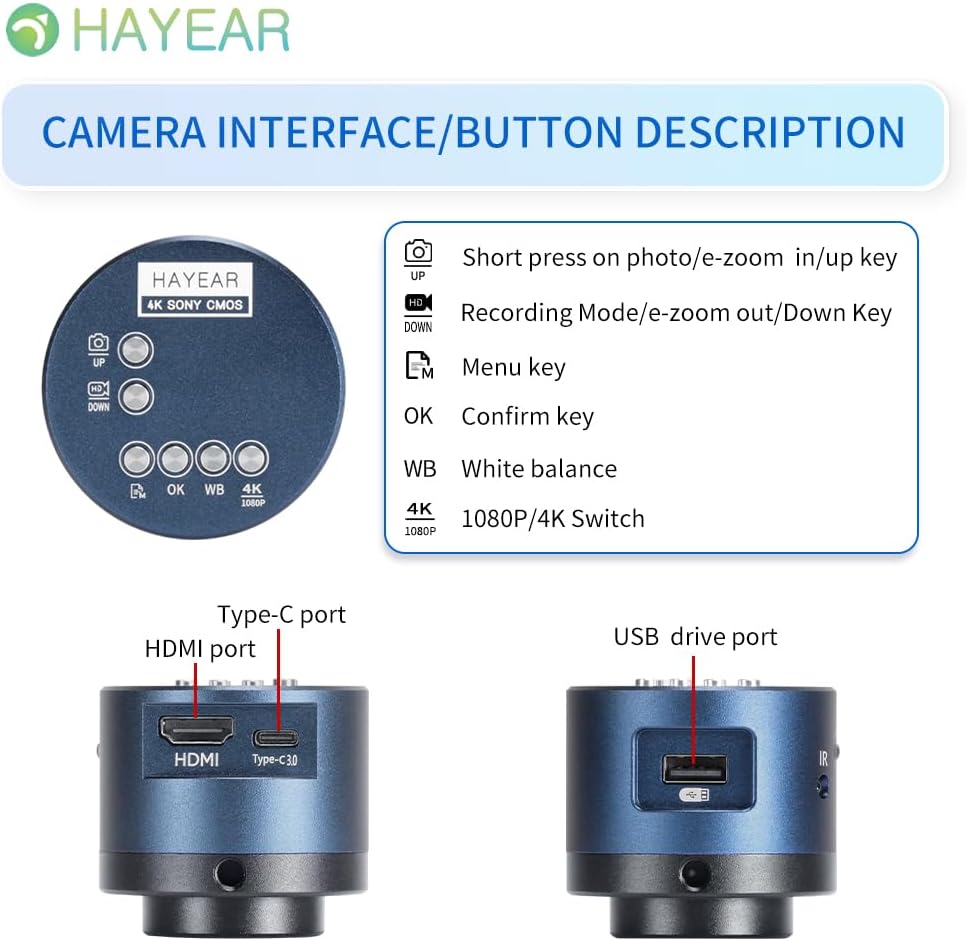
รูปที่ 2: เกินview of the camera's control buttons and ports.
- Photo/E-Zoom In/Up Key: Short press to take a photo or zoom in. Use for navigation (Up).
- Recording Mode/E-Zoom Out/Down Key: Short press to switch to recording mode or zoom out. Use for navigation (Down).
- ปุ่มเมนู: Access the camera's settings menu.
- ตกลงคีย์: ยืนยันการเลือกหรือการดำเนินการ
- WB (White Balance) Key: Adjust white balance settings.
- 4K/1080P Switch: Toggle between 4K and 1080P resolution output.
- พอร์ต HDMI: Connect to an HDMI display (monitor, TV).
- พอร์ต Type-C: การป้อนพลังงานและการถ่ายโอนข้อมูล
- พอร์ต USB สำหรับไดรฟ์: Connect to a computer for data transfer or use as a webลูกเบี้ยว.
การเชื่อมต่อกับจอภาพ
The camera supports simultaneous HDMI and USB output. Choose the connection method suitable for your application.
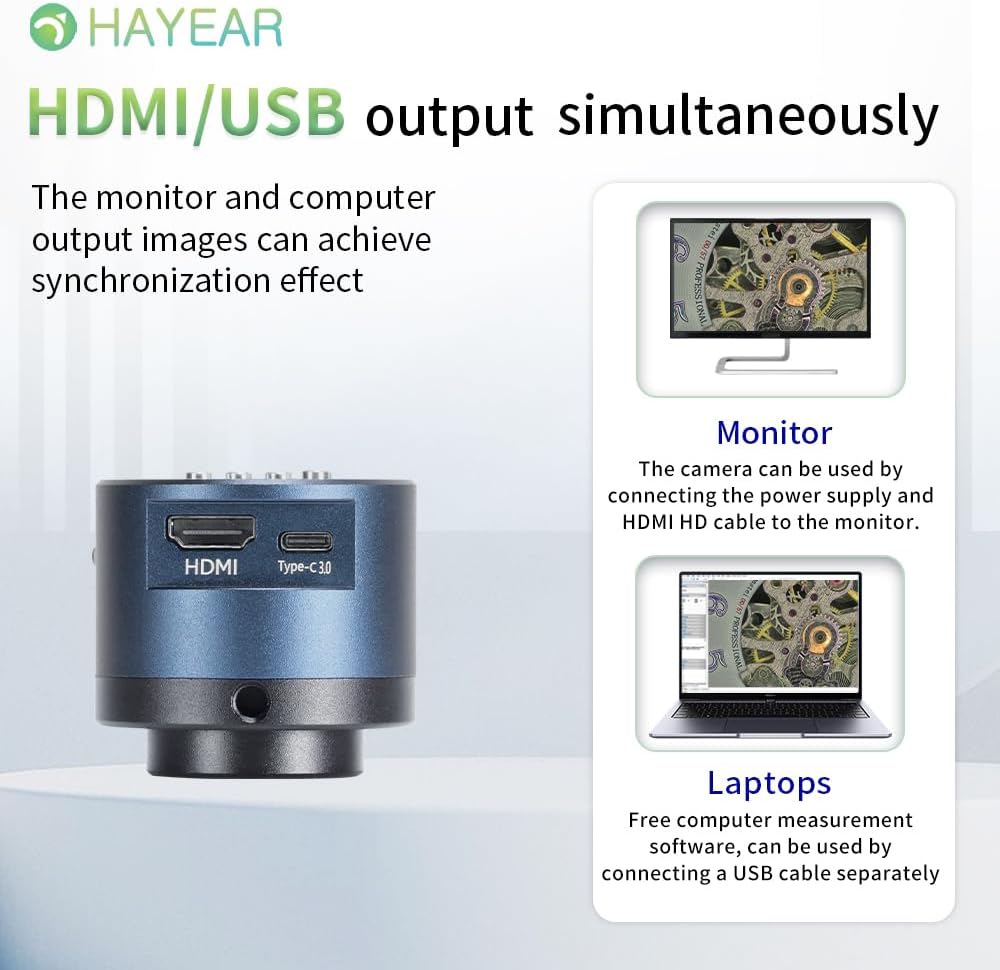
รูปที่ 3: Illustrates simultaneous HDMI and USB output capabilities.
- การเชื่อมต่อ HDMI: Connect the camera to an HDMI monitor or TV using the provided HDMI cable. Ensure the camera is powered via the Type-C port. This allows for direct display of the microscope's output.
- การเชื่อมต่อ USB: Connect the camera to a computer (Windows, Mac, or Linux) using the provided USB cable. The camera can function as a webcam or be used with dedicated measurement software.
การเปิด/ปิดเครื่อง
The product powers on automatically when connected to a power source via the Type-C port. To turn off the device, disconnect the power plug from the camera or the power outlet.
คำแนะนำการใช้งาน
การทำงานพื้นฐาน
- ถ่ายรูป: Short press the "Photo/E-Zoom In/Up" key to capture a still image.
- การบันทึกวิดีโอ: Short press the "Recording Mode/E-Zoom Out/Down" key to switch to video recording mode, then press again to start/stop recording.
- ฟังก์ชั่นซูม: Use the "Photo/E-Zoom In/Up" key to zoom in and the "Recording Mode/E-Zoom Out/Down" key to zoom out.
- Resolution Switch: Press the "4K/1080P" key to toggle between 4K and 1080P output resolutions.
การปรับสมดุลแสงขาว
To achieve accurate color representation, adjust the white balance using the WB key. For one-touch white balance adjustment:
- If the image appears with a blue tint, open the camera's one-touch white balance function.
- Place a white paper under the light source.
- Adjust the light source from its darkest setting gradually to its brightest.
- The camera will automatically adjust the blue tint to a normal white balance state.
การนำทางเมนู
Press the "Menu" key to access the camera's settings. Use the "Up" and "Down" keys to navigate through options and the "OK" key to select or confirm.
การซ่อมบำรุง
- การทำความสะอาด: ใช้ผ้าแห้งนุ่มเช็ดทำความสะอาดตัวกล้อง สำหรับเลนส์ ให้ใช้ผ้าและน้ำยาทำความสะอาดเลนส์โดยเฉพาะ หลีกเลี่ยงวัสดุที่มีฤทธิ์กัดกร่อนหรือสารเคมีรุนแรง
- พื้นที่จัดเก็บ: Store the camera in a dry, dust-free environment when not in use. Protect it from extreme temperatures and humidity.
- การจัดการ: Handle the camera with care to prevent physical damage. Avoid dropping or subjecting it to strong impacts.
การแก้ไขปัญหา
หากคุณพบปัญหา โปรดดูปัญหาทั่วไปและวิธีแก้ไขต่อไปนี้:
- ไม่มีภาพที่แสดง:
- Ensure the camera is properly powered on and the power cable is securely connected.
- Check the HDMI or USB cable connection to both the camera and the display/computer.
- Verify that the display input source is correctly selected (e.g., HDMI 1, USB).
- Image Appears Blue/Incorrect Colors:
- Perform a one-touch white balance adjustment as described in the "Operating Instructions" section.
- Ensure the lighting conditions are stable and appropriate for observation.
- Cannot Record Images/Videos:
- Ensure a compatible TF memory card (up to 128GB) is inserted correctly into the camera.
- ตรวจสอบว่าการ์ดหน่วยความจำมีพื้นที่ว่างเพียงพอหรือไม่
- Verify that you are in the correct recording mode.
- Camera Not Recognized by PC (USB):
- ตรวจสอบให้แน่ใจว่าสาย USB เชื่อมต่ออย่างแน่นหนา
- ลองเชื่อมต่อกับพอร์ต USB อื่นบนคอมพิวเตอร์ของคุณ
- Restart your computer and the camera.
- Ensure your operating system (Windows/Mac/Linux) has the necessary drivers installed (usually plug-and-play).
For further assistance, please contact technical support.
ข้อมูลจำเพาะ
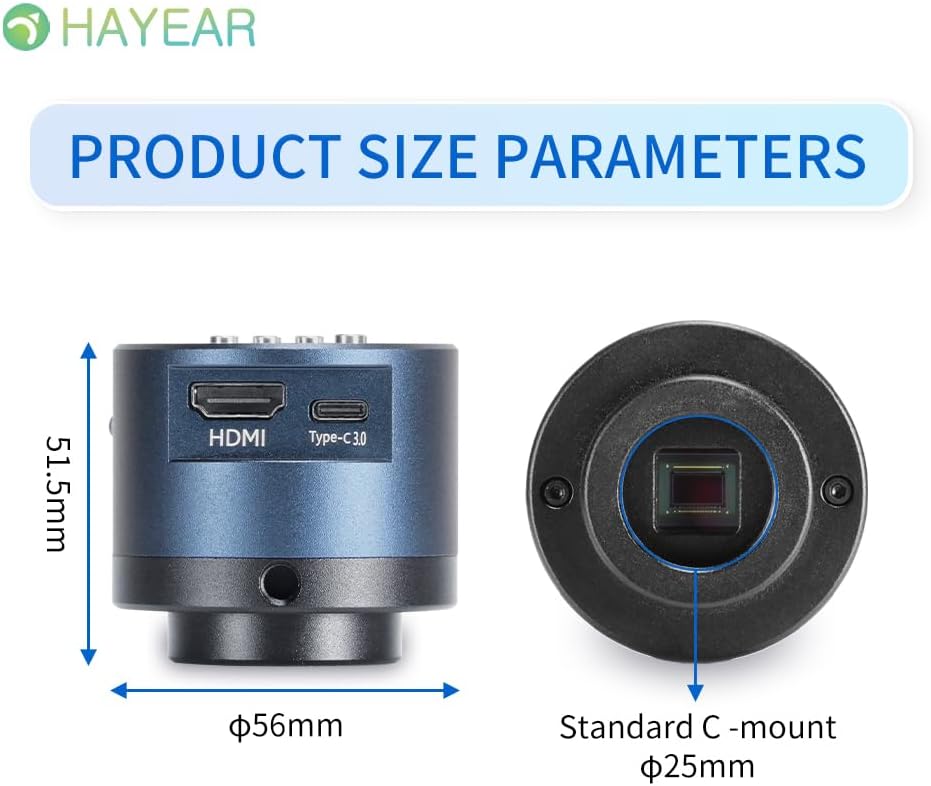
รูปที่ 4: Dimensions of the HAYEAR Digital Microscope Camera.
| คุณสมบัติ | ข้อมูลจำเพาะ |
|---|---|
| แบบอย่าง | HY-6700 |
| เซ็นเซอร์ | 8 เมกะพิกเซล |
| เอาท์พุตวิดีโอ | 4K/2K/1080P (HDMI Output) |
| ขนาดเซนเซอร์ | 1/2.8 นิ้ว |
| ขนาดพิกเซล | 2.0 x 2.0 ไมโครเมตร |
| ปณิธาน | 3840x2160@30FPS (4K); 1920x1080P@30FPS |
| การบันทึกวิดีโอ | Supports 4K video recording |
| เอาท์พุต USB | 1920x1080P@30FPS; 1280x720P@30FPS |
| ความยาวคลื่น | 400นาโนเมตร ~ 1000นาโนเมตร |
| อินเทอร์เฟซเอาท์พุต | HDMI / USB (Simultaneous Support) |
| สมดุลแสงขาว | One-touch / Auto / Manual |
| ประเภทเลนส์ | Standard C/CS Interface |
| พื้นที่จัดเก็บ | TF Memory Card, up to 128GB |
| รองรับพีซี | Windows / Mac / Linux Systems |
| การซูมภาพ | 7x Optical Zoom / Digital Zoom |
| ขนาด | 15 x 15 x 8 cm (Product Size) |
| น้ำหนัก | 500 กรัม |
| กำลังไฟเข้า | 5 โวลต์ |
การรับประกันและการสนับสนุน
ข้อมูลการรับประกัน
- All products undergo a thorough inspection before shipment to ensure quality.
- Customers are advised to inspect the package upon receipt.
- A one-year free warranty is provided for all machines. This warranty does not cover damage caused by human error or misuse.
การสนับสนุนด้านเทคนิค
Free technical support is always available. If you encounter any issues not covered in this manual or require further assistance, please contact HAYEAR customer service. Refer to the product packaging or official webเว็บไซต์สำหรับรายละเอียดการติดต่อ