
1. บทนำ
Welcome to the user manual for your new Google Pixel 9 smartphone. This guide provides essential information on setting up, operating, maintaining, and troubleshooting your device. The Google Pixel 9 combines advanced technology with user-friendly design, offering a powerful and intuitive mobile experience.
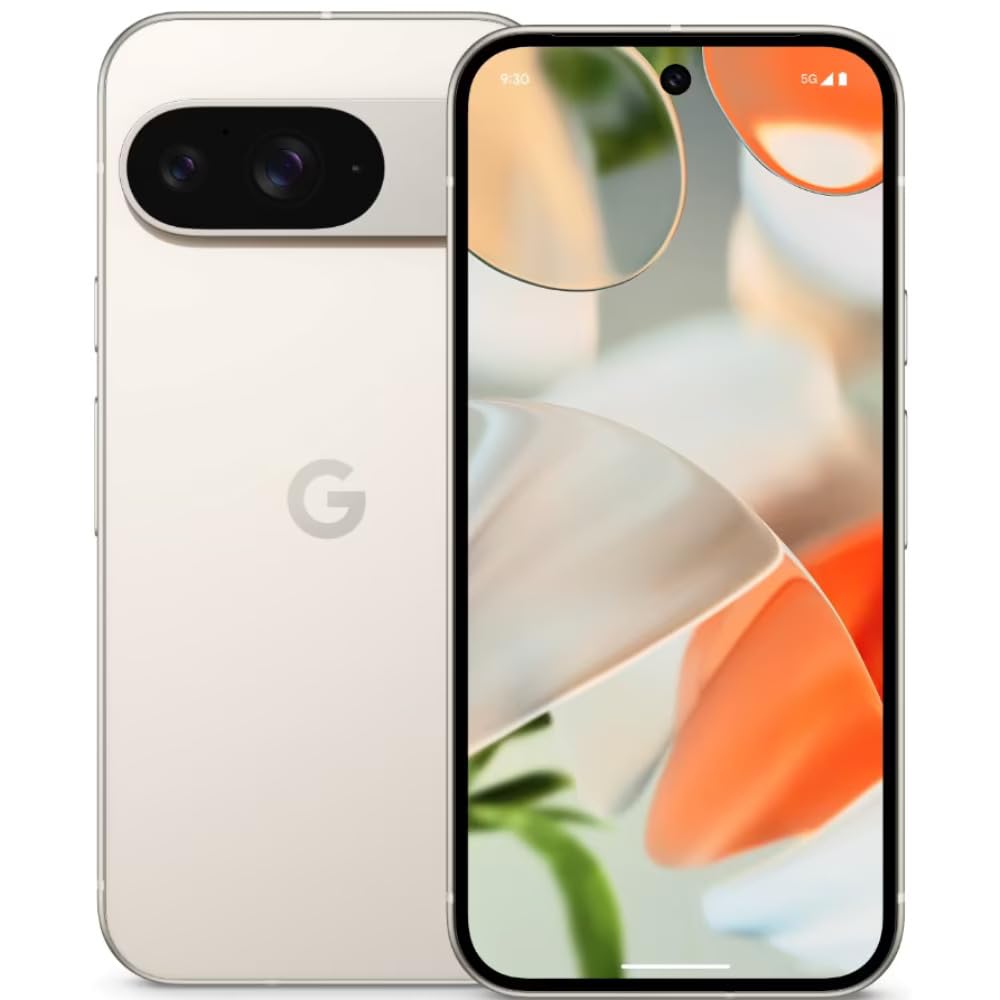
Image: The Google Pixel 9 smartphone, showcasing its sleek design and camera bar on the rear.
2. การตั้งค่า
2.1. การแกะกล่องและการชาร์จครั้งแรก
Carefully remove all components from the packaging. Before first use, it is recommended to fully charge your Pixel 9 using the provided USB-C to USB-C cable and a compatible power adapter (sold separately).
2.2. การใส่ซิมการ์ด
- หาช่องใส่ซิมการ์ดที่ด้านข้างของโทรศัพท์ Pixel 9 ของคุณ
- Insert the SIM ejector tool (included in the box) into the small hole on the tray and press firmly until the tray pops out.
- Place your Nano SIM card(s) into the tray with the gold contacts facing down. The Pixel 9 supports Dual SIM functionality.
- ค่อยๆ ดันถาดกลับเข้าไปในโทรศัพท์จนกระทั่งล็อคเข้าที่
2.3. การเปิดเครื่องและการกำหนดค่าเริ่มต้น
Press and hold the Power button on the side of the device until the Google logo appears. Follow the on-screen instructions to complete the initial setup, including connecting to Wi-Fi, signing in with your Google account, and setting up security features like fingerprint recognition.
3. การใช้งาน Google Pixel 9 ของคุณ
3.1. การแสดงผลและการนำทาง
The Pixel 9 features a 6.3-inch OLED display with a dynamic refresh rate up to 120Hz, providing smooth visuals. Navigate the device using touch gestures. Swipe up from the bottom to go home, swipe from the sides to go back, and swipe up and hold for recent apps.
3.2. การปฏิบัติงาน
Powered by the Google Tensor G4 processor and 12 GB of RAM, the Pixel 9 delivers efficient multitasking and responsive performance for applications and games.
3.3. ระบบกล้อง
The Pixel 9 is equipped with a dual rear camera system: a 50 MP main sensor and a 48 MP ultrawide lens (123° field of view). The front camera is 10.5 MP. Advanced AI features enhance photography, including:
- เพิ่มฉัน: Allows users to insert themselves into photos.
- Pixel Studio: Enables image creation from text prompts.

Image: A visual representation of the Google Pixel 9's AI photo editing capabilities, showing how images can be enhanced or modified.

Image: Screenshots from the Google Pixel 9 illustrating AI functionalities such as Gemini for assistance, advanced Pixel Screenshots, and the 'Circle to Search' feature.
3.4. แบตเตอรี่และการชาร์จ
The device includes a 4700 mAh battery. It supports 45W USB-PD fast charging and 15W wireless charging. For optimal charging, use compatible USB-PD chargers.
3.5. คุณสมบัติด้านความปลอดภัย
Unlock your device securely using the integrated fingerprint recognition sensor.
4. การบำรุงรักษา
4.1. ความทนทานและการปกป้อง
The Pixel 9 is designed with durability in mind, featuring Corning Gorilla Glass Victus 2 for scratch resistance and protection against minor drops and spills. It is also water resistant.
Image: The Google Pixel 9, highlighting its robust construction and the commitment to seven years of OS and security updates, ensuring longevity.
4.2. การอัปเดตซอฟต์แวร์
Google provides seven years of OS and security updates for the Pixel 9, ensuring your device remains secure and up-to-date with the latest features. Regularly check for and install available updates via Settings > System > System update.
4.3. การทำความสะอาดอุปกรณ์ของคุณ
To clean your Pixel 9, use a soft, lint-free cloth. Avoid abrasive materials or harsh chemicals. For stubborn marks, slightly dampชุบผ้าด้วยน้ำ ห้ามจุ่มอุปกรณ์ลงในน้ำ
5 การแก้ไขปัญหา
If you encounter issues with your Pixel 9, consider the following general troubleshooting steps:
- รีสตาร์ทอุปกรณ์: การรีสตาร์ทเพียงครั้งเดียวสามารถแก้ไขข้อผิดพลาดซอฟต์แวร์เล็กๆ น้อยๆ ได้หลายประการ
- ตรวจสอบการอัปเดตซอฟต์แวร์: โปรดตรวจสอบให้แน่ใจว่าอุปกรณ์ของคุณใช้ซอฟต์แวร์เวอร์ชันล่าสุด
- Review การอนุญาตสิทธิ์ของแอป: If an app is not functioning correctly, check its permissions in Settings.
- ล้างแคช: For app-specific issues, try clearing the app's cache via Settings > Apps.
- รีเซ็ตเป็นค่าเริ่มต้นจากโรงงาน: As a last resort, a factory reset can resolve persistent software problems. Back up your data before performing a factory reset.
For more complex issues or hardware malfunctions, please contact Google Support.
6. ข้อมูลจำเพาะ
| คุณสมบัติ | ข้อมูลจำเพาะ |
|---|---|
| ยี่ห้อ | |
| แบบอย่าง | พิกเซล 9 |
| ระบบปฏิบัติการ | แอนดรอยด์ 14 |
| โปรเซสเซอร์ | กูเกิล เทนเซอร์ G4 |
| แรม | 12GB |
| การจัดเก็บข้อมูลภายใน | 256GB |
| ขนาดจอแสดงผล | 6.3 นิ้ว |
| ประเภทจอภาพ | โอแอลอีดี |
| ปณิธาน | 2424x1080 พิกเซล |
| กล้องหลัง | 50 MP (Main), 48 MP (Ultrawide) |
| กล้องหน้า | 10.5 MP |
| ความจุของแบตเตอรี่ | 4700 มิลลิแอมป์ |
| การชาร์จไฟ | 45W USB-PD Fast Charging, 15W Wireless Charging |
| การเชื่อมต่อ | 5G, Wi-Fi, USB Type C |
| ประเภทซิมการ์ด | นาโนซิม (ใช้งานได้สองซิม) |
| การรักษาความปลอดภัยด้วยไบโอเมตริกซ์ | การจดจำลายนิ้วมือ |
| ระดับความต้านทานต่อน้ำ | ทนน้ำ |
| ขนาด (กว้าง x ยาว x สูง) | 15.2 x 7.2 x 0.8 เซนติเมตร |
| น้ำหนัก | 198 กรัม |
7. อะไรอยู่ในกล่อง
The Google Pixel 9 retail package includes the following items:
- สมาร์ทโฟน Google Pixel 9
- สาย USB-C ถึง USB-C
- เครื่องมือถอดถาดซิม
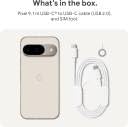
Image: A clear depiction of the Google Pixel 9 and its included accessories: a USB-C to USB-C cable and a SIM ejector tool.
8. การรับประกันและการสนับสนุน
8.1. การรับประกันสินค้า
Your Google Pixel 9 comes with a 1-year limited warranty from the date of purchase. This warranty covers manufacturing defects. Please retain your proof of purchase for warranty claims.
8.2. การสนับสนุนลูกค้า
For technical assistance, warranty claims, or further information, please visit the official Google Support website or contact Google customer service. Refer to the Google support page for your region for specific contact details and service center locations.