
การแนะนำ
This manual provides detailed instructions for the setup, operation, maintenance, and troubleshooting of your BoxWave SlimKeys Bluetooth Keyboard with Trackpad. Please read this manual thoroughly before using the product to ensure optimal performance and longevity.
สินค้าเกินview
The BoxWave SlimKeys Bluetooth Keyboard with Trackpad is a portable, slim keyboard designed for seamless connectivity with various devices. It features responsive chiclet-style keys and a full-functioning trackpad, enhancing productivity on the go.

ภาพ: จากบนลงล่าง view of the BoxWave SlimKeys Bluetooth Keyboard with Trackpad, showing the full QWERTY layout and integrated trackpad.

ภาพ: มุมเอียง view of the BoxWave SlimKeys Bluetooth Keyboard with Trackpad, highlighting its slim profile.
การตั้งค่า
1. การชาร์จคีย์บอร์ด
Before initial use, fully charge the keyboard. Connect the included charging cable to the keyboard's charging port and to a USB power source. The charging indicator light will illuminate during charging and turn off when fully charged.

Image: The BoxWave SlimKeys keyboard connected to a charging cable, illustrating the charging process.
2. การเปิด/ปิดเครื่อง
Locate the ON/OFF switch on the side of the keyboard. Slide the switch to the 'ON' position to power on the keyboard. Slide it to 'OFF' when not in use to conserve battery power.
3. การจับคู่บลูทู ธ
- ตรวจสอบให้แน่ใจว่าคีย์บอร์ดได้รับการชาร์จและเปิดอยู่
- กดปุ่ม เชื่อมต่อ button on the keyboard. The Bluetooth indicator light will begin to flash, indicating it is in pairing mode.
- On your device (e.g., HP Spectre X360, Android tablet, iOS device), go to the Bluetooth settings.
- ค้นหา available devices. You should see "BoxWave SlimKeys Keyboard" or a similar name appear in the list.
- Select the keyboard from the list to initiate pairing. Follow any on-screen prompts, such as entering a pairing code, if required.
- Once successfully paired, the Bluetooth indicator light on the keyboard will stop flashing and remain solid or turn off, depending on the model.

Image: A hand using the integrated trackpad on the SlimKeys keyboard, demonstrating navigation capabilities.
4. ความเข้ากันได้กับหลายแพลตฟอร์ม
The SlimKeys keyboard is compatible with Android, Windows, and iOS devices. It automatically adapts to the operating system for optimal functionality.
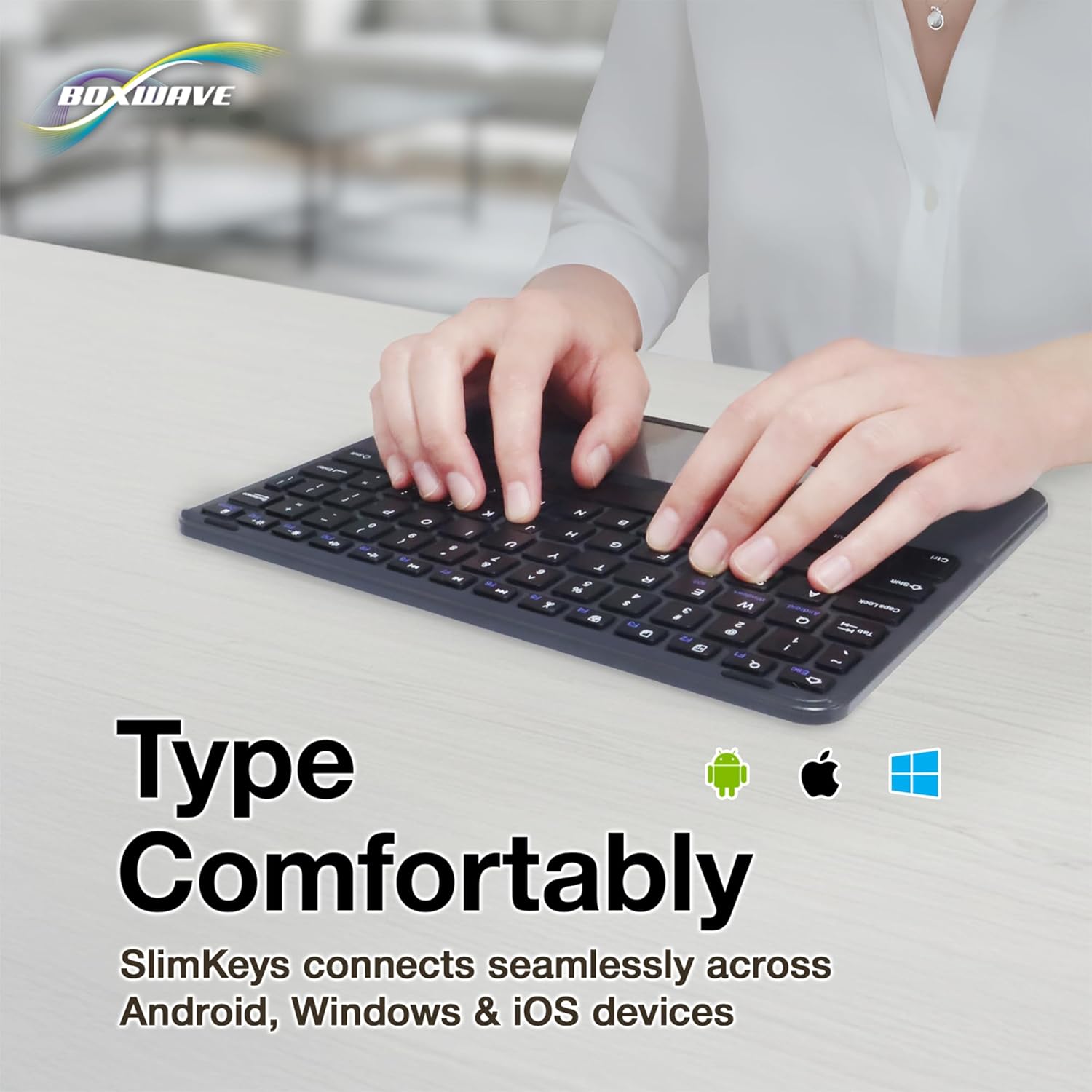
Image: Hands typing on the SlimKeys keyboard, with icons representing Android, Apple (iOS), and Windows operating systems, indicating multi-platform compatibility.
คำแนะนำการใช้งาน
1. Basic Keyboard Usage
The keyboard functions like a standard QWERTY keyboard. Simply type as you would on any other keyboard. The chiclet-style keys provide a comfortable and responsive typing experience.
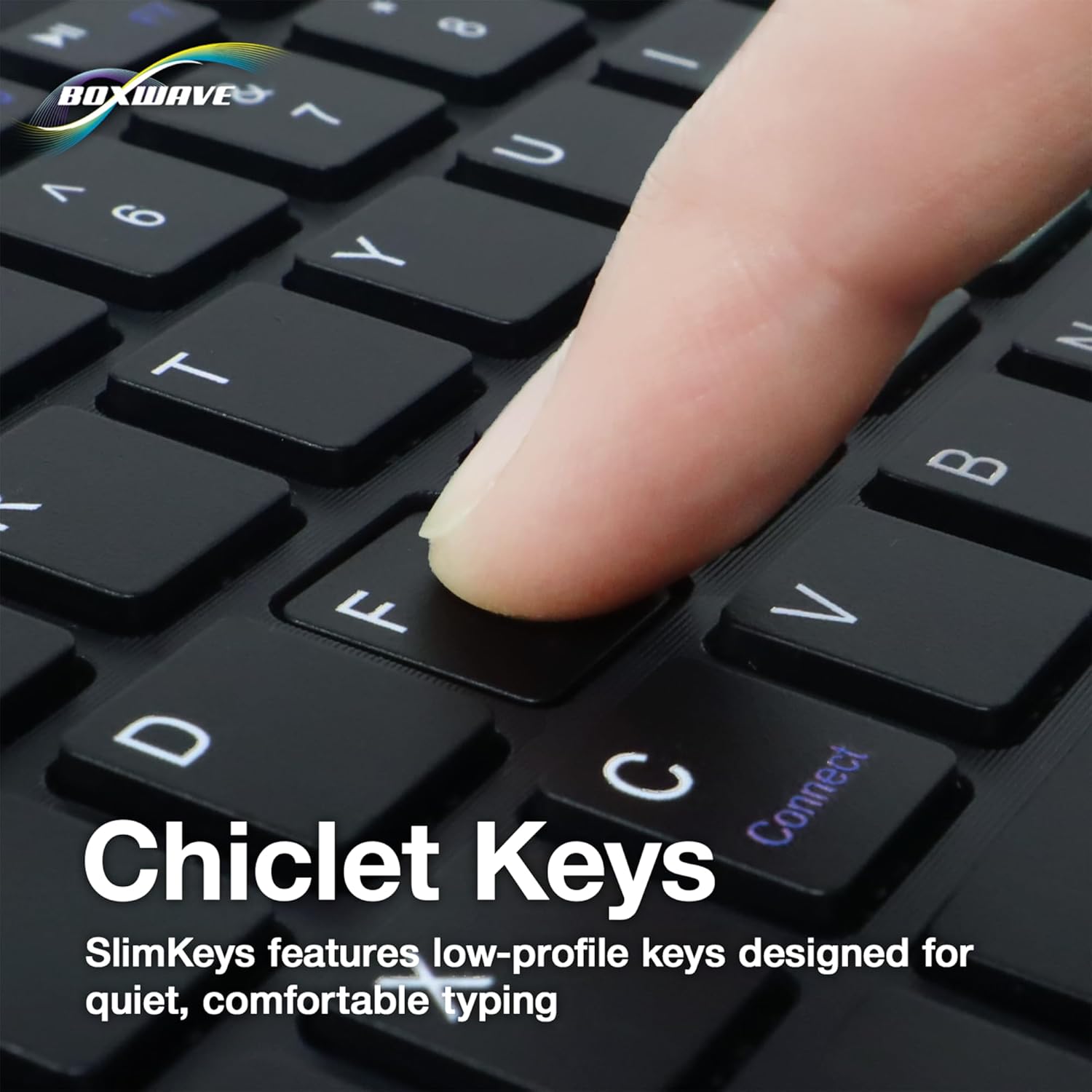
ภาพ: ภาพระยะใกล้ view of a finger pressing a key on the SlimKeys keyboard, highlighting the chiclet key design.
2. ฟังก์ชันการทำงานของแทร็กแพด
The integrated trackpad allows for precise cursor control, similar to a laptop trackpad. Use single-finger gestures for basic navigation and clicking. Multi-touch gestures may be supported depending on your device's operating system.
3. Specialized Function Keys
The keyboard includes a row of specialized function keys (F1-F12) that provide quick access to common commands. These functions may vary slightly depending on the connected device's operating system.
- Esc / Home: Returns to the home screen or acts as Escape.
- F1 / Search: Opens search function.
- F2 / Select All: Selects all content.
- F3 / Copy: คัดลอกเนื้อหาที่เลือกไว้
- F4 / Paste: วางเนื้อหาที่คัดลอกมา
- F5 / Cut: Cuts selected content.
- F6 / Skip Back: ข้ามไปยังแทร็ก/สื่อก่อนหน้า
- F7 / Play/Pause: เล่นหรือหยุดสื่อชั่วคราว
- F8 / Skip Forward: ข้ามไปยังแทร็ก/สื่อถัดไป
- F9 / Volume Down: ลดระดับเสียง
- F10 / Volume Up: เพิ่มระดับเสียง
- F11 / Brightness Down: ลดความสว่างหน้าจอ
- F12 / Brightness Up: เพิ่มความสว่างหน้าจอ
- Delete / Lock: Deletes characters or locks the device.

Image: A detailed diagram illustrating the specialized function keys and their corresponding actions on the SlimKeys keyboard.
การซ่อมบำรุง
1. การทำความสะอาด
ในการทำความสะอาดแป้นพิมพ์ ให้เช็ดพื้นผิวเบาๆ ด้วยผ้าเนื้อนุ่มและแห้งamp cloth. Avoid using harsh chemicals or abrasive materials, as these can damage the finish. Ensure no liquid enters the keyboard's internal components.
2. การดูแลแบตเตอรี่
The keyboard features a long-lasting battery. To maximize battery life:
- Turn off the keyboard using the ON/OFF switch when not in use.
- ชาร์จแบตเตอรี่เมื่อไฟแสดงสถานะแบตเตอรี่เหลือน้อยปรากฏขึ้น
- หลีกเลี่ยงการให้คีย์บอร์ดสัมผัสกับอุณหภูมิที่สูงเกินไป
The keyboard offers up to 30 days of active use and up to 6 months of standby time when powered off.
การแก้ไขปัญหา
- แป้นพิมพ์ไม่เชื่อมต่อ:
- ตรวจสอบให้แน่ใจว่าคีย์บอร์ดเปิดใช้งานอยู่และชาร์จแบตเตอรี่เต็มแล้ว
- ตรวจสอบให้แน่ใจว่าได้เปิดใช้งานบลูทูธบนอุปกรณ์ของคุณแล้ว
- Try re-pairing the keyboard by following the Bluetooth Pairing steps in the Setup section.
- Ensure the keyboard is within the effective Bluetooth range (typically 10 meters or 33 feet).
- คีย์ไม่ตอบสนอง:
- ตรวจสอบว่าแป้นพิมพ์เชื่อมต่อผ่านบลูทูธแล้วหรือไม่
- รีสตาร์ททั้งคีย์บอร์ดและอุปกรณ์ของคุณ
- ตรวจสอบให้แน่ใจว่าแบตเตอรี่ของแป้นพิมพ์ไม่ต่ำจนเกินไป
- แทร็กแพดใช้งานไม่ได้:
- Verify the keyboard is properly connected.
- Check your device's settings for any trackpad or mouse-related configurations.
- ทำความสะอาดพื้นผิวแทร็กแพดเพื่อกำจัดเศษฝุ่นหรือสิ่งสกปรกต่างๆ
- การเชื่อมต่อไม่ต่อเนื่อง:
- ขยับเข้าไปใกล้อุปกรณ์ของคุณเพื่อลดการรบกวน
- Ensure no other strong wireless signals are interfering with the Bluetooth connection.
- ตัดการเชื่อมต่อและเชื่อมต่อการเชื่อมต่อ Bluetooth ใหม่
ข้อมูลจำเพาะ
| คุณสมบัติ | รายละเอียด |
|---|---|
| ยี่ห้อ | บ็อกซ์เวฟ |
| แบบอย่าง | SlimKeys Bluetooth Keyboard with Trackpad |
| สี | สีดำเจ็ทแบล็ค |
| วัสดุ | โพลีคาร์บอเนต |
| น้ำหนักสินค้า | 10.9 ออนซ์ |
| เวอร์ชันบลูทูธ | 3.0 |
| ขนาด (กว้าง x ลึก x สูง) | 9.5 นิ้ว x 7.0 นิ้ว x 0.2 นิ้ว (23.2 ซม. x 17.8 ซม. x 0.5 ซม.) |
| อายุการใช้งานแบตเตอรี่ (ขณะใช้งาน) | นานถึง 30 วัน |
| อายุการใช้งานแบตเตอรี่ (สแตนด์บาย) | นานถึง 6 เดือน |
| ASIN | B0DZ7MNDRF |
| วันที่พร้อมใช้งานครั้งแรก | วันที่ 3 ธันวาคม 2021 |

Image: A diagram illustrating the width, depth, and height of the SlimKeys keyboard.
การรับประกันและการสนับสนุน
Specific warranty information and detailed support contacts are not provided within this manual. For warranty details, technical support, or further assistance, please refer to the official BoxWave webหรือติดต่อฝ่ายบริการลูกค้าโดยตรง