1. บทนำ
Thank you for choosing the Inefala Android 15 Car Radio. This device is designed to enhance your driving experience with advanced features such as Wireless Carplay, Android Auto, GPS navigation, Bluetooth connectivity, and a 9-inch touchscreen display. This manual provides essential information for proper installation, operation, and maintenance of your new car radio. Please read it thoroughly before use.
2. ข้อมูลด้านความปลอดภัย
- Always ensure the vehicle is parked safely before operating the car radio's advanced features.
- Do not attempt to install or repair the unit if you are not qualified. Improper installation can lead to damage or injury.
- Consult a professional for electrical wiring if you are unsure.
- Keep the volume at a safe level to remain aware of road conditions and traffic.
- หลีกเลี่ยงการให้เครื่องสัมผัสกับอุณหภูมิที่สูงหรือต่ำเกินไป แสงแดดโดยตรงเป็นเวลานาน หรือความชื้นที่มากเกินไป
3. เนื้อหาบรรจุภัณฑ์
กรุณาทำเครื่องหมายในช่องสำหรับรายการต่อไปนี้:
- Inefala Android 15 Car Radio for Suzuki SX4 / Fiat Sedici
- สายไฟ
- อาร์ซีเอเคเบิ้ล
- เสาอากาศ GPS
- Reverse Camera Input Cable
- กล้องฉุกเฉิน AHD
- ไมโครโฟนภายนอก
- สายเคเบิล 2 x USB
- อะแดปเตอร์สาย USB
- ตัวยึด
- เครื่องมือติดตั้ง

ภาพ: รายละเอียด view of the wiring harness and included accessories in the package.
4. การตั้งค่าและการติดตั้ง
4.1. การติดตั้งทั่วไปview
The Inefala Android 15 Car Radio is designed for direct fitment in Suzuki SX4 (2006-2013) and Fiat Sedici (2005-2014) models. Professional installation is recommended. Ensure the vehicle's power is disconnected before starting installation.
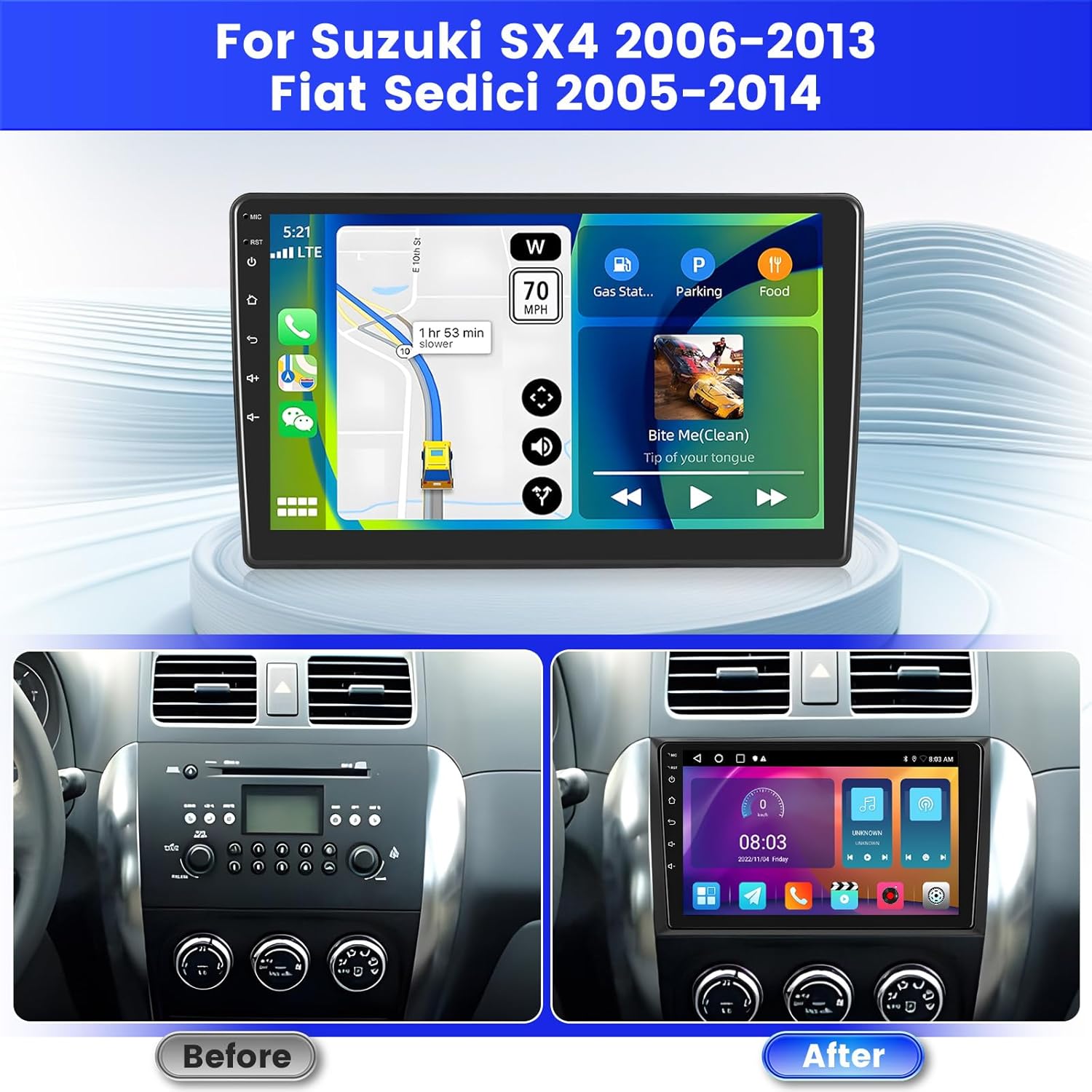
Image: Comparison of the vehicle dashboard before and after the installation of the Inefala car radio.
4.2. แผนภาพการเดินสายไฟ
Connect the power cable, RCA cables, GPS antenna, and USB cables to their respective ports on the car radio. Refer to the detailed wiring diagram for correct connections.
Image: Close-up of the car radio's rear ports and corresponding cable connections, including power, RCA, USB, and antenna inputs.
4.3. Backup Camera Connection
The unit supports an AHD backup camera. Connect the red cable of the reverse input cable to the positive terminal of the car's reverse light cable. Connect the black cable to the negative terminal of the car's reverse light cable. The other two red extension cables (if present) do not need to be connected.
หมายเหตุสำคัญ:
The reverse input cable must be plugged in even if the reverse camera is not being used. Otherwise, it may affect Bluetooth and Wi-Fi signal reception.

Image: Visual guide for connecting the AHD backup camera, illustrating the wiring to the car's reverse lights and the radio unit.
4.4. ระบบควบคุมพวงมาลัย (SWC)
หากต้องการเปิดใช้งานการควบคุมพวงมาลัย ให้ทำตามขั้นตอนเหล่านี้:
- ไม่มีตัวถอดรหัส CANBUS: Connect the plugs or the steering wheel control wires (Key1/Key2) in the power cable to the corresponding port or wire of your original car. Then, go to "SWC manual match" in the radio settings to activate the button function.
- พร้อมตัวถอดรหัส CANBUS: เชื่อมต่อสาย CANBUS ก่อนเปิดวิทยุ จากนั้นทำตามขั้นตอนต่อไปนี้: การตั้งค่ารถยนต์ > ค่าจากโรงงาน (000000) > การตั้งค่าประเภทรถยนต์ เพื่อให้ SWC ทำงานได้อย่างถูกต้อง ขั้นแรก เลือกยี่ห้อของตัวถอดรหัส CANBUS จากนั้นเลือกรุ่นและปีที่ตรงกับสถานการณ์จริง

Image: Diagram illustrating the connection points for steering wheel controls and a screenshot of the on-screen SWC configuration interface.
5. คู่มือการใช้งาน
5.1. การเปิด/ปิดเครื่องและการนำทางพื้นฐาน
Press the power button to turn the unit on or off. The 9-inch touchscreen allows for intuitive navigation through menus and applications. Swipe, tap, and pinch gestures are supported.
5.2. Android System and Applications
The car radio runs on Android 15 with 2GB RAM and 64GB internal storage. This allows for smooth operation and the ability to download various applications from the Google Play Store (requires Wi-Fi connection).
5.3. CarPlay แบบไร้สายและ Android Auto
Connect your smartphone wirelessly via Bluetooth to access Apple CarPlay or Android Auto. This feature allows you to use navigation, make calls, send messages, and listen to music directly from your phone's interface displayed on the car radio screen.

Image: Display of the car radio screen showing various applications accessible through Wireless Carplay and Android Auto, including navigation, music, and communication apps.
5.4. ลิงก์มิเรอร์
Project your smartphone screen onto the car radio display via Wi-Fi or USB cable using the Mirror Link function. This allows you to view แสดงเนื้อหาจากโทรศัพท์ของคุณบนหน้าจอขนาดใหญ่โดยตรง

Image: Visual representation of the Carplay, Android Auto, and Mirror Link functionalities, showing how each projects phone content to the car radio screen.
5.5. ระบบนำทาง GPS
The unit supports both online and offline GPS navigation. Connect to Wi-Fi to download maps or use real-time traffic information. The included GPS antenna ensures accurate positioning.

Image: The car radio screen displaying a navigation map with route information, alongside an illustration of Wi-Fi connectivity.
5.6. วิทยุ FM/RDS
Tune into your favorite radio stations using the built-in FM/RDS tuner. RDS (Radio Data System) provides additional information such as station name and program type.
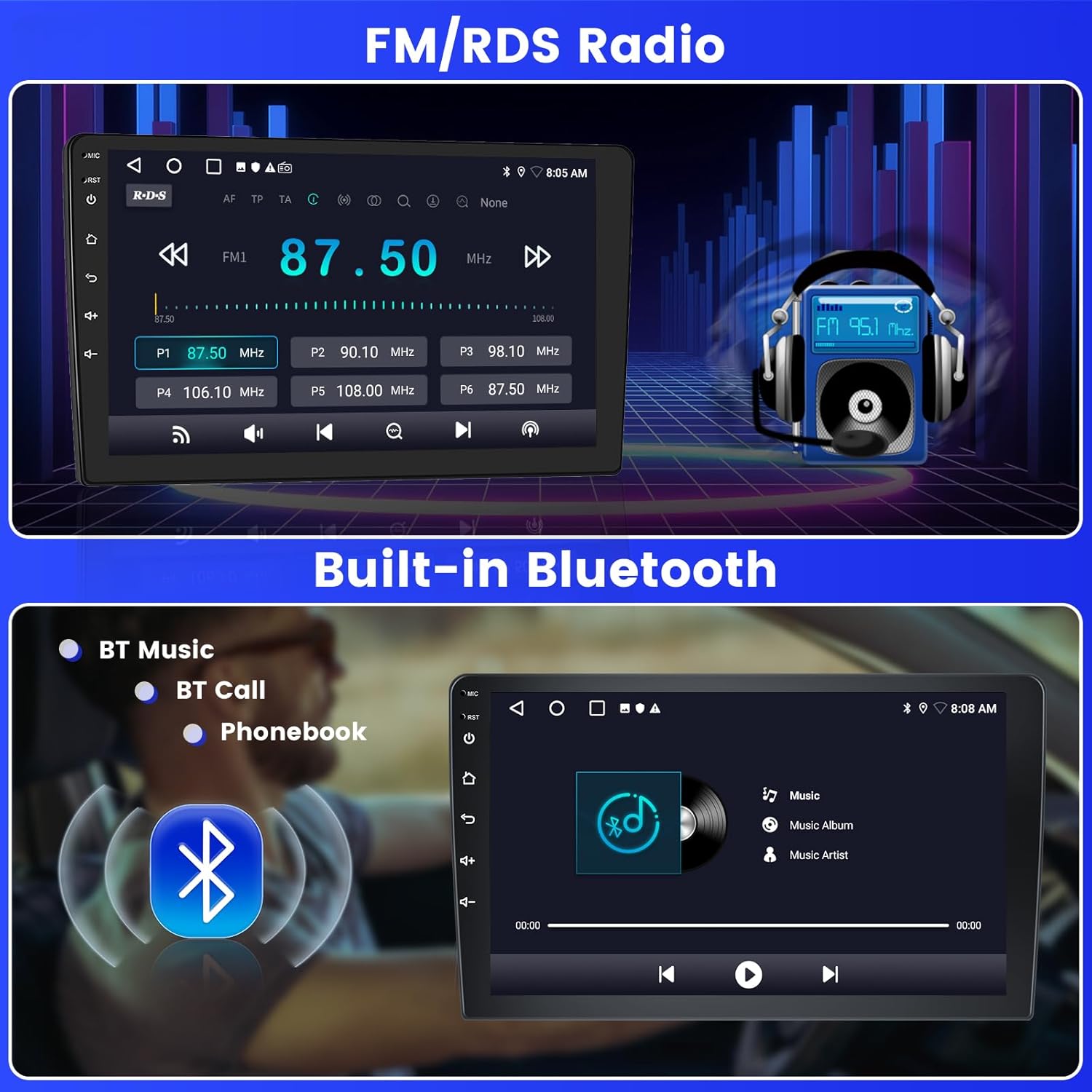
Image: The car radio screen displaying the FM radio interface with frequency selection and an illustration of Bluetooth music streaming.
5.7. การเชื่อมต่อบลูทูธ
Connect your phone via Bluetooth for hands-free calling, music streaming, and file transfer. Access your phonebook directly from the car radio display.
5.8 การเชื่อมต่อ Wi-Fi
Connect the car radio to a Wi-Fi hotspot (e.g., from your smartphone) to access online features, download apps, stream videos, and update maps.
5.9. ฟังก์ชั่นแยกหน้าจอ
The split-screen feature allows you to run and view two applications simultaneously on the 9-inch display, such as navigation and music playback.

Image: The car radio screen demonstrating the Digital Sound Processor (DSP) settings, the split-screen functionality with two apps running, and a selection of 26 user interface themes.
5.10. Sound Settings (EQ & DSP)
Utilize the built-in EQ (Equalizer) and DSP (Digital Sound Processor) to customize your audio experience. Adjust sound output, balance, and various sound effects to match your preferences.
5.11. ธีม UI
The car radio offers 26 different user interface themes. You can change the theme to personalize the look and feel of your display.
5.12. จอแสดงผลกล้องสำรอง
When the vehicle is in reverse gear, the screen will automatically display the high-definition image from the AHD backup camera, providing a clear view for safer parking and maneuvering.
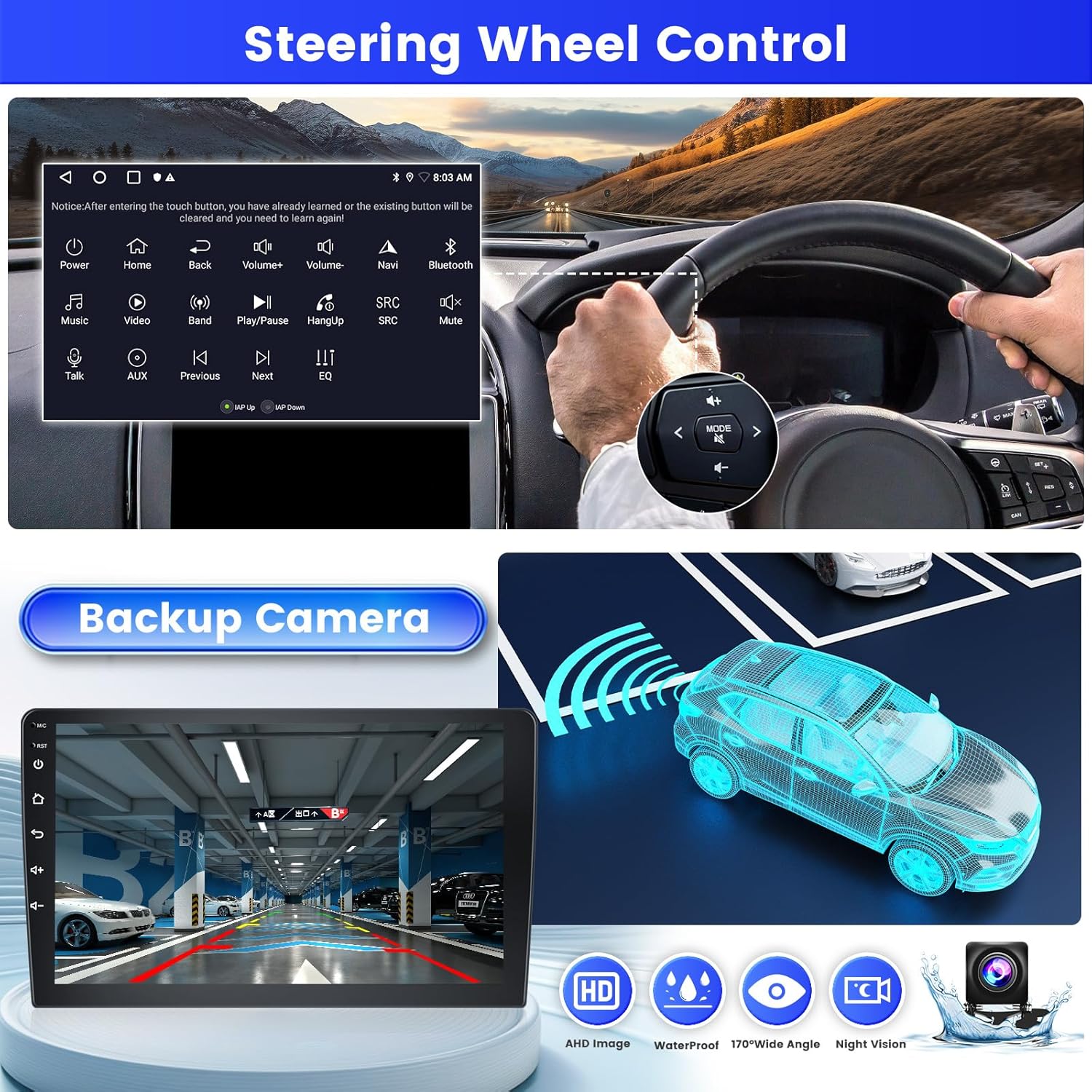
Image: The car radio screen displaying the view from the backup camera, along with an illustration of steering wheel controls.
6. การบำรุงรักษา
- การทำความสะอาดหน้าจอ: ใช้ผ้านุ่มไม่เป็นขุยเช็ดหน้าจอสัมผัสเบาๆ อย่าใช้น้ำยาทำความสะอาดหรือตัวทำละลายที่มีฤทธิ์กัดกร่อน
- การทำความสะอาดทั่วไป: รักษาตัวเครื่องให้ปราศจากฝุ่นและสิ่งสกปรก ใช้ผ้าแห้งเช็ดทำความสะอาดภายนอก
- การอัปเดตซอฟต์แวร์: ตรวจสอบการอัปเดตซอฟต์แวร์ผ่าน Wi-Fi เป็นระยะเพื่อให้มั่นใจถึงประสิทธิภาพที่เหมาะสมที่สุดและการเข้าถึงฟีเจอร์ใหม่ๆ
7 การแก้ไขปัญหา
| ปัญหา | สาเหตุที่เป็นไปได้ | สารละลาย |
|---|---|---|
| เครื่องไม่เปิด | การต่อไฟหลวม ฟิวส์ขาด | ตรวจสอบสายไฟและฟิวส์ของรถยนต์ ตรวจสอบให้แน่ใจว่าการเดินสายไฟถูกต้อง |
| ไม่มีเสียง. | ระดับเสียงเบาเกินไป แหล่งเสียงไม่ถูกต้อง สายลำโพงหลวม | เพิ่มระดับเสียง เลือกแหล่งเสียงที่ถูกต้อง ตรวจสอบการเชื่อมต่อลำโพง |
| สัญญาณ GPS สูญหายหรือไม่แม่นยำ | เสาอากาศ GPS ถูกกีดขวางหรือเชื่อมต่อไม่ถูกต้อง | Ensure GPS antenna is mounted in a clear location and securely connected. |
| ปัญหาเกี่ยวกับบลูทูธ/ไวไฟ | Reverse input cable not connected (even if camera not used). | Ensure the reverse input cable is plugged into the unit. |
| การควบคุมพวงมาลัยไม่ทำงาน | การเดินสายไฟหรือการตั้งค่าซอฟต์แวร์ไม่ถูกต้อง | Verify SWC wiring. Follow configuration steps in Section 4.4. |
8. ข้อมูลจำเพาะ
| คุณสมบัติ | รายละเอียด |
|---|---|
| ชื่อรุ่น | 2ba21f87-18ff-4355-ad45-79b956fcb744 |
| ระบบปฏิบัติการ | แอนดรอยด์ 15 |
| แรม+รอม | แรม 2GB + รอม 64GB |
| ขนาดหน้าจอ | 9 นิ้ว |
| ประเภทหน้าจอ | หน้าจอสัมผัส |
| การเชื่อมต่อ | บลูทูธ, ยูเอสบี, ไวไฟ |
| คุณสมบัติพิเศษ | Wireless Carplay, Android Auto, Mirror Link, FM RDS Radio, EQ, DSP, GPS, 26 UI Themes, SWC (Steering Wheel Control), Double USB Input |
| ยานพาหนะที่รองรับ | Suzuki SX4 (2006-2013), Fiat Sedici (2005-2014) |
| โหมดเอาต์พุตเสียง | สเตอริโอ |
| วิธีการควบคุม | สัมผัส |
| น้ำหนักผลิตภัณฑ์ | 1.29 กก. |
| ประเทศต้นกำเนิด | จีน |
9. ข้อมูลการรับประกัน
ผลิตภัณฑ์นี้มาพร้อมกับ รับประกัน 24 เดือน. Inefala provides lifetime online assistance for inquiries and aims to respond within 24 hours.
10. การสนับสนุนลูกค้า
If you encounter any difficulties during installation or use, or have any questions regarding your Inefala car radio, please contact our customer support team.
You can reach us through the Amazon platform by clicking on the seller name "Inefala" and then selecting "Ask a question". Alternatively, you may contact our customer service team via email at inefalaservices@163.com.
We strive to respond to all inquiries within 24 hours, regardless of holidays.

Image: Guide showing how to locate the "Ask a question" option on Amazon to contact Inefala customer support.