
1. บทนำ
This manual provides essential information for setting up, operating, maintaining, and troubleshooting your Acer Aspire C24 All-in-One Desktop PC. Please read this manual thoroughly before using your device to ensure proper operation and to prevent damage.
2. ข้อมูลด้านความปลอดภัย
Observe the following safety precautions to ensure the longevity of your device and your personal safety:
- อย่าให้เครื่องโดนความชื้น อุณหภูมิที่สูงหรือต่ำเกินไป หรือโดนแสงแดดโดยตรง
- ใช้เฉพาะอะแดปเตอร์แปลงไฟที่ให้มากับเครื่องเท่านั้น
- หลีกเลี่ยงการปิดกั้นช่องระบายอากาศเพื่อป้องกันความร้อนสูงเกินไป
- อย่าพยายามถอดประกอบหรือซ่อมแซมอุปกรณ์ด้วยตนเอง โปรดติดต่อช่างผู้ชำนาญการ
- เก็บอุปกรณ์ให้ห่างจากสนามแม่เหล็กแรงสูง
3. เนื้อหาบรรจุภัณฑ์
ตรวจสอบว่ามีรายการทั้งหมดอยู่ในบรรจุภัณฑ์ผลิตภัณฑ์ของคุณ:
- Acer Aspire C24 All-in-One Desktop PC
- คีย์บอร์ดไร้สาย
- เมาส์ไร้สาย
- อะแดปเตอร์แปลงไฟ
- สายไฟ

Image: Acer Aspire C24 All-in-One PC shown with its included wireless keyboard and mouse.
4. การตั้งค่า
4.1 การแกะและการจัดวาง
Carefully remove the computer from its packaging. Place the All-in-One PC on a stable, flat surface with adequate ventilation around the unit.
4.2 การต่อสายไฟ
- Connect the power adapter to the DC-in port on the rear of the computer.
- Plug the power cord into the power adapter, then into a grounded electrical outlet.
4.3 การเชื่อมต่ออุปกรณ์ต่อพ่วง
Connect the wireless keyboard and mouse. Ensure batteries are installed in both devices. The system typically detects these devices automatically upon first boot.
The Acer Aspire C24 offers various ports for connecting external devices:
- พอร์ต I/O ด้านหน้า: 1x USB 2.0 Type-C, 1x USB 2.0 Type-A, 1x Combo Audio Jack.
- พอร์ต I/O ด้านหลัง: 2x USB 2.0 Type-A, 2x USB 3.2 Gen2 10Gbps Type-A, 1x DisplayPort, 1x HDMI 1.4b, 1x Ethernet RJ-45.

ภาพ: ระยะใกล้ view of the conveniently located front I/O ports on the Acer Aspire C24, including USB and audio jacks.

ภาพ: ด้านหลัง view of the Acer Aspire C24 All-in-One PC, highlighting the various connectivity ports available.
5. คู่มือการใช้งาน
5.1 การเปิด/ปิดเครื่อง
To power on the computer, press the power button located on the front or side of the display. To power off, use the Windows Shut Down option or press and hold the power button for a few seconds.
5.2 คุณสมบัติการแสดงผล
The Acer Aspire C24 features a 23.8-inch Full HD (1920x1080) IPS LED display with a 120Hz refresh rate. This provides smooth visuals and wide viewing angles (178 degrees). Acer VisionCare technology is integrated for comfortable viewing, including flicker-free, BluelightShield, and low dimming features.

Image: The Acer Aspire C24 display showcasing its wide 178-degree viewing angles and Full HD resolution.

Image: The Acer Aspire C24 display highlighting its 120Hz refresh rate for smooth motion.
5.3 การเชื่อมต่อแบบไร้สาย
The system supports dual-band Wi-Fi 6 (802.11ax) for fast and stable wireless internet connectivity, with speeds up to 9.6 Gbps and WPA3 encryption. Bluetooth 5.2 is also included for connecting wireless peripherals.

Image: The Acer Aspire C24 display with a Wi-Fi 6 graphic, indicating its advanced wireless capabilities.
5.4 Webกล้องและระบบเสียง
กล้อง 2.0 ล้านพิกเซลในตัว webcam and dual microphones are suitable for video calls. A privacy shutter is included for the webcam to ensure privacy when not in use.
5.5 Windows 11 Home and Copilot
Your computer comes pre-installed with Windows 11 Home. Utilize the dedicated Copilot key for quick access to AI assistance within Windows.
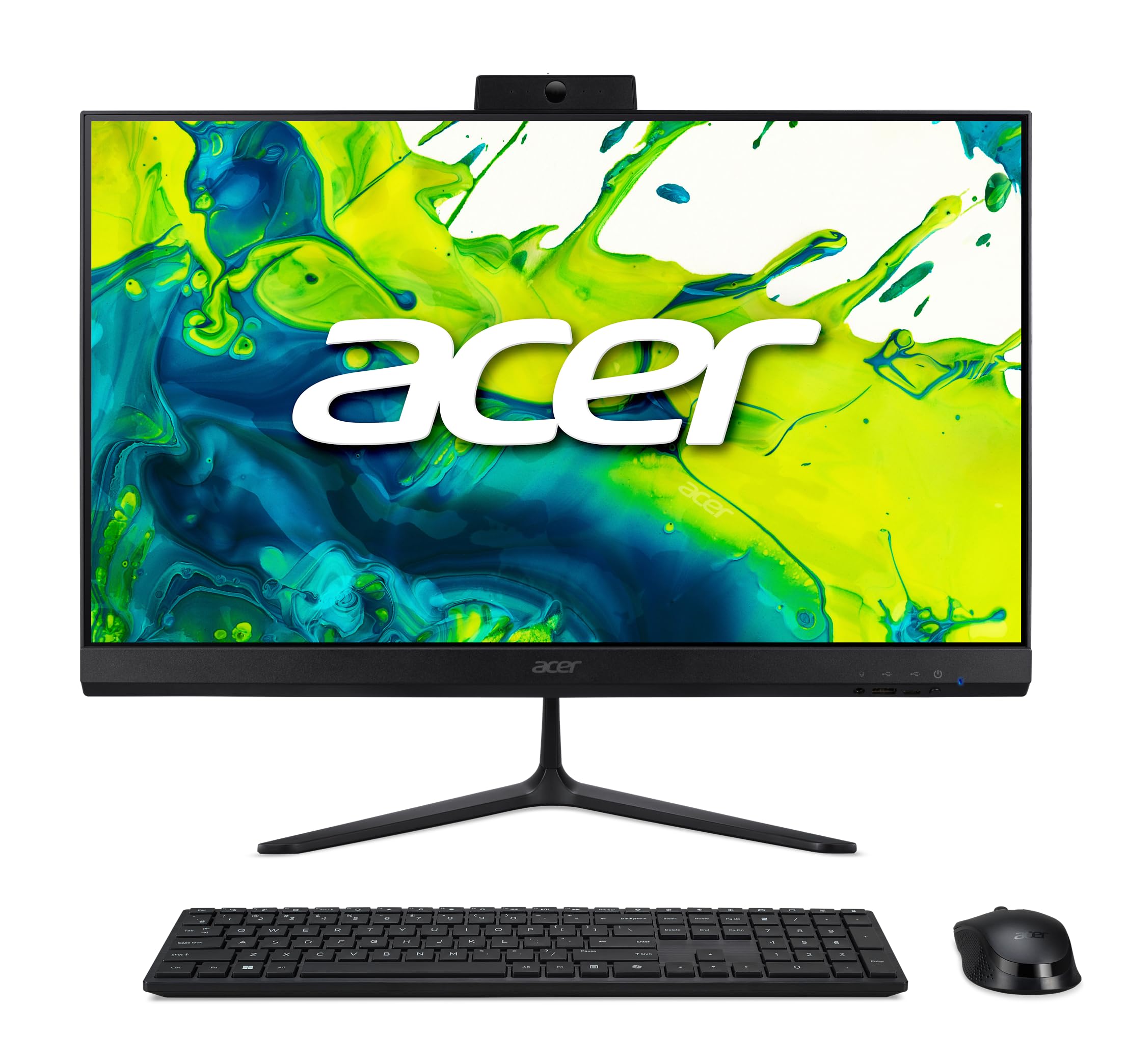
Image: The Acer Aspire C24 desktop displaying the Windows 11 operating system interface, including the Copilot feature.
6. การบำรุงรักษา
6.1 การทำความสะอาดเครื่อง
ใช้ผ้าเนื้อนุ่มที่ไม่เป็นขุยเช็ดทำความสะอาดหน้าจอและพื้นผิวด้านนอก สำหรับคราบฝังแน่น ให้ใช้ผ้าชนิดอื่นเช็ดampen the cloth slightly with water or a mild, non-abrasive cleaner. Avoid spraying liquids directly onto the screen or into openings.
6.2 การอัปเดตซอฟต์แวร์
Regularly check for and install operating system updates via Windows Update to ensure optimal performance and security. Driver updates for hardware components can be found on the Acer support webเว็บไซต์.
7 การแก้ไขปัญหา
If you encounter issues with your Acer Aspire C24, refer to the following common troubleshooting steps:
- ไม่มีไฟฟ้า: Ensure the power cord is securely connected to both the computer and the electrical outlet. Test the outlet with another device.
- ไม่มีจอแสดงผล: Check that the computer is powered on. If an external monitor is connected, ensure it is properly connected and selected as the display output.
- อุปกรณ์ต่อพ่วงไม่ทำงาน: Verify that the keyboard and mouse have fresh batteries and are properly paired. For wired devices, ensure they are connected to the correct USB ports.
- ไม่มีการเชื่อมต่ออินเทอร์เน็ต: Check Wi-Fi settings and ensure you are connected to the correct network. If using an Ethernet cable, ensure it is securely plugged in. Restart your router if necessary.
- ระบบช้าลง: Close unnecessary applications. Check for background processes that may be consuming resources. Ensure your system is up-to-date with the latest software and drivers.
สำหรับปัญหาที่ซับซ้อนกว่านี้ โปรดติดต่อฝ่ายสนับสนุนของ Acer webเว็บไซต์หรือติดต่อฝ่ายบริการลูกค้า
8. ข้อมูลจำเพาะ
| คุณสมบัติ | รายละเอียด |
|---|---|
| หมายเลขรุ่น | C24-2G-UR12 |
| โปรเซสเซอร์ | AMD Ryzen 7 5700U Octa-Core (up to 4.3 GHz) |
| กราฟฟิก | กราฟิก AMD Radeon (รวม) |
| แสดง | 23.8-inch Full HD (1920x1080) IPS LED, 120Hz Refresh Rate |
| แรม | 16 GB DDR4 3200 MHz SO-DIMM (Max 32 GB) |
| พื้นที่จัดเก็บ | 1 TB PCIe NVMe SSD |
| ระบบปฏิบัติการ | วินโดวส์ 11 โฮม |
| การเชื่อมต่อแบบไร้สาย | Wi-Fi 6 (802.11ax), บลูทูธ 5.2 |
| Webลูกเบี้ยว | 2.0 MP (1920x1080) with Privacy Shutter and Dual Microphones |
| พอร์ตด้านหน้า | 1x USB 2.0 Type-C, 1x USB 2.0 Type-A, 1x Combo Audio Jack |
| พอร์ตด้านหลัง | 2x USB 2.0 Type-A, 2x USB 3.2 Gen2 10Gbps Type-A, 1x DisplayPort, 1x HDMI 1.4b, 1x Ethernet RJ-45 |
| ขนาด (กว้าง x ยาว x สูง) | 54.03 x 16.33 x 41.55 ซม. (21.27 x 6.43 x 16.36 นิ้ว) |
| น้ำหนัก | 6.58 กก. (14.51 ปอนด์) |
| อุปกรณ์ต่อพ่วงที่รวมอยู่ | Wireless Keyboard, Wireless Mouse |
9. การรับประกันและการสนับสนุน
สำหรับข้อมูลการรับประกันและการสนับสนุนทางเทคนิค โปรดดูเอกสารที่มาพร้อมกับผลิตภัณฑ์ของคุณ หรือเยี่ยมชมเว็บไซต์ฝ่ายสนับสนุนอย่างเป็นทางการของ Acer webไซต์นี้ โปรดเก็บหลักฐานการซื้อไว้เพื่อใช้ยืนยันการรับประกัน
ฝ่ายสนับสนุนของเอเซอร์ Webเว็บไซต์: www.acer.com/support