
DOOGEE DOOGEE TAB G6
DOOGEE TAB G6 Tablet User Manual
Model: DOOGEE TAB G6 (G6 Black)
การแนะนำ
This manual provides essential information for the proper use and maintenance of your DOOGEE TAB G6 Tablet. Please read this manual thoroughly before operating the device to ensure optimal performance and longevity. The DOOGEE TAB G6 is an 11-inch Android 15 tablet designed for versatile use, featuring robust connectivity, ample storage, and a powerful processor.

ภาพ: ด้านหน้าและด้านหลัง view of the DOOGEE TAB G6 Tablet, showcasing its design and key specifications like 4G LTE, 8000mAh battery, Android 15, Unisoc T7250 processor, 30GB RAM, and 256GB storage.
มีอะไรอยู่ในกล่อง
เมื่อเปิดบรรจุภัณฑ์ โปรดตรวจสอบว่าประกอบด้วยสิ่งของต่อไปนี้ทั้งหมด:
- 1* DOOGEE Tab G6 Tablet
- 1* สายเคเบิล Type-C
- 1* เครื่องชาร์จ
- 1* Card Remover (SIM ejector tool)
- 1 * กล่องบรรจุ
- 1* User Manual (this document)
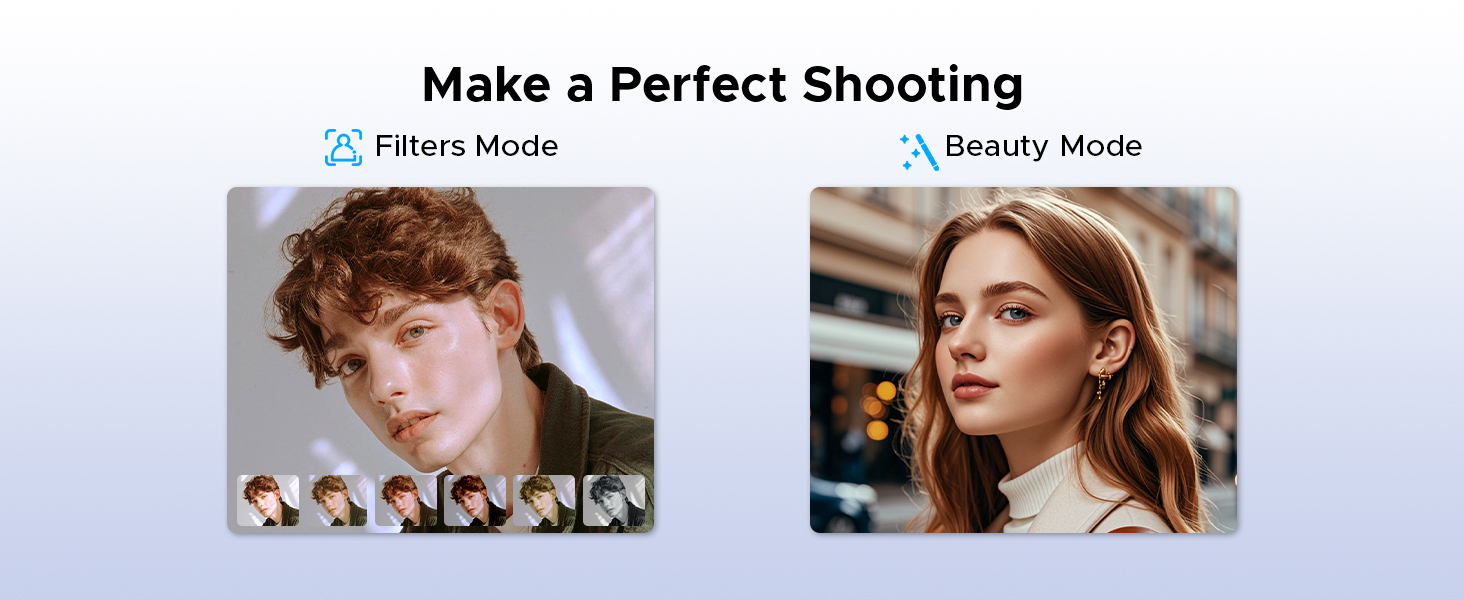
Image: A visual representation of the DOOGEE Tab G6 Tablet and its included accessories: Type-C cable, charger, card remover tool, and user manual, all neatly arranged within the packaging box.
สินค้าเกินview
The DOOGEE TAB G6 is engineered for performance and user experience. It features an 11-inch display, an octa-core processor, and a large battery, all housed within a sleek and lightweight design.
ส่วนประกอบหลัก:
- แสดง: 11-inch HD IPS display with 1280 x 800 resolution and 90Hz refresh rate.
- โปรเซสเซอร์: Unisoc T7250 Octa-Core Processor for efficient performance.
- หน่วยความจำและการจัดเก็บ: 30GB (6GB physical + 24GB extended) RAM and 256GB internal storage, expandable up to 2TB via TF card.
- กล้องถ่ายรูป: 13MP rear main camera and 5MP front camera.
- เสียง: Premium 1217 BOX Dual Speakers.
- แบตเตอรี่: 8000mAh large capacity battery with 10W fast charging and 5W reverse charging.
- การเชื่อมต่อ: Dual SIM 4G LTE, 5G WiFi, Bluetooth 5.0, GPS (Beidou+GLONASS+Galileo+AGPS).
- ระบบปฏิบัติการ: Android 15.

ภาพ: ภาพระยะใกล้ view of the DOOGEE TAB G6 Tablet's side profile, emphasizing its 7.9mm thickness and 554g weight, along with details of its sleek straight edges and metal body construction.
การตั้งค่า
1. การชาร์จอุปกรณ์
Before first use, fully charge your DOOGEE TAB G6 Tablet. Connect the provided Type-C cable to the tablet's charging port and the other end to the charger. Plug the charger into a power outlet. The battery indicator on the screen will show charging progress.

ภาพ: ระเบิด view diagram of the DOOGEE TAB G6 Tablet highlighting its 8000mAh large battery, along with icons indicating 10W fast charging and 5W reverse charging capabilities.
2. Inserting SIM/TF Card
The DOOGEE TAB G6 supports dual SIM cards (Nano SIM) or one Nano SIM and one TF (microSD) card for expandable storage up to 2TB. Use the provided card remover tool to open the SIM tray.
- ค้นหาถาดซิมที่ด้านข้างของแท็บเล็ต
- Insert the card remover tool into the small hole next to the tray and press gently until the tray ejects.
- Place your Nano SIM card(s) and/or TF card into the designated slots on the tray, ensuring correct orientation.
- ค่อยๆ ดันถาดกลับเข้าไปในแท็บเล็ตจนกระทั่งได้ยินเสียงคลิกเข้าที่

Image: A visual guide demonstrating the insertion of SIM cards and a TF card into the DOOGEE TAB G6 Tablet, emphasizing its Dual SIM 4G LTE Connectivity for quicker download speeds, faster web browsing, and decreased network loads.
3. เปิดเครื่องครั้งแรก
Press and hold the Power button located on the side of the tablet until the DOOGEE logo appears. Follow the on-screen prompts to complete the initial setup, including language selection, Wi-Fi connection, and Google account sign-in.
4. การเชื่อมต่อกับ Wi-Fi
During initial setup or anytime later, you can connect to a Wi-Fi network:
- ไปที่ การตั้งค่า > เครือข่ายและอินเตอร์เน็ต > ไวไฟ.
- สลับ Wi-Fi On.
- เลือกเครือข่าย Wi-Fi ที่คุณต้องการจากรายการ
- ป้อนรหัสผ่านหากได้รับแจ้งและแตะ เชื่อมต่อ.

Image: An illustration highlighting the benefits of Wi-Fi 5 High-speed Transmission on the DOOGEE TAB G6, including low power consumption, high data rate, low latency, anti-congestion, and wide coverage.
คำแนะนำการใช้งาน
ระบบ Android 15
Your DOOGEE TAB G6 runs on the latest Android 15, offering enhanced security, privacy, and user experience features. Explore options like Bedtime Mode, Multi-User System, and Parental Control for a tailored experience.

Image: A graphic representing the Android 15 system, highlighting features such as Bedtime Mode, Multi-User System, and Parental Control, indicating a fast and lightning-quick operating experience.
Utilize features like Split Screen for multitasking, allowing you to view two applications simultaneously.
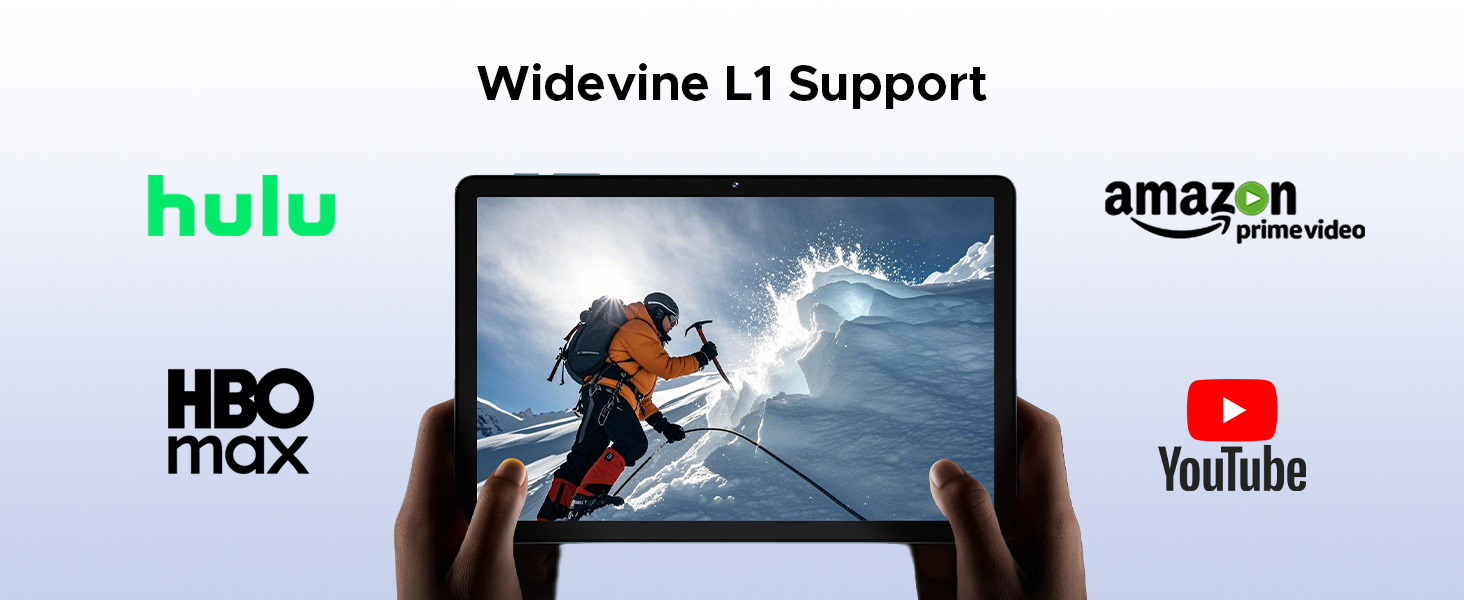
Image: A visual demonstration of the Split Screen feature on the DOOGEE TAB G6, showing two applications (Google Meet and Maps) open side-by-side for double vision at the same time.
Display and Eye Protection
The 11-inch HD IPS display provides a clear visual experience. For extended use, activate Eye Comfort Mode or Dark Mode to reduce eye strain.
- โหมดสบายตา: Gently protects your eyesight by reducing blue light emission. Access this in การตั้งค่า > แสดง.
- โหมดมืด: Softens light for night use, providing a more comfortable viewing experience in low-light conditions. Access this in การตั้งค่า > แสดง.

Image: A detailed graphic showcasing the 11-inch HD 90Hz IPS Ultra-Clear Display of the DOOGEE TAB G6, highlighting its 83.3% screen-to-body ratio, 1280*800 resolution, 16:10 aspect ratio, 16.7 million colors, and 350nit brightness.

Image: A visual representation of the Eye Comfort Mode and Dark Mode features, demonstrating how they gently protect eyesight and soften light for night use on the tablet.
กล้องถ่ายรูป
The tablet is equipped with a 13MP rear main camera and a 5MP front camera. Use these to capture photos and videos. Explore different modes like Filters and Beauty Mode for enhanced photography.

ภาพ: การแสดงภาพasing the 13MP Main Camera and 5MP Front Camera of the DOOGEE TAB G6 Tablet, accompanied by exampรูปถ่ายที่ถ่ายด้วยอุปกรณ์นี้

Image: A comparison showing the effects of Filters Mode and Beauty Mode for photography on the tablet, demonstrating how to make a perfect shooting.
คุณสมบัติด้านเสียง
Enjoy clear sound with the Premium 1217 BOX Dual Speakers. For private listening, connect headphones via the 3.5mm AUX headphone jack. The tablet also supports FM Radio when wired headphones are connected.

Image: A user holding the DOOGEE TAB G6 Tablet, which is displaying a racing game, illustrating the immersive audio experience provided by its Premium 1217 BOX Dual Speakers, designed for cinema-like sound in a tablet size.
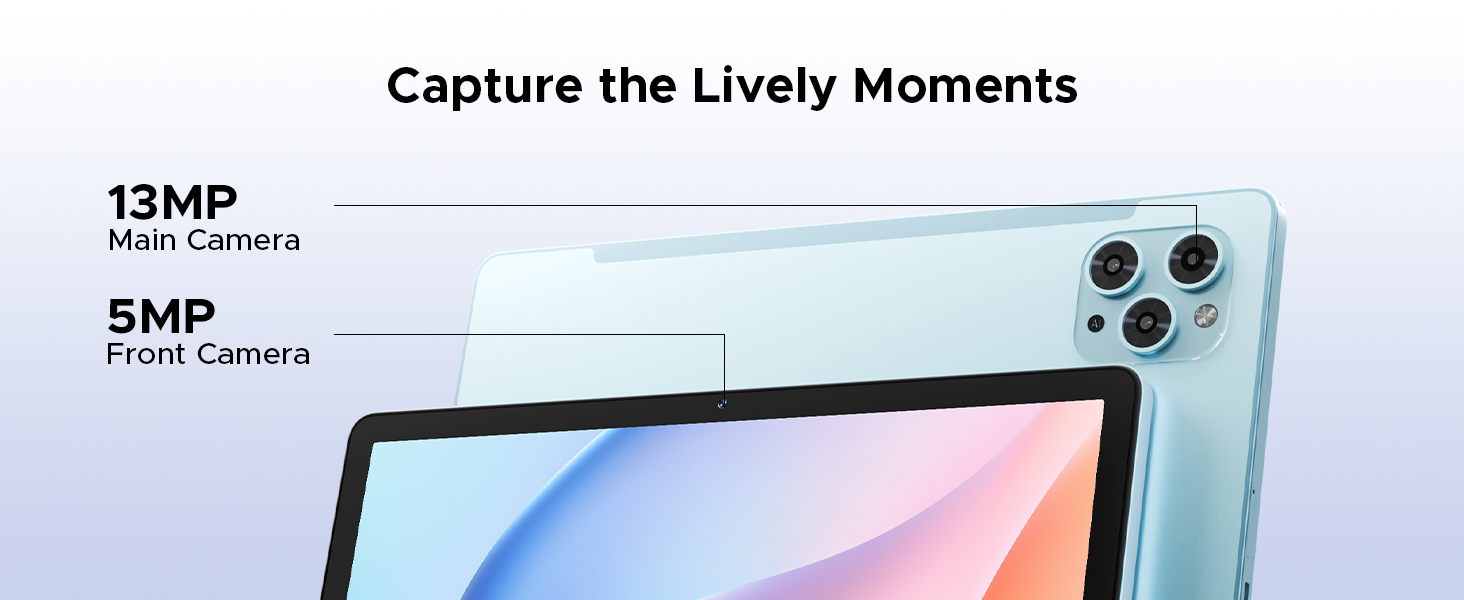
Image: A person using the DOOGEE TAB G6 Tablet with wired headphones, demonstrating the FM Radio feature, which allows instant FM enjoyment by simply plugging in headphones.
การเชื่อมต่อ
The DOOGEE TAB G6 offers comprehensive connectivity options:
- 4G แอลทีอี: Supports cellular data for internet access on the go.
- อินเตอร์เน็ตไร้สาย 5G: Provides high-speed wireless internet connection.
- Bluetooth 5.0: สำหรับเชื่อมต่ออุปกรณ์ไร้สาย เช่น หูฟังและคีย์บอร์ด
- จีพีเอส: Integrated Beidou, GLONASS, Galileo, and AGPS for accurate navigation.

Image: A visual depicting the accurate navigation system of the DOOGEE TAB G6, showing a tablet displaying a map in a car, with icons for GPS, Glonass, Galileo, and Beidou.
การจัดการการจัดเก็บข้อมูล
With 256GB of internal storage and support for up to 2TB expandable memory via TF card, you have ampพื้นที่สำหรับคุณ files. Regularly manage your storage to ensure optimal performance.
- To check storage: Go to การตั้งค่า > พื้นที่จัดเก็บ.
- To free up space: Delete unnecessary fileถอนการติดตั้งแอปที่ไม่ใช้งาน หรือย้ายไฟล์ขนาดใหญ่ files to an external TF card.

Image: A graphic illustrating the massive storage capabilities of the DOOGEE TAB G6 Tablet, detailing 30GB RAM (6GB Basic + 24GB Extended RAM), 256GB ROM (Basic Storage), and 2TB Expandable Memory, with various app icons displayed on the tablet screen.
สำนักงาน WPS
The tablet comes with a built-in PC-level WPS Office suite, allowing you to work on documents, spreadsheets, and presentations anywhere.
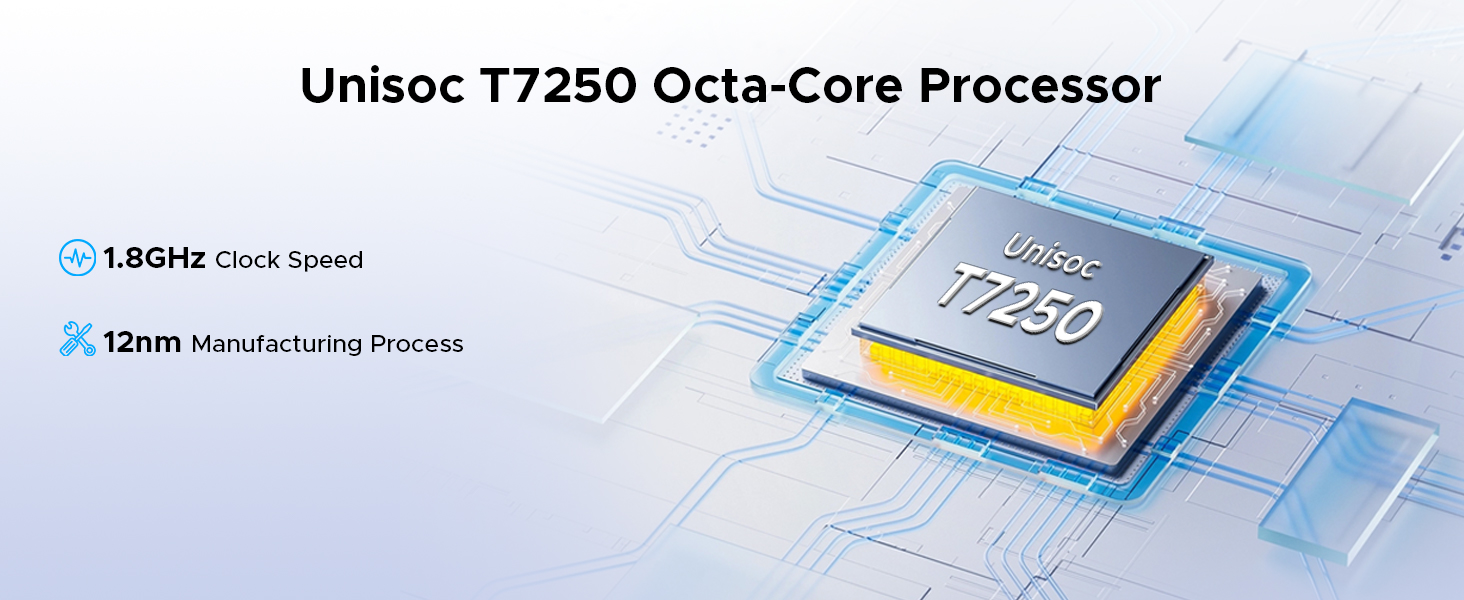
Image: Three scenarios showing users interacting with the DOOGEE TAB G6 Tablet for productivity, demonstrating the built-in PC-level WPS Office for Word, Excel, and PowerPoint applications.
ปลดล็อคด้วยการจดจำใบหน้า
For convenient and secure access, utilize the facial recognition unlock feature.
- ไปที่ การตั้งค่า > ความปลอดภัยและความเป็นส่วนตัว > ปลดล็อคด้วยใบหน้า.
- ปฏิบัติตามคำแนะนำบนหน้าจอเพื่อลงทะเบียนใบหน้าของคุณ
- Once registered, simply look at the front camera to unlock your tablet.
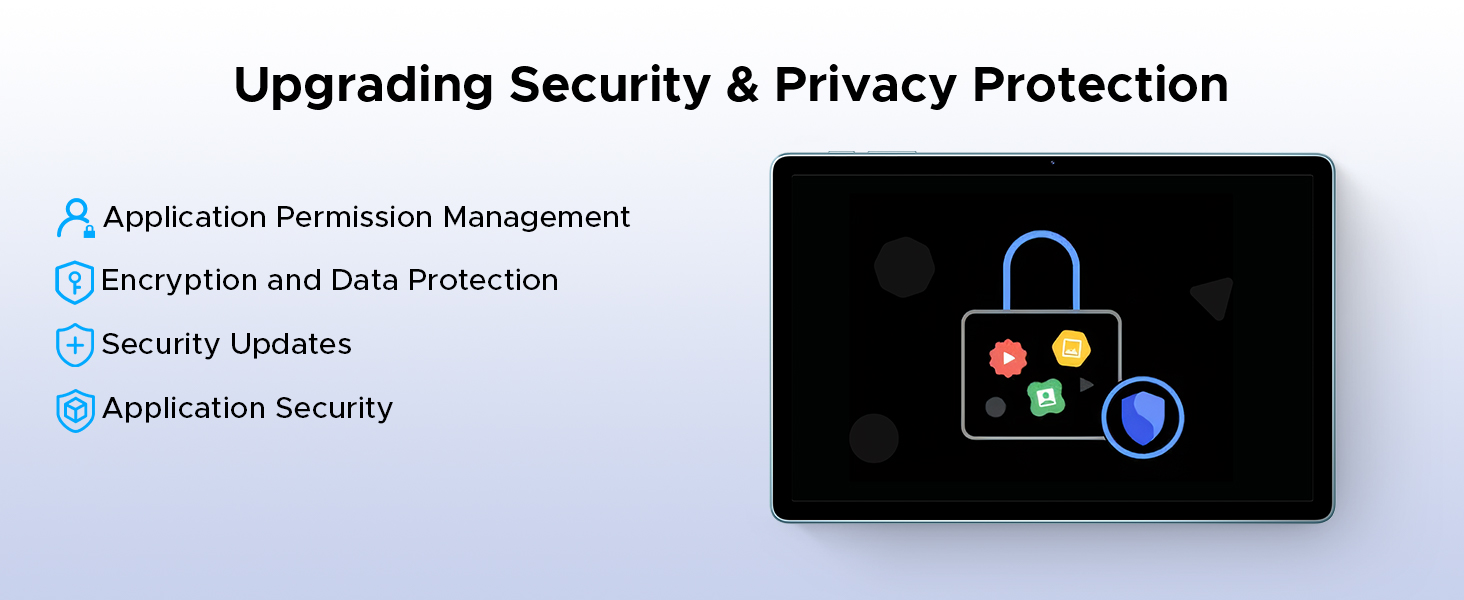
Image: A visual representation of the Facial Recognition Unlock feature, showing a user effortlessly accessing the tablet by looking at the front camera.
รองรับ Widevine L1
The DOOGEE TAB G6 supports Widevine L1, allowing you to stream high-definition content from popular platforms like Netflix, YouTube, HBO, and Prime Video in true 1080P resolution.
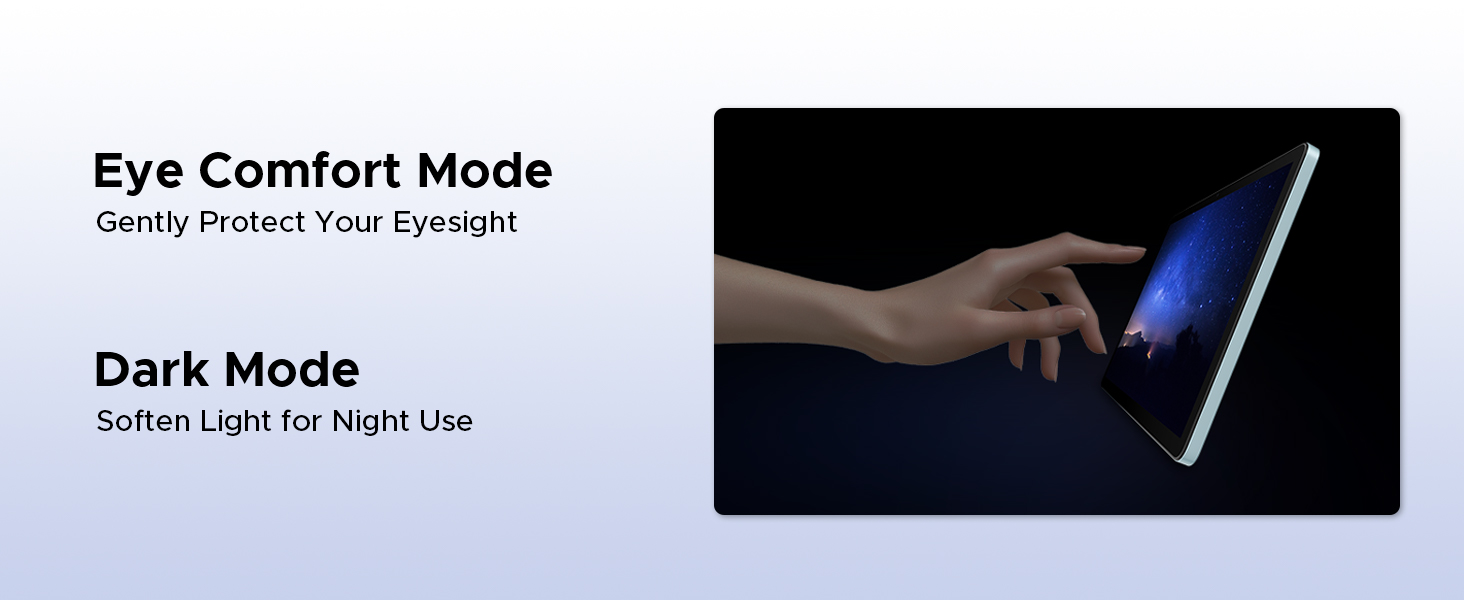
Image: A tablet displaying a high-definition video, surrounded by logos of streaming services like Hulu, Amazon Prime Video, HBO Max, and YouTube, indicating Widevine L1 support.
การซ่อมบำรุง
การทำความสะอาด
ในการทำความสะอาดแท็บเล็ต ให้ใช้ผ้านุ่มที่ไม่เป็นขุย สำหรับคราบฝังแน่น ให้เช็ดเบาๆampชุบผ้าด้วยน้ำหรือน้ำยาทำความสะอาดหน้าจอที่ออกแบบมาสำหรับอุปกรณ์อิเล็กทรอนิกส์ หลีกเลี่ยงการใช้สารเคมีรุนแรง วัสดุที่มีฤทธิ์กัดกร่อน หรือความชื้นมากเกินไป
การดูแลแบตเตอรี่
เพื่อยืดอายุแบตเตอรี่:
- หลีกเลี่ยงอุณหภูมิที่สูงหรือต่ำเกินไป (ร้อนหรือเย็นเกินไป)
- อย่าปล่อยให้แบตเตอรี่หมดจนหมดบ่อยๆ
- ใช้เครื่องชาร์จและสายเคเบิลดั้งเดิมที่ให้มา
- If storing the tablet for a long period, charge it to about 50% before turning it off.
การอัพเดตซอฟต์แวร์
ตรวจสอบและติดตั้งการอัปเดตซอฟต์แวร์เป็นประจำเพื่อให้แน่ใจว่าแท็บเล็ตของคุณมีฟีเจอร์ แพตช์ความปลอดภัย และการปรับปรุงประสิทธิภาพล่าสุด ไปที่ การตั้งค่า > ระบบ > การอัพเดทระบบ เพื่อตรวจสอบการอัปเดต
การแก้ไขปัญหา
| ปัญหา | สาเหตุที่เป็นไปได้ | สารละลาย |
|---|---|---|
| แท็บเล็ตไม่เปิด | แบตเตอรี่อ่อน ซอฟต์แวร์ขัดข้อง | ชาร์จแท็บเล็ตอย่างน้อย 30 นาที กดปุ่มเปิด/ปิดค้างไว้ 10-15 วินาทีเพื่อบังคับให้รีสตาร์ท |
| ไม่สามารถเชื่อมต่อ Wi-Fi ได้ | รหัสผ่านไม่ถูกต้อง; ปัญหาเราเตอร์; Wi-Fi ถูกปิดใช้งาน | Ensure correct password. Restart router. Check Wi-Fi settings on tablet. |
| แอปทำงานช้าหรือขัดข้อง | Insufficient RAM; too many background apps; app bug. | Close unused apps. Clear app cache (Settings > Apps). Restart tablet. |
| พื้นที่เก็บข้อมูลในแท็บเล็ตเต็มแล้ว | มากเกินไป fileแอป/แอปพลิเคชัน | ลบที่ไม่จำเป็น files. Uninstall unused apps. Move files to TF card. |
| ตรวจไม่พบซิมการ์ด | Improper insertion; faulty SIM card. | Re-insert SIM card correctly. Test with another SIM card if possible. |
ข้อมูลจำเพาะ
| คุณสมบัติ | รายละเอียด |
|---|---|
| ยี่ห้อ | ดูจี้ |
| ชื่อรุ่น | DOOGEE TAB G6 |
| ขนาดสินค้า | 25.7 x 16.8 x 0.8 ซม. |
| น้ำหนักสินค้า | 552 กรัม |
| ขนาดจอแสดงผล | 11 นิ้ว |
| ความละเอียดหน้าจอ | 1280 x 800 พิกเซล |
| ยี่ห้อโปรเซสเซอร์ | Unisoc T7250 หน่วยประมวลผลอ็อกตาคอร์ |
| ความเร็วของโปรเซสเซอร์ | 1.8 กิกะเฮิรตซ์ |
| ขนาดแรม | หน่วยความจำ 30 GB (6 GB ในหน่วยความจำหลัก + 24 GB ในหน่วยความจำเสริม) |
| ความจุของหน่วยความจำ | 256 GB (สามารถเพิ่มได้สูงสุดถึง 2 TB) |
| ด้านหน้า Webความละเอียดของกล้อง | 5 MP |
| ความละเอียดกล้องหลัง | 13 MP |
| ระบบปฏิบัติการ | แอนดรอยด์ 15 |
| ความจุของแบตเตอรี่ | 8000 มิลลิแอมป์ |
| การเชื่อมต่อ | 4G LTE, 5G WiFi, Bluetooth 5.0, GPS |
| คุณสมบัติพิเศษ | Supports USB OTG, Stylus Support, Expandable Storage, Cellular Connectivity, Fast Charging, Widevine L1, Face ID, Dual Speakers, FM Radio |
การรับประกันและการสนับสนุน
DOOGEE products are designed for reliability and performance. For warranty information, please refer to the warranty card included in your product packaging or visit the official DOOGEE webไซต์นี้ โปรดเก็บหลักฐานการซื้อไว้เพื่อใช้ยืนยันการรับประกัน
For technical support, troubleshooting assistance beyond this manual, or service inquiries, please contact DOOGEE customer support through their official channels. Details can typically be found on the DOOGEE webเว็บไซต์หรือในบรรจุภัณฑ์ของผลิตภัณฑ์
สำคัญ: การซ่อมแซมหรือการดัดแปลงที่ไม่ได้รับอนุญาตอาจทำให้การรับประกันของคุณเป็นโมฆะ
Ask a question about this manual
Ask about setup, troubleshooting, compatibility, parts, safety, or missing instructions. Manuals+ will review the question and use this page’s manual context to help answer it.