
MEIZE D126
MEIZE Android 14 Tablet User Manual
แบบ: D126
1. บทนำ
Welcome to the user manual for your new MEIZE Android 14 Tablet. This guide provides detailed instructions on how to set up, operate, and maintain your device, ensuring you get the most out of its advanced features. Please read this manual thoroughly before using your tablet.
2. อะไรอยู่ในกล่อง
Upon opening your MEIZE Android 14 Tablet package, you should find the following items:
- MEIZE Android 14 Tablet
- แป้นพิมพ์บลูทูธ
- เมาส์ไร้สาย
- แตะปากกา
- เคสป้องกัน
- สายชาร์จ (Type-C)
- อะแดปเตอร์แปลงไฟ

Image: The MEIZE Android 14 Tablet displayed with its full set of accessories, including the keyboard, mouse, stylus, and protective case.
3. คู่มือการติดตั้ง
3.1 การชาร์จเริ่มต้น
Before first use, fully charge your tablet using the provided Type-C cable and power adapter. The battery indicator on the screen will show charging status.
3.2 การเปิด/ปิดเครื่อง
- การเปิดเครื่อง: Press and hold the Power button located on the side of the tablet until the MEIZE logo appears.
- วิธีปิดเครื่อง: กดปุ่มเปิด/ปิดค้างไว้ จากนั้นเลือก "ปิดเครื่อง" จากตัวเลือกที่ปรากฏบนหน้าจอ
3.3 การกำหนดค่าเริ่มต้น
ทำตามคำแนะนำบนหน้าจอเพื่อทำการตั้งค่าเริ่มต้นให้เสร็จสมบูรณ์ ซึ่งรวมถึงการเลือกภาษา การเชื่อมต่อ Wi-Fi การเข้าสู่ระบบบัญชี Google และการตั้งค่าความปลอดภัย
3.4 SIM Card Installation (for 4G Cellular Models)
Your tablet supports dual SIM cards for 4G cellular connectivity. To install SIM cards:
- หาช่องใส่ซิมการ์ดที่ด้านข้างของแท็บเล็ต
- Use the SIM ejector tool (not included, typically a paperclip) to open the tray.
- Carefully place your Nano-SIM cards into the designated slots.
- Insert the tray back into the tablet until it clicks into place.
Note: This tablet does not come with a SIM card. You will need to prepare your own. Ensure your SIM cards support the following frequency bands for 4G calling function: 2G GSM full band, WCDMA: B1\/B2\/B4\/B5\/B8, 4G full band: B1\/B2\/B3\/B4\/B5\/B7\/B8\/B12\/B17\/B19\/B20\/B28A\/B28B\/B66\/B38\/B39\/B40\/B41.
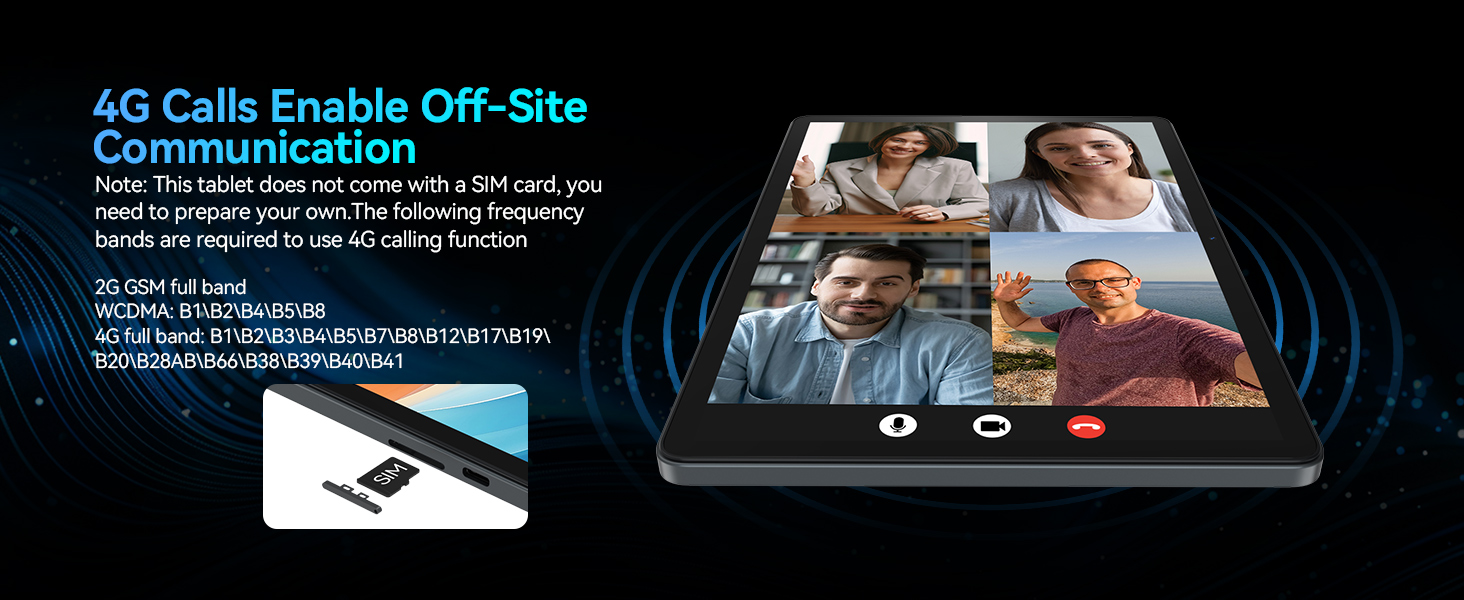
Image: A visual representation of the tablet's 4G calling function, showing a multi-person video conference on the screen.
4. การใช้งานแท็บเล็ตของคุณ
4.1 Android 14 System Features
Your MEIZE tablet runs on the latest Android 14 operating system, offering an enhanced user interface and improved functionality. Key features include:
- Split-Screen Function: Allows you to run and view two applications simultaneously, greatly improving multitasking efficiency.
- Five-Finger Touch: Provides advanced gesture control for intuitive navigation and interaction.
- Optimized User Interface: A streamlined and user-friendly interface for smooth operation.
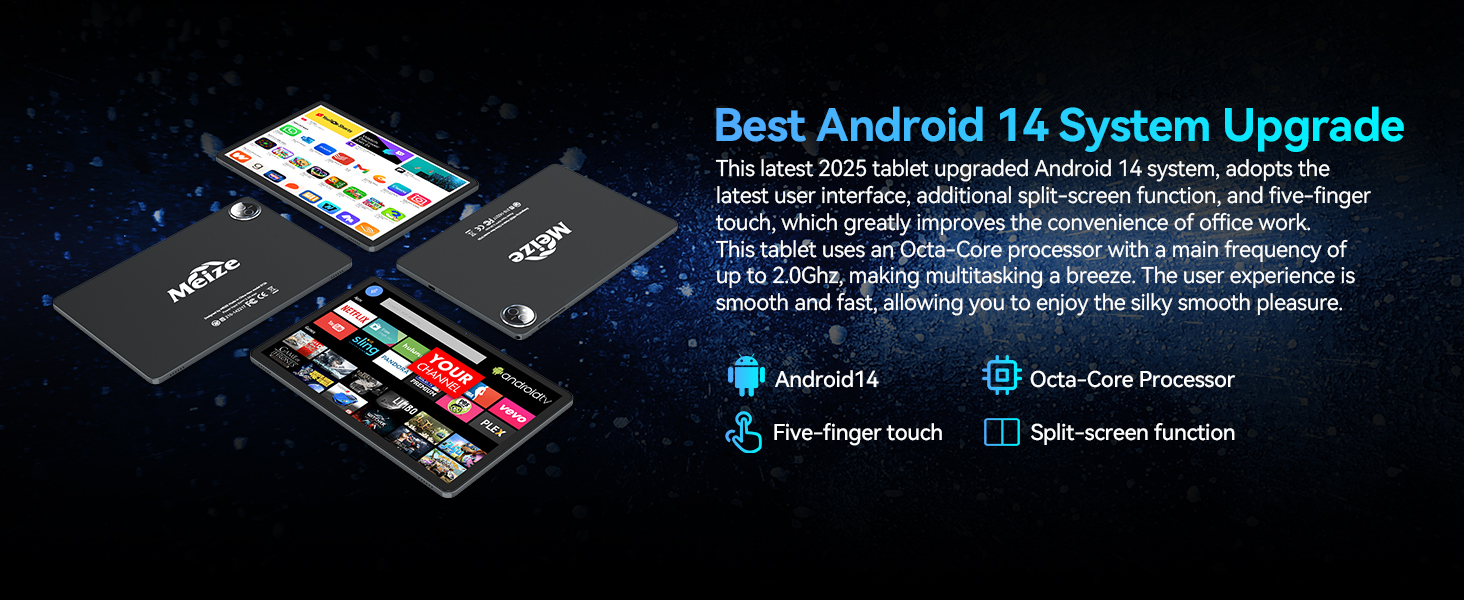
Image: A graphic highlighting the key features of the Android 14 system, including the Octa-Core processor, five-finger touch, and split-screen function.
4.2 ประสิทธิภาพและการจัดเก็บ
Equipped with an Octa-Core processor (up to 2.0Ghz), 16GB RAM (8GB physical + 8GB expandable), and 128GB internal storage (expandable up to 512GB via microSD card, not included), your tablet delivers excellent performance for various tasks.
- Run multiple applications simultaneously without lag.
- Store a large volume of games, movies, videos, music, and work software.
- Experience smooth and fast user interaction for all your needs.

ภาพ: หน้าจอแท็บเล็ตแสดงasing its large memory capacity, with text emphasizing 128GB ROM and 16GB RAM, and 512GB additional expansion.
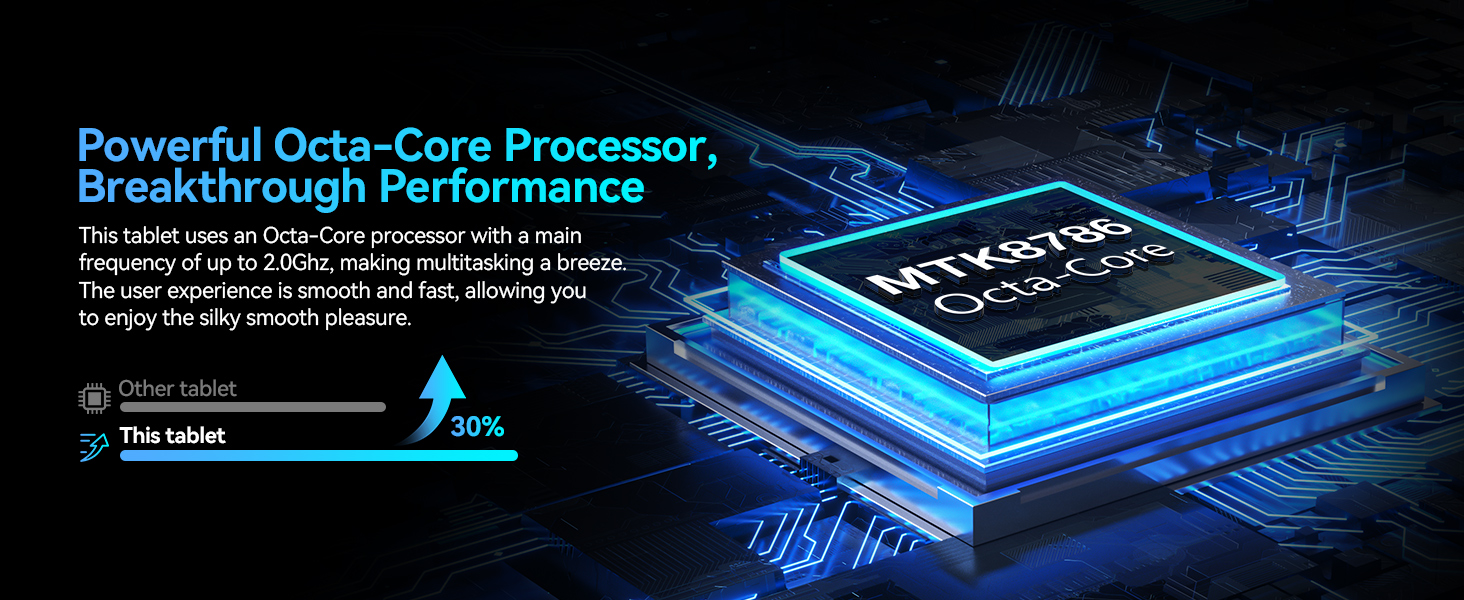
Image: A visual representation of the powerful Octa-Core processor, highlighting its breakthrough performance compared to other tablets.
4.3 Visual Design and Display
The 11-inch ultra-clear LCD screen provides a rich visual experience with vibrant colors and clear details. Its soft light curtain design helps reduce eye strain during extended use.
- Ideal for watching movies, playing games, and browsing photos.
- Offers clearer portrait capture and delicate details.
- Reduces visual pressure and fatigue for comfortable viewการไอเอ็นจี
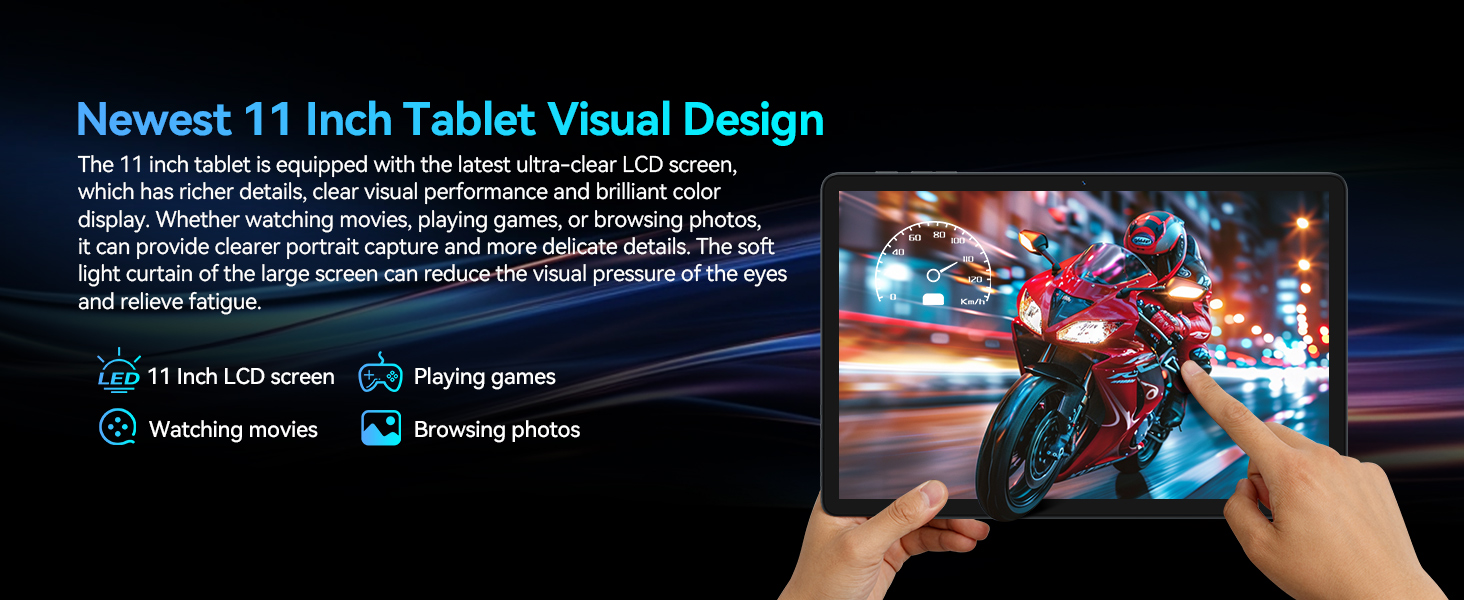
ภาพ: หน้าจอแท็บเล็ตแสดงasing its ultra-clear display with a dynamic image, illustrating its visual quality for movies, games, and photos.
4.4 การเชื่อมต่อ
Your tablet features advanced connectivity options for seamless communication and internet access:
- Dual 4G Cellular: Supports dual SIM cards for reliable network access and calling functions.
- โมดูล WiFi 5G: Provides faster transmission speeds and a more stable connection for internet browsing and streaming.
- Bluetooth 5.0 Module: Ensures stable and efficient wireless connections with compatible devices like headphones, keyboards, and mice.

Image: A graphic illustrating the tablet's support for dual 4G cellular and 5G WiFi, emphasizing stable network connection and smooth internet speed.
4.5 อายุการใช้งานแบตเตอรี่
The tablet is equipped with an 8000mAh lithium polymer battery, offering extended usage times:
- เวลาสแตนด์บายสูงสุด 24 ชั่วโมง
- เล่นเกมได้นานสูงสุด 6 ชั่วโมง
- เล่นวิดีโอได้นานถึง 8 ชั่วโมง
- สามารถเล่นเพลงได้นานสูงสุด 10 ชั่วโมง
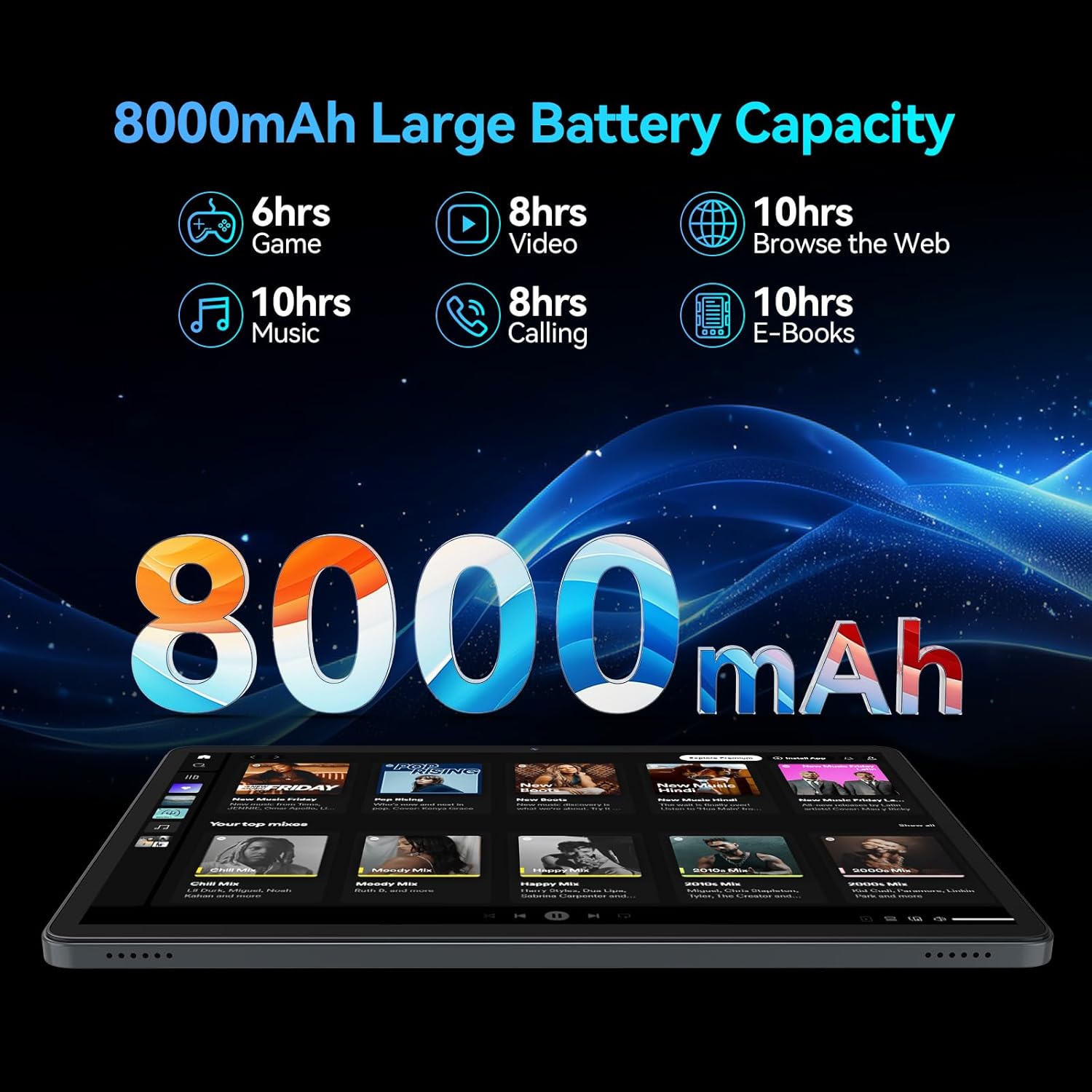
Image: A visual breakdown of the 8000mAh battery's performance, showing estimated hours for gaming, video, web browsing, music, calling, and e-books.
4.6 กล้องถ่ายรูป
Capture moments with the tablet's dual HD cameras:
- กล้องหลัง: ความละเอียด 13MP ให้ภาพถ่ายและวิดีโอที่คมชัด
- กล้องหน้า: 8MP for high-quality video calls and selfies.
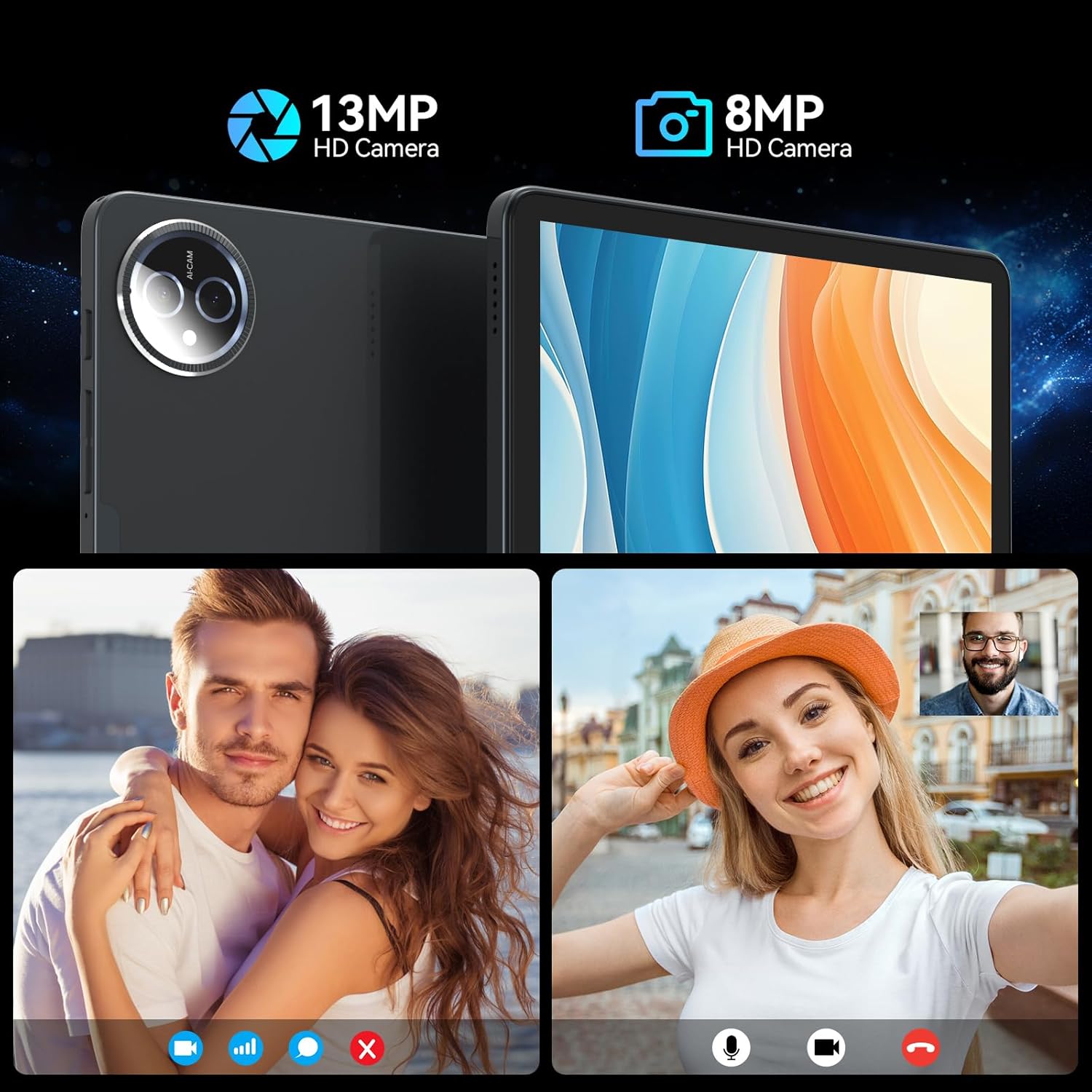
Image: A split image demonstrating the tablet's 13MP rear camera and 8MP front camera capabilities, showing a couple and a woman taking a selfie.
4.7 Accessories and Working Mode
The MEIZE tablet is designed for versatility, easily converting into a portable laptop with its included accessories:
- Connect the Bluetooth keyboard and wireless mouse for a traditional computing experience.
- Utilize the touch pen for precise input, drawing, or note-taking.
- The protective case doubles as a stand, allowing for comfortable viewมุมการพิมพ์และมุมเอียง
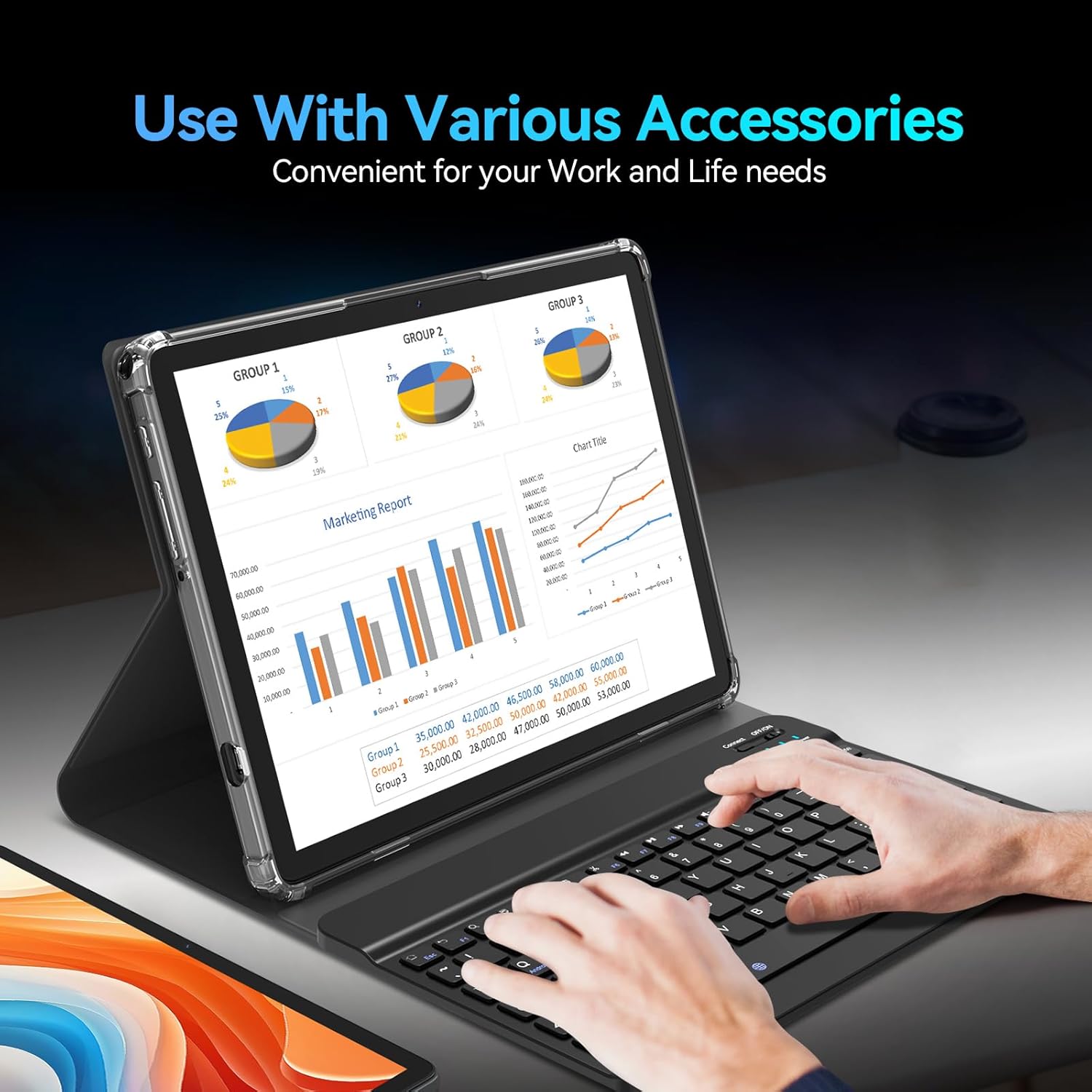
Image: The tablet being used with its accessories, including the keyboard, mouse, and stylus, demonstrating its versatility for work and life needs.
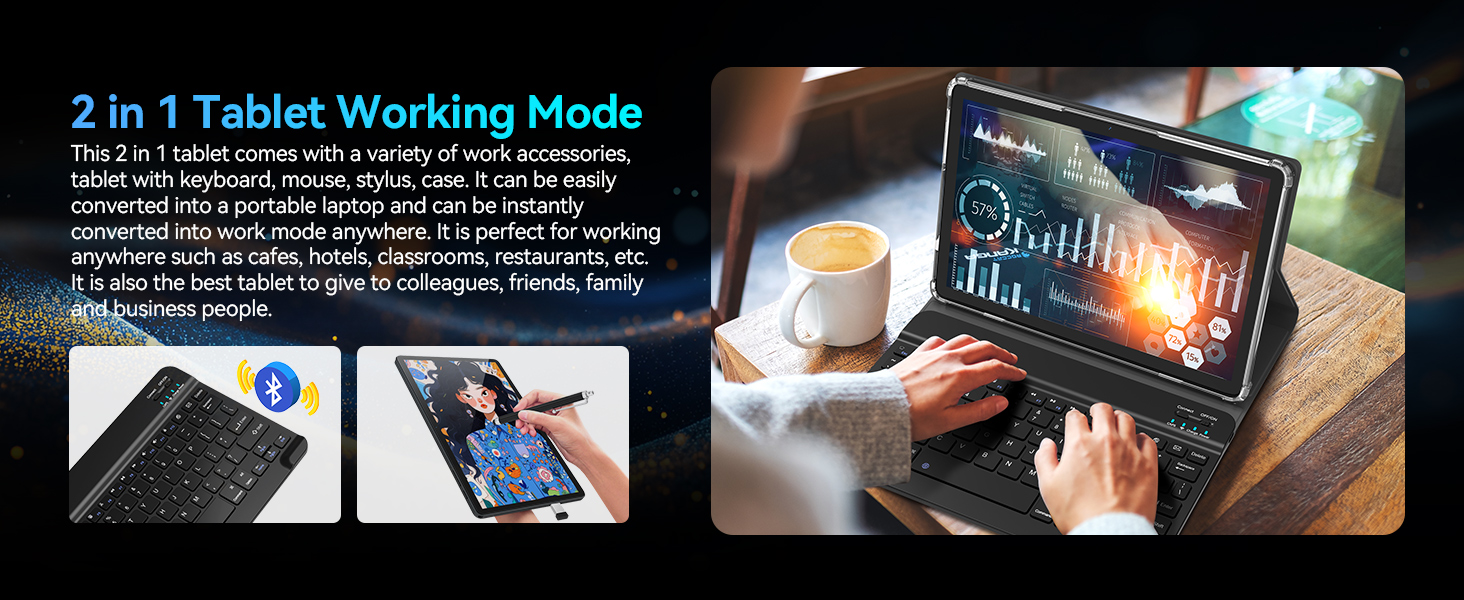
Image: A user operating the tablet in '2 in 1' working mode with the attached keyboard, illustrating its functionality as a portable laptop.
5. สถานการณ์การใช้งาน
The MEIZE Android 14 Tablet is designed for a wide range of uses, making it suitable for various environments and activities:
- งาน: Perfect for office tasks, presentations, and remote work in cafes, hotels, or classrooms.
- ศึกษา: Ideal for reading e-books, taking notes, and online learning.
- ความบันเทิง: Enjoy gaming, watching movies, and browsing social media.
- การสื่อสาร: Stay connected with friends and family through video calls and messaging.

Image: Four distinct scenarios demonstrating the tablet's versatility: playing games, reading, being given as a gift, and being used for work.
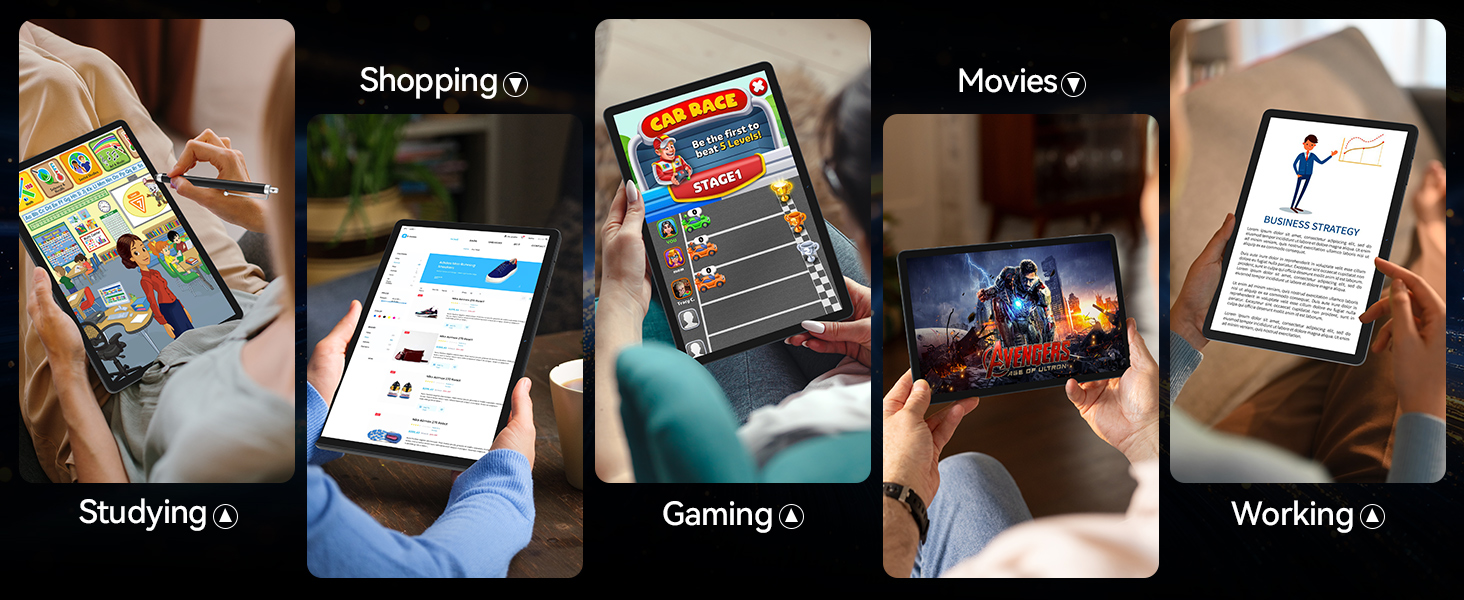
Image: A collage of images depicting various uses of the tablet, including studying, shopping, gaming, watching movies, and working.
6. ข้อมูลจำเพาะ
| คุณสมบัติ | ข้อมูลจำเพาะ |
|---|---|
| ยี่ห้อ | ไมซ์ |
| ชื่อรุ่น | Latest 11 Inch Tablet |
| หมายเลขรุ่นสินค้า | D126 |
| ระบบปฏิบัติการ | แอนดรอยด์ 14 |
| ขนาดหน้าจอ | 11 นิ้ว |
| ความละเอียดหน้าจอสูงสุด | 1280 x 800 HD Pixels |
| โปรเซสเซอร์ | หน่วยประมวลผลแปดคอร์ ความเร็ว 2 GHz |
| ขนาดหน่วยความจำแฟลช (ROM) | 128GB |
| แรม | 16 GB (8GB physical + 8GB expandable) |
| หลัง Webความละเอียดของกล้อง | 13 MP |
| ด้านหน้า Webความละเอียดของกล้อง | 8 MP |
| ประเภทไร้สาย | 802.11ac, 802.11ax (5G WiFi), Bluetooth 5.0 |
| ความจุของแบตเตอรี่ | 8000mAh ลิเธียมโพลิเมอร์ |
| อายุการใช้งานแบตเตอรี่โดยเฉลี่ย | 6 ชั่วโมง (ขึ้นอยู่กับการใช้งาน) |
| น้ำหนักสินค้า | 1.2 ปอนด์ |
| ขนาดสินค้า (กxยxส) | 11 x 7 x 0.3 นิ้ว |
| สี | สีเทา |
7 การแก้ไขปัญหา
If you encounter any issues with your MEIZE tablet, please refer to the following common troubleshooting steps:
- Tablet is unresponsive/frozen: กดปุ่มเปิด/ปิดค้างไว้ประมาณ 10-15 วินาทีเพื่อบังคับให้รีสตาร์ท
- Apps are lagging or crashing: Close unnecessary background applications. Clear app cache in Settings > Apps > [App Name] > Storage > Clear Cache. Ensure you have sufficient storage space.
- ปัญหาการเชื่อมต่อ Wi-Fi: Turn Wi-Fi off and on again. Restart your router. Forget the network in tablet settings and reconnect.
- อายุการใช้งานแบตเตอรี่ไม่ดี: ลดความสว่างหน้าจอ ปิดแอปที่ไม่ได้ใช้ ปิด Wi-Fi/บลูทูธเมื่อไม่ใช้งาน ตรวจสอบการใช้งานแบตเตอรี่ในการตั้งค่าเพื่อระบุแอปที่กินไฟมาก
- Tablet is not charging: Ensure the charging cable and adapter are securely connected. Try a different power outlet. Inspect the charging port for any debris.
- Keyboard/Mouse not connecting: Ensure Bluetooth is enabled on the tablet. Make sure the accessories are charged and in pairing mode. Re-pair the devices in Bluetooth settings.
- General Bugginess: Some users have reported occasional bugs. Ensure your tablet's software is up to date via Settings > System > System update. A factory reset (Settings > System > Reset options > Erase all data) can resolve persistent software issues, but will delete all your data, so back up first.
สำหรับปัญหาที่ซับซ้อนมากขึ้น โปรดดูส่วนการสนับสนุนหรือติดต่อฝ่ายบริการลูกค้า
8. การบำรุงรักษา
To ensure the longevity and optimal performance of your MEIZE tablet, follow these maintenance guidelines:
- การทำความสะอาด: ใช้ผ้านุ่มที่ไม่เป็นขุยทำความสะอาดหน้าจอและตัวเครื่อง หลีกเลี่ยงน้ำยาทำความสะอาดหรือตัวทำละลายที่มีฤทธิ์กัดกร่อน
- พื้นที่จัดเก็บ: เก็บยาเม็ดไว้ในที่แห้งและเย็น หลีกเลี่ยงแสงแดดโดยตรงและอุณหภูมิที่สูงหรือต่ำเกินไป
- การอัปเดตซอฟต์แวร์: ตรวจสอบและติดตั้งการอัปเดตระบบเป็นประจำเพื่อให้แน่ใจว่าแท็บเล็ตของคุณมีฟีเจอร์ล่าสุดและแพทช์ความปลอดภัยอยู่เสมอ
- การดูแลแบตเตอรี่ หลีกเลี่ยงการใช้แบตเตอรี่จนหมดบ่อยๆ สำหรับการเก็บรักษาในระยะยาว ควรชาร์จแบตเตอรี่ให้เหลือประมาณ 50-60%
- การป้องกัน: Always use the provided protective case to guard against drops and scratches.
9. การรับประกันและการสนับสนุน
MEIZE is committed to providing excellent customer service. If you encounter any problems with your product, please do not hesitate to contact our professional support team.
- บริการลูกค้า: For assistance, please reach out to the MEIZE customer service team through the platform where you purchased the product or visit the official MEIZE webเว็บไซต์สำหรับข้อมูลการติดต่อ
- ข้อมูลการรับประกัน: Details regarding your product's warranty period and coverage can typically be found on the product packaging or the official MEIZE webไซต์ โปรดเก็บหลักฐานการซื้อไว้เพื่อใช้ในการเรียกร้องการรับประกัน
Ask a question about this manual
Ask about setup, troubleshooting, compatibility, parts, safety, or missing instructions. Manuals+ will review the question and use this page’s manual context to help answer it.