
1. บทนำ
This manual provides detailed instructions for the installation, operation, and maintenance of your UNITOPSCI 4GB+64GB Single Din Android Car Stereo. This device features a 7-inch flip-out touchscreen, Wireless CarPlay, Android Auto, GPS navigation, Wi-Fi, Bluetooth 5.0, FM/RDS radio, DSP, USB/TF card/AUX inputs, backup camera support, and steering wheel control compatibility. Please read this manual thoroughly before using the product to ensure proper function and safety.
2. ข้อมูลด้านความปลอดภัย
- ควรขับขี่ยานพาหนะอย่างปลอดภัยเสมอ การขับขี่โดยเสียสมาธิอาจนำไปสู่อุบัติเหตุได้
- Do not attempt to install or service this unit if you are not qualified. Professional installation is recommended.
- ตรวจสอบให้แน่ใจว่าสายไฟทั้งหมดเชื่อมต่ออย่างถูกต้องเพื่อป้องกันไฟฟ้าลัดวงจรหรือความเสียหายต่อระบบไฟฟ้าของรถยนต์
- ปรับระดับเสียงให้สามารถได้ยินเสียงการจราจรภายนอกและรถฉุกเฉินได้
- หลีกเลี่ยงการให้เครื่องสัมผัสกับอุณหภูมิที่สูงหรือต่ำเกินไป แสงแดดโดยตรงเป็นเวลานาน หรือความชื้นที่มากเกินไป
- อย่าปิดกั้นช่องระบายอากาศบนตัวเครื่อง
3. เนื้อหาบรรจุภัณฑ์
ตรวจสอบว่ามีรายการทั้งหมดอยู่ในแพ็คเกจ:
- 1 x เครื่องเสียงรถยนต์
- สายไฟ 1 เส้น
- สาย 1 x RCA
- 1 x สายกล้องด้านหลัง
- 1 x 6 PIN USB Cable
- 1 x วงเล็บยึด
- เสาอากาศวิทยุ 1 เส้น
- เสาอากาศ GPS 1 เส้น
- ไมโครโฟน 1 ตัว
- 1 x คู่มือผู้ใช้
- กล้องสำรอง AHD 1 ตัว

4. สินค้าหมดview
The UNITOPSCI Single Din Android Car Stereo is designed to integrate advanced multimedia and navigation features into your vehicle. It features a motorized 7-inch IPS touchscreen that flips out from a standard single DIN chassis.

คุณสมบัติหลัก:
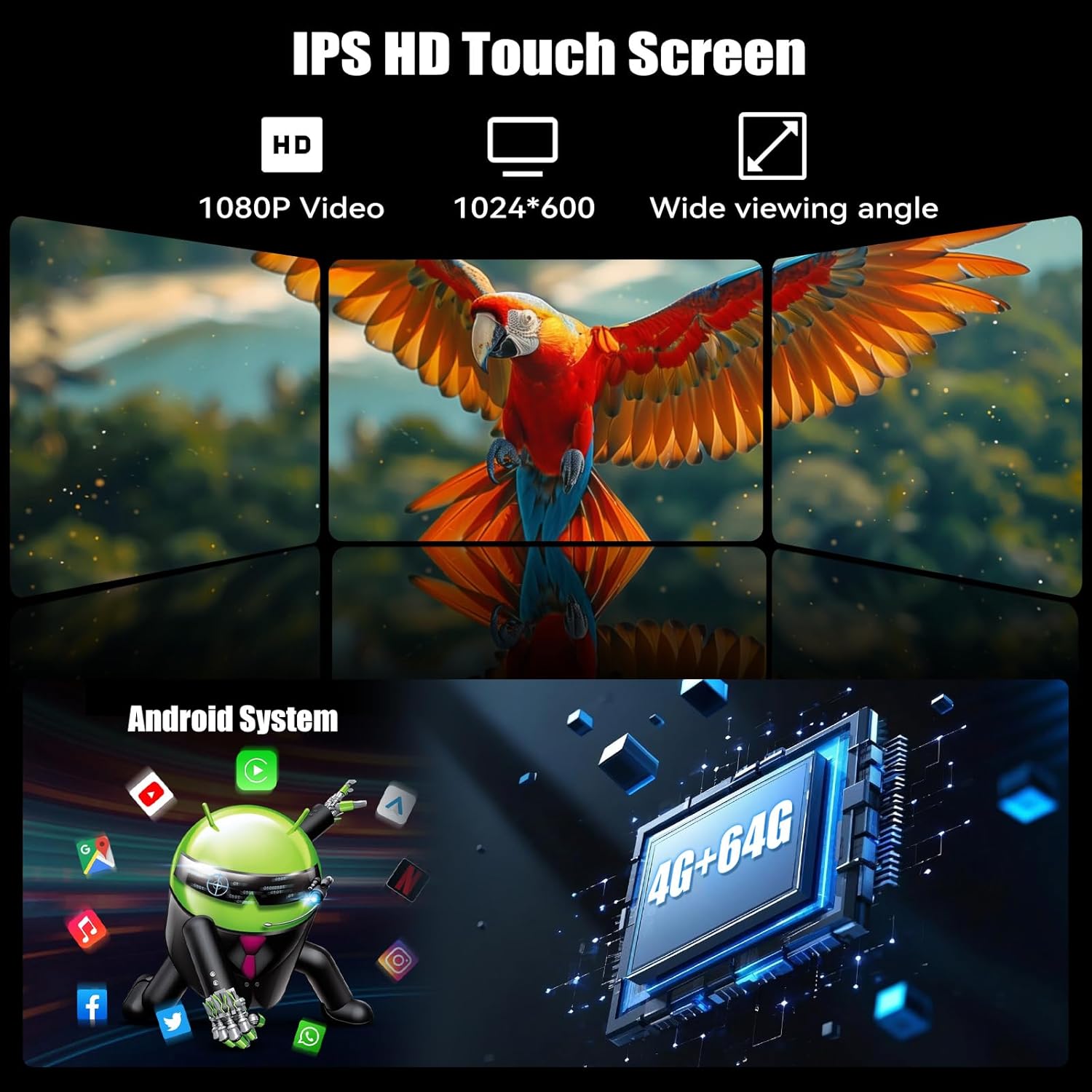
- ระบบ Android 13: มาพร้อม RAM 4GB และ ROM 64GB เพื่อการทำงานที่ราบรื่น ampที่เก็บของ
- 7-inch IPS Flip-Out Touchscreen: High-definition 1024*600 capacitive display with wide viewมุมการเอียง
- CarPlay แบบไร้สายและ Android Auto: การผสานรวมสมาร์ทโฟนอย่างราบรื่นเพื่อการนำทาง ฟังเพลง และการสื่อสาร
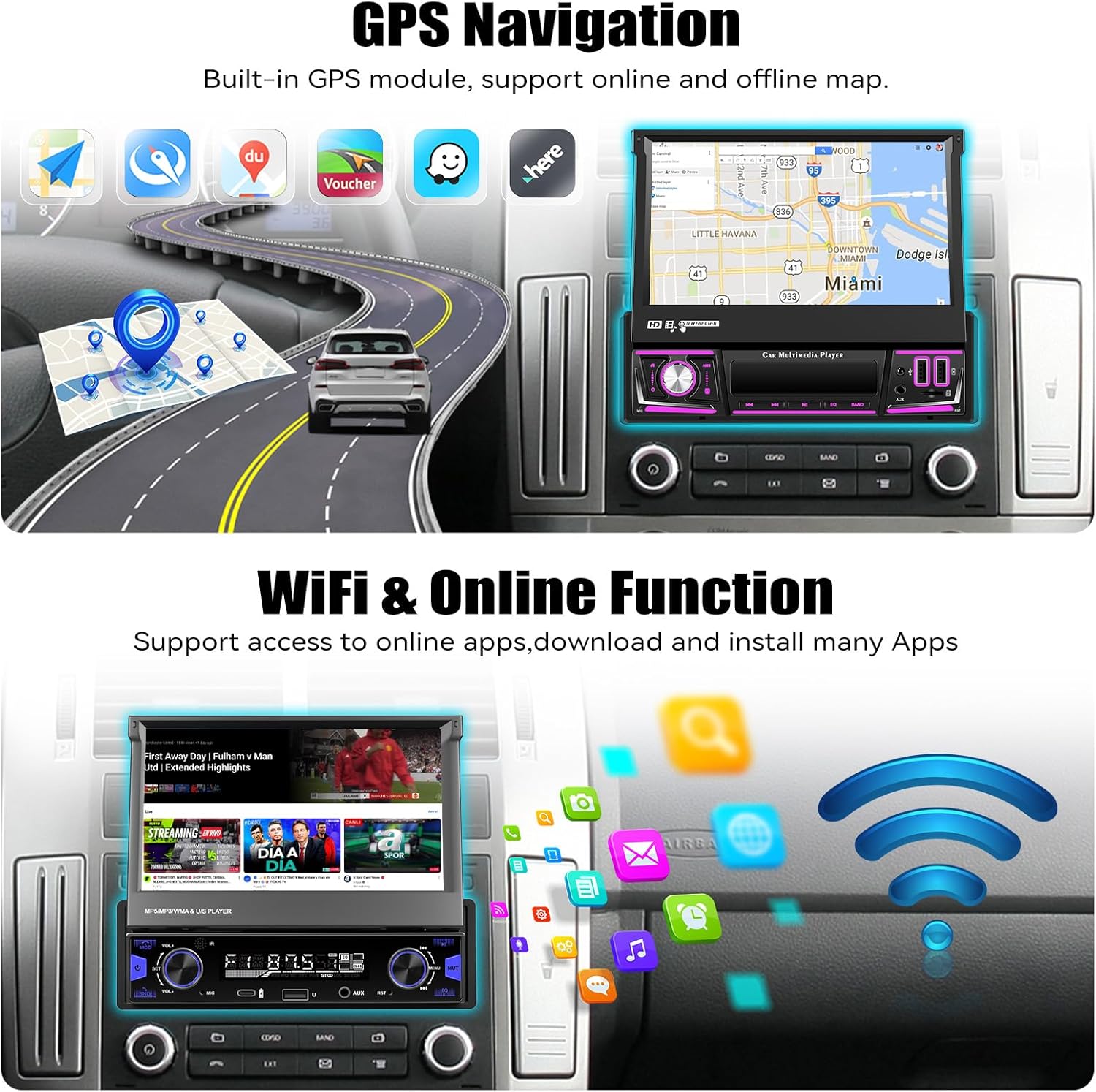
- การนำทาง GPS: Built-in GPS module supporting online and offline maps.
- การเชื่อมต่อ Wi-Fi: For online functions, app downloads, and internet browsing.
- Bluetooth 5.0: การโทรแบบแฮนด์ฟรีและการสตรีมเสียง
- วิทยุ FM/RDS: 18 preset stations with memory function.
- DSP & EQ Sound: Built-in digital sound processing with customizable EQ settings.
- อินพุตหลายตัว: Dual USB ports, TF card slot, and AUX input.
- กล้องมองหลัง AHD: Included for enhanced reversing safety.
- ระบบควบคุมพวงมาลัย (SWC): Compatible with existing vehicle steering wheel controls.
- ลิงค์มิเรอร์: Supports wireless mirroring for Android/iOS devices.
- ฟังก์ชั่นแยกหน้าจอ: Allows two applications to run simultaneously on the display.
- 7 Color Backlight: สามารถปรับแต่งการส่องสว่างปุ่มได้
5. การตั้งค่าและการติดตั้ง
สำคัญ: Due to the complexity of car audio system wiring, professional installation is highly recommended. Incorrect wiring can cause damage to the unit or your vehicle.
5.1 รายการตรวจสอบก่อนการติดตั้ง
- ถอดขั้วแบตเตอรี่ลบของรถออกก่อนเริ่มงานไฟฟ้าใดๆ
- Ensure you have the correct wiring harness adapter for your vehicle model (if not included).
- Confirm the single DIN opening in your dashboard is compatible with the unit's dimensions.
5.2 การเชื่อมต่อสายไฟ
Refer to the wiring diagram provided in the included user manual for specific connections. General connections include:
- พลัง: เชื่อมต่อสายสีเหลืองกับไฟ 12V คงที่ สายสีแดงกับอุปกรณ์เสริม 12V และสายสีดำกับกราวด์
- วิทยากร: เชื่อมต่อสายลำโพงเข้ากับสายลำโพงของรถยนต์ที่ตรงกัน (เช่น ด้านหน้าซ้าย +, ด้านหน้าซ้าย -)
- เสาอากาศ GPS: เชื่อมต่อเสาอากาศ GPS และติดตั้งในตำแหน่งที่โล่ง view ของท้องฟ้า (เช่น แผงหน้าปัดรถยนต์ มุมกระจกหน้ารถ)
- กล้องหลัง: Connect the video input from the AHD backup camera to the unit's camera input. Connect the camera's power to the reverse light circuit.
- ไมโครโฟน: เชื่อมต่อไมโครโฟนภายนอกเพื่อใช้งานการโทรแบบแฮนด์ฟรี
- สาย USB: Route the USB extension cables to an accessible location.
- เสาอากาศวิทยุ: เชื่อมต่อเสาอากาศวิทยุของรถยนต์
- ระบบควบคุมพวงมาลัย (SWC): Connect the SWC wires according to your vehicle's wiring diagram.
5.3 การติดตั้งเครื่อง
- Slide the mounting sleeve into the dashboard opening.
- ยึดปลอกให้แน่นโดยใช้แถบดัดงอ
- Carefully slide the car stereo unit into the mounting sleeve until it locks into place.
- ต่อขั้วแบตเตอรี่ลบของรถกลับเข้าที่
6. คู่มือการใช้งาน
6.1 การทำงานพื้นฐาน
- เปิด/ปิดเครื่อง: กดปุ่มเปิด/ปิด (โดยปกติจะเป็นปุ่มปรับระดับเสียง) เพื่อเปิดหรือปิดเครื่อง
- การควบคุมระดับเสียง: หมุนปุ่มเพื่อปรับระดับเสียง
- การปรับหน้าจอ: The 7-inch screen is motorized. Use the screen controls to adjust its angle or retract it.
- อินเทอร์เฟซหน้าจอสัมผัส: Navigate the Android system by tapping, swiping, and pinching on the capacitive touchscreen.

6.2 CarPlay ไร้สายและ Android Auto
เชื่อมต่อสมาร์ทโฟนของคุณแบบไร้สายเพื่อประสบการณ์การขับขี่แบบบูรณาการ
- ตรวจสอบให้แน่ใจว่าเปิดใช้งาน Bluetooth และ Wi-Fi บนสมาร์ทโฟนของคุณแล้ว
- ในเครื่องเสียงรถยนต์ เปิดแอปพลิเคชัน CarPlay หรือ Android Auto
- Follow the on-screen prompts to pair your phone. Once paired, your phone will automatically connect in the future.


6.3 ระบบนำทาง GPS
The unit includes a built-in GPS module for navigation. It supports both online and offline map applications.
- ตรวจสอบให้แน่ใจว่าติดตั้งเสาอากาศ GPS อย่างถูกต้องและมีความชัดเจน view ของท้องฟ้า
- Use pre-installed navigation apps or download your preferred map applications via Wi-Fi.
- For offline maps, download the necessary map data when connected to Wi-Fi.


6.4 Wi-Fi & Online Functions
Connect the stereo to a Wi-Fi hotspot (e.g., from your smartphone) to access online features.
- ไปที่การตั้งค่า > เครือข่ายและอินเทอร์เน็ต > Wi-Fi
- เลือกเครือข่าย Wi-Fi ที่ต้องการแล้วป้อนรหัสผ่าน
- Once connected, you can download apps from the Google Play Store, browse the internet, and stream online content.

6.5 บลูทู ธ 5.0
เชื่อมต่อโทรศัพท์มือถือของคุณผ่านบลูทูธเพื่อการโทรแบบแฮนด์ฟรีและการสตรีมเสียง
- เปิดใช้งานบลูทูธบนโทรศัพท์และเครื่องเสียงรถยนต์ของคุณ
- On the car stereo, search for available devices and select your phone.
- ยืนยันรหัสจับคู่บนอุปกรณ์ทั้งสอง
- เมื่อเชื่อมต่อแล้ว คุณสามารถโทรออก/รับสาย และเล่นเพลงแบบไร้สายได้


วิทยุ FM/RDS 6.6
Access local radio stations with FM and RDS (Radio Data System) functionality.
- เลือกแอปพลิเคชัน 'วิทยุ' จากเมนูหลัก
- Use the scan function to automatically search for and save available stations.
- ปรับคลื่นความถี่ด้วยตนเอง หรือเลือกจากสถานีที่ตั้งไว้ล่วงหน้า
- RDS ให้ข้อมูลสถานี ชื่อเพลง และประกาศเกี่ยวกับสภาพการจราจร (หากมี)


6.7 EQ Sound Settings
Customize your audio experience using the built-in Equalizer (EQ).
- Access the 'EQ' or 'Sound Settings' option from the main menu or during audio playback.
- Adjust frequency bands, bass, treble, and other audio parameters to your preference.
- Select from various preset EQ modes (e.g., Pop, Rock, Jazz) or create custom settings.

6.8 การใช้งานกล้องมองหลัง
กล้องสำรอง AHD ที่รวมอยู่จะแสดงภาพด้านหลังโดยอัตโนมัติ view เมื่อรถอยู่ในเกียร์ถอยหลัง
- Ensure the camera is properly installed and connected to the reverse trigger wire.
- เมื่อเข้าเกียร์ถอยหลัง หน้าจอจะสลับไปที่ภาพจากกล้องโดยอัตโนมัติ view, displaying parking guidelines.


6.9 ระบบควบคุมพวงมาลัย (SWC)
Program your vehicle's steering wheel buttons to control the car stereo functions.
- เข้าถึงการตั้งค่า 'การควบคุมพวงมาลัย' ในเมนูของเครื่อง
- ทำตามคำแนะนำบนหน้าจอเพื่อกำหนดฟังก์ชัน (เช่น เพิ่ม/ลดระดับเสียง ข้ามเพลง โหมด) ให้กับปุ่มบนพวงมาลัยของคุณ

6.10 การเชื่อมโยงมิเรอร์
Mirror your Android or iOS smartphone screen onto the car stereo display.
- เปิดแอปพลิเคชัน 'Mirror Link' บนเครื่องเสียงรถยนต์
- Connect your phone via Wi-Fi or USB cable as prompted.
- Your phone's screen will be displayed on the stereo, allowing you to view apps not supported by CarPlay/Android Auto.

6.11 Multiple Input (USB/TF/AUX)
The unit supports various media inputs for playback and charging.
- ยูเอสบี: Connect USB drives for media playback or use the USB ports for charging your smartphone.
- บัตร TF: เสียบการ์ด TF (microSD) ลงในช่องที่กำหนดสำหรับการเล่นสื่อ
- ช่องเสริม: Connect external audio devices (e.g., MP3 players) via the 3.5mm AUX input.

6.12 ฟังก์ชันแบ่งหน้าจอ
The split-screen feature allows you to run two applications side-by-side on the display.
- While an app is open, swipe up from the bottom of the screen or long-press the recent apps button (if available) to enter split-screen mode.
- Select a second app to display on the other half of the screen.

6.13 7 Color Backlight
Customize the illumination color of the physical buttons on the unit.
- Navigate to the 'Settings' menu and look for 'Button Light' or 'Backlight Color' options.
- Choose from seven available colors to match your vehicle's interior lighting or personal preference.

7. การบำรุงรักษา
- การทำความสะอาดหน้าจอ: ใช้ผ้านุ่มไม่เป็นขุยเช็ดหน้าจอสัมผัสเบาๆ สำหรับรอยเปื้อนฝังแน่น ให้เช็ดเบาๆampชุบผ้าด้วยน้ำหรือน้ำยาทำความสะอาดหน้าจอ หลีกเลี่ยงสารเคมีรุนแรง
- การทำความสะอาดทั่วไป: Wipe the unit's body with a dry, soft cloth. Do not use abrasive cleaners.
- การอัปเดตซอฟต์แวร์: Periodically check for software updates via the unit's settings menu to ensure optimal performance and access to new features.
- หลีกเลี่ยงของเหลว: ป้องกันไม่ให้ของเหลวเข้าไปในตัวเครื่อง เนื่องจากอาจทำให้เกิดความเสียหายร้ายแรงได้
8 การแก้ไขปัญหา
| ปัญหา | สาเหตุที่เป็นไปได้ | สารละลาย |
|---|---|---|
| เครื่องไม่เปิด | การเดินสายไฟไม่ถูกต้อง; ฟิวส์ขาด; ไม่มีไฟเลี้ยง | ตรวจสอบการเชื่อมต่อสายไฟ (สายสีเหลือง สีแดง สีดำ) ตรวจสอบฟิวส์รถยนต์ ตรวจสอบให้แน่ใจว่าแบตเตอรี่ชาร์จเต็มแล้ว |
| ไม่มีเสียงออกจากลำโพง | Incorrect speaker wiring; Volume too low; Mute activated. | Verify speaker connections. Increase volume. Check if mute is active. |
| GPS signal lost frequently. | GPS antenna improperly placed; Obstructions; Weak signal area. | ตรวจสอบให้แน่ใจว่าเสาอากาศ GPS มีสัญญาณที่ชัดเจน view of the sky. Relocate antenna if necessary. Update map data. |
| ปัญหาการเชื่อมต่อบลูทูธ | Phone not discoverable; Incorrect pairing; Interference. | ตรวจสอบให้แน่ใจว่าบลูทูธของโทรศัพท์เปิดอยู่และสามารถค้นพบได้ ลบการจับคู่ก่อนหน้าและจับคู่ใหม่ รีสตาร์ทอุปกรณ์ทั้งสองเครื่อง |
| CarPlay/Android Auto ไม่สามารถเชื่อมต่อได้ | Wi-Fi/Bluetooth issues; Phone software outdated; App permissions. | Check Wi-Fi and Bluetooth connections. Update phone OS and CarPlay/Android Auto apps. Verify app permissions. |
| กล้องสำรองไม่แสดงผล | Camera wiring incorrect; Reverse trigger not connected; Faulty camera. | Check camera power and video connections. Ensure reverse trigger wire is correctly connected. |
| หน้าจอสัมผัสไม่ตอบสนอง | Software glitch; Screen damage. | Restart the unit. If issue persists, perform a factory reset (data will be lost). Contact support if physical damage is suspected. |
9. ข้อมูลจำเพาะ
| คุณสมบัติ | รายละเอียด |
|---|---|
| ระบบปฏิบัติการ | แอนดรอยด์ 13 |
| แรม | 4GB |
| หน่วยความจำภายใน (ROM) | 64GB |
| ขนาดจอแสดงผล | 7 นิ้ว |
| ความละเอียดการแสดงผล | 1024 * 600 IPS |
| การเชื่อมต่อ | Bluetooth 5.0, Wi-Fi, Wireless CarPlay, Android Auto |
| การนำทาง | Built-in GPS (North America, Worldwide map support) |
| โหมดเอาต์พุตเสียง | Stereo, Built-in EQ |
| ข้อมูลอินพุต | Dual USB, TF Card, AUX-in, Rear Camera Input |
| คุณสมบัติพิเศษ | Flip-out screen, Mirror Link, Split Screen, Steering Wheel Control, 7 Color Backlight |
| ขนาดสินค้า | 7.36 x 7.87 x 2.32 นิ้ว (18.7 x 20.0 x 5.9 ซม.) |
| น้ำหนักสินค้า | 4.18 ปอนด์ (1.9 กก.) |
10. การรับประกันและการสนับสนุน
This UNITOPSCI product comes with a รับประกัน 1 ปี นับจากวันที่ซื้อ โดยครอบคลุมถึงข้อบกพร่องจากการผลิต โปรดเก็บหลักฐานการซื้อไว้เพื่อขอรับสิทธิ์การรับประกัน
การสนับสนุนลูกค้า:
For technical assistance, troubleshooting, or warranty inquiries, please contact UNITOPSCI customer service:
- อีเมล: UNITOPSCI@126.com
Please provide your product model and a detailed description of the issue when contacting support for faster resolution.
