
1. บทนำ
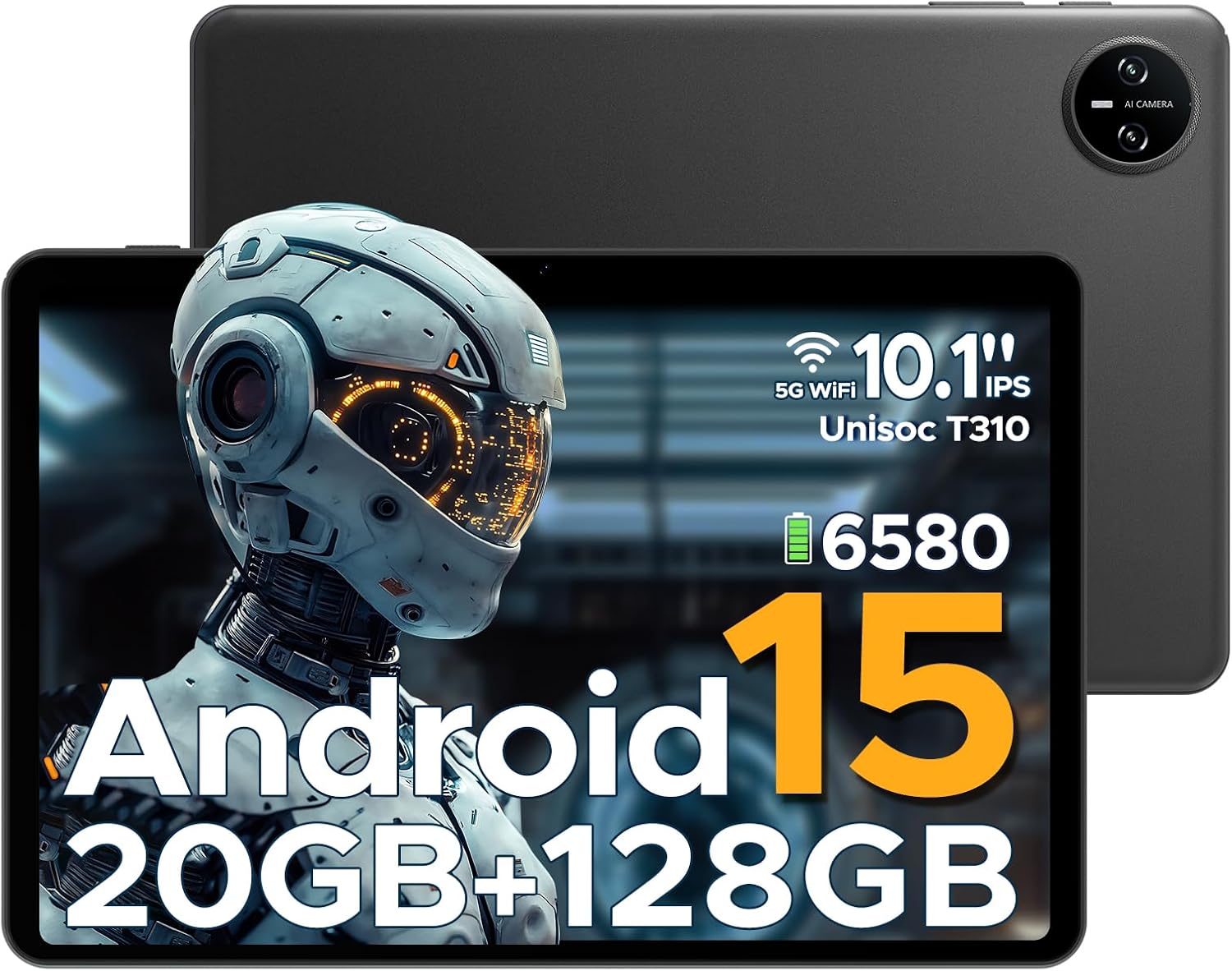
This manual provides essential information for the safe and efficient use of your DOOGEE Tab A9 Pro Android 15 Tablet. Please read this manual thoroughly before operating the device and retain it for future reference. The DOOGEE Tab A9 Pro is a 10-inch tablet featuring the latest Android 15 system, a Unisoc T310 processor, 20GB RAM, 128GB ROM (expandable to 2TB), a 6580mAh battery, and dual speakers, designed for a smooth and versatile user experience.
2. อะไรอยู่ในกล่อง
ตรวจสอบว่ามีสินค้าครบทั้งหมดเมื่อแกะกล่อง:
- 1 x DOOGEE Tab A9 Pro Tablet
- 1 x เครื่องชาร์จ
- สาย USB Type-C 1 เส้น
- 1 x คู่มือผู้ใช้
Note: The OTG cable is not included with the tablet and needs to be purchased separately.
3. สินค้าหมดview
3.1 คุณสมบัติหลัก
- ระบบปฏิบัติการ: Latest Android 15, offering enhanced speed and privacy features.
- โปรเซสเซอร์: Unisoc T310 Quad-Core Processor (2.0 GHz Cortex-A75 core) for efficient performance and low power consumption.
- หน่วยความจำและการจัดเก็บ: 20GB RAM (4GB base + 16GB expandable virtual RAM) and 128GB internal storage, expandable up to 2TB via Micro SD card (sold separately).
- แสดง: 10.1-inch IPS HD display with 1280x800 resolution, 16:10 aspect ratio, and 2.5D cover glass.
- แบตเตอรี่: 6580mAh high-capacity battery for extended use.
- กล้องถ่ายรูป: 8MP AI rear camera and 5MP front camera for photography and video calls.
- เสียง: 1217 BOX Dual Speakers for clear sound.
- การเชื่อมต่อ: 5G WiFi, Bluetooth, GMS certified.
- ความปลอดภัย: Face ID for convenient unlocking.
- พอร์ต: 3.5mm headphone jack, USB Type-C port.
- คุณสมบัติเพิ่มเติม: OTG support, built-in WPS Office, Eye-Caring Mode, Dark Mode, Split-Screen Multitasking, Parental Control, Bedtime Mode, Multi-user System.
3.2 ส่วนประกอบด้านภาพ


4. การตั้งค่า
4.1 การชาร์จแท็บเล็ต
Before first use, fully charge the tablet using the provided charger and Type-C USB cable. Connect the Type-C cable to the tablet's charging port and the charger to a power outlet. The battery indicator on the screen will show charging status.
4.2 การเปิด/ปิดเครื่อง
- การเปิดเครื่อง: กดปุ่มเปิด/ปิดค้างไว้จนกว่าโลโก้ DOOGEE จะปรากฏขึ้น
- วิธีปิดเครื่อง: กดปุ่มเปิด/ปิดค้างไว้จนกว่าเมนูตัวเลือกพลังงานจะปรากฏขึ้น จากนั้นเลือก "ปิดเครื่อง"
- ในการรีสตาร์ท: กดปุ่มเปิด/ปิดค้างไว้จนกว่าเมนูตัวเลือกพลังงานจะปรากฏขึ้น จากนั้นเลือก 'รีสตาร์ท'
4.3 การตั้งค่าเริ่มต้น
Upon first power-on, the tablet will guide you through the initial setup process. This includes selecting your language, connecting to a Wi-Fi network, setting up your Google account, and configuring basic security settings like Face ID or a PIN/pattern.
5. คู่มือการใช้งาน
5.1 การนำทาง
The Android 15 operating system provides intuitive navigation. Use gestures or on-screen buttons to navigate home, go back, or switch between recent applications.
5.2 การติดตั้งและการจัดการแอปพลิเคชัน
Download and install applications from the Google Play Store. To manage apps, go to Settings > Apps & notifications. From here, you can uninstall, force stop, or clear data for applications.
5.3 Face ID Unlock
To set up Face ID, go to Settings > Security & privacy > Face unlock. Follow the on-screen instructions to register your face. Once set up, you can unlock the tablet by simply looking at the front camera.
5.4 ฟังก์ชัน OTG
The tablet supports USB On-The-Go (OTG), allowing you to connect external USB devices such as flash drives, keyboards, or mice. An OTG adapter cable (not included) is required for this functionality. Connect the OTG adapter to the tablet's Type-C port, then connect your USB device to the adapter.
5.5 การทำงานหลายอย่างพร้อมกันแบบแบ่งหน้าจอ
To use split-screen mode, open an app, then swipe up from the bottom of the screen and hold to access recent apps. Tap the app icon at the top of the app's card and select 'Split screen'. Choose a second app to open in the other half of the screen.
5.6 Eye-Caring Mode and Dark Mode
These modes can be enabled in the display settings to reduce eye strain. Eye-Caring Mode adjusts screen colors to warmer tones, while Dark Mode changes the interface to a darker theme, ideal for low-light environments.
6. การบำรุงรักษา
6.1 การดูแลแบตเตอรี่
- หลีกเลี่ยงการให้แท็บเล็ตสัมผัสกับอุณหภูมิที่สูงหรือต่ำเกินไป
- อย่าปล่อยให้แบตเตอรี่หมดจนหมดบ่อยๆ
- ใช้เฉพาะเครื่องชาร์จดั้งเดิมหรือเครื่องชาร์จที่ได้รับการรับรองว่าใช้งานร่วมกันได้เท่านั้น
6.2 การทำความสะอาด
Use a soft, lint-free cloth to clean the screen and body of the tablet. Do not use abrasive cleaners or solvents. For stubborn smudges, slightly dampเทน้ำหรือน้ำยาทำความสะอาดหน้าจอที่ออกแบบมาสำหรับอุปกรณ์อิเล็กทรอนิกส์ลงบนผ้า
6.3 การอัปเดตซอฟต์แวร์
Regularly check for and install software updates to ensure optimal performance, security, and access to new features. Go to Settings > System > System update to check for available updates.
7 การแก้ไขปัญหา
| ปัญหา | สาเหตุที่เป็นไปได้ | สารละลาย |
|---|---|---|
| แท็บเล็ตเปิดไม่ติด | แบตเตอรี่ต่ำ ระบบขัดข้อง | Charge the tablet for at least 30 minutes; Press and hold the Power button for 10-15 seconds to force restart. |
| แอปทำงานช้าหรือขัดข้อง | Too many apps running; Insufficient storage; App bug | Close background apps; Clear app cache/data; Free up storage space; Update the app or tablet software. |
| ปัญหาการเชื่อมต่อ Wi-Fi | รหัสผ่านไม่ถูกต้อง; ปัญหาเราเตอร์; สัญญาณรบกวน | Re-enter Wi-Fi password; Restart router; Move closer to the router; Forget and reconnect to the network. |
| Face ID not working | Poor lighting; Face not properly aligned; Face ID not set up correctly | Ensure adequate lighting; Hold tablet at eye level; Re-register your face in settings. |
| แท็บเล็ตไม่ชาร์จ | สายเคเบิล/ที่ชาร์จชำรุด; พอร์ตชาร์จสกปรก | Try a different cable/charger; Clean the charging port gently with a dry, soft brush. |
8. ข้อมูลจำเพาะ
| คุณสมบัติ | รายละเอียด |
|---|---|
| ยี่ห้อ | ดูจี้ |
| ชื่อรุ่น | แท็บ A9 โปร |
| ระบบปฏิบัติการ | แอนดรอยด์ 15 |
| โปรเซสเซอร์ | Unisoc T310 (1.8 GHz) |
| โคโปรเซสเซอร์กราฟิก | มะลิ-G52 |
| ขนาดหน่วยความจำ RAM ที่ติดตั้ง | 20 GB (4GB base + 16GB virtual) |
| ความจุของหน่วยความจำ | 128 GB (Expandable up to 2TB via Micro SD) |
| ขนาดหน้าจอ | 10.1 นิ้ว |
| ความละเอียดหน้าจอ | 1280 x 800 พิกเซล |
| หลัง Webความละเอียดของกล้อง | 8 MP |
| ด้านหน้า Webความละเอียดของกล้อง | 5 MP |
| ความจุของแบตเตอรี่ | 6580 mAh (ลิเธียมโพลิเมอร์) |
| ประเภทการเชื่อมต่อ | Bluetooth, Wi-Fi (5G WiFi) |
| ขนาดสินค้า | 25.7 x 16.88 x 0.79 ซม. |
| น้ำหนักสินค้า | 910 กรัม |
| คุณสมบัติพิเศษ | Stereo Speakers, Supports USB OTG, Expandable Storage, Face ID |
| รุ่นปี | 2025 |
9. การรับประกันและการสนับสนุน
For warranty information and technical support, please refer to the warranty card included with your product or visit the official DOOGEE webเว็บไซต์. คุณยังสามารถเยี่ยมชม ร้าน DOOGEE บน Amazon สำหรับรายละเอียดผลิตภัณฑ์เพิ่มเติมและทรัพยากรสนับสนุน