
การแนะนำ
This manual provides detailed instructions for the setup, operation, and maintenance of your T'nB KBWERGO Ergonomic Wireless Rechargeable Bluetooth Keyboard. This keyboard features an ergonomic wave design, integrated wrist rest, adjustable feet, and dual connectivity modes (Bluetooth and 2.4 GHz USB-A dongle) for compatibility with both PC and Mac systems. It is designed to enhance comfort and reduce wrist strain during extended use.
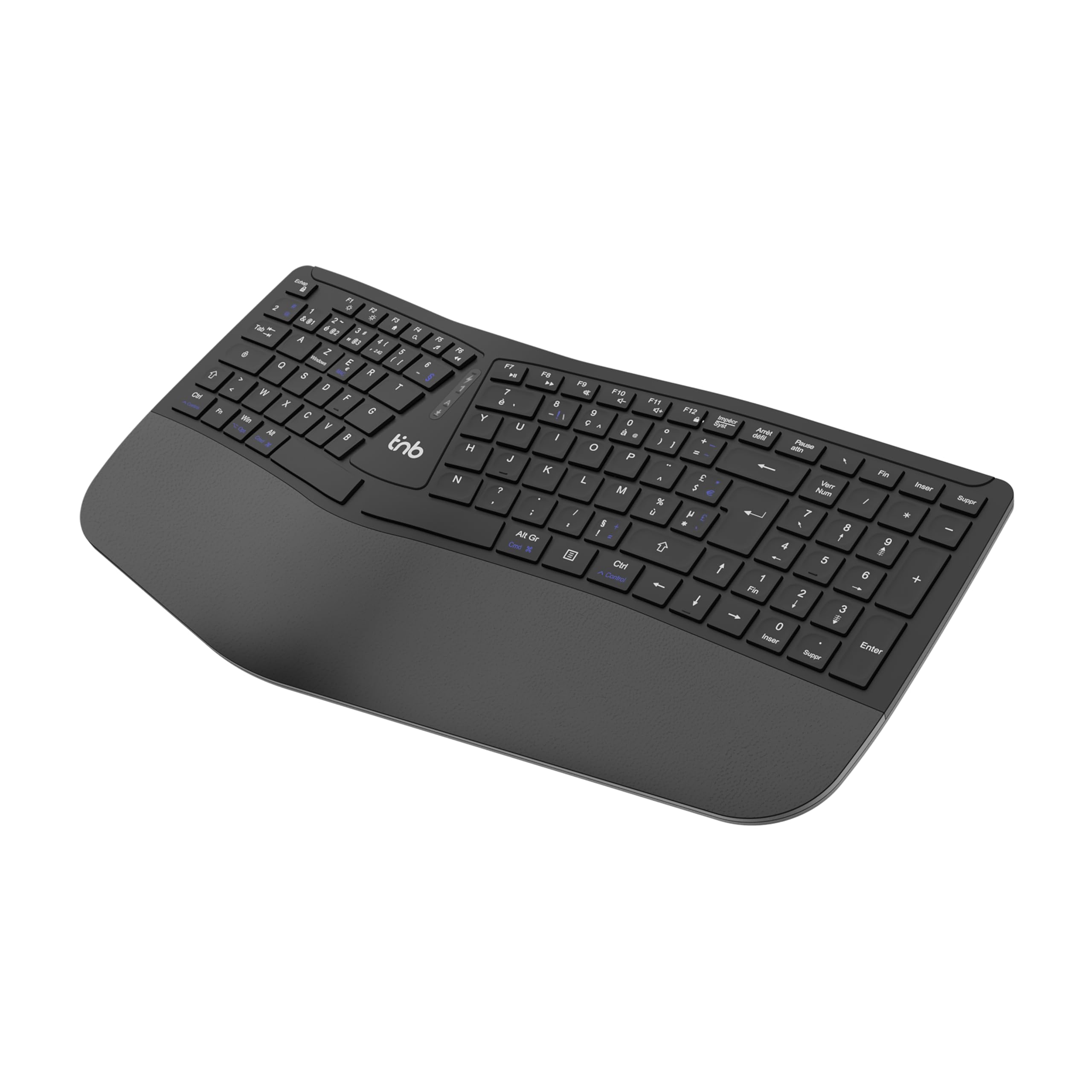
รูปที่ 1: ด้านบน view of the T'nB KBWERGO Ergonomic Wireless Keyboard.
เนื้อหาแพ็คเกจ
โปรดตรวจสอบให้แน่ใจว่ามีสินค้าทั้งหมดอยู่ในแพ็คเกจ:
- T'nB KBWERGO Ergonomic Wireless Keyboard
- USB-A 2.4 GHz Wireless Dongle (typically stored in the keyboard's battery compartment)
- สายชาร์จ USB-C
- คู่มือการใช้งาน (เอกสารนี้)
การตั้งค่า
1. การชาร์จคีย์บอร์ด
The keyboard is equipped with a rechargeable Lithium-Ion battery. Before first use, it is recommended to fully charge the keyboard.
- ค้นหาพอร์ตชาร์จ USB-C บนแป้นพิมพ์
- Connect one end of the provided USB-C cable to the keyboard's charging port.
- Connect the other end of the USB-C cable to a USB-A power source (e.g., computer USB port, USB wall adapter).
- The charging indicator light will illuminate. Once fully charged, the indicator light may change color or turn off.
2. การเชื่อมต่อคีย์บอร์ด
The keyboard supports dual-mode connectivity: 2.4 GHz wireless via USB-A dongle and Bluetooth (up to 3 profileส).
2.1. 2.4 GHz Wireless Connection (USB-A Dongle)
- Locate the USB-A wireless dongle, usually stored in a compartment on the underside of the keyboard.
- Insert the USB-A dongle into an available USB-A port on your computer.
- เปิดใช้งานคีย์บอร์ดโดยใช้สวิตช์เปิด/ปิด (ตำแหน่งอาจแตกต่างกันไป โดยทั่วไปจะอยู่ด้านหลังหรือด้านข้าง)
- The keyboard should automatically connect to your computer. No additional drivers are typically required.
2.2 การเชื่อมต่อบลูทูธ (สูงสุด 3 อุปกรณ์)
The keyboard can be paired with up to three Bluetooth-enabled devices.
- ตรวจสอบให้แน่ใจว่าแป้นพิมพ์เปิดอยู่
- กดปุ่มจับคู่บลูทูธปุ่มใดปุ่มหนึ่งค้างไว้ (เช่น BT1, BT2, BT3, or a dedicated Bluetooth button) for a few seconds until the corresponding indicator light flashes, indicating pairing mode.
- On your device (PC, Mac, tablet, smartphone), go to Bluetooth settings and search for new devices.
- Select "T'nB KBWERGO" or a similar name from the list of available devices.
- ทำตามคำแนะนำบนหน้าจอเพื่อทำการจับคู่ให้เสร็จสมบูรณ์ ไฟแสดงสถานะจะหยุดกะพริบเมื่อจับคู่สำเร็จแล้ว
- ในการสลับระหว่างอุปกรณ์บลูทูธที่จับคู่ไว้ เพียงกดปุ่มบลูทูธที่เกี่ยวข้อง (BT1, BT2, หรือ BT3).
3. การปรับความเอียงของแป้นพิมพ์
The keyboard features 4 adjustable pads, allowing for two different tilt heights to optimize your typing posture.
- Flip the keyboard over to access the underside.
- Locate the adjustable feet at the front and back of the keyboard.
- Extend the smaller feet for a slight tilt, or extend both the smaller and larger feet for a higher tilt.
- Ensure all four feet are set to the same height for stability.

รูปที่ 2: ด้านล่าง view of the keyboard, highlighting the adjustable feet.

Figure 3: Diagram illustrating the ergonomic design and adjustable tilt options.
การใช้งานแป้นพิมพ์
ข้อดีของการออกแบบตามหลักสรีรศาสตร์
The T'nB KBWERGO keyboard features a wave-shaped ergonomic design and an integrated synthetic leather wrist rest. This design aims to:
- Minimize wrist movement and effort to reach all keys.
- Alleviate wrist strain during prolonged typing sessions.
- Provide a natural and comfortable hand position.
- Reduce muscle tension in the arms and shoulders.

รูปที่ 4: ด้านข้าง view illustrating the ergonomic wave design.
ปุ่มฟังก์ชั่นและปุ่มลัด
The keyboard includes 12 direct access keys (function keys) for common tasks. These keys are typically located along the top row of the keyboard (F1-F12) and may require pressing the Fn key simultaneously for their secondary functions. Refer to the keycap legends for specific functions such as media control, volume adjustment, and application shortcuts.
The keyboard also features a full numeric keypad for efficient data entry.
ความเข้ากันได้
The T'nB KBWERGO keyboard is compatible with both PC (Windows operating systems) and Mac (macOS) systems, offering versatile use across different computing environments.
การซ่อมบำรุง
การทำความสะอาด
เพื่อรักษารูปลักษณ์และการทำงานของแป้นพิมพ์:
- โปรดตรวจสอบให้แน่ใจว่าได้ปิดแป้นพิมพ์แล้วก่อนทำการทำความสะอาด
- ใช้ผ้านุ่มไม่เป็นขุยเช็ดเล็กน้อยampลงด้วยน้ำหรือน้ำยาทำความสะอาดอ่อนๆ
- Avoid harsh chemicals, abrasive cleaners, or spraying liquids directly onto the keyboard.
- สำหรับฝุ่นละอองและเศษต่างๆ ระหว่างคีย์ ให้ใช้ลมอัด
- Wipe the synthetic leather wrist rest gently.
การดูแลแบตเตอรี่
The integrated Lithium-Ion battery requires proper care for longevity:
- หลีกเลี่ยงการปล่อยแบตเตอรี่จนหมดบ่อยครั้ง
- ควรชาร์จคีย์บอร์ดเป็นประจำ โดยเฉพาะอย่างยิ่งหากจะเก็บไว้เป็นเวลานาน
- อย่าให้แป้นพิมพ์สัมผัสกับอุณหภูมิที่สูงหรือต่ำเกินไป
- ใช้เฉพาะสาย USB-C ที่ให้มาหรือสายที่ได้รับการรับรองเทียบเท่าสำหรับการชาร์จ
การแก้ไขปัญหา
แป้นพิมพ์ไม่ตอบสนอง
- ตรวจสอบพลังงาน: ตรวจสอบให้แน่ใจว่าแป้นพิมพ์เปิดอยู่และมีแบตเตอรี่เหลือเพียงพอ ชาร์จแบตเตอรี่หากจำเป็น
- การเชื่อมต่อ 2.4 กิกะเฮิรตซ์:
- Verify the USB-A dongle is securely plugged into a working USB port on your computer.
- ลองเสียบดองเกิลเข้ากับพอร์ต USB อื่น
- การเชื่อมต่อบลูทู ธ :
- ตรวจสอบให้แน่ใจว่าได้เปิดใช้งานบลูทูธบนอุปกรณ์ของคุณแล้ว
- Confirm the keyboard is selected as the active Bluetooth device (e.g., by pressing the correct BT1/BT2/BT3 key).
- If connection issues persist, try unpairing and re-pairing the keyboard with your device.
- การรบกวน: เลื่อนแป้นพิมพ์ให้ใกล้กับอุปกรณ์ของคุณ และห่างจากอุปกรณ์ไร้สายอื่นๆ ที่อาจก่อให้เกิดการรบกวน
- เริ่มต้นใหม่อีกครั้ง: รีสตาร์ทเครื่องคอมพิวเตอร์และคีย์บอร์ดของคุณ
ปัญหาการชาร์จไฟ
- ตรวจสอบสายเคเบิล: Ensure the USB-C charging cable is securely connected to both the keyboard and the power source.
- แหล่งพลังงาน: ลองใช้แหล่งพลังงาน USB หรืออะแดปเตอร์ติดผนังอื่น
- ความเสียหายของสายเคเบิล: Inspect the charging cable for any signs of damage. Use a different USB-C cable if available.
ข้อมูลจำเพาะ
| คุณสมบัติ | รายละเอียด |
|---|---|
| ชื่อรุ่น | KBWERGO |
| ยี่ห้อ | ทีแอนด์บี |
| เทคโนโลยีการเชื่อมต่อ | Bluetooth, 2.4 GHz USB-A |
| Number of Bluetooth Profiles | 3 |
| แหล่งพลังงาน | แบตเตอรี่ลิเธียมไอออนแบบชาร์จไฟได้ |
| พอร์ตชาร์จ | ยูเอสบี-ซี |
| เค้าโครงแป้นพิมพ์ | QWERTY (Spanish layout implied by source, but general QWERTY for instructions) |
| จำนวนคีย์ | 104 |
| คุณสมบัติพิเศษ | Ergonomic design, Integrated Wrist Rest, Adjustable Tilt |
| อุปกรณ์ที่รองรับ | คอมพิวเตอร์ส่วนบุคคล, แล็ปท็อป |
| ระบบปฏิบัติการที่รองรับ | วินโดวส์, แมคโอเอส |
| ขนาด (กว้าง x ยาว x สูง) | 43 x 21 x 2 ซม. (16.9 x 8.3 x 0.8 นิ้ว) |
| น้ำหนัก | 1.16 กก. (2.56 ปอนด์) |
| วัสดุ | พลาสติก |
| สี | สีดำ |
การรับประกันและการสนับสนุน
For warranty information or technical support, please refer to the documentation included with your purchase or contact T'nB customer service through their official webเว็บไซต์หรือร้านค้าที่คุณซื้อสินค้า โปรดเก็บหลักฐานการซื้อไว้เพื่อใช้ในการเคลมประกัน
A safety information PDF is available: ข้อมูลด้านความปลอดภัย (PDF)