
ACASIS TBU405MAX
คู่มือผู้ใช้ ACASIS 40Gbps M.2 NVMe SSD Enclosure & Dual Monitor Dock
Model: TBU405MAX
1. บทนำ
This manual provides comprehensive instructions for the installation, operation, and maintenance of your ACASIS 40Gbps M.2 NVMe SSD Enclosure and Dual Monitor Dock (Model: TBU405MAX). This device is designed to expand connectivity and storage capabilities for your computer, particularly Mac mini/MacBook, by integrating a high-speed NVMe SSD enclosure with a versatile docking station.

Figure 1: ACASIS TBU405MAX Product Overview. This image displays the main unit of the ACASIS docking station surrounded by its various connection cables, including USB-C, USB-A, and HDMI, highlighting its multi-functional capabilities.
2. สินค้าหมดview
2.1 คุณสมบัติหลัก
- เคสใส่ SSD M.2 NVMe ความเร็ว 40Gbps: Supports M.2 NVMe SSDs (2280/2260/2242/2230 B+M/M-Key) up to 8TB capacity with data transfer speeds up to 2800MB/s.
- Dual 4K@60Hz HDMI Outputs: Connect two external monitors for extended or mirrored display.
- พอร์ต USB ความเร็วสูง: Includes 2 x USB-A 10Gbps and 1 x USB-C 10Gbps ports for connecting peripherals and fast data transfer.
- PD 100W Power Delivery: USB-C input for 100W power delivery to the dock, with 60W output to charge the host device.
- พัดลมระบายความร้อนอัจฉริยะ: Integrated silent turbo fan and all-aluminum body for efficient heat dissipation, preventing thermal throttling.
- ความเข้ากันได้กว้าง: Compatible with M1/M2 Mac devices, iPad Pro, Windows, macOS, Linux, and various USB/Thunderbolt interfaces.
2.2 ส่วนประกอบและอินเทอร์เฟซ
Familiarize yourself with the various ports and indicators on the docking station:

Figure 2: Docking Station Interfaces. This diagram illustrates the top and side views of the ACASIS docking station, clearly labeling its ports including USB-C (40Gbps), HDMI (4K@60Hz), USB-A (10Gbps), and power delivery (PD 100W) input, along with power and uplink indicators.
- USB-C (40Gbps) Host Port: Connects to your computer (Mac mini/MacBook, etc.).
- HDMI 4K@60Hz Ports (x2): สำหรับการเชื่อมต่อจอแสดงผลภายนอก
- พอร์ต USB-A 10Gbps (2 พอร์ต): สำหรับเชื่อมต่ออุปกรณ์ต่อพ่วง USB
- USB-C 10Gbps Port (x1): สำหรับเชื่อมต่ออุปกรณ์ต่อพ่วง USB-C
- PD 100W Input: ช่องต่อไฟเข้าสำหรับแท่นวางอุปกรณ์
- M.2 NVMe SSD Slot: Internal slot for installing an M.2 NVMe SSD.
- ไฟแสดงสถานะพลังงาน: Lights up when the device is powered.
- Uplink Interface Indicator: Indicates connection status to the host.
3. คู่มือการติดตั้ง
3.1 การติดตั้ง SSD
To install an M.2 NVMe SSD into the enclosure, follow these steps:
- Open Bottom Cover: Gently slide or open the bottom cover of the enclosure.
- ใส่ SSD: Align your M.2 NVMe SSD (2280/2260/2242/2230 B+M/M-Key) with the slot and insert it firmly. Secure the SSD with the provided retaining rubber plug.
- ใช้วางความร้อน: Apply the included silicone thermal paste to the SSD for optimal heat dissipation.
- ปิดฝาครอบ: Close the hard disk case, ensuring the fan connection contacts are aligned.
- เชื่อมต่อ: Connect the enclosure to your computer.

Figure 3: SSD Installation Steps. This image provides a visual guide for installing an M.2 NVMe SSD into the ACASIS enclosure, detailing the process from opening the cover to securing the SSD and closing the unit.
Note: For a stable connection and proper function, ensure the SSD is correctly installed before connecting the power supply to the PC.

Figure 4: Compatible SSD Types. This diagram illustrates the supported M.2 SSD sizes (2230, 2242, 2260, 2280) and compatible key types (M Key NVMe/PCIe, M&B Key NVMe/PCIe), indicating which SSDs can be used with the enclosure.
3.2 การเชื่อมต่อสถานีเชื่อมต่อ
- การเชื่อมต่อไฟฟ้า: Connect a PD 100W power adapter (not included) to the PD 100W input port on the docking station. This is crucial for stable operation and charging.
- การเชื่อมต่อโฮสต์: Use the provided USB-C cable to connect the 40Gbps USB-C host port on the docking station to a compatible USB-C/Thunderbolt port on your computer.
- การเชื่อมต่อจอภาพ: Connect your external monitors to the HDMI 4K@60Hz ports using HDMI cables.
- การเชื่อมต่ออุปกรณ์ต่อพ่วง: Connect your USB peripherals (keyboard, mouse, USB drives, etc.) to the available USB-A and USB-C ports.
Note: For Windows systems utilizing a Thunderbolt interface, it may be necessary to download and install the Thunderbolt driver from Intel's official website to ensure full functionality.
4. คู่มือการใช้งาน
4.1 โหมดแสดงผลหลายหน้าจอ
The docking station supports various multi-display configurations depending on your operating system and host device capabilities:

Figure 5: Multi-Display Configurations. This image illustrates various display modes for both Windows and macOS systems, showing how the ACASIS dock supports extended and mirrored displays across multiple monitors, including specific configurations for Intel Mac OS and M1/M2/M3 Macs.
- Windows (Thunderbolt 3/4/USB 4.0 Uplink): Supports extended displays (A+A, B+B, B+C) and mirrored displays.
- Windows (Fully functional USB-C interface): Supports extended displays (A+A, B+A) and mirrored displays.
- macOS (Intel Mac OS/Mac OS M1/M2/M3 PRO and above): Supports extended displays (A+A, B+B, B+C) and mirrored displays.
- macOS (Mac OS M1/M2/M3): Supports extended displays (A+A, B+A) and mirrored displays.
Adjust display settings through your operating system's display preferences.
4.2 การถ่ายโอนข้อมูลและการคิดค่าบริการ
The docking station provides high-speed data transfer and efficient power delivery:

Figure 6: Lightning Fast Data Transfer. This image highlights the 40Gbps data transfer capability of the ACASIS dock and provides example read/write speeds of 2800MB/s when used with a Samsung 990 Pro 2TB SSD and a MacBook M4 Pro, emphasizing its high performance.
- SSD Data Transfer: The integrated NVMe enclosure supports speeds up to 2800MB/s for reading and writing data to the installed SSD. Actual speeds may vary based on the SSD model and host computer.
- USB Port Speeds: The USB-A and USB-C ports support 10Gbps data transfer for connected peripherals.
- PD 100W ชาร์จเร็ว: When connected to a 100W PD power adapter, the docking station can deliver up to 60W of power to charge your host laptop while simultaneously powering all connected external devices.

Figure 7: PD 100W Fast Charging. This image demonstrates the ACASIS docking station providing 60W power output to a laptop, while receiving 100W power input from a wall adapter, illustrating its fast charging capability for the host device.
5. การบำรุงรักษา
5.1 ระบบทำความเย็น
The ACASIS TBU405MAX features an intelligent fan cooling system and an all-aluminum body to maintain optimal operating temperatures, especially during heavy loads (e.g., dual monitor output, SSD data transfer, PD charging). This design helps prevent thermal throttling and ensures consistent performance.
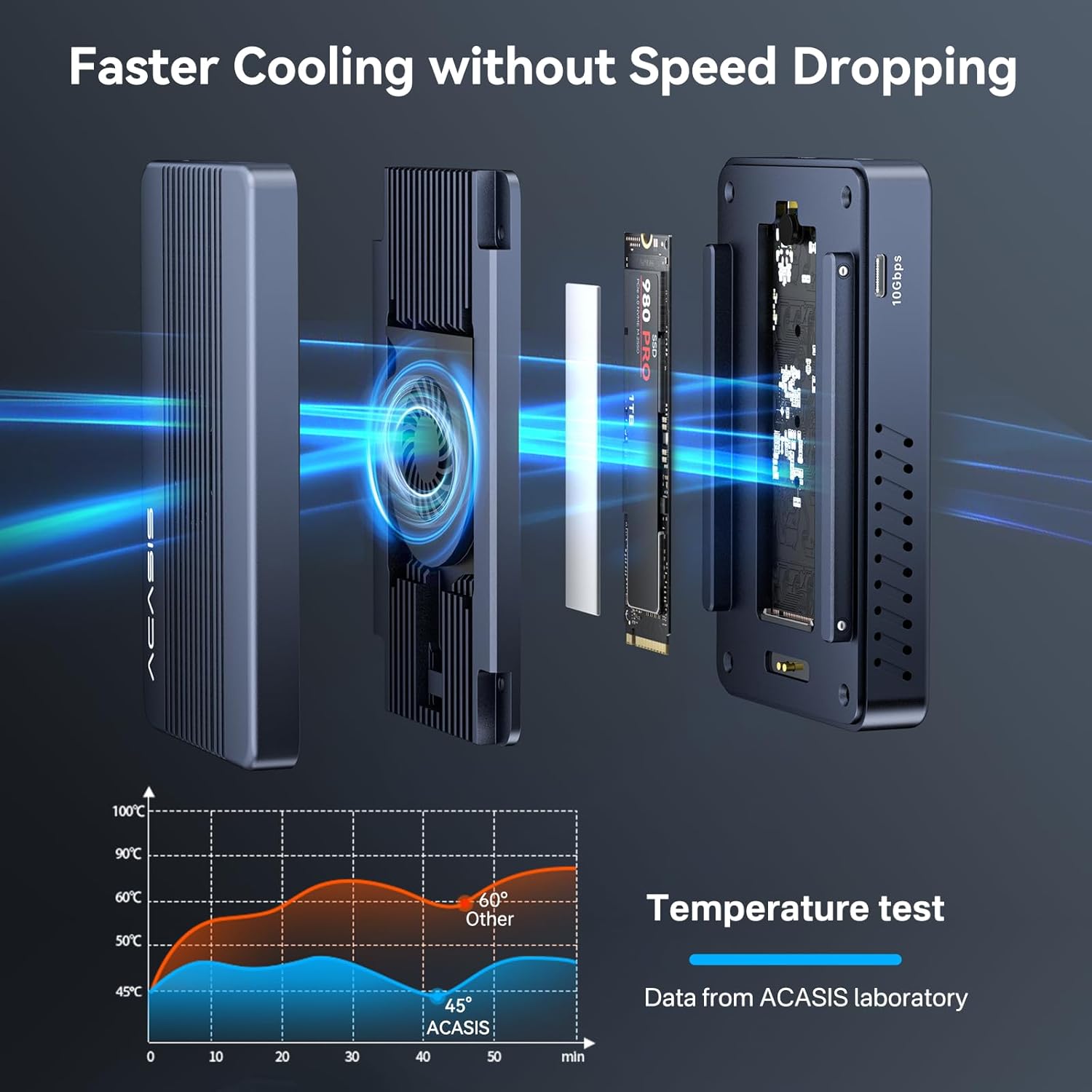
Figure 8: Efficient Cooling System. This image details the internal cooling mechanism of the ACASIS dock, featuring a silent turbo fan and aluminum heat dissipation structure. It also includes a temperature test graph comparing ACASIS's lower operating temperature (45°C) against other devices (60°C), demonstrating its superior cooling performance.
5.2 การดูแลทั่วไป
- รักษาอุปกรณ์ให้สะอาดและปราศจากฝุ่น ใช้ผ้านุ่มและแห้งทำความสะอาด
- หลีกเลี่ยงการให้อุปกรณ์สัมผัสกับอุณหภูมิ ความชื้น หรือแสงแดดโดยตรง
- Do not attempt to disassemble the device beyond SSD installation, as this may void the warranty.
- Ensure proper ventilation around the device to facilitate airflow for the cooling fan.
6 การแก้ไขปัญหา
6.1 ปัญหาทั่วไปและแนวทางแก้ไข
| ปัญหา | สาเหตุที่เป็นไปได้ | สารละลาย |
|---|---|---|
| Device not recognized / No display output. | Loose connection, insufficient power, incompatible port, missing driver (Windows Thunderbolt). |
|
| SSD not detected or slow speeds. | Improper SSD installation, incompatible SSD, thermal throttling. |
|
| Peripherals not working or disconnecting. | Insufficient power, faulty peripheral, port issue. |
|
| Docking station feels hot. | Normal operation under load, blocked ventilation. |
|
7. ข้อมูลจำเพาะ
| คุณสมบัติ | รายละเอียด |
|---|---|
| หมายเลขรุ่น | TBU405MAX |
| ยี่ห้อ | อคาซิส |
| อัตราการถ่ายโอนข้อมูล | 40 Gigabits Per Second (Host), 10 Gigabits Per Second (USB-A/C), up to 2800MB/s (SSD) |
| Memory Storage Capacity (SSD Enclosure) | สูงสุด 8TB |
| ประเภท SSD ที่ใช้งานร่วมกันได้ | M.2 NVMe SSD (2280/2260/2242/2230 B+M M-Key) |
| เอาท์พุตวิดีโอ | 2 x HDMI 4K@60Hz |
| พอร์ต USB | 2 x USB-A 10Gbps, 1 x USB-C 10Gbps |
| การจ่ายพลังงาน (ขาเข้า) | PD 100W (via USB-C) |
| Power Delivery (Output to Host) | 60วัตต์ |
| ฮาร์ดแวร์อินเตอร์เฟซ | USB 3.2 Gen 2x2 (compatible with Thunderbolt 3/4/USB 4/3.2/3.1/3.0/2.0) |
| อุปกรณ์ที่รองรับ | M1/M2 Mac, iPad Pro, Windows PCs, Linux PCs |
| วัสดุ | อลูมิเนียม |
| น้ำหนักสินค้า | 1.61 ปอนด์ (0.73 กิโลกรัม) |
| ขนาดแพ็คเกจ | 6.18 x 4.61 x 3.39 นิ้ว |
| ยูพีซี | 781108279788 |

Figure 9: Wide Compatibility. This image displays the broad compatibility of the ACASIS docking station, listing various devices such as Macbooks, iPad Pro, Dell XPS, Samsung phones, and systems including Windows, macOS, Linux, iOS, and Android.
8. การรับประกันและการสนับสนุน
ACASIS products are designed for reliability and performance. For specific warranty information, please refer to the warranty card included with your product or visit the official ACASIS website. If you encounter any issues or require technical assistance, please contact ACASIS customer support through the contact information provided on the official webไซต์หรือแพลตฟอร์มการซื้อของคุณ
For the latest drivers, firmware updates, and additional support resources, please visit the official ACASIS webเว็บไซต์: www.acasis.com
Ask a question about this manual
Ask about setup, troubleshooting, compatibility, parts, safety, or missing instructions. Manuals+ will review the question and use this page’s manual context to help answer it.