
การแนะนำ
This manual provides detailed instructions for the safe and efficient use of your Canon PIXMA MegaTank G4780 All-in-One Printer. This device is designed for home and office use, offering print, scan, copy, and fax functionalities with high-yield ink tanks and wireless connectivity. Please read this manual thoroughly before using the printer and keep it for future reference.
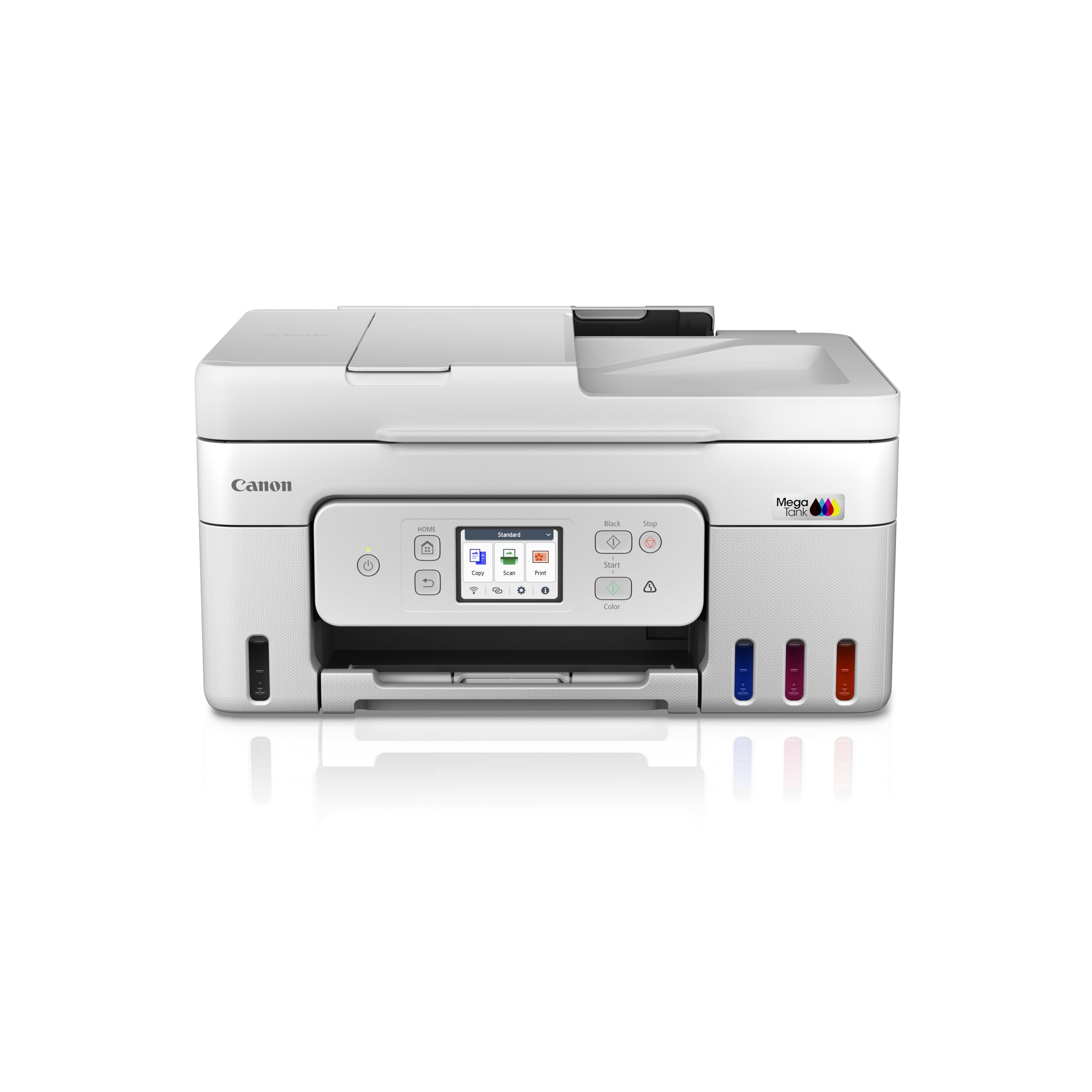
ภาพ: ด้านหน้า view of the Canon PIXMA MegaTank G4780 All-in-One Printer, showing its compact design and front control panel.
1. การตั้งค่า
1.1 การแกะกล่องและการเตรียมการเบื้องต้น
Carefully remove the printer and all accessories from the packaging. Ensure all protective tapes and packing materials are removed from the printer's exterior and interior. Refer to the quick start guide for visual instructions on tape removal.
1.2 การเติมหมึก
The PIXMA G4780 uses high-yield ink bottles. Follow these steps to fill the ink tanks:
- Open the ink tank covers located on the front of the printer.
- เปิดฝาขวดหมึกสีที่ตรงกัน (ดำ ฟ้าม่วง ชมพู เหลือง)
- Align the bottle nozzle with the inlet of the correct ink tank and gently insert it. The ink will flow automatically. Do not squeeze the bottle.
- Once the tank is full, remove the bottle and recap it. Close the ink tank cover securely.
- ทำซ้ำขั้นตอนเดียวกันสำหรับทุกสี

Image: The Canon PIXMA G4780 printer displayed with its four high-yield ink bottles (Black, Cyan, Magenta, Yellow) ready for filling.
1.3 การเปิดเครื่องและการกำหนดค่าเริ่มต้น
Connect the power cord to the printer and a wall outlet. Press the power button. Follow the on-screen instructions on the printer's display for initial setup, including language selection and date/time settings.
1.4 การติดตั้งซอฟต์แวร์และไดรเวอร์
Insert the provided installation CD into your computer or download the latest drivers and software from the official Canon website. Follow the on-screen prompts to install the necessary software for printing, scanning, and faxing functions.
1.5 การเชื่อมต่อไร้สาย
วิธีเชื่อมต่อเครื่องพิมพ์ของคุณกับเครือข่าย Wi-Fi:
- บนแผงควบคุมของเครื่องพิมพ์ ให้ไปที่เมนูการตั้งค่า Wi-Fi
- เลือกเครือข่ายไร้สาย (SSID) ของคุณจากรายการ
- Enter the network password (WPA/WPA2 key).
- Confirm the connection. The Wi-Fi indicator on the printer will illuminate when connected.
The printer supports various wireless printing options including AirPrint, Mopria, Canon Print Service (Android), and Direct Wireless.

Image: A graphic illustrating three simple steps to get the printer ready: Establish Connection, Install Driver, and Ready To Print.
2. การใช้งานเครื่องพิมพ์
2.1 การพิมพ์เอกสาร
Load paper into the rear tray or front cassette. From your computer or mobile device, select the Canon G4780 printer. Adjust print settings such as paper size, type, and quality. For double-sided printing, enable the การพิมพ์สองด้านอัตโนมัติ option in your printer settings to save paper and time.
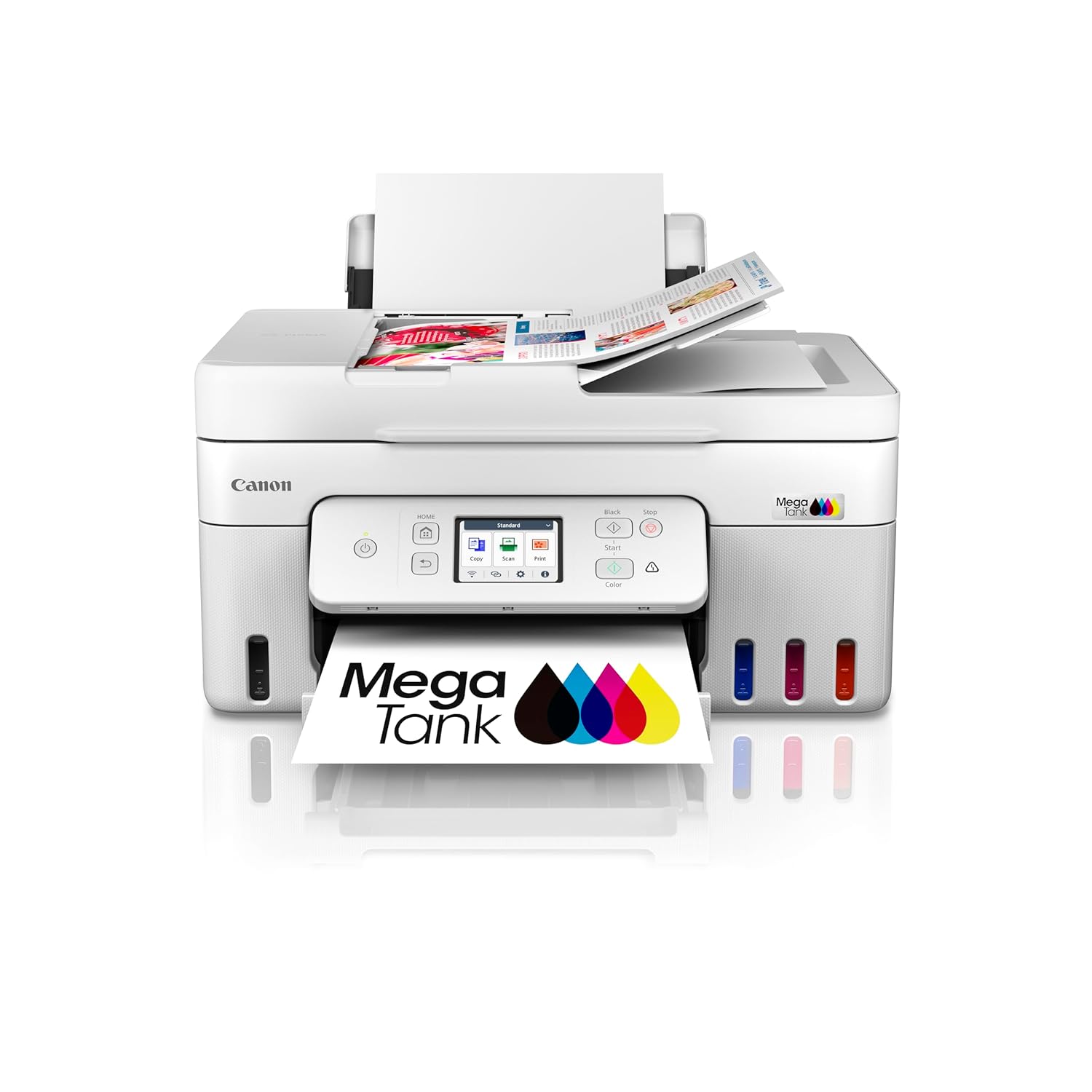
Image: The Canon PIXMA G4780 printer with paper loaded in the rear tray and a printed document emerging from the front output tray.
2.2 การสแกนเอกสาร
The printer features both a flatbed scanner and an Automatic Document Feeder (ADF).
- การสแกนแบบแท่นราบ: Place the document face-down on the scanner glass. Use the Canon IJ Scan Utility software on your computer or the printer's control panel to initiate a scan.
- การสแกน ADF: For multiple pages, load up to 35 sheets into the ADF tray. The ADF allows for quick batch scanning, copying, or faxing without manual page turning.
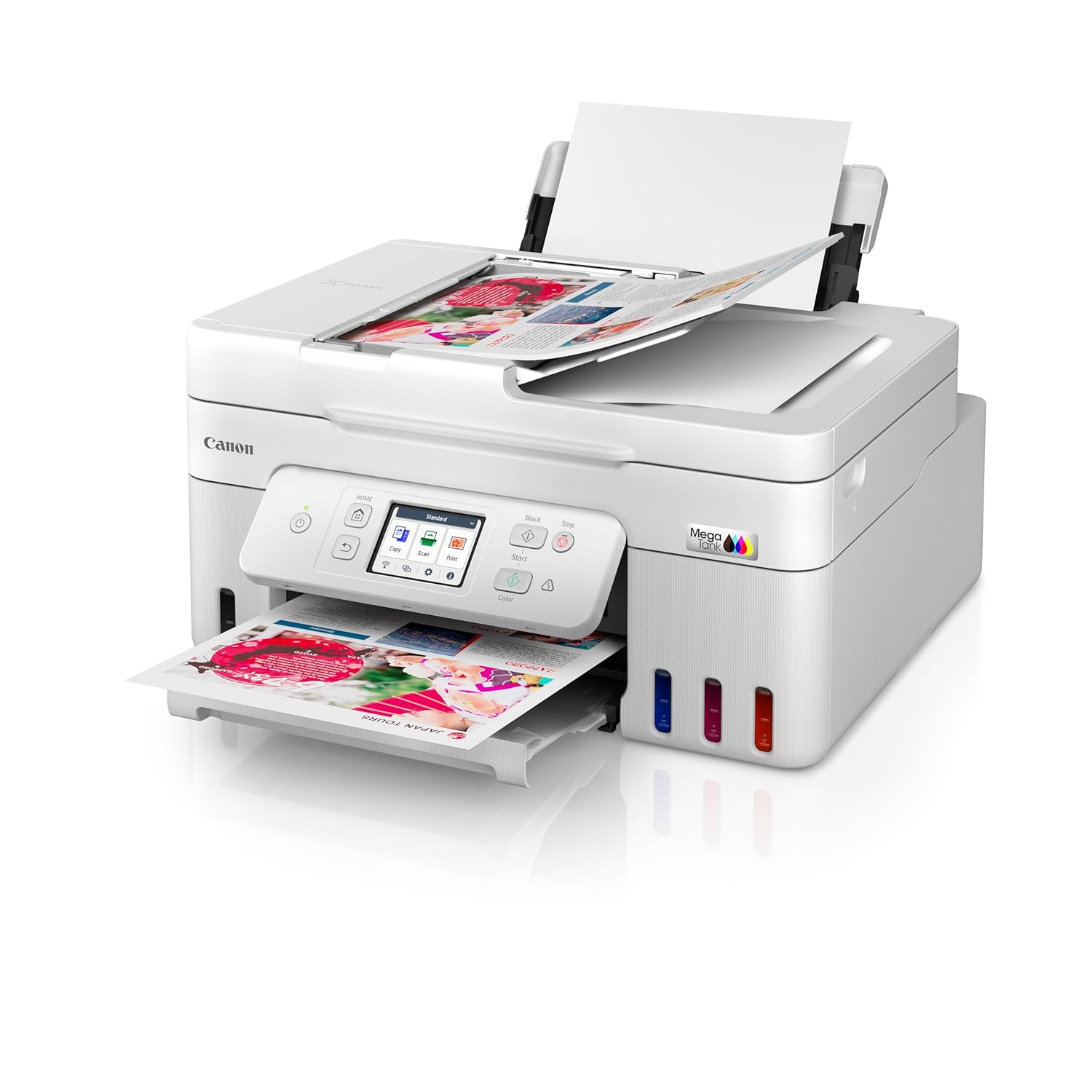
Image: The Canon PIXMA G4780 printer with multiple sheets of paper loaded into the Automatic Document Feeder (ADF) for scanning or copying.

Image: A graphic highlighting the Auto Document Feeder (ADF) for batch scanning and Auto Duplex Printing for automatic double-sided printing.
2.3 การคัดลอกเอกสาร
Place your document on the scanner glass or in the ADF. On the printer's control panel, select the "Copy" function. Adjust settings such as number of copies, paper size, and copy quality. Press the Start button to begin copying.
2.4 การแฟกซ์เอกสาร
Load the document into the ADF or place it on the scanner glass. On the printer's control panel, select the "Fax" function. Enter the recipient's fax number and press the Start button. Ensure your printer is connected to a telephone line for fax functionality.
2.5 การพิมพ์ผ่านมือถือและระบบคลาวด์
Utilize the Canon PRINT Inkjet/SELPHY app for seamless printing and scanning from your smartphone or tablet. The printer also supports cloud services, allowing you to print directly from various online platforms.

Image: A graphic illustrating the mobile and cloud printing capabilities, showing a smartphone connected wirelessly to the printer.
3. การบำรุงรักษา
3.1 การตรวจสอบระดับหมึก
Regularly check the ink levels through the printer's display panel or the Canon PRINT app. Refill ink tanks promptly when levels are low to prevent air from entering the ink tubes, which can affect print quality.

ภาพ: การแสดงกราฟิกasing the high page yield ink bottles and stacks of printed pages, emphasizing cost-effective printing.
3.2 การทำความสะอาดหัวพิมพ์
If print quality declines (e.g., streaks, faded colors), perform a print head cleaning. This can be done from the printer's maintenance menu or through the printer driver on your computer. A deep cleaning may be required for more stubborn clogs.
3.3 การแก้ไขปัญหากระดาษติด
If a paper jam occurs, the printer's display will show an error message. Carefully open the printer covers and remove any jammed paper following the instructions on the screen or in the online manual. Avoid tearing the paper to prevent small pieces from remaining inside.
3.4 การทำความสะอาดทั่วไป
เช็ดภายนอกเครื่องพิมพ์ด้วยผ้านุ่มๆamp cloth. Clean the scanner glass regularly to ensure clear scans and copies. Avoid using abrasive cleaners or solvents.
4 การแก้ไขปัญหา
This section addresses common issues you might encounter with your Canon PIXMA G4780 printer.
4.1 เครื่องพิมพ์ไม่ตอบสนอง
- ตรวจสอบให้แน่ใจว่าเครื่องพิมพ์เปิดใช้งานอยู่และเชื่อมต่อกับคอมพิวเตอร์หรือเครือข่ายแล้ว
- Check all cable connections (USB, power, network).
- Restart both the printer and your computer/router.
- ตรวจสอบให้แน่ใจว่าได้เลือกเครื่องพิมพ์ที่ถูกต้องในหน้าต่างการพิมพ์ของแอปพลิเคชันแล้ว
4.2 คุณภาพการพิมพ์ไม่ดี
- ตรวจสอบระดับหมึกและเติมหมึกหากจำเป็น
- ทำการทำความสะอาดหัวพิมพ์และตรวจสอบหัวฉีดจากเมนูการบำรุงรักษาของเครื่องพิมพ์
- โปรดตรวจสอบให้แน่ใจว่าคุณใช้ชนิดกระดาษและการตั้งค่าคุณภาพที่ถูกต้องสำหรับงานพิมพ์ของคุณ
- If lines or streaks persist, a print head alignment may be required.
4.3 ปัญหาการป้อนกระดาษ
- Ensure paper is loaded correctly and not exceeding the maximum capacity of the tray.
- ควรคลี่กระดาษออกก่อนใส่เข้าไป เพื่อป้องกันไม่ให้กระดาษติดกัน
- Check for any foreign objects or small paper scraps in the paper path.
4.4 Network Connection Problems
- ตรวจสอบว่าเราเตอร์ Wi-Fi ของคุณทำงานได้อย่างถูกต้อง
- ตรวจสอบให้แน่ใจว่าเครื่องพิมพ์อยู่ในระยะสัญญาณของเราเตอร์ Wi-Fi ของคุณ
- Re-enter the Wi-Fi password on the printer.
- Try connecting via USB temporarily to ensure the printer itself is functional.
5. ข้อมูลจำเพาะ
| คุณสมบัติ | รายละเอียด |
|---|---|
| ชื่อรุ่น | พิกซ์ม่า จี4780 |
| ฟังก์ชั่น | พิมพ์ สแกน ถ่ายเอกสาร แฟกซ์ |
| เทคโนโลยีการเชื่อมต่อ | ยูเอสบี, ไวไฟ |
| เทคโนโลยีการพิมพ์ | อิงค์เจ็ท |
| เอาท์พุตเครื่องพิมพ์ | สี |
| ความละเอียดการพิมพ์สูงสุด (สี) | 4800 x 1200 จุดต่อนิ้ว |
| ความเร็วในการพิมพ์สูงสุด (ขาวดำ) | 11 หน้าต่อนาที |
| ความเร็วในการพิมพ์สูงสุด (สี) | 6 หน้าต่อนาที |
| การพิมพ์สองหน้า | อัตโนมัติ |
| เครื่องป้อนเอกสารอัตโนมัติ (ADF) | ใช่ |
| ประเภทสแกนเนอร์ | ป้อนกระดาษ |
| น้ำหนักสินค้า | 7500 กรัม |
| ขนาดสินค้า (ลึก x กว้าง x สูง) | 36.3D x 41.6W x 21.2H เซนติเมตร |
| เนื้อหาในกล่อง | ขวดหมึก |
6. การรับประกันและการสนับสนุน
6.1 ข้อมูลการรับประกัน
Your Canon PIXMA MegaTank G4780 printer comes with a 2-year or 30,000 prints (whichever is earlier) onsite warranty from the date of purchase. This warranty covers manufacturing defects only and includes print heads. Please retain your purchase receipt for warranty claims.
For warranty service, contact Canon India Pvt Limited. Their contact information is: 214-218, 2nd floor, Narain Manzil, Barakhamba Road, Connaught Place, New Delhi-110001, India.
6.2 การสนับสนุนลูกค้า
For technical assistance, troubleshooting, or service requests, please visit the official Canon support website or contact their customer service. Online resources often include FAQs, driver downloads, and detailed digital manuals.