
1. บทนำ
The ORGBRO X3 is a compact and portable Bluetooth thermal printer designed for various printing needs, including study notes, labels, photos, and more. This device utilizes thermal printing technology, eliminating the need for ink or toner. Its high-resolution output ensures clear and stable prints. This manual provides detailed instructions for setting up, operating, and maintaining your ORGBRO X3 printer.
2. เนื้อหาบรรจุภัณฑ์
โปรดตรวจสอบว่าสินค้าทั้งหมดมีอยู่ในแพ็คเกจของคุณ:
- ORGBRO X3 Mini Thermal Printer
- 1 Roll of 80mm x 3m White Sticker Thermal Paper
- 3 Rolls of 80mm x 3m Colored Thermal Paper (Yellow, Pink, Blue)
- สายชาร์จ USB
- คู่มือการใช้งาน (เอกสารนี้)

Image: The ORGBRO X3 printer shown with various printed materials and included paper rolls.
3. สินค้าหมดview
Familiarize yourself with the main components of your ORGBRO X3 printer:

Image: The ORGBRO X3 printer demonstrating Bluetooth connectivity with a smartphone and icons representing various app functions like document printing, template printing, label printing, sticker selection, scanning, and graffiti.
ส่วนประกอบหลัก:
- ปุ่มเปิด/ปิด: Located on the top, used to turn the printer on/off.
- ช่องทางออกกระดาษ: จุดที่กระดาษพิมพ์ถือกำเนิดขึ้น
- Paper Compartment Cover: Opens to load thermal paper.
- พอร์ตชาร์จ: สำหรับเชื่อมต่อสายชาร์จ USB
- ไฟแสดงสถานะ: Displays printer status (e.g., charging, connected, error).
4. การตั้งค่า
4.1 การชาร์จเครื่องพิมพ์
- Connect the provided USB charging cable to the printer's charging port.
- เสียบปลายอีกด้านหนึ่งของสาย USB เข้ากับอะแดปเตอร์ไฟ USB มาตรฐาน (ไม่รวมอยู่ด้วย) หรือพอร์ต USB ของคอมพิวเตอร์
- The indicator light will show the charging status. Ensure the printer is fully charged before first use for optimal battery life.
4.2 การโหลดกระดาษความร้อน
- Gently open the paper compartment cover.
- Insert a roll of thermal paper into the compartment, ensuring the printing side faces the print head. The printing side is typically smoother and will produce a mark when scratched lightly with a fingernail.
- Pull a small length of paper out of the compartment, extending it past the paper exit slot.
- ปิดฝาช่องกระดาษให้แน่นจนกระทั่งล็อคเข้าที่

Image: The ORGBRO X3 printer demonstrating the maximum printing width of 3.15 inches (80mm) and examples of various paper sizes it supports, including 0.7" (18mm), 1.1" (28mm), 2.09" (53mm), and 3.15" (80mm).
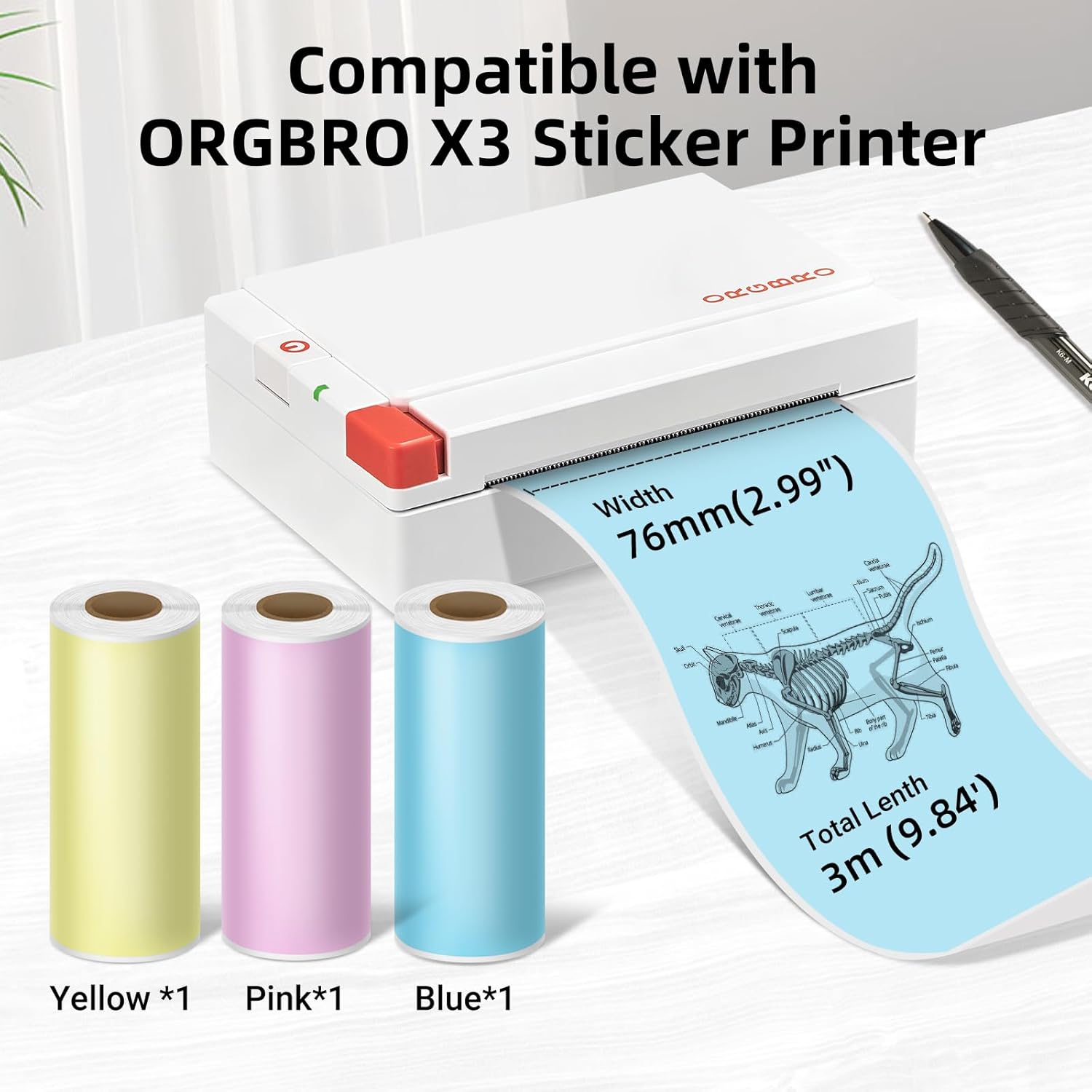
Image: The ORGBRO X3 printer shown alongside three rolls of colored thermal paper (yellow, pink, blue), indicating compatibility and dimensions of 76mm (2.99") width and 3m (9.84') total length.
4.3 การติดตั้งแอปและการจับคู่บลูทูธ
- ดาวน์โหลดแอป: ค้นหา the 'ORGBRO' app in your smartphone's app store (Google Play Store for Android or Apple App Store for iOS). Install the application.
- เปิดใช้งานเครื่องพิมพ์: Press and hold the power button on the ORGBRO X3 printer until the indicator light illuminates.
- เปิดใช้งานบลูทูธ: On your smartphone, go to your device's Bluetooth settings and ensure Bluetooth is enabled.
- จับคู่อุปกรณ์: Open the ORGBRO app. The app should automatically detect nearby ORGBRO X3 printers. Select 'X3' from the list of available devices to establish a connection. Follow any on-screen prompts to complete the pairing process.
5. คู่มือการใช้งาน
5.1 ฟังก์ชันการพิมพ์
The ORGBRO app offers various functions to maximize your printer's utility:
- การพิมพ์เอกสาร: Print text documents, notes, or web pages directly from your phone.
- Template Printing: Utilize pre-designed templates for labels, lists, or decorative elements.
- การพิมพ์ฉลาก: สร้างฉลากแบบกำหนดเองสำหรับใช้ในการจัดระเบียบ การจัดส่ง หรือการใช้งานส่วนตัว
- Stickers for Selection: Access a library of stickers to enhance your prints.
- ฟังก์ชั่นการสแกน: Convert physical documents or drawings into digital format for printing.
- Graffiti Function: Draw or write directly within the app and print your creations.

Image: The ORGBRO X3 printer illustrating its wide range of uses in daily life, including printing labels for gifts, pictures, stickers, study notes, and shopping lists.

Image: The ORGBRO X3 printer depicted as a 'Mini thermal printer - Home companion', showcasing applications such as family category labels, study notes, gift cards, and photos.
5.2 เคล็ดลับการพิมพ์
- The ORGBRO X3 is a thermal printer and prints only in black. Color printing is not supported.
- Ensure the thermal paper is loaded correctly with the printing side facing the print head.
- For best results, use ORGBRO brand thermal paper.
- The included paper rolls are self-adhesive, allowing you to easily stick your prints.
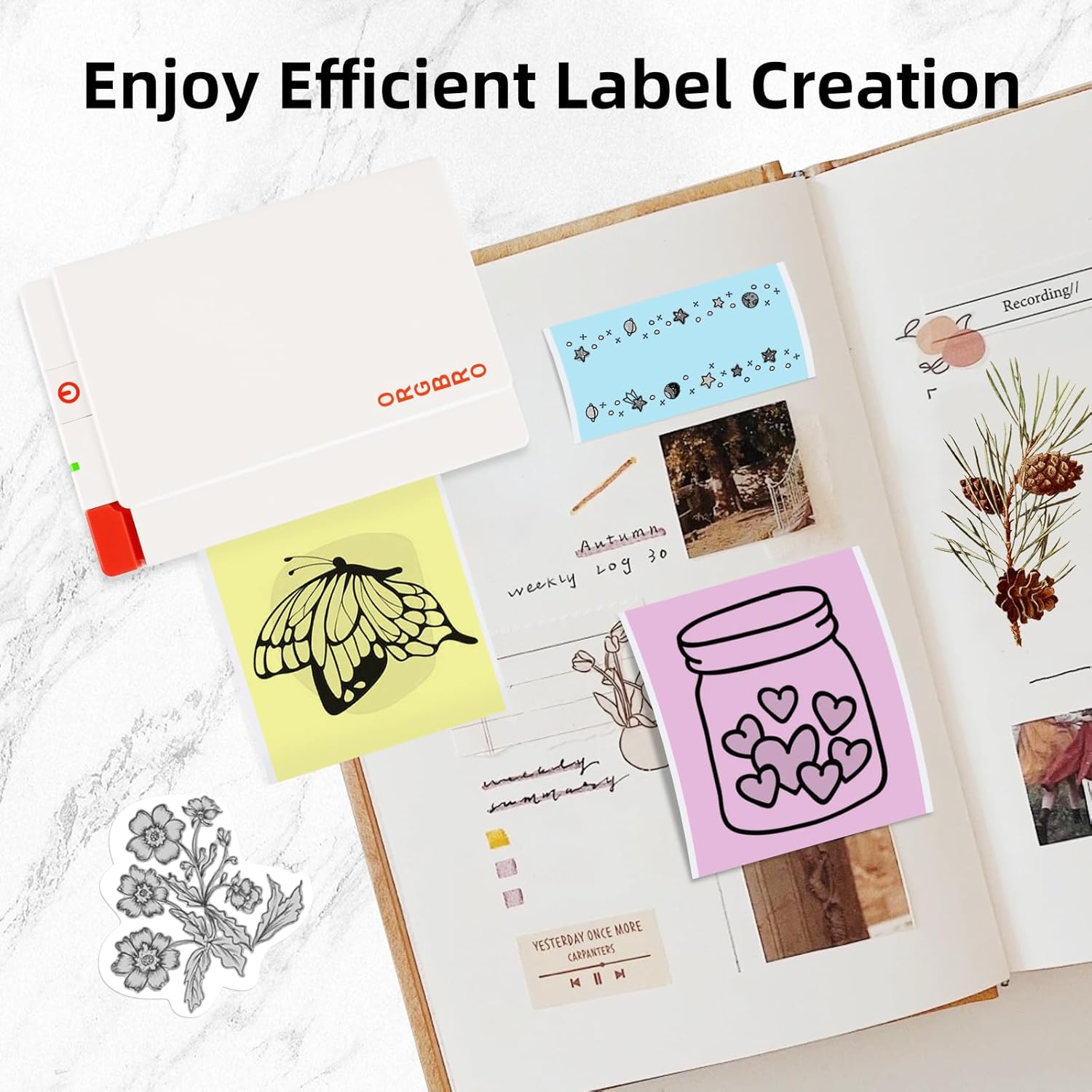
Image: Demonstrates the features of ORGBRO sticker paper, highlighting clear printing, easier tearing, and strong adhesive properties.

Image: Shows various creative labels and stickers printed with the ORGBRO X3 printer, arranged in a journal, illustrating efficient label creation.

Image: A child coloring a printed image from the ORGBRO X3 printer, emphasizing the 'Free Coloring, Free Imagination' aspect.
6. การบำรุงรักษา
6.1 การทำความสะอาดหัวพิมพ์
เพื่อให้ได้คุณภาพการพิมพ์ที่ดีที่สุด ควรทำความสะอาดหัวพิมพ์เป็นระยะ:
- ปิดเครื่องพิมพ์และปลดการเชื่อมต่อจากแหล่งจ่ายไฟ
- เปิดฝาครอบช่องใส่กระดาษ
- ค่อยๆ เช็ดหัวพิมพ์ด้วยสำลีเบาๆampเช็ดด้วยไอโซโพรพิลแอลกอฮอล์ ทิ้งไว้ให้แห้งสนิทก่อนปิดฝาและใช้งานเครื่องพิมพ์
6.2 การจัดเก็บเอกสาร
Proper storage of thermal paper helps maintain its quality and longevity:
- Store thermal paper in a cool, dry place.
- Keep away from direct sunlight, high humidity, and excessive heat.
- Minimize friction or pressure on the paper rolls to prevent premature discoloration.
7 การแก้ไขปัญหา
If you encounter issues with your ORGBRO X3 printer, refer to the following common problems and solutions:
- เครื่องพิมพ์ไม่เปิด: Ensure the printer is fully charged. Connect it to a power source and try again.
- ไม่สามารถเชื่อมต่อผ่านบลูทูธได้:
- Ensure Bluetooth is enabled on your smartphone and the printer is on.
- รีสตาร์ททั้งเครื่องพิมพ์และสมาร์ทโฟนของคุณ
- Make sure the ORGBRO app has Bluetooth permissions.
- Poor print quality (faint or blank prints):
- Check if the thermal paper is loaded correctly with the printing side facing up.
- The paper roll might be depleted; replace it with a new one.
- ทำความสะอาดหัวพิมพ์ตามที่อธิบายไว้ในส่วนการบำรุงรักษา
- Ensure the paper is not old or damaged from improper storage.
- กระดาษติด:
- ปิดเครื่องพิมพ์
- Open the paper compartment cover and carefully remove any jammed paper.
- Ensure the paper is loaded straight and not wrinkled.
- เครื่องพิมพ์ไม่ตอบสนอง: ลองรีเซ็ตเครื่องพิมพ์โดยการปิดแล้วเปิดใหม่อีกครั้ง หากปัญหายังคงอยู่ โปรดติดต่อฝ่ายบริการลูกค้า
8. ข้อมูลจำเพาะ
| คุณสมบัติ | ข้อมูลจำเพาะ |
|---|---|
| แบบอย่าง | ORGBRO X3 |
| เทคโนโลยีการพิมพ์ | การพิมพ์ความร้อน (แบบไม่ใช้หมึก) |
| ปณิธาน | 300 จุดต่อนิ้ว |
| ความกว้างในการพิมพ์ | 2-3 inches (50-80mm), Max 3.15 inches (80mm) |
| ความเร็วในการพิมพ์ | Up to 47 inches per minute (20 mm/second) |
| การเชื่อมต่อ | บลูทูธ |
| ประเภทกระดาษ | Thermal Paper (Non-adhesive and Self-adhesive) |
| Paper Roll Dimensions | 80mm (3.15 inches) wide x 3m (9.84 feet) long |
| แหล่งพลังงาน | แบตเตอรี่แบบชาร์จไฟได้ |
9. การรับประกันและการสนับสนุนลูกค้า
The ORGBRO X3 Sticker Printer comes with a standard manufacturer's warranty. For specific warranty details, please refer to the warranty card included in your package or visit the official ORGBRO website. If you have any questions, require technical assistance, or need to report a defect, please contact ORGBRO customer support through the contact information provided on the product packaging or the official webกรุณาเตรียมรุ่นผลิตภัณฑ์และวันที่ซื้อให้พร้อมเมื่อติดต่อฝ่ายสนับสนุน