
1. บทนำ
ขอบคุณสำหรับการซื้อasing the AGPTEK External Blu-ray Drive, Model G01R13. This portable optical drive offers versatile read and write capabilities for Blu-ray, DVD, and CD formats, featuring high-speed USB 3.0 and Type-C connectivity. Its compact design and multi-port functionality make it an ideal solution for various computing needs across Windows, macOS, and Linux operating systems. This manual provides essential information for proper setup, operation, maintenance, and troubleshooting to ensure optimal performance and longevity of your device.

Figure 1: AGPTEK External Blu-ray Drive, Model G01R13
2. สินค้าหมดview
2.1 เนื้อหาบรรจุภัณฑ์
- AGPTEK External Blu-ray Drive (Model G01R13) x 1
2.2 Device Features and Components
The AGPTEK External Blu-ray Drive is designed for convenience and functionality. It features an integrated cable for easy storage and dual USB 3.0 and Type-C connectivity. Additionally, it includes multiple ports, allowing it to function as a USB hub.

Figure 2: Key features of the AGPTEK External Blu-ray Drive
The drive incorporates a silent design to minimize noise during operation, making it suitable for quiet environments. Its lightweight and slim profile (approximately 350g) enhance portability.
3. การตั้งค่า
3.1 การเชื่อมต่อกับคอมพิวเตอร์ของคุณ
The drive supports both USB 3.0 (Type-A) and Type-C connections. Use the appropriate cable to connect the drive to an available USB port on your computer.
- สำหรับพอร์ต USB Type-A: Connect the USB 3.0 Type-A connector to your computer's USB-A port.
- สำหรับพอร์ต USB Type-C: Connect the USB Type-C connector to your computer's USB-C port.

Figure 3: Connecting the drive to a laptop
3.2 แหล่งจ่ายไฟ
The drive is primarily powered via USB bus power. In most cases, a single USB connection will provide sufficient power for operation. However, if you experience unstable operation or power-intensive tasks (e.g., Blu-ray playback or burning), an auxiliary power source can be used.
- พลังเสริม: Connect a Micro USB cable (not always included, may require separate purchase) from the drive's auxiliary power port to a USB power adapter or another USB port on your computer. This ensures stable power delivery, especially during extended use or when playing Blu-ray discs.
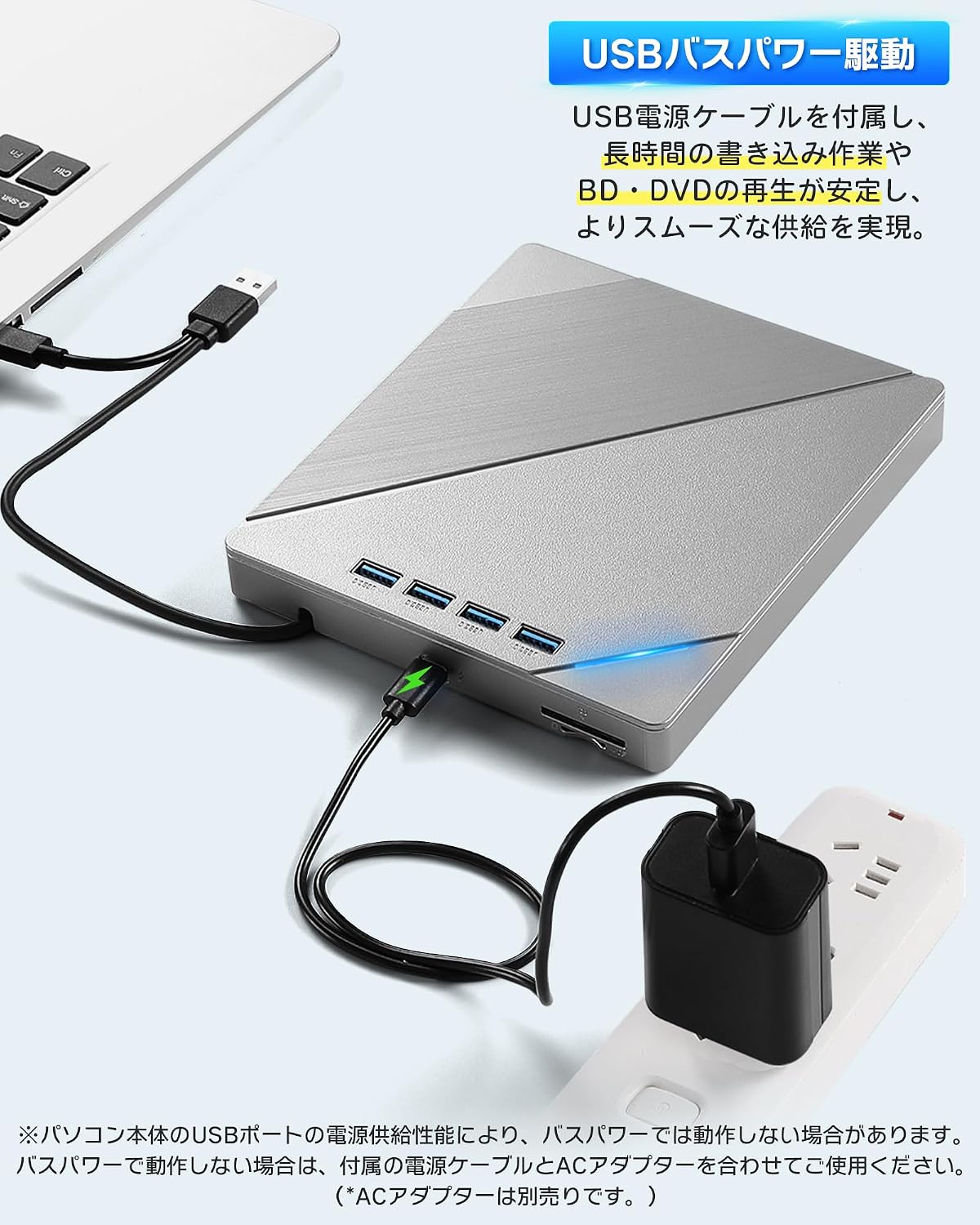
Figure 4: Connecting auxiliary power to the drive
3.3 ความเข้ากันได้ของระบบปฏิบัติการ
The AGPTEK External Blu-ray Drive is compatible with a wide range of operating systems, including:
- Windows (Windows 7, 8, 10, 11, XP)
- แมคโอเอส
- ลินุกซ์
No additional drivers are typically required for basic plug-and-play functionality.
4. คู่มือการใช้งาน
4.1 การใส่และการถอดแผ่นดิสก์
- เพื่อแทรก: Gently press the eject button on the front of the drive to open the disc tray. Place the disc label-side up onto the tray, ensuring it is centered on the spindle. Gently push the tray back into the drive until it clicks into place.
- การดีดออก: Press the eject button on the front of the drive. Alternatively, you can eject the disc through your computer's operating system (e.g., right-click the drive icon and select 'Eject').

Figure 5: Inserting a disc
4.2 การเล่นแผ่นดิสก์
After inserting a disc, your computer's operating system should recognize it. You may need compatible software to play Blu-ray movies, DVDs, or audio CDs. This drive does not include playback software.
- For Blu-ray/DVD Movies: Install a third-party Blu-ray/DVD playback software (e.g., Leawo Blu-ray Player, VLC Media Player, CyberLink PowerDVD).
- สำหรับแผ่นซีดีเพลง: Most operating systems have built-in media players that can play audio CDs.
- For Data Discs: The disc contents should appear in your file นักสำรวจ/นักค้นหา
4.3 Burning Discs
To burn data to a blank Blu-ray, DVD, or CD, you will need compatible burning software. This drive does not include burning software.
- Insert a blank recordable disc (BD-R, DVD-R, CD-R, etc.) into the drive.
- Open your preferred burning software and follow its instructions to select fileและเริ่มกระบวนการเผาไหม้
4.4 Using the Integrated USB Hub and Card Readers
The drive features multiple ports, allowing it to function as a USB hub. You can connect various peripherals simultaneously:
- พอร์ต USB: Connect USB memory sticks, external hard drives, mice, keyboards, or other USB devices.
- ช่องเสียบการ์ด SD/TF: Insert SD or TF (MicroSD with adapter) cards to access their contents.
Note that while the drive offers expandability, simultaneous heavy usage of all ports and the optical drive might require auxiliary power for stable operation.
5. การบำรุงรักษา
5.1 การทำความสะอาดไดรฟ์
- รักษาพื้นผิวไดรฟ์ให้สะอาดและปราศจากฝุ่น ใช้ผ้าแห้งนุ่มเช็ดทำความสะอาดภายนอก
- ห้ามใช้น้ำยาทำความสะอาดหรือวัสดุที่มีฤทธิ์กัดกร่อน
- หลีกเลี่ยงการเปิดไดรฟ์asing, as this may void the warranty and expose sensitive components.
5.2 Handling Discs
- ควรจับแผ่นดิสก์ที่ขอบเสมอ เพื่อหลีกเลี่ยงรอยนิ้วมือและรอยขีดข่วนบนพื้นผิวข้อมูล
- Store discs in their cases when not in use to protect them from dust and damage.
- ทำความสะอาดแผ่นดิสก์ที่สกปรกด้วยผ้านุ่มที่ไม่เป็นขุย เช็ดจากตรงกลางออกด้านนอก
5.3 พื้นที่จัดเก็บ
When not in use, store the drive in a cool, dry place away from direct sunlight and extreme temperatures. Ensure the integrated cable is neatly stored in its compartment.
6 การแก้ไขปัญหา
6.1 Drive Not Recognized by Computer
- ตรวจสอบให้แน่ใจว่าสาย USB เชื่อมต่อกับไดรฟ์และคอมพิวเตอร์อย่างแน่นหนา
- ลองเชื่อมต่อกับพอร์ต USB อื่นบนคอมพิวเตอร์ของคุณ
- If using a desktop PC, try connecting to a USB port on the back of the computer, which typically provides more stable power.
- Connect the auxiliary power cable if the drive is not receiving sufficient power from a single USB port.
- รีสตาร์ทเครื่องคอมพิวเตอร์ของคุณ
6.2 ข้อผิดพลาดในการอ่าน/เขียนดิสก์
- ตรวจสอบให้แน่ใจว่าแผ่นดิสก์สะอาด ปราศจากรอยขีดข่วนหรือรอยเปื้อน
- Verify that the disc type is compatible with the drive (refer to Specifications).
- Ensure you are using appropriate playback or burning software.
- Connect the auxiliary power cable to ensure stable power delivery, especially for Blu-ray discs or during burning.
- ลองใช้ดิสก์อื่นเพื่อแยกแยะดิสก์ที่มีปัญหา
6.3 ประสิทธิภาพช้า
- Ensure the drive is connected to a USB 3.0 or Type-C port on your computer for optimal speed. Connecting to a USB 2.0 port will result in slower transfer rates.
- Avoid running multiple demanding applications simultaneously.
- If using the integrated USB hub, disconnect other peripherals if you need maximum speed for disc operations.
7. ข้อมูลจำเพาะ
| คุณสมบัติ | คำอธิบาย |
|---|---|
| ยี่ห้อ | AGPTEK |
| หมายเลขรุ่น | G01R13 |
| ความเร็วในการเขียนของที่เก็บข้อมูลแบบออปติคัล | 6X (Blu-ray) |
| ความเร็วในการอ่านที่เก็บข้อมูลแบบออปติคัล | 24X (CD), 8X (DVD), 6X (Blu-ray) |
| อัตราการถ่ายโอนข้อมูล | 5 กิกะบิตต่อวินาที (USB 3.0) |
| อินเทอร์เฟซการเชื่อมต่อ | USB 3.0, USB Type-C |
| ฟอร์มแฟกเตอร์ | พกพาได้ |
| แพลตฟอร์มฮาร์ดแวร์ | Desktop PC, Notebook PC |
| การรองรับระบบปฏิบัติการ | วินโดวส์, แมคโอเอส, ลินุกซ์ |
| Supported Disc Formats (Read/Write) | BD-R, BD-R DL, BD-RE, BD-RE DL, DVD-R, DVD-ROM, DVD-R DL, DVD-RW, DVD-RAM, DVD+R, DVD+R9, DVD+RW, CD-R, CD-RW, Blu-ray, 3D Blu-ray, BDXL |
| รายการที่รวมอยู่ | หน่วยหลัก x 1 |
| ประเทศต้นกำเนิด | จีน |
8. การรับประกันและการสนับสนุน
8.1 ข้อมูลการรับประกัน
This AGPTEK External Blu-ray Drive (Model G01R13) comes with a 180-day warranty from the date of purchase. This warranty covers manufacturing defects under normal use. Please retain your proof of purchase for warranty claims.
การรับประกันไม่ครอบคลุมความเสียหายอันเกิดจาก:
- อุบัติเหตุ การใช้งานผิดวิธี การใช้ในทางที่ผิด หรือการติดตั้งที่ไม่ถูกต้อง
- การซ่อมแซมหรือดัดแปลงโดยไม่ได้รับอนุญาต
- ไฟกระชากหรือความผิดพลาดทางไฟฟ้าจากภายนอก
- Use with incompatible accessories.
8.2 การสนับสนุนลูกค้า
For technical assistance, warranty claims, or product inquiries, please contact AGPTEK customer support through the retailer's platform where you purchased the product or visit the official AGPTEK webเว็บไซต์สำหรับข้อมูลการติดต่อ