
Eurannit E11
Eurannit E11 Mini Handheld Inkjet Printer User Manual
รุ่น : E11
1. บทนำ
This manual provides comprehensive instructions for the safe and efficient operation of your Eurannit E11 Mini Handheld Inkjet Printer. Please read this manual thoroughly before using the device and retain it for future reference.
The Eurannit E11 is a compact and versatile inkjet printer designed for marking various surfaces with text, dates, QR codes, barcodes, and logos. Its portable design and quick-drying ink system make it suitable for a wide range of applications.
2. สินค้าหมดview
2.1 เนื้อหาบรรจุภัณฑ์
The Eurannit E11 Mini Handheld Inkjet Printer package includes:
- E11 Printer Unit
- แตะปากกา
- อะแดปเตอร์แปลงไฟ
- Black Ink Cartridge (ER520)
- Precision Positioning Board
2.2 ส่วนประกอบของอุปกรณ์
Familiarize yourself with the main components of your E11 printer:

ภาพ: ด้านหน้า view of the E11 Mini Handheld Inkjet Printer, highlighting the touch screen, synchronizer, and nozzle.
- หน้าจอสัมผัส: 2.4" intuitive display for editing and operating.
- หัวฉีด: Inkjet output for printing.
- Synchronizer: Ensures smooth and consistent printing.
- อินเทอร์เฟซการชาร์จ: USB Type-C port for power.
- ปุ่มสวิตช์: ควบคุมการเปิด/ปิดเครื่อง
3. การตั้งค่า
3.1 การชาร์จอุปกรณ์
Before initial use, fully charge the printer using the provided power adapter and USB Type-C cable. The battery indicator on the screen will show charging status.
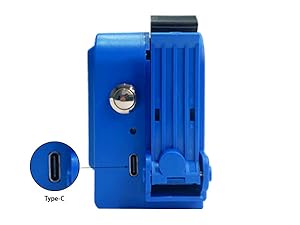
ภาพ: ด้านข้าง view of the E11 printer showing the USB Type-C charging port.
3.2 การติดตั้งตลับหมึก
- Remove the protective dust cover from the ink cartridge.
- Press the cartridge compartment button to open the cover.
- Insert the ink cartridge at a 45-degree angle into the compartment.
- Align the ink cartridge nozzles and gently push until it clicks into place.
- ปิดฝาครอบช่องใส่ตลับหมึก
วีดีโอ: This video demonstrates the process of installing the ink cartridge into the E11 Mini Handheld Inkjet Printer, including removing the dust cover, opening the compartment, inserting the cartridge, and closing the cover.
4. คู่มือการใช้งาน
4.1 การเปิด/ปิดเครื่อง
To power on, long-press the control button until the screen illuminates. To power off, navigate to 'Settings' on the touchscreen and select 'Shutdown'.
4.2 Creating and Editing Print Content
The E11 printer features a 2.4" touchscreen for direct content creation and editing. Use the touch pen for precise input.
- From the main screen, select 'Add' to create new content.
- Choose from options like 'Text', 'Date', 'Image', 'Bar Code', 'QR Code', 'Counter', etc.
- For text, type your desired message using the on-screen keyboard.
- Adjust font, size, spacing, width, and rotation as needed.
- Images can be imported via USB (.txt, .jpg, .png, .bmp formats supported).
- Arrange multiple content elements on the screen to form your desired print layout.
วีดีโอ: This video demonstrates how to edit printed content directly on the E11 Mini Handheld Inkjet Printer's touchscreen interface.
4.3 กระบวนการพิมพ์
Once your content is ready:
- Select 'Start' on the touchscreen. The printer will enter waiting mode.
- Position the printer's nozzle against the surface you wish to print on.
- Press the control button (or press twice for continuous printing) and smoothly roll the printer across the surface.
- The quick-drying ER520 ink ensures immediate smudge-proof results.
วีดีโอ: This video demonstrates the printing process, including preparing the content, initiating printing, and applying the printer to a surface.
4.4 Printing on Various Surfaces
The E11 printer is suitable for a wide range of materials, including:
- กระดาษแข็ง
- ไม้
- ผ้า
- พลาสติก
- หนัง
- กระจก
- เซรามิค
- Metal (e.g., steel pipes)

ภาพ: Examples of the E11 Mini Handheld Inkjet Printer printing on wood, carton, pipe, ceramic, stone, metal, egg, plastic, cloth, and foam.
For curved or uneven surfaces, utilize the included precision positioning board to ensure consistent print quality.

ภาพ: The E11 printer being used with its external conveyor wheel to print on a bottle, demonstrating its capability for curved surfaces.
วีดีโอ: This video showcases the XMINI printer's suitability for printing on various materials, including glass, lipstick, hand essence tubes, plastic bottles, paper cups, cartons, plastic packaging, nonwoven masks, foam, cards, and nonwoven cloth, as well as curved and concave surfaces.
5. การบำรุงรักษา
5.1 Ink Cartridge Care
To prevent clogging and ensure optimal print quality, always place the ink cartridge cap back on when the printer is not in use for more than 10 minutes.
วีดีโอ: This video demonstrates how to properly remove the ink cartridge and replace its protective cap for storage.
5.2 การทำความสะอาดหัวพิมพ์
If you experience ink jet breakage or unclear printing, follow these steps to clean the printhead nozzles:
- Exit print mode and turn off the printer by long-pressing the print button.
- Remove the ink cartridge from the device.
- Gently press a clean tissue against the printhead nozzles and shake it up and down a few times.
- Wipe the nozzles gently in one direction a few times until no ink residue is visible.
- Reinstall the cleaned cartridge and print again to verify improved quality.
วีดีโอ: This video provides instructions on how to clean the ink cartridge nozzles to restore normal operation and improve print clarity.
6 การแก้ไขปัญหา
If you encounter issues with your Eurannit E11 printer, consider the following common solutions:
- คุณภาพการพิมพ์ไม่ดี: Ensure the printhead is clean (refer to Section 5.2). Check if the ink cartridge is properly installed and has sufficient ink.
- อุปกรณ์ไม่ได้เปิดเครื่อง: Verify the battery is charged. Connect the printer to the power adapter and try again.
- หน้าจอสัมผัสไม่ตอบสนอง: Try restarting the device. If the issue persists, perform a factory reset via the 'Settings' menu.
- Content Not Saving/Loading: Ensure sufficient internal storage or check the USB drive connection if importing/exporting files.
7. ข้อมูลจำเพาะ
| คุณสมบัติ | รายละเอียด |
|---|---|
| ชื่อรุ่น | Mini Handheld Inkjet printer (E11) |
| ยี่ห้อ | Eurannit |
| เทคโนโลยีการพิมพ์ | อิงค์เจ็ท |
| เอาท์พุตเครื่องพิมพ์ | เอกรงค์ |
| ความละเอียดการพิมพ์ขาวดำสูงสุด | 600 |
| ความละเอียดการพิมพ์สีสูงสุด | 4800 x 1200 จุดต่อนิ้ว |
| ความสูงของการพิมพ์ | 0.5 นิ้ว (12.7 มม.) |
| สีหมึก | Black (ER520 Ink Cartridge) |
| เทคโนโลยีการเชื่อมต่อ | USB ประเภท C |
| น้ำหนักสินค้า | 1.12 ปอนด์ |
| ขนาดสินค้า | ลึก 1.77 นิ้ว x กว้าง 2.75 นิ้ว x สูง 4.13 นิ้ว |
| แบตเตอรี่ | ต้องใช้แบตเตอรี่ 9V จำนวน 1 ก้อน (มีให้ในชุด) |
8. การรับประกันและการสนับสนุน
Eurannit provides 12-hour response technical support for your E11 Mini Handheld Inkjet Printer. For assistance, please contact Eurannit's customer service through the Amazon platform.

ภาพ: Visual guide on how to contact the seller, Eurannit, through the Amazon platform for support.
You can also visit the official Eurannit store on Amazon for more information and resources: Eurannit Amazon Store
Ask a question about this manual
Ask about setup, troubleshooting, compatibility, parts, safety, or missing instructions. Manuals+ will review the question and use this page’s manual context to help answer it.