
H155-382
5G CPE 5 Router H155-382 User Manual
Your comprehensive guide to setting up and using your 5G CPE 5 Router.
1. บทนำ
This user manual provides detailed instructions for the installation, operation, and maintenance of your 5G CPE 5 Router, model H155-382. Please read this manual carefully before using the device to ensure proper functionality and to maximize your internet experience. Keep this manual for future reference.
2. สินค้าหมดview
The 5G CPE 5 Router H155-382 is a high-performance wireless router designed to provide fast and reliable internet connectivity using 5G technology. It supports all 5G network frequencies and features a powerful 5G reception antenna with up to 11 dB gain. With download speeds up to 3.6 Gbps and upload speeds up to 500 Mbps, it's ideal for both home and business use. The device incorporates a nano chip and a silent fan for quiet operation, ensuring extended coverage with strong signals, especially optimized for the Zain network.
2.1. เนื้อหาบรรจุภัณฑ์
- 5G CPE 5 Router H155-382
- อะแดปเตอร์ไฟฟ้า/เครื่องชาร์จ
- คู่มือการใช้งาน (เอกสารนี้)
2.2. เค้าโครงอุปกรณ์

รูปที่ 2.2.1: The 5G CPE 5 Router H155-382 shown in its retail packaging, highlighting the product name and key features like 5G and Wi-Fi 6 3000Mbps.

รูปที่ 2.2.2: The 5G CPE 5 Router H155-382 device displayed alongside its retail box, providing a clear view of the router's front panel with indicator lights and the WPS button.
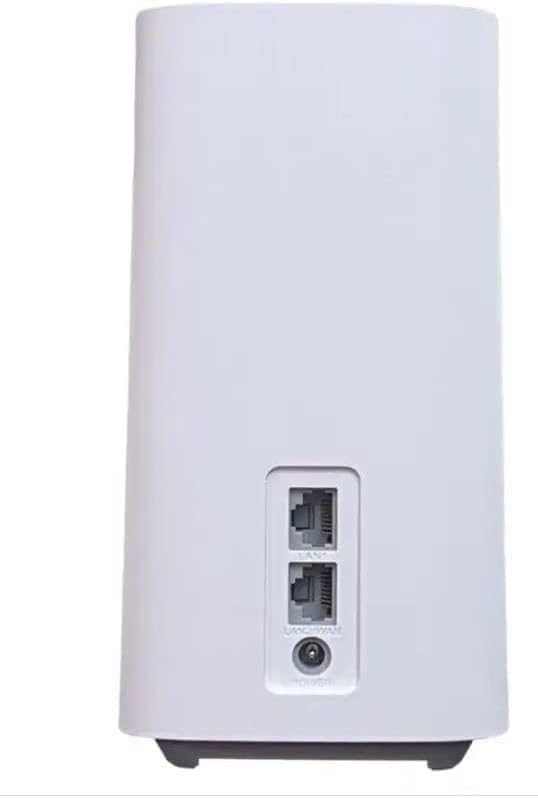
รูปที่ 2.2.3: ด้านหลัง view of the 5G CPE 5 Router H155-382, illustrating the LAN/WAN ports and the power input port for connectivity.

รูปที่ 2.2.4: The bottom of the 5G CPE 5 Router H155-382 packaging, showing a QR code and text indicating the management portal address: zain.sa/m5ghstart. This section also details key performance metrics like 5G download/upload speeds and Wi-Fi 6 capabilities.
3. การตั้งค่า
3.1. การติดตั้งซิมการ์ด
- ตรวจสอบให้แน่ใจว่าเราเตอร์ปิดอยู่
- Locate the SIM card slot, typically on the bottom or side of the device.
- Insert your Nano SIM card into the slot with the gold contacts facing down and the notched corner aligned correctly. Push gently until it clicks into place.
3.2. การเชื่อมต่อไฟฟ้า
- Connect one end of the power adapter to the router's power input port (labeled "POWER" or similar).
- เสียบปลายอีกด้านของอะแดปเตอร์แปลงไฟเข้ากับเต้ารับไฟฟ้าทั่วไป
- The router will automatically power on and begin its startup sequence.
3.3. การเชื่อมต่อเครือข่ายเริ่มต้น
3.3.1 การเชื่อมต่อ Wi-Fi
- Wait for the router's indicator lights to stabilize, indicating it has connected to the 5G network.
- บนอุปกรณ์ของคุณ (สมาร์ทโฟน แล็ปท็อป ฯลฯ) ค้นหาเครือข่าย Wi-Fi ที่ใช้งานได้
- Select the Wi-Fi network name (SSID) printed on the label at the bottom or back of your router.
- ป้อนรหัสผ่าน Wi-Fi (คีย์) ที่พบบนฉลากของเราเตอร์ด้วย
- ตอนนี้อุปกรณ์ของคุณควรเชื่อมต่อกับอินเทอร์เน็ตแล้ว
3.3.2. การเชื่อมต่ออีเทอร์เน็ต
- Connect one end of an Ethernet cable to a LAN port on the router (refer to Figure 2.2.3).
- เชื่อมต่อปลายอีกด้านหนึ่งของสายเคเบิลอีเทอร์เน็ตเข้ากับพอร์ตอีเทอร์เน็ตบนคอมพิวเตอร์หรืออุปกรณ์เครือข่ายอื่นของคุณ
- อุปกรณ์จะเชื่อมต่อแบบใช้สายโดยอัตโนมัติ
3.4 การเข้าถึงส่วนติดต่อผู้ใช้สำหรับการจัดการ
To manage your router settings, including Wi-Fi name, password, and advanced network configurations, access the webอินเทอร์เฟซการจัดการตาม:
- เปิด web เบราว์เซอร์บนอุปกรณ์ที่เชื่อมต่อกับเครือข่ายของเราเตอร์
- Type the management portal address into the address bar: zain.sa/m5ghstart.
- Follow the on-screen prompts to log in. The default username and password are usually printed on the router's label. It is highly recommended to change the default password for security reasons.
4. คู่มือการใช้งาน
4.1. ไฟแสดงสถานะ
The router features several indicator lights on its front panel to show its status:
- ไฟแสดงสถานะพลังงาน: เป็นสีเขียวทึบเมื่อเปิดเครื่อง
- 5G/Network Indicator: Indicates 5G signal strength and connection status. (e.g., Solid green for strong 5G, blinking for searching, red for no signal).
- ตัวบ่งชี้ Wi-Fi: Solid green when Wi-Fi is active. Blinking during data transmission.
- ตัวบ่งชี้สถานะ: Provides general device status. (Refer to the router's specific LED guide for detailed meanings).
4.2. คุณสมบัติขั้นสูง
- Wi-Fi 6 (802.11ax): Supports the latest Wi-Fi standard for faster speeds and improved efficiency, especially in congested network environments.
- การทำงานแบบดูอัลแบนด์: The router operates on both 2.4 GHz and 5 GHz frequencies, providing flexibility for various devices and reducing interference.
- ความปลอดภัยทางอินเตอร์เน็ต: Access the management interface to configure firewall settings, parental controls, and other security features.
- คุณภาพการบริการ (QoS): Prioritize network traffic for specific applications or devices to ensure smooth performance for critical tasks like online gaming or video conferencing.
- Game Turbo Technology: This feature is designed to provide a high-speed, stable Wi-Fi connection, optimizing performance for online gaming.
5. การบำรุงรักษา
5.1. การทำความสะอาด
To maintain optimal performance, regularly clean the router. Use a soft, dry cloth to wipe the exterior. Do not use liquid cleaners or aerosols.
5.2. การจัดวางที่เหมาะสมที่สุด
Place the router in a central location within your home or office, away from obstructions like thick walls, large metal objects, and other electronic devices that may cause interference. Elevating the router can also improve signal coverage.
5.3. การอัปเดตเฟิร์มแวร์
Periodically check the router's management interface for available firmware updates. Keeping your firmware up-to-date ensures you have the latest features, security patches, and performance improvements.
6 การแก้ไขปัญหา
| ปัญหา | สาเหตุที่เป็นไปได้ | สารละลาย |
|---|---|---|
| ไม่มีการเชื่อมต่ออินเตอร์เน็ต | SIM card not inserted correctly, no 5G signal, network issue from provider. |
|
| ความเร็วอินเตอร์เน็ตช้า | Weak signal, too many connected devices, network congestion. |
|
| ไม่สามารถเข้าถึงอินเทอร์เฟซการจัดการได้ | ที่อยู่ IP ไม่ถูกต้อง/URL, device not connected to router. |
|
6.1. รีเซ็ตเป็นค่าโรงงาน
If you encounter persistent issues, you may need to perform a factory reset. This will revert all settings to their default values. Locate the reset button (often a small pinhole) on the router. With the router powered on, use a paperclip or similar pointed object to press and hold the reset button for about 5-10 seconds until the indicator lights flash. The router will then restart with default settings.
7. ข้อมูลจำเพาะ
| คุณสมบัติ | รายละเอียด |
|---|---|
| ชื่อรุ่น | H155-382 |
| ยี่ห้อ | ทั่วไป |
| เทคโนโลยีการเชื่อมต่อ | อีเทอร์เน็ต, ไวไฟ |
| มาตรฐานการสื่อสารไร้สาย | 802.11a (Wi-Fi 6 compatible) |
| ระดับย่านความถี่ | ดูอัลแบนด์ |
| คุณสมบัติพิเศษ | Internet Security, Quality of Service (QoS) |
| อุปกรณ์ที่รองรับ | Smartphone, Personal Computer |
| การใช้ที่แนะนำ | ธุรกิจ, บ้าน |
| สี | สีขาว |
| 5G Download Speed (Max) | 3.6 กิกะบิตต่อวินาที |
| 5G Upload Speed (Max) | 500 เมกะบิตต่อวินาที |
| เสาอากาศกำไร | สูงถึง 11 เดซิเบล |
| ขนาด | ขนาด 12.7 x 5.08 x 5.08 ซม. ; 294.84 กรัม |
8. การรับประกันและการสนับสนุน
This product comes with a standard manufacturer's warranty. Please refer to the warranty card included in your package for specific terms and conditions. For technical support or further assistance, please contact your product retailer or the Zain network provider directly.
Ask a question about this manual
Ask about setup, troubleshooting, compatibility, parts, safety, or missing instructions. Manuals+ will review the question and use this page’s manual context to help answer it.